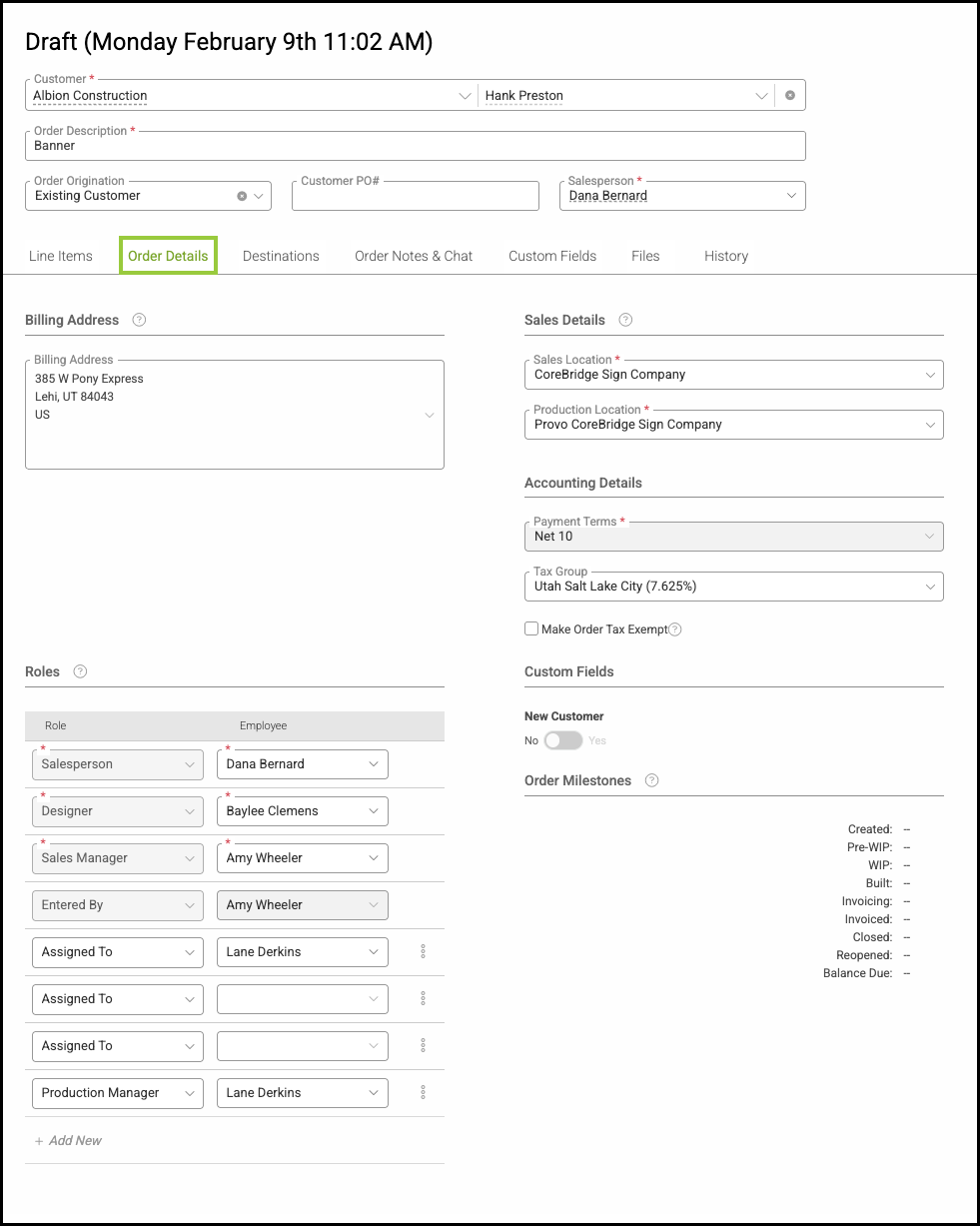
Creating Teams in CoreBridge allows you to efficiently organize and group your employees. By setting up Teams, you can save time by eliminating the need to select individual employees and roles each time you create an Estimate or Order. Teams are most effective when they include a mix of employees with different role types, ensuring flexibility and coverage for various tasks.
Table of Contents
Adding Teams
Navigate to Management / My Business / Teams.
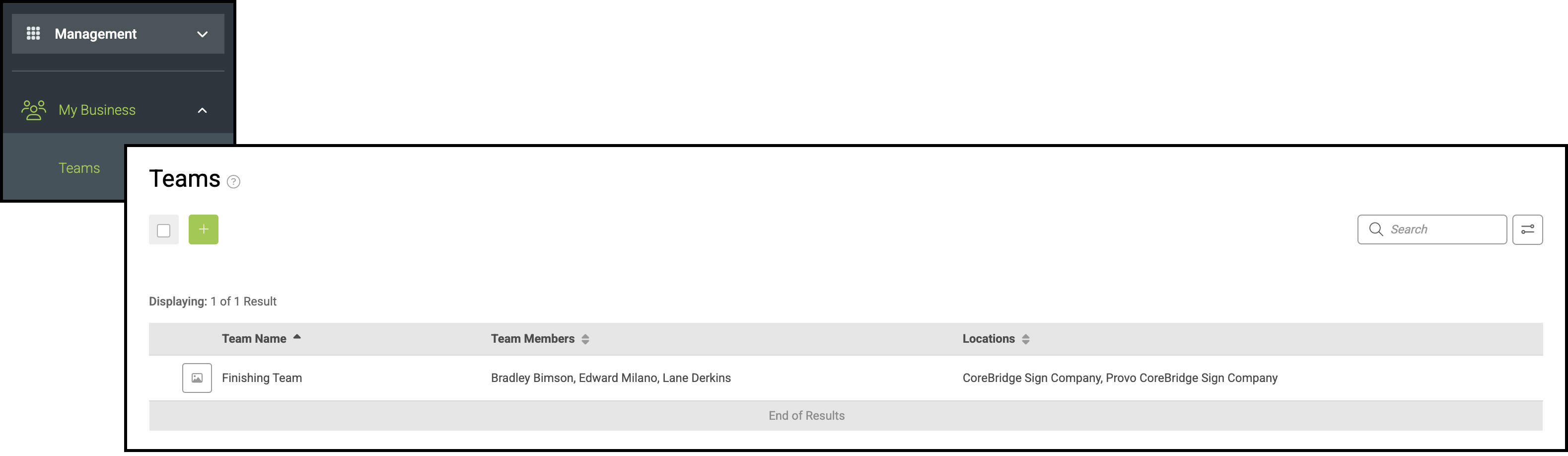
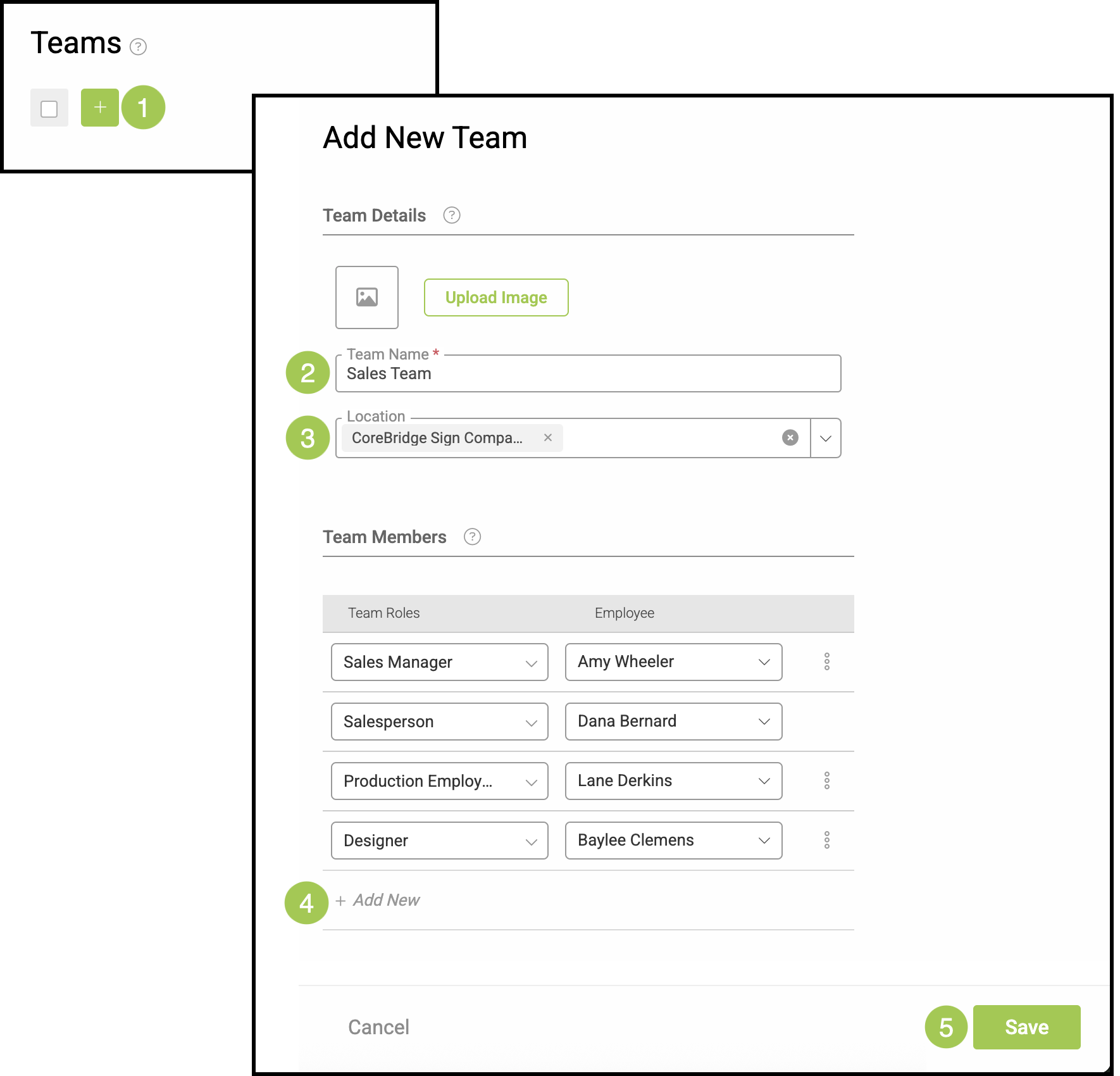
1. Click the Green Plus button.
2. Choose a Team Name that reflects the focus of the Team.
Example: Finishing Team or Basic Project Team.
3. Select one or more Locations that will be allowed to see and use the Team.
4. Select each of the Team Roles and Employees that you would like on this Team by clicking the +Add New button and selecting from the dropdown menus.
Note: Before you can add an employee to a team, their role must first be created in Settings / My Business / Employee Roles & Permissions and that role added to the employee's profile in Management / My Business / Employees. For more information about Roles and Permissions, please see Employee Roles and Permissions, or Application of Employee Roles.
Assigning Teams
After a Team is created, it can be assigned at the Company level. When a Team is assigned, any Estimates or Orders created for that Company will automatically include the appropriate Team members based on their assigned Roles.
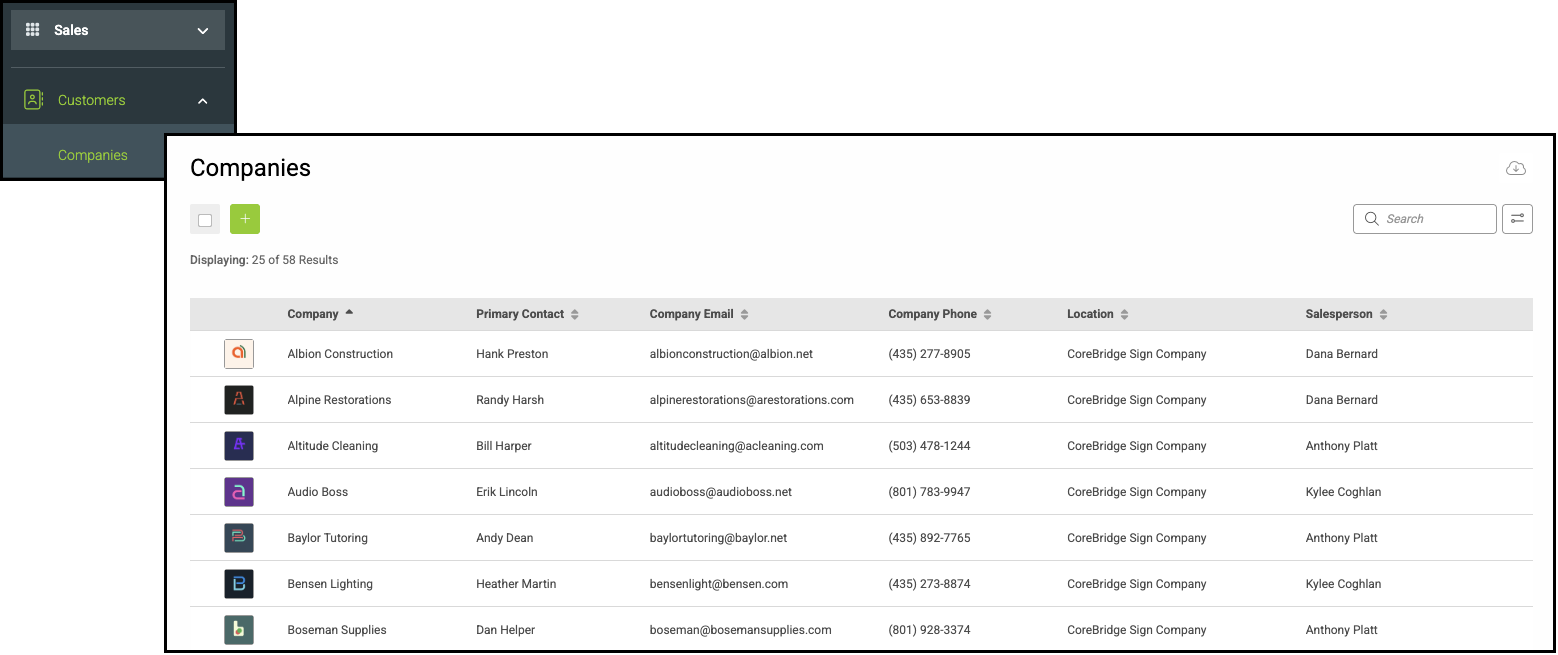
Navigate to Sales / Customers / Companies and select the appropriate Company.
1. Select the Company Details tab.
2. Select the appropriate Team using the dropdown menu.
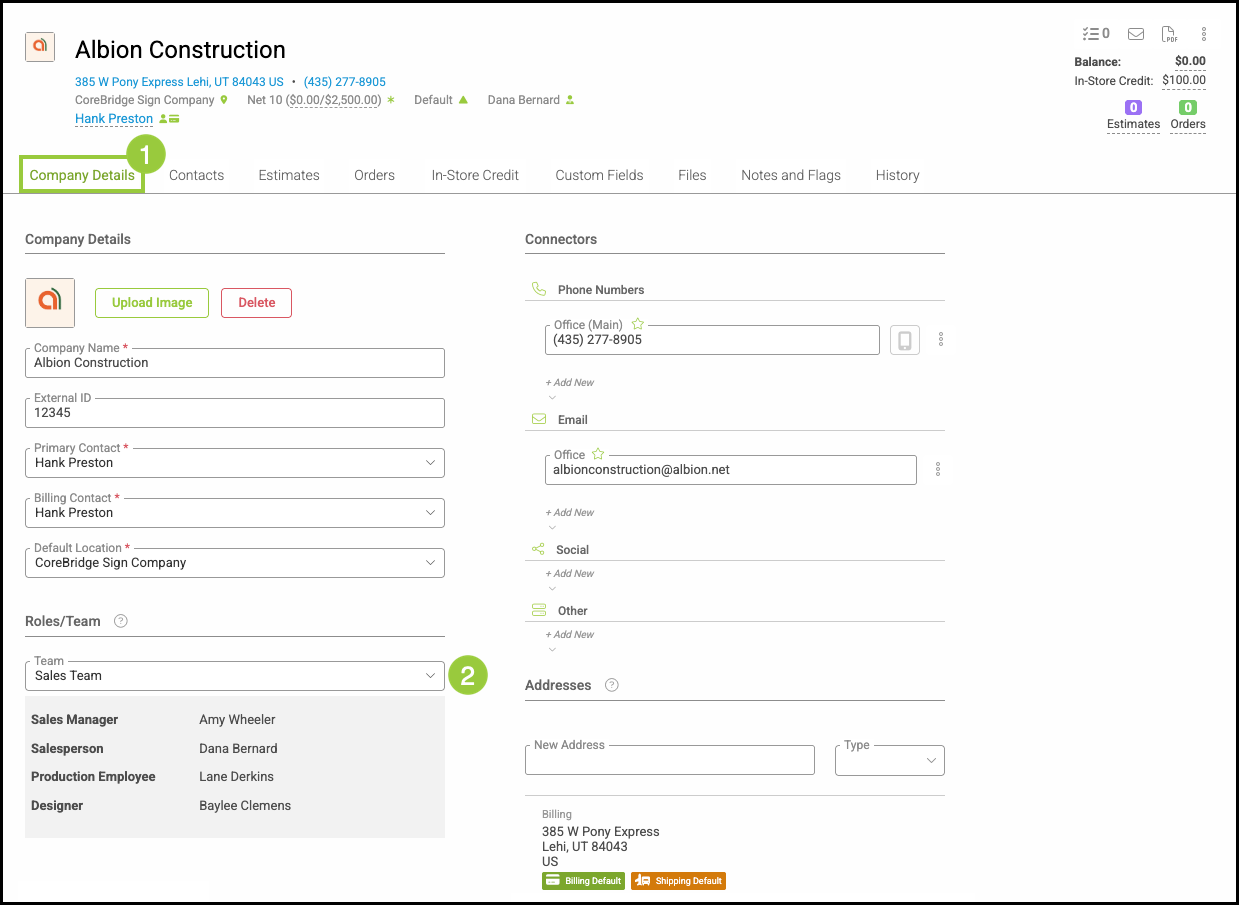
- These employees will automatically populate in the appropriate Roles when creating Orders and Estimates for this Company.
- These Roles can be edited on individual Orders and Estimates.
- Roles can be added on individual Orders and Estimates.
- Team members are applied only to newly created Estimates and Orders and do not update existing records.
- The Roles must be added to the Roles list prior to the Team being selected in order to automatically populate.
Note: This can be managed in Settings / My Business / Application of Employee Roles. For more information, please see Application of Employee Roles.