
The Integrations Marketplace is the central hub where you can connect your system with a variety of supported applications. This area is organized into categories such as Calendars, Finance, and Payment, making it easy to explore options that fit your workflow. By enabling integrations, you can streamline day-to-day tasks, reduce manual work, and automate key processes across your operation.
Note: CoreBridge can help with integration setup and how the integration works within the system. Questions related to the third-party service itself should be directed to that provider.
Table of Contents
Marketplace Overview
Navigate to Settings / Integrations / Marketplace.
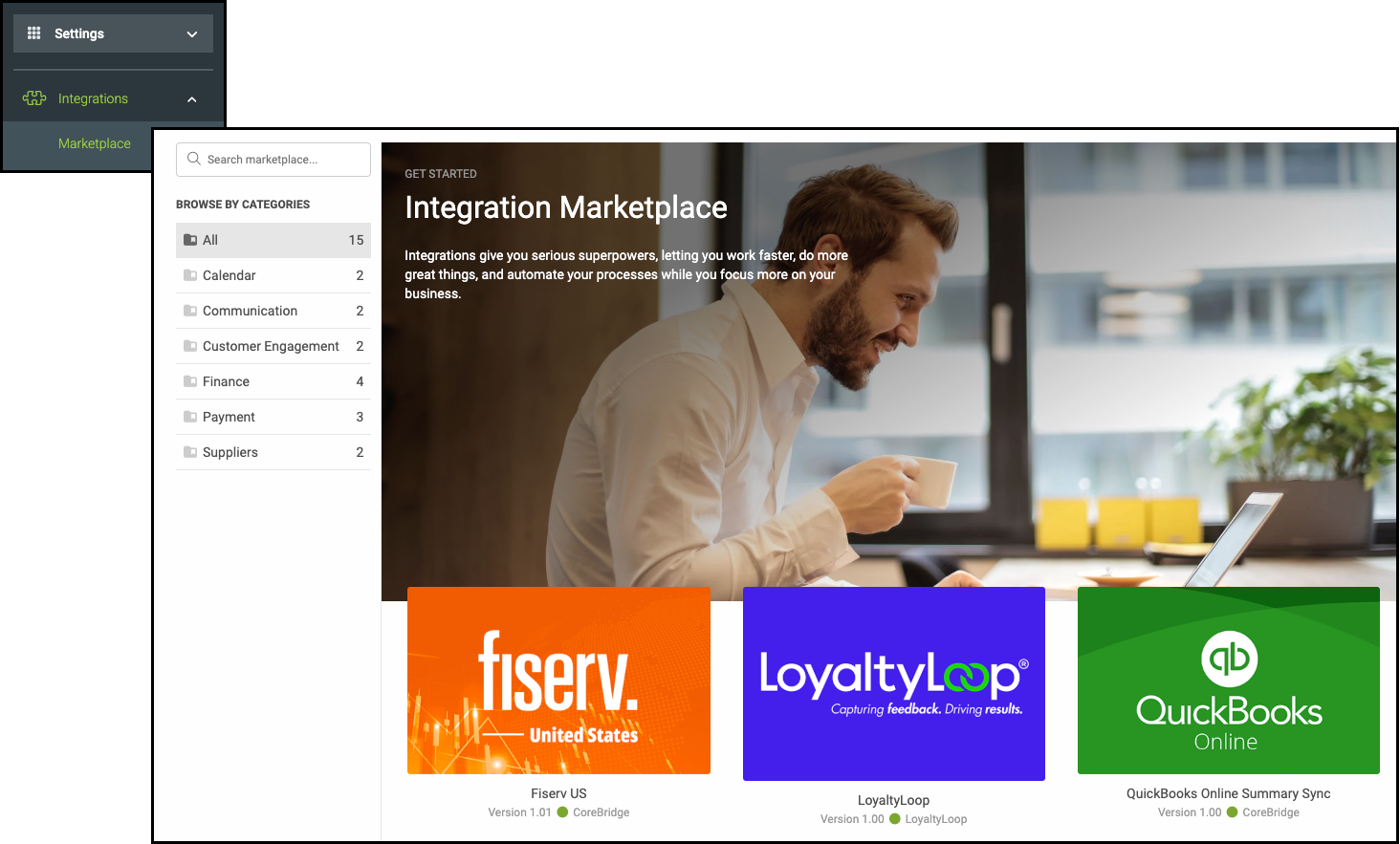
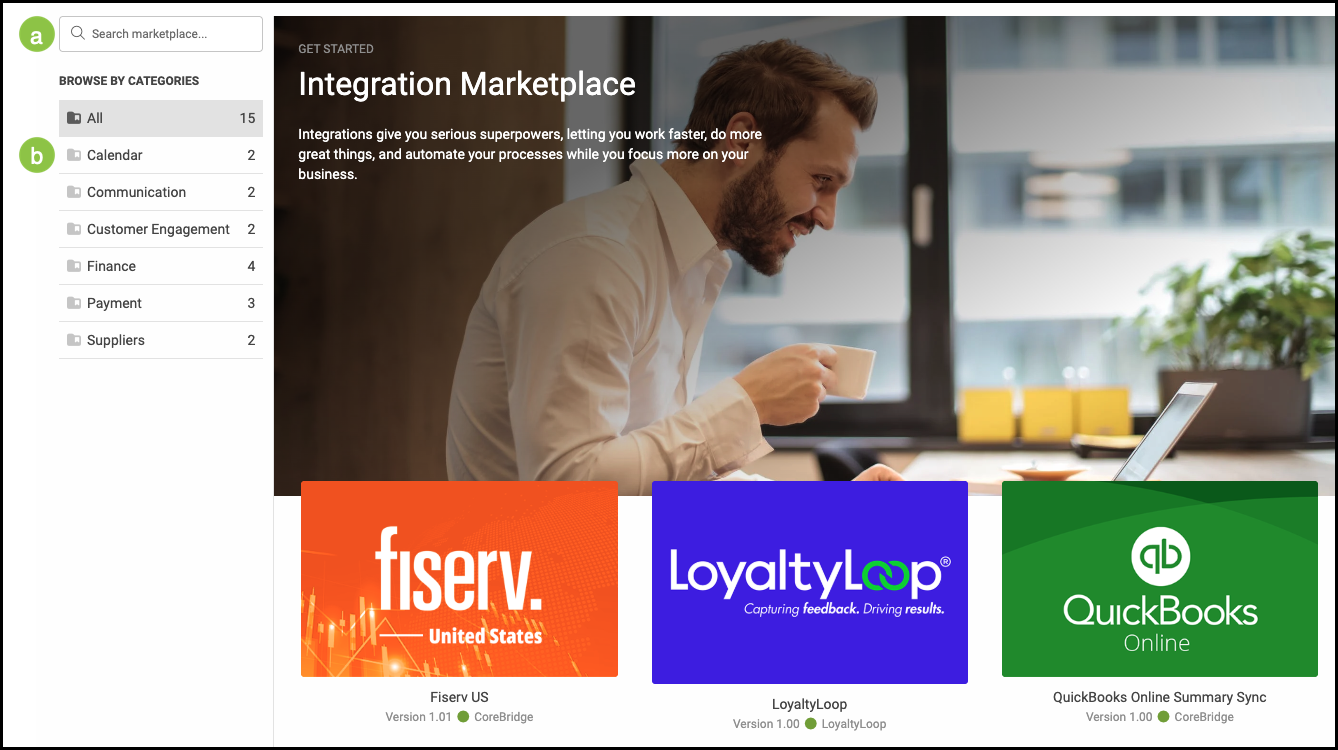
a. The Search Bar allows you to search for a specific integration by name.
b. Clicking into a Category allows you to browse available integrations.
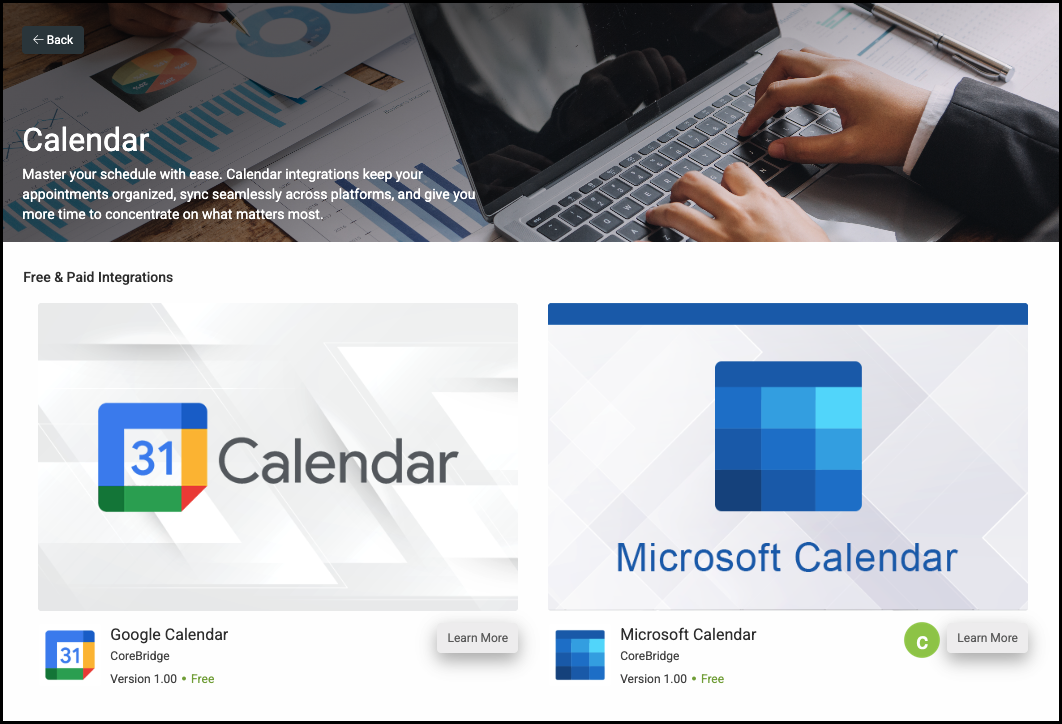
c. Clicking on the Learn More button or on the integration icon will open a new page with more information.
Note: Each integration will share a similar layout but have unique information. This article will use Microsoft Calendar as the example.
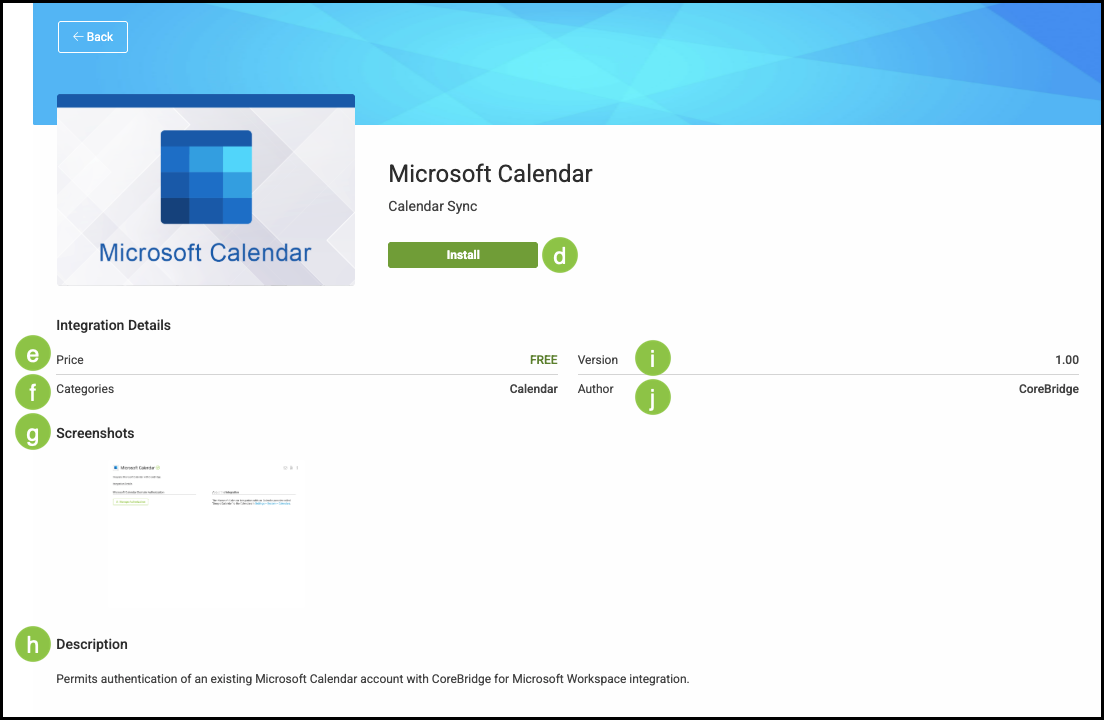
d. Clicking Install will begin the integration process.
Note: After the integration is installed, this button becomes View/Edit Settings. To fully integrate the application you will need to click on this and follow the instructions for that particular integration. See example below.
e. The Price associated with this application will be listed here.
f. The Category this application is associated to will be listed here.
g. Example Screenshots can be viewed here.
h. Brief Description of the application can be found here.
i. Current application Version is listed here.
j. Author of this integration.
Example:

Related Articles
CoreBridge's Integrated Merchant Service Providers
CoreBridge's Supported Accounting Integrations
Fiserv AUS - A CoreBridge Integrated Merchant Services Provider
Fiserv US - A CoreBridge Integrated Merchant Services Provider
Support Expectations for Accounting Integrations
QuickBooks Online Summary Sync