
Variants allow you to manage multiple options of a single Material, such as different colors, sizes, or other defined attributes. Instead of creating separate Materials for each option, Variants group these choices under one Material while still supporting accurate pricing, costing, and inventory tracking.
For more information on Materials, please see Materials Overview.
Table of Contents
Locating Variants
To locate Variants, begin by navigating to Settings / Components / Materials and select a Material with Variants.
Note: For more information on Materials with Variants, please see Materials With Variants Overview.
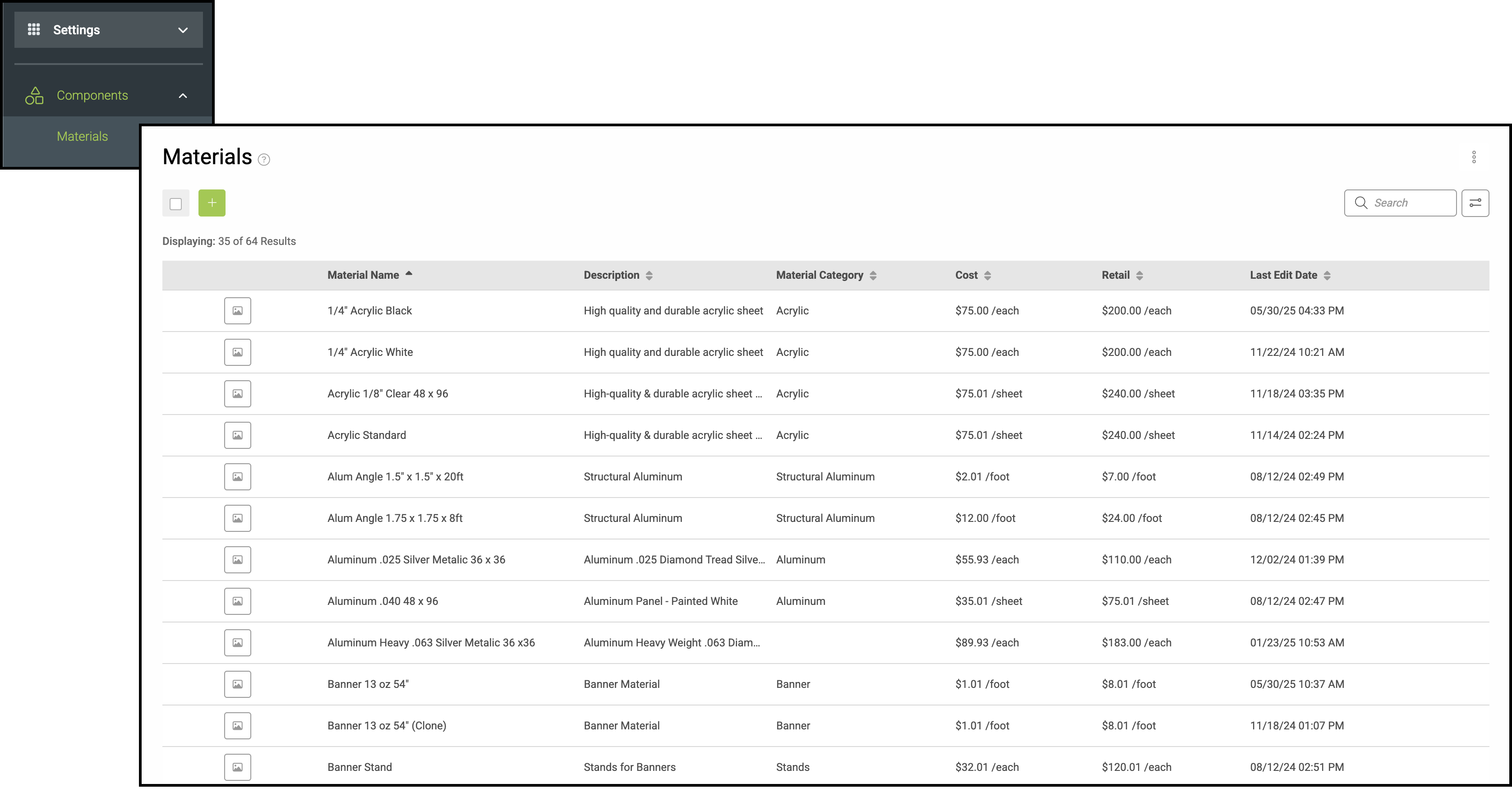
Note: Materials with Variants will be indicated as such on the Materials Screen.
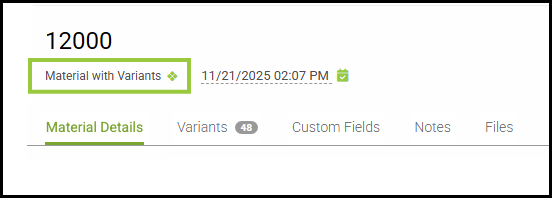
1. Select the Variants tab.
2. Select the Variant.
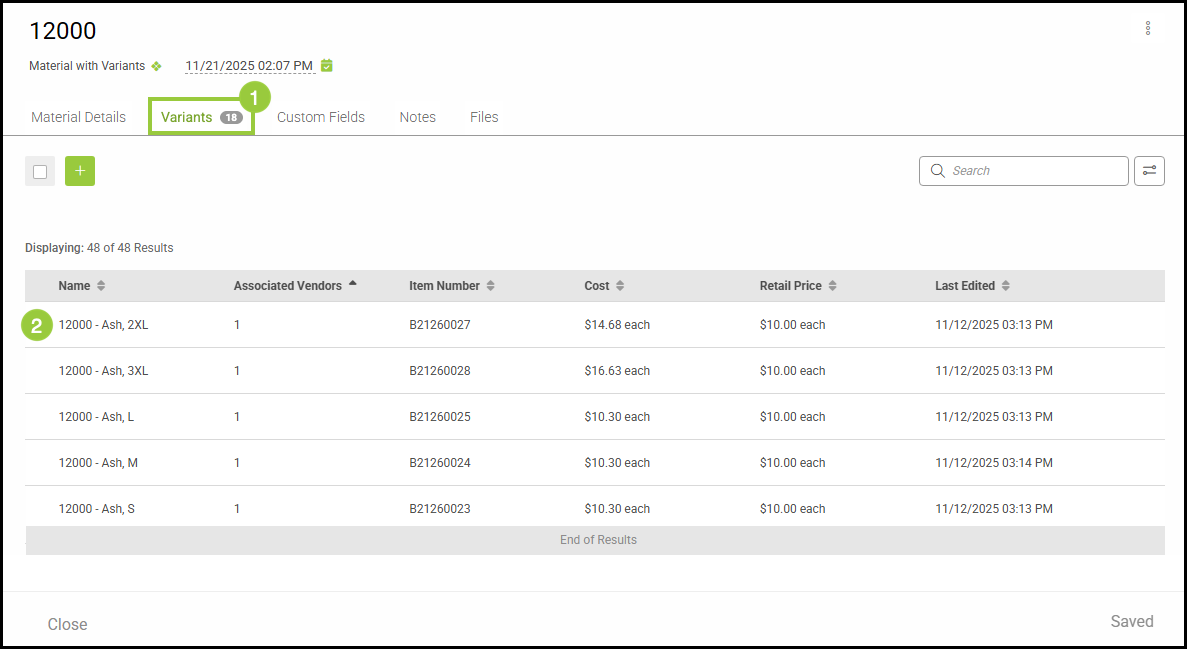
Variant Screen
a. Variant Name
b. This shows the most recent date and time the Variant was updated.
c. These tabs across the top allow you to navigate between topics within the Variant.
d. Use this Ellipsis to access these options from within the Variant.
Note: Variants that are currently used on an Estimate or Order cannot be deleted. Instead, set these Variants to Inactive.
Variant Details Tab
The Variant Details tab stores information unique to a specific Variant, separate from the details shared by all Variants within the Material.
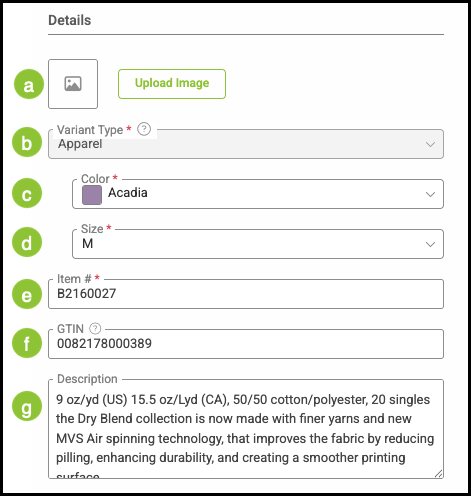
Details
a. Upload Images of the Variant, if desired.
b. A Variant Type is a predefined group that organizes the options available for a Material with Variants. Each Variant Type includes the Properties and Values a Material can use, such as color or size.
Note: Apparel is the only currently available Variant Type.
c. Color specific to this Variant.
d. Size specific to this Variant.
e. Item Number.
f. A Global Trade Item Number (GTIN) is a universal identifier used to recognize the same Product across different brands and suppliers. Vendors may use their own item numbers, but the GTIN remains consistent.
g. Description for this Variant.
Attributes
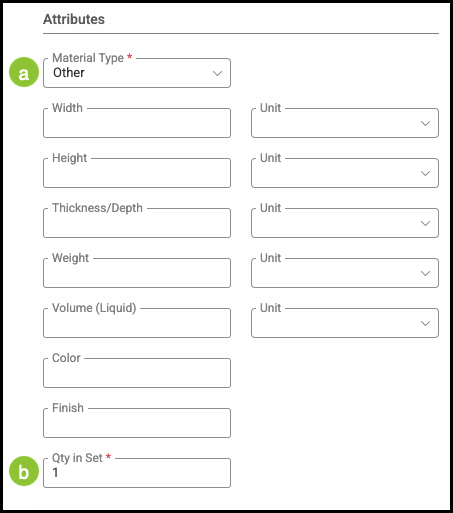
Attributes define the physical characteristics and specifications of a Variant. These properties help ensure accurate quoting, production, and inventory management. While Material Type and Quantity in Set are the only required fields, it is recommended to complete as many fields as possible.
a. The dropdown allows you to select the Material Type such as Roll, Sheet, or Other.
b. Qty in Set shows how many of this Material are sold in a set.
Cost
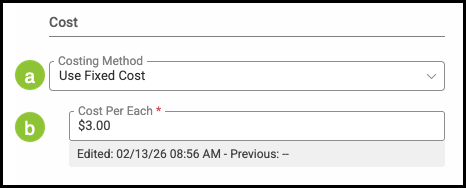
a. The Cost Estimating Method determines how the system calculates the cost of a Material.
b. Cost Per Each is the unit cost of a single item of this Material. This value is used in job costing and pricing whenever the Material is measured or sold per individual piece.
Lead Time
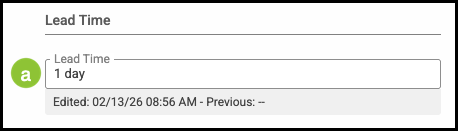
a. Lead Time indicates the amount of time required to complete the Order from the point it is created.
Retail Price
Retail Price
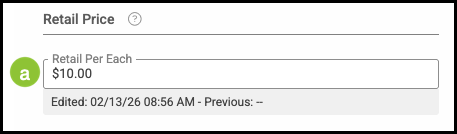
a. Retail Per Each is the price to the customer for just this Variant if purchased outside of an assembly.
Vendor Items Tab
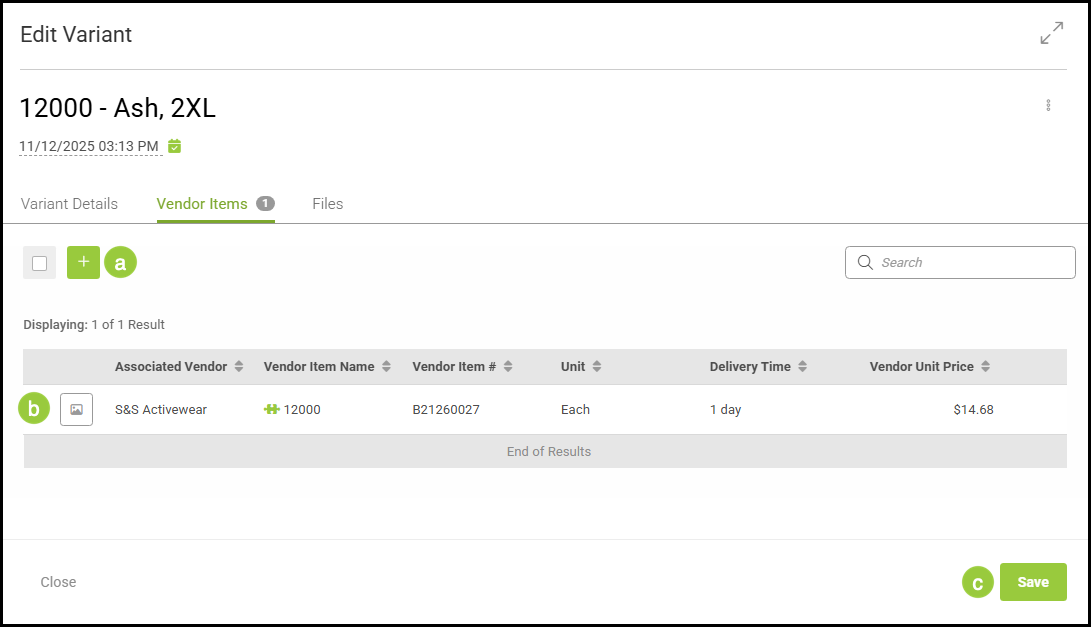
a. New Vendor Items can be added by clicking the Green Plus icon.
b. Clicking on a Vendor Item will show you more detail.
Note: See example below.
c. Changes made need to be saved manually.
Example:
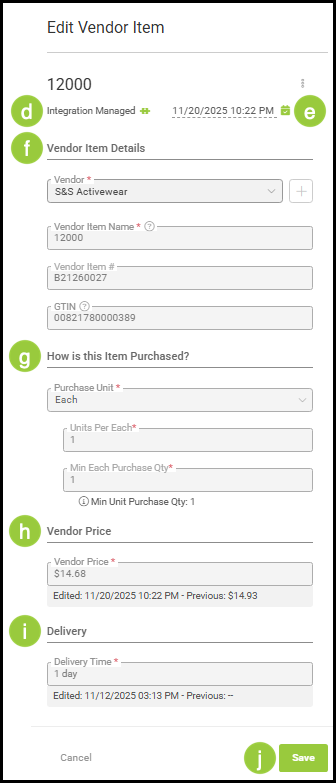
d. This indicates if the Vendor Item is managed by the Integration.
Note: Information in this pop-up will automatically populate for items managed by the Integration and cannot be changed.
e. This shows the most recent date and time the Vendor Item was updated.
f. Vendor Item Details include basic information such as the Vendor the item is purchased from, Name, Item Number, and GTIN, if applicable.
g. This information pertains to the Quantity in each Unit purchased.
h. Vendor Price refers to the amount charged by the Vendor for the Item.
I. Delivery refers to the time it takes for the Item to arrive after it has been ordered.
j. Changes made to this screen need to be saved manually.
Files Tab
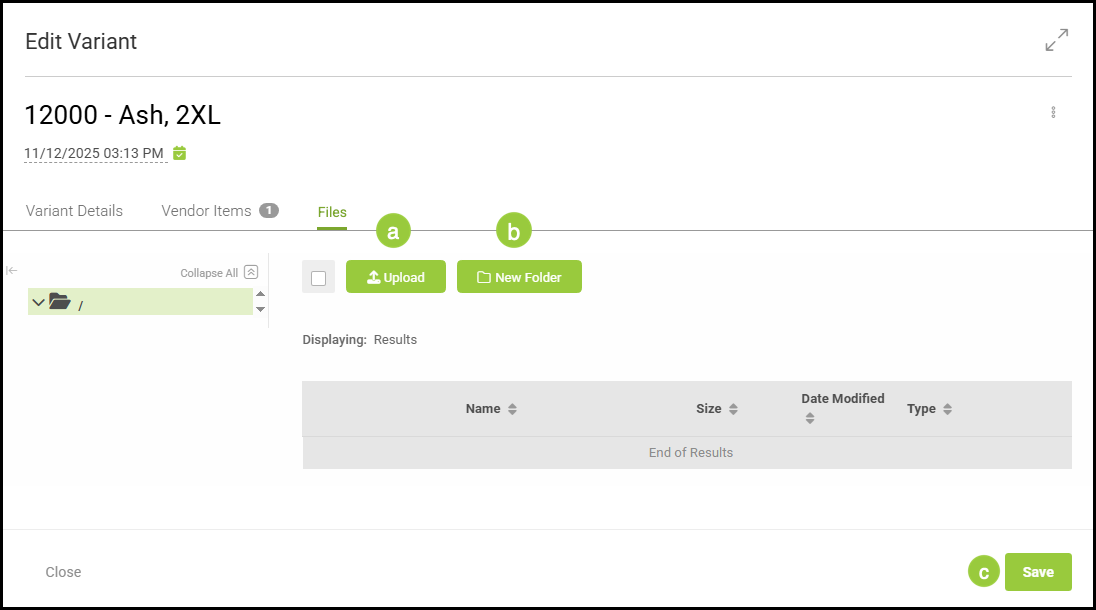
The Files tab offers a way to organize and store important documents related to this Variant such as vendor contracts, purchase history, or safety data sheets.
a. Information can be directly uploaded as a file or URL.
b. Use Folders to group and manage files, keeping your information organized.
c. Changes made need to be saved manually.
Related Articles
Materials With Variants Overview