
Within CoreBridge, Line Items represent individual items and products sold by your business. Adding and editing these items within your system can assist in checking Customers out quickly, delivering accurate Estimates, and creating effective Orders.
Table of Contents
- Adding Line Items
- Override Line Item Pricing
- Adding Line Items from the Clipboard
- Viewing the Line Item Within the Order
- Line Item Due Dates
- Related Articles
Adding Line Items
The process for adding Line Items is the same for all Estimates, Orders, and Quick Prices.
To add a line item navigate to Sales / Estimates, Orders, or Quick Price.
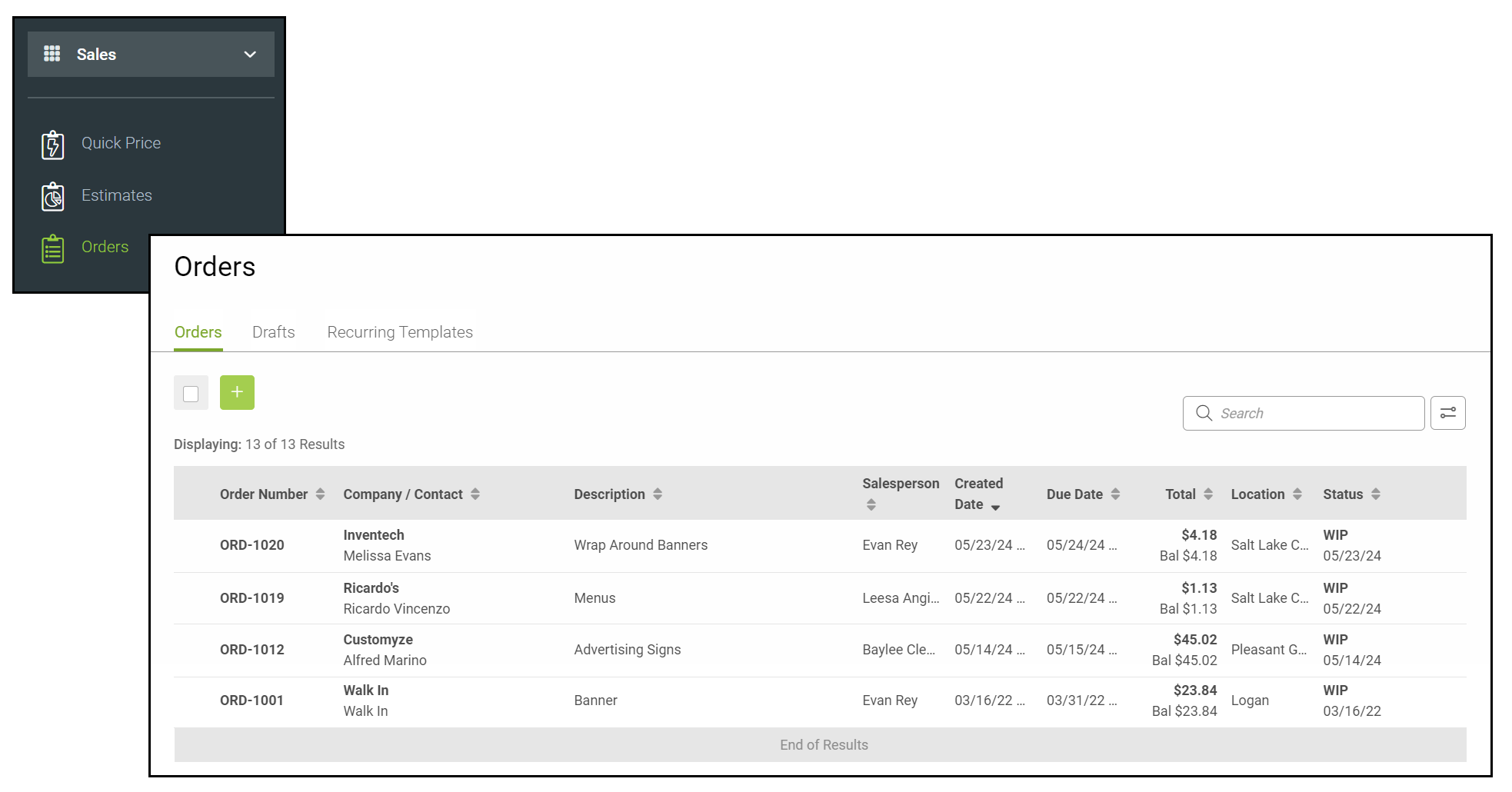
1. Create a new Order, Estimate by selecting the Green Plus Button.
Note: When creating a new Quick Price go directly to step two.
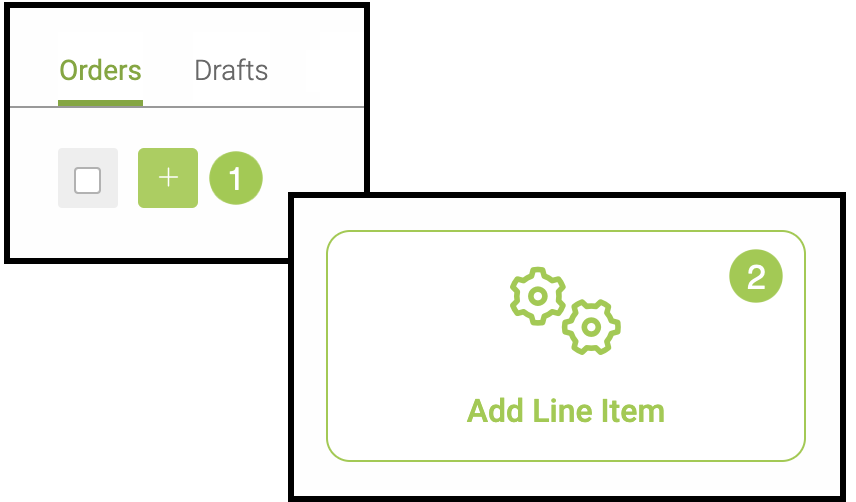
2. Select Add Line Item. For information on the basic Order/Estimate building blocks, please see Creating an Estimate/Order.
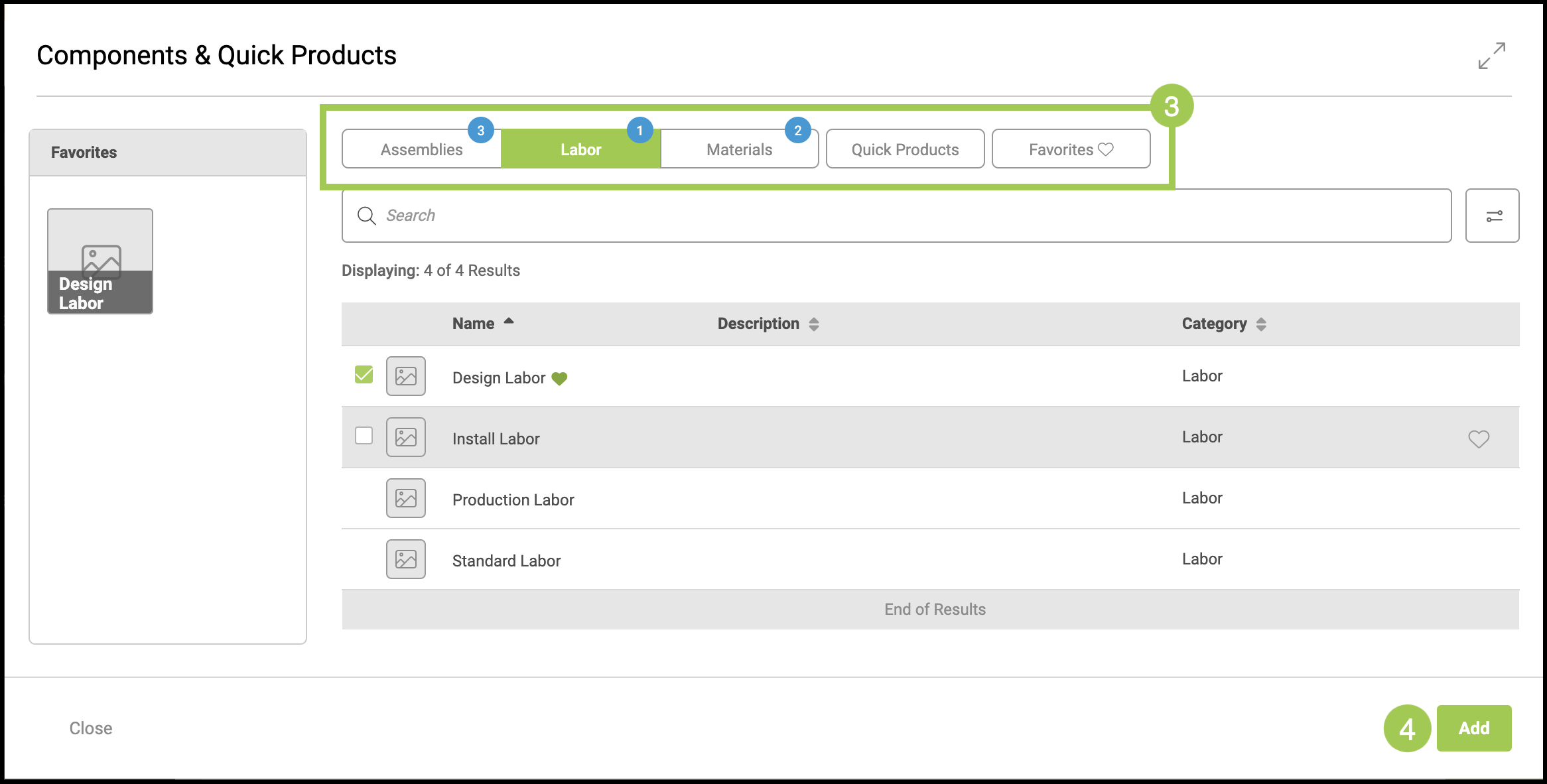
3. Select the components from the Assemblies, Labor, Materials, Quick Products or Favorites tabs. The amount of items selected from each category will display in blue numbers.
- Assemblies - a customized combination of Machines, Labors and Materials.
- Labors - different types of labors needed for a product to be created.
- Materials - physical products sold by the business, or that will be used to create a product for a customer order.
- Quick Products - pre-created products to be used in orders.
- Favorites - any of the above components that have been selected by you. These also appear in the favorite column on the left.
Note: to select an item as a favorite, hover cursor over the line of the desired item, then click the heart icon that appears on the right. The item will then automatically show in the favorites column. To remove a favorite, hover over the line and select the broken heart icon that appears on the right.
4. Select Add. This will automatically open the Line Item Menu.
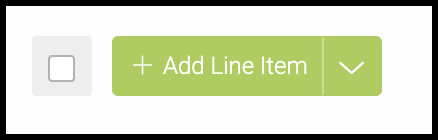
Note: Once a line item is added, the Add Line Item button will become a green bar.
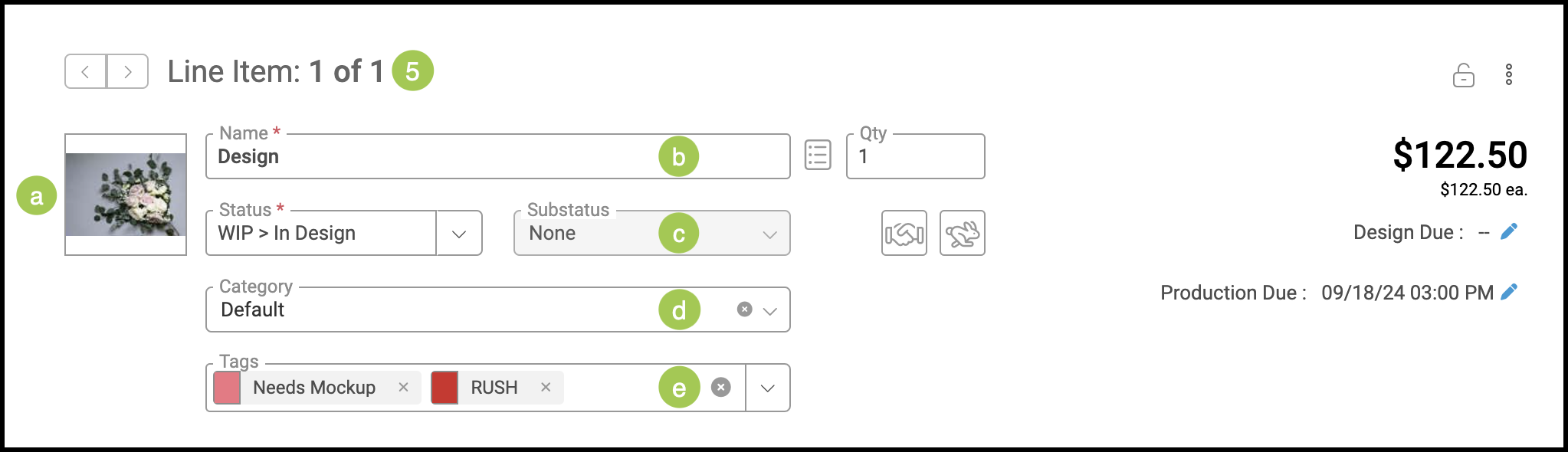
5. Enter the basic details.
a. Image - this is the image that will appear under the Customer tab and as the proof for your customers.
b. Name - this will be customer visible on documents that include the line item.
c. Status and Substatus - labels to track where the item is at in its workflow lifecycle.
d. Category - the Category is another way of grouping line items. Categories can be a higher overview of what customers are frequently purchasing.
Example: Signage, banners, or flyers.
Note: Categories can be managed at Settings / Sales / Line Item Categories.
e. Tags - an additional label that can be assigned to line items to visually monitor progress, or provide more information. For more information on Tags, please see Using Tags and Tag Set Up.
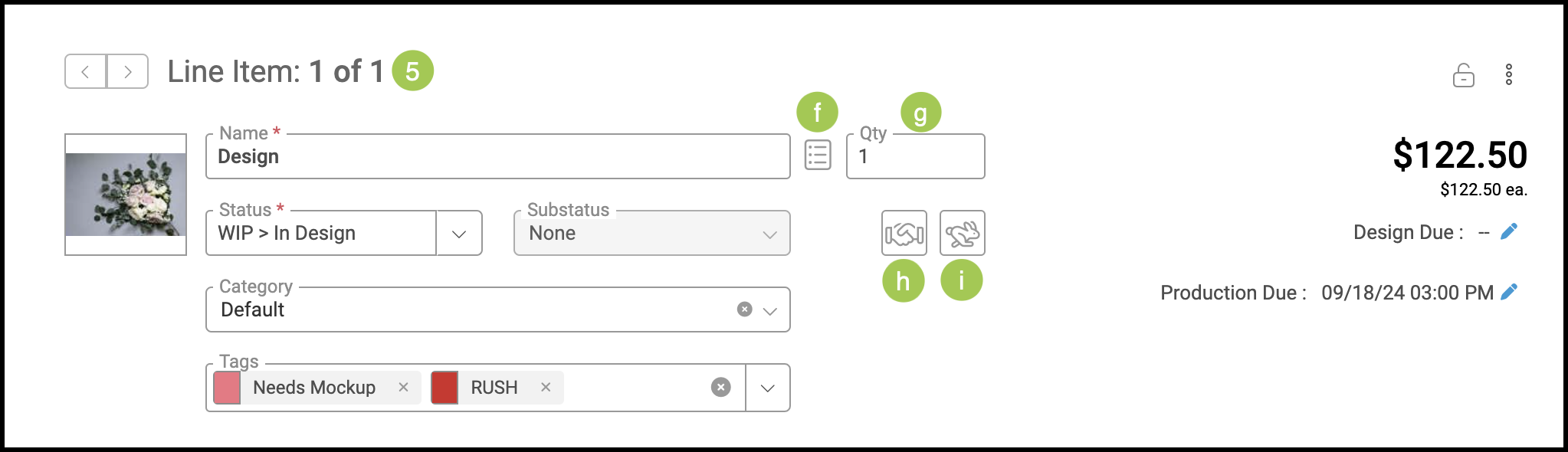
f. The Checklist icon next to the Name can be used to quickly view the Customer Item Description.
g. Quantity - how many of the line items will be included in the order/estimate/quick price.
h. Mark if the item is Vended (Handshake Icon) - orders your business is not personally manufacturing. They have been sourced by a vendor outside your company.
i. Mark if the item is Rushed (Rabbit Icon) - orders that need to be expedited.
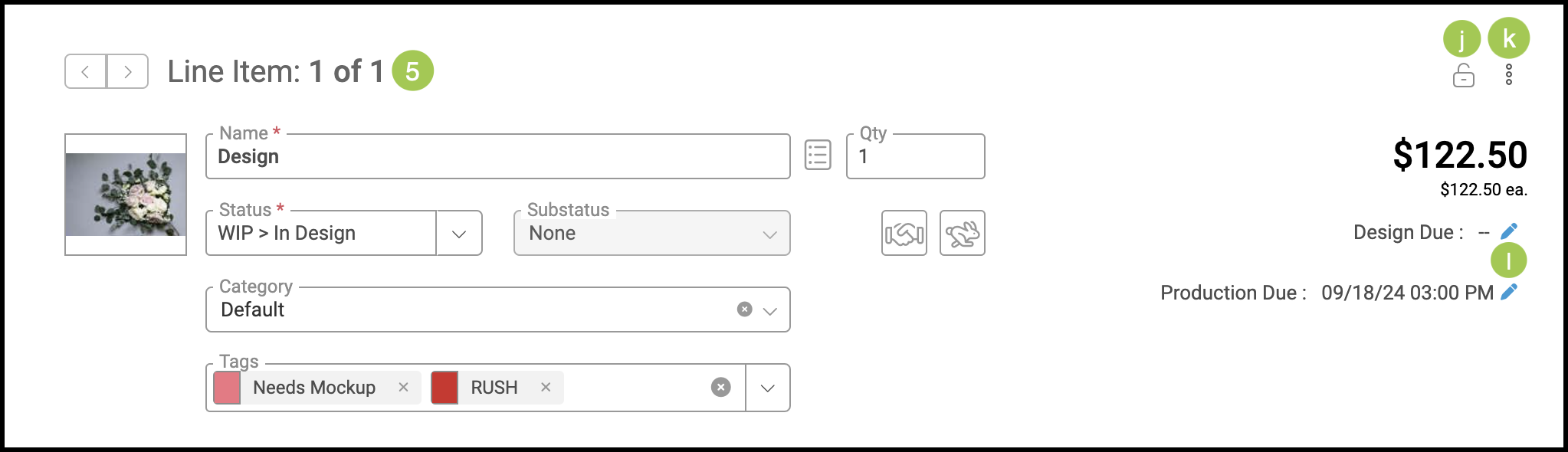
j. Use the Lock icon to lock the item's price. This prevents any line item or order discounts from being applied to the item.
k. Use the Ellipses to Copy to Clipboard, Move, Clone, create a Quick Product out of the line item, Add Notes, view the Variable Grid. access Bill of Materials, or Delete the item.
Note: For more information on using the Clipboard, please see Clipboard Feature. For more information on the Bill of Materials, please see Bill of Materials.
l. Select the Pencil icon next to Design Due or Production Due to change the respective due dates.
Note: The arrows at the top left can be used to quickly navigate between multiple line items.
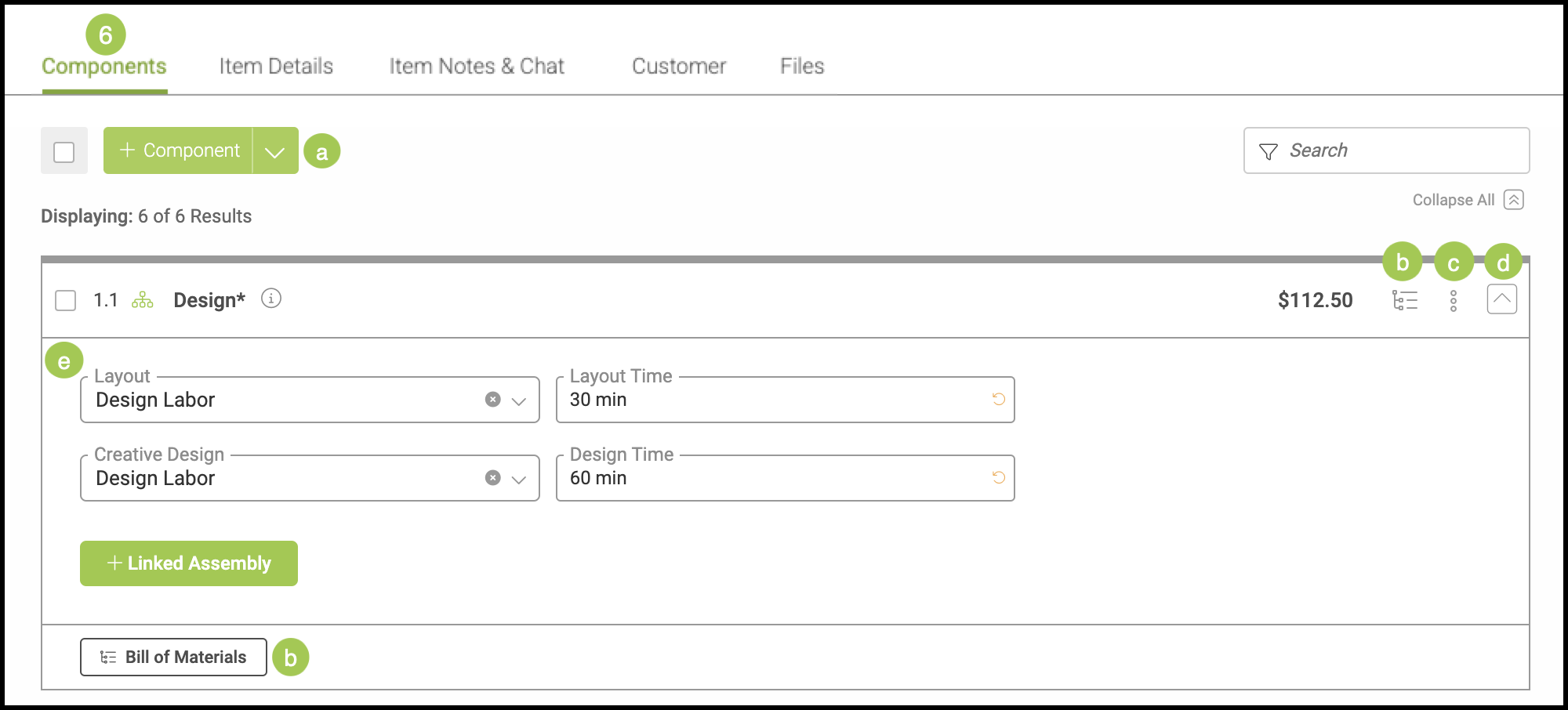
6. Input the needed information under Components. These are the individual pieces that comprise the Line Item.
a. Select the Green + Component icon if you would like to add additional components to the line item. Once a Component is added, it can be quickly seen from this menu.
Note: The dropdown also gives you the option to add Assembly, Labor, or Material.
b. Use the Bill of Materials icon to view the Bill.
c. Use the Ellipses to Copy to Clipboard, Move, Clone, create a Quick Product out of the line item, Add Notes, view the Variable Grid. access Bill of Materials, or Delete the item.
d. The expand and collapse arrow will allow you to view the component details for each line item.
e. The information contained in this box will change depending on the component selected. Filing in the correct information pertaining to each particular component will keep your order and billing information accurate.
Example: Unit Price, Quantity, and Description.
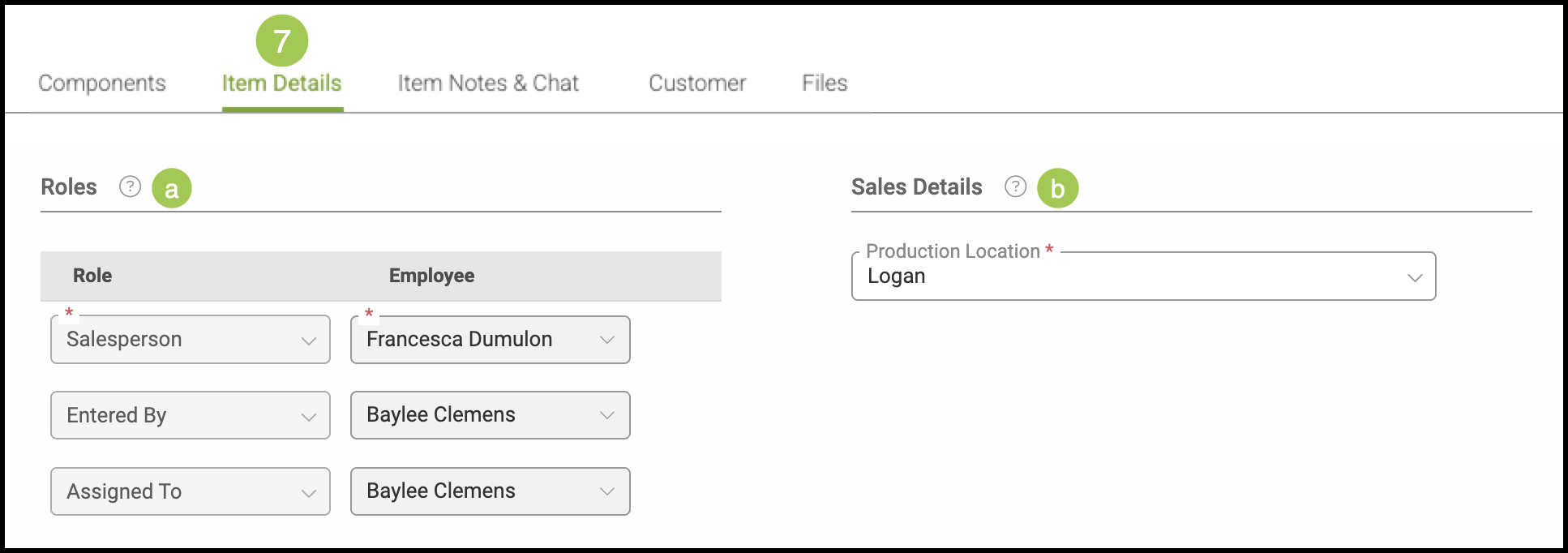
7. Input Item Details. These can be edited during or after line item creation.
a. Input the Roles - individual employees who will fill the needed positions for the line item. The required roles are marked by a red asterisk and can only be added from within the Order Details tab. For more information, please see Employee Roles and Permissions.
b. Input the Sales Details - select a Production Location for the line item.
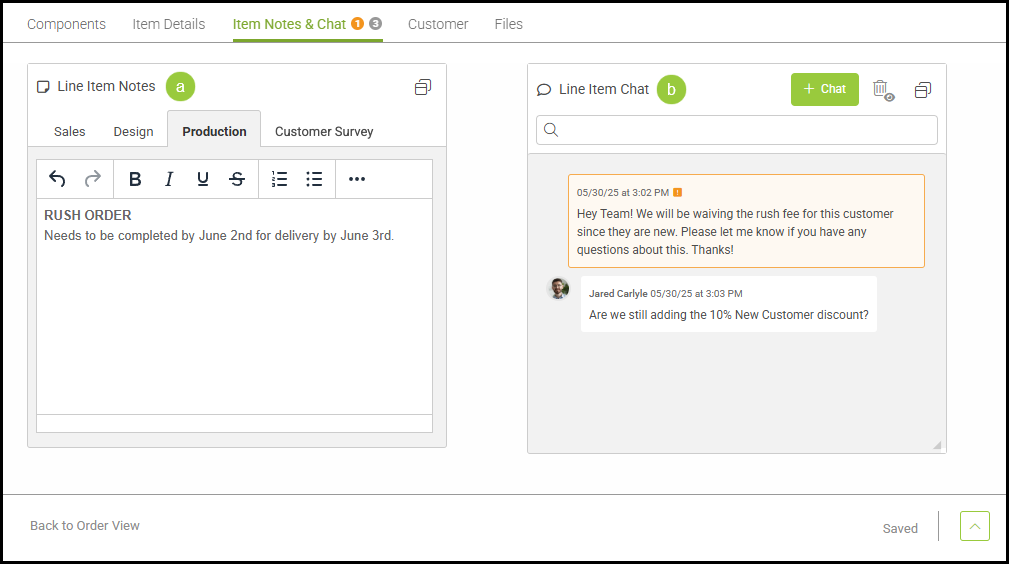
8. Input any Item Notes & Chats.
a. Line Item Notes - Any internal notes that are related to the line item. A history of all notes that are added and deleted will be recorded in the Estimate History and Order History tabs.
Note: Each tab, also known as a Note Group, can contain its own set of notes. Note Groups can be created and managed in Settings / Sales / Note Groups.
b. Line Item Chat - internal messages related to the line item that capture the message, who sent it, and when it was sent.
Note: The total number of chats will be displayed next to Item Notes & Chat in a grey number bubble. If any chats have been marked as important, the total number of important chats will be displayed in an orange number bubble.
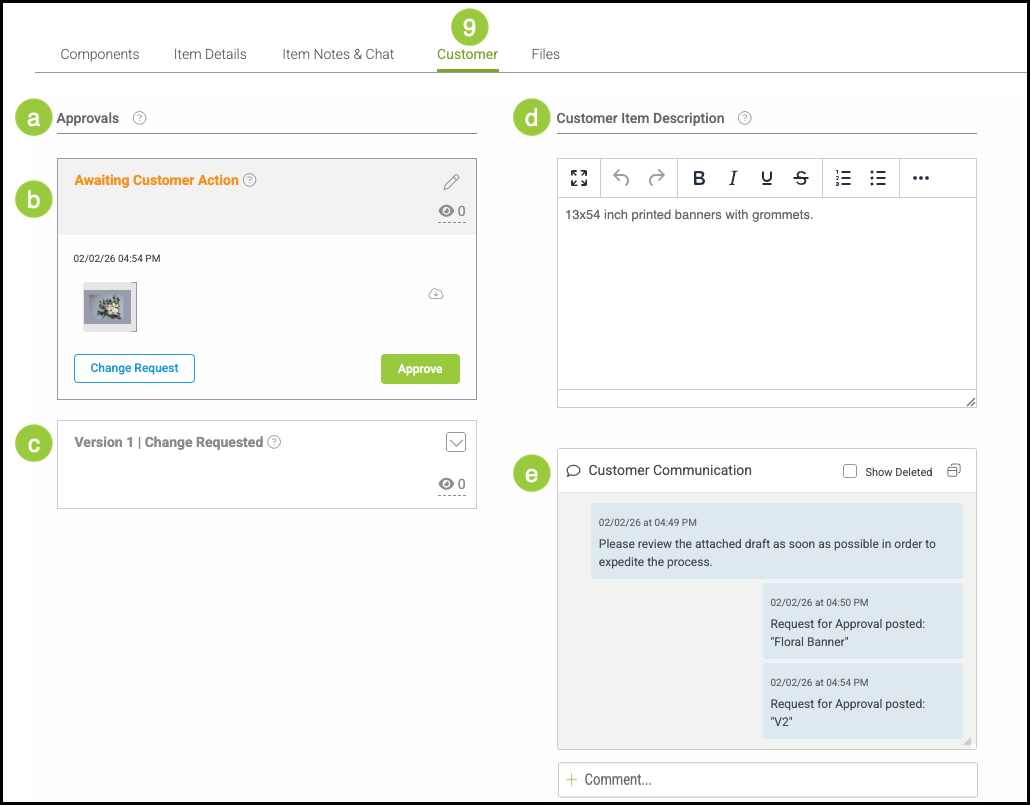
9. Upload needed information to the Customer section.
a. Approvals - upload mockups and descriptions of orders for customers to review and accept. Enter information within the Draft section and select Post for Customer Approval to submit a proof.
b. This section details where the Line Item is in the process of Customer Approval. Approval statuses include:
- Draft - Images are set to draft before being sent to the Customer.
- Awaiting Customer Action - Images are set to this status while waiting Customer feedback.
- Change Requested - This status indicates the Customer would like revisions.
- Approved - This status indicates the image has been approved.
- Not Approved - This status is shown when a Line Item is manually set to a non-approval status without the image being approved the the Customer.
Note: You can make the proof editable again by updating the Line Item status to any option listed under Prompt customer for Approval using this Status. This setting is located in Settings / Customer Portal / Customer Portal Options / Approval Process.
c. Approval Versions record the history of changes made to a Line Item during the approval process. Each version captures a snapshot of the information shared with the customer at that time, making it easy to see how details changed as feedback was applied.
d. Customer Item Description - add a description of the item to appear on the estimate, order, invoice and customer portal.
e. Customer Communication - directly message customers information pertaining to an order. They can view your messages from within the Customer Portal.
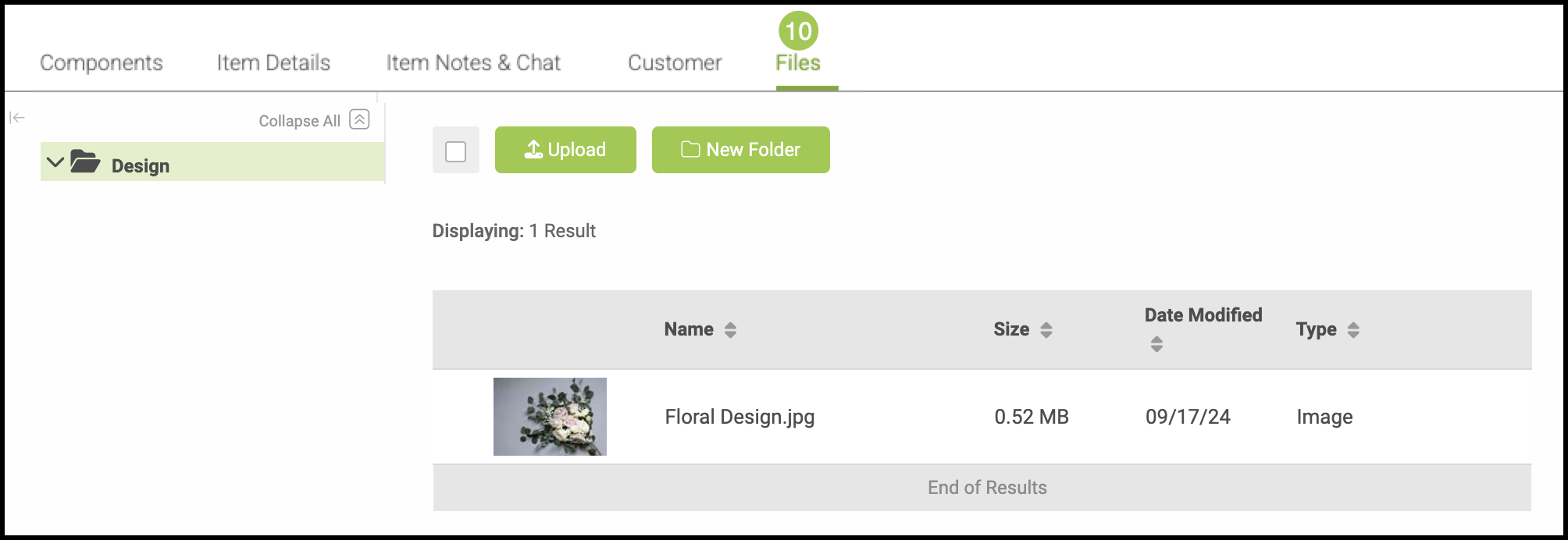
10. Upload any needed Files for your team to view and use. Files can be attached from your device or via URL. Create Folders to organize multiple files.
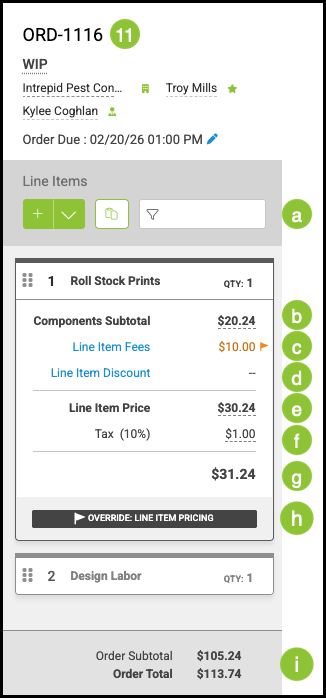
11. Use the sidebar to view and edit any financial information and view the overarching order details.
a. Use the Filter to view specific line items.
b. Component Totals - the initial cost of all the components.
c. Line Item Fees - fees created by you for the line item. This can be edited within Settings > Sales > Line Item Setup Fees. For more information, please see Order and Line Item Fees.
d. Add a Line Item Discount if needed. Select the link to add a discount Amount or Percentage. For more information, please see Discounts.
e. Line Item Price - the total price (including Discounts) before tax.
f. Tax - the line item's tax rate. This can also be impacted by the business's individual tax settings. For more information, please see Creating Companies.
g. Total for this line item.
h. The Override Line Item Pricing button gives you the option to adjust pricing. For more details, see below.
i. The bottom bar will reflect the Order Subtotal (without tax) and the Order Total (with tax.)
Note: When finished editing, select Back to Estimate View or Back to Order View.
Override Line Item Pricing
Line Item Overrides give you the ability to adjust Pricing across your Line Item and can be accessed from the sidebar within a Line Item.
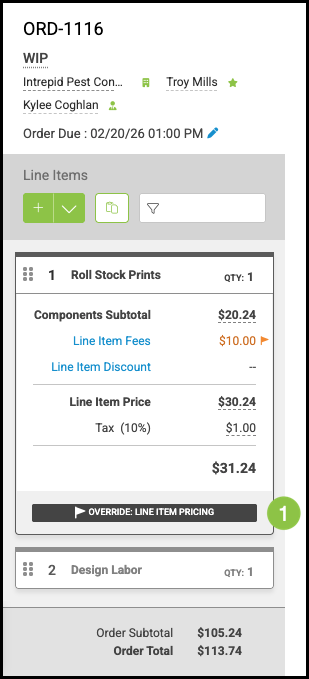
1. Click Override Line Item Pricing.
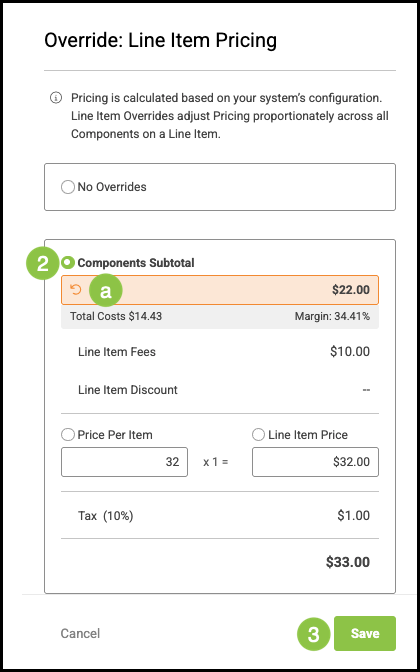
2. Select how you would like the override applied.
- Components Subtotal
- Price Per Item
- Line Item Price
a. The related field will be highlighted in orange, indicating it can be modified. You can adjust the price as needed. Select the back arrow to restore the previous price.
3. Click Save.
Adding Line Items from the Clipboard
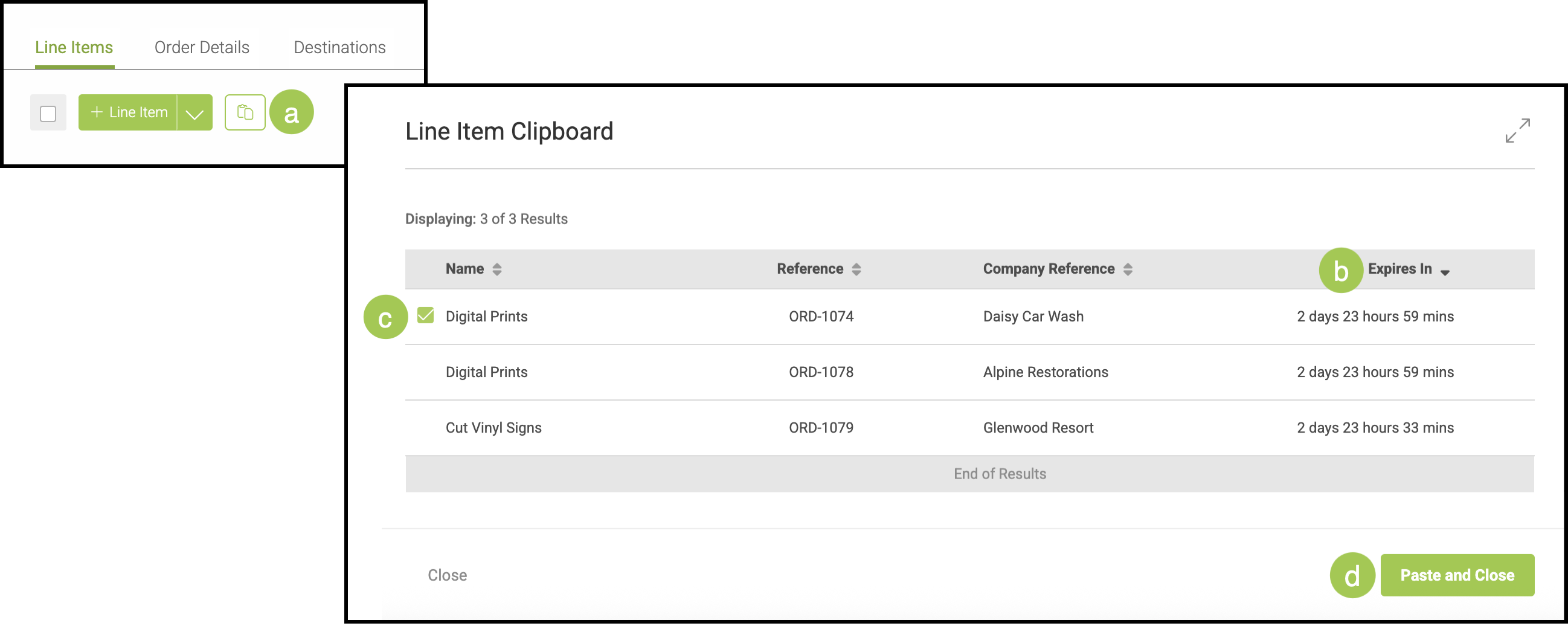
In the Line Items tab, you also have the option to paste in an existing Line Item from the Clipboard.
a. The Line Item Clipboard icon will bring up a popup with the clipped Line Items.
b. Each clipped item will remain on the Clipboard for three days.
c. You may check multiple Line Items to paste.
d. Clicking Paste and Close will add an exact copy of the selected Line Item(s) to your Order.
Note: For more information on the Clipboard, please see Clipboard Feature.
Viewing the Line Item Within the Order
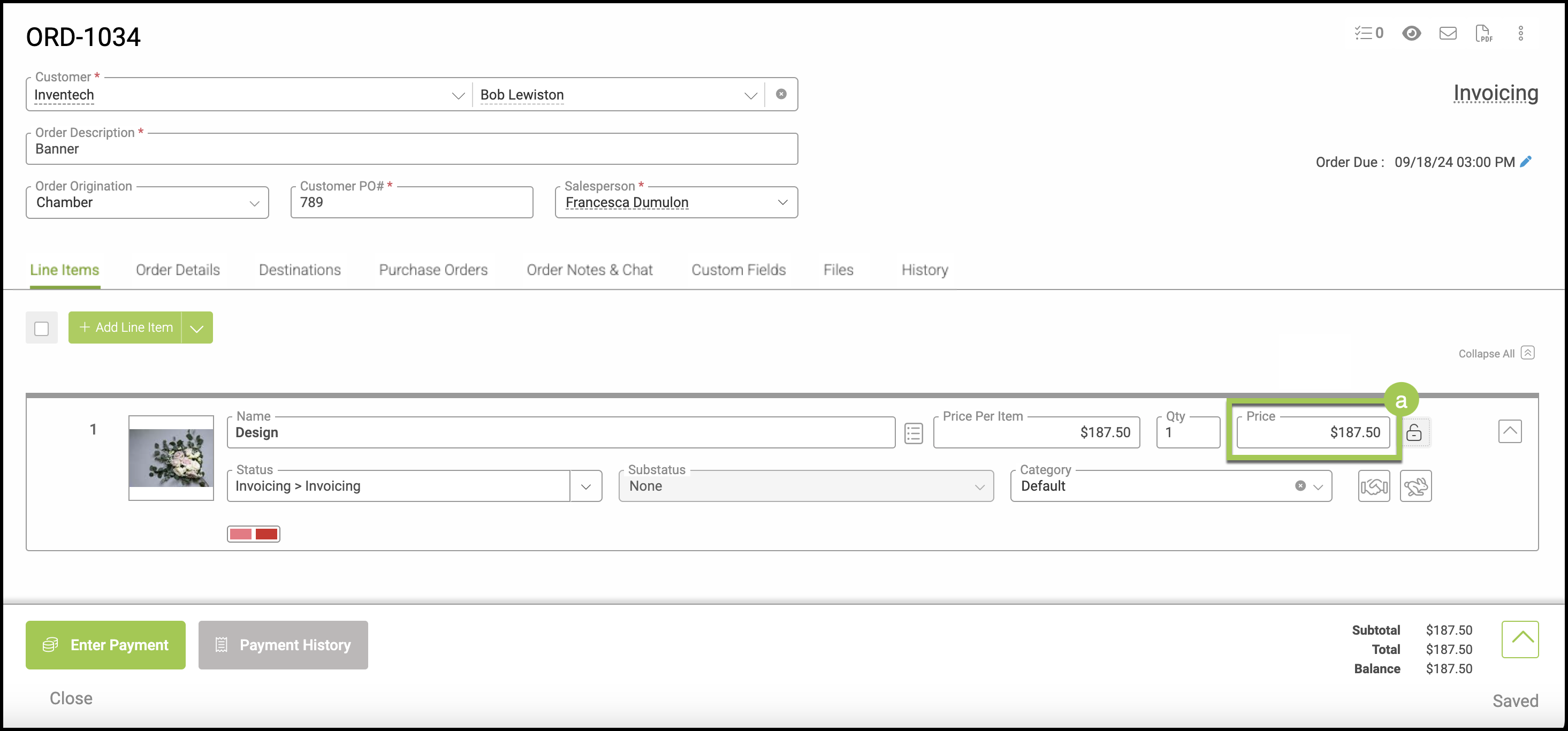
Once you have selected Back to Order View, the line item will appear within the Line Items tab. This shows the basic header details that appear at the top of the Line Item Menu. These details can be edited from this screen, or by selecting the line item.
a. The individual Price of the line item can also be changed from this screen.
Note: Any changes made will be automatically saved by the system.
Line Item Due Dates
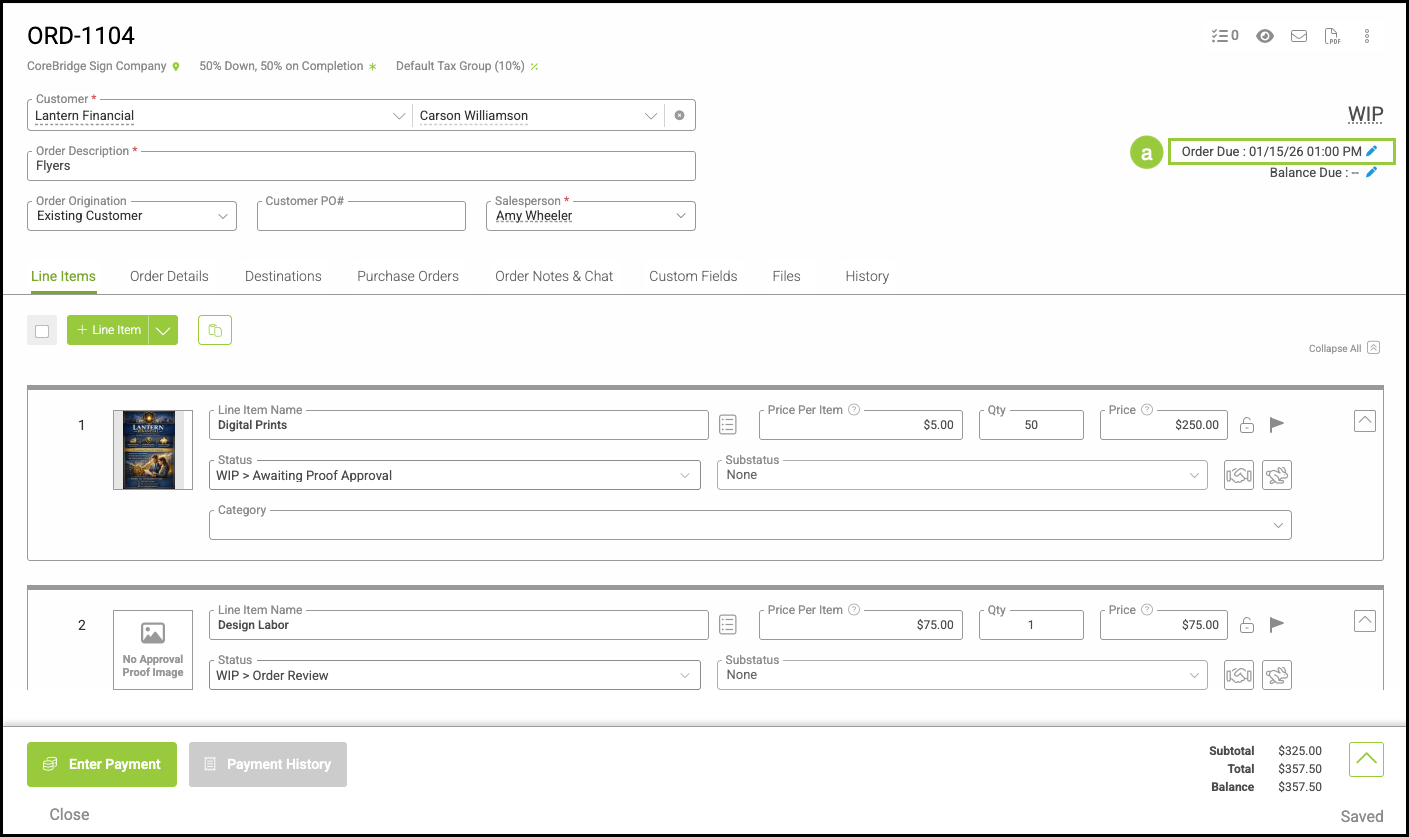
Line Items can each have their own due dates, independent of one another and separate from the overall Order due date. This section explains where to view these dates and the different ways to access the screen for updating them.
Opening the Due Dates Screen
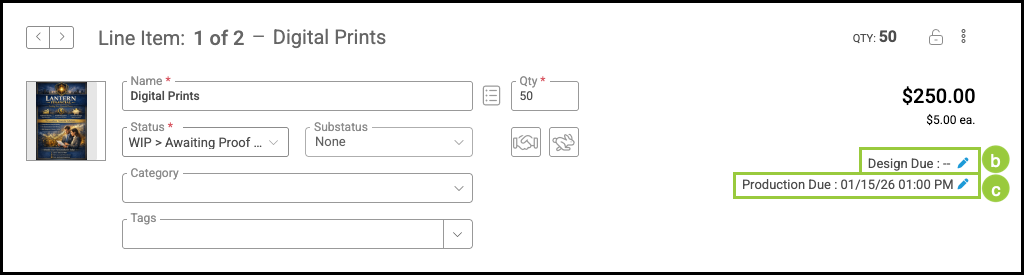
Clicking any of these options will open the Due Dates Screen.
a. Order Due from the Order Screen.
Or:
b. Design Due from within the Line Item.
c. Production Due from within the Line Item.
Due Dates Screen
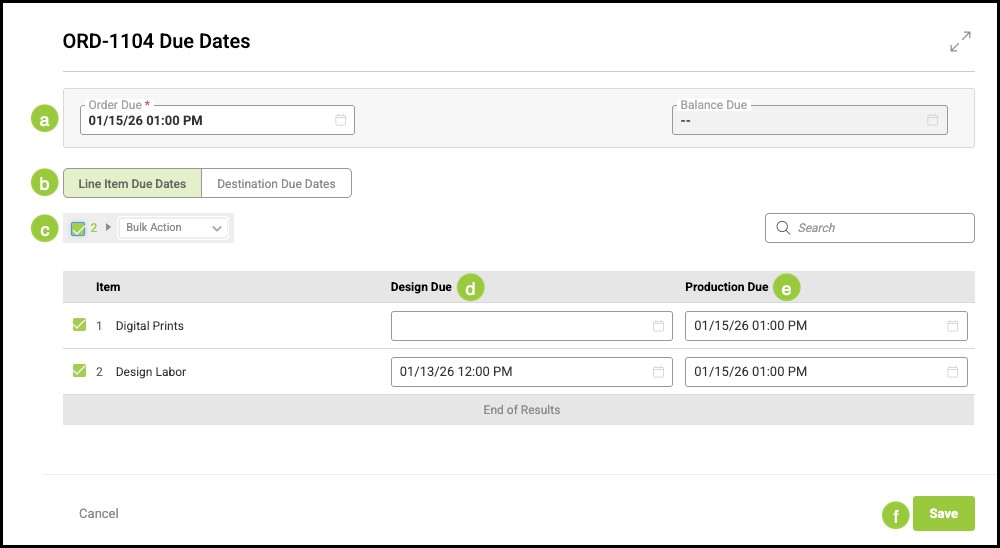
a. This dropdown changes the Due Date on the Order as a whole.
b. These tabs allow you to select between due dates on Line Items versus those associated with Destinations.
c. Select this box if you would like to use the Bulk Action option to update Line Items.
Note: Only those items checked below till be affected by the bulk updates.
d. Design Due can be adjusted here.
e. Production Due can be adjusted here.
f. Changes made must be manually saved here.
Related Articles
Employee Roles and Permissions