
In Evo, you can narrow the Orders list to a specific workflow status (for example, WIP) using column filters. This replaces the pinned side filter panel used in Legacy.
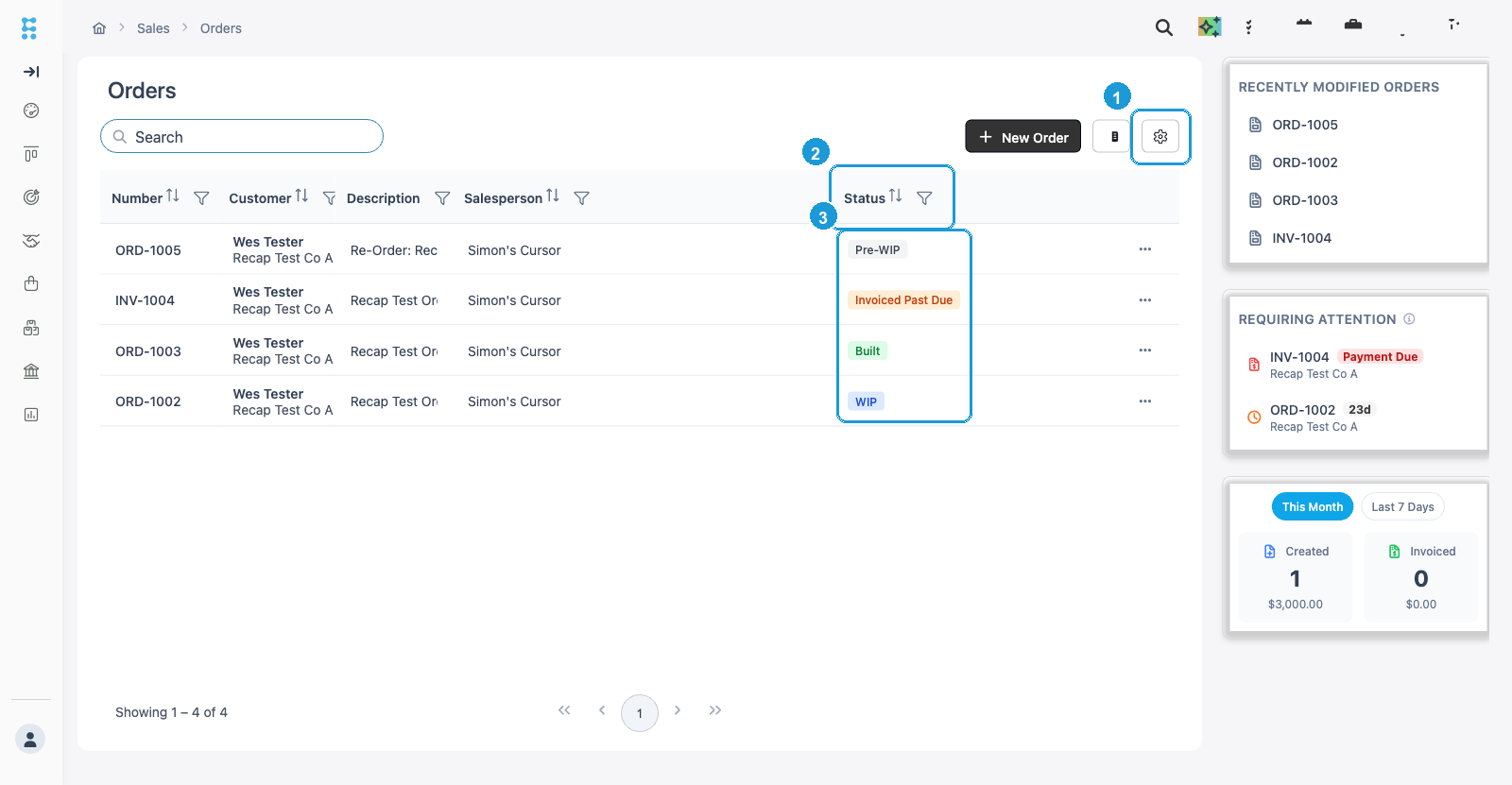
Show the Status column
- Go to Sales / Orders.
- Click the gear (column settings) icon near the Search box and New Order button.
- Select Status so it appears as a column on the Orders list.
Filter Orders by WIP (or another status)
- On the Status column header, click the filter (funnel) icon.
- Check the status you want (for example, WIP). You can select more than one status.
- Click Apply.
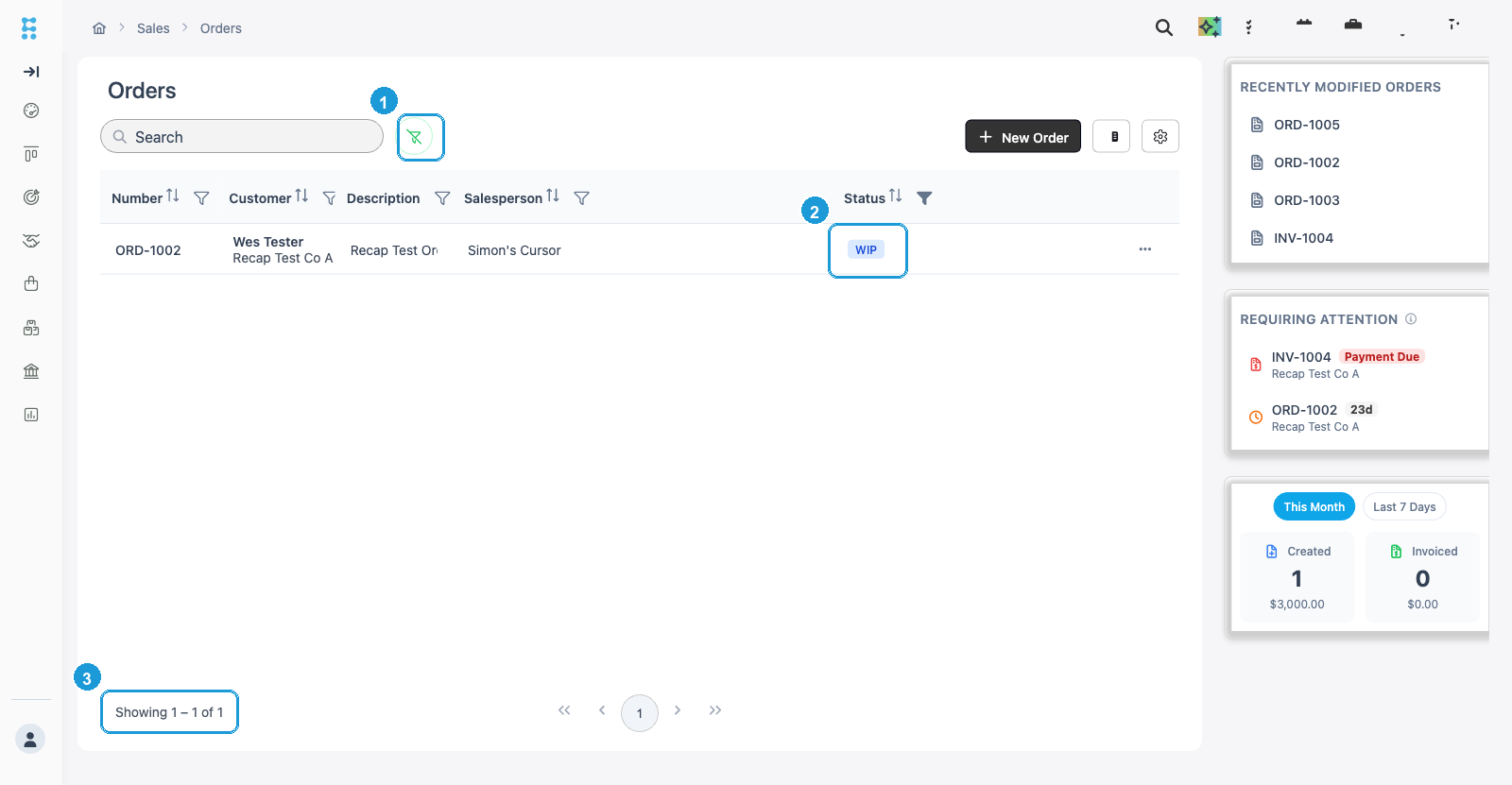
- The Orders list updates to show only Orders that match the selected status(es).
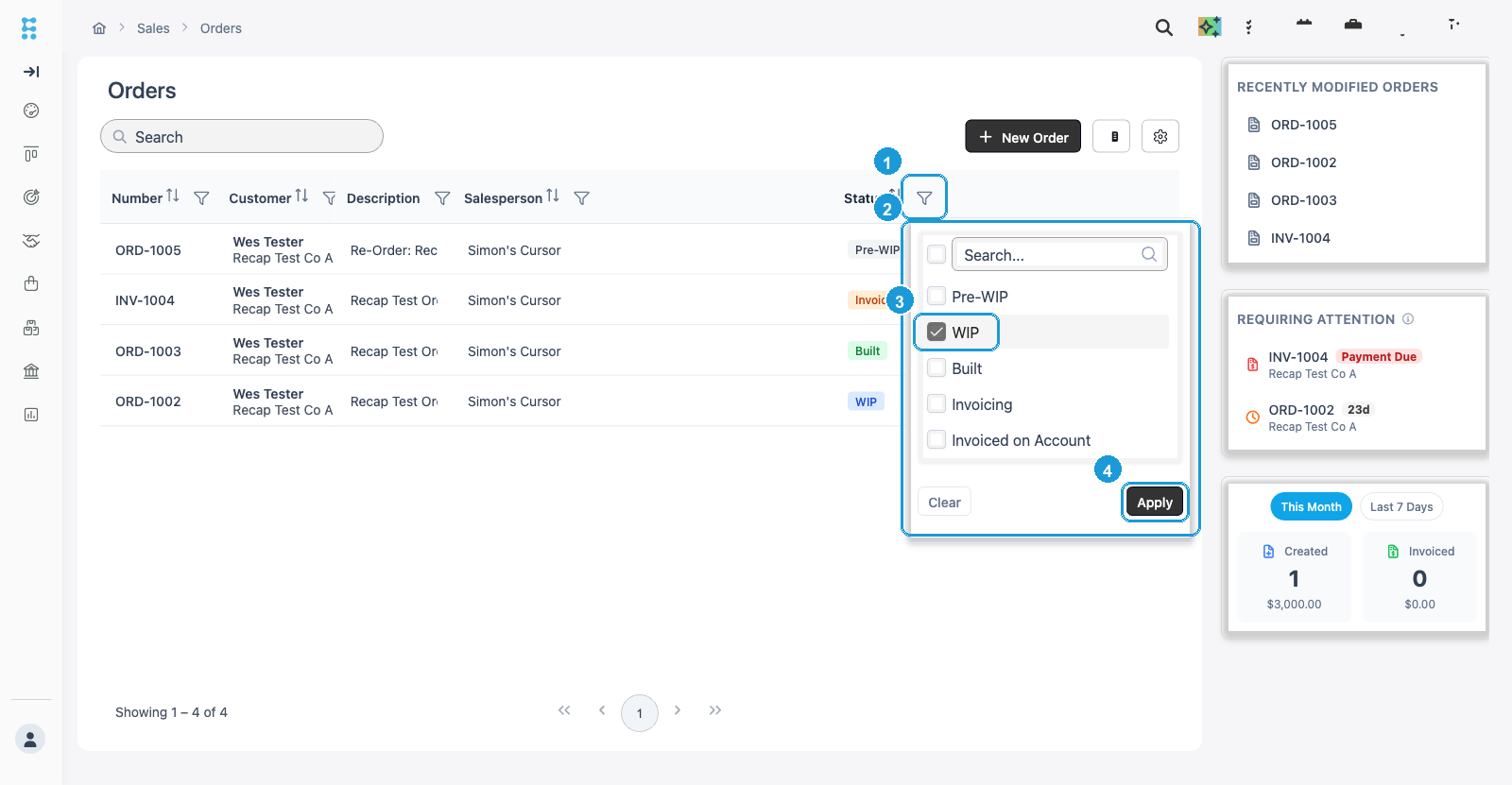
Note: Available status values include options such as Pre-WIP, WIP, Built, Invoicing, Invoiced on Account, Invoiced Past Due, Closed, Voided, and Reopened (exact labels follow your shop's workflow).
Clear filters
- Open the Status filter menu again and click Clear, then Apply.
- Or use the clear-filters control (filter with slash) in the Orders toolbar when filters are active.
Other column filters
Each Orders column (Number, Customer, Description, Salesperson, and others you enable) has its own filter menu. Use those menus to combine filters—for example, Status = WIP and a specific Customer.
Related articles
- Orders Overview (Evo)