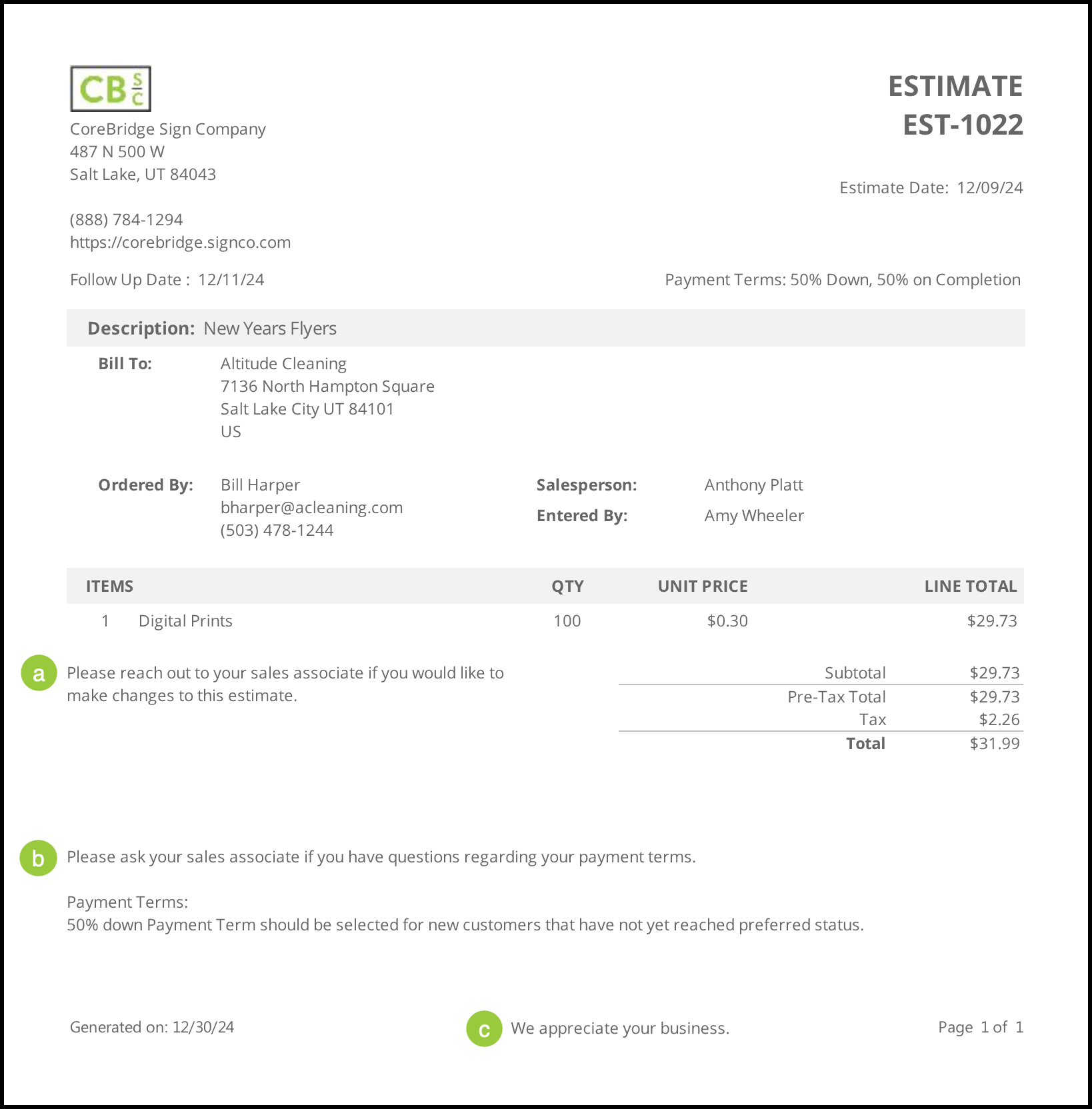
Documents are used to relay information to the customer regarding various transactions such as Estimates, Orders, and Invoices.
Table of Contents
Adding a Document
To add a new Document navigate to Settings / Reports & Documents / Documents.
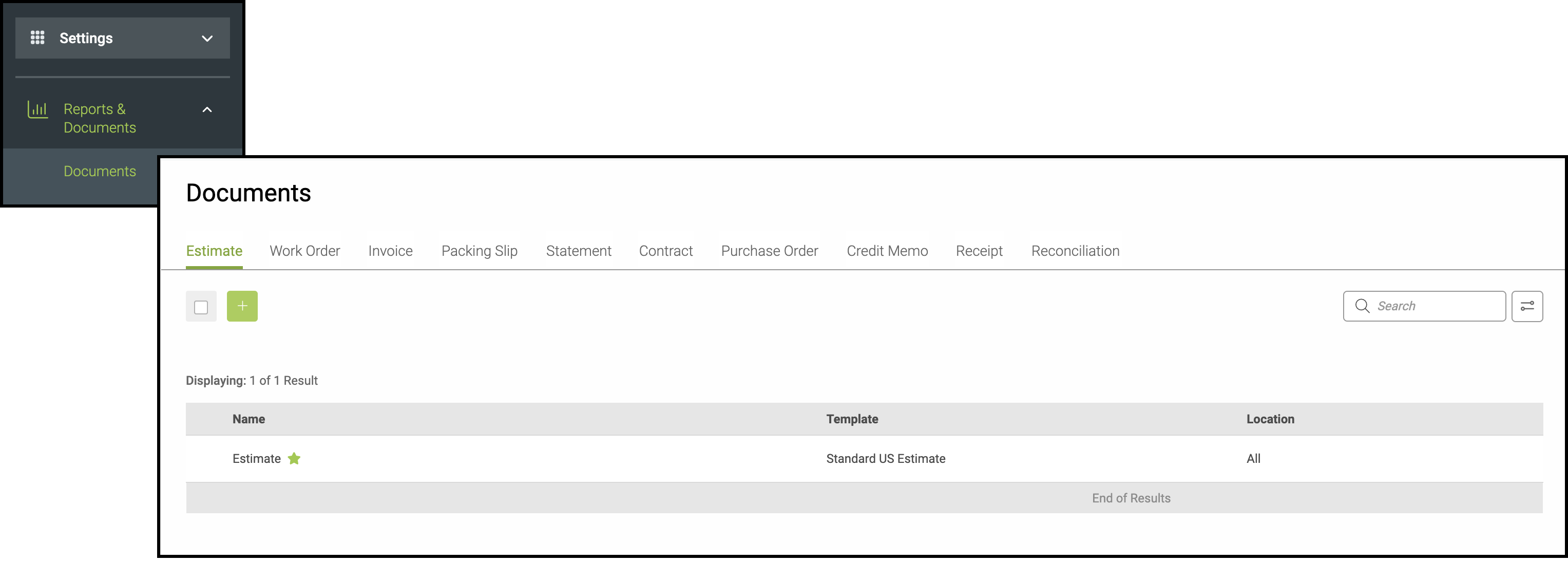
1. Select the appropriate tab.
Note: This will become the Template Type and the section of the system where your Document will appear.
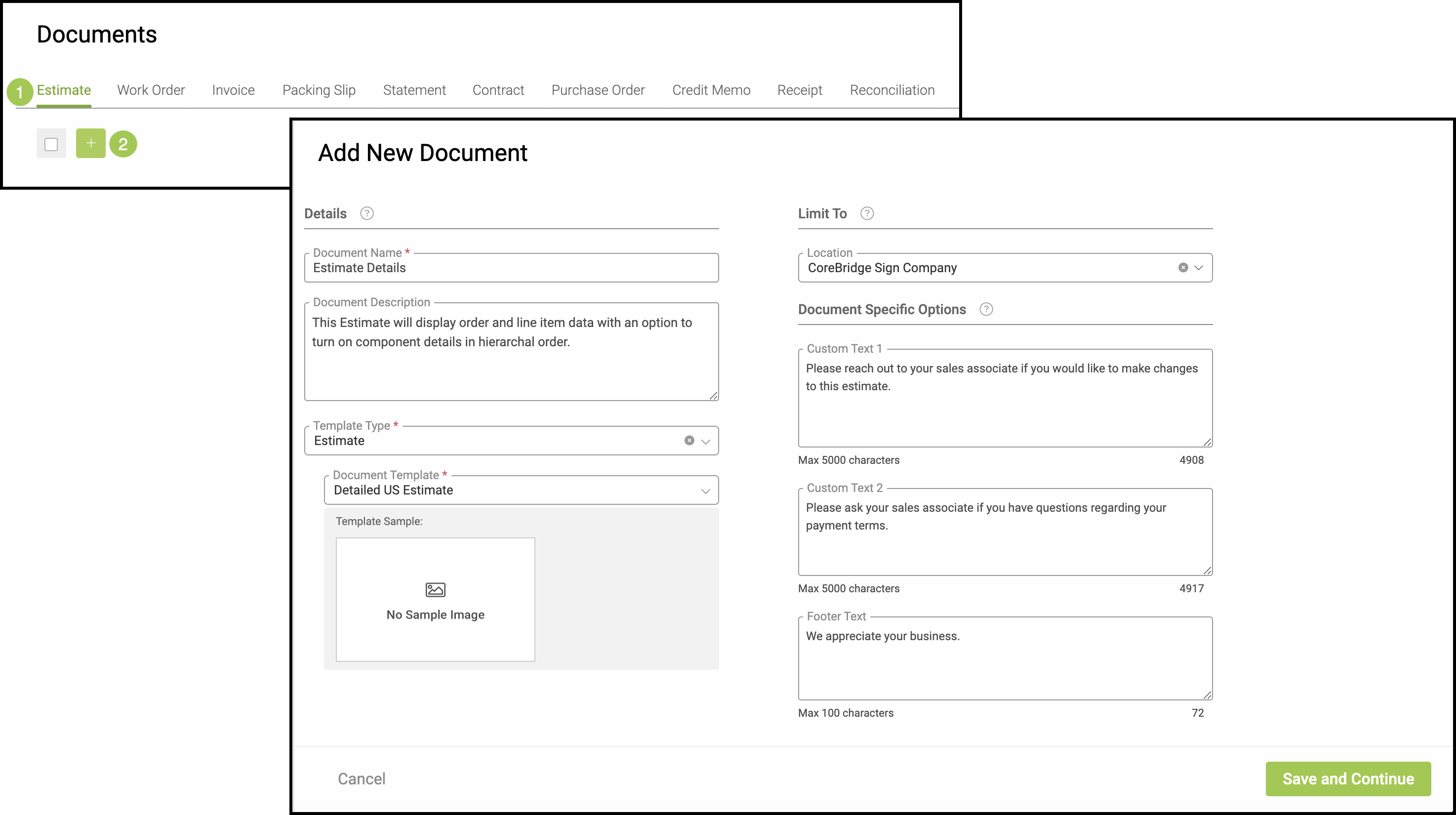
2. Click the Green Plus button.
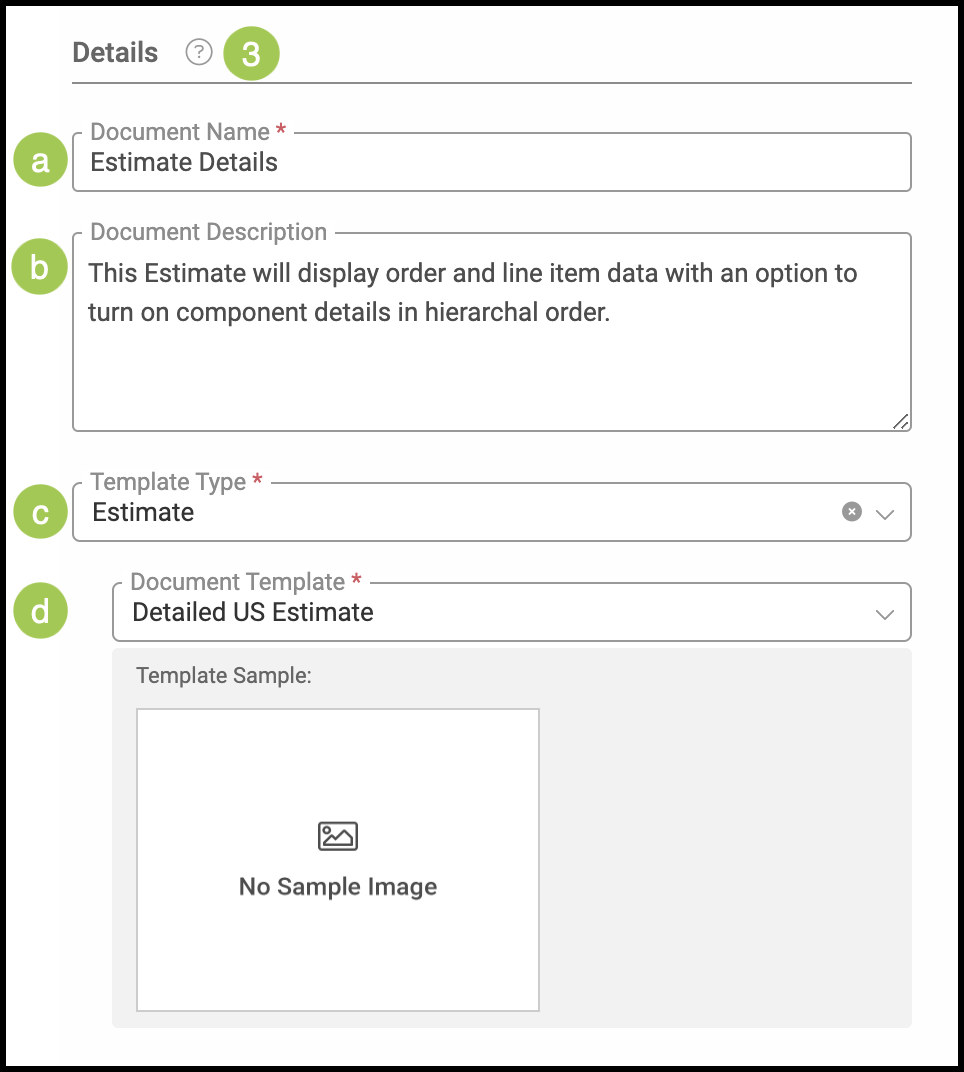
3. Provide the necessary Details for the new Document. Fields marked with a red asterisk are required.
Note: All Documents added to the system are based off of preset Document Templates.
a. Document Name - Give your Document a name that will make it easily identifiable to your employees.
Note: This name is for internal use.
b. Document Description - This field is automatically populated based on the Document Template selected below. You can edit the text at any time.
c. Template Type - The Template Type will automatically populate based on the tab you chose in step one. This can be changed by selecting a different Template Type from the dropdown menu.
d. Document Template - Choose the appropriate Template from the dropdown menu.
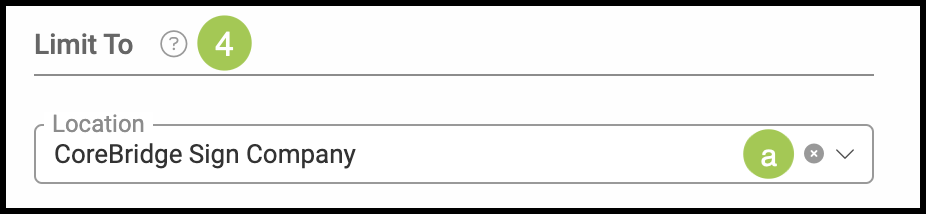
4. Use the dropdown menu to select the Location you would like to limit this Document to.
Note: To discuss the option of adding more Locations to your system, please contact sales@corebridge.net.
a. To use this Document for all Locations, click on the X to set Location to All.
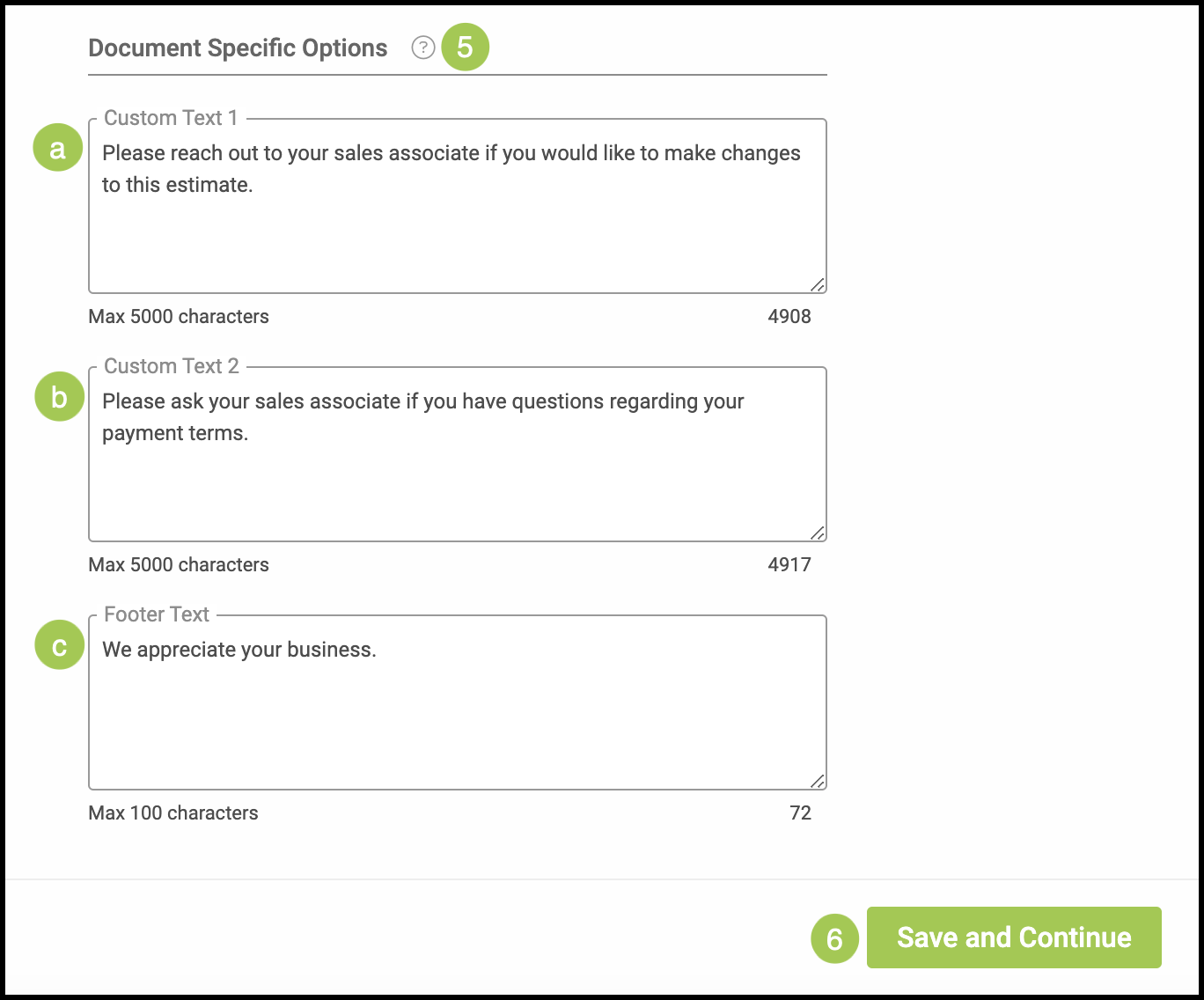
5. Use these fields to create Custom Text on your document.
a. Custom Text 1 - This text will be displayed to the left of the totals.
Note: There is a 5000 character maximum for this text field. There is a counter under the bottom right corner of the text field that displays the characters remaining.
b. Custom Text 2 - This text will be displayed just underneath the totals.
Note: There is a 5000 character maximum for this text field. There is a counter under the bottom right corner of the text field that displays the characters remaining.
c. Footer Text - This text will be displayed at the bottom of each page of the document.
Note: There is a 100 character maximum for this text field. There is a counter under the bottom right corner of the text field that displays the characters remaining.
6. Click Save and Continue.
Note: You may come back to your Document to edit at anytime. Changes made will be automatically saved by the system.
Note: The Custom Text as it would appear on an Estimate.