This article outlines what new Customers can expect from their CoreBridge training experience. It explains how training is scheduled, how to join training calls, the structure of training sessions, and the resources available to support learning before, during, and after onboarding.
Table of Contents
Scheduling Training Calls
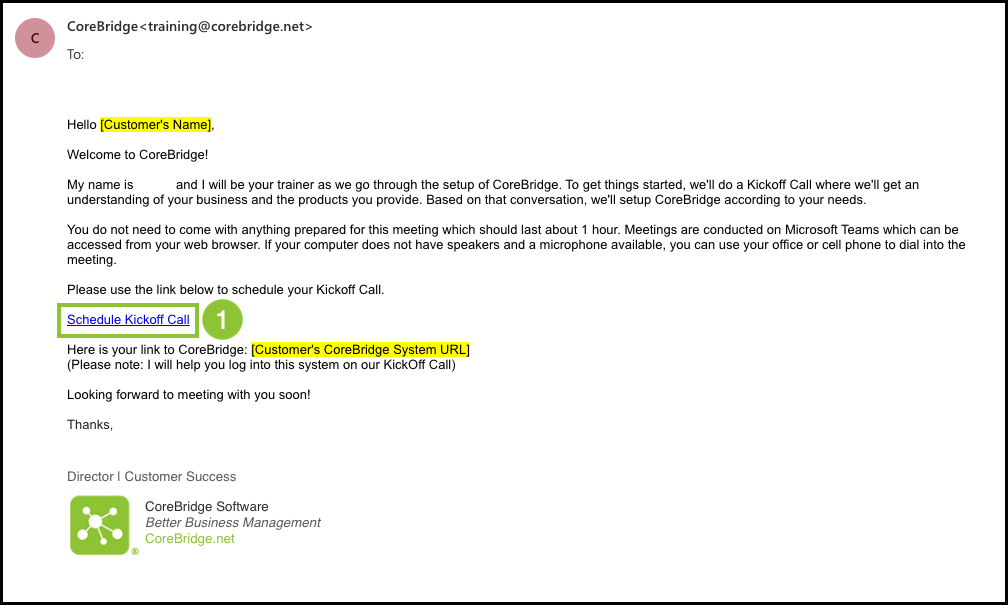
Training begins with two emails sent to you after signing up for CoreBridge.
- The first email is a welcome message confirming your CoreBridge signup and providing general next-step information.
- The second email is sent by your assigned Trainer or Customer Success Manager. This message explains what has already been set up, outlines how billing works, and includes a link to the CoreBridge training scheduler.
1. Click the training link in the second email to select a date and time with your assigned Trainer.
Note: Once scheduled, the session is added to the Trainer’s calendar and a Microsoft Teams meeting link is automatically generated for the training call.
Accessing a Microsoft Teams Call
All training sessions are conducted using Microsoft Teams. You do not need a Teams account to join a training call.
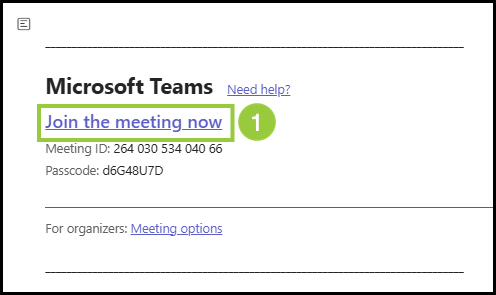
1. Open the Teams Meeting Link provided in your scheduling confirmation or calendar invite.
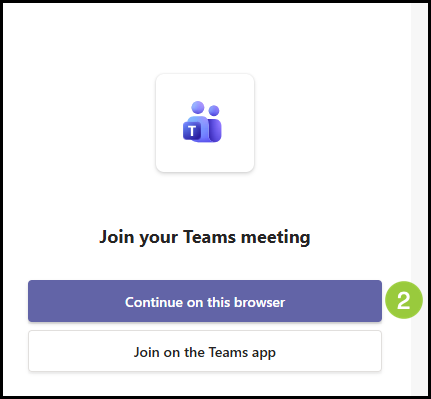
2. Click Continue on this browser.
Note: If prompted to download Teams, you may decline and continue in the browser. Joining through a browser provides full access to the features used during training.
Microsoft Teams Call Features
During training sessions, Trainers may use several built-in Teams features to guide instruction and collaboration. These are located across the top bar of the browser window.
Microphone Use
Microphones may be muted during demonstrations to reduce background noise. Customers are encouraged to unmute their microphone when asking questions or participating in discussion.
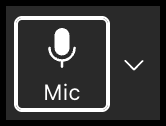
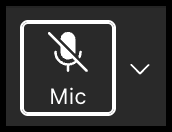
To mute and unmute the microphone, click on the microphone icon. See examples below.
Note: Clicking the dropdown next to the microphone will allow you to make more detailed audio selections.
Example: Muted microphone
Example: Unmuted microphone
Screen Sharing
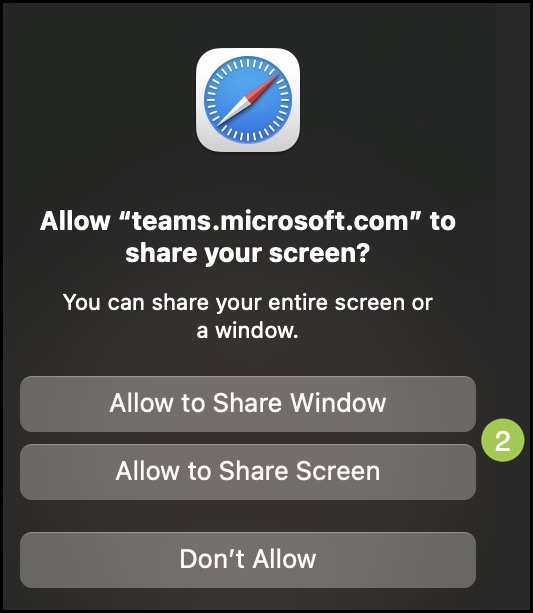
Screen sharing is used to demonstrate workflows and system navigation in CoreBridge. Your trainer may ask you to share your screen while guiding you through certain workflows.
1. Click the Share icon.
2. Select your sharing preference.
3. Click Stop Sharing when finished.
Training Structure
Training follows a structured format designed to build understanding progressively. Sessions are delivered in the sequence outlined in the CoreBridge training presentation, with each call building on concepts introduced in earlier sessions. Dedicated time is included throughout training for questions, clarification, and discussion of real-world examples to ensure the material is relevant and clearly understood. Each call will follow the same basic format:
- Today's Agenda - A brief overview of what to expect on this call.
- Outcome and Alignment - This ensures that you and your trainer are both aware of and working toward common goals.
- Training Overview - This slide shows where you are in the process of training.
- Goals for this Call - These are the specific topics you will learn on this call.
- Action Items - This covers items you will need to work on in your own time.
- Next Steps - This looks ahead to next calls.
This structure ensures consistent coverage while allowing flexibility based on your business needs.
The overall training progression is divided up into stages:
- Stage 1 - Kick-Off: System Overview & Management Settings
- Stage 2 - Building Blocks of an Order, Front-End Components
- Stage 3 - Component Setup
- Stage 4 - Assemblies
- Stage 5 - Assemblies Continued
- Stage 6 - Job Boards & Customer Portal
- Stage 7 - Calendar, Scheduling, & Employee Permissions
- Stage 8 - Employee Training, Tips & Tricks, Payments & Refunds
- Stage 9- Reports & Importing Customer Data
- Stage 10 - Financial Reconciliation, Q&A
- Post Live
Training Resources
Within your CoreBridge system, you will have access to a dedicated training page that serves as a central hub for onboarding resources. This page includes the key information, materials, and references used throughout your training sessions, allowing you to review topics, track progress, and revisit important content as needed during and after onboarding.
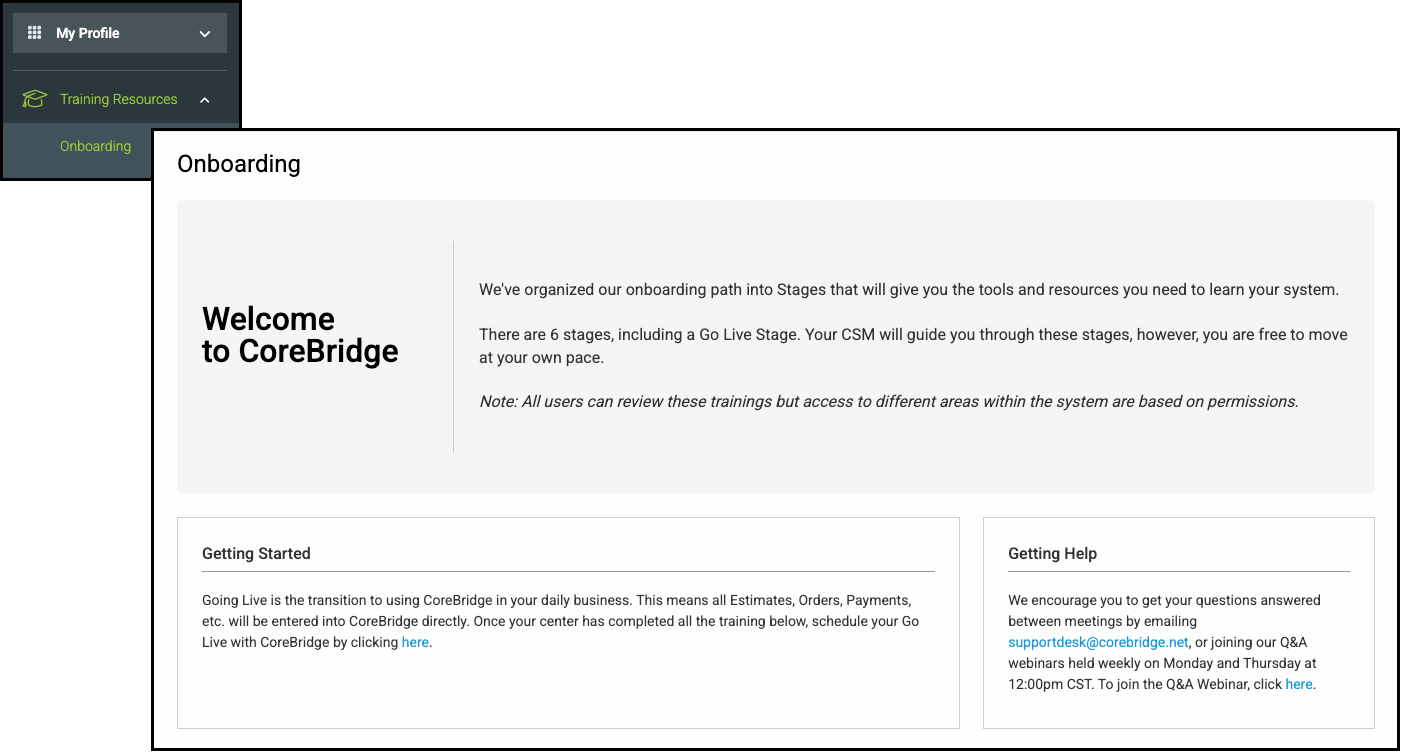
Training resources can be located by navigating to My Profile / Training Resources / Onboarding.
Understanding the Onboarding Page
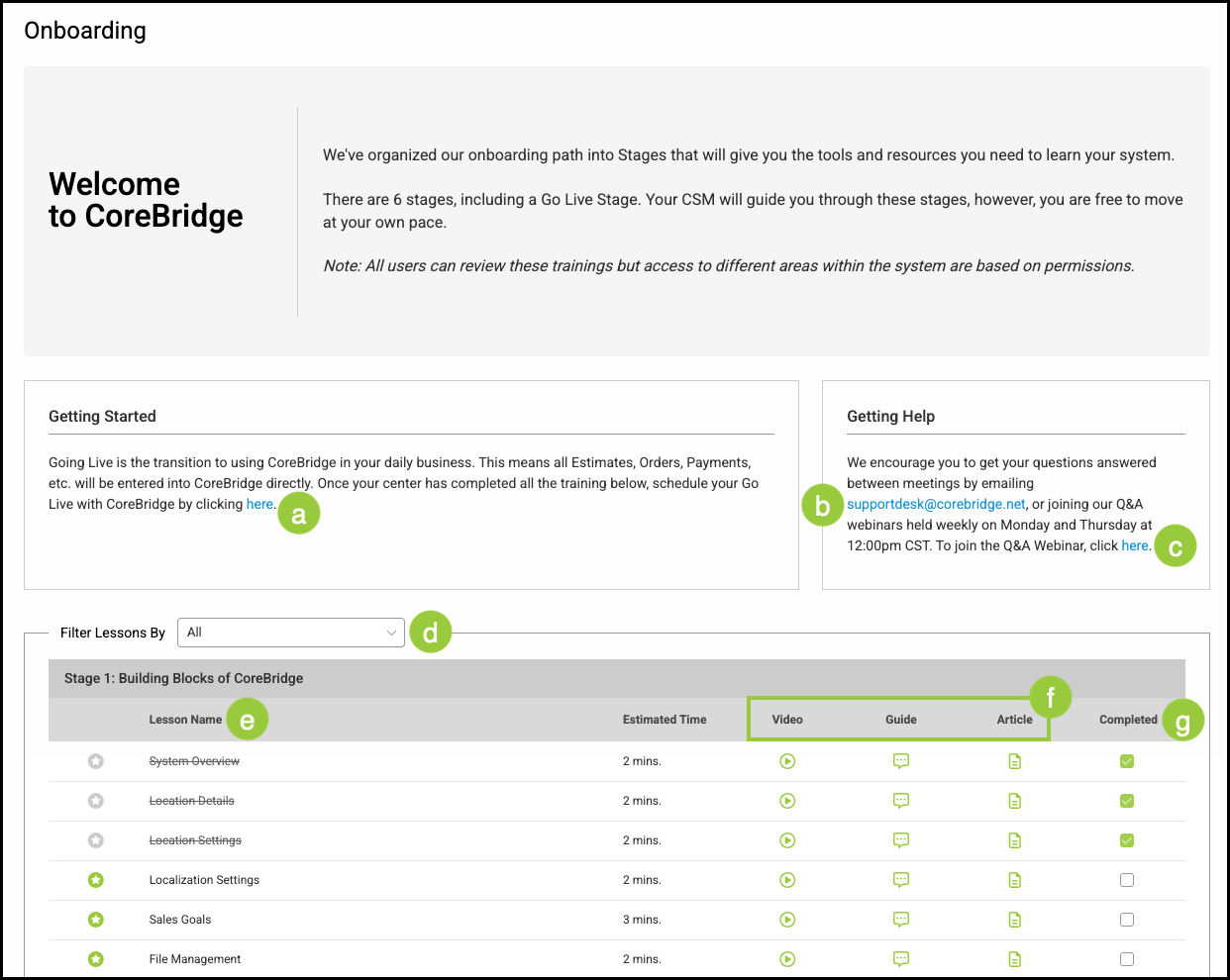
a. This link allows you to schedule your Go Live once training has been completed.
b. This link allows you to contact CoreBridge support.
c. This link allows you to join the weekly webinars.
d. The dropdown filters lessons.
e. The Lesson Name or topic is listed here.
f. Training on each topic is offered through Videos, Guides, or Articles, depending on your learning style.
g. Mark each Lesson complete here.
Support and Additional Resources
Support continues beyond scheduled training sessions. The CoreBridge Support team is always available to answer questions and can be reached directly at directly at supportdesk@corebridge.net. In addition, CoreBridge offers live weekly webinars where Customers can ask questions and review workflows. These sessions are held on Mondays and Thursdays at 12:00 pm CST and are open to all Customers.
Note: These support resources are available throughout onboarding and during ongoing use of CoreBridge.
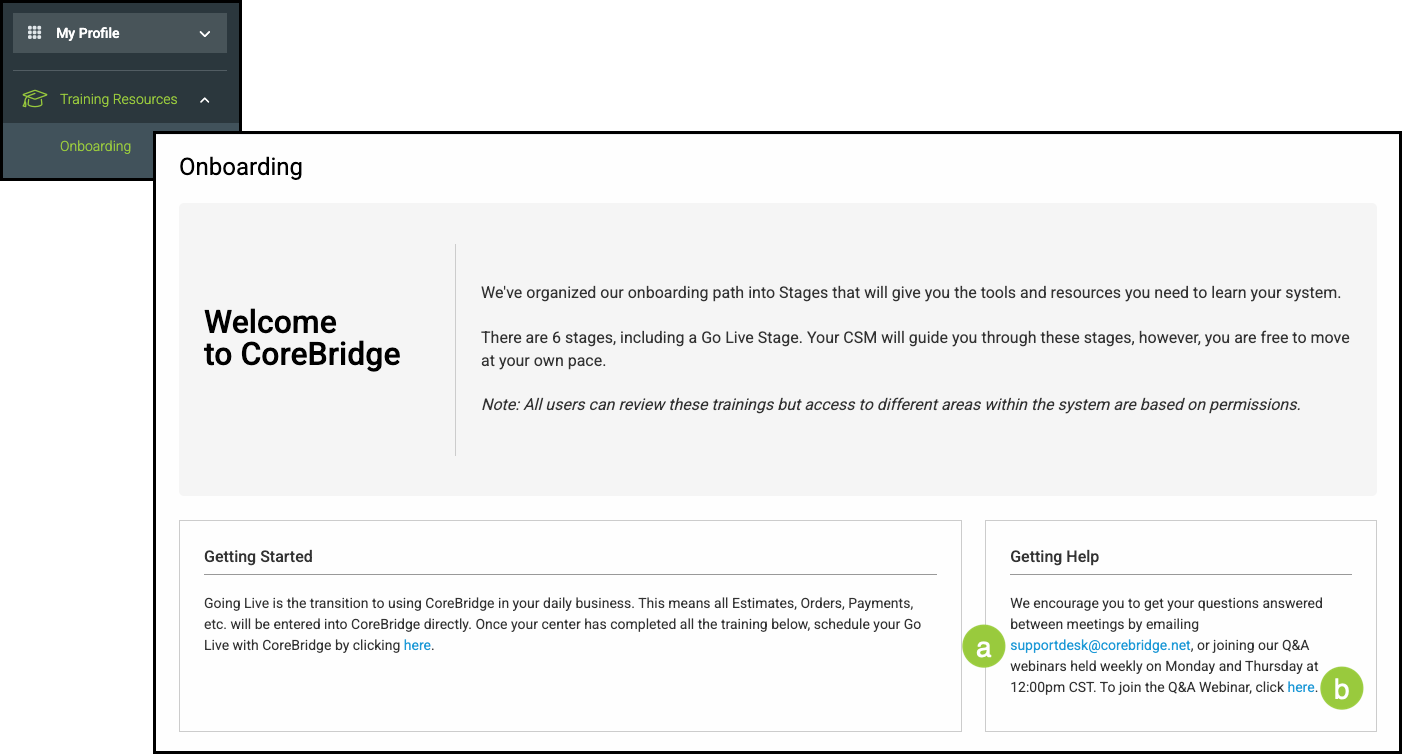
You can access links to these services by navigating to My Profile / Training Resources / Onboarding.
a. This link allows you to contact CoreBridge support.
b. This link allows you to join the weekly webinars.
The CoreBridge Knowledge Base
The CoreBridge Knowledge Base provides access to a wide range of articles designed to help you get the most out of your CoreBridge system. You can visit the Knowledge Base directly at supportdest.corebridge.net, or access it from within CoreBridge at any time.
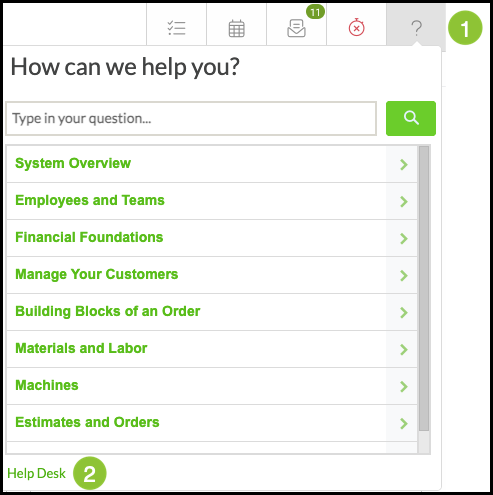
1. Click on the Question Mark icon located in the top right of your screen.
Note: This is visible in any area of your system.
2. Click Help Desk.
Understanding the Knowledge Base
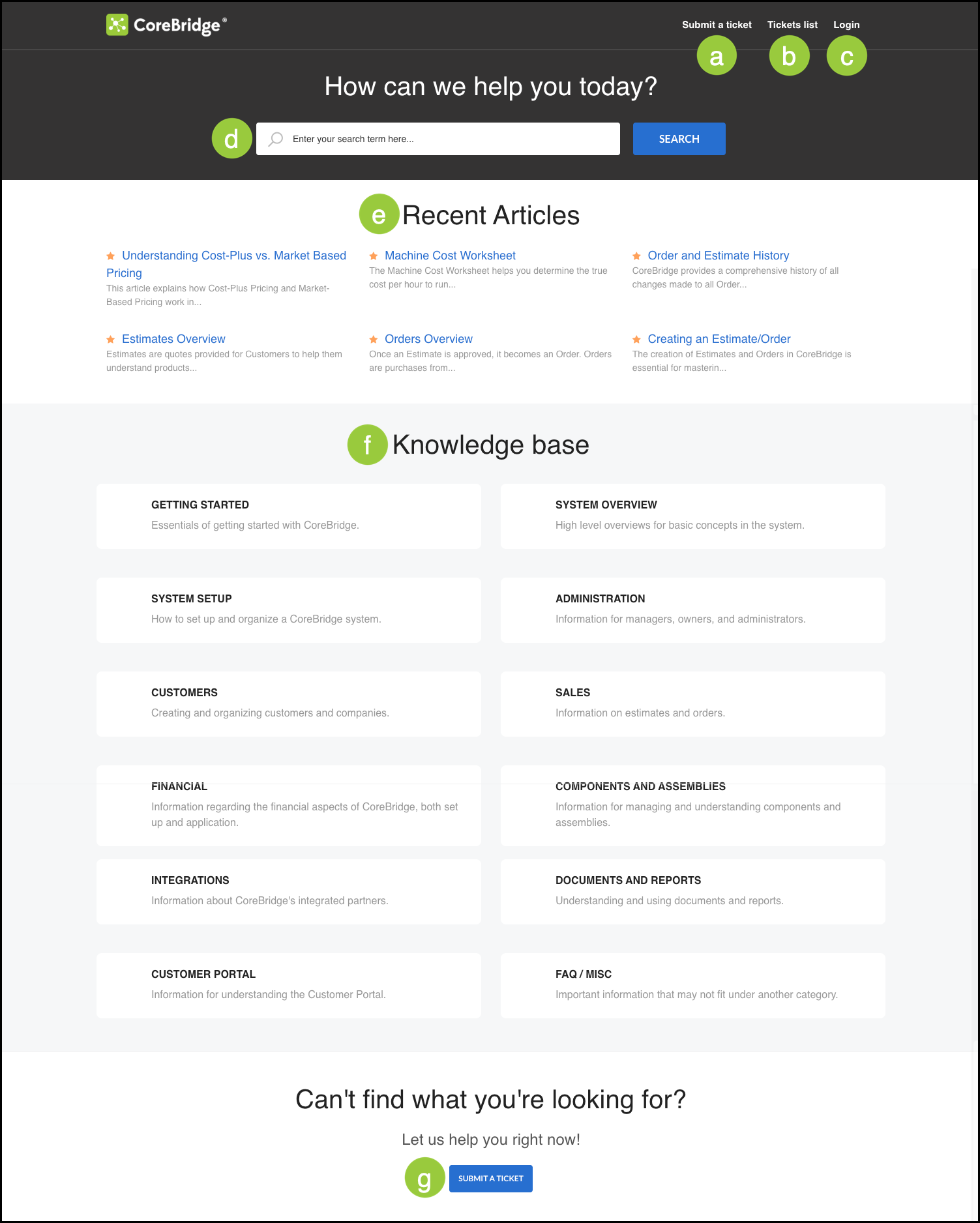
a. Click here to submit a ticket.
b. View previously submitted tickets.
c. Login to your account here.
d. This search bar allows you to quickly find information on a specific topic.
e. View recently seen articles here.
f. Access the full Knowledge base here.
Note: The Knowledge base is organized into folders. Click into the folder to access all articles pertinent to that topic.
g. Click here to submit a ticket.