Labors represent the work hours required to complete an Order and are a key part of accurate job costing and production planning in CoreBridge. Whether it is design time, setup, installation, or finishing work, Labor components allow you to track the time spent by your team on specific tasks.
Table of Contents
Labors Menu
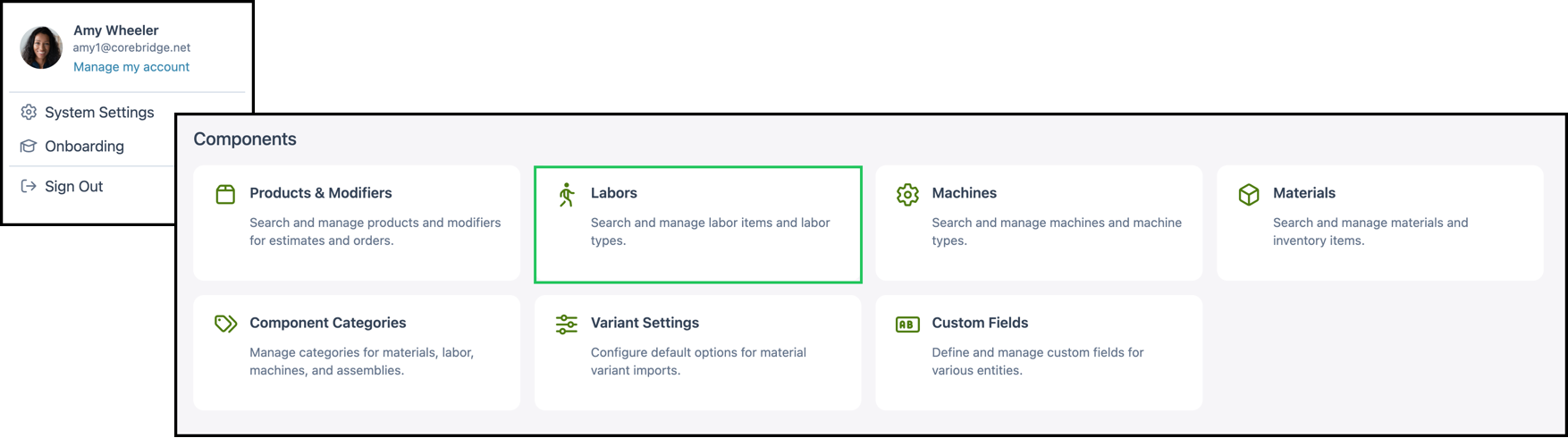
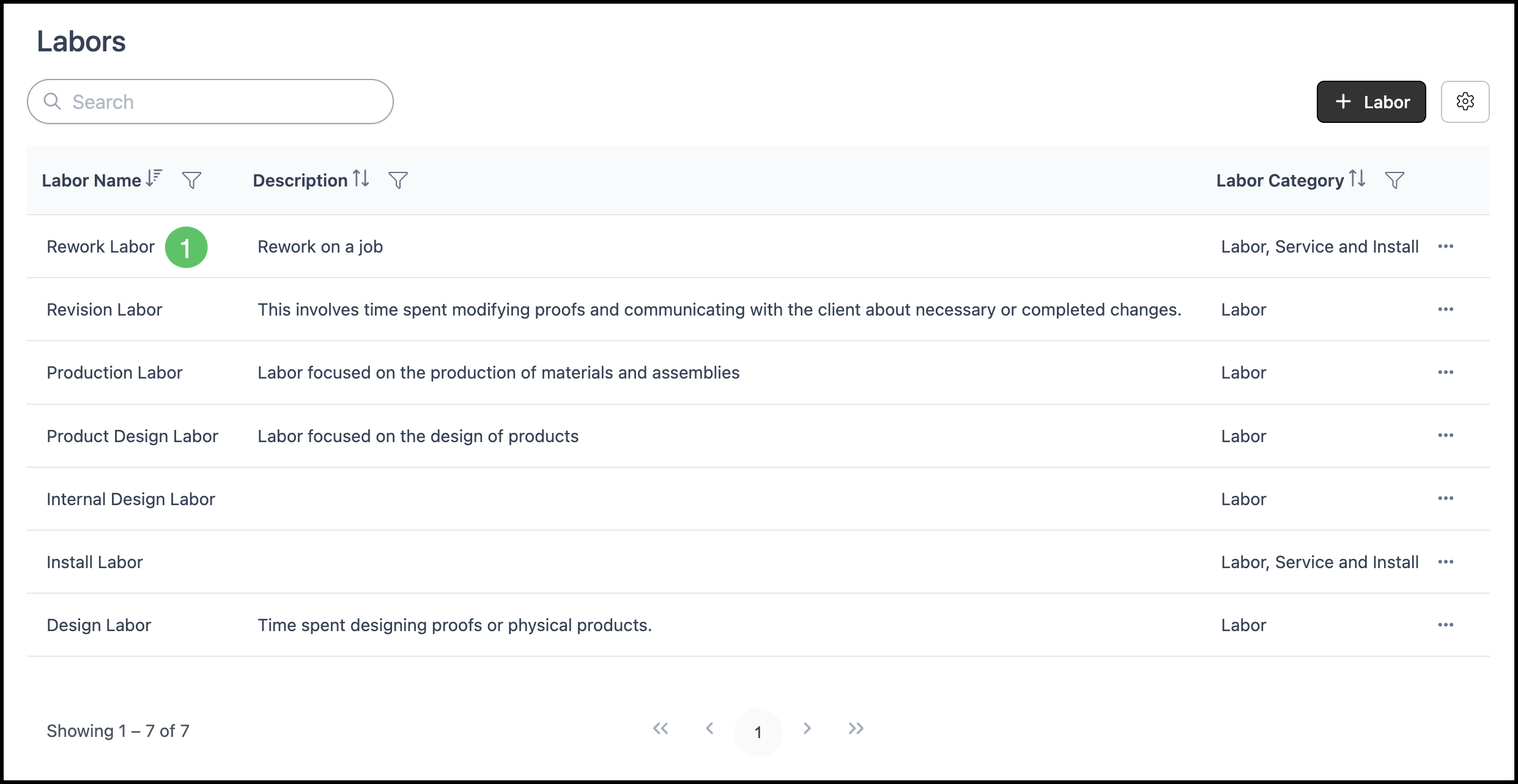
The Labors menu is where you access the list of all Labor components configured in CoreBridge.
Navigate to System Settings / Components / Labors.
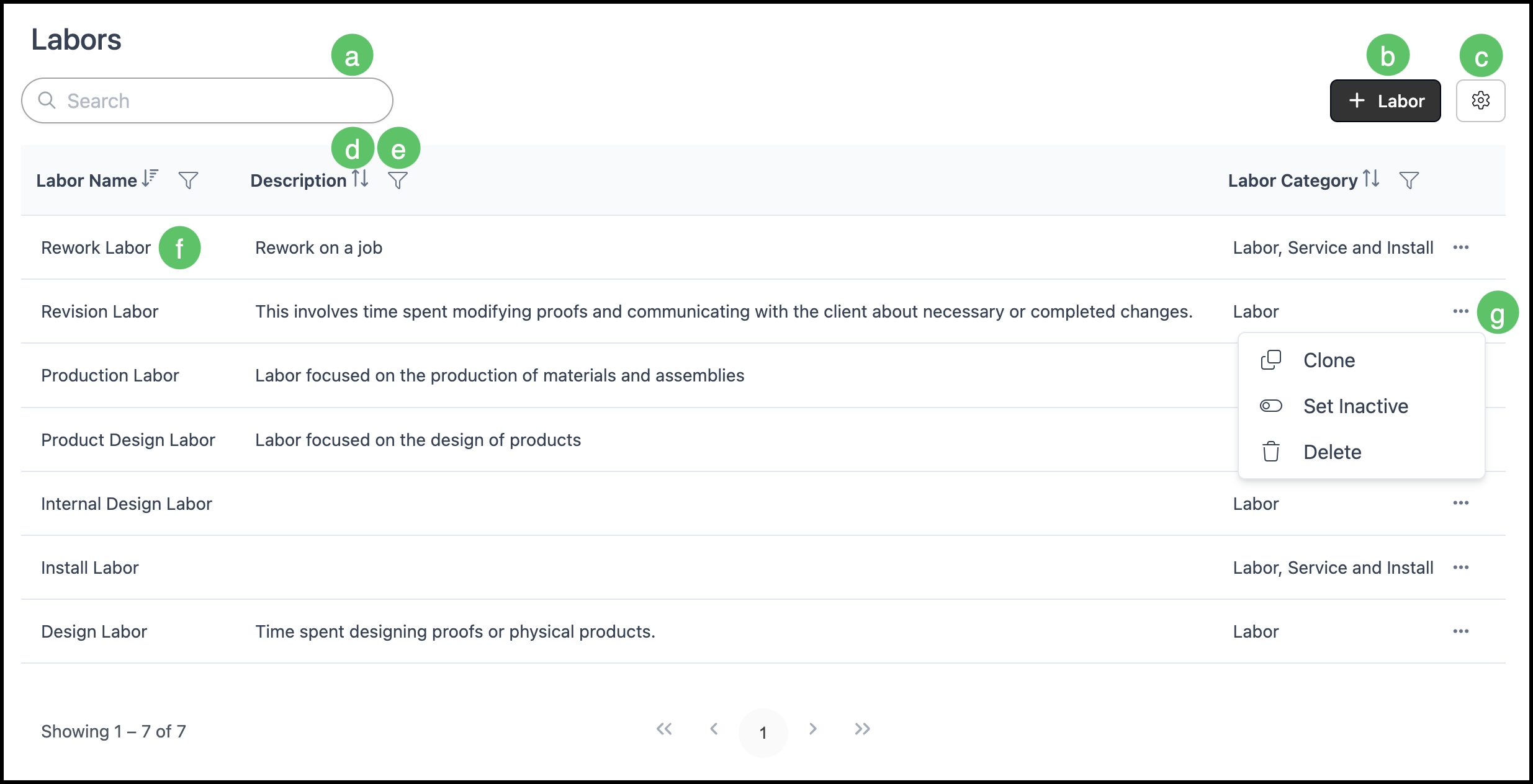
a. The Search box allows you to find a specific Labor.
b. The Add Labor button allows you to add a new Labor.
c. The Search Settings icon allows you to choose which columns are displayed and whether inactive records are included in the display.
d. Each column header has an Order icon that allows you to sort ascending or descending.
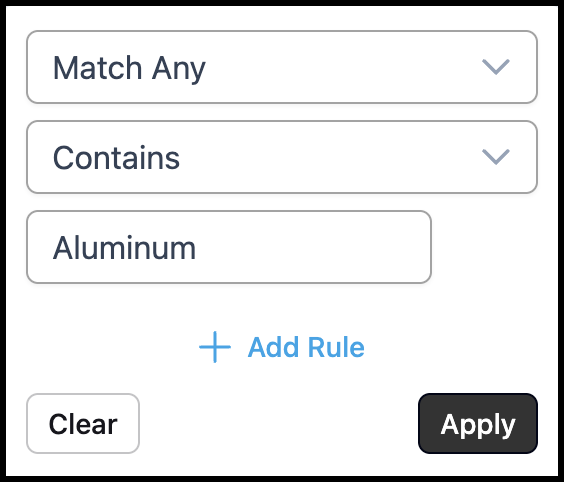
e. Each column header has a Filter icon allowing you to customize the display by setting rules. See example below.
Note: Columns can be reordered and resized as needed.
f. Clicking a Labor row opens the Labor Details page allowing you to view and edit this Labor.
g. Each row includes an ellipsis that opens a menu with Clone, Set Inactive and Delete options.
Note: The Delete option is unavailable for Labors that are currently in use.
Example:
Labors Screen
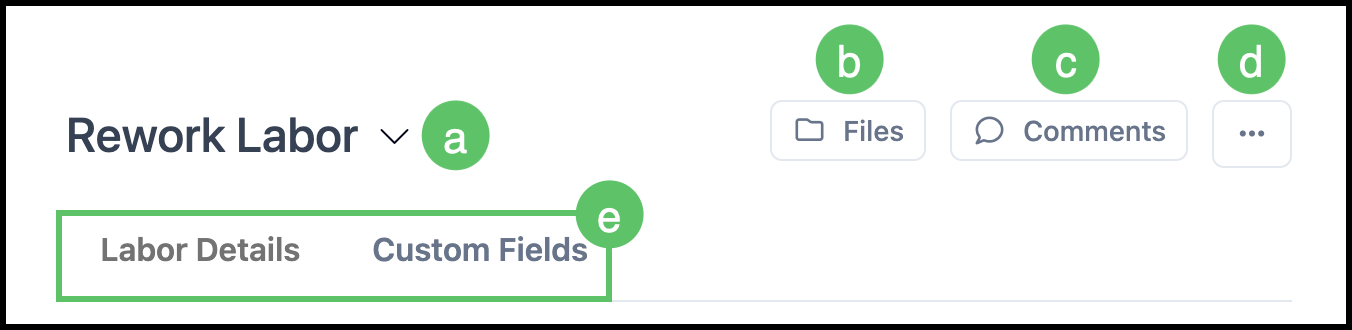
1. Select a Labor to open up the Labor Screen.
a. Labor Name - Clicking here displays the date it was most recently updated.
b. Files allow you to view, upload, or manage documents attached to the Labor.
c. Comments allow you to communicate about this specific Labor.
d. More actions include the options to Clone, Delete, and History.
e. Use these tabs to navigate between Labor Details and Custom Fields.
Labor Details Tab
The Labor Details tab displays basic information about the Labor and allows you to make edits as needed.
Note: Any changes made will need to be saved manually.
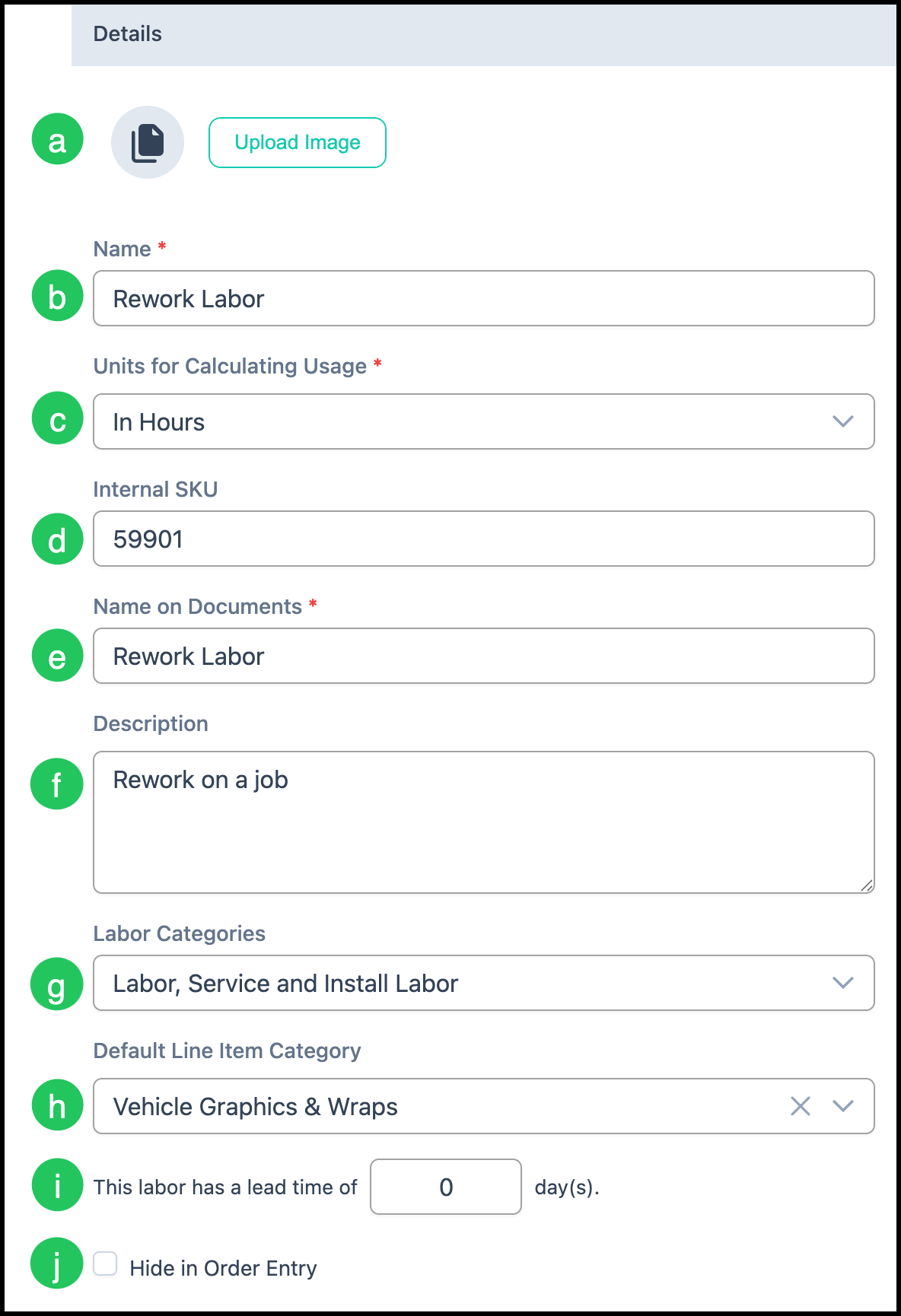
Details
a. Image - Upload or Delete an image for this Labor.
b. Name - This Name will be used internally to identify the Labor.
c. Units for Calculating Usage - Labor can be calculated using a length of time such as minutes or hours. It can also be calculated as Each.
Note: Subsequent fields will automatically update to match what is selected in this field.
d. Internal SKU - This is an internal code used for your own identification purposes.
e. Name on Documents - This name is external facing and will be visible to Customers. This field will automatically populate as you type in the Name field above, but can be changed to be different, if desired.
f. Description - Giving a detailed description will help your employees know when this Labor should be billed.
g. Labor Categories - One or more Labor Categories can be assigned to help organize and sort Labors. Assigning Labor to a Category will enable you to search using Category-specific filters. In addition, if the Category is linked to an Assembly, the Labor will appear in order entry when adding the Assembly.
Note: Labors can be added to Categories under Business Settings / Components / Component Categories and selecting the Labor tab.
h. Default Line Item Category - Assigning the Labor to a Line Item Category can help organize your Labors. This can be used as a sorting option in various reports.
Note: Line Item Categories can be managed at any time in Business Settings / Sales / Line Item Categories.
i. Assign the length of time in days it will take for this Labor to be completed.
Note: The system will automatically include this number when factoring the Production and Order due dates.
j. Checking this box will keep this Labor hidden during Order entry. This can be helpful if the Labor is done on the back end and is not something you would like to have reflected on an Order.
Cost
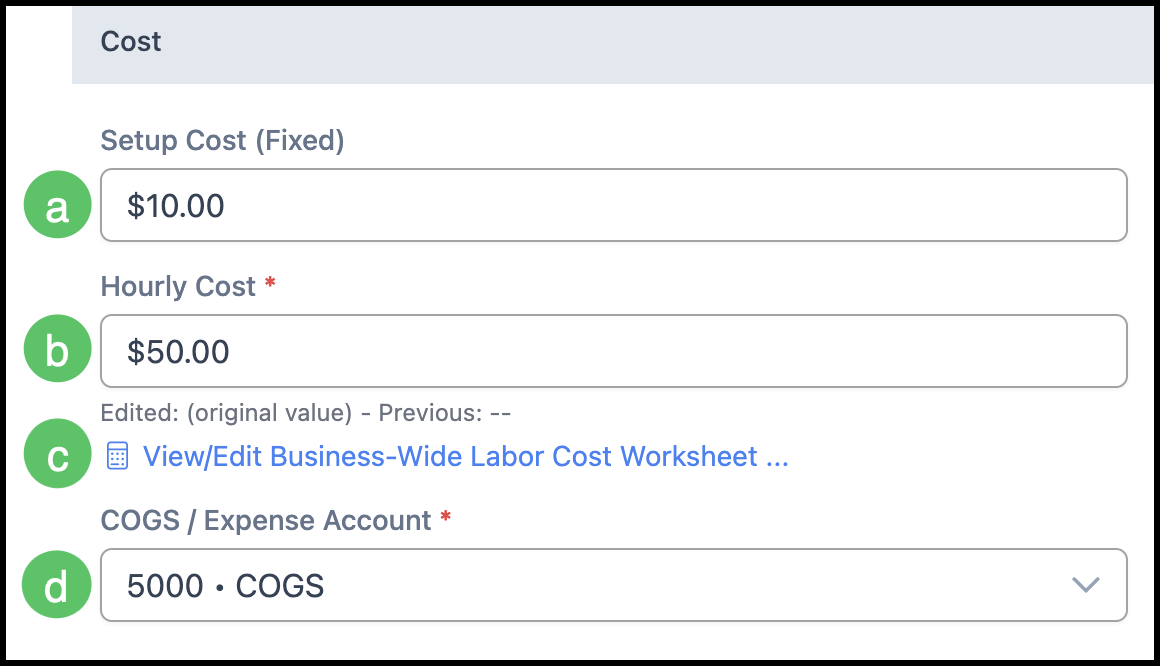
a. Setup Cost (Fixed) - If there is a base cost in order to complete this Labor, be sure to include it in this field.
b. Hourly Cost - This is the total amount it will cost your business per hour to complete this Labor. This includes hourly rate for the employee completing the Labor as well as overhead.
Note: This number will automatically update when the Business-Wide Labor Cost Worksheet is completed.
c. Worksheet - Selecting this hyperlink opens a modal to calculate total overhead and indirect expenses. Once complete, select Save or Save & Apply to Current Labor.
Note: This worksheet is not unique to each Labor, but rather is a global, business-wide worksheet to calculate cost. You may wish to have your accountant help with this. For more information, please see Labor Cost Worksheet.
d. COGS / Expense Account - Select the appropriate account for Cost of Goods Sold or Expenses from the dropdown.
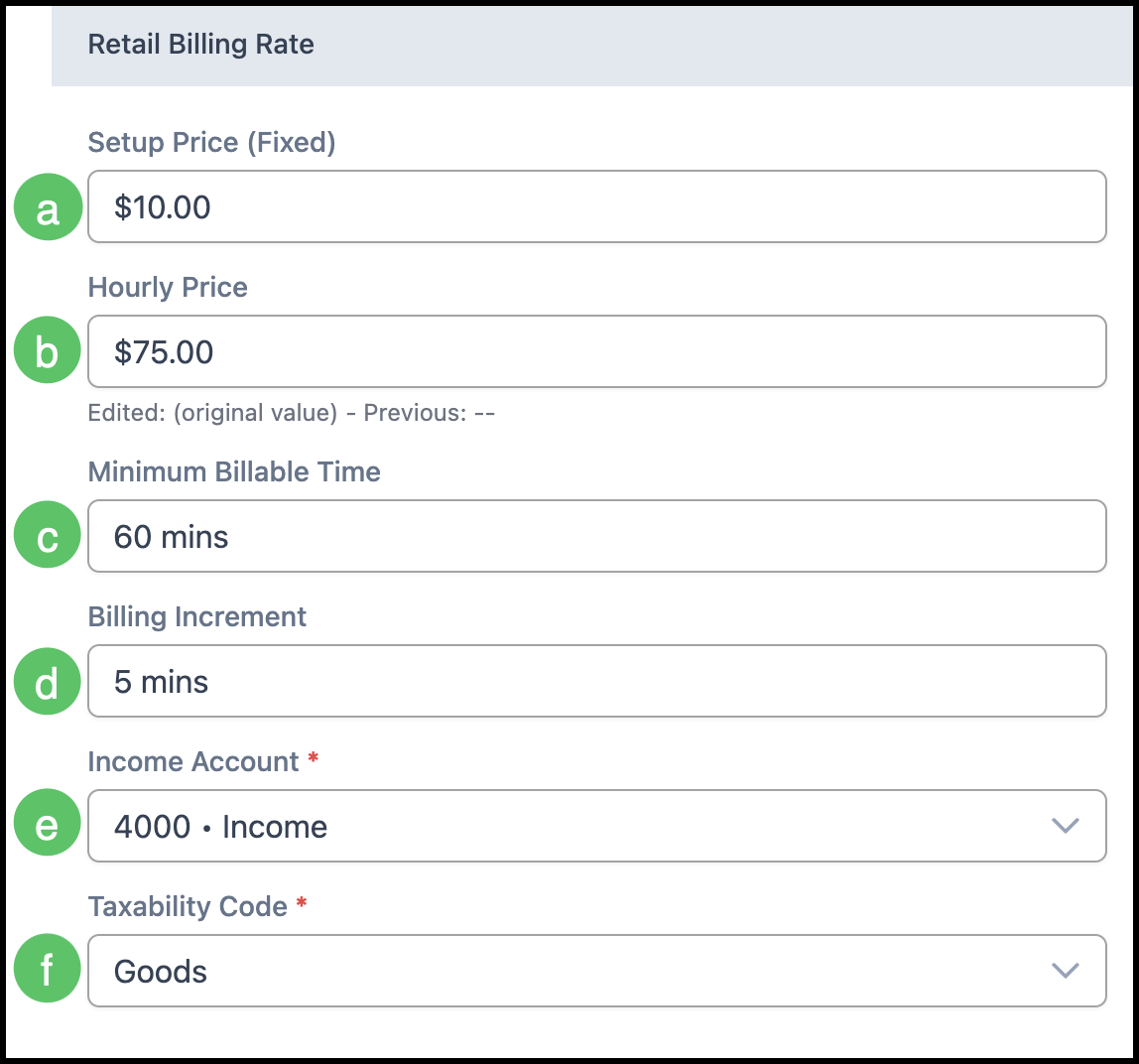
Retail Billing Rate
a. Setup Price (Fixed) - If you would like to include a fixed base price in order to complete this Labor, be sure to include it in this field.
b. Hourly Price - This is the hourly amount that will be charged for this Labor, in addition to the Setup Price.
c. Minimum Billable Time - This represents the minimum amount of time a Customer will be charged for this Labor.
Example: If your Minimum Billable Time is 60 minutes, but it only takes 30 minutes to complete the task, the Customer will be charged for 60 minutes.
d. Billing Increment - This will allow you to round up to the next nearest increment of time.
Example: If your Billing Increment is 5 minutes, and 37 minutes of time were used, the Labor would be billed at 40 minutes.
e. Income Account - All income for Labor will be accounted for in an Income Account. Use the dropdown to select the one you would like to use.
Note: Income Accounts can be managed in Business Settings / Accounting / Chart of Accounts.
f. Taxability Code - Use the dropdown to set which Taxability Code you would like to apply for this Labor. This will depend on whether the Labor is taxable, tax exempt, or taxable with exceptions.
Note: Taxability Codes can be managed in Business Settings / Accounting / Taxability Codes.
Custom Fields Tab
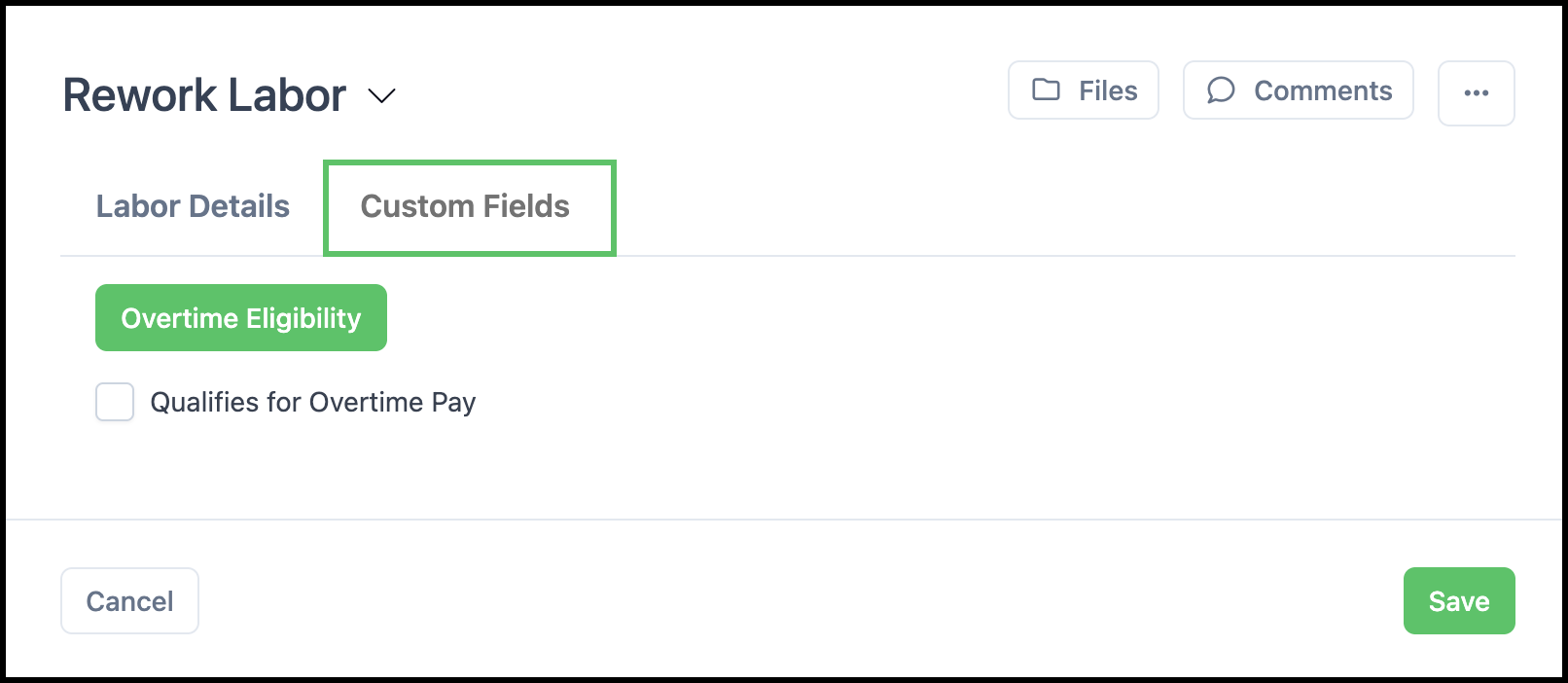
The Custom Fields tab provides another way to customize and organize the information stored about a Labor. By grouping Custom Fields into subtabs, you can keep your data organized and easy to navigate. These fields are managed in Business Settings / Components / Custom Fields / Labor.