Tax Items are the separate local, state, and/or federal agencies for collecting sales tax. Tax Items are combined together to create Tax Groups. Customers are assigned a Tax Group for their location and taxes are applied based on Tax Groups.
Table of Contents
- Creating a New Tax Item
- Editing a Tax Item
- Cloning a Tax Item
- Deleting a Tax Item
- Filtering the Tax Item List
- Related Articles
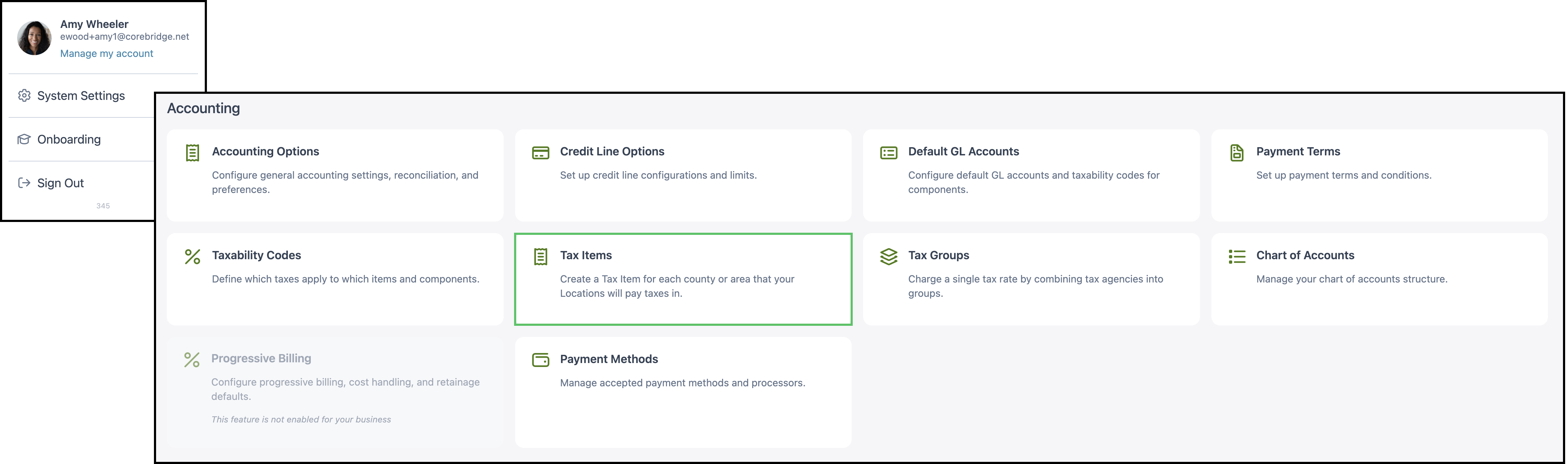
Navigate to System Settings / Accounting / Tax Items.
Creating a New Tax Item
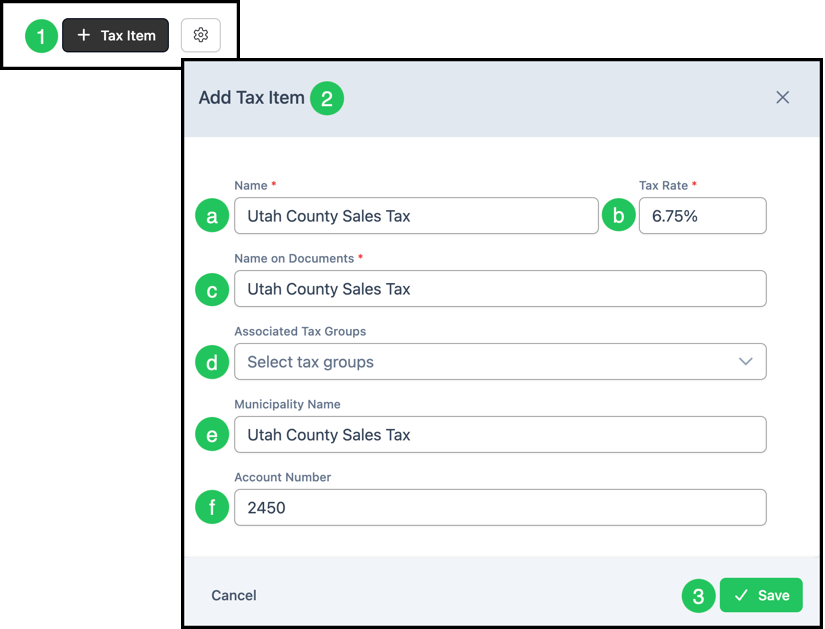
1. Click the Tax Item button to add a new Tax Item.
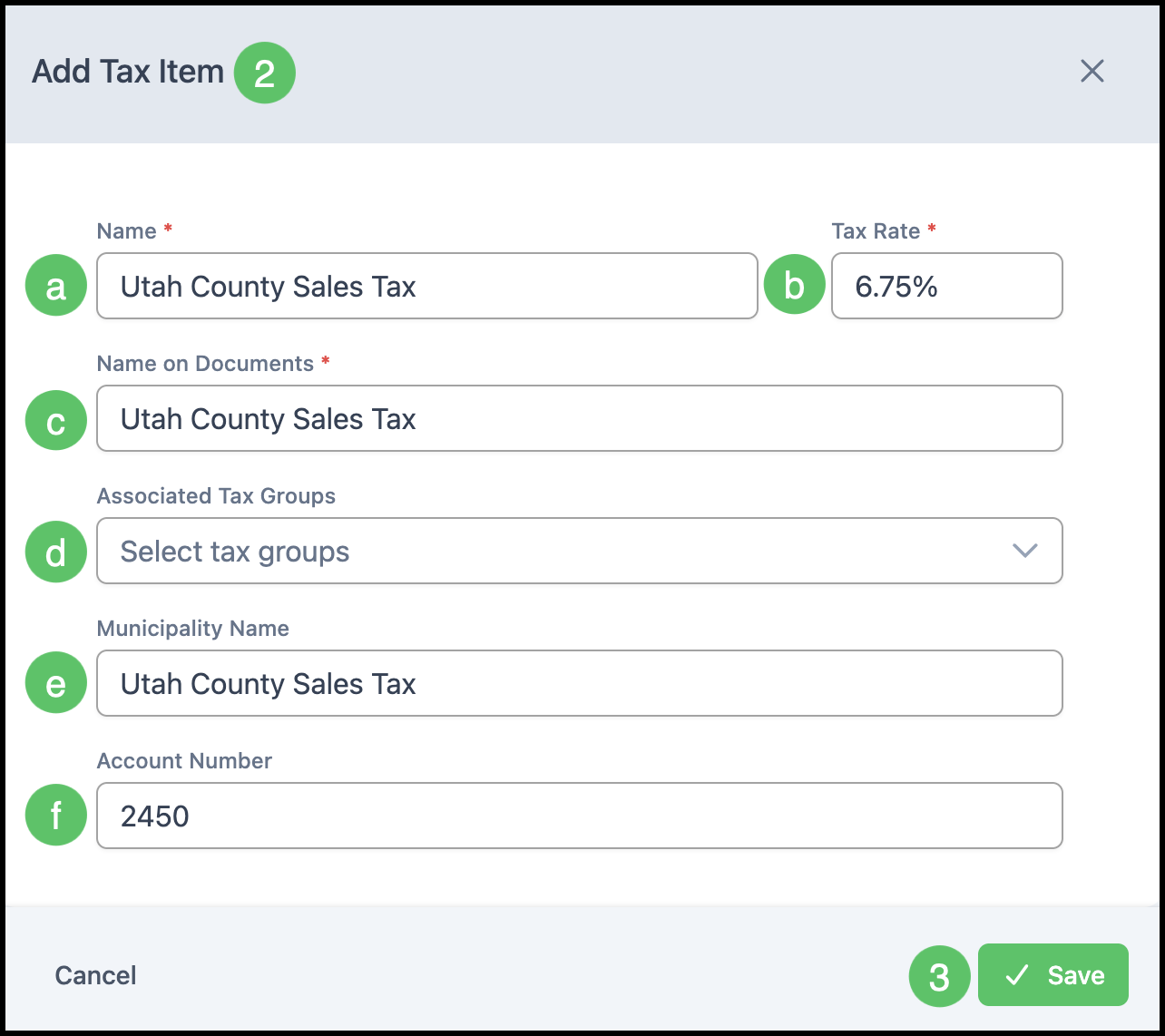
2. The Add Tax Item dialog will open. Enter the Tax Item details. Fields marked with a red asterisk are required.
a. Name - The name that identifies the tax agency. A corresponding liability account will be created in the Chart of Accounts under Tax. The Tax Item list is sorted alphabetically.
b. Tax Rate - The rate of tax for this agency.
Note: The dialog also includes Taxable Sales Cap. This field is optional.
c. Name on Documents - The name Customers will see on Estimates and Invoices. This may be required in some jurisdictions (for example, Canada) where individual agency names and tax rates must be listed.
d. Associated Tax Groups - The Tax Group(s) for this item. Taxes can be grouped and assigned a group name; Customers are assigned a Tax Group based on their location, and taxes are applied accordingly.
e. Municipality Name - (Optional) The specific tax agency. This information is not visible to Customers and is for internal reference (e.g., for accountants).
f. Account Number - (Optional) The sales tax liability account number.
3. Click Save.
Editing a Tax Item
1. Find the Tax Item in the list and click that row.
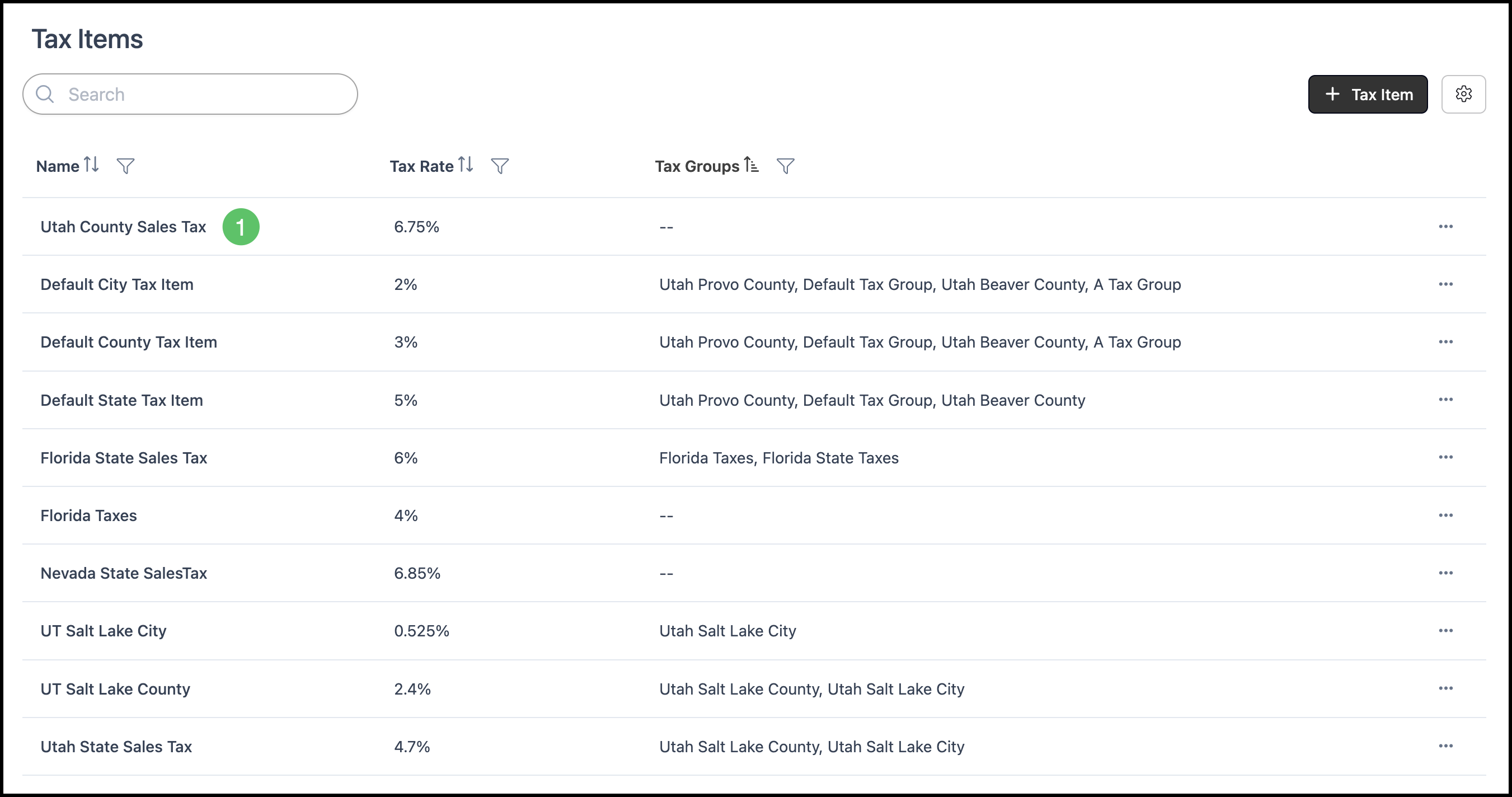
2. The Tax Item dialog will open. Update any Tax Item details. Fields marked with a red asterisk are required.
a. Name - The name that identifies the tax agency. A corresponding liability account will be created in the Chart of Accounts under Tax. The Tax Item list is sorted alphabetically; consider this when choosing a naming convention.
b. Tax Rate - The rate of tax for this agency.
Note: The dialog also includes Taxable Sales Cap. This field is optional.
c. Name on Documents - The name Customers will see on Estimates and Invoices. This may be required in some jurisdictions (for example, Canada) where individual agency names and tax rates must be listed.
d. Associated Tax Groups - The Tax Group(s) for this item. Taxes can be grouped and assigned a group name; Customers are assigned a Tax Group based on their location, and taxes are applied accordingly.
e. Municipality Name - (Optional) The specific tax agency. This information is not visible to Customers and is for internal reference (e.g., for accountants).
f. Account Number - (Optional) The sales tax liability account number.
3. Click Save.
Cloning a Tax Item
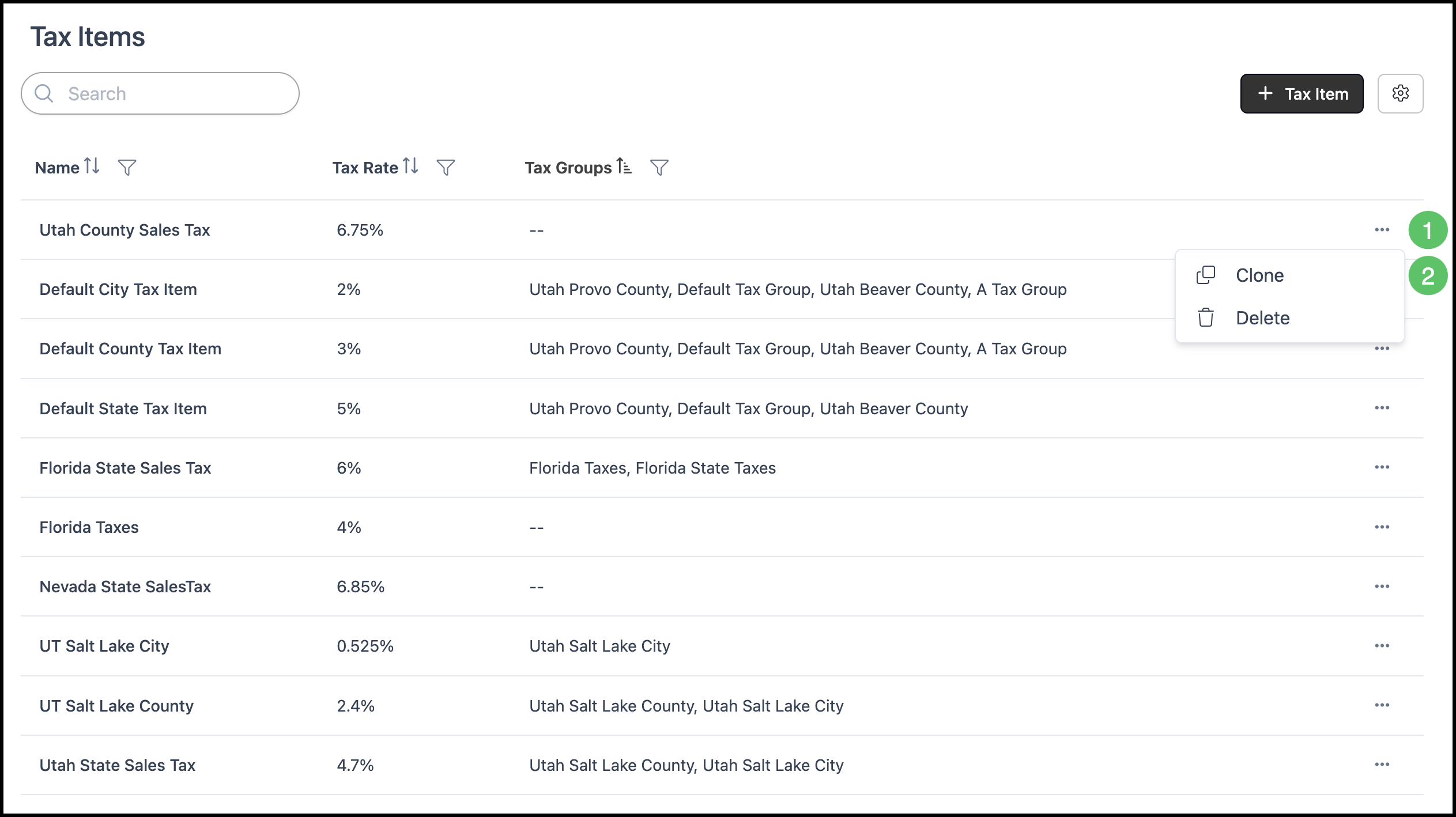
1. Find the Tax Item in the list and click the More Actions button for that row.
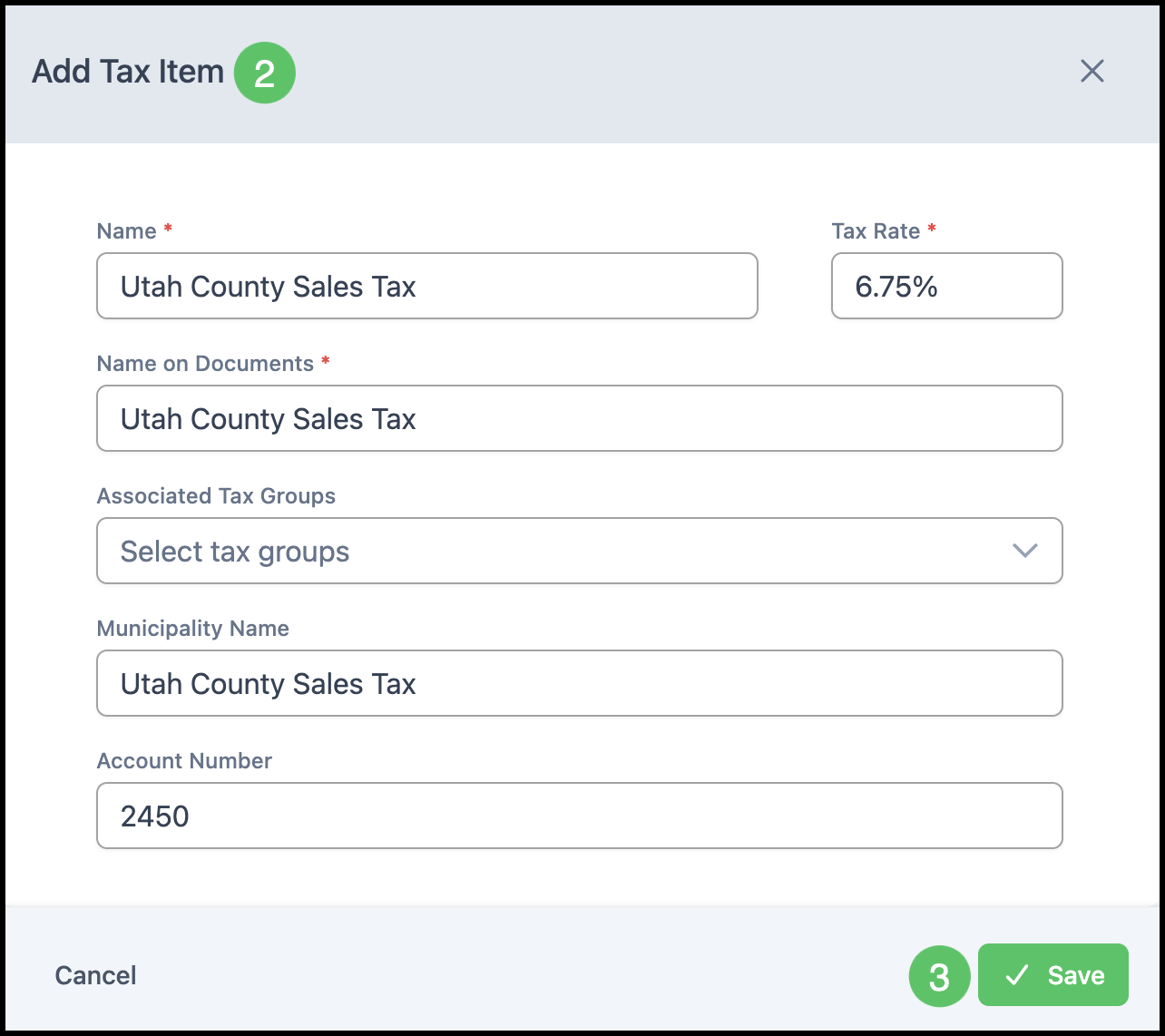
2. Click Clone. An exact copy of the Tax Item will open in an Add Tax Item (or edit) dialog.
3. Change the Tax Item details as needed.
Note: Ensure the Name is unique and required fields are completed.
4. Click Save.
Deleting a Tax Item
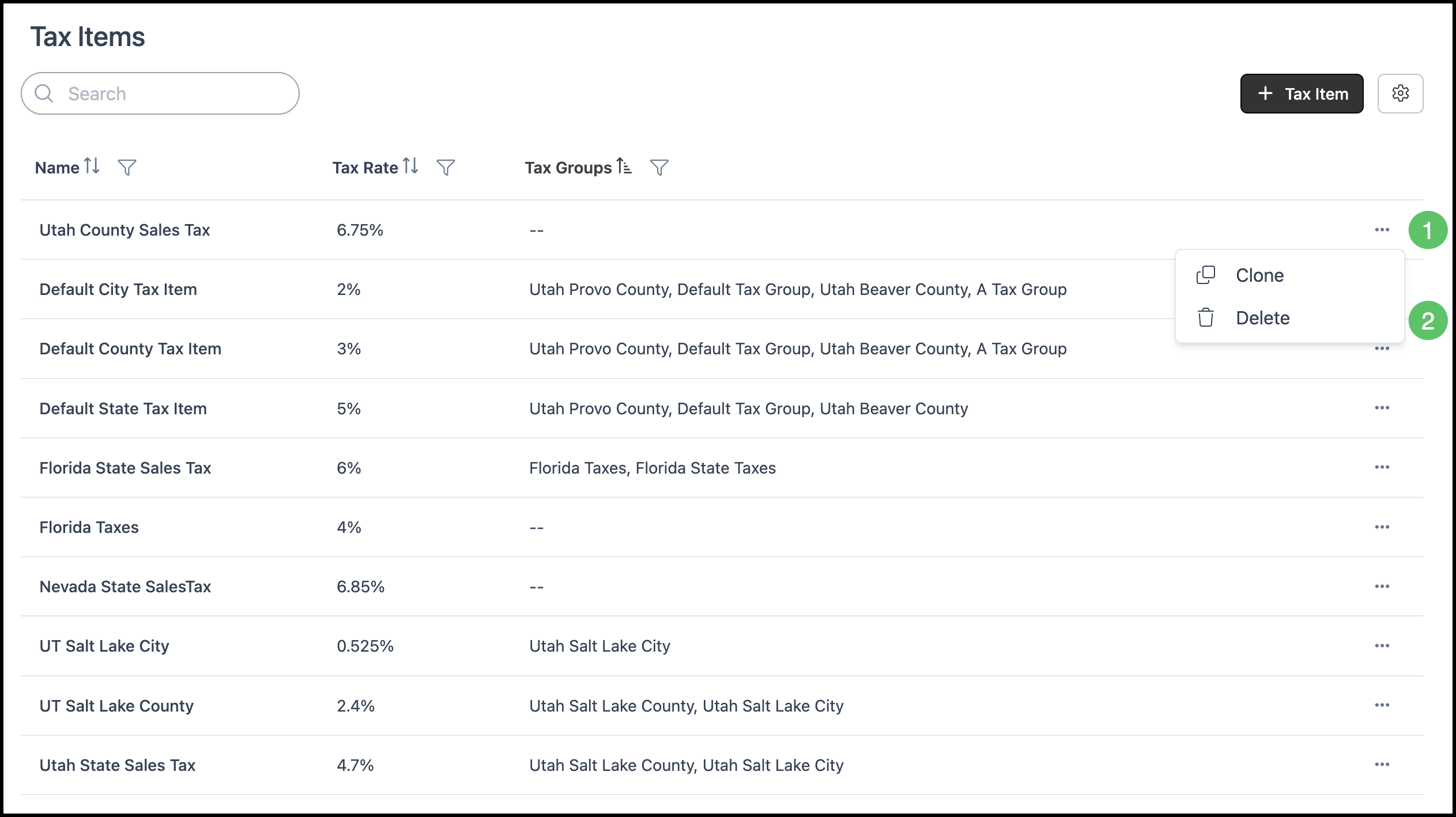
1. Find the Tax Item in the list and click the More Actions button for that row.
2. Click Delete.
Note: Delete is only available for Tax Items that are not currently in use.
Note: Deleting a Tax Item is permanent. To use it again, you will need to re-enter it manually.
Filtering the Tax Item List
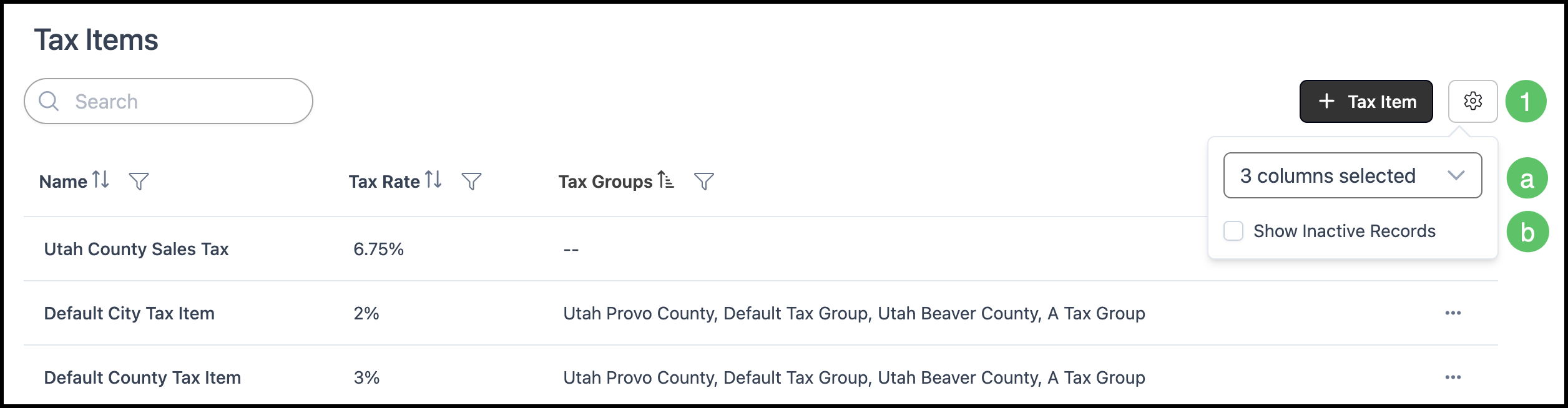
You can control which columns appear on the Tax Items list and whether inactive tax items are included by using the settings for the list.
1. Click the Search Settings icon.
a. Column selection - Use the column selector to choose which columns are displayed in the list (for example, Name, Tax Groups, Tax Rate). Select or clear columns to show or hide them in the list.
b. Show Inactive Records - Enable this option to include inactive Tax Items in the list. When unchecked, only active Tax Items are shown. Use this when you need to view, reactivate, or manage inactive Tax Items.