Quick Products are a time saving tool that allow you to build completed items that can later be added to Estimates or Orders. Mastering Quick Products is key to streamlining the Order creation process.
Table of Contents
- Managing Quick Products
- Managing Categories
- Creating Quick Products
- Using Quick Products
- Related Articles
Managing Quick Products
Quick Products are managed within the Sales module. This area provides access to Product details, along with options to Clone, Set Inactive, or Delete a Quick Product. Quick Product Categories are also managed here, including creating new Categories and updating existing Categories as Active or Inactive.
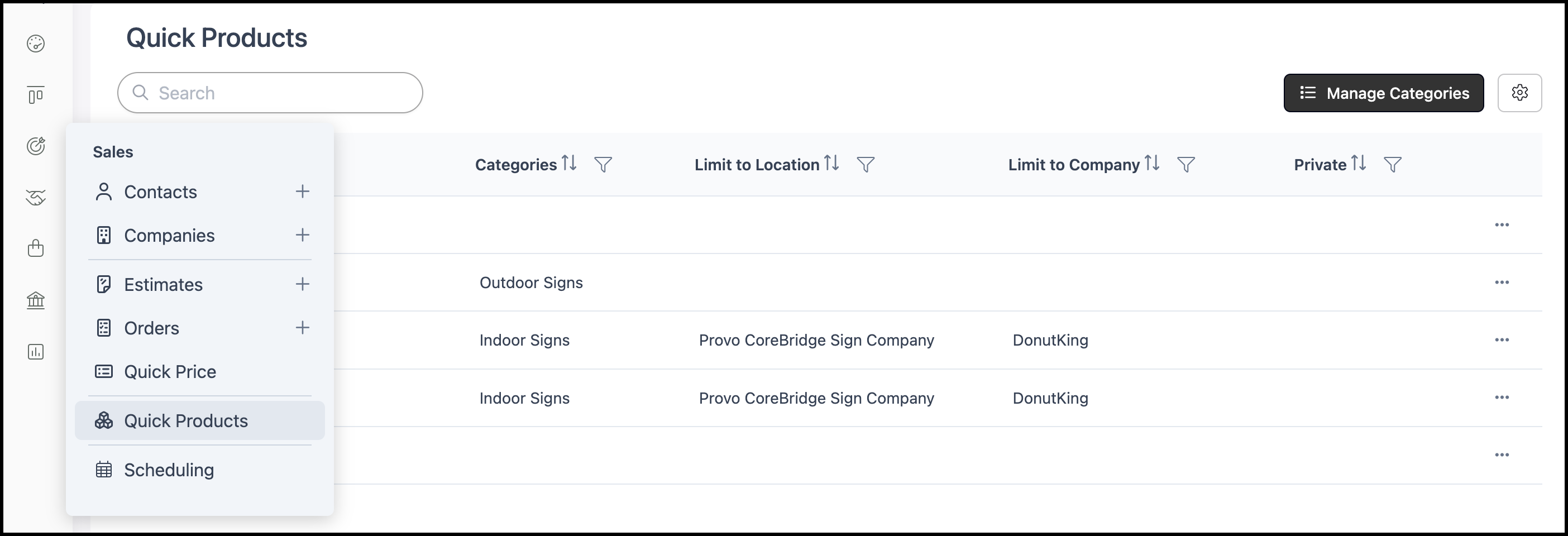
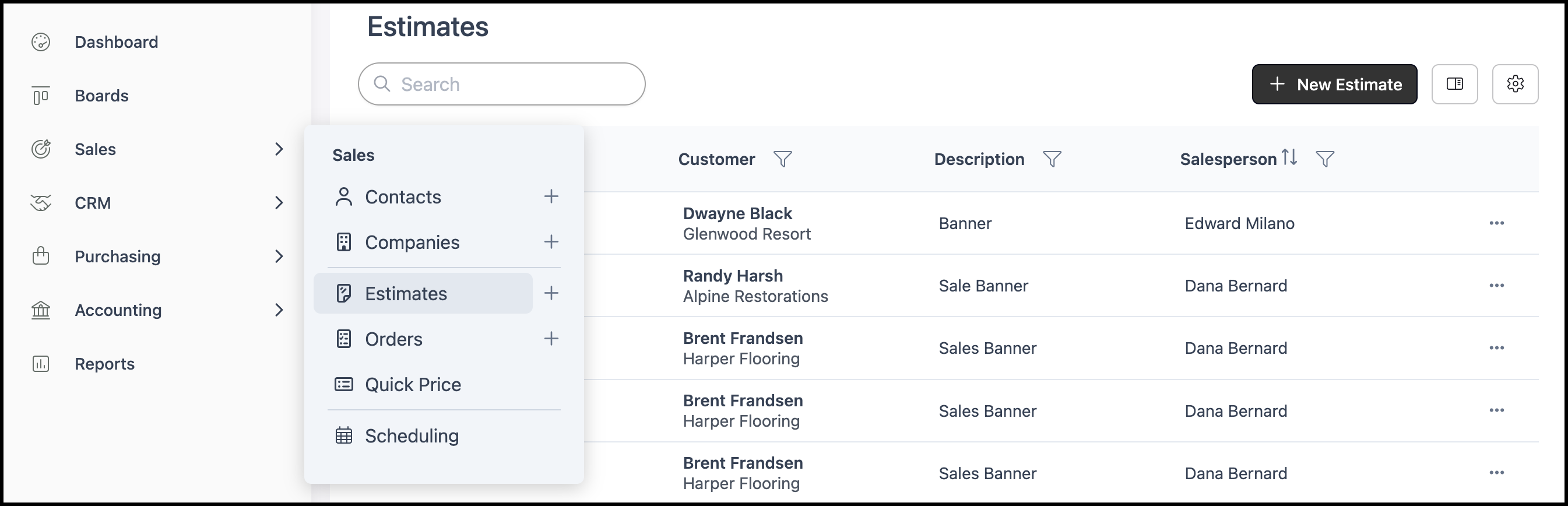
Navigate to Sales / Quick Products.
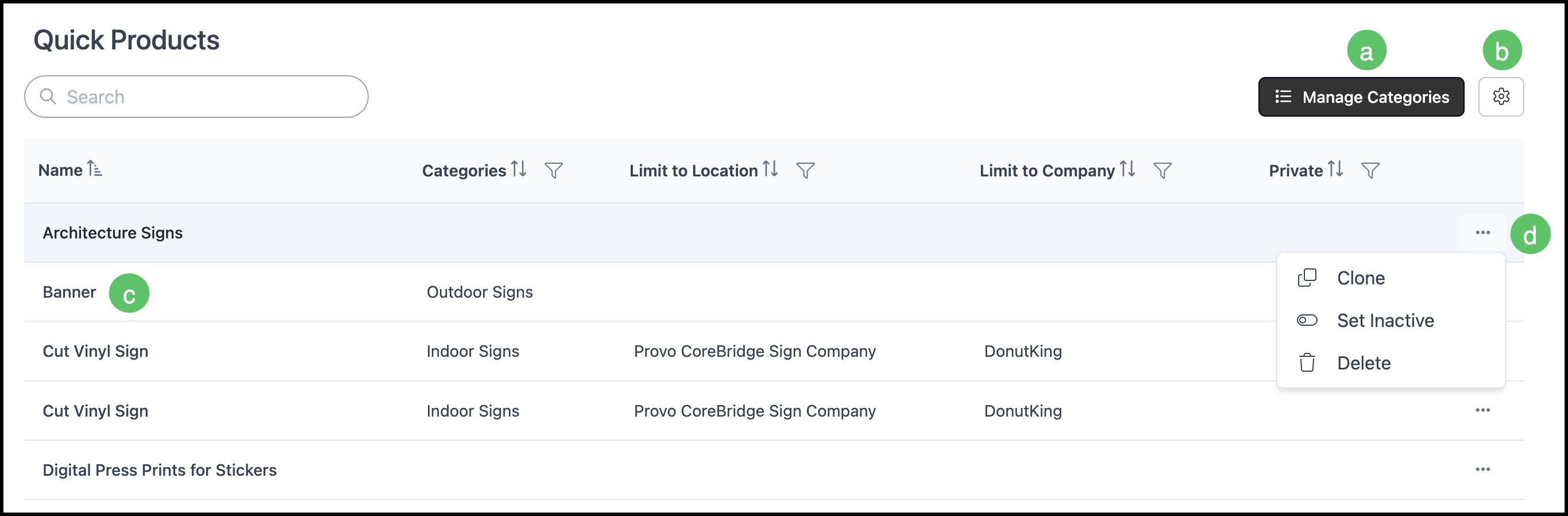
a. Manage Categories provides options to create, edit, set inactive, or delete Quick Product Categories. See Managing Categories below for additional information.
b. Search Settings includes the option to display Inactive Quick Products.
c. Selecting a Quick Product opens its details for review and editing.
Note: For Quick Products with more than one Line Item, each Line Item appears separately and can be edited individually.
d. The More Actions menu includes options to Clone, Set Inactive, or Delete the Quick Product.
Managing Categories
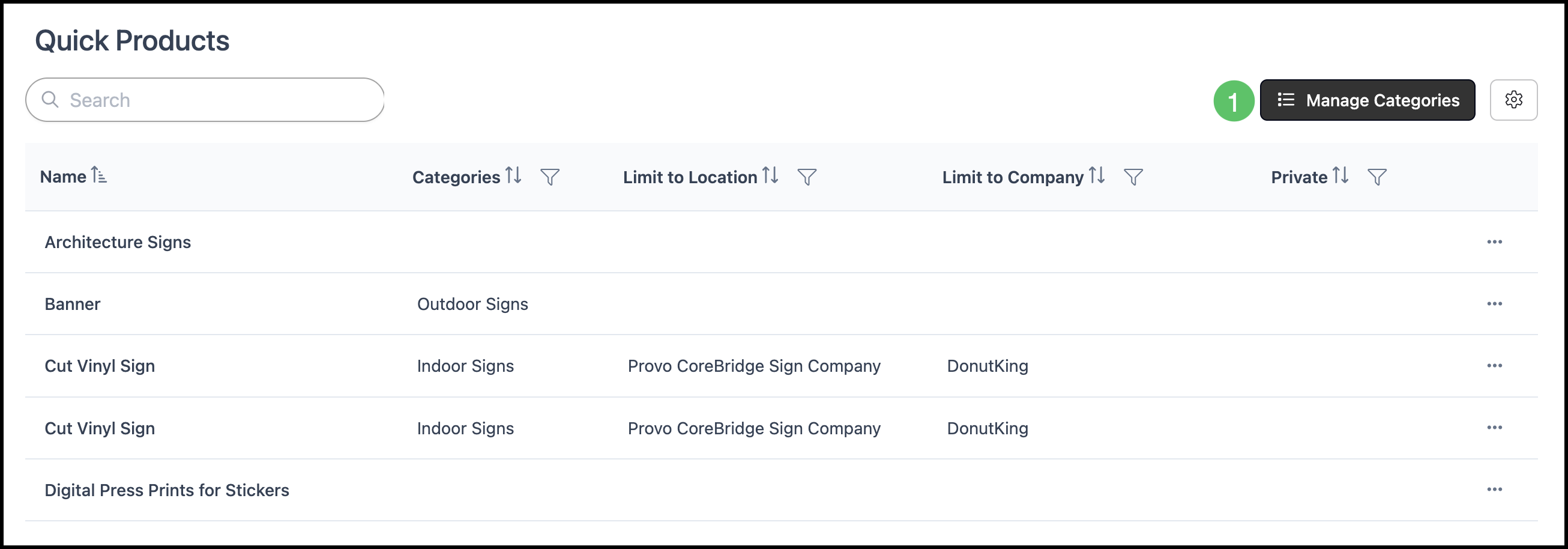
Categories can be accessed and managed from the main Quick Products screen.
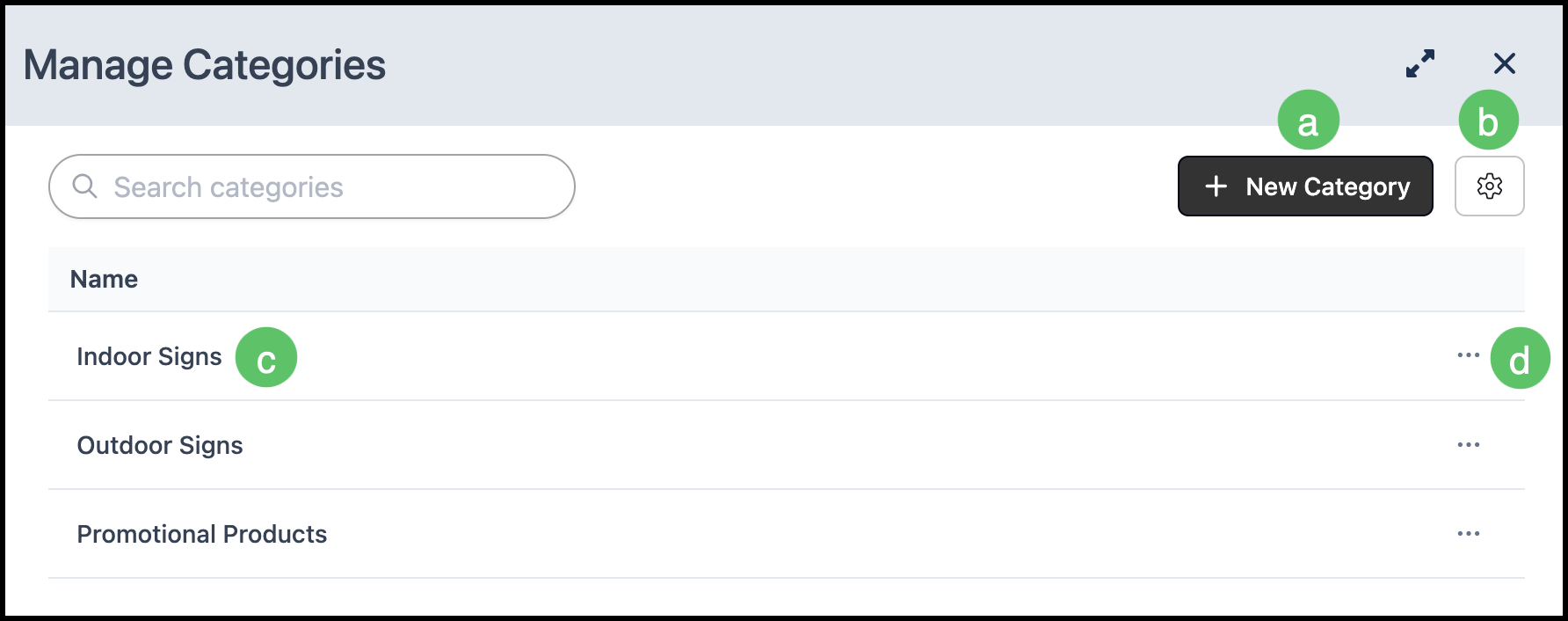
1. Click Manage Categories.
a. New Category allows you to create additional Categories for Quick Products.
b. Search Settings gives you the option to view Inactive Categories.
c. Clicking into a Category allows you to edit the name.
d. The More Actions menu includes options to Set Inactive or Delete.
Creating Quick Products
Quick Products make it easy to reuse work you've already created by turning one or more Line Items into a reusable Product. They can be created from either an Estimate or an Order, and the process is the same for both. This article uses an Estimate as the example.
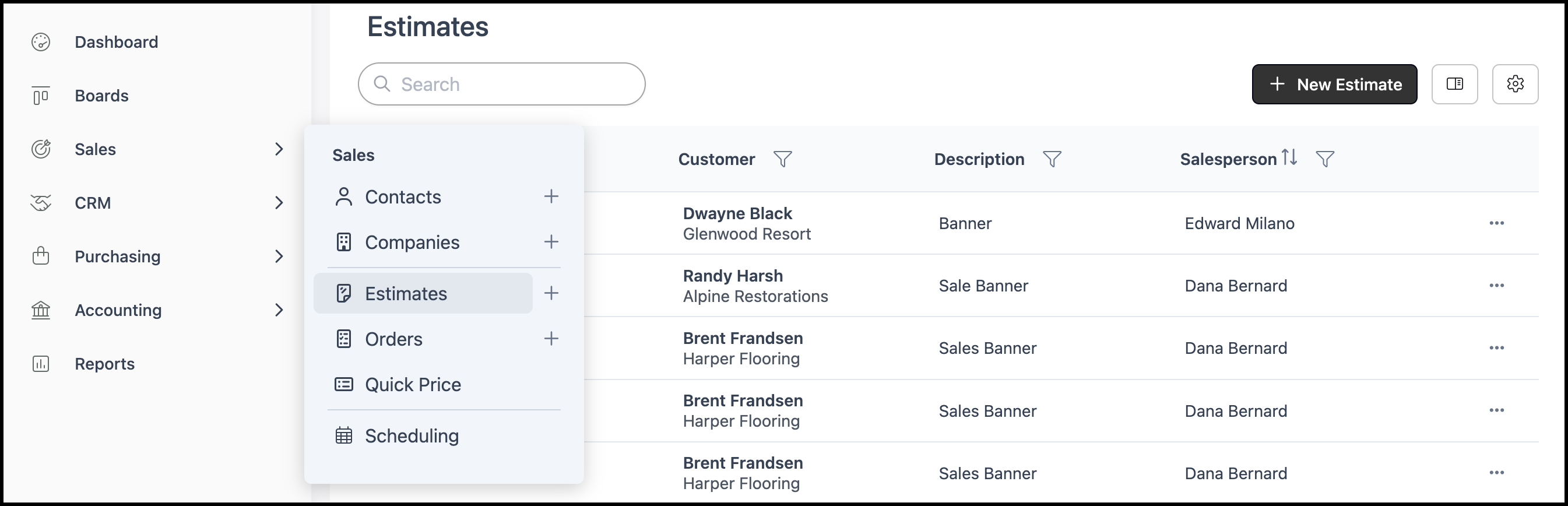
Navigate to Sales / Estimates and select the appropriate Estimate.
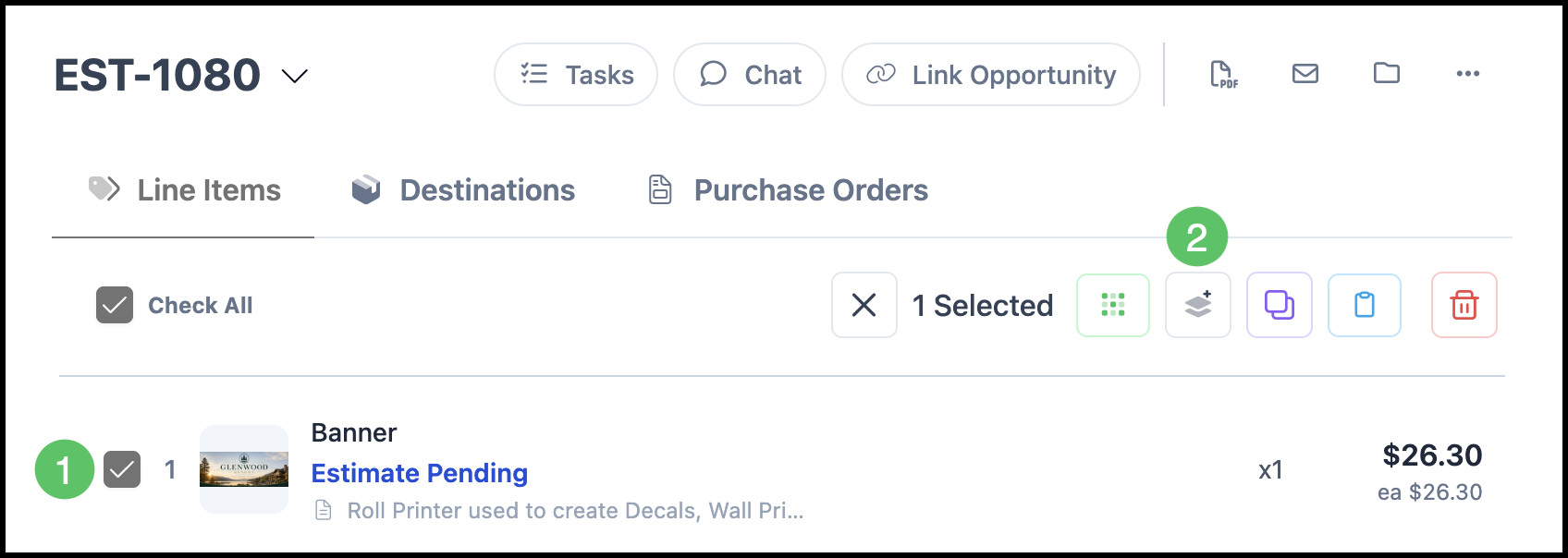
1. Check one or more Line Items you would like to make into a Quick Product.
2. Click Create Quick Product.
Note: The icon updates to Create Group Quick Product when more than one Line Item is selected.
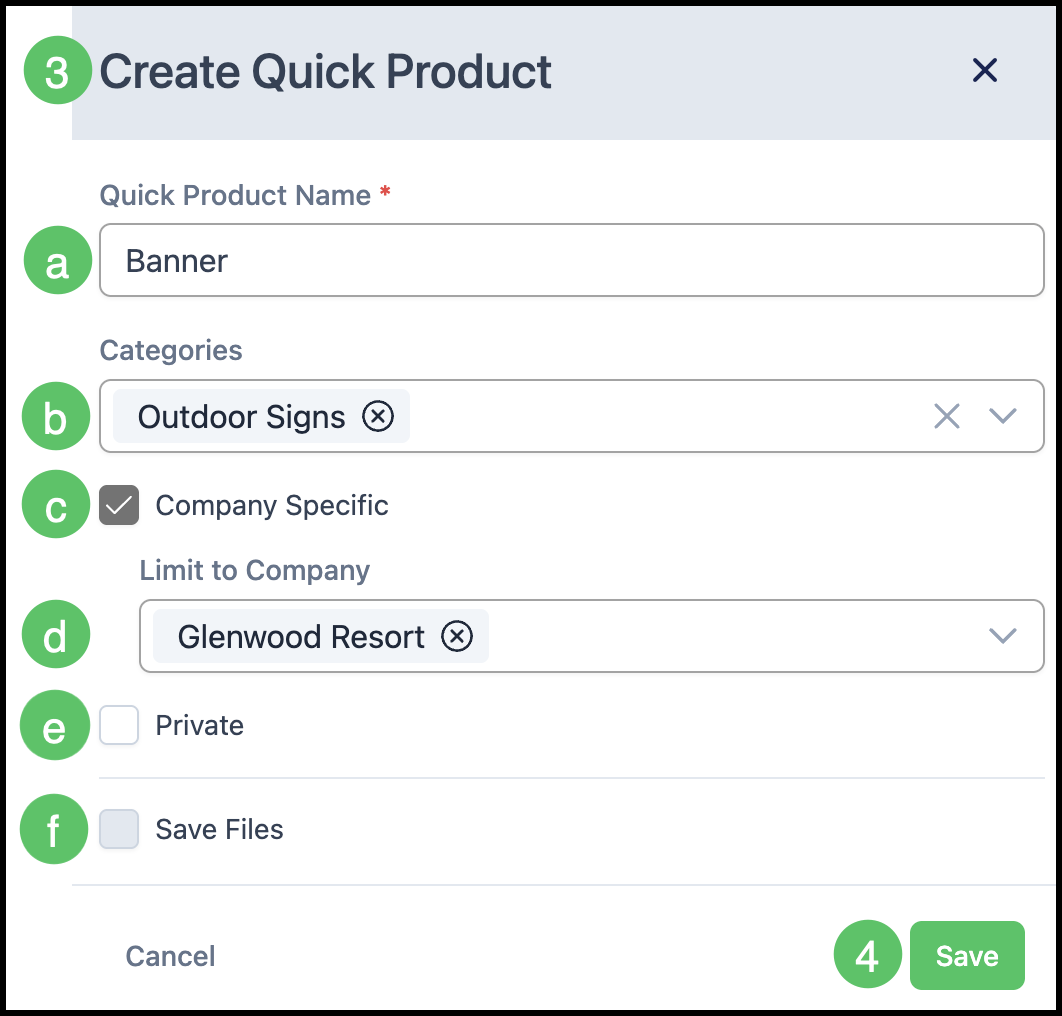
3. Fill in the necessary information
a. Quick Product Name - This is the name that shows on the line item when used in an Estimate or Order.
Note: When a Quick Product includes more than one Line Item, all Line Items take on the Quick Product Name. To keep individual Line Item names, edit each one after adding the Quick Product to an Estimate or Order.
b. Categories - Selecting one or more Categories allows you to keep Quick Products organized.
Note: Categories can be managed in System Settings / Sales Settings / Line Item Categories.
c. Company Specific - Enable this option if you would like to limit the use of this Quick Product to specific companies.
d. The dropdown allows you to select the Companies you would like to limit this to.
e. Private - Checking this box will limit use of this Quick Product to the user who created it.
f. Save Files - If files are present, they will be saved to the Quick Product.
4. Click Save.
Note: Artwork and proofs linked to this Line Item won’t transfer to the Quick Product. However, any adjustments made in the Layout Manager will be retained.
Using Quick Products
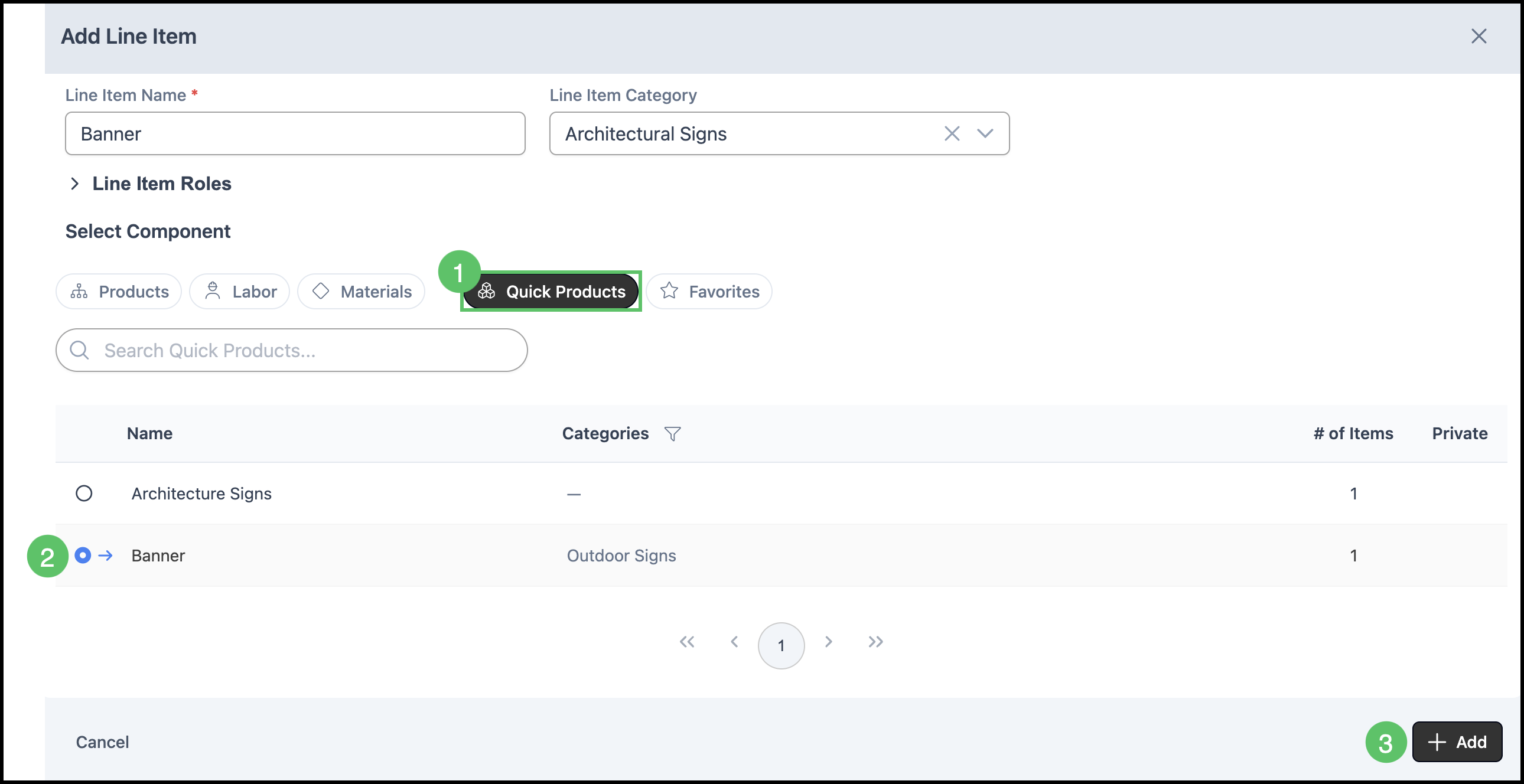
1. Click Quick Products tab in the Add Line Item dialog.
2. Select the Quick Product.
3. Click Add.
Note: If the Quick Product includes more than one Line Item, all of its Line Items are added together.