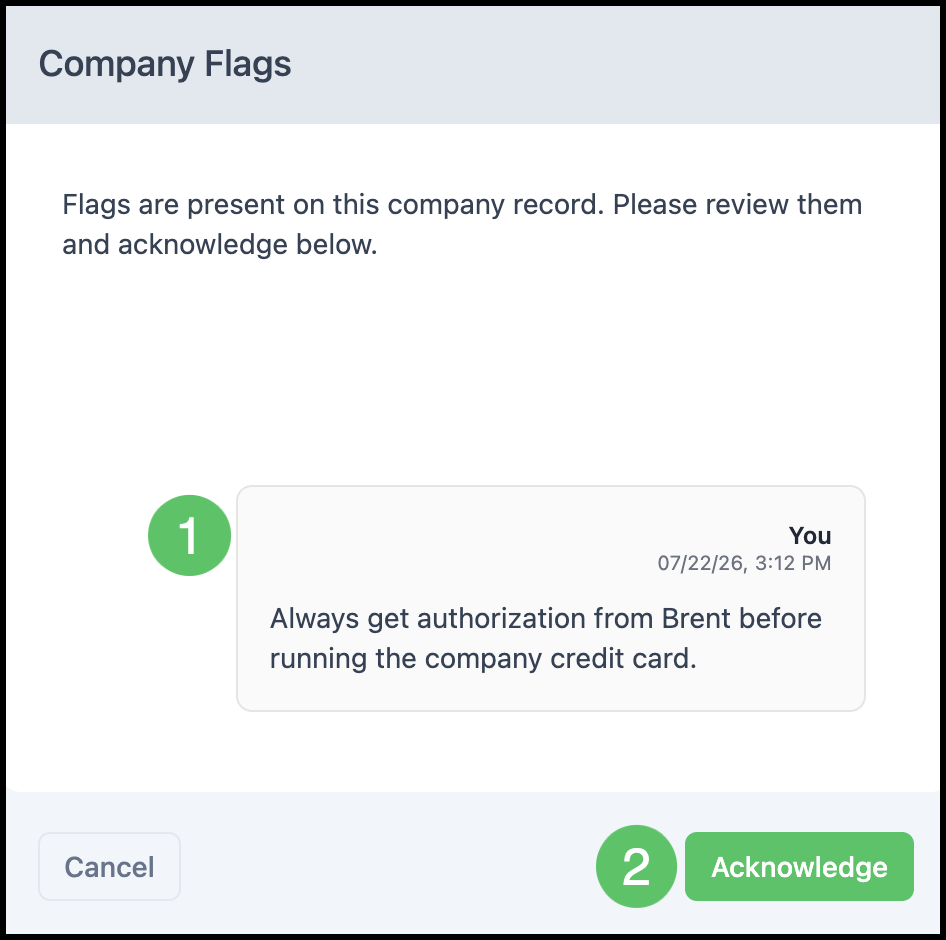
Company Flags let your team share important information about a Company, such as special handling instructions or a Customer's preferences. When a Company has an active Flag, it will appear as a required acknowledgment when creating a new Order for that Company.
Table of Contents
Accessing Flags
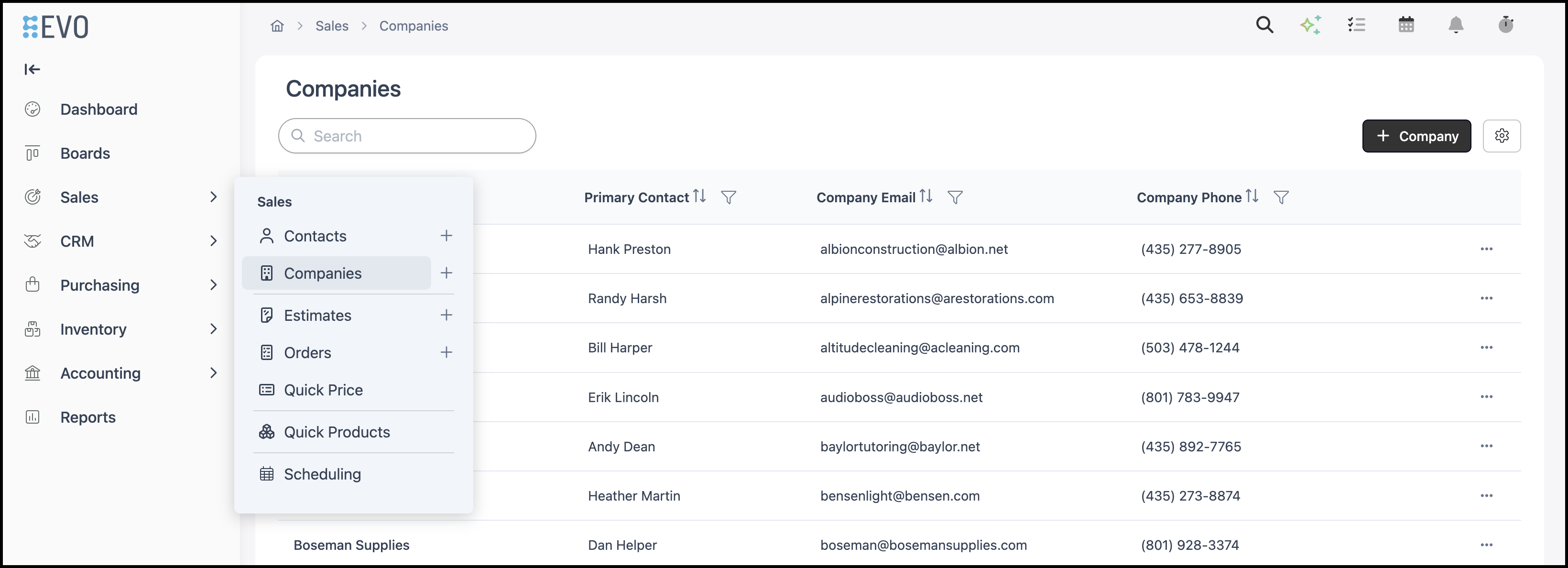
Navigate to Sales / Companies and select the desired Company.
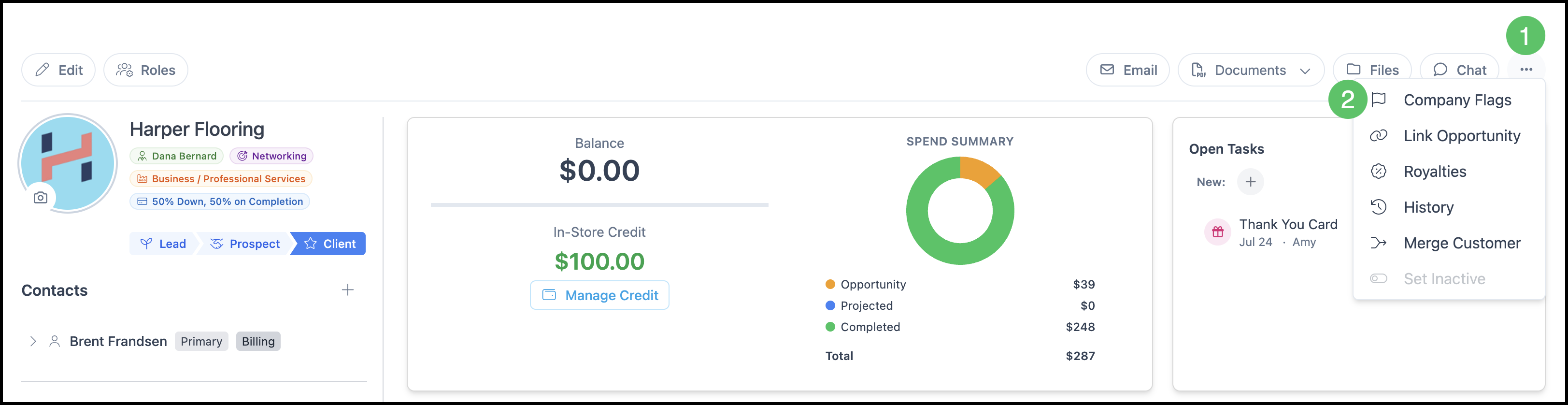
1. On the Company record, select the More Actions icon.
2. Select Company Flags. The Company Flags panel opens on the right side of the screen.
Adding a New Flag
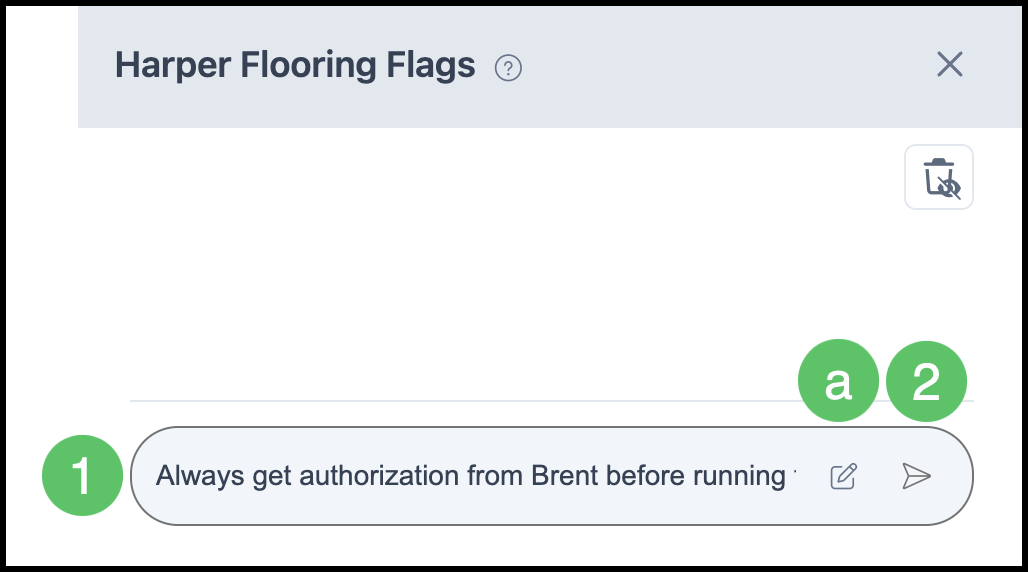
1. Enter the Flag in the message field at the bottom of the panel.
a. Edit icon - Opens the full editor to format the Flag with bold, italic, underline, a list, a link, or a table.
2. Click Send, or Post if using the expanded editor, to save the Flag.
Marking a Flag as Important
Marking a Flag as important helps your team quickly identify high-priority information about a Company.
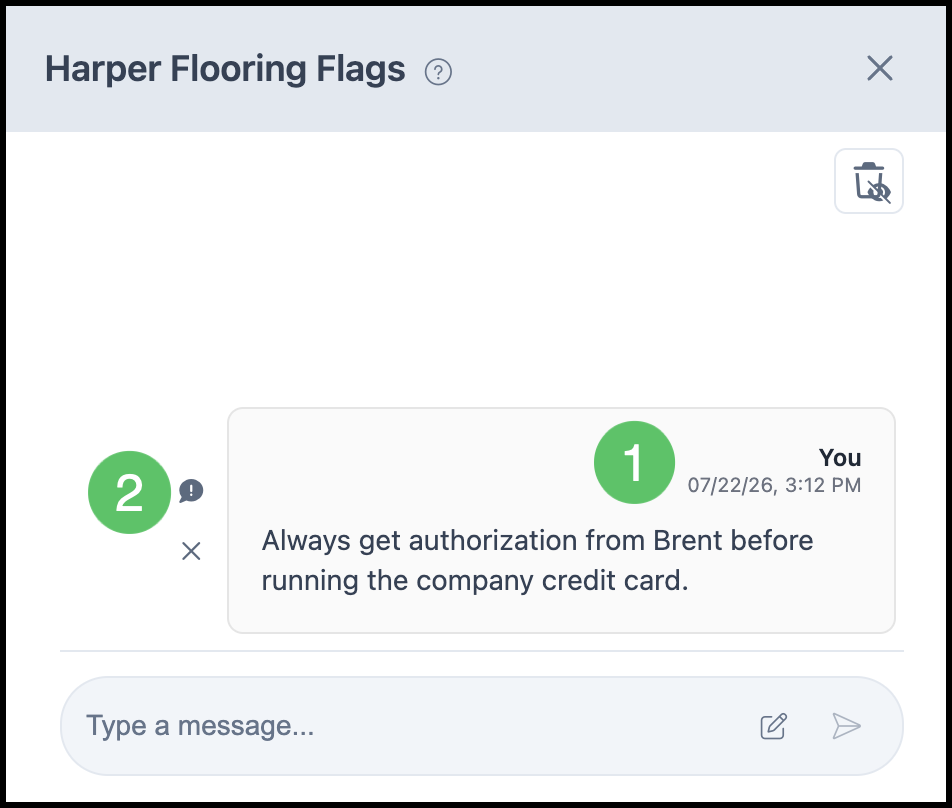
1. Hover over the Flag you want to mark.
2. Select the Important icon to mark the Flag. Select the icon again to remove the important marking.
Deleting a Company Flag
Hide a Flag when the information is no longer needed.
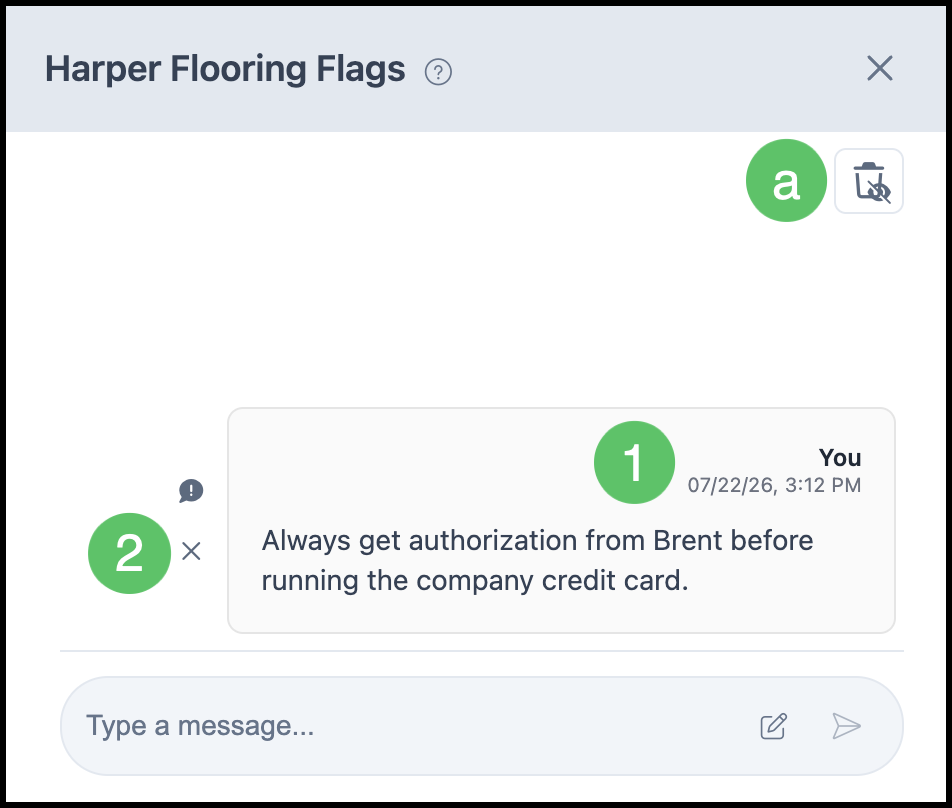
1. Hover over the Flag you want to remove.
2. Select the X icon. The Flag is removed immediately.
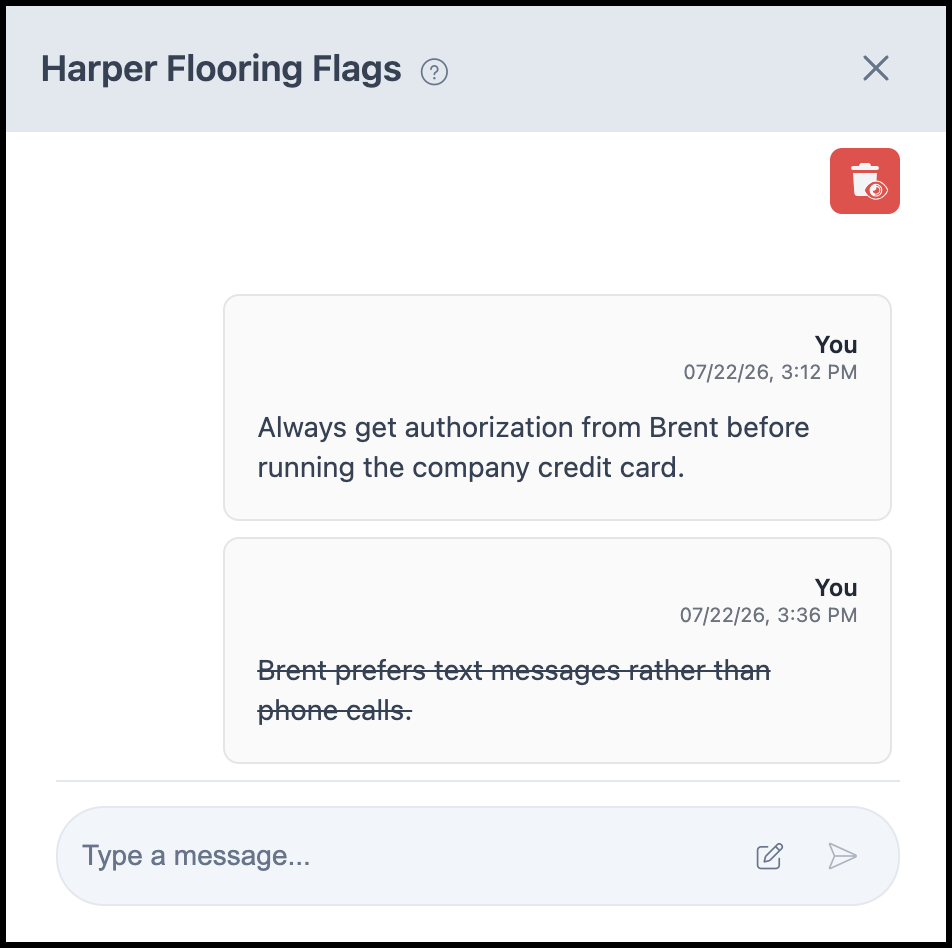
a. Show Deleted - Displays previously deleted flags in the list for reference. See the example below.
Note: Deleting a Flag is permanent. To use it again, you will need to re-enter it manually.
Example:
Company Flags on New Orders
If a Company has an active Flag, it will appear as a pop-up whenever a new Order is created for that Company.
1. Review the Flag or Flags listed in the Company Flags window.
2. Click Acknowledge to continue creating the Order.