
When an eCheck payment is greater than the total of the selected Invoices, CoreBridge applies the remaining amount as refundable In-Store Credit on the Company. The overpayment is confirmed during Make Payments and processed using eCheck (Fiserv US).
Table of Contents
- Before You Begin
- Important Information
- Take an eCheck Overpayment
- After the Payment Posts
- Frequently Asked Questions
- Related Articles
Before You Begin
Fiserv US must be installed and online, and ACH (eCheck) payments must be enabled, before eCheck (Fiserv US) appears as a payment method. For more information, see Fiserv US - A CoreBridge Integrated Merchant Services Provider and Using eChecks.
Important Information
- You must select Confirm Overpayment Amount before Pay is available.
- The extra amount posts as refundable In-Store Credit on the company.
- eCheck (Fiserv US) is available as a payment method after you confirm an overpayment.
- You cannot complete a payment when Total Payment Amount is less than Selected invoices total.
- Changing the customer, location, Total Payment Amount, or invoice selection clears Confirm Overpayment Amount. Select it again before you pay.
- Location is required.
Take an eCheck Overpayment
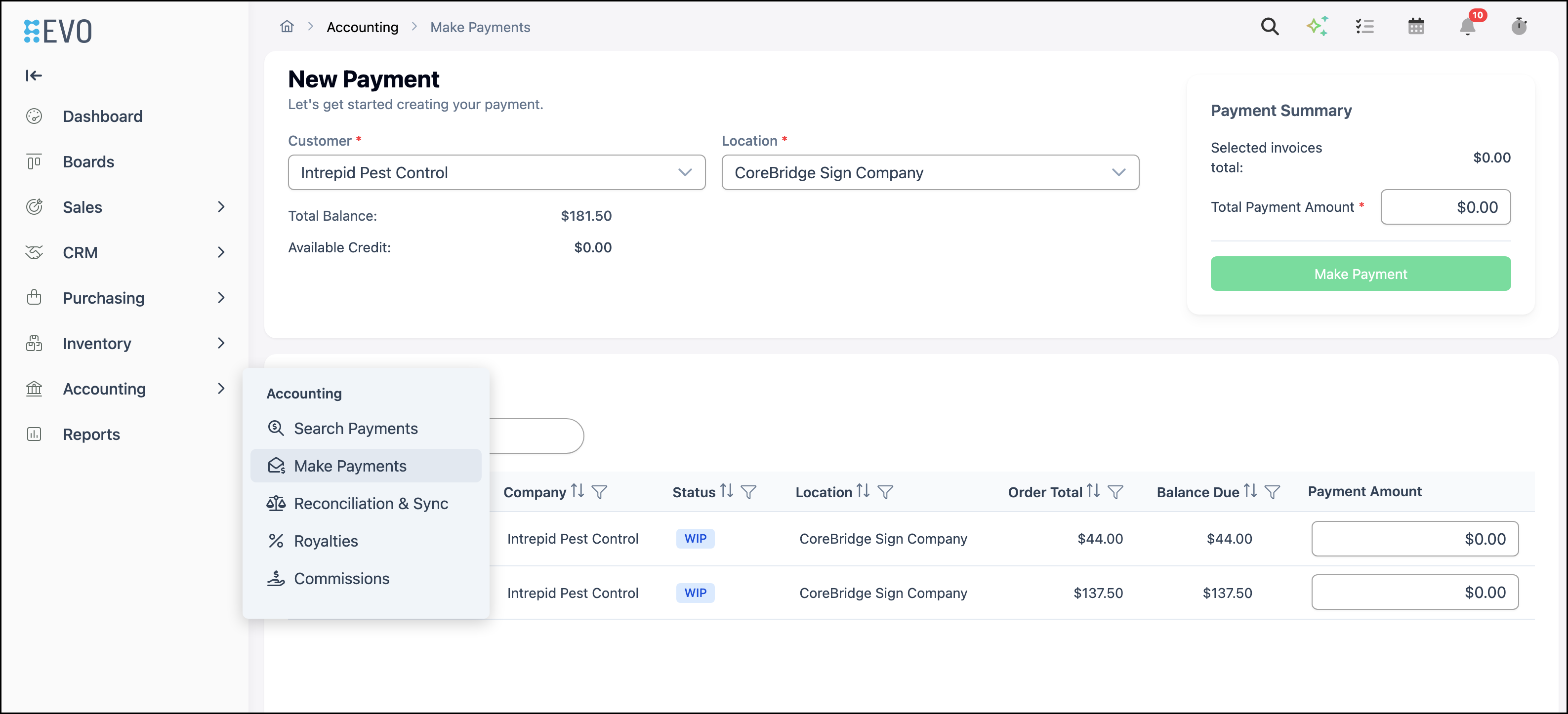
Navigate to Accounting / Make Payments.
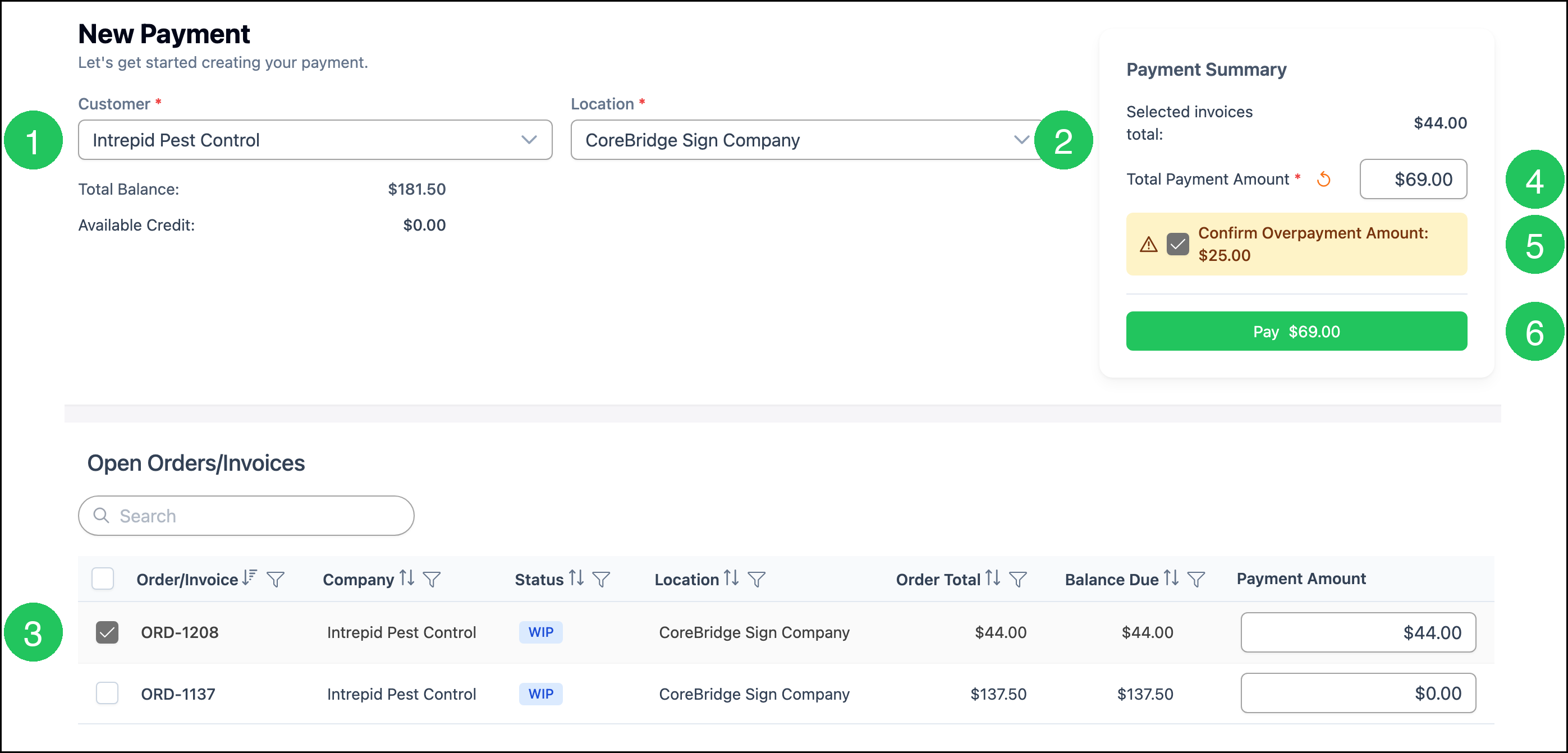
1. Select the Customer.
2. Select the Location.
Note: After you select a customer, open orders and invoices load. Total Balance and Available Credit appear.
3. Select one or more invoices.
4. Enter a Total Payment Amount that is greater than Selected invoices total.
Note: Confirm Overpayment Amount appears with the extra amount.
5. Select Confirm Overpayment Amount.
6. Click Pay.
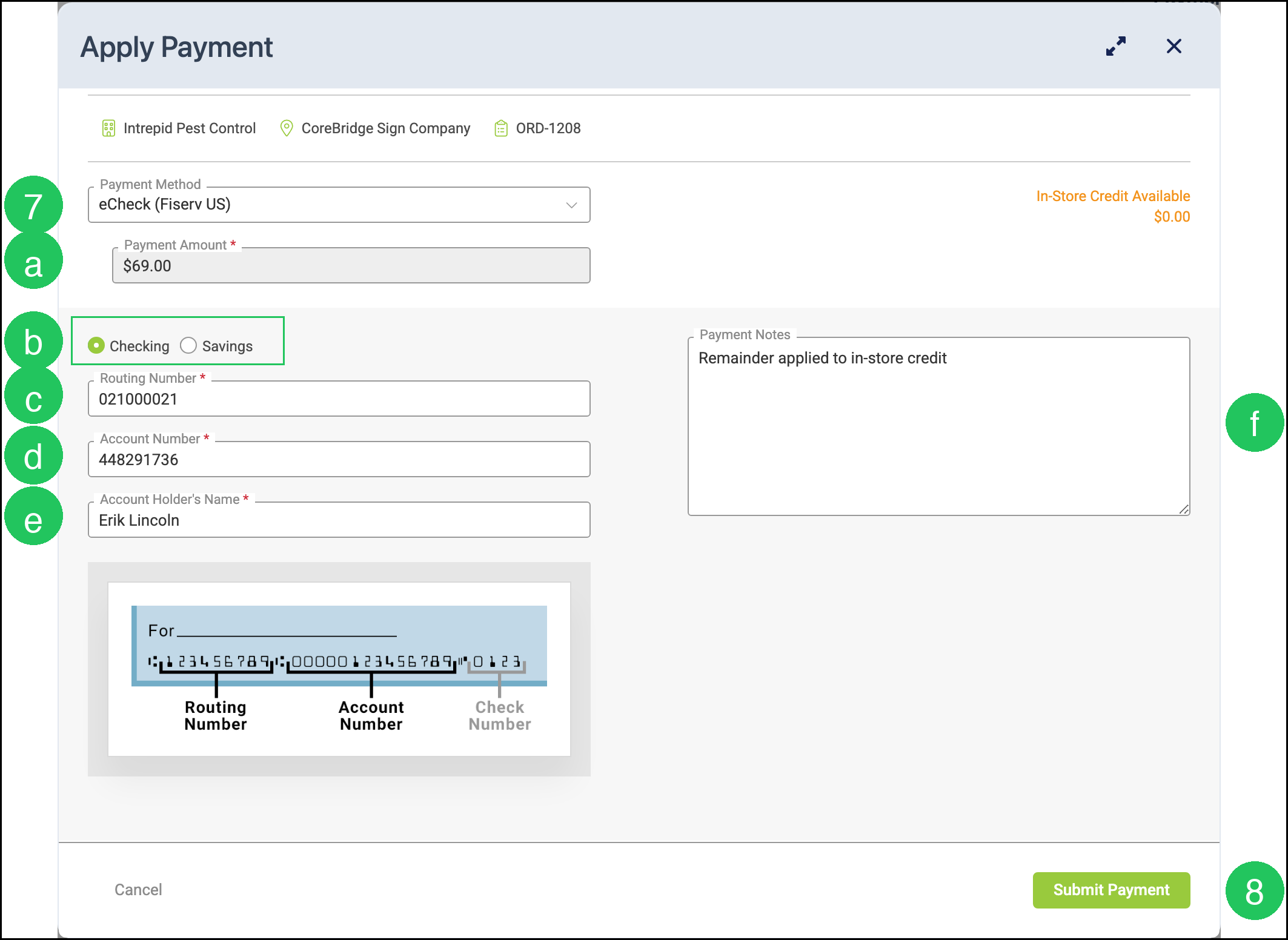
7. Select eCheck (Fiserv US) from the Payment Method dropdown.
a. Payment Amount - The total amount of the eCheck, including the overpayment. This field is filled from Total Payment Amount.
b. Checking / Savings - The type of bank account.
c. Routing Number - The 9-digit routing number from the customer's check.
d. Account Number - The customer's bank account number.
e. Account Holder's Name - The name on the bank account.
f. Payment Notes - Optional notes about the payment.
8. Click Submit Payment.
After the Payment Posts
After you click Submit Payment, the selected invoices are paid and the extra amount posts as refundable In-Store Credit. Available Credit on Make Payments increases by the overpayment amount.
On Accounting / Search Payments, the extra amount appears as Type Transfer to Credit (RC) with Method eCheck.
To apply the credit to later invoices, see Using In-Store Credit. To refund the credit, see Refunds. For the overpayment workflow with other payment methods, see Converting Overpayment to In-Store Credit.
Frequently Asked Questions
1. Why is Pay unavailable?
Answer: Select Confirm Overpayment Amount. Pay stays unavailable until the overpayment is confirmed. Also confirm that Customer and Location are selected, and that Total Payment Amount is not less than Selected invoices total.
2. Can I take an eCheck overpayment when no invoices are selected?
Answer: Yes. Leave invoices unselected, enter a Total Payment Amount, select Confirm Overpayment Amount, then complete the Apply Payment dialog with eCheck (Fiserv US). The full amount posts as refundable In-Store Credit.
3. What kind of In-Store Credit does an eCheck overpayment create?
Answer: Refundable In-Store Credit. The extra amount appears as Transfer to Credit (RC).
4. How do I use or refund the credit later?
Answer: Apply it as a payment method from Make Payments or from an order. For more information, please see Using In-Store Credit. To refund it, see Refunds.
Related Articles
Converting Overpayment to In-Store Credit
Fiserv US - A CoreBridge Integrated Merchant Services Provider