A Board provides a custom view of Estimates, Orders, and related records as they move through their lifecycle. Boards are created in the Boards module, where the board type, columns, filters, sort, and fields are defined. Filter, sort, and field choices made while viewing a board stay in place for you after you leave the board.
Table of Contents
- Creating a Board
- Editing Boards
- Filters Within a Board
- Customizing Card View
- Customizing List View
- Related Articles
Creating a Board
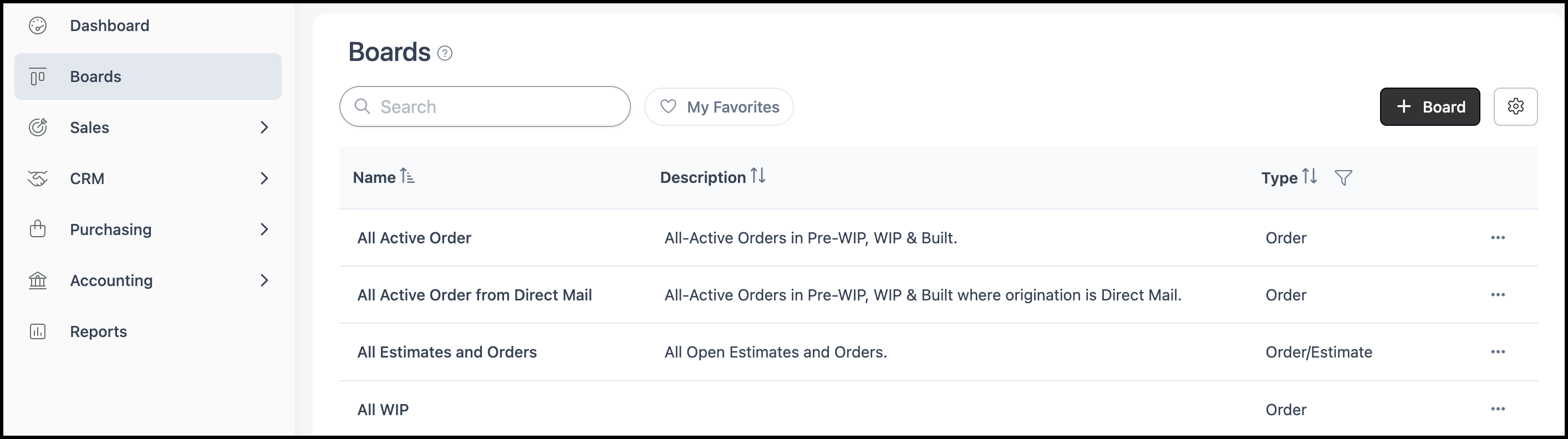
Navigate to Boards.
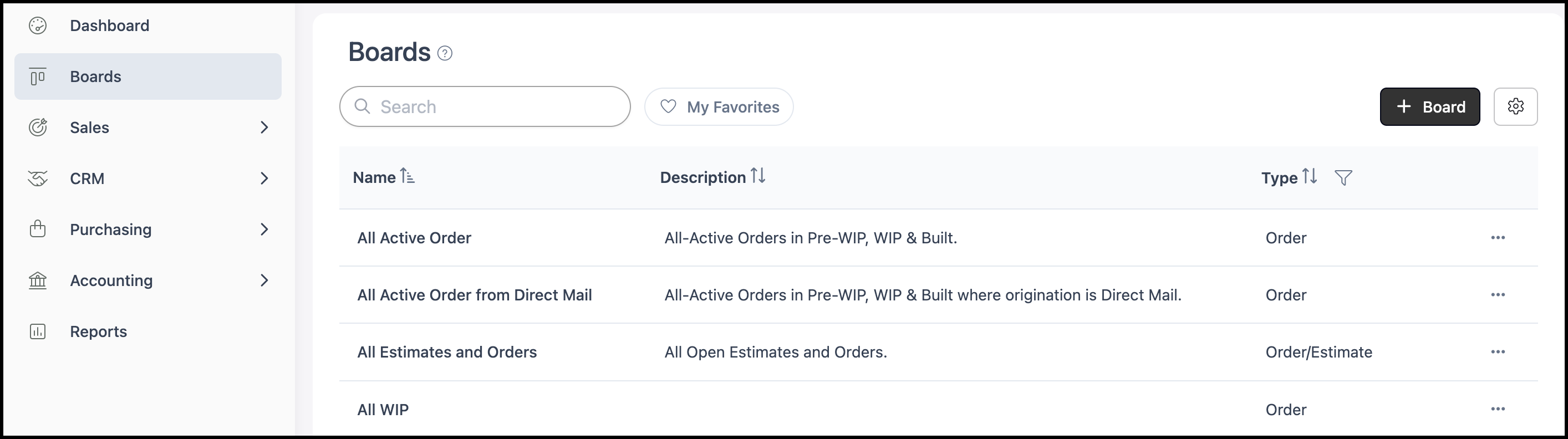
1. Click + Board.
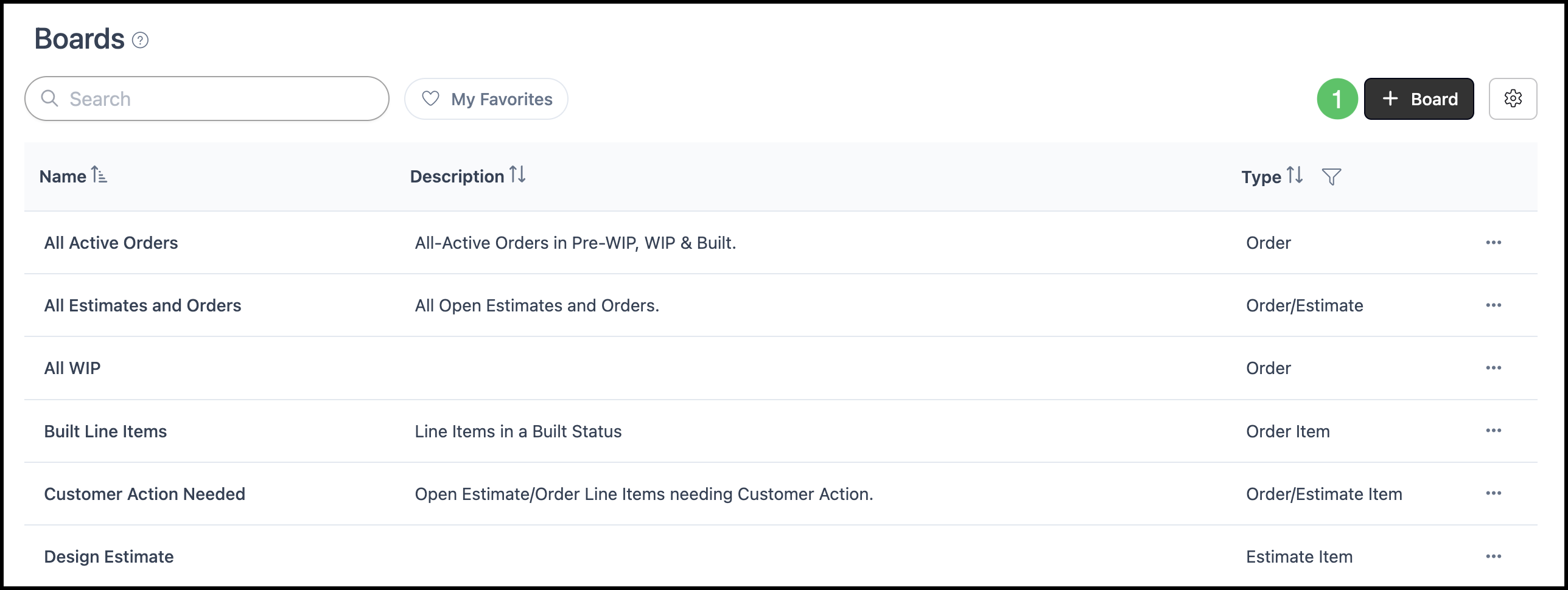
2. Enter a Board Name.
3. Click Board Type or Type.
Note: This opens a side panel.
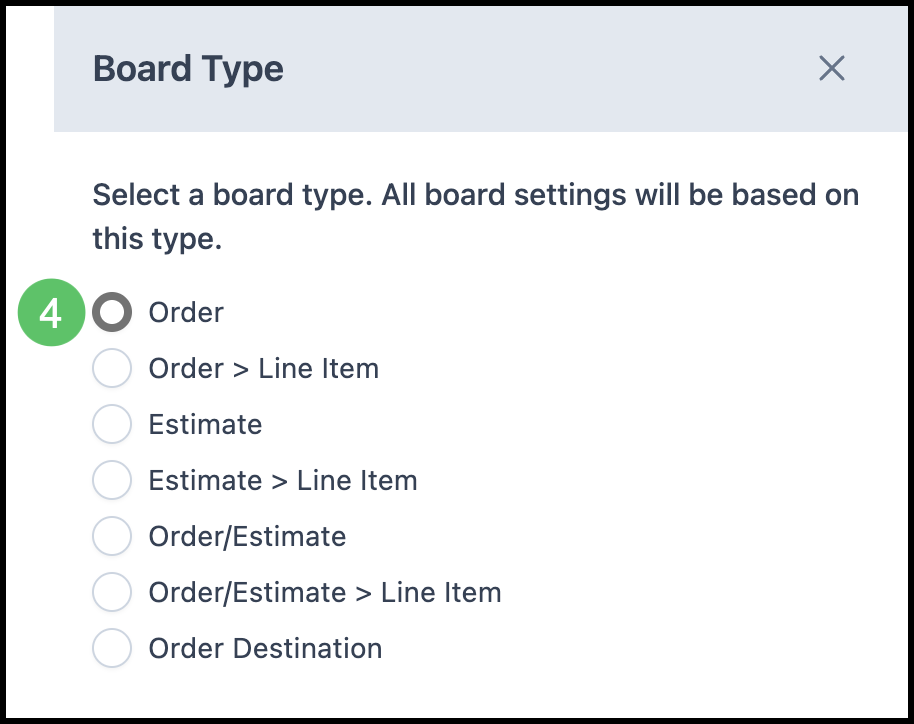
4. Select the record level for the board (for example Order, Order > Line Item, Estimate, Estimate > Line Item, Order/Estimate, Order/Estimate > Line Item, or Order Destination). The type drives which columns, filters, and fields you can use.
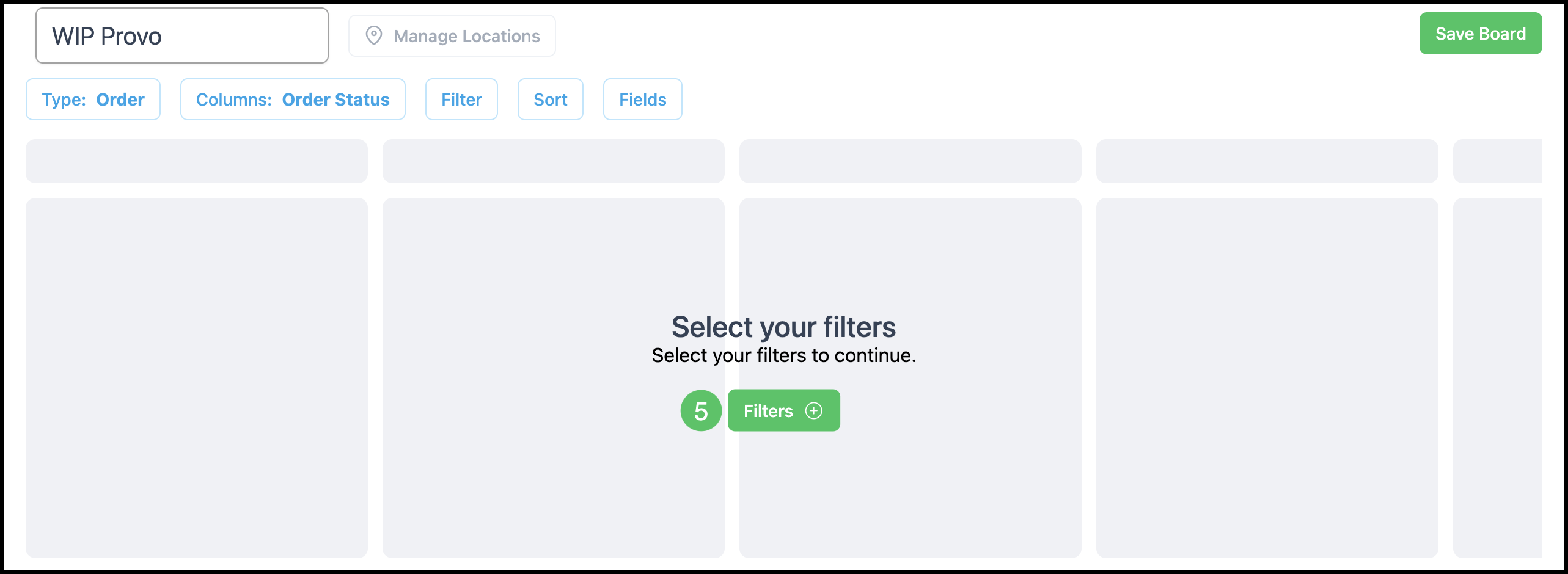
5. Click Filters.
Note: You can also click Save Board at this point in the creation process. Filters can be added at a later date, if desired.
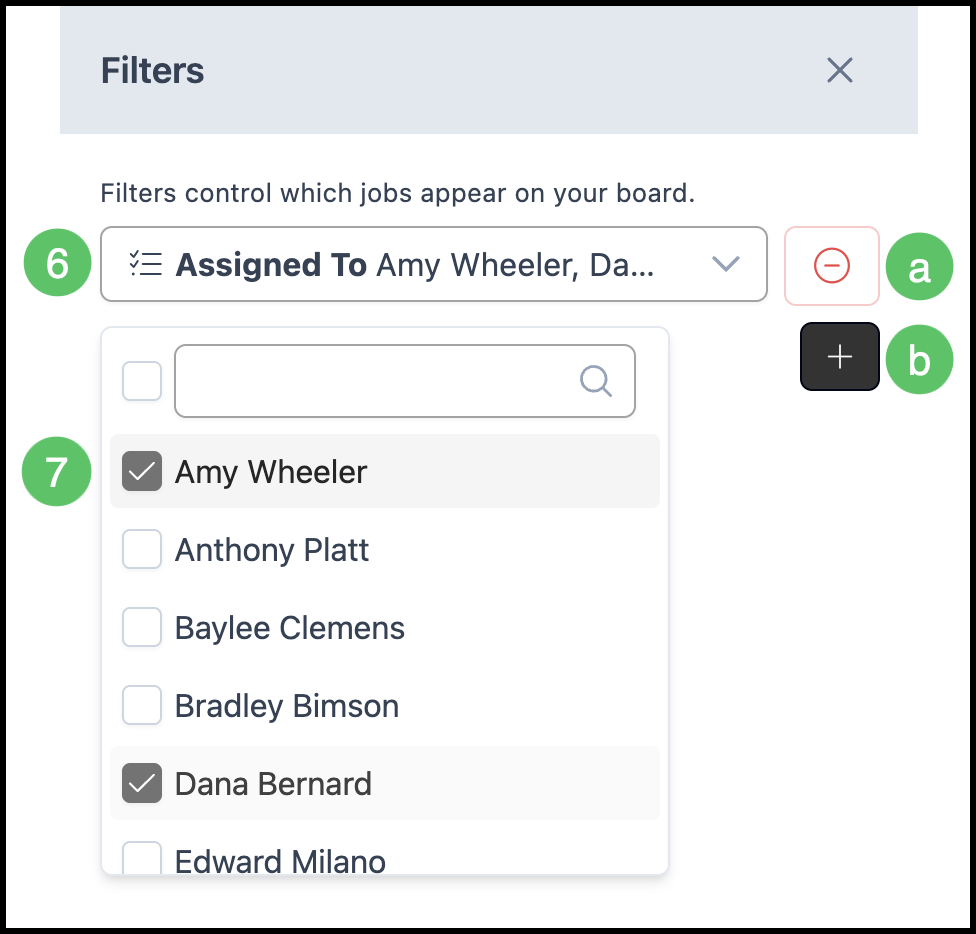
6. Select the desired Filter.
7. Make any associated selections.
a. Use the subtract button if you want to remove a single Filter.
b. Use the add button if you would like to add an additional Filter.
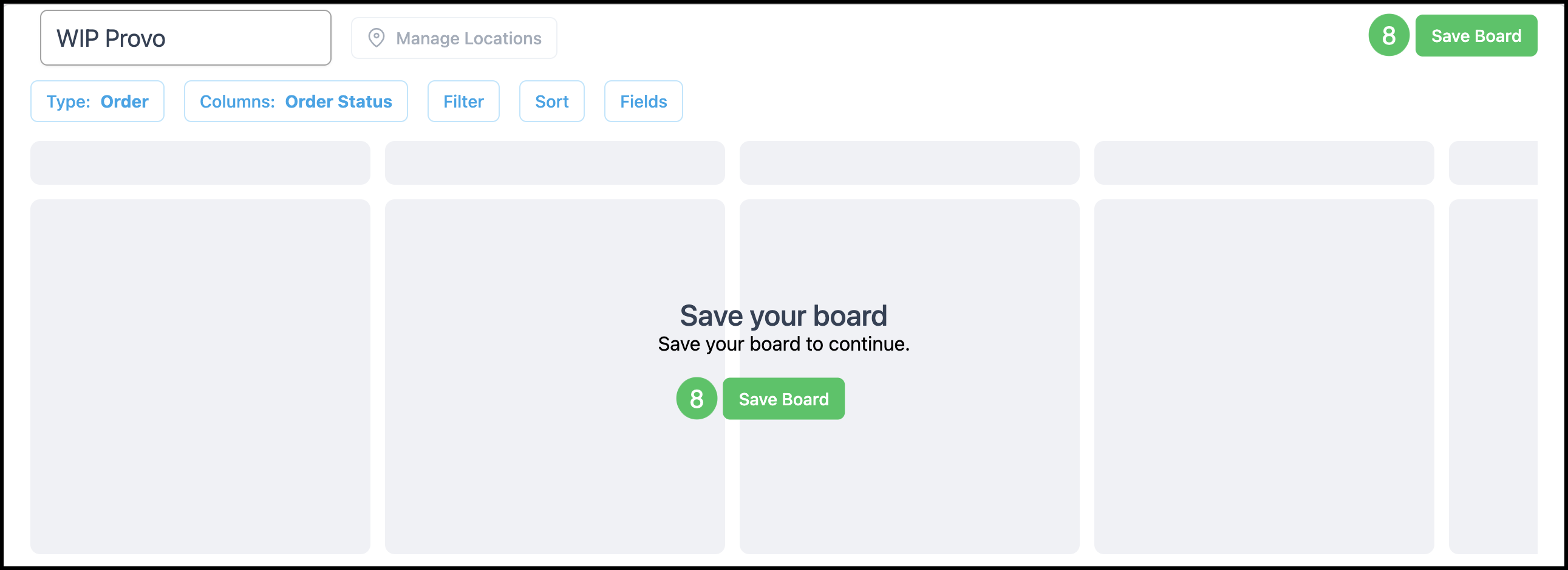
8. Click Save Board.
Editing Boards
Navigate to Boards and select the board to edit.
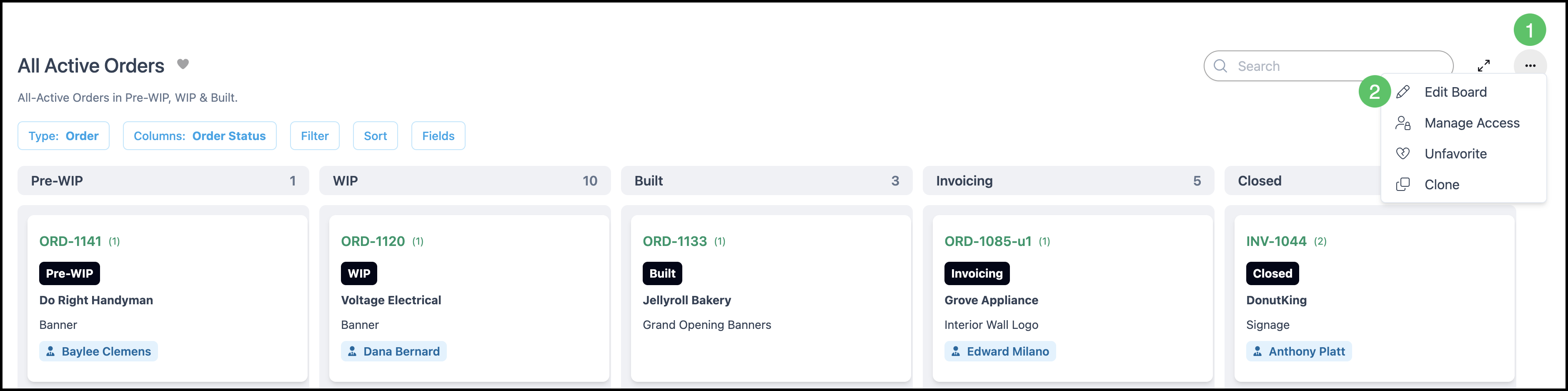
1. Click More actions.
2. Click Edit Board.
Note: Availability of More actions depends on your permissions, because changes made here apply company-wide.
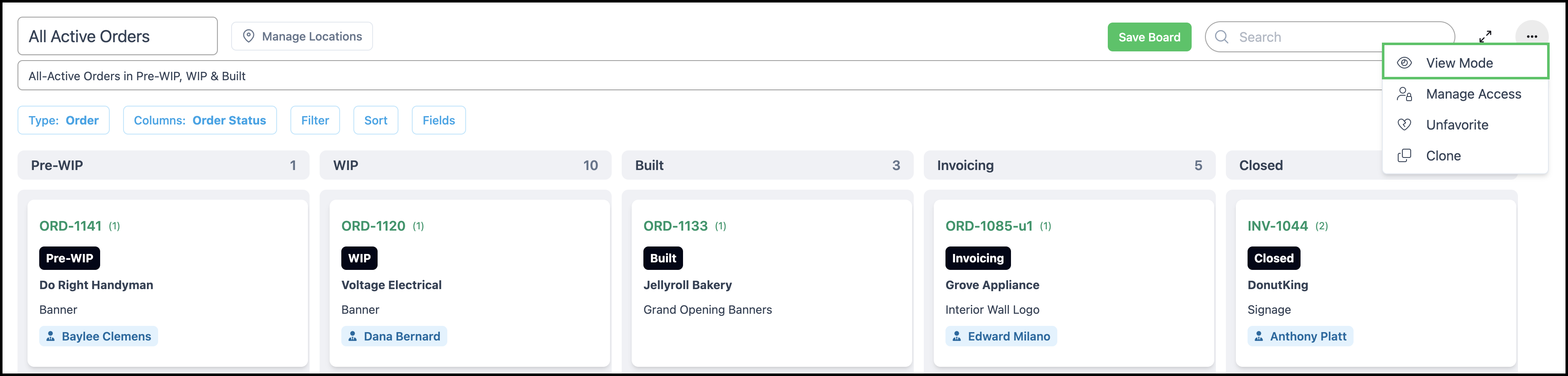
3. Make any necessary edits. This can include the Board name, Description, Locations, Columns, Filter, Sort, or Fields.
Note: Clicking Columns, Filter, Sort, or Fields opens a side panel where you can make changes.
4. Click Save Board.

Note: To leave editing without making changes, select View Mode under More actions.
Filters Within a Board
Filters control which jobs appear. Set values (such as status) and the board keeps only matching records visible. Changes made here apply to you and remain active after you leave the board.
1. Click Filter to open the Filters panel.
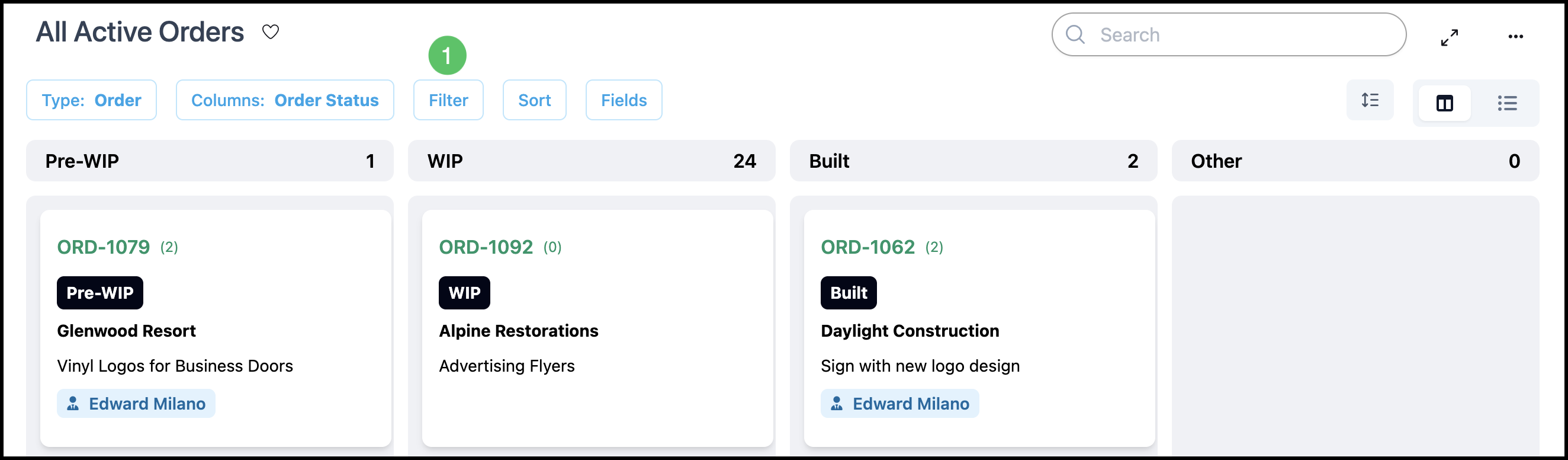
2. Select the desired Filter.
3. Make any associated selections. Filters are applied immediately.
a. The Reset button undoes your selections at any time.
Note: Another Reset button is available outside of the filter side panel. See the example.
b. Use the subtract button if you want to remove a single Filter.
c. Use the add button if you would like to add an additional Filter.
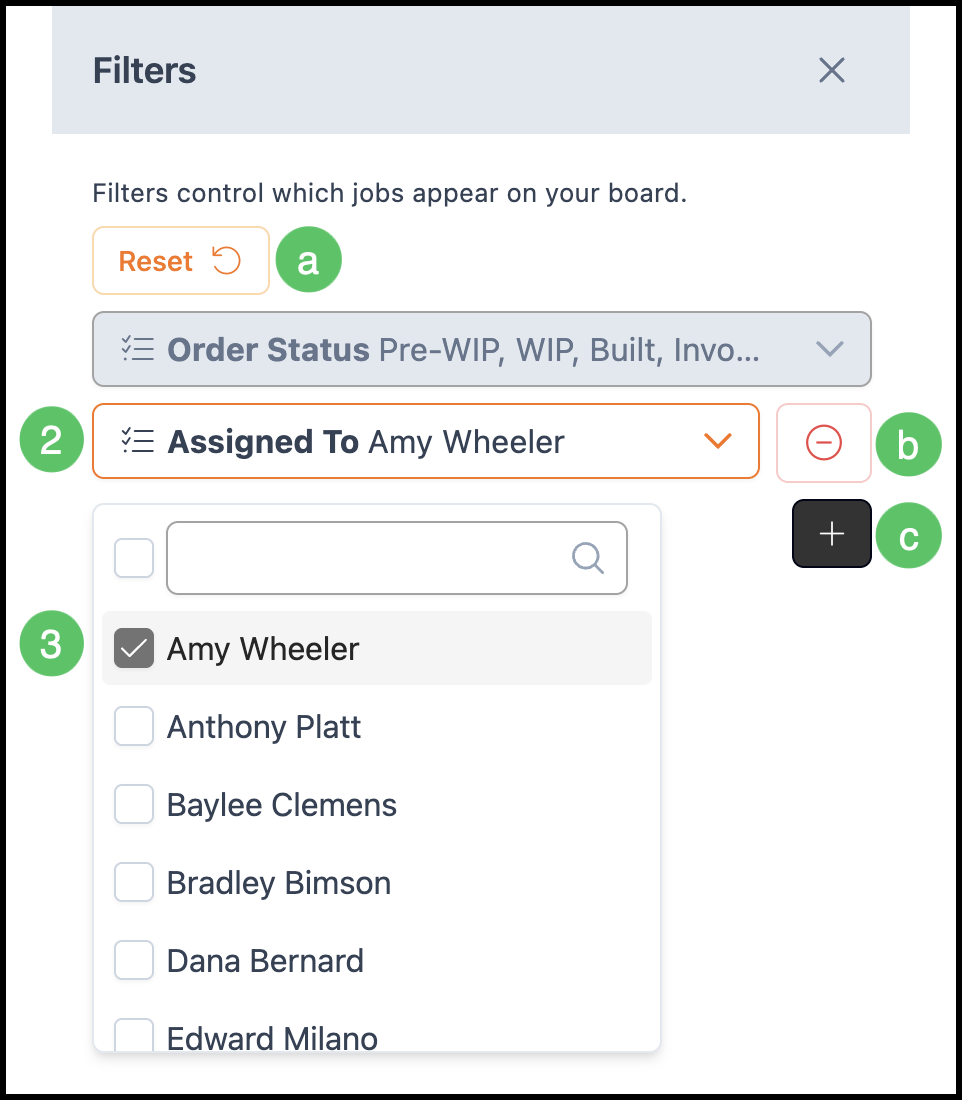
Example:

Customizing Card View
Card view is the grid of cards grouped under column headers. Sort and the fields on each card can be set for you, and those choices stay in place after you leave the board.
Note: Board Type cannot be changed after the board is saved. Create a new board to use a different type. Columns are changed in Edit Board. Filters are covered in Filters Within a Board.
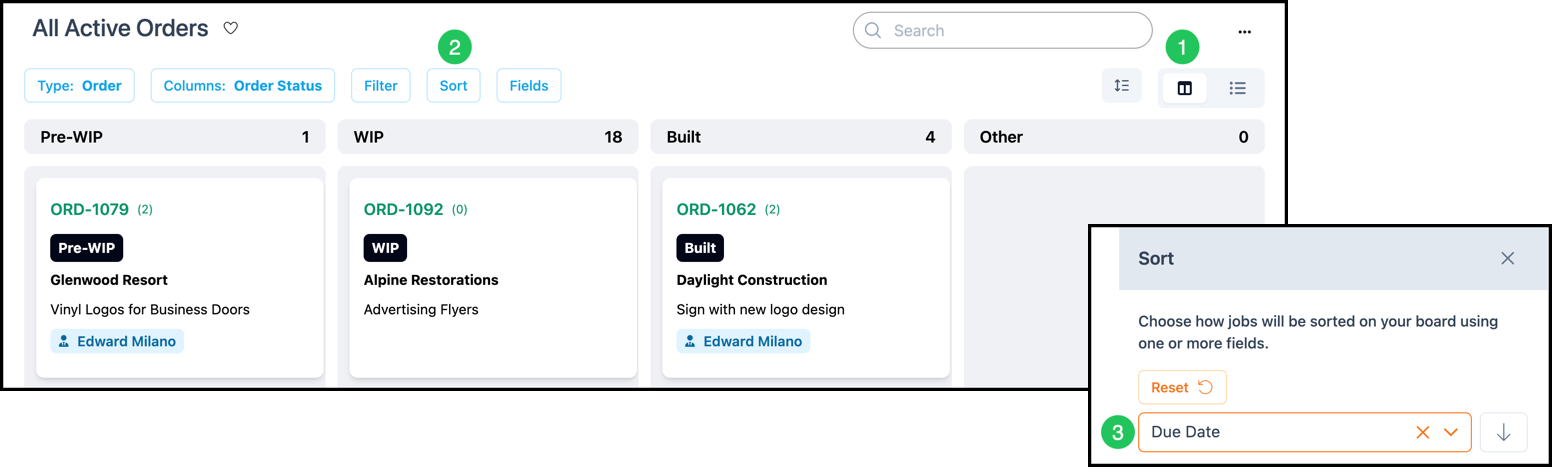
1. Select Card View.
2. Click Sort to open the Sort panel.
3. Use the dropdown to select how the cards are sorted. The arrow controls whether this is descending or ascending order.
Note: To revert to the original sorting, click Reset.
Note: When Sort uses a due date, rush jobs appear above jobs that are not rushed.
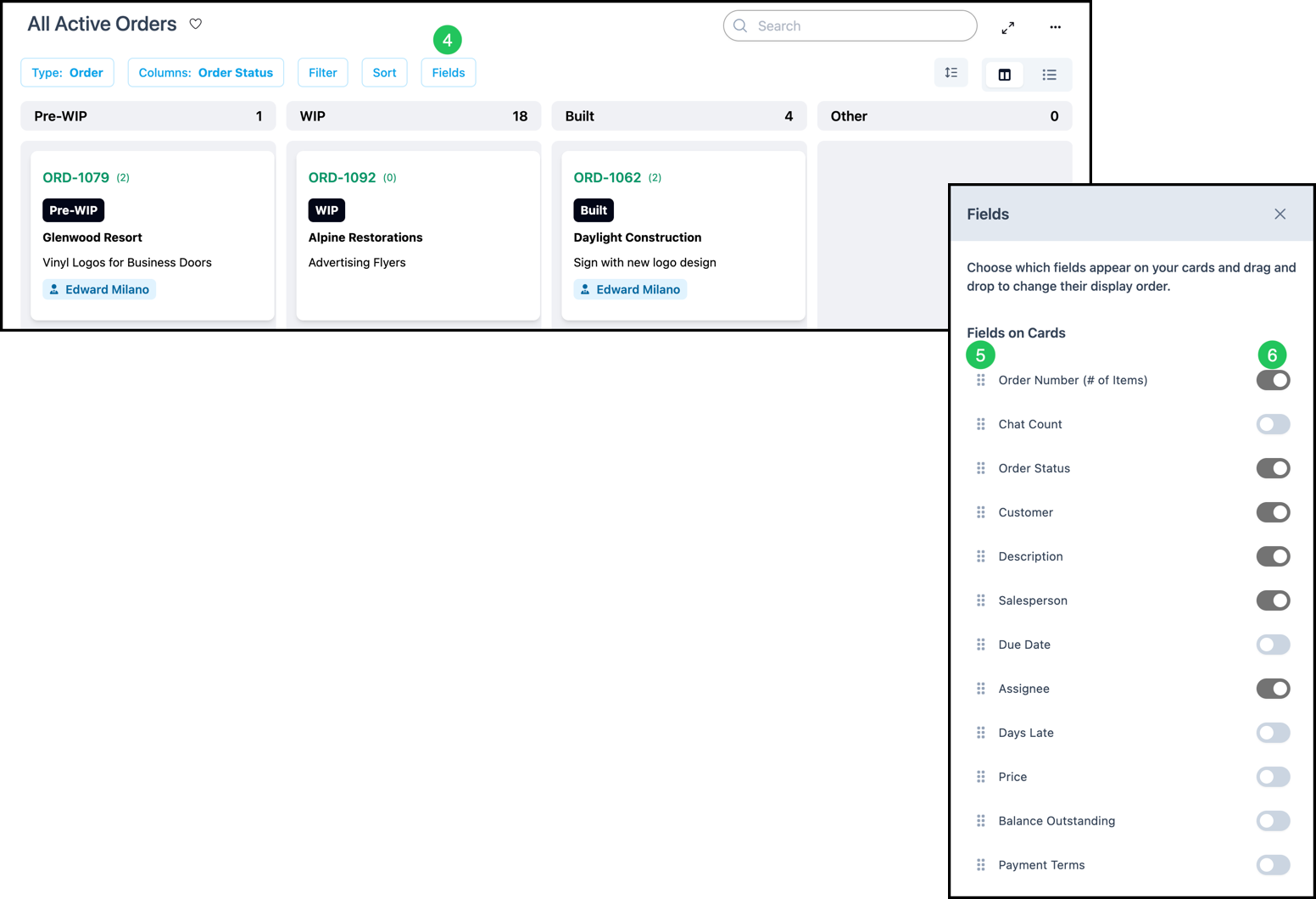
4. Click Fields.
5. Use the Move icon to reorder the fields.
6. Use the toggle to enable or disable the desired fields.
Note: On an Order board, turn on Line Items to show that order's line items on each card.
Customizing List View
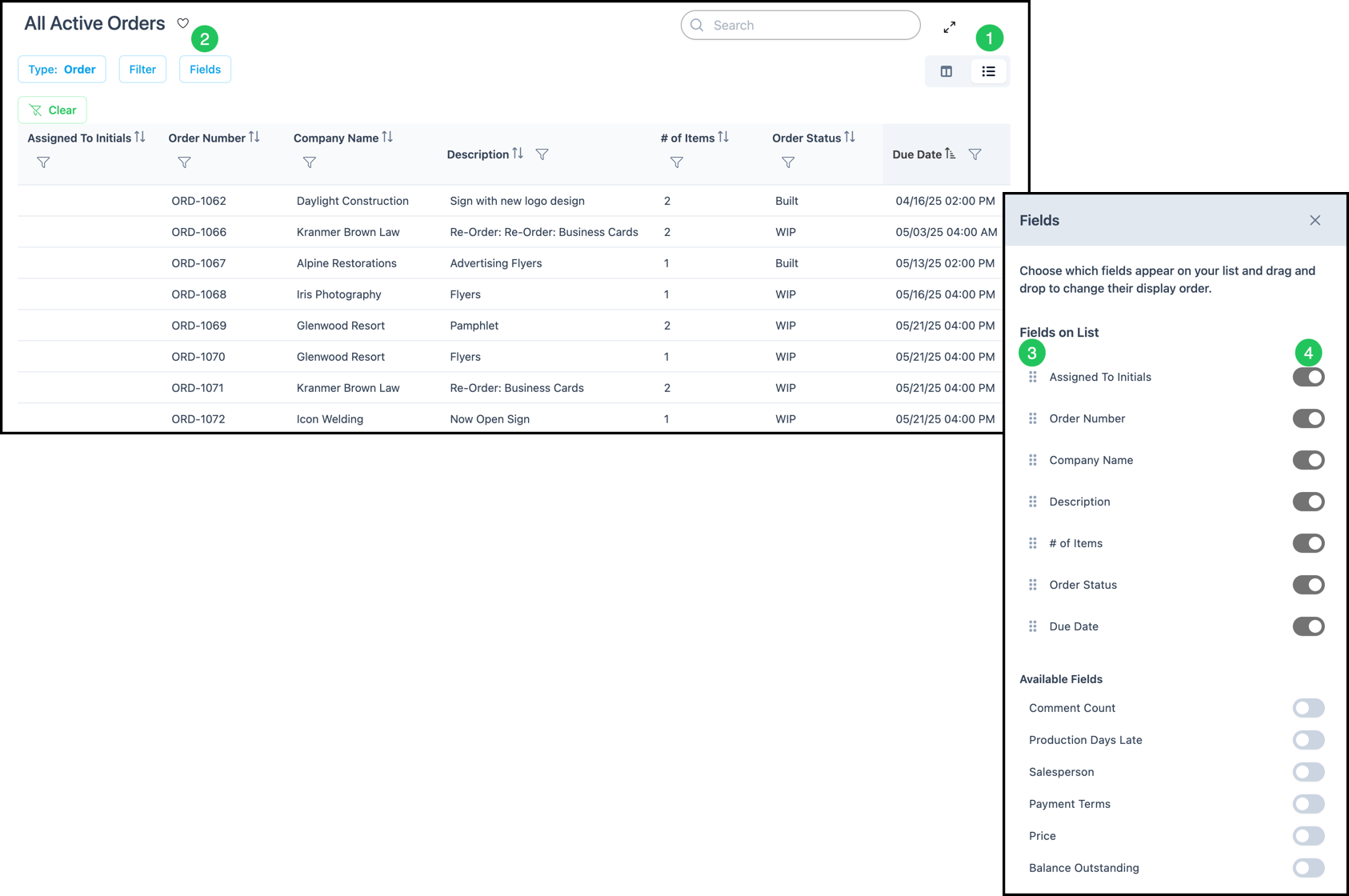
List view displays the board in rows and columns. The columns can be set for you, and those choices stay in place after you leave the board.
Note: Board Type cannot be changed after the board is saved. Create a new board to use a different type. Filters are covered in Filters Within a Board.
1. Select List View.
2. Click Fields.
3. Use the Move icon to reorder the fields.
4. Use the toggle to enable or disable the desired fields.
Note: On an Order board, Line Items can be turned on so the list includes that order's line items.