
Cost Based Pricing is a pricing method where the costs of Components - including Material cost, Labor cost, and Machine cost - are added together to establish a total cost. A margin or markup is then applied to calculate a price. Because pricing adjusts automatically with changes to production costs, Cost Based Pricing is the recommended method for most sign industry workflows. CoreBridge supports both Cost Plus - Margin and Cost Plus - Markup pricing, which are configured in Products.
Note: CoreBridge also supports Market Based pricing and Custom Formula pricing. For more information on Market Based pricing, see Market Based Pricing. For help with custom formulas, tables, or pricing, contact your Customer Success Manager at supportdesk@corebridge.net.
Table of Contents
Setting up Cost Plus - Margin Pricing
In Cost Plus - Margin Pricing, the system calculates total cost from Material, Labor, and Machine cost Components, then applies a margin to determine the final price. Optional custom charges and waste calculations can be added before or after discounts are applied.
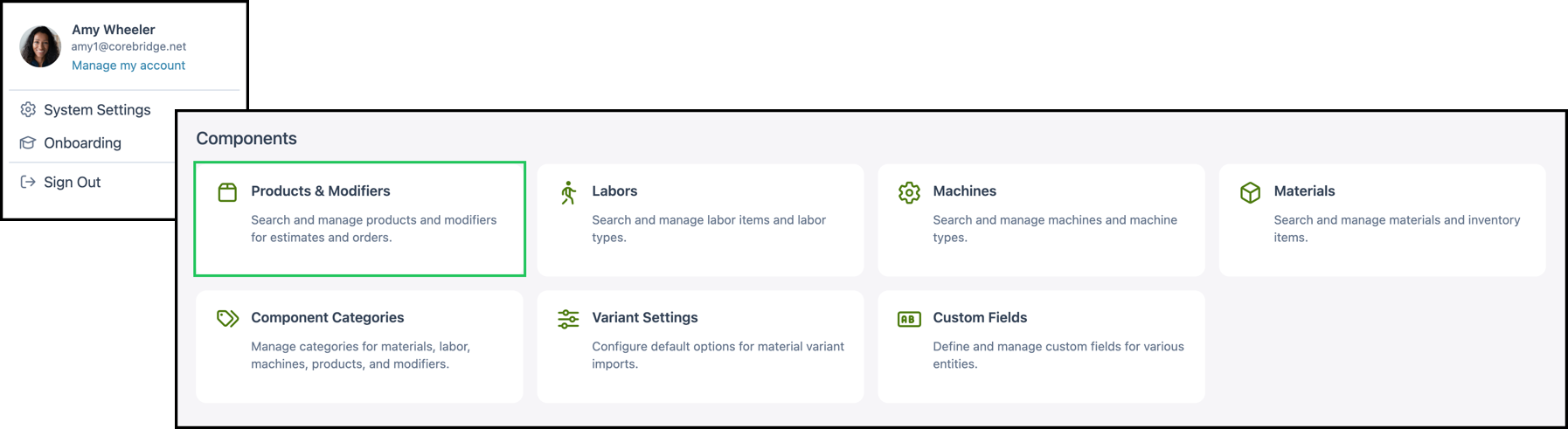
Navigate to System Settings / Components / Products and Modifiers.
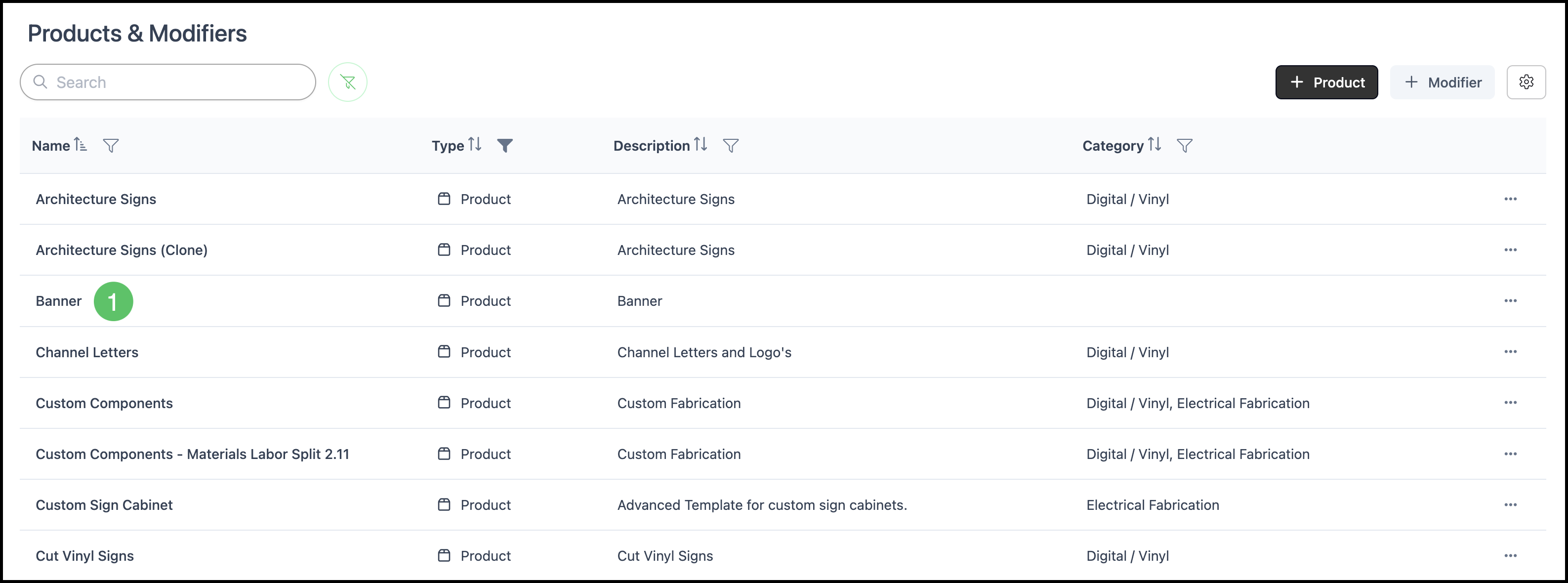
1. Select the appropriate Product.
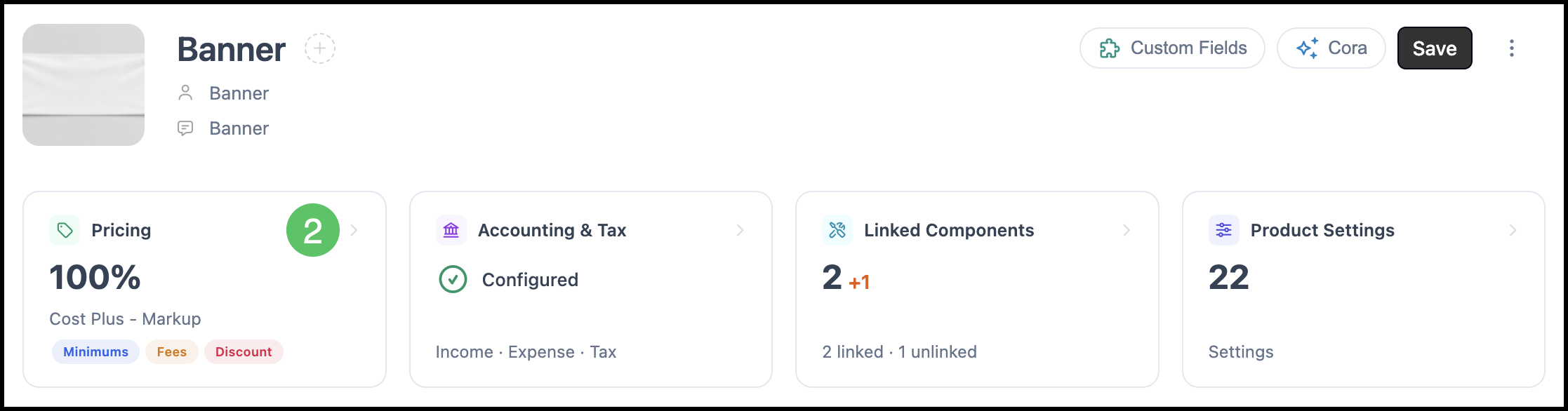
2. Click Pricing.
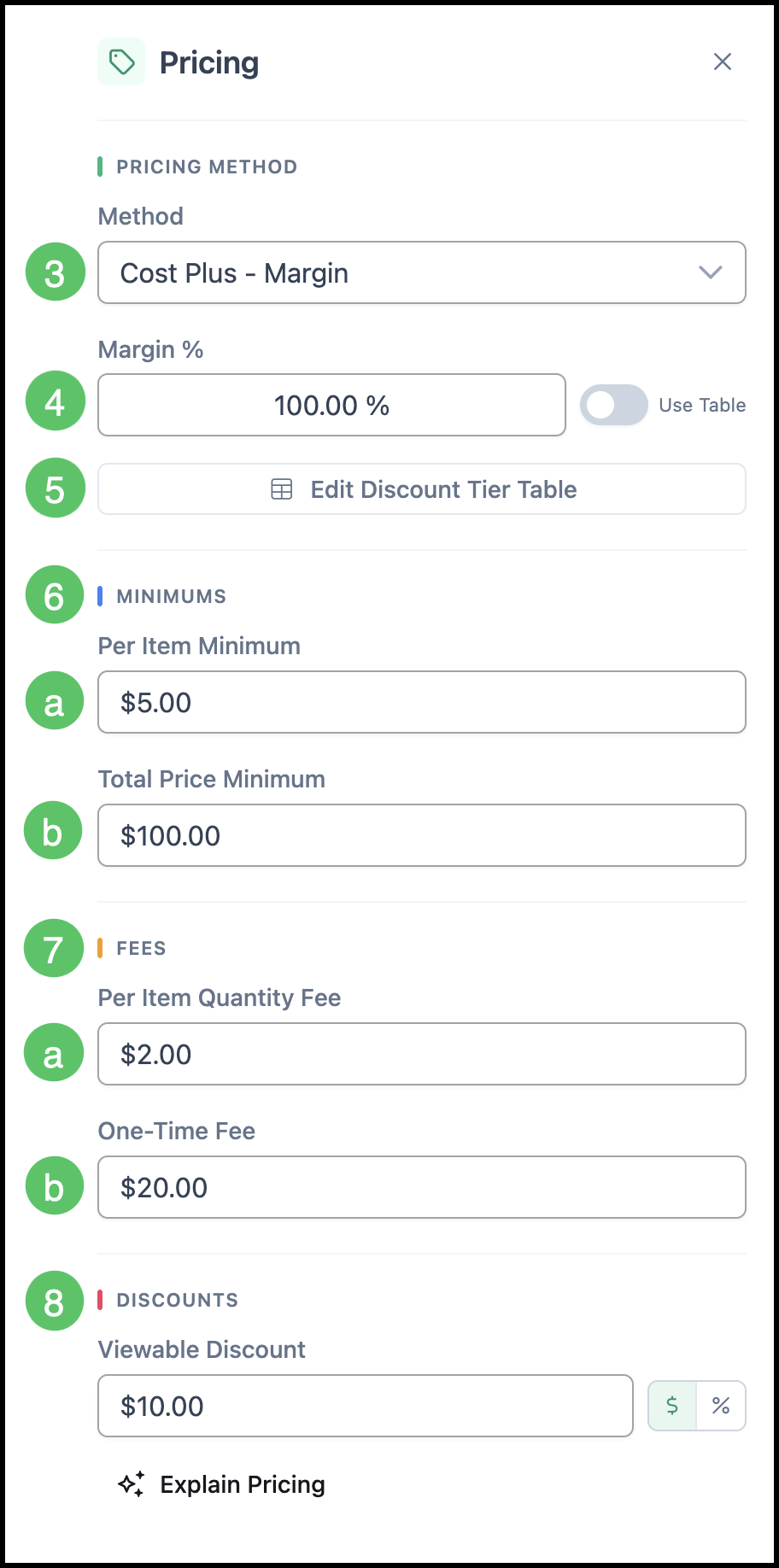
3. Select Cost Plus - Margin.
4. Enter the desired Margin % or enable the Use Table feature. For more information for tables, please see Pricing Tables or contact your Customer Support Manager at supportdesk@corebridge.net.
5. Click Edit Discount Tier Table to set up a discount table, if desired. For more information on Discount Tables, please see Pricing Tables. For help with custom tables, contact your Customer Support Manager at supportdesk@corebridge.net.
6. Under Minimums, enter values as needed. For more information, please see Product Minimums and Fees.
a. Per Item Minimum - Sets a minimum price per item. This charges a minimum regardless of quantity and/or total calculated price.
b. Total Price Minimum - Sets a minimum total price for the Order.
7. Under Fees, enter values as needed. For more information, please see Product Minimums and Fees.
a. Per Item Quantity Fee - Adds a fee per item quantity to the calculated price.
b. One-Time Fee - Adds a flat one-time fee to the calculated price.
8. Under Discounts, enter a Viewable Discount to apply a percentage or dollar amount discount visible to the Customer.
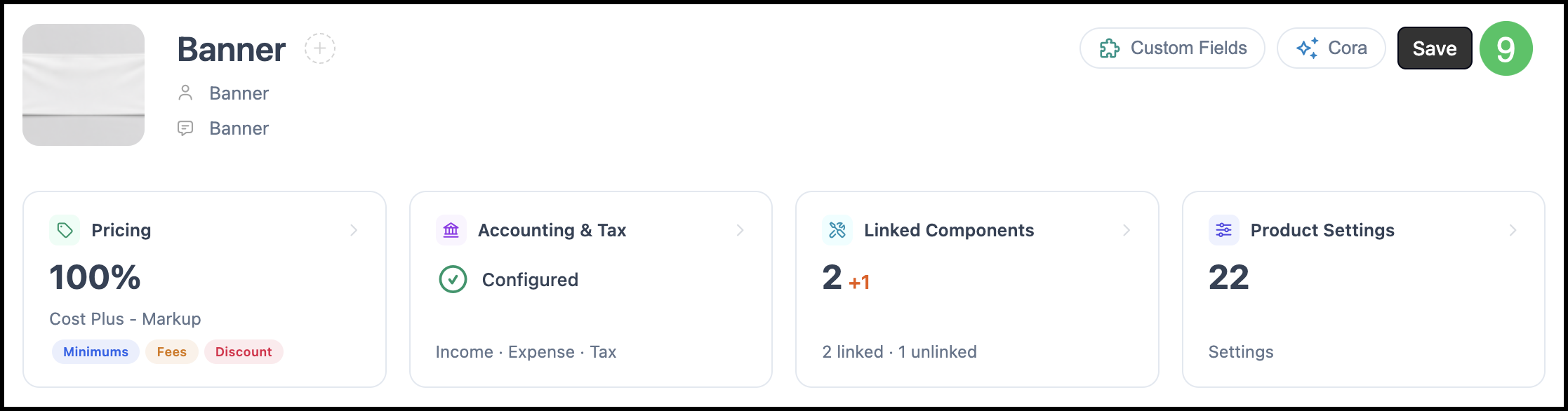
9. Click Save.
Setting up Cost Plus - Markup Pricing
In Cost Plus - Markup Pricing, the system calculates total cost from Material, Labor, and Machine cost Components, then applies a markup percentage to determine the final price. Optional custom charges and waste calculations can be added before or after discounts are applied.
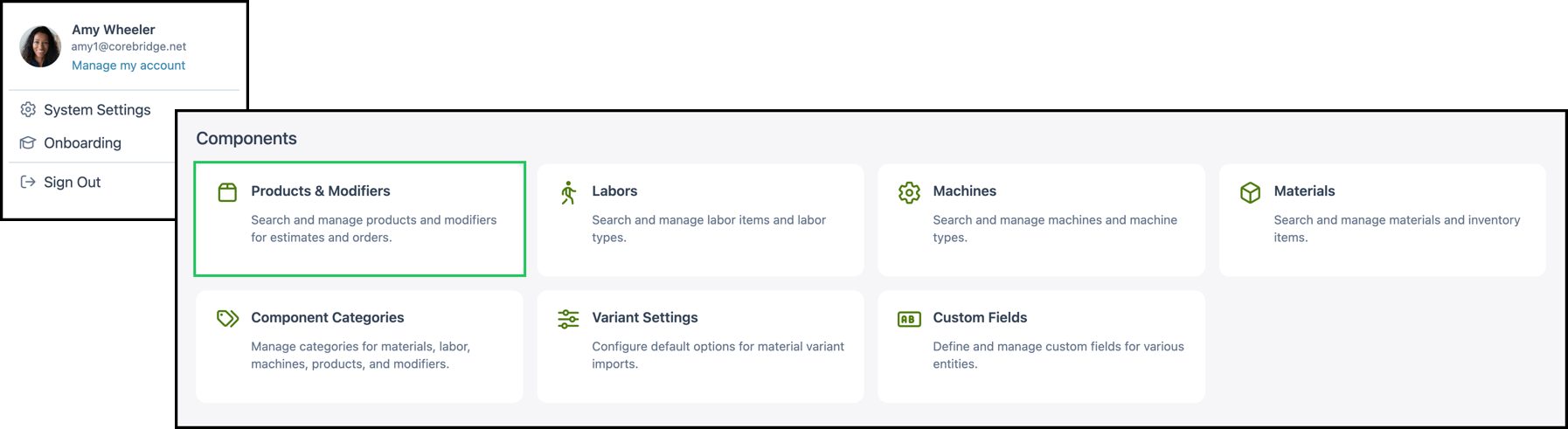
Navigate to System Settings / Components / Products and Modifiers.
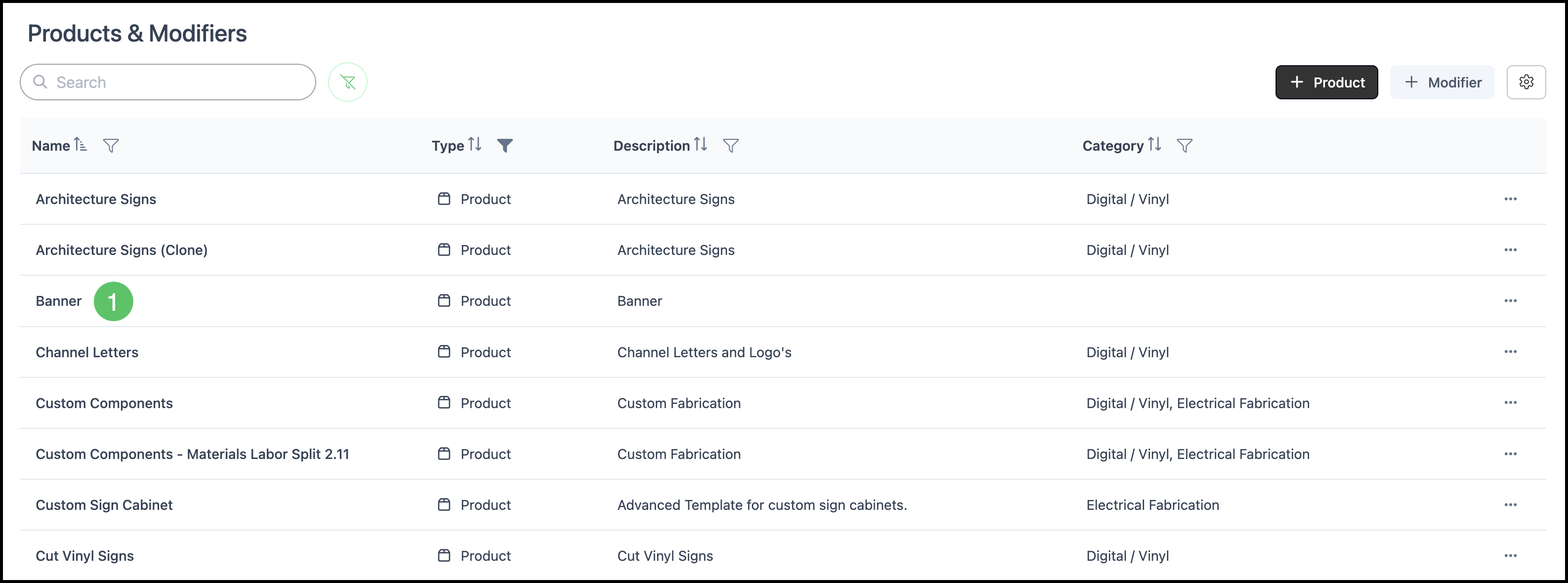
1. Select the appropriate Product.
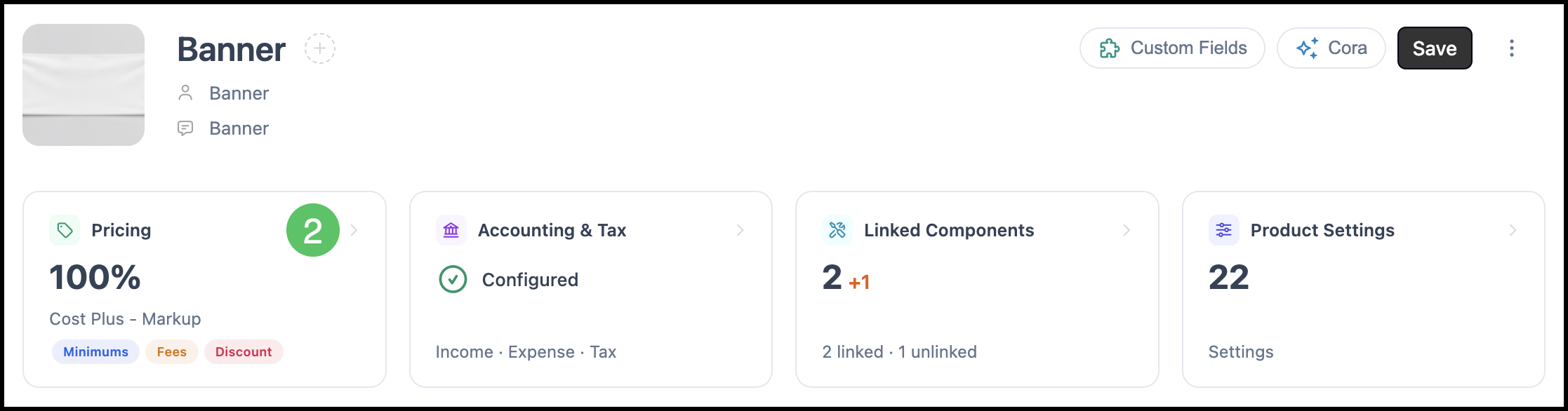
2. Click Pricing.
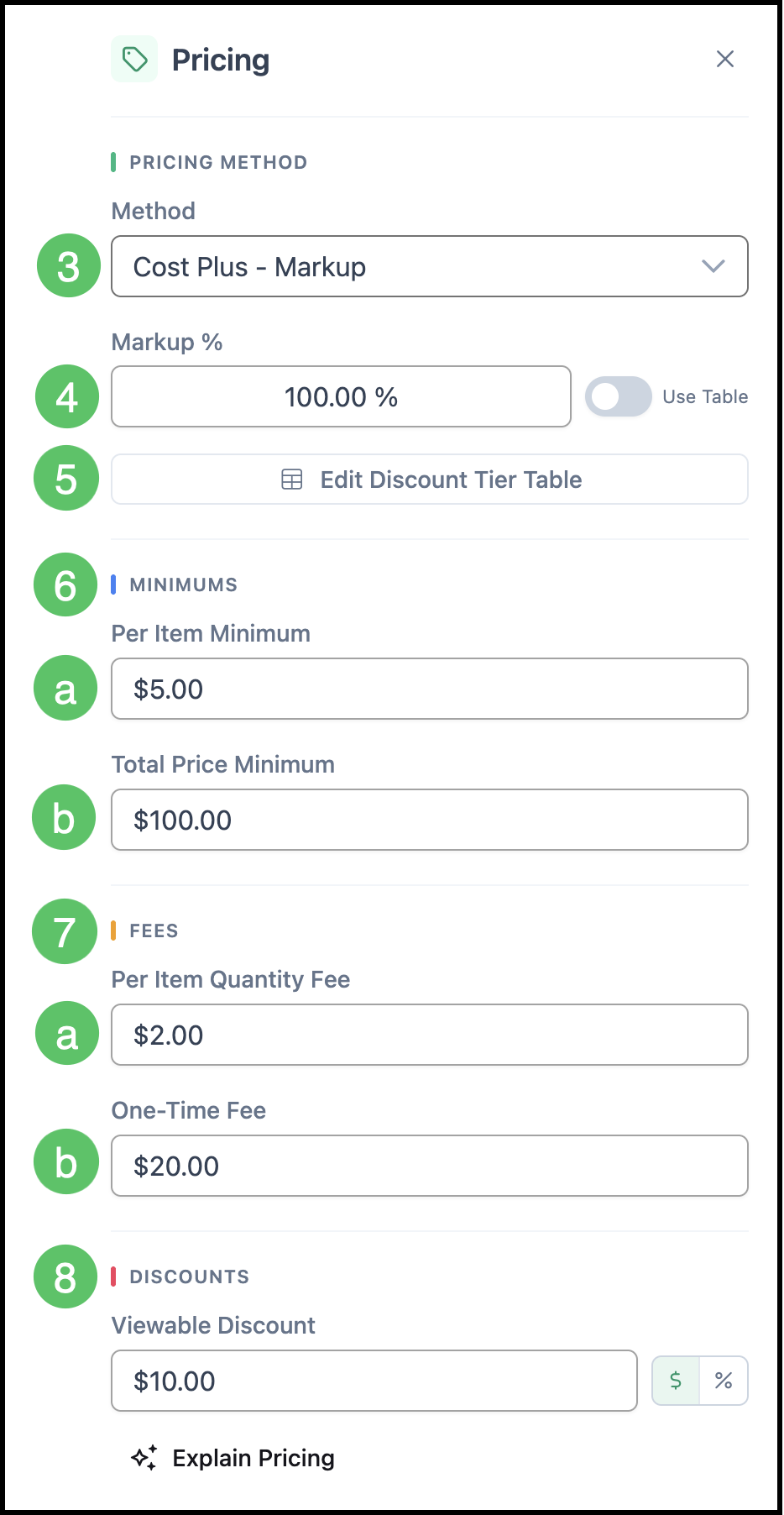
3. Select Cost Plus - Markup.
4. Enter the desired Markup % or enable the Use Table feature. For more information for tables, please see Pricing Tables or contact your Customer Support Manager at supportdesk@corebridge.net.
5. Click Edit Discount Tier Table to set up a discount table, if desired. For more information on Discount Tables, please see Pricing Tables. For help with custom tables, contact your Customer Support Manager at supportdesk@corebridge.net.
6. Under Minimums, enter values as needed. For more information, please see Product Minimums and Fees.
a. Per Item Minimum - Sets a minimum price per item. This charges a minimum regardless of quantity and/or total calculated price.
b. Total Price Minimum - Sets a minimum total price for the Order.
7. Under Fees, enter values as needed. For more information, please see Product Minimums and Fees.
a. Per Item Quantity Fee - Adds a fee per item quantity to the calculated price.
b. One-Time Fee - Adds a flat one-time fee to the calculated price.
8. Under Discounts, enter a Viewable Discount to apply a percentage or dollar amount discount visible to the Customer.
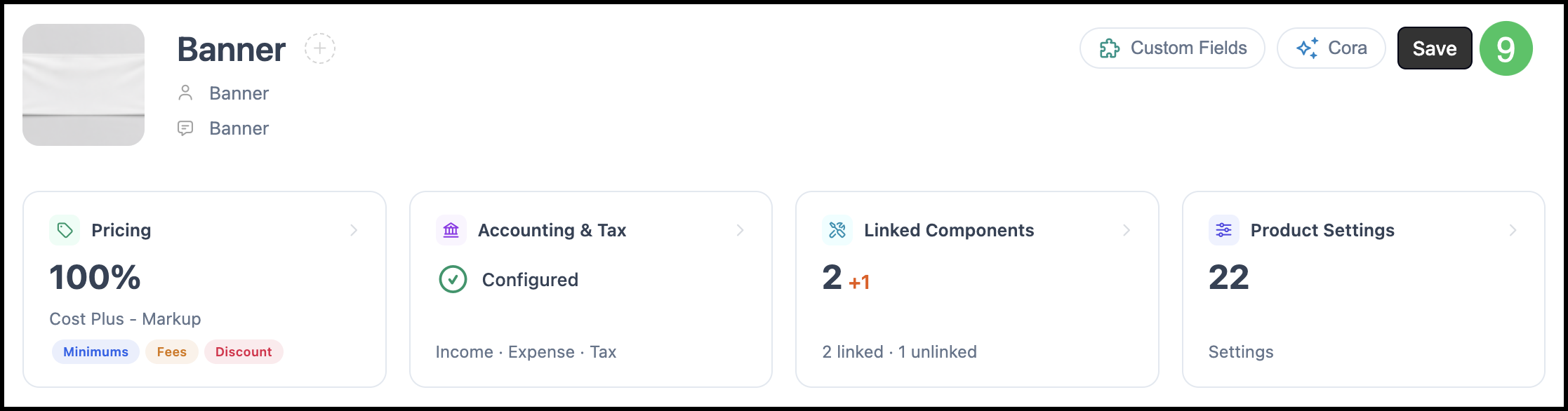
9. Click Save.
Related Articles
Understanding Cost-Plus vs. Market Based Pricing