
A Purchase Order is the document you send to a vendor to buy goods or services. It records the vendor, what you are buying, costs, ship from and ship to, and the Arrive by date. It tracks that purchase from Requested through Received.
Purchase Orders are available in the Purchasing module. They use the same Line Item, email, and file tools you use on Orders and Estimates, so the workflow should feel familiar.
Note: Purchase Orders is an optional feature. If you don't see it in Purchasing, contact your CoreBridge account team to have it added.
Table of Contents
- Before You Begin
- Important Information
- Creating a Purchase Order
- The Purchase Order Screen
- Adding Line Items
- Sending a Purchase Order
- Purchase Order Statuses
- Receiving a Purchase Order
- Frequently Asked Questions
- Related Articles
Before You Begin
Complete these items before you create a Purchase Order:
- Create the vendor and at least one vendor contact. For more information, see Creating Vendors.
- If the vendor requires compliance documents, upload current required documents. A vendor with a missing or expired required document cannot have a Purchase Order created until those documents are in order. For more information, see Managing Vendors.
Important Information
Keep these points in mind when you use Purchase Orders:
- A new Purchase Order starts at Requested. Requested and Approved stay editable. Ordered, Received, and Voided lock the Purchase Order.
- Sending a Purchase Order by email does not change Status. There is no Sent status. After you place the order with the vendor, select Ordered yourself.
- Receiving a Purchase Order records that the goods arrived. It does not increase inventory On Hand. Record received stock in Inventory. For more information, see Understanding and Managing Stock.
- A Purchase Order is received as a whole document. There is no per-line quantity received.
- Payment terms on the Purchase Order come from the vendor, not from your business default.
- Purchase Order numbers use one business-wide sequence. A location can still have a PO Prefix.
Creating a Purchase Order
You can start a Purchase Order from Purchasing, from a vendor record, from an awarded Request for Quote, or by cloning an existing Purchase Order. Each method opens a Purchase Order at Requested.
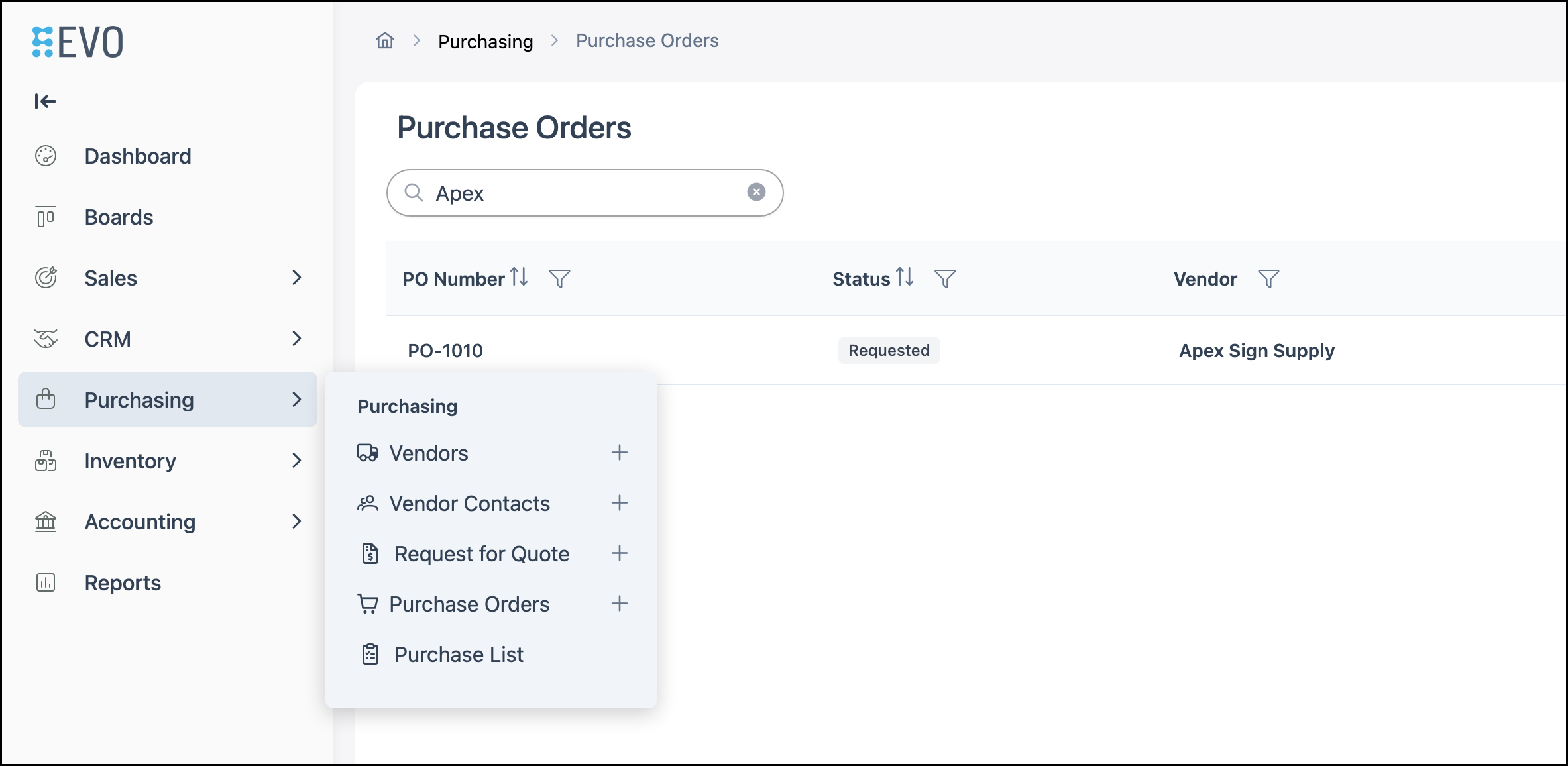
Navigate to Purchasing / Purchase Orders.
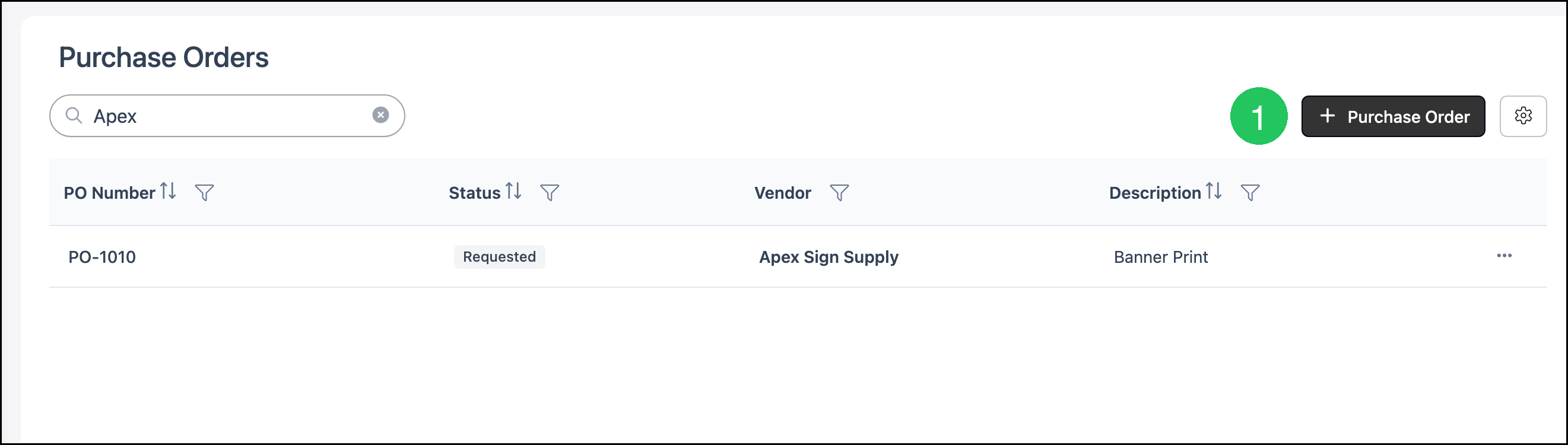
1. Click Purchase Order.
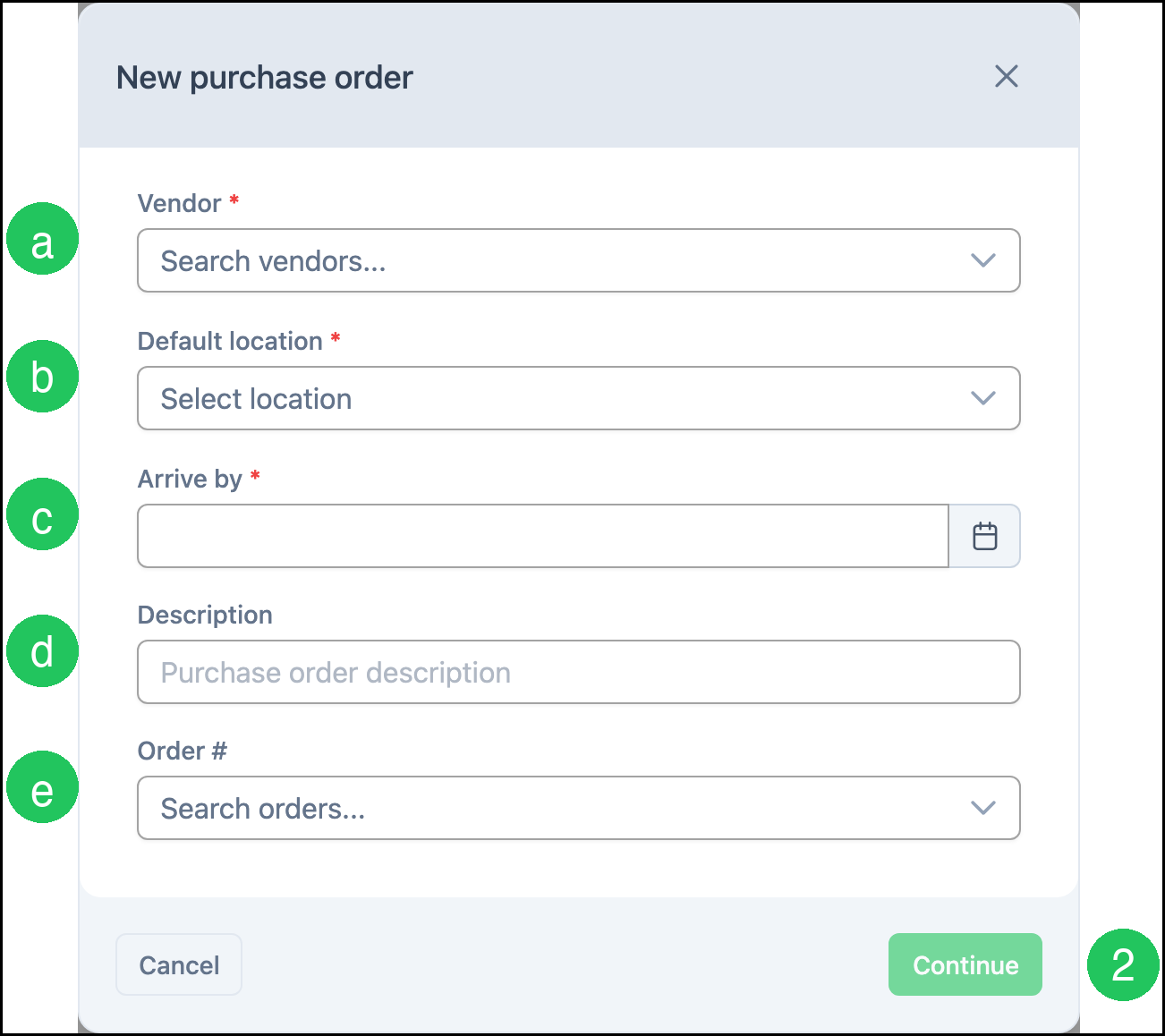
The New purchase order dialog opens.
a. Vendor - The supplier this Purchase Order is issued to. This field is required. Selecting a vendor fills payment terms and the ship from address from that vendor.
b. Default location - The location the goods are for. This field is required.
c. Arrive by - The date you need the goods. This field is required.
d. Description - A short description of the purchase.
e. Order # - Optionally links the Purchase Order to a sales Order. The Purchase Order and the Order then point to each other.
2. Click Continue.
Note: Click Cancel to close the dialog without creating a Purchase Order.
You can also click Purchase Order on a vendor record. That starts a Purchase Order with the vendor already selected. For more information, see Additional Vendor Features.
Awarding a Request for Quote creates a Purchase Order for the winning vendor, with the awarded Line Items and quoted prices. For more information, see Request for Quote Overview.
The Purchase Order Screen
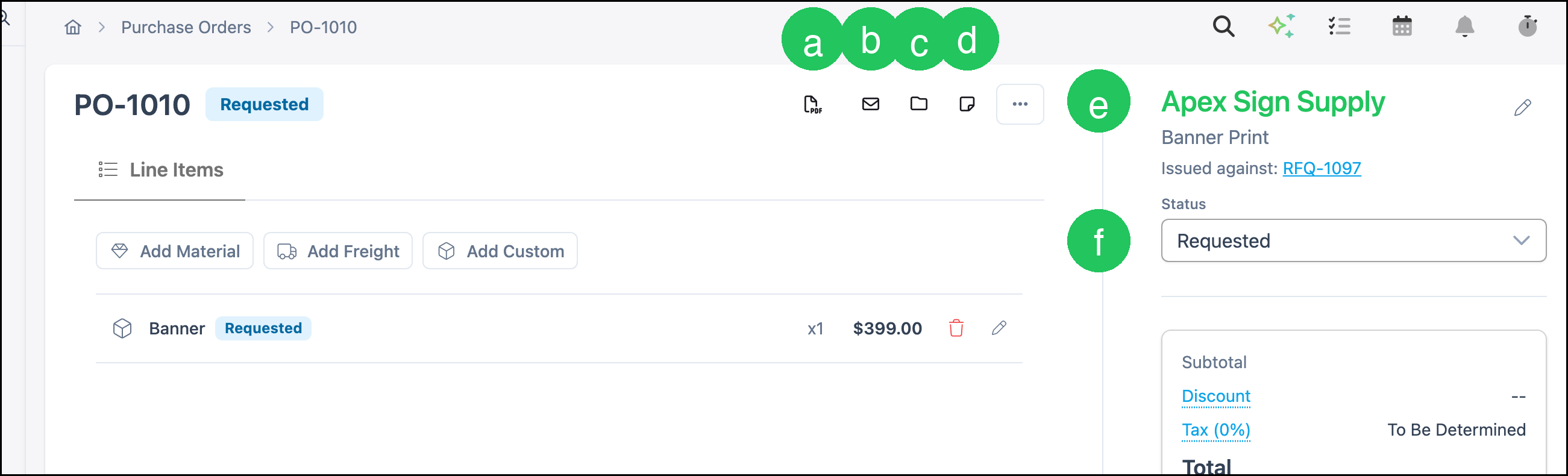
Open a Purchase Order from the list. The header tools, Line Items tab, vendor details, Status, totals, and ship from and ship to addresses appear on one screen.
a. Documents - Opens the Purchase Order document so you can preview, print, or download it.
b. Email - Opens the New Email dialog so you can send the Purchase Order to the vendor.
c. Files - Opens files for this Purchase Order. Vendors can see files in the Customer Shared folder. For more information, see File Management and Vendor Portal.
d. Clone - Creates a new Purchase Order from this one. The clone starts at Requested.
Note: More Actions includes Clone, Void, and Delete. Delete is unavailable when the Purchase Order is locked.
e. The vendor name. If the Purchase Order came from a Request for Quote, Issued against links to that RFQ.
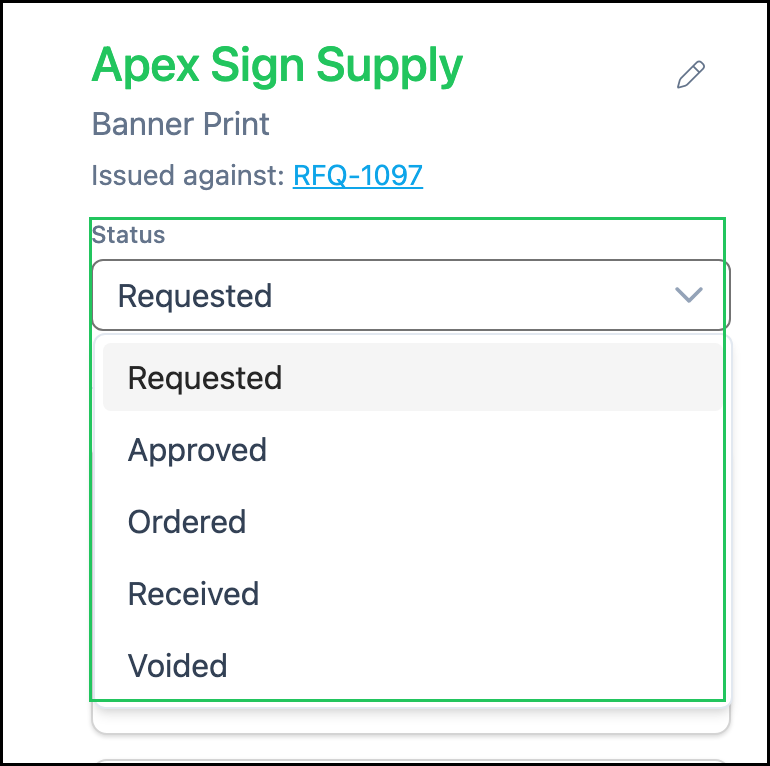
f. Status - Moves the Purchase Order through Requested, Approved, Ordered, Received, and Voided.
Note: Ship From uses the vendor address. Ship To uses the location address. You can edit either address while the Purchase Order is unlocked. Discount and Tax can also be edited while the Purchase Order is unlocked.
Adding Line Items
Use the Line Items tab to add what you are buying. Line Items can be edited while the Purchase Order is Requested or Approved.
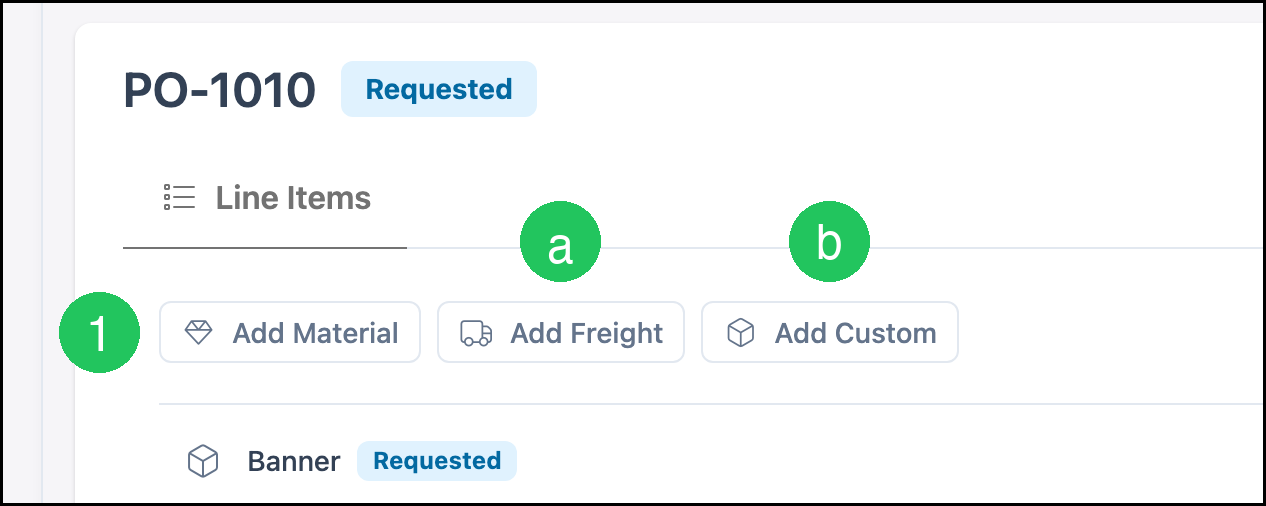
1. Click Add Material.
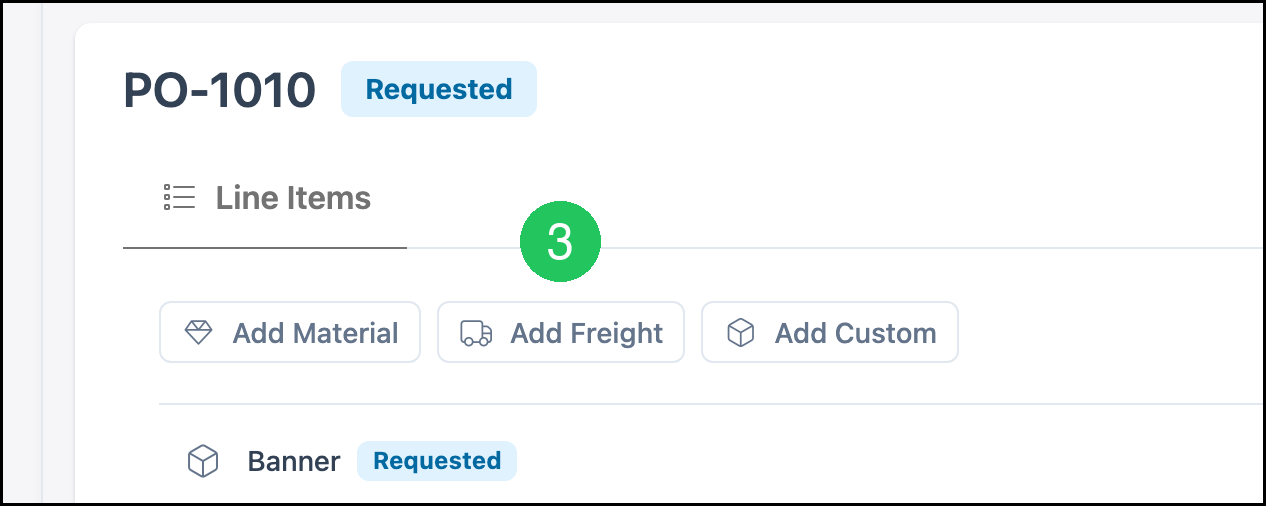
a. Add Freight - Adds shipping or freight as its own Line Item.
b. Add Custom - Adds a free-form Line Item when the purchase is not a catalog material.
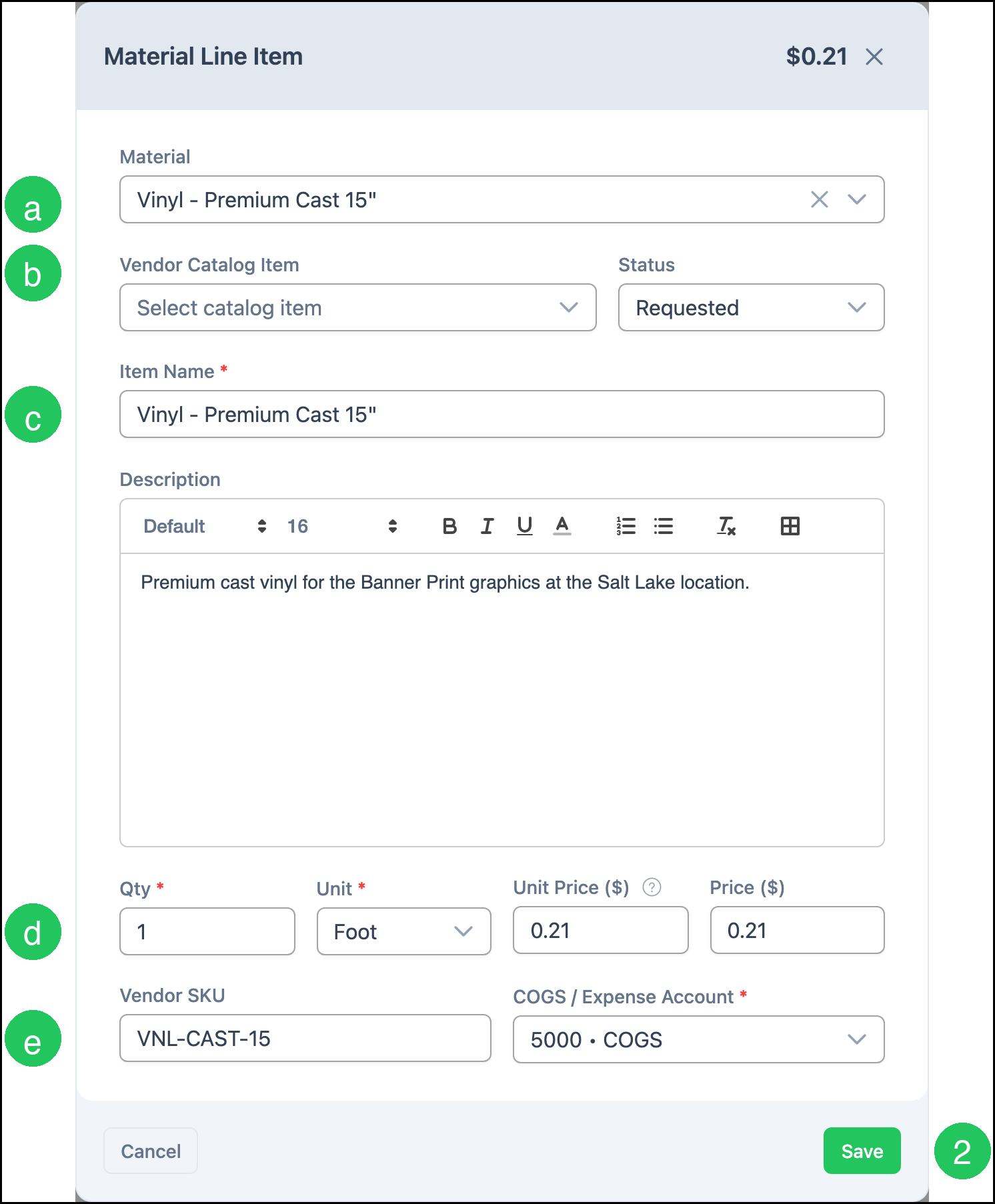
The Material Line Item dialog opens.
a. Material - Search materials by name or SKU.
b. Vendor Catalog Item - Ties the Line Item to a catalog item for this vendor when one exists.
c. Item Name - The name that appears on the Purchase Order. This field is required.
d. Qty - The quantity to buy, with Unit and Unit Price ($).
e. Vendor SKU - The vendor's catalog code for this item, when you use one.
Note: COGS / Expense Account is required. Status on the Line Item follows the Purchase Order.
2. Click Save.
Note: Click Cancel to close the dialog without adding the Line Item.
3. Click Add Freight.
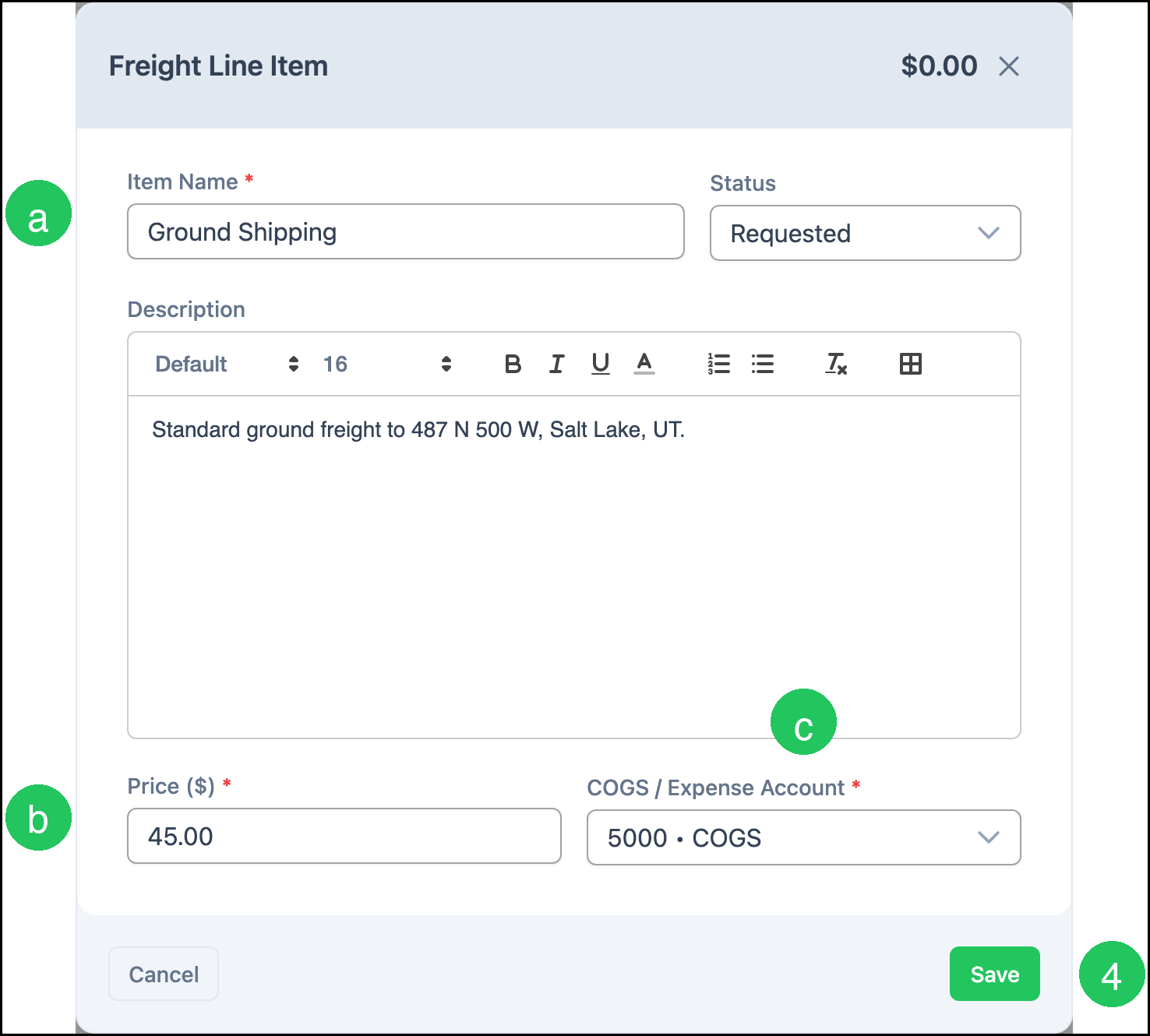
The Freight Line Item dialog opens.
a. Item Name - The name that appears on the Purchase Order. This field is required.
b. Price ($) - The freight amount. This field is required.
c. COGS / Expense Account - The account used for this Line Item. This field is required.
4. Click Save.
Note: Click Cancel to close the dialog without adding the Line Item.
Add Custom opens the Custom Line Item dialog. Enter an Item Name, Qty, Unit, Unit Price ($), and COGS / Expense Account. You can also enter a Vendor SKU.
Sending a Purchase Order
Email the Purchase Order to the vendor, or open Documents to print or download a copy. Email is available even after the Purchase Order is locked or voided, so you can resend a confirmation or a copy.
Note: Sending the email does not change Status. Select Ordered when you have placed the order with the vendor.
1. Click Email.

The New Email dialog opens.
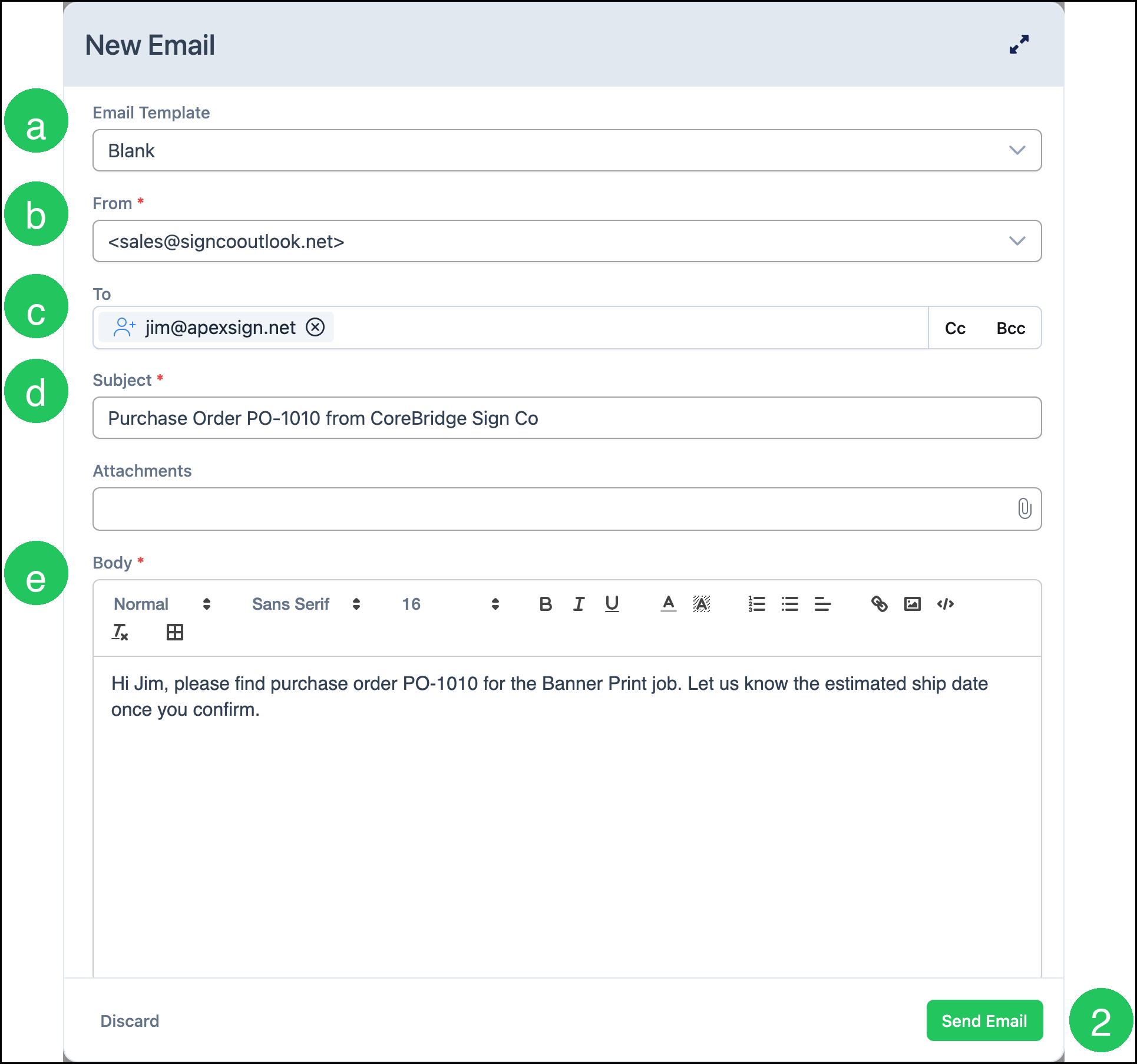
a. Email Template - The template used for the message. Blank starts an empty message. For more information, see Creating and Editing Email Templates.
b. From - The email account the message is sent from. This field is required.
c. To - The recipient. This is usually a vendor contact email.
d. Subject - The subject line. This field is required.
e. Body - The message. This field is required.
2. Click Send Email.
Note: Click Discard to close the dialog without sending.
Purchase Order Statuses
Use the Status control to move the Purchase Order through its lifecycle. Status changes stamp the matching date and who made the change.
| Status | What it means |
|---|---|
| Requested | The starting point. The Purchase Order is being built and is fully editable. |
| Approved | Approved to buy, but not yet placed with the vendor. Still editable. |
| Ordered | Placed with the vendor. The Purchase Order is locked. |
| Received | The goods have arrived. The Purchase Order stays locked. |
| Voided | Cancelled. The Purchase Order is locked and cannot be reopened. Clone it to reuse the details. |
Receiving a Purchase Order
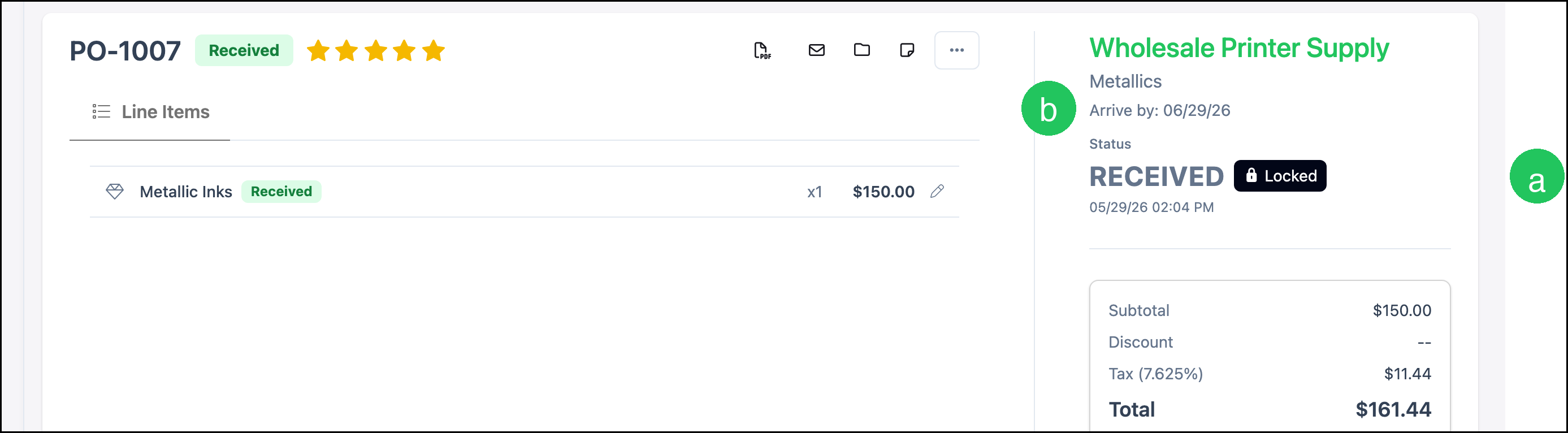
Select Received on Status when the goods have arrived. That stamps the Received date, records who received it, and locks the Purchase Order. You are prompted to rate the vendor. For more information on ratings, see Managing Vendors.
a. Locked - Appears when the Purchase Order is Ordered or Received. Click Locked to unlock it. Unlocking returns the Purchase Order to Approved so you can make corrections, then move Status forward again.
b. Arrive by - The date you needed the goods, captured when the Purchase Order was created.
Note: A Voided Purchase Order cannot be unlocked. Use Clone to start a new Purchase Order from it.
Frequently Asked Questions
1. Why can't I create a Purchase Order for a vendor?
Answer: A vendor with a missing or expired required document is blocked from Purchase Order creation until those documents are current. A warning-only compliance state does not block. For more information, see Managing Vendors.
2. Does sending the Purchase Order mark it as Ordered?
Answer: No. Emailing or printing the document does not change Status. Select Ordered when you have placed the order with the vendor.
3. Does receiving a Purchase Order update inventory On Hand?
Answer: No. Marking a Purchase Order Received is a purchasing milestone. Warehouse On Hand is maintained in Inventory. For more information, see Understanding and Managing Stock.
4. Can I receive part of a Purchase Order?
Answer: A Purchase Order is received as a whole document. There is no per-line quantity received. If a delivery arrives in stages, the Purchase Order Status reflects the overall milestone.
5. How do I reuse a Voided Purchase Order?
Answer: A Voided Purchase Order cannot be reopened. Click Clone to create a new Purchase Order at Requested with the same details.
6. Does the Purchase List create Purchase Orders?
Answer: No. The Purchase List is a checklist of materials that open Orders need. Marking a material purchased there does not create a Purchase Order. Use a Purchase Order when you are buying from a vendor.
Related Articles
Additional Vendor Features
Creating and Editing Email Templates
Creating Vendors
Employee Roles and Permissions in Settings
File Management
Line Items Overview
Managing Vendors
Request for Quote Overview
Understanding and Managing Stock
Using Email Templates