
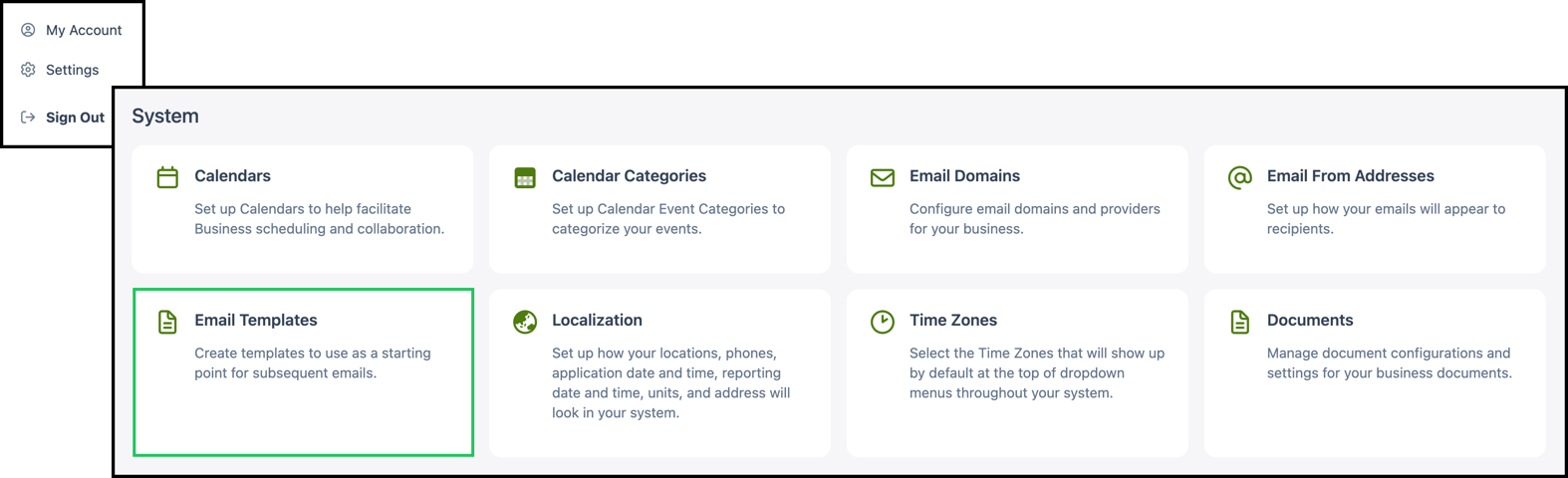
Email Templates provide ready-made messages so outgoing customer email stays consistent in content and formatting. They are configured in System Settings / System / Email Templates, where you set the record type, who can use the template, and the default From, To, subject, and body. When the template is used, From preference chooses which address is selected first.
For more information on sending a template, see Using Email Templates.
Table of Contents
- Creating Email Templates
- Editing an Existing Email Template
- Frequently Asked Questions
- Related Articles
Creating Email Templates
Navigate to System Settings / System / Email Templates.
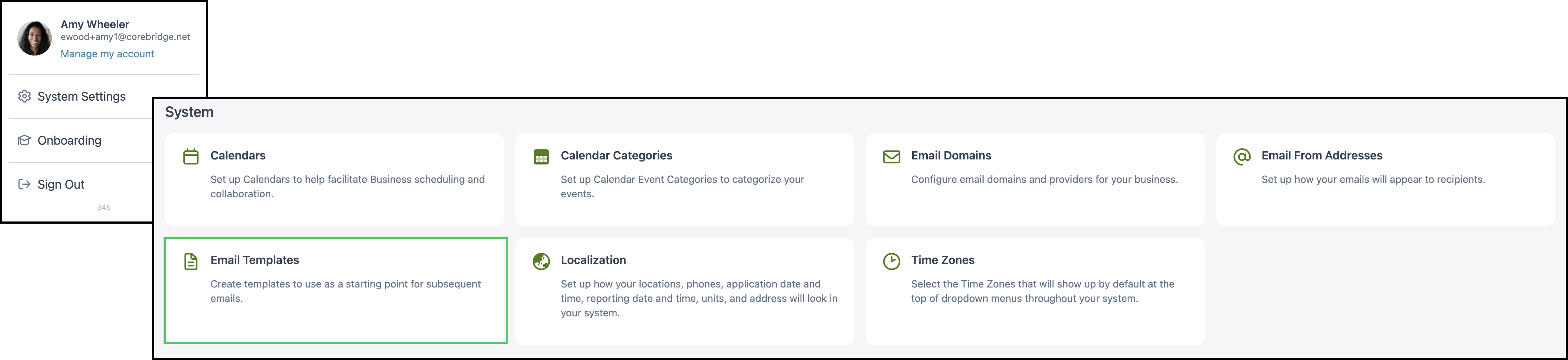
Note: To send an Email Template, add an address in System Settings / System / Email From Addresses. For more information, see Adding Email From Addresses.
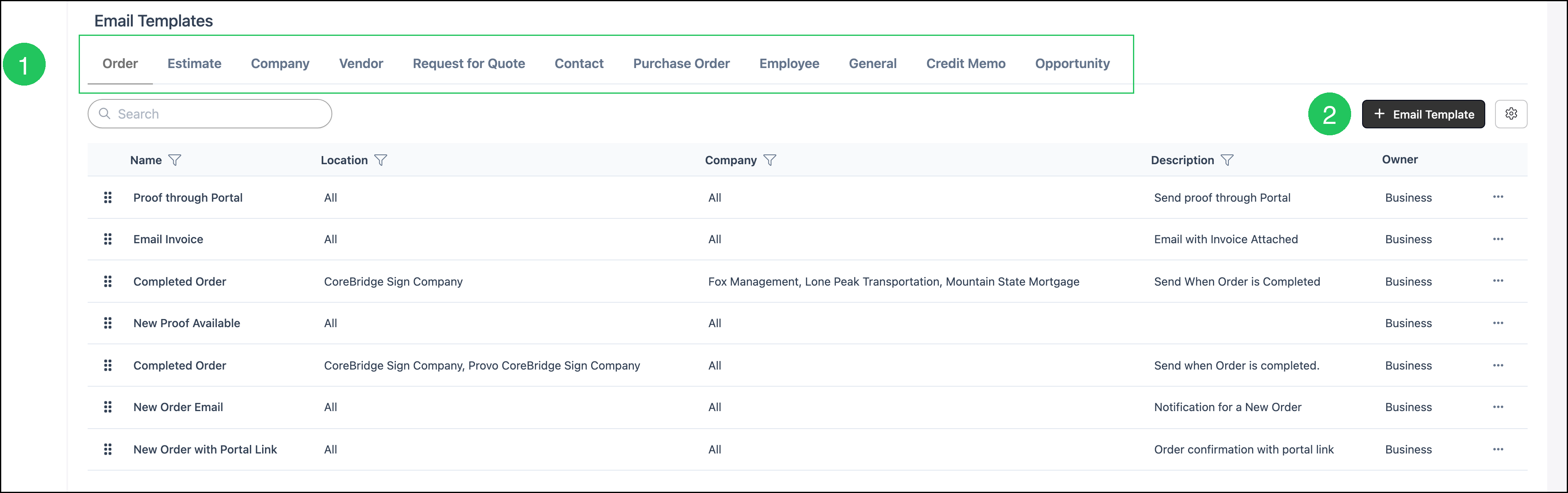
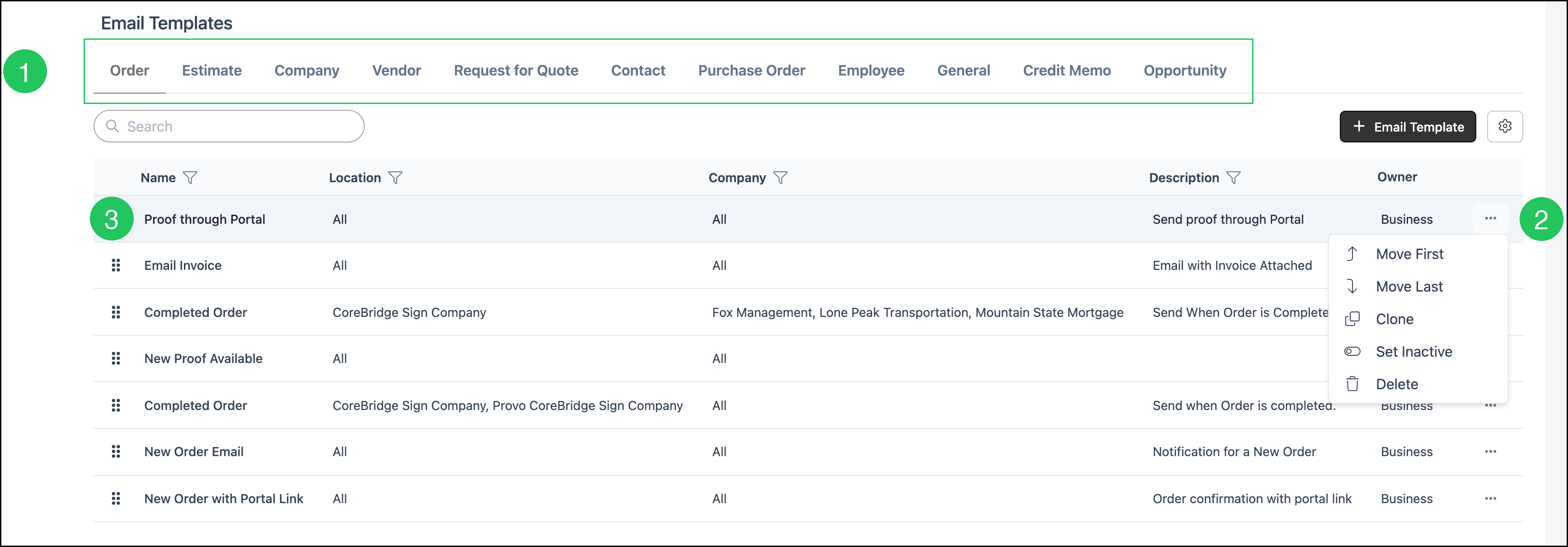
1. Select the tab for the record type the template applies to: Order, Estimate, Company, Vendor, Request for Quote, Contact, Purchase Order, Employee, General, Credit Memo, or Opportunity.
Note: The process is the same for each record type. The steps below use Order as the example.
2. Click Email Template.
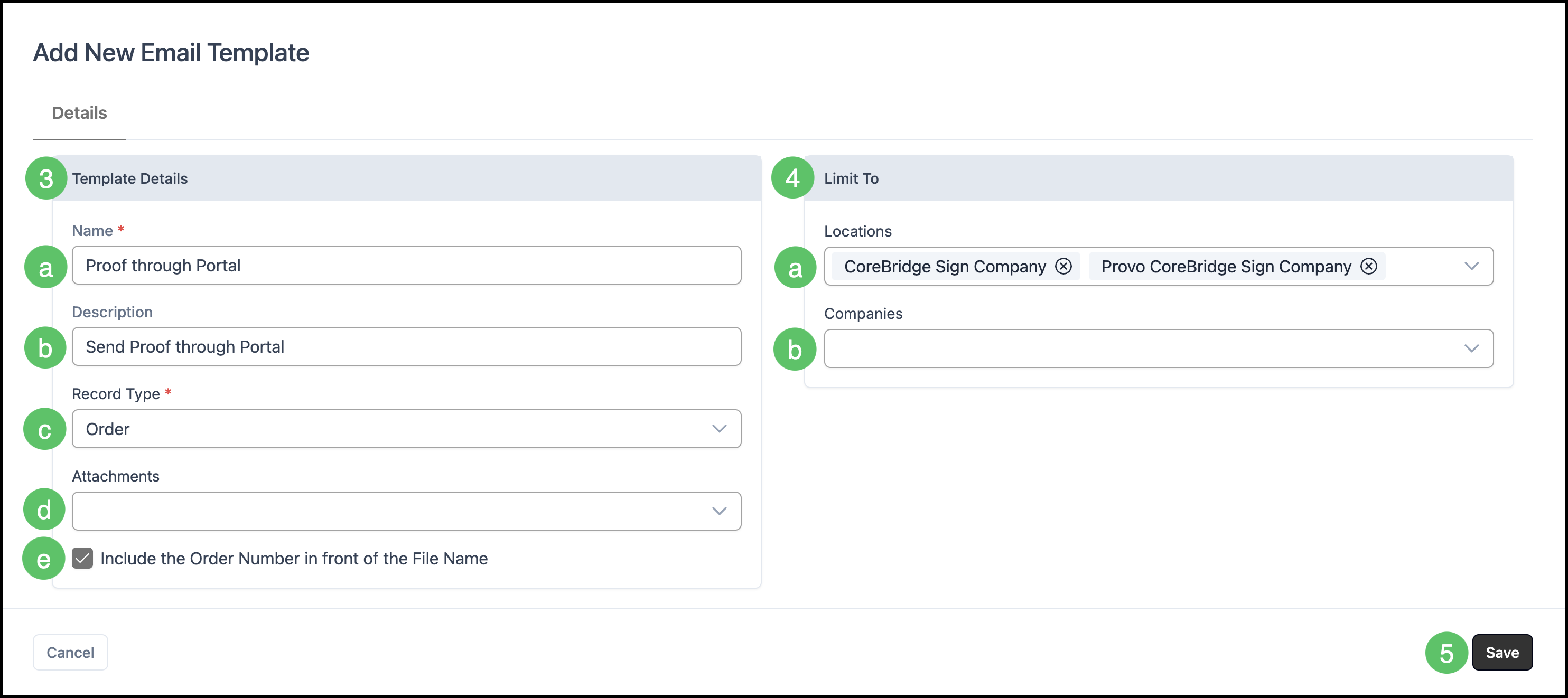
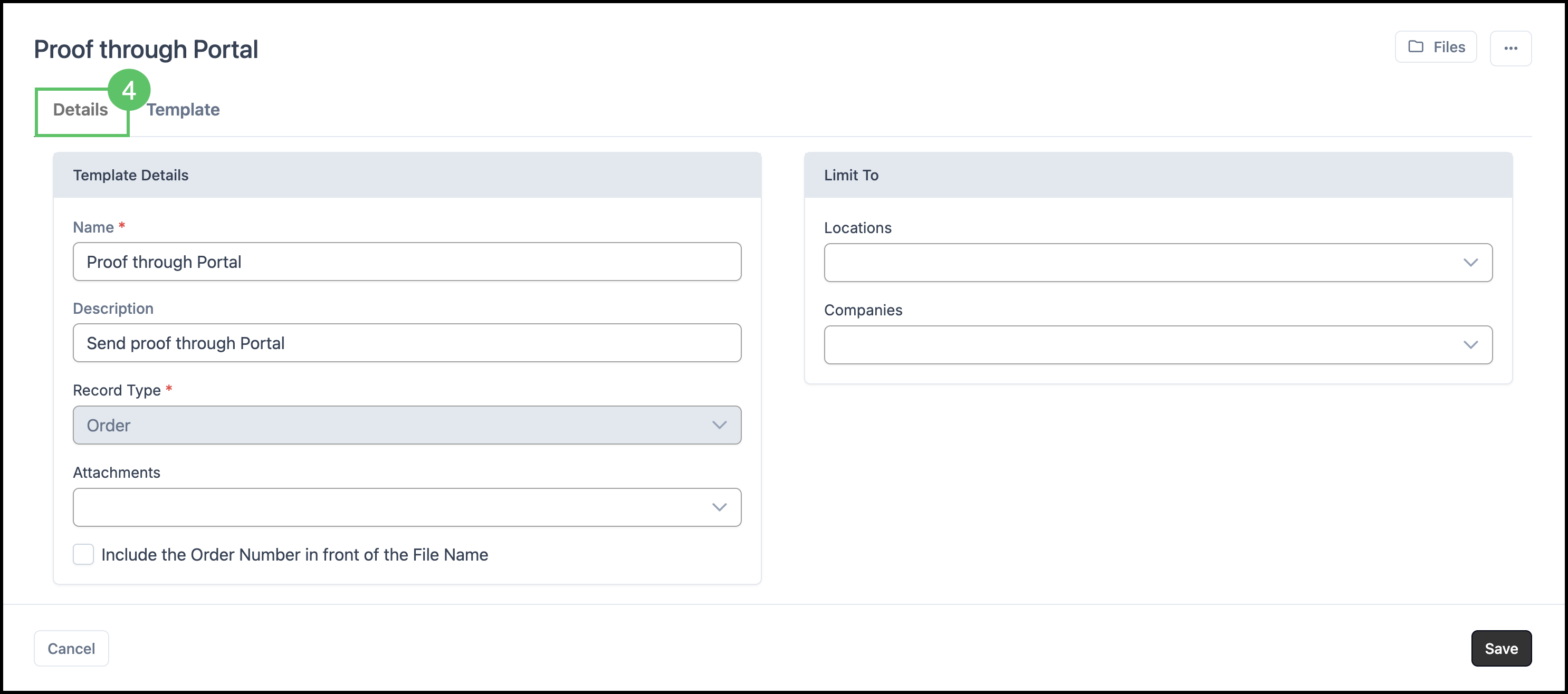
3. Enter the Template Details.
Note: Fields marked with a red asterisk are required.
a. Name: Enter a name for the template.
b. Description: Enter a short description of when to use this template.
c. Record Type: Select the record type. This determines where the template can be used. For example, an Order template can be sent from Sales / Orders. After the template is saved, Record Type is locked and typically cannot be changed.
d. Attachments: Select a document to attach by default when the template is used, if you want one.
e. Include the Order Number in front of the File Name: Select this checkbox to include the order number at the start of the attachment file name when the email is sent.
Note: This label changes with the record type.
4. Set Limit To.
a. Locations: Select the locations that can use this template.
b. Companies: Select the companies that can use this template.
5. Click Save.
Note: After you save, the Template tab is available.
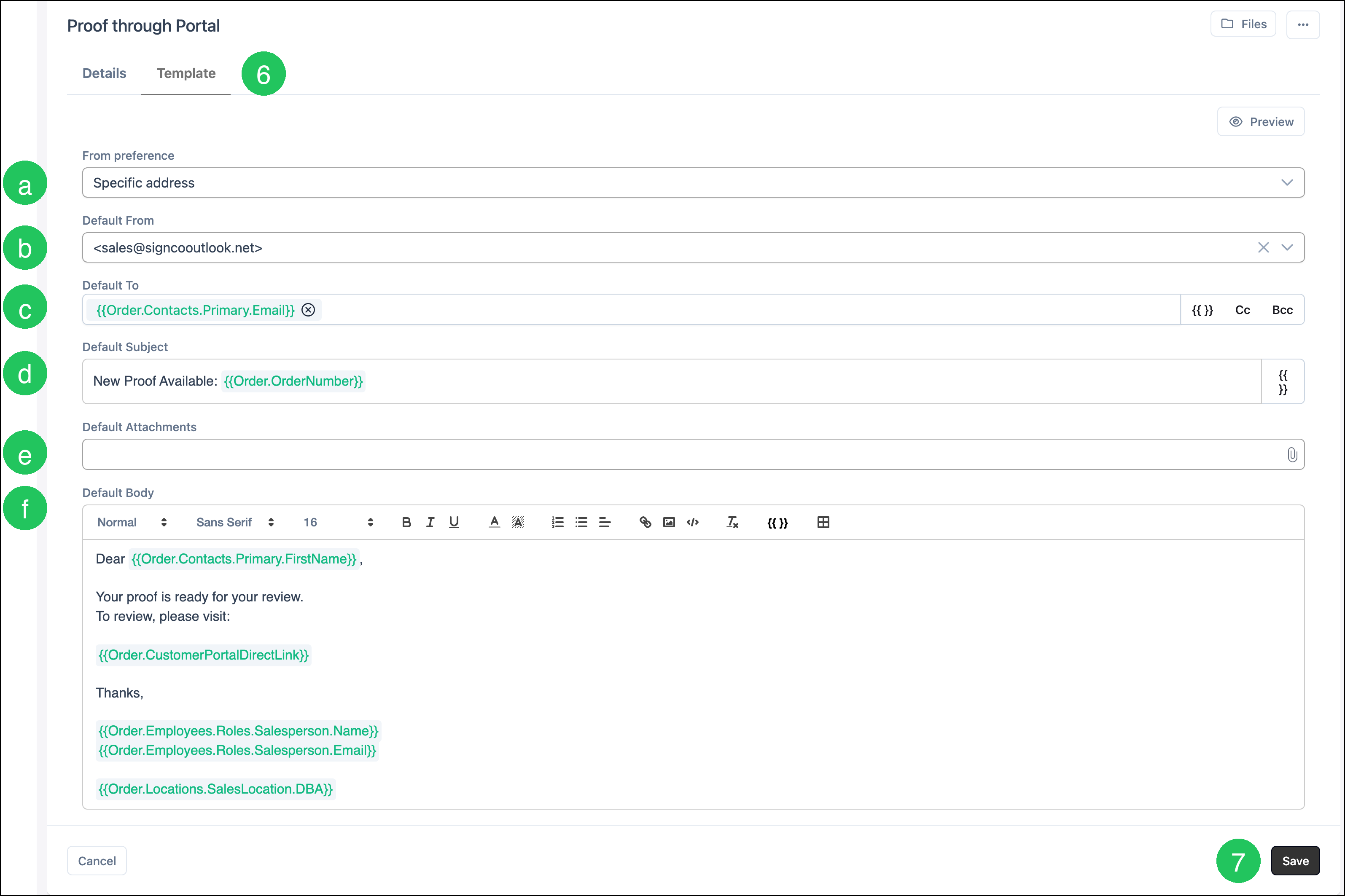
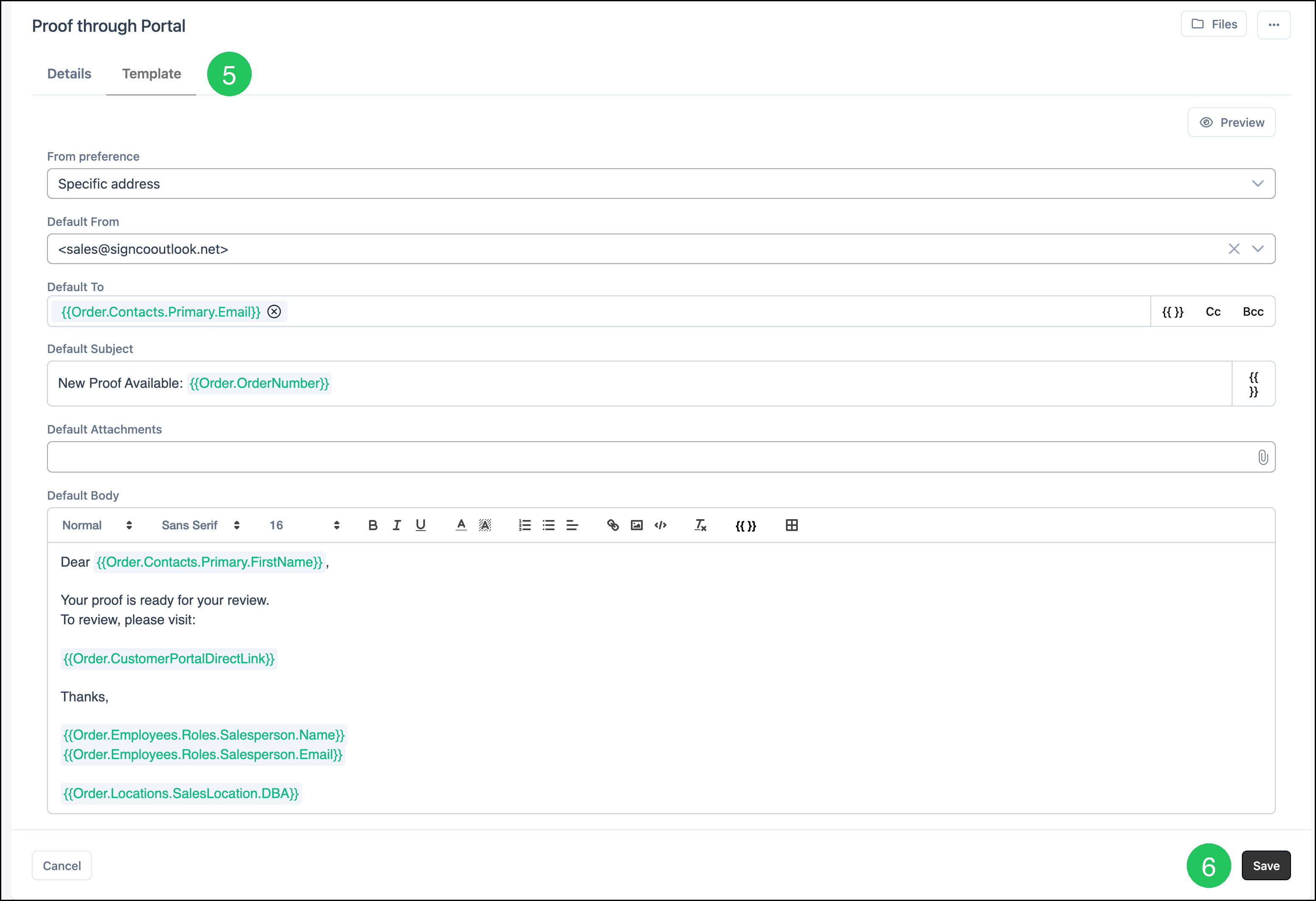
6. Click the Template tab.
a. From preference: Select Prefer logged-in user, Prefer salesperson, or Specific address. Prefer logged-in user sets From to the person who is signed in, when that person has an authorized From address. Prefer salesperson sets From to the salesperson on the estimate or order, when that person has an authorized From address. Specific address uses the address you select. Templates saved before this choice use Specific address.
b. Default From: This field is shown when From preference is Specific address. Select the address the template sends from. When From preference is Prefer logged-in user or Prefer salesperson, the field is Fallback From.
Note: Fallback From is used when the preferred person does not have an authorized From address. If Fallback From is empty and the preferred address is not authorized, From is left blank.
c. Default To: Click Insert merge field, or type {{, to add a merge field. For more information, see Merge Fields.
d. Default Subject: Enter the subject used when the template is sent.
e. Default Attachments: Add files to include with the template. This field can be left empty.
f. Default Body: Enter the message used when the template is sent. Merge fields can be inserted in the body as well.
Note: For Cc and Bcc, see Copying Yourself on Outgoing Customer Emails (CC/BCC).
7. Click Save.
Editing an Existing Email Template
You can change the name, description, attachments, limits, From preference, and email content of an existing template. Record Type usually cannot be changed after the template is saved.
Navigate to System Settings / System / Email Templates.
1. Select the tab for the record type that contains the template.
2. Click More Actions to Move First, Move Last, Clone, Set Inactive, or Delete.
3. Click the template name to open it.
4. Update the fields you need on the Details tab, such as Name, Description, Attachments, Include the Order Number in front of the File Name, Locations, and Companies.
5. Click the Template tab to change From preference, Default From or Fallback From, Default To, Default Subject, or Default Body.
6. Click Save.
Frequently Asked Questions
1. What does From preference do?
Answer: From preference chooses which address is selected when the template is used. Prefer logged-in user selects the person who is signed in. Prefer salesperson selects the salesperson on the estimate or order. Specific address uses the address saved on the template. The preferred person is used when that person has an authorized From address.
2. When is Fallback From used?
Answer: Fallback From is used when From preference is Prefer logged-in user or Prefer salesperson and the preferred person does not have an authorized From address. If Fallback From is empty and the preferred address is not authorized, From is left blank.