
Implementing Credit Line Options can be a tool in protecting your business and setting clear parameters for your Customers to adhere to. Credit Line Options allow you to predetermine what actions will occur when a Customer reaches their Credit Limit or when their account is in default.
Table of Contents
- Credit Line Options Overview
- Payment Terms
- Selecting a Payment Term for a Company
- Customizing Credit Line Options by Company
- Understanding Hold Types
Credit Line Options Overview
Navigate to System Settings / Accounting / Credit Line Options.
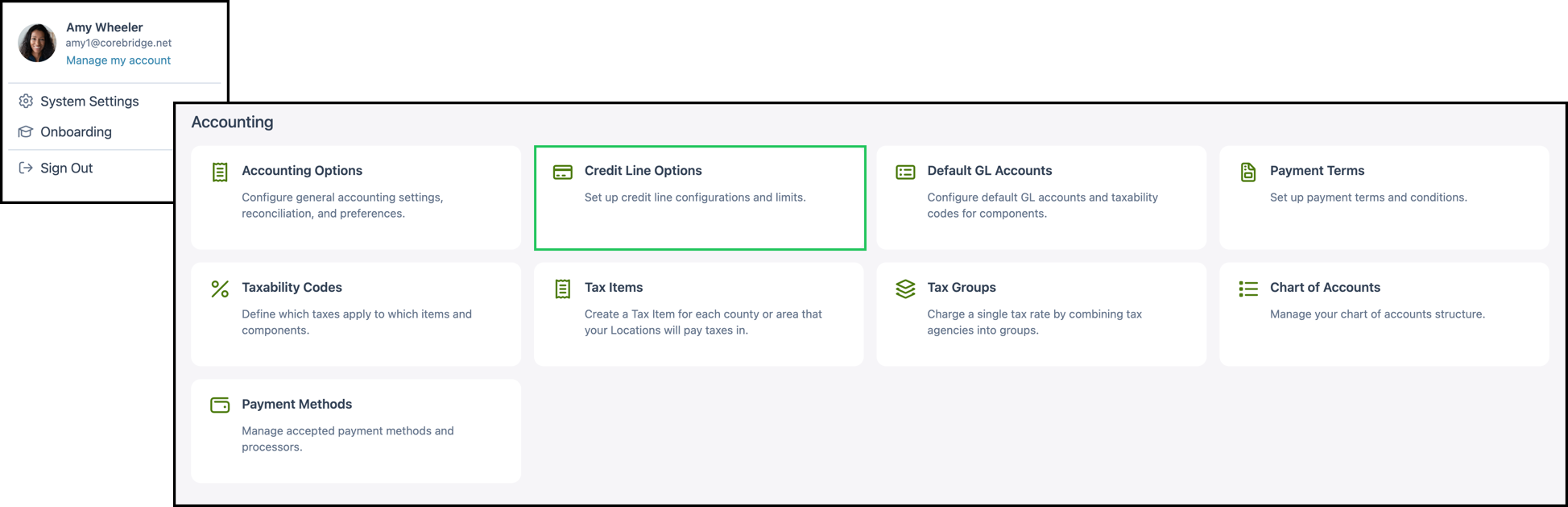
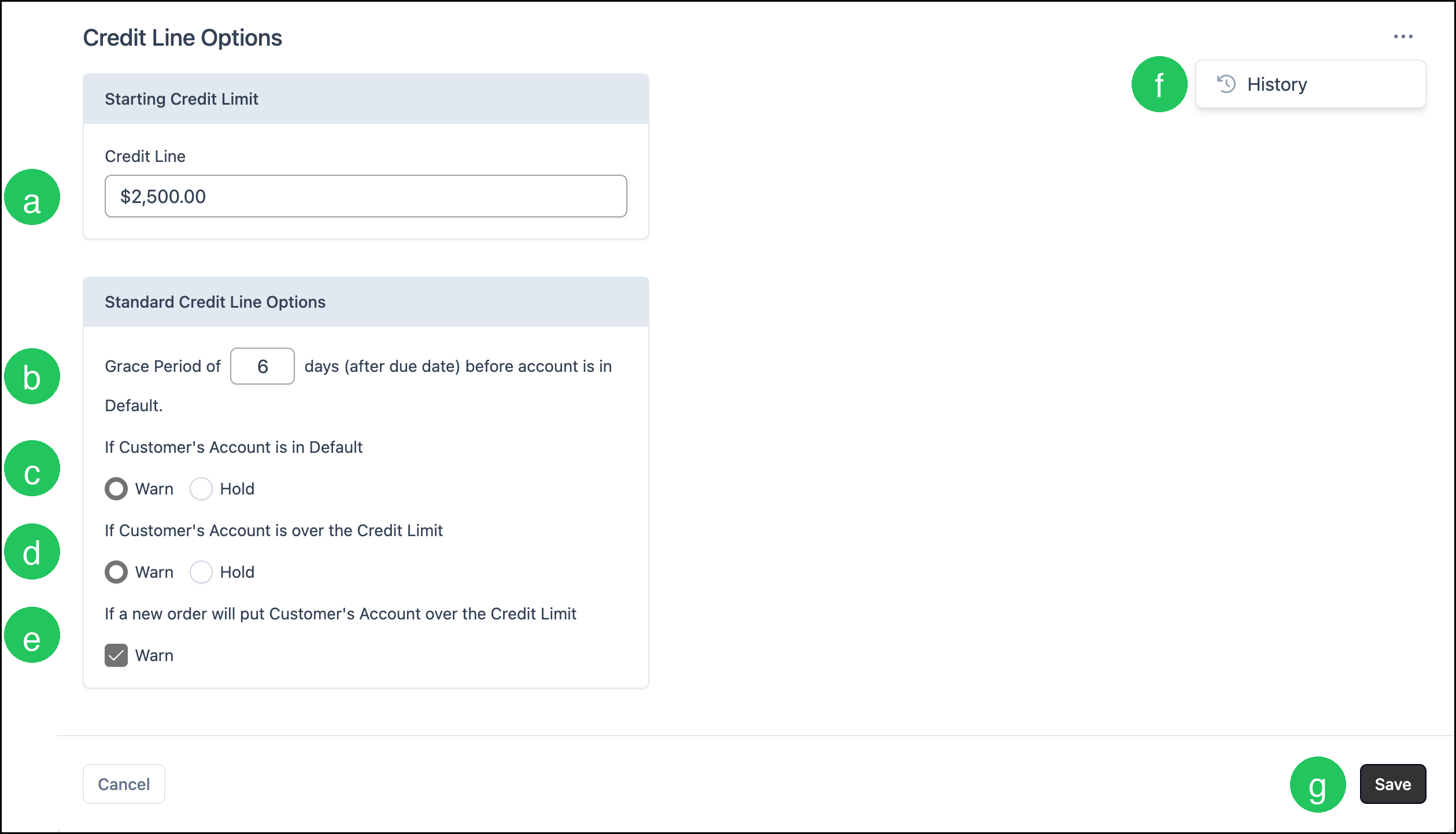
From this screen you can set the parameters Customers must maintain to be in good standing, and whether to issue a Warning or put a Hold on the account. These options apply as defaults to all Customers. You can customize them for individual Companies that use Net Payment Terms on the company record. Open the company, click Edit, and update Accounting Details.
Note: Both Warning and Hold can trigger a banner on the Order explaining the issue. Accounts with a Warning can still move Orders forward; accounts on Hold cannot progress Orders until the issue is resolved.
a. Starting Credit Limit (Credit Line) - The default amount of credit offered to Customers.
b. Grace Period - The number of days after the payment due date before the account is considered in Default.
c. If Customer's Account is in Default - Choose Warn or Hold. Default occurs when at least one Order for the Company has a payment past the grace period.
d. If Customer's Account is over the Credit Limit - Choose Warn or Hold. A Customer is over the Credit Limit when the total of all their Invoices exceeds the Credit Limit.
e. If a new order will put Customer's Account over the Credit Limit - You can choose to Warn when a new Order total would cause the total Invoices to exceed the Credit Limit.
f. Click More actions, then History, to open a side panel that shows the change history.
g. Changes made must be saved manually.
Payment Terms
Credit Line Options apply based on how Payment Terms are set. Payment Terms determine when payment is due and when a Company will be considered in default. Once a Company is in default, the Credit Line Options you configured (Warning or Hold) apply to that Customer.
To manage Payment Terms, navigate to System Settings / Accounting / Payment Terms. From there you can add and edit Payment Terms. For more information, please see Payment Terms Settings.
Selecting a Payment Term for a Company
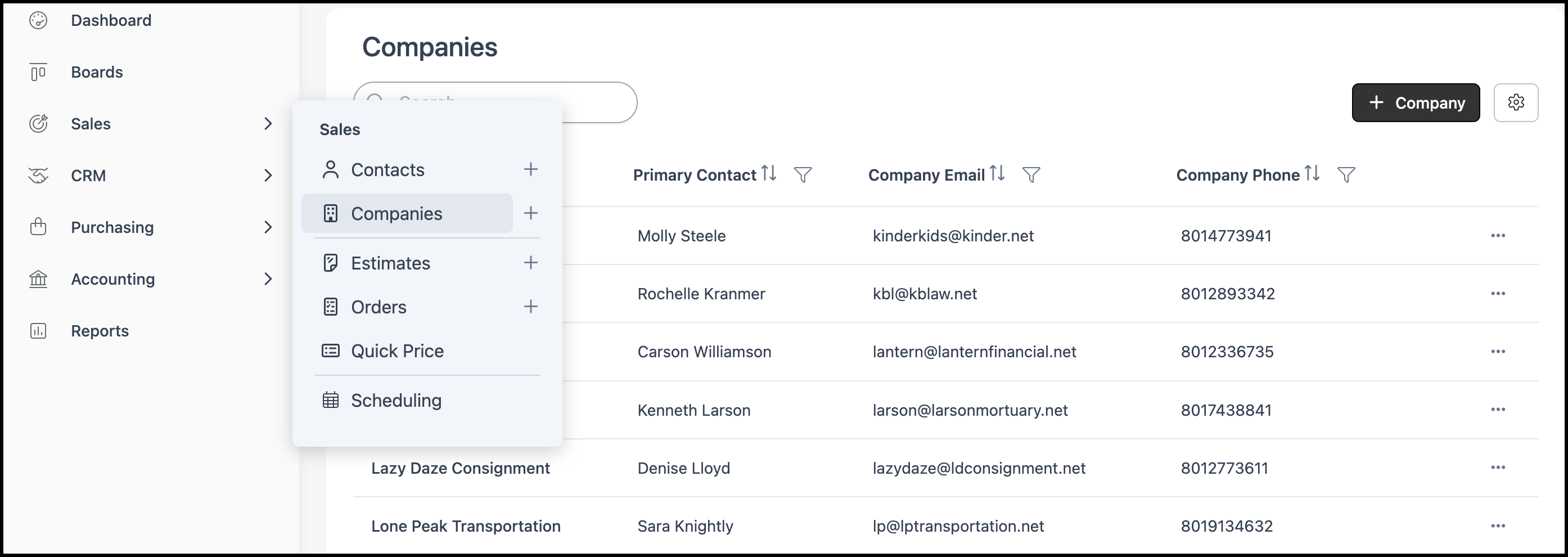
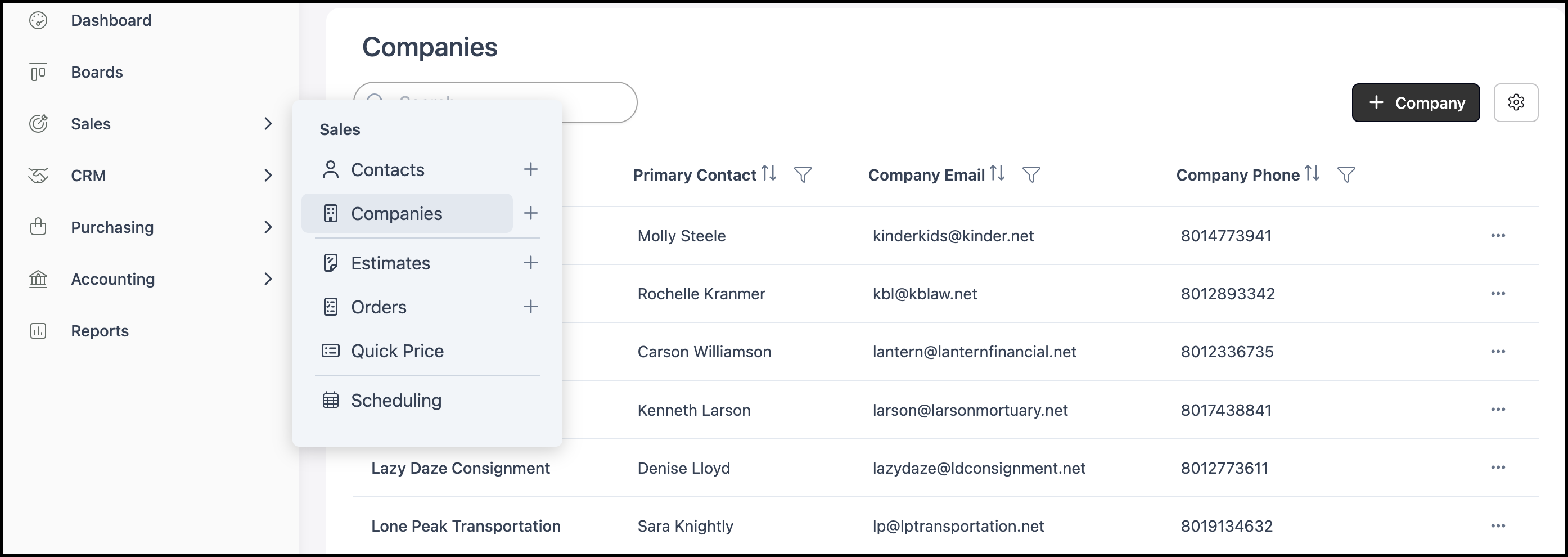
Navigate to Sales / Companies and select the Company.
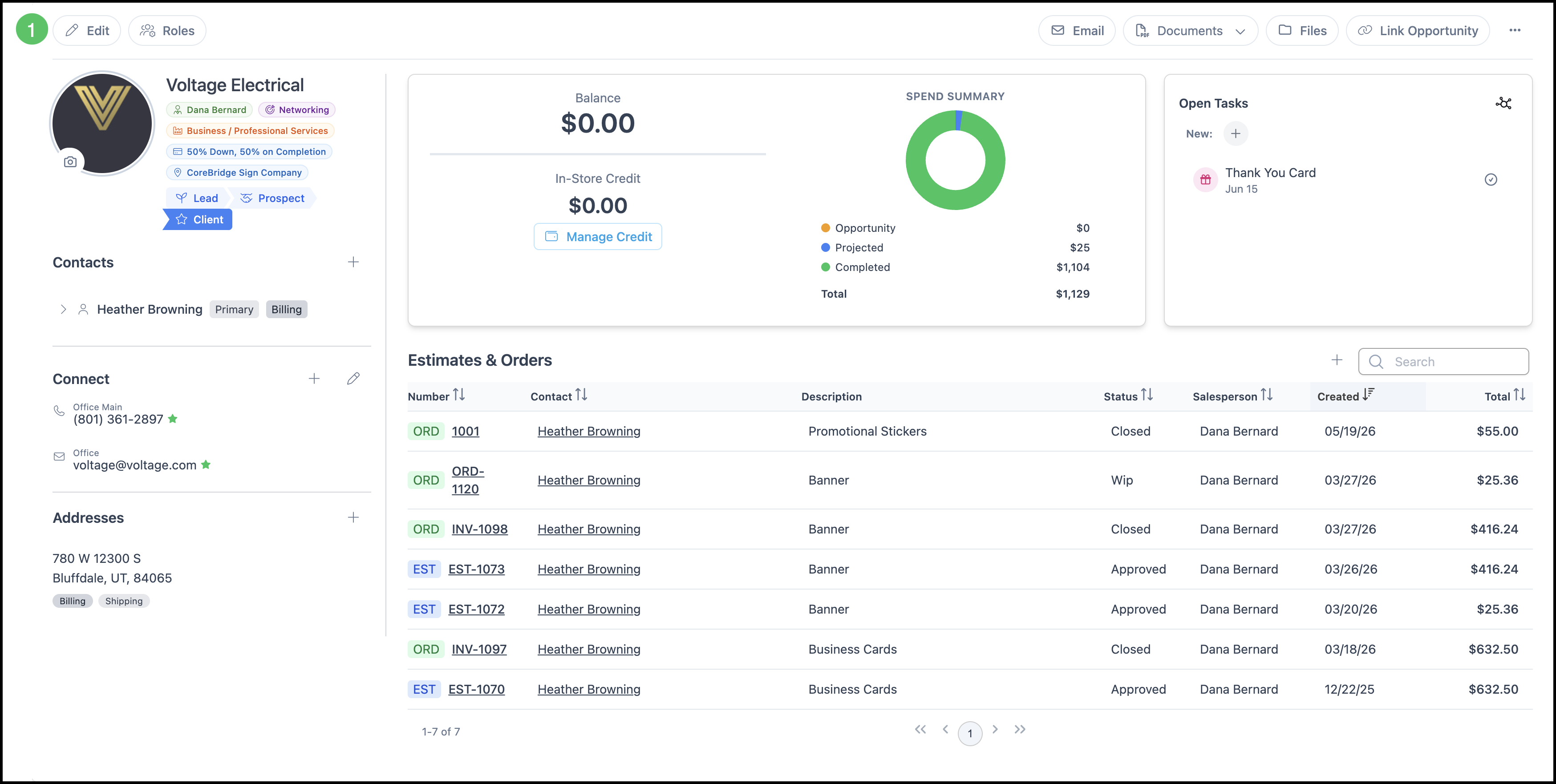
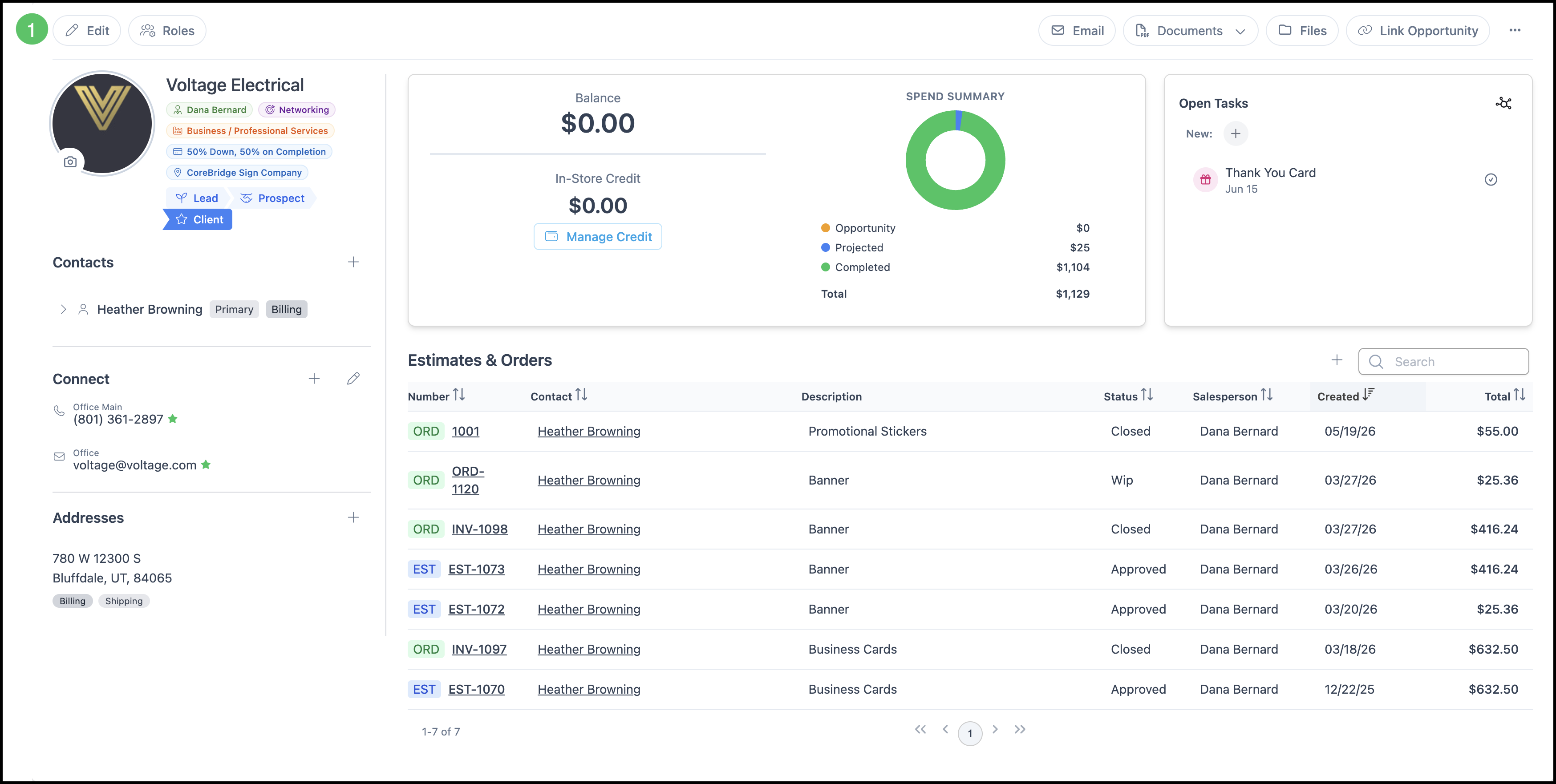
1. Open the Edit Company view by clicking Edit.
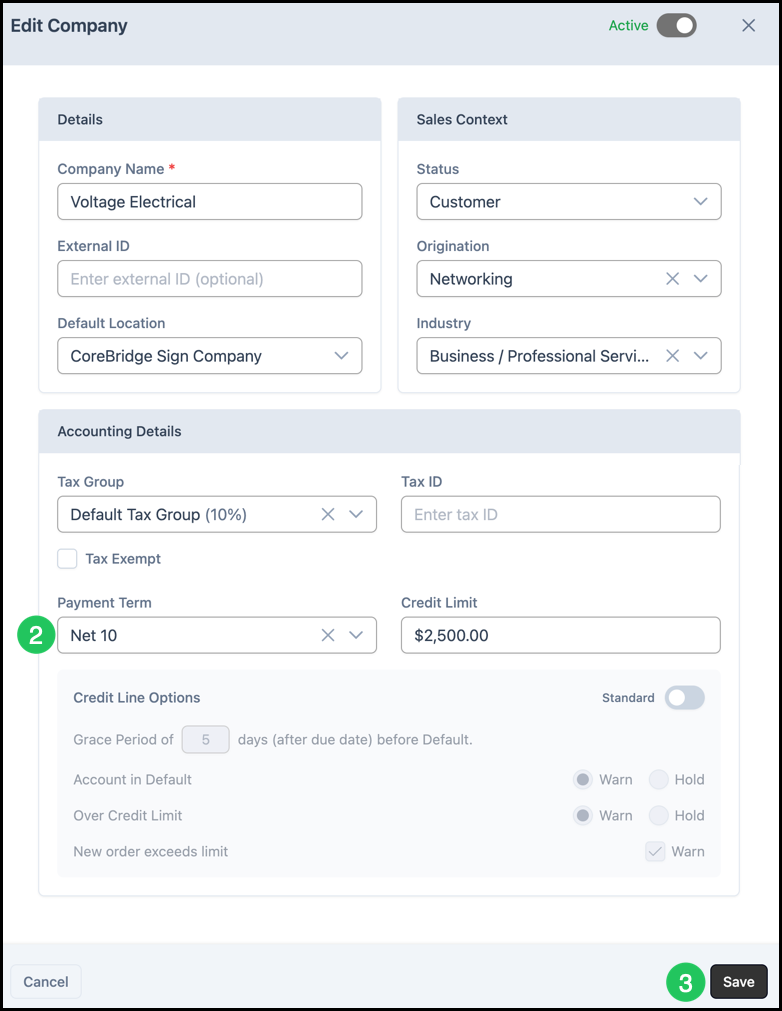
2. In the Edit Company dialog, find the Payment Term dropdown in Accounting Details and select the appropriate payment term for this company.
3. Click Save.
Note: Only certain Payment Terms (such as Net payment terms) will enable Credit Line behavior. When a Company is set to a Net Payment term, the default Credit Line and Credit Line Options from Settings apply unless customized for that Company.
Customizing Credit Line Options by Company
Navigate to Sales / Companies and select the Company.
1. Open the Edit Company view by clicking Edit.
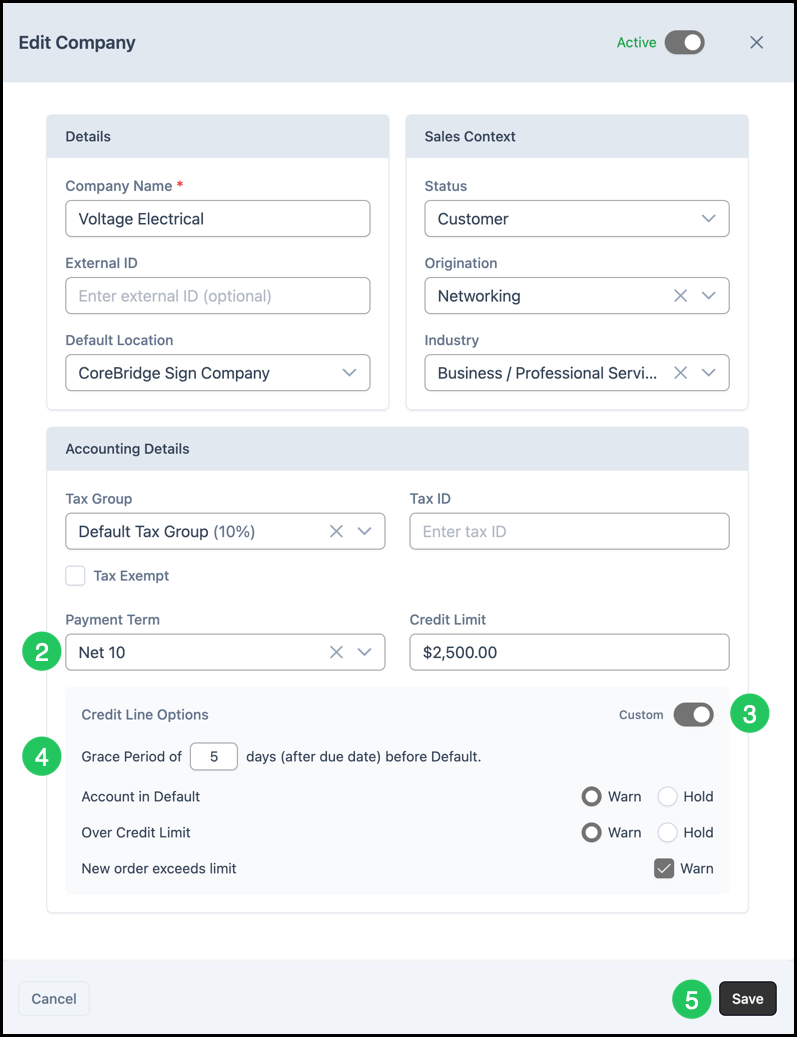
2. Make sure the Payment Term is set to a term that enables Credit Line behavior, such as a Net Payment Term.
3. Turn the toggle on so it shows Custom.
4. Make the necessary customizations.
5. Click Save.
Understanding Hold Types
Different conditions can trigger a Warning or Hold on an account. A Warning notifies you of an issue but allows work to continue. A Hold prevents the Order from moving forward until the issue is resolved.
Credit Limit Exceeded Warning or Hold
This applies to accounts that operate on account. It can be triggered when:
a. The Company has at least one payment that has passed the grace period (account in default).
b. The total balance for all Invoices for the Company exceeds the Credit Limit.
Payment Past Due
This Warning or Hold occurs when the payment due date has passed but the grace period is still in effect. This applies to accounts whose Payment Terms calculate a payment due date.
Out of Balance
This Warning or Hold indicates a problem with the Order's base calculations. It can be triggered by:
a. Line Item Total Out of Balance - The sum of individual Line Items does not match the Order subtotal.
b. Taxes Out of Balance - The sum of Line Item taxes does not equal the Order tax.
c. Negative Balance - The Customer account balance makes the Order balance negative (for example, when the customer has received credit greater than the amount owed on the order).
If you encounter an Out of Balance issue you cannot resolve, contact supportdesk@corebridge.net.