Email Domains identify the domain used to send email from CoreBridge and are paired with an Email Provider. Each Email Domain can be configured for specific Locations and must be set up before an Email From Address can be created.
Table of Contents
Adding Email Domains
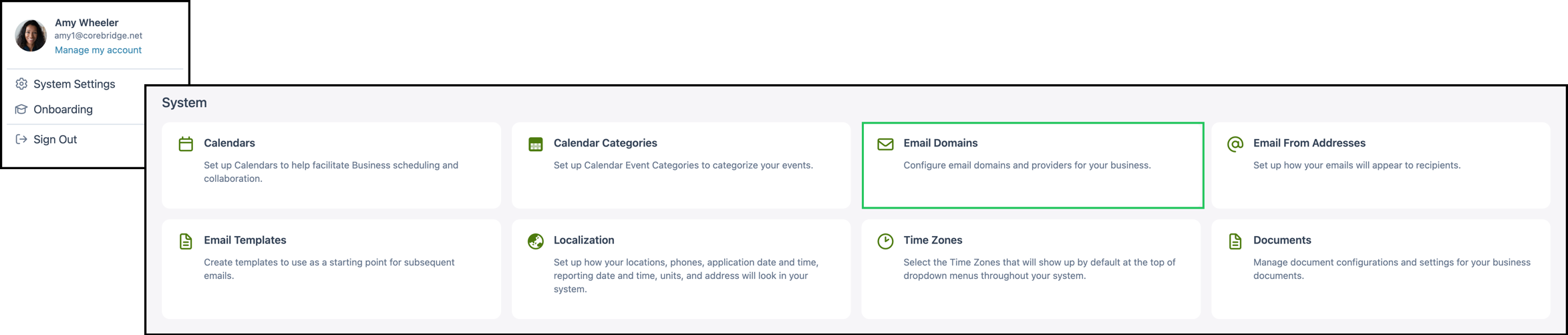
Navigate to System Settings / System / Email Domains.
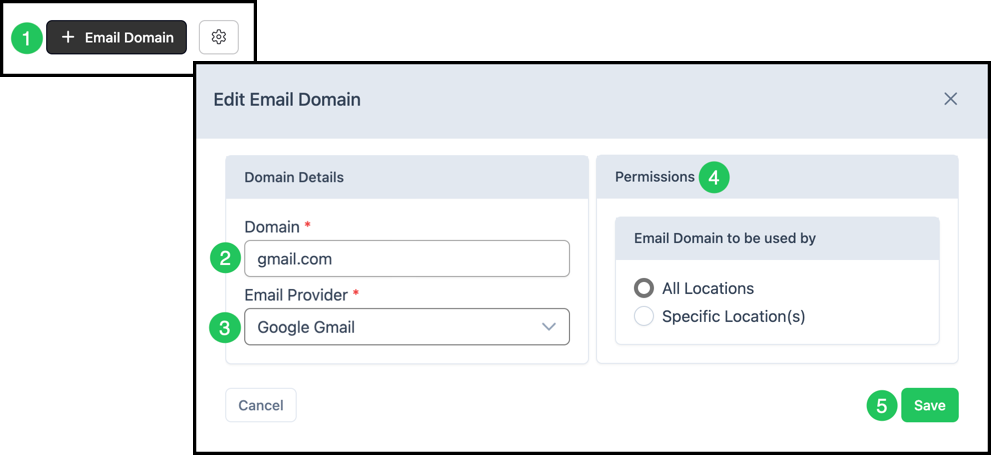
1. Click + Email Domain.
2. In Domain Details, enter the Domain in website.com format. Do not include http:// or a mailbox name.
Example: gmail.com
3. Select the Email Provider.
Example: Google Gmail
Note: The list includes SMTP. Google Gmail and Microsoft Outlook appear after those integrations are connected in Integrations Marketplace.
4. In Permissions, under Email Domain to be used by, select All Locations or Specific Location(s).
Note: On a system with one location, Permissions may not be shown. To add locations, contact sales@corebridge.net.
5. Click Save.