
Reassign Customers allows Companies to be reassigned from one employee to another in bulk. To reassign a single Company, update the Salesperson or Sales Manager on Company Details.
Table of Contents
- Before You Begin
- Reassign Customers
- Reassign One Company
- Important Information
- Frequently Asked Questions
- Related Articles
Before You Begin
- You need access to Employees and Companies.
- The employee you reassign to should already be able to hold the Team role you are moving, such as Salesperson or Sales Manager.
Reassign Customers
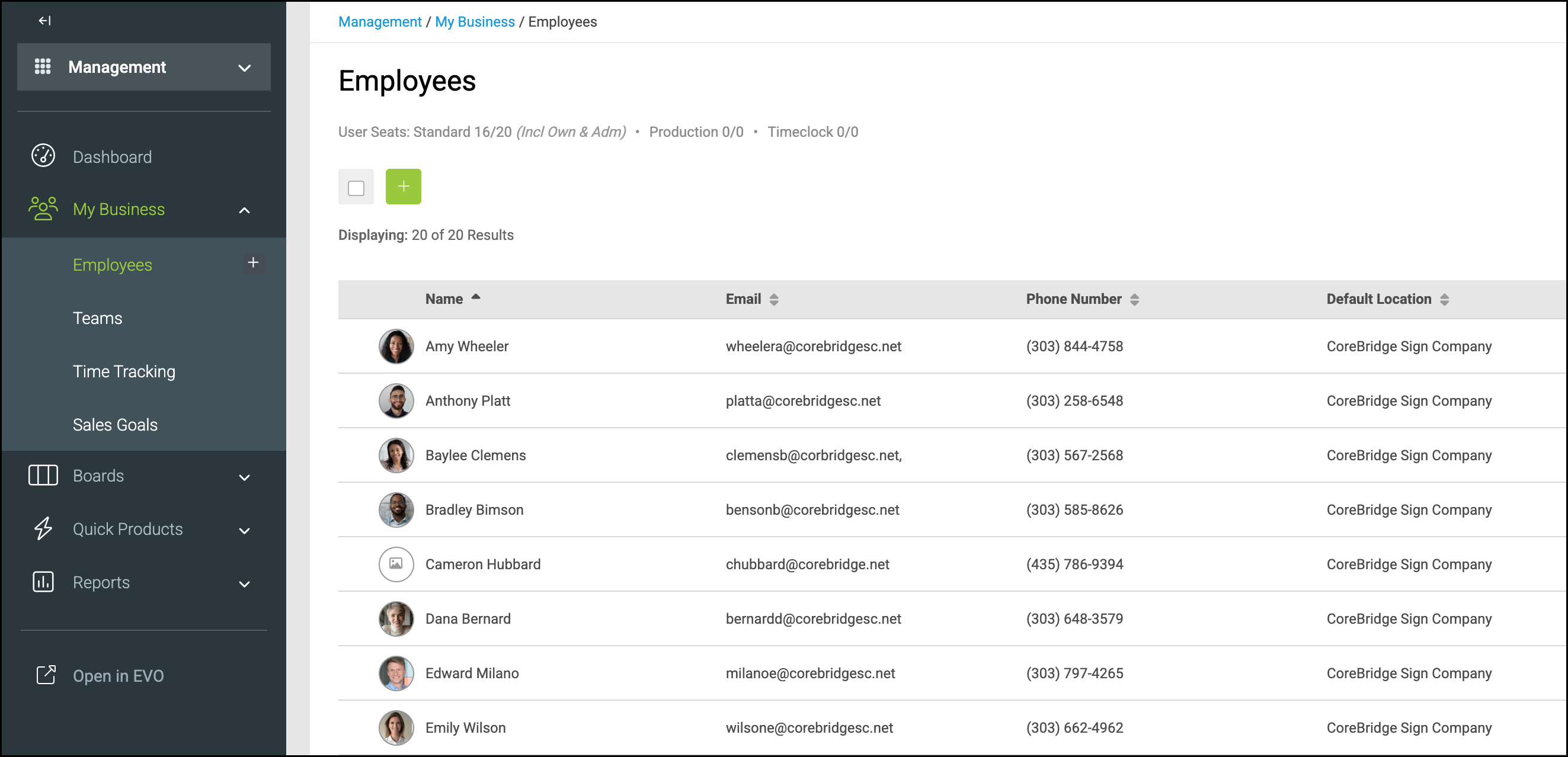
Navigate to Management / My Business / Employees.
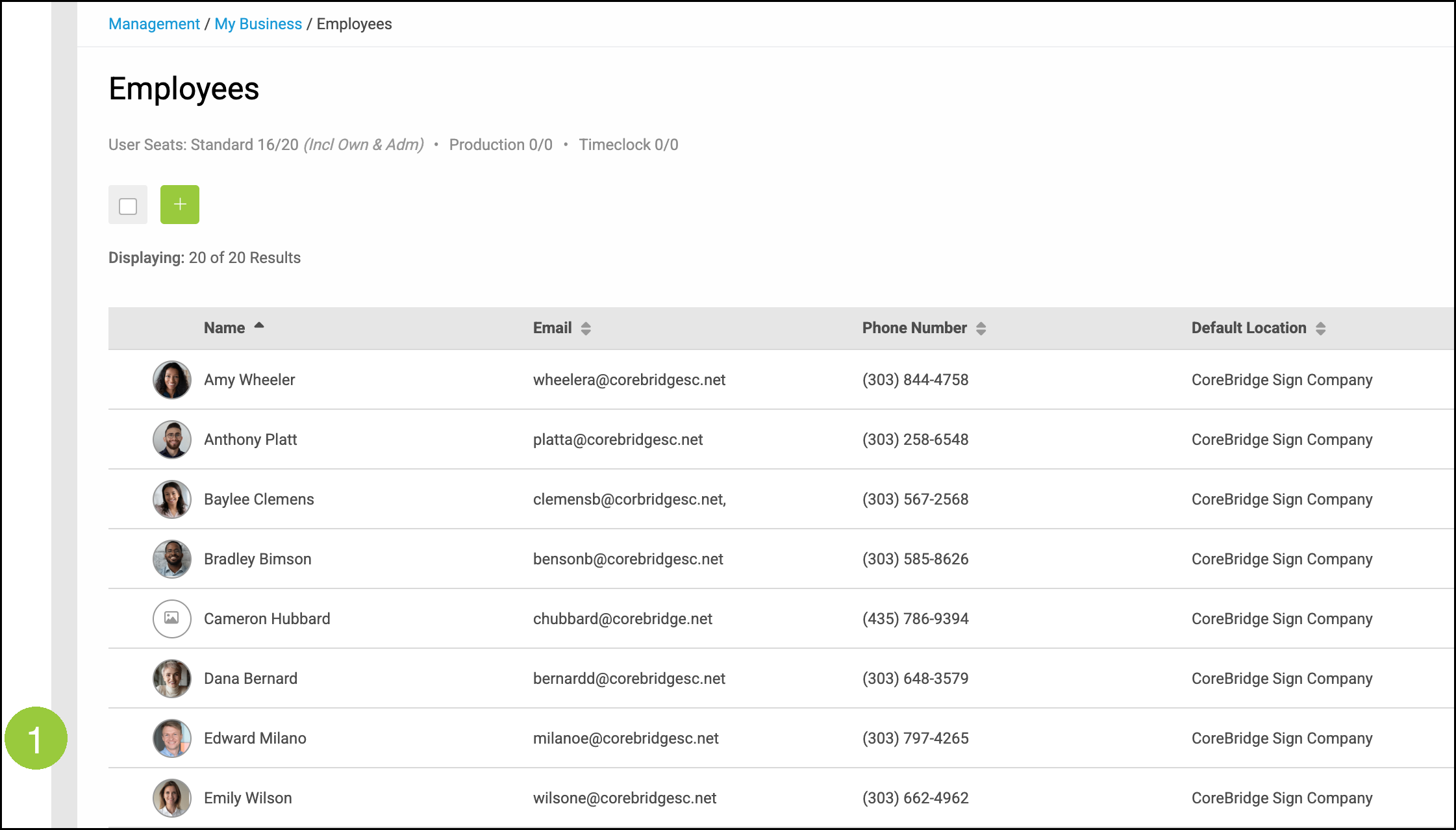
1. Select the employee whose customers you want to reassign.
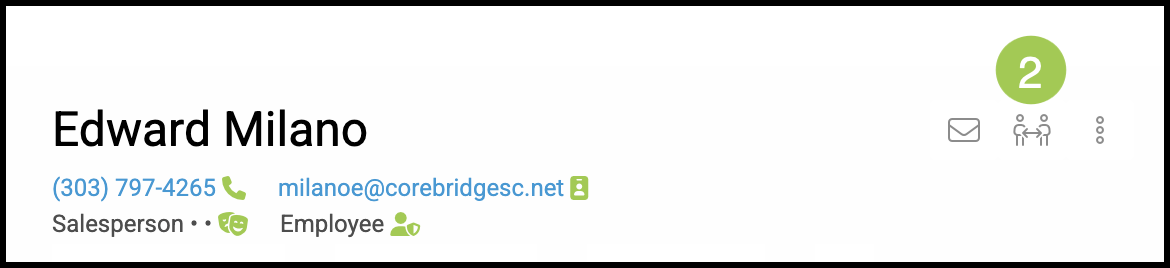
2. Click Reassign Customers.
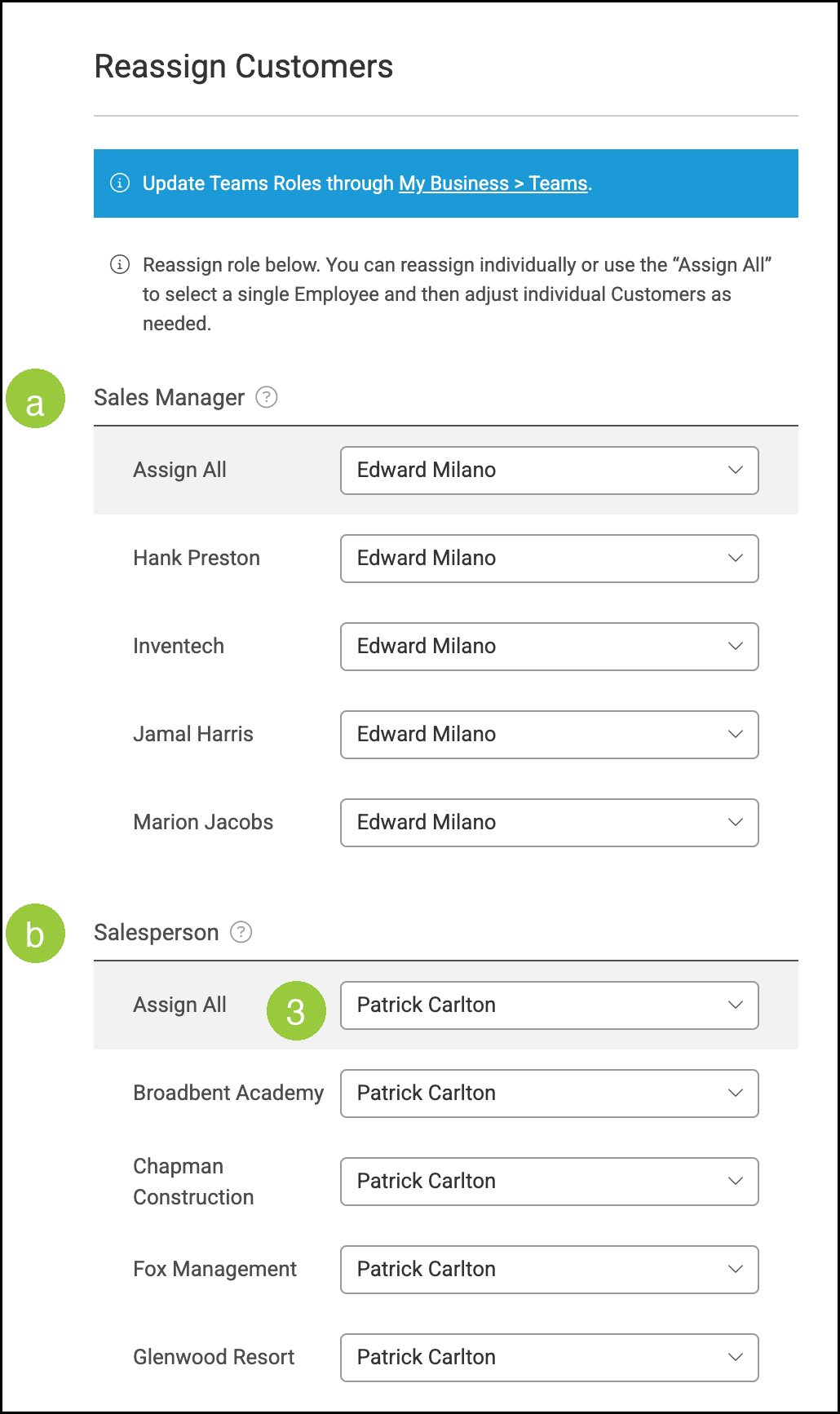
The Reassign Customers window lists Companies assigned to that employee for each Team role.
a. Sales Manager lists Companies where the employee is the Sales Manager.
b. Salesperson lists Companies where the employee is the Salesperson.
3. Select an employee from Assign All to apply that person to every Company in the role, or select a different employee on an individual Company.
4. Click Save.

Note: Save becomes available after you make a change. Click Cancel if you do not want to keep the changes.
Reassign One Company
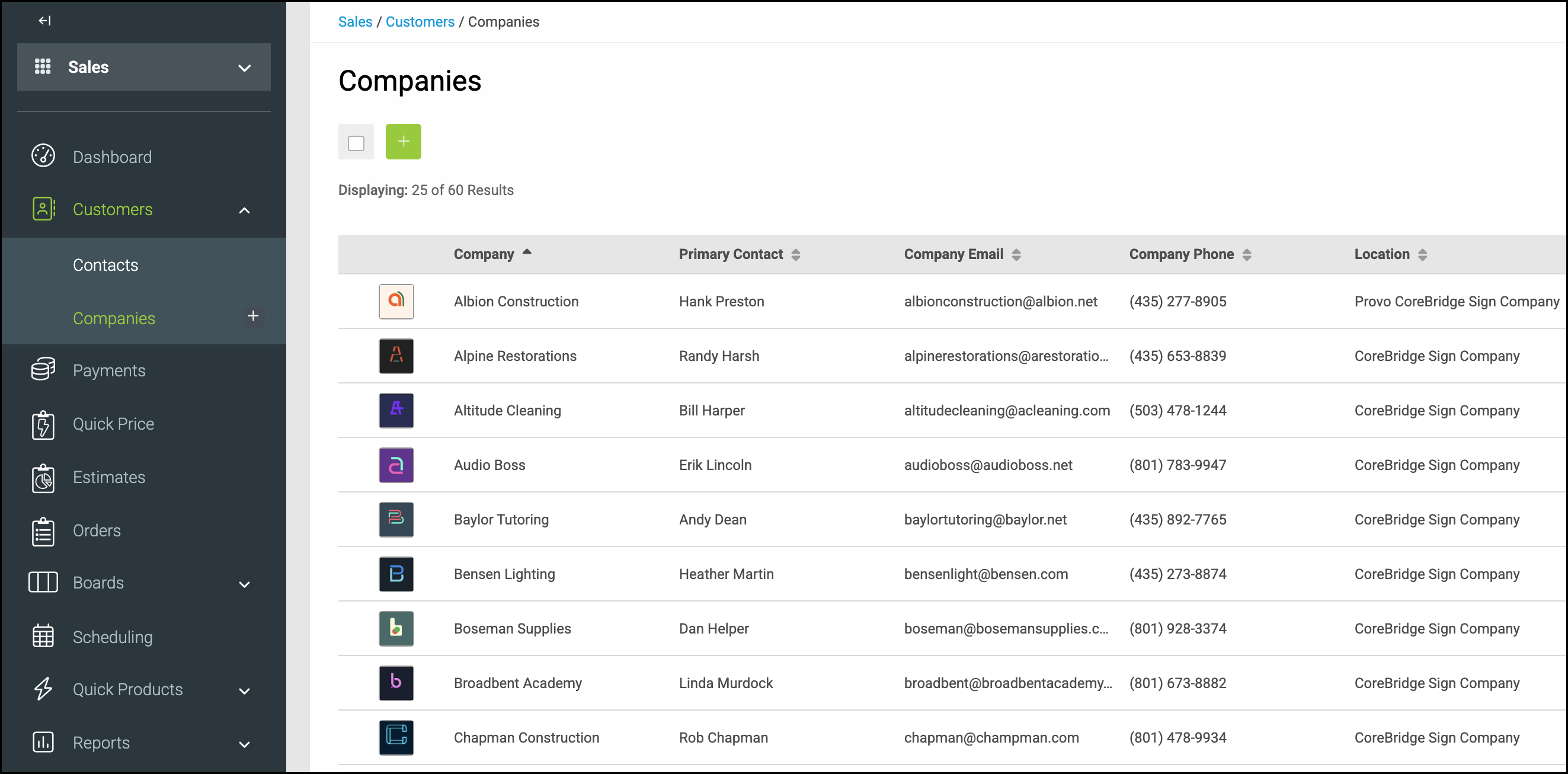
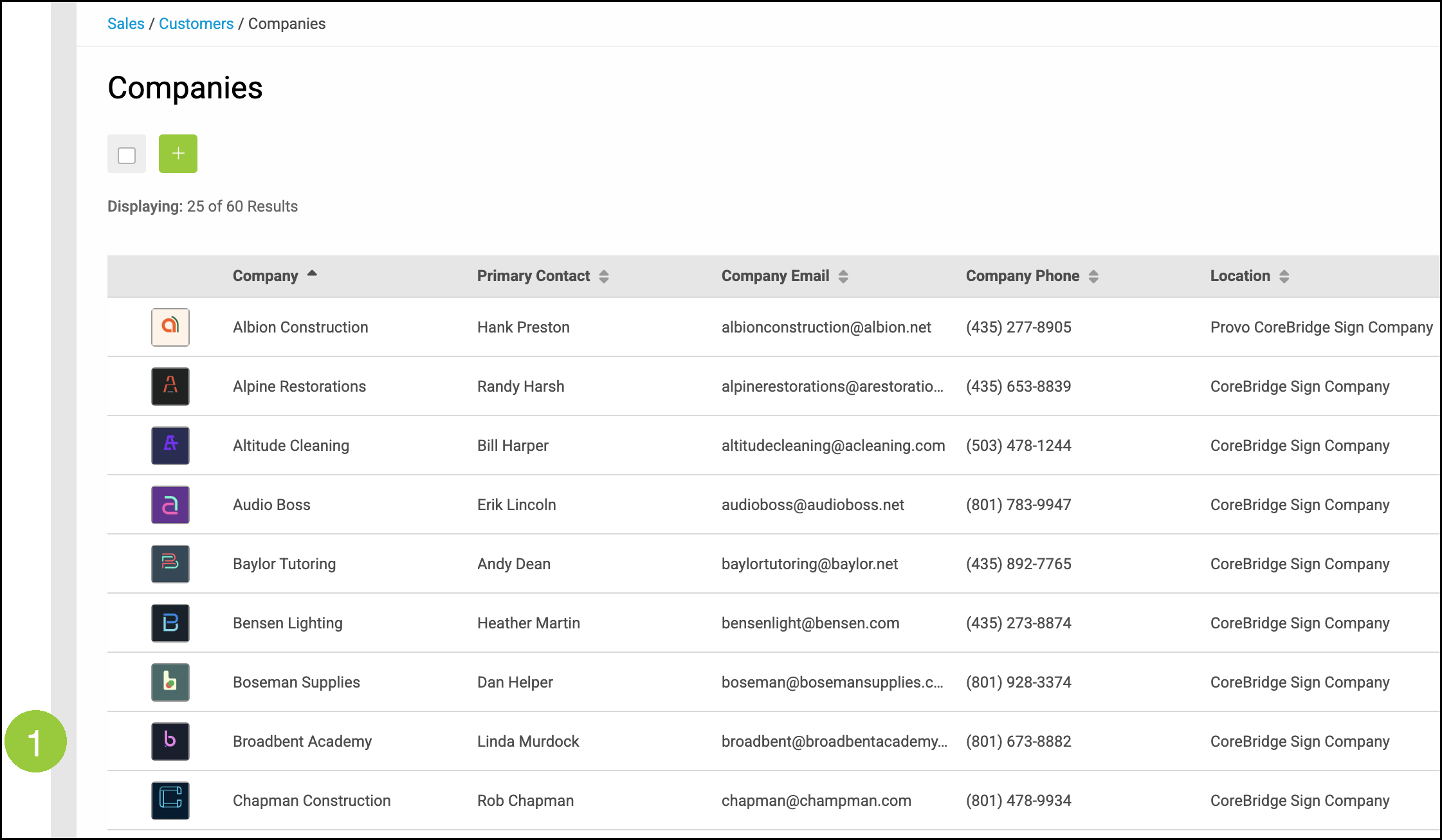
Navigate to Sales / Customers / Companies.
1. Select the Company.
2. Select a different employee in Sales Manager.
3. Select a different employee in Salesperson.
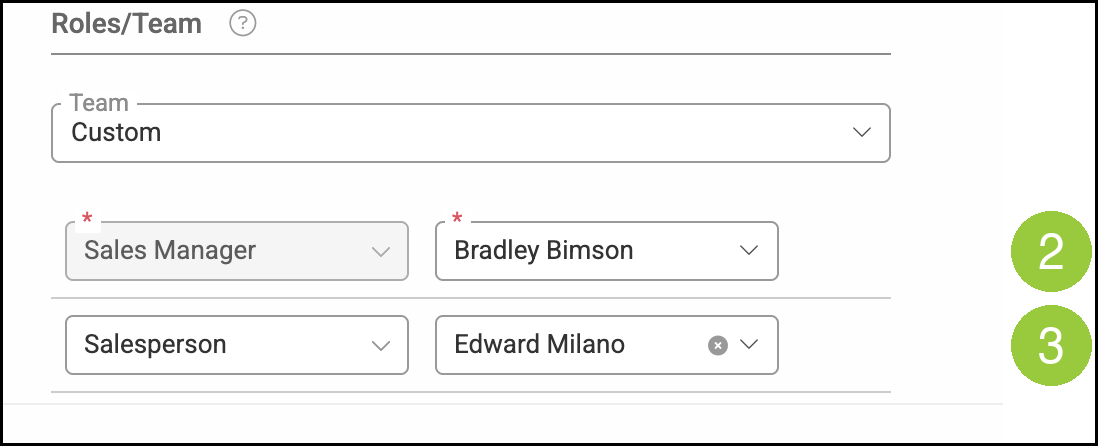
Note: Company Details saves automatically. You do not need to click Save after you change a role.
Important Information
- Reassign Customers updates Company Team roles. It does not change the Salesperson on existing Orders or Estimates.
- To change which employees can fill Team roles, go to Management / My Business / Teams. For more information, see Teams Overview.
- If you are deactivating an employee, reassign customers first. For more information, see Reassigning Customers When Deactivating an Employee.
Frequently Asked Questions
1. Does Reassign Customers apply only to house accounts?
Answer: No. Reassign Customers lists the Companies assigned to the employee in each Team role, not only house accounts.
2. Do existing Orders update to the new Salesperson?
Answer: No. Existing Orders keep the original Salesperson.
3. What is the difference between Assign All and the individual Company dropdowns?
Answer: Assign All applies one employee to every Company in that role. The individual Company dropdowns let you choose a different employee per Company after you use Assign All, or instead of using Assign All.
Related Articles
Additional Company Features
Creating Companies
Creating Employees
Managing Employees
Reassigning Customers When Deactivating an Employee
Teams Overview