
You can notify coworkers in CoreBridge by typing @ in Chat, similar to mentioning someone in Outlook. Select the employee, team, or role from the list. That person or group receives an in-app notification.
Table of Contents
- Where to Use Mentions
- How to Mention Someone on an Order
- Other Ways to Notify Coworkers
- Frequently Asked Questions
- Related Articles
Where to Use Mentions
Mentions are available in chat areas on records such as Estimates and Orders. This article uses Order Chat as the example. The same @ shortcut works in other chat areas that use the same composer.
How to Mention Someone on an Order
Navigate to Sales / Orders.
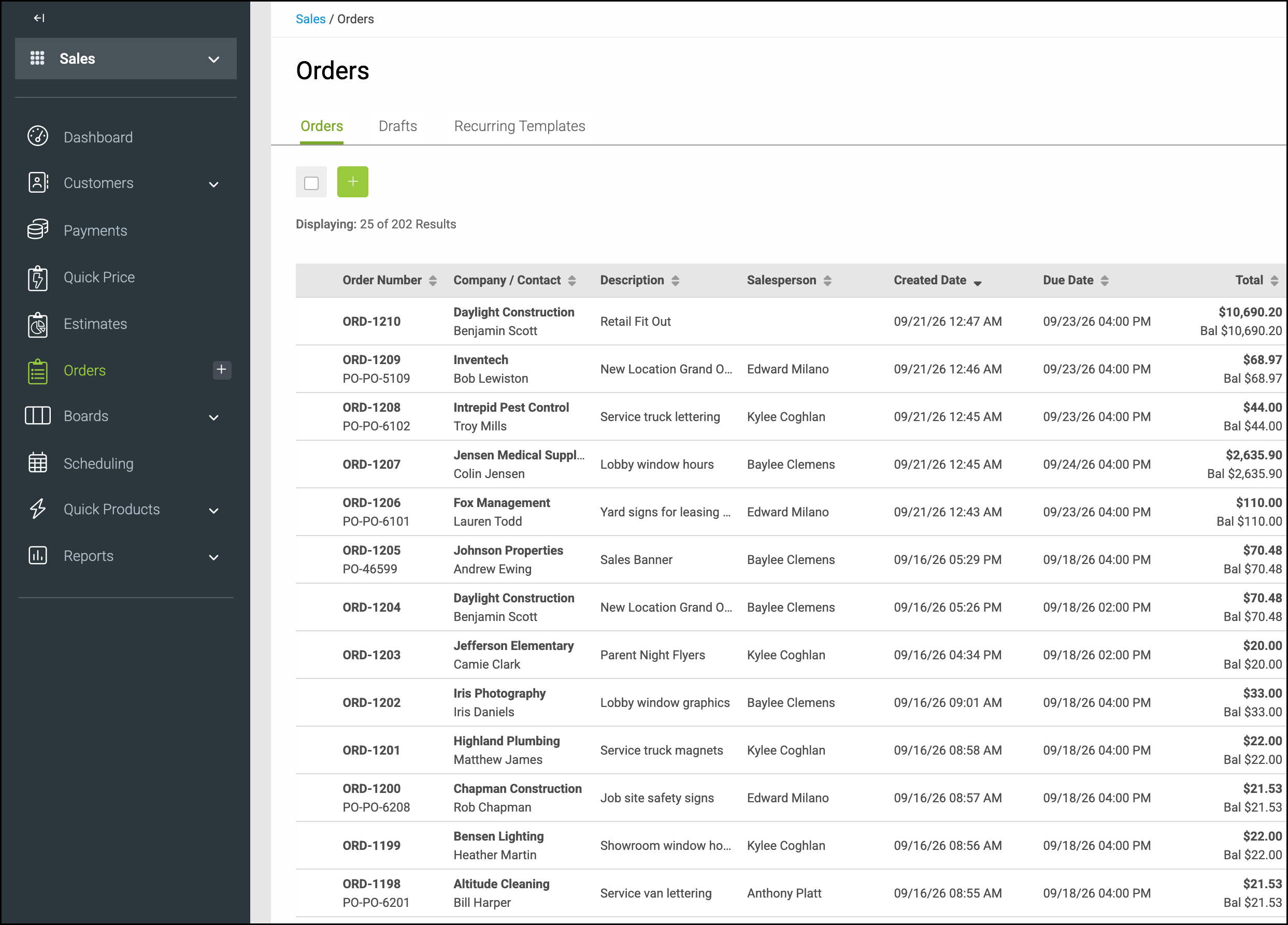
1. Open the Order.
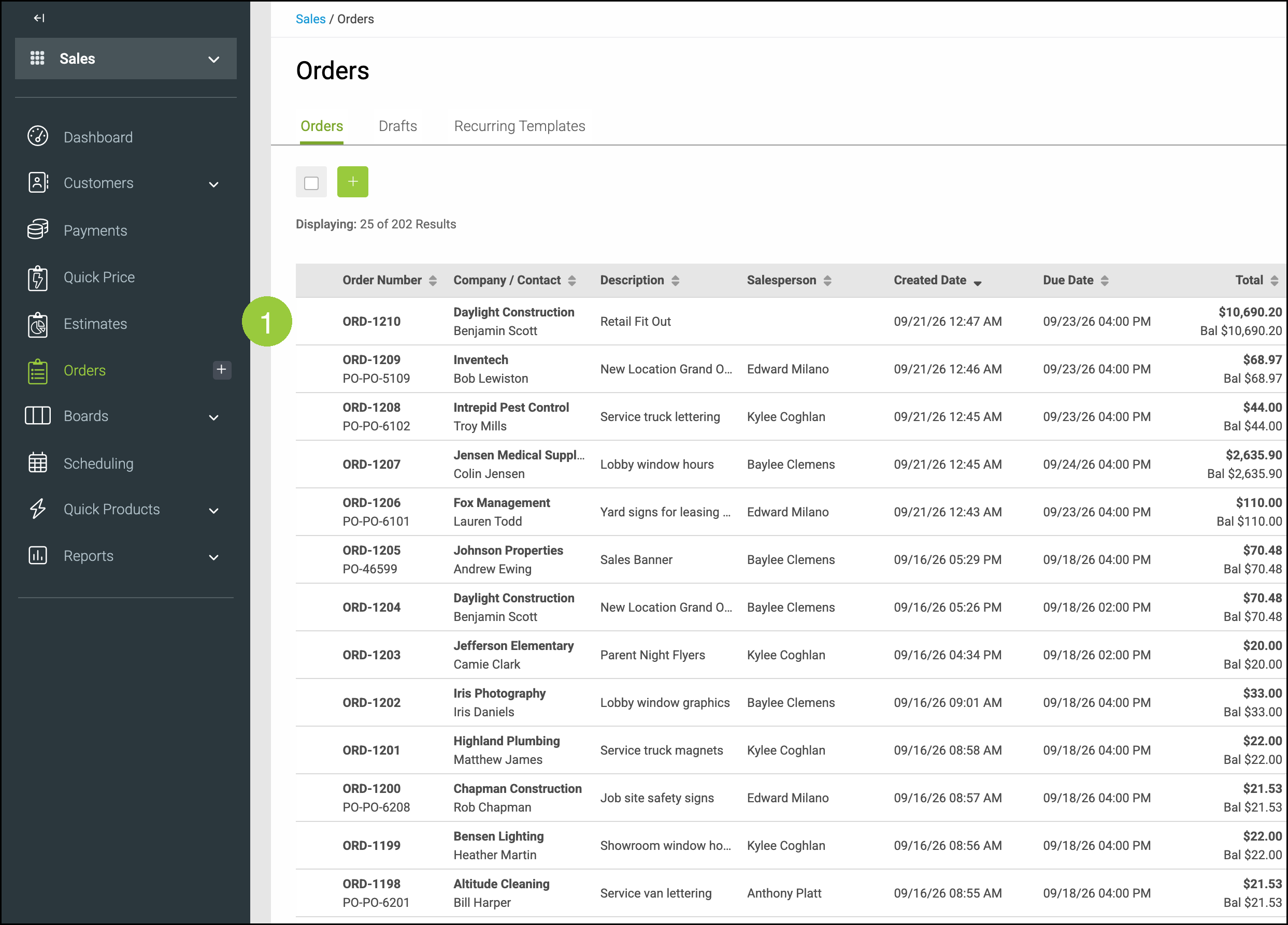
2. Click the Order Notes & Chat tab.
Note: On an Estimate, click Estimate Notes & Chat.
3. Under Order Chat, click + Chat.
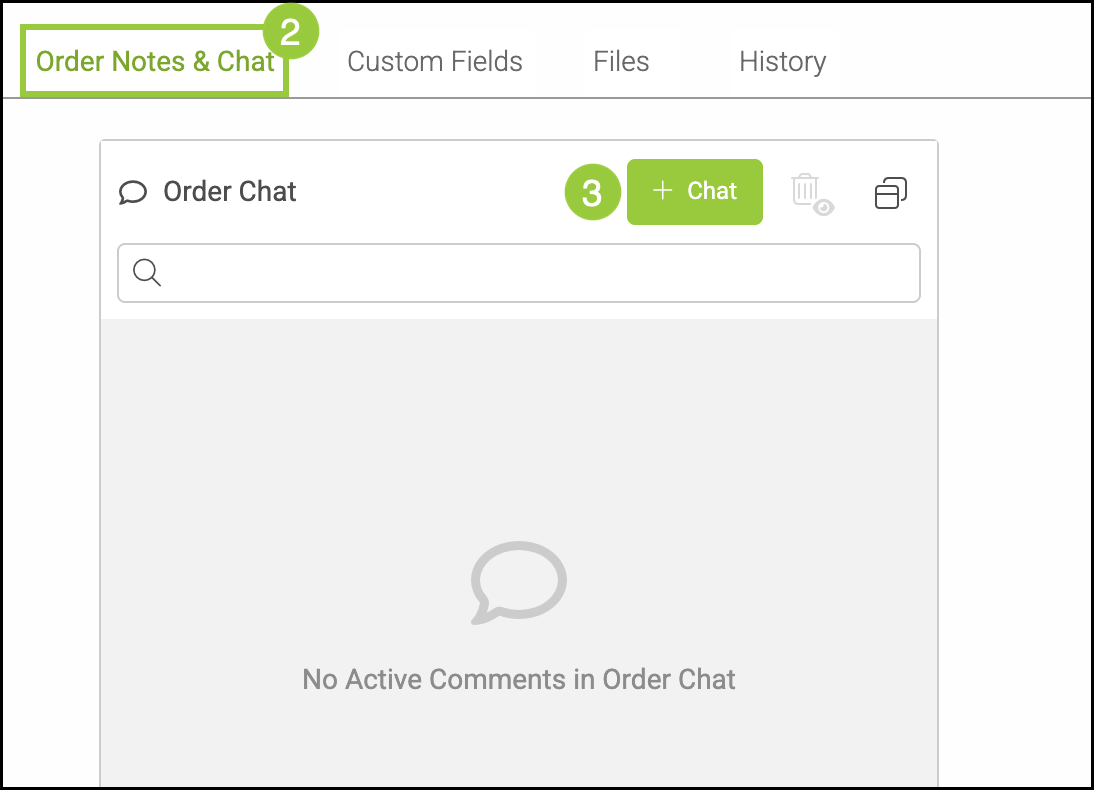
4. In the message body, type @. A list of Employees, Teams, and Roles appears.
5. Select the person, team, or role you want to notify.
6. Finish your message and click Save.
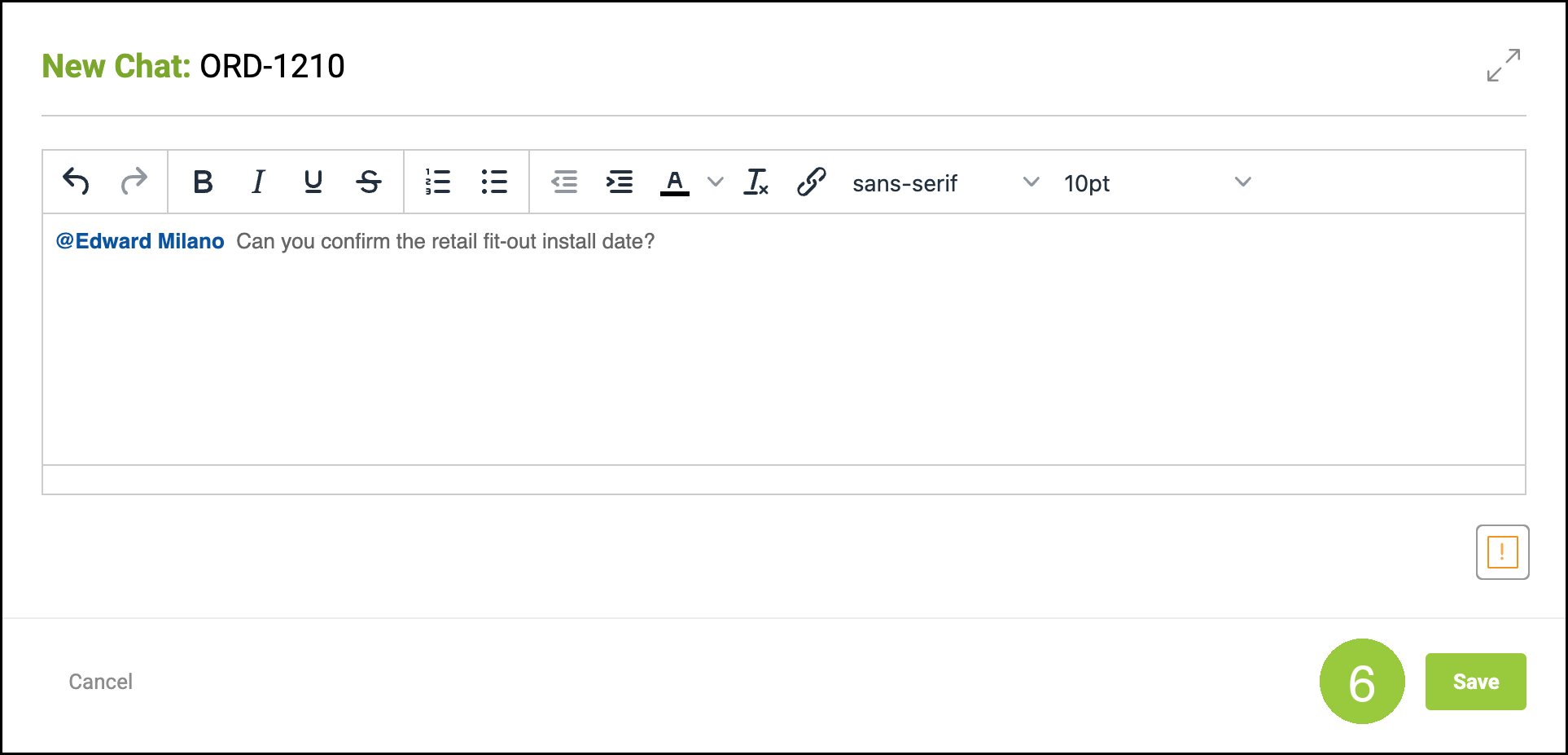
Note: Mentions notify the selected coworker through CoreBridge notifications. Choose the name from the @ list. You do not need to type an email address.
Other Ways to Notify Coworkers
To send a message that is not tied to a specific order or estimate, use My Profile / Messages & Notifications. Compose a message and start typing the recipient's name to select them from your employee list.
Frequently Asked Questions
1. Can I mention a team or a role, not just one employee?
Answer: Yes. After you type @, the list includes Employees, Teams, and Roles. Select the group you want to notify.
2. Does this work on an estimate?
Answer: Yes. Open the estimate, click the Estimate Notes & Chat tab, then use + Chat and type @ the same way.