
You can copy yourself (or another address) on outgoing customer emails in CoreBridge EVO by using Cc or Bcc. Add the address on a single email when you send, or set a default on an Email Template so it is included each time that template is used.
Table of Contents
- Important Information
- Send Yourself a Copy on a Single Email
- Set a Default Cc or Bcc on an Email Template
- Keep a Copy in Your Sent Folder
- Frequently Asked Questions
- Related Articles
Important Information
- Addresses in Cc are visible to the customer and to everyone else on the email. Addresses in Bcc are hidden from the customer and from other recipients.
- You can enter a specific email address, or (on an Email Template) a merge field. You can add more than one address to Cc or Bcc.
Note: A default Cc or Bcc on an Email Template is added when that template is selected. You can still change or remove it on a single email before you send.
Send Yourself a Copy on a Single Email
Use this when you want a copy of one email. This example uses an Order. The same Email control is available on other records, such as Estimates.
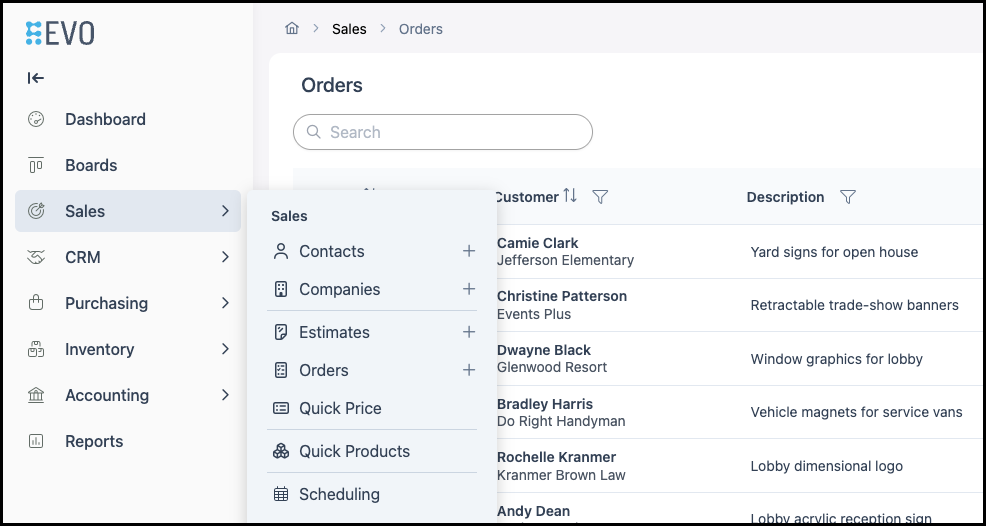
Navigate to Sales / Orders and open the Order you want to email.
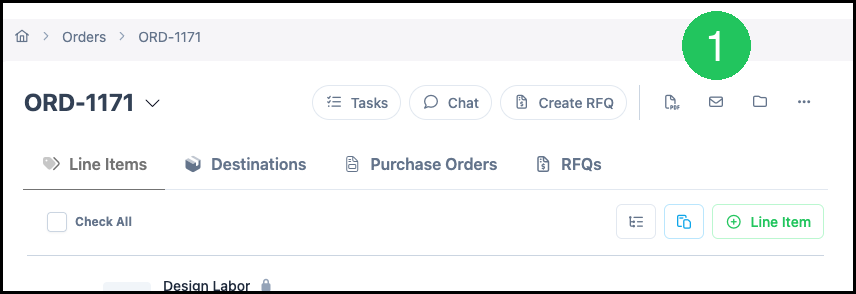
1. Click Email.
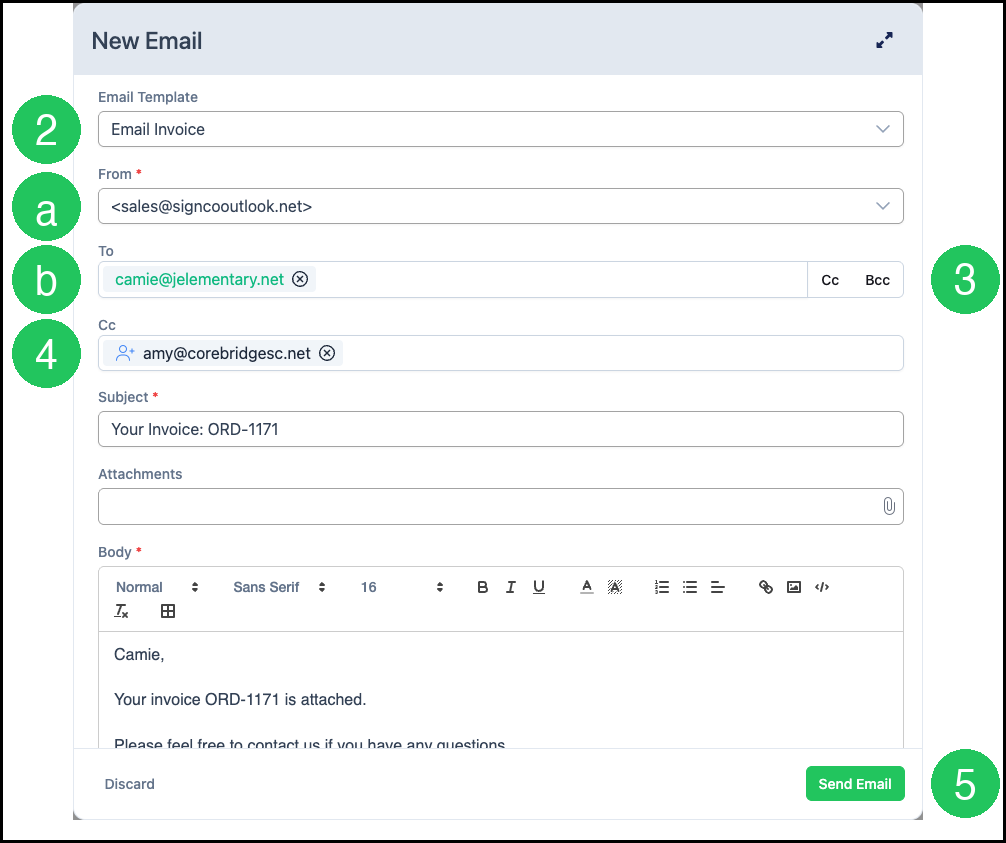
The New Email dialog opens.
2. Select an Email Template if you want to start from a template.
a. From is the address the message is sent from. Select an authorized address if one is not already filled. From is required to send.
b. To is the customer address. Add or change recipients as needed.
3. Click Cc or Bcc.
4. Enter the email address you want to copy. You can add more than one address.
5. Click Send Email.
Set a Default Cc or Bcc on an Email Template
Set a default when you want the same copy address included each time a template is used. For more information on creating templates, see Creating and Editing Email Templates.
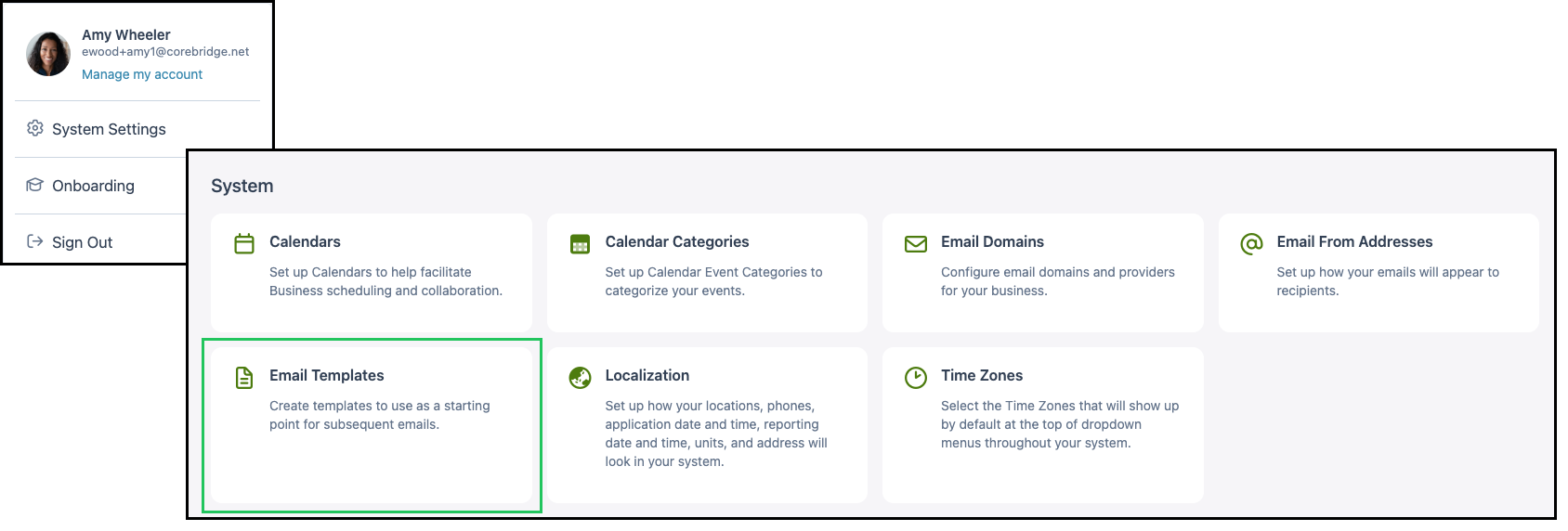
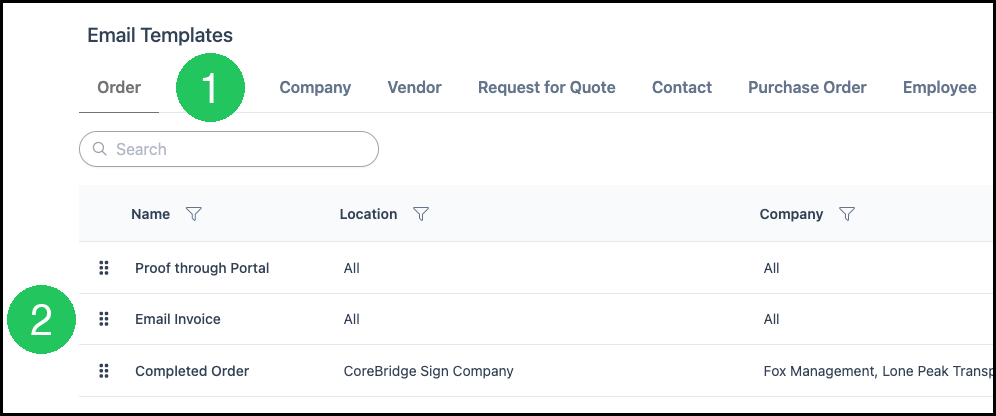
Navigate to System Settings / System / Email Templates.
1. Select the tab for the record type that contains the template (for example, Order).
2. Open the Email Template you want to update.
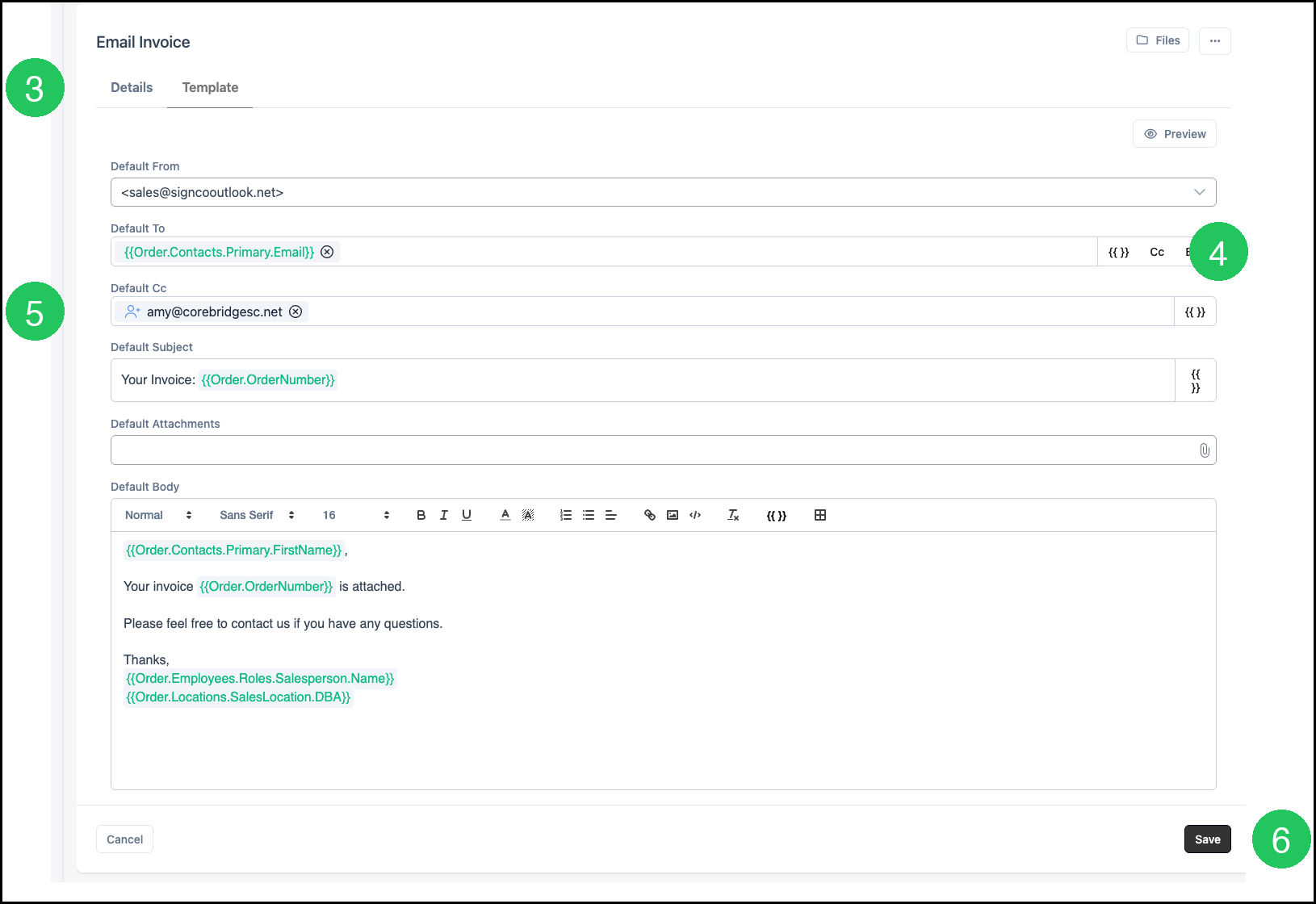
3. Click the Template tab.
4. Click Cc or Bcc.
5. Enter the address in Default Cc or Default Bcc. You can enter a specific address or insert a merge field.
6. Click Save.
Keep a Copy in Your Sent Folder
Cc and Bcc send a copy to the addresses you enter. That is different from keeping a copy in the Sent folder of the mailbox you send from.
When you send from an authorized Email From Address that you can access, the message can appear in that mailbox's Sent folder. For more information, see Adding Email From Addresses.
Frequently Asked Questions
1. What is the difference between Cc and Bcc?
Answer: Addresses in Cc are visible to everyone on the email, including the customer. Addresses in Bcc are hidden from the customer and from other recipients.
2. Can I copy myself on every email I send?
Answer: Set a Default Cc or Default Bcc on the Email Template you use. That address is added each time you send that template. You can still change or remove it on a single email before you send.
3. Can I add more than one address to Cc or Bcc?
Answer: Yes. Enter each address in the Cc or Bcc field. On an Email Template, you can also insert a merge field.
4. Why do I not see a copy of the email in my Sent folder?
Answer: The message is sent from the From address you select. To keep a copy in that mailbox's Sent folder, use an authorized Email From Address. For more information, see Adding Email From Addresses.