
You can create a notification that alerts employees when a customer approves an individual line item on an Estimate or Order, even when other line items are still unapproved. This is different from an Estimate Converted to Order notification, which runs only after every line item is approved and the Estimate converts.
Table of Contents
- Before You Begin
- Create the Notification
- Where Alerts Appear
- Frequently Asked Questions
- Related Articles
Before You Begin
- You need access to Settings / Notifications / Notifications.
- There is no Notification Library template named for a single line-item approval. Start from Blank, then set the trigger to Order Estimate Item and Approved.
- A complete condition is required before Recipients and the message appear. Do not leave Object empty, and do not remove the condition row.
Note: The library template Estimate Converted to Order notifies when the full Estimate is approved (including all items approved through the Customer Portal) and converts to an Order. Use the steps below when you need an alert for each individual line-item approval.
Create the Notification
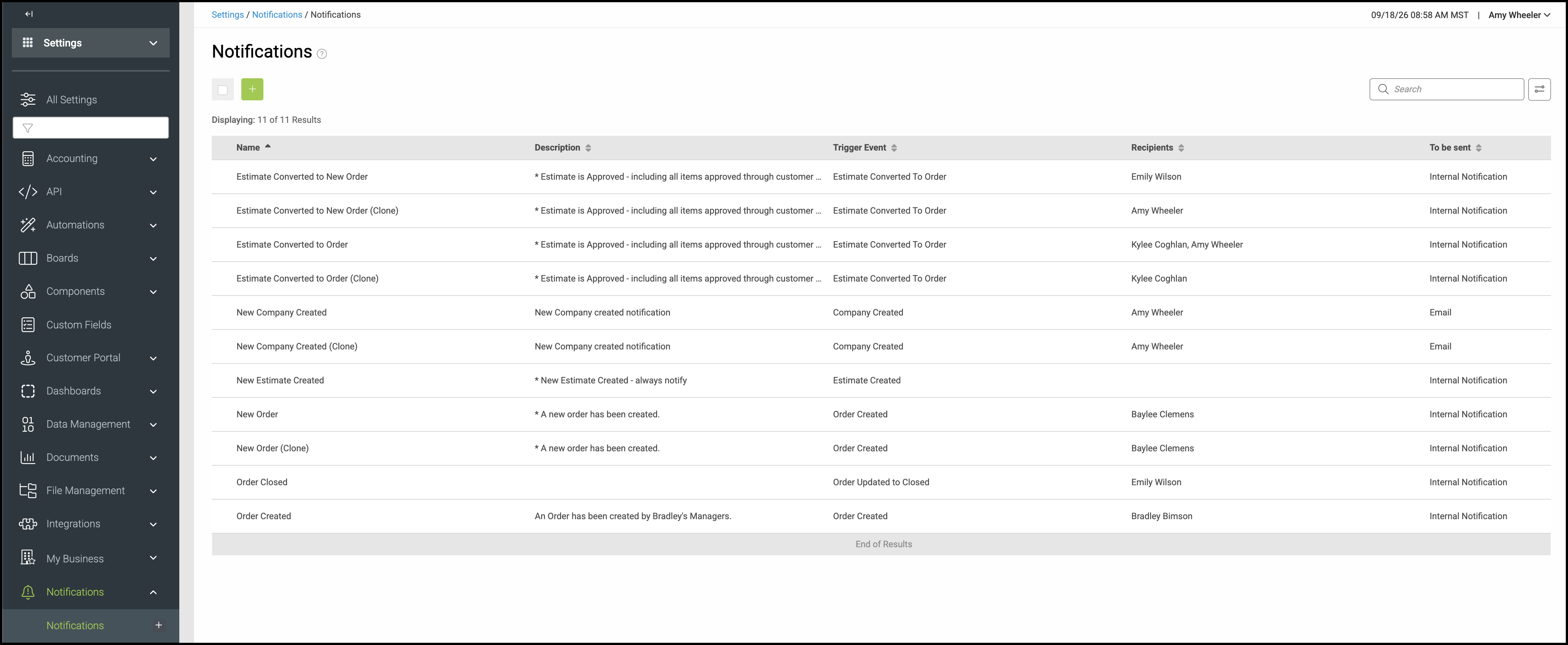
Navigate to Settings / Notifications / Notifications.
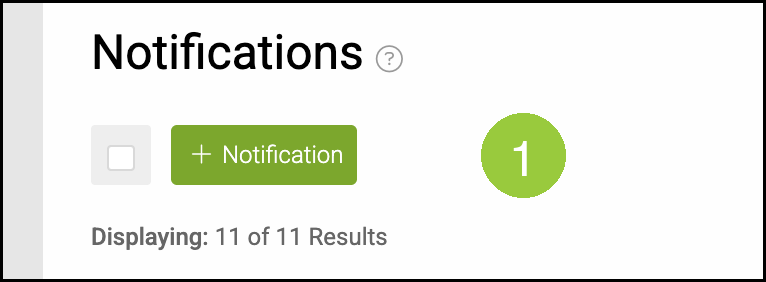
1. Click + Notification.
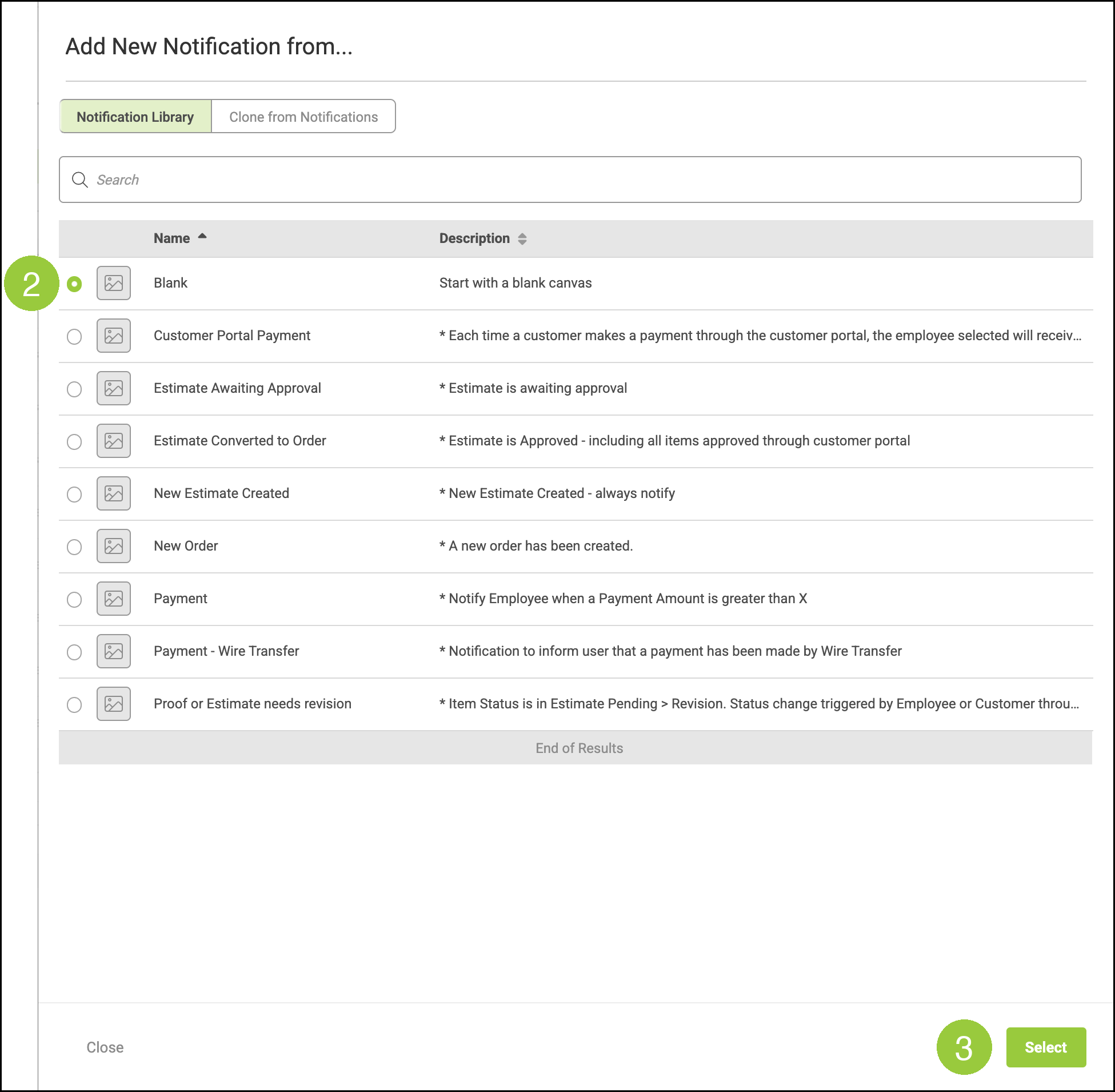
2. On the Notification Library tab, select Blank (Start with a blank canvas).
3. Click Select.
Note: Order Estimate Item / Approved is not listed as a ready-made library name. Templates such as Estimate Converted to Order are different events and do not replace this setup.
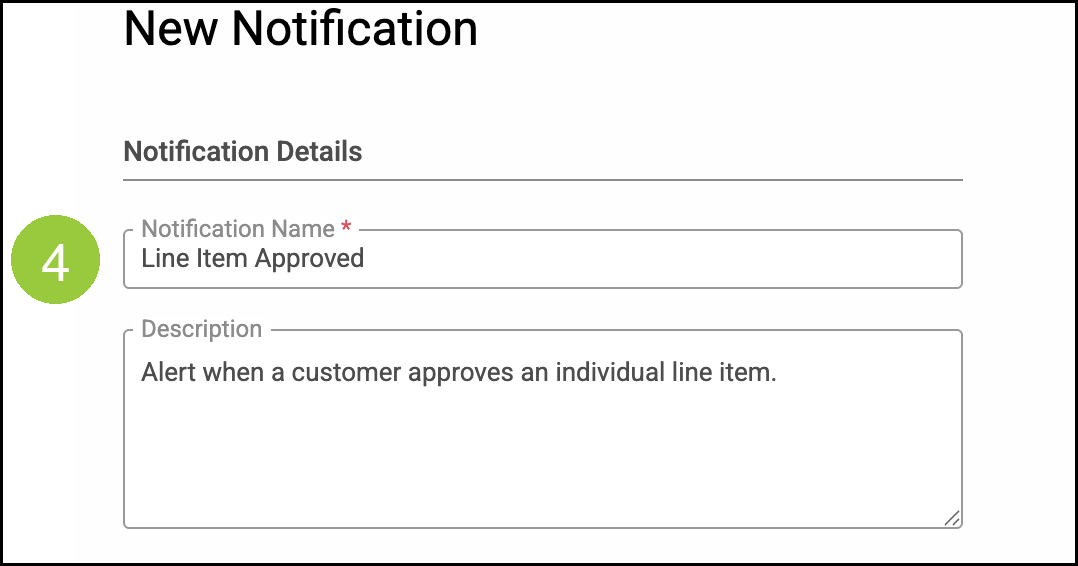
4. Under Notification Details, enter a Notification Name (for example, Line Item Approved) and an optional Description.
5. Under Step 1 of 4 : Select Trigger, select Event Type Order Estimate Item.
6. Select Event Approved.
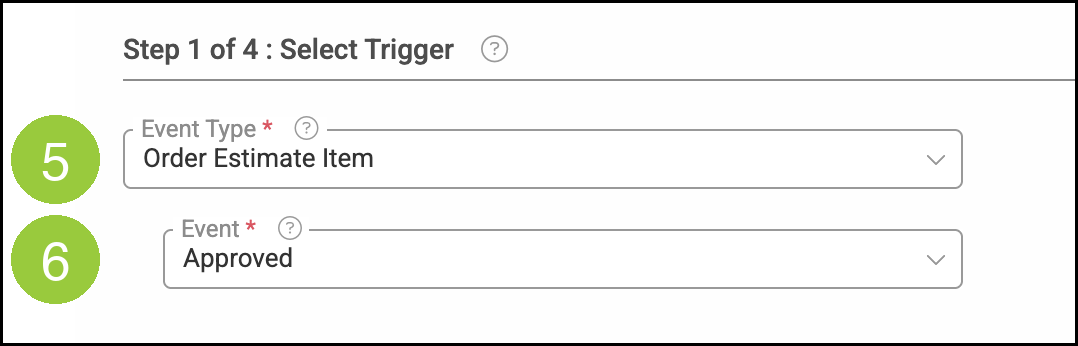
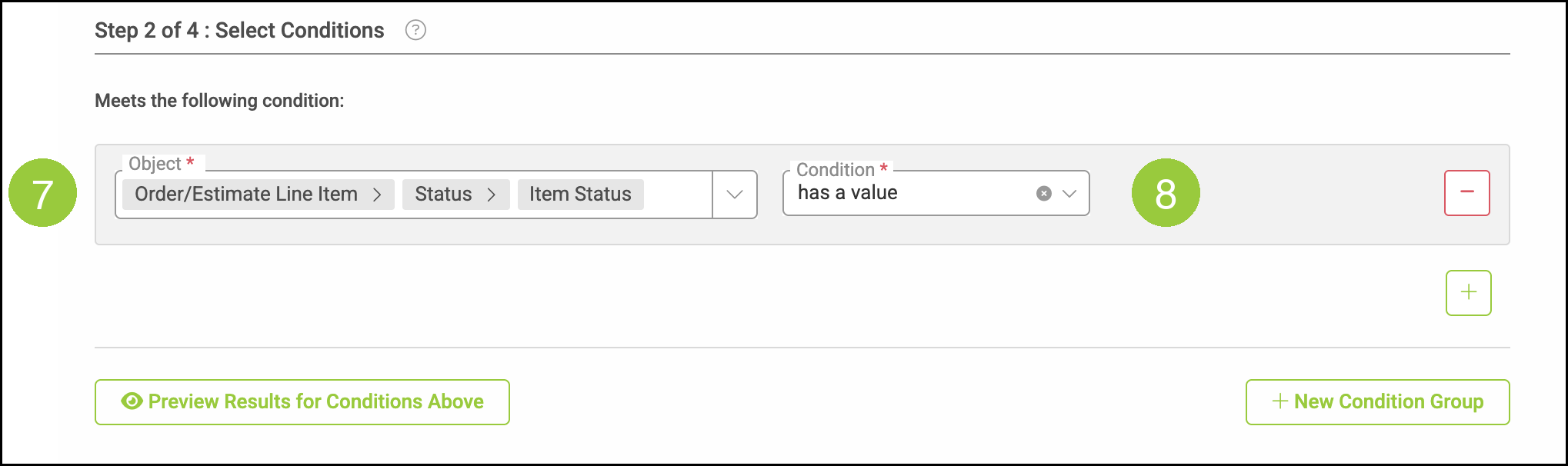
7. Under Step 2 of 4 : Select Conditions, select Object Order/Estimate Line Item, then Status, then Item Status.
8. Set Condition to has a value. This completes the condition so the notification can run for each approved line item.
Note: Recipients and the message stay hidden until Object is a complete end point and Condition is filled. If you only need to limit the alert further, you can use is and a specific Item Status instead of has a value.
9. Under Step 3 of 4 : Select Recipients, set Recipient Type to Employee and select the employees who should receive the alert.

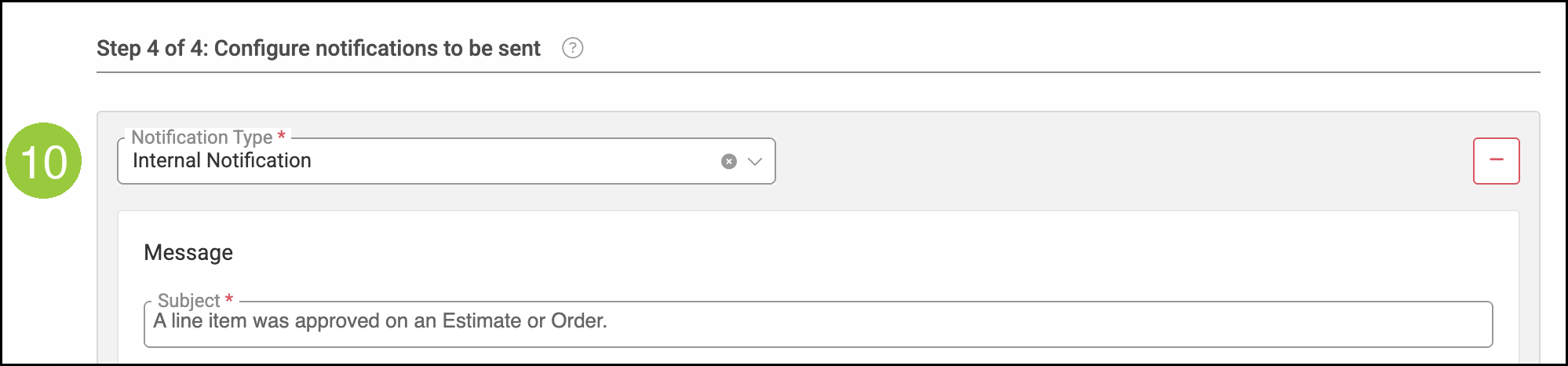
10. Under Step 4 of 4: Configure notifications to be sent, set Notification Type to Internal Notification or Send Email. Enter a Subject and the Message body. Use merge fields where helpful.
11. Click Save.

Where Alerts Appear
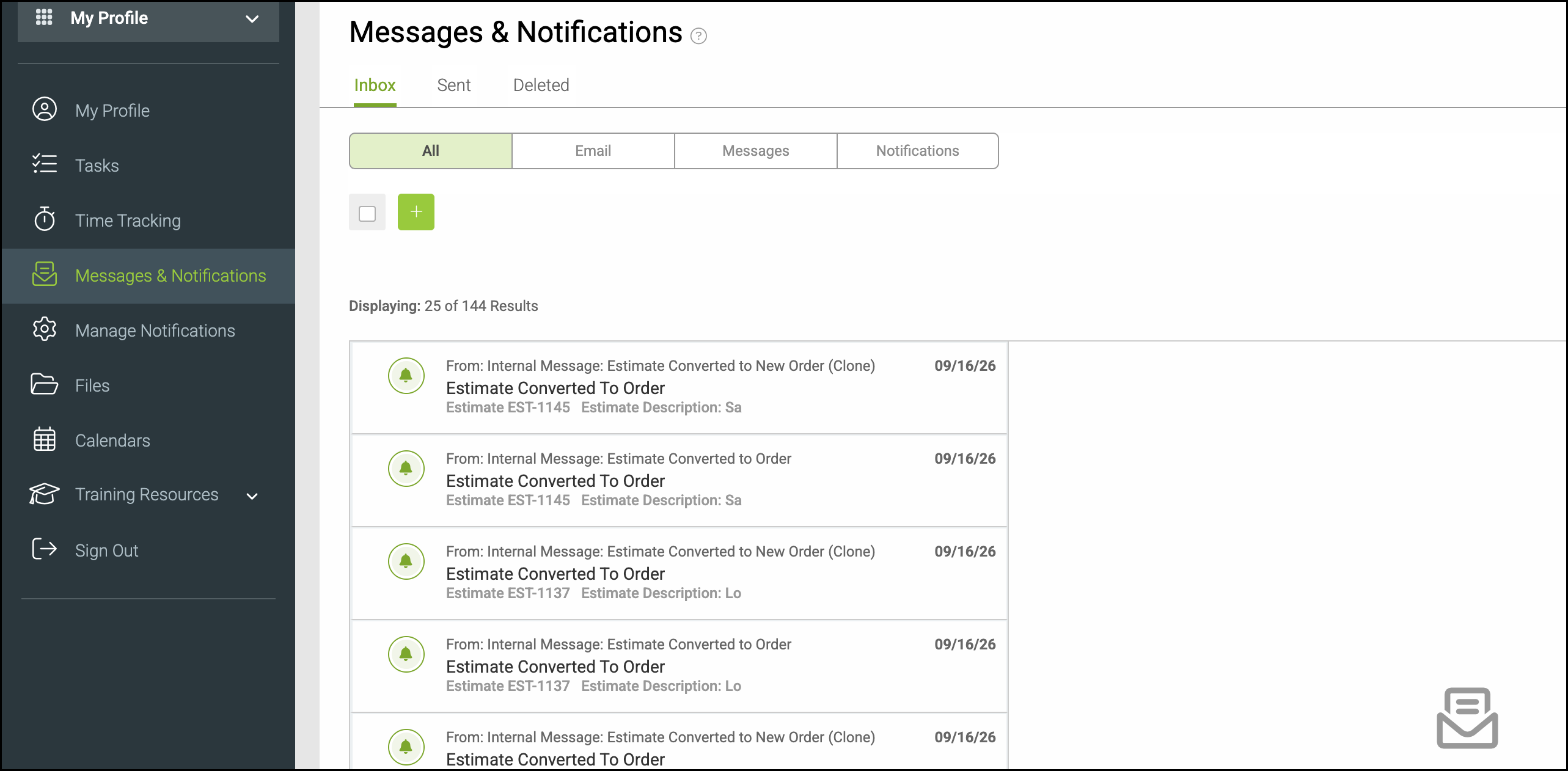
Internal notifications appear under My Profile / Messages & Notifications. Emails are delivered to each recipient's email address outside CoreBridge.
Frequently Asked Questions
1. How is this different from Estimate Converted to Order?
Answer: Estimate Converted to Order runs when the entire Estimate is approved and converts to an Order. Order Estimate Item / Approved runs when a customer approves one line item, even if other line items are still unapproved.
2. Can I skip the condition so every line-item approval is included?
Answer: You cannot leave Object empty. Select Order/Estimate Line Item > Status > Item Status and set Condition to has a value so Recipients and the message appear. That condition is true for any line item that has a status, so the trigger still controls when the alert is sent.
3. Where do employees see an Internal Notification?
Answer: Internal notifications appear on My Profile / Messages & Notifications. If you choose Send Email instead, the message is sent to each recipient's email address. For more information about merge fields in the message, see Merge Fields Overview.
Related Articles
Notifications Overview
Merge Fields Overview
Setting up Email From Addresses