
A Workflow provides named branches so a Line Item can be in more than one production status at the same time. Workflows are set up on the Workflows screen, where each branch is a sequence of steps tied to existing statuses. Branches are created when the Line Item reaches the status in Create branches, or any status in a later Order Status. The Line Item keeps the version that was published when the workflow was assigned.
Table of Contents
- Creating a Workflow
- Set a Default Workflow
- Important Information
- Frequently Asked Questions
- Related Articles
Creating a Workflow
Navigate to System Settings / Workflow / Workflows.
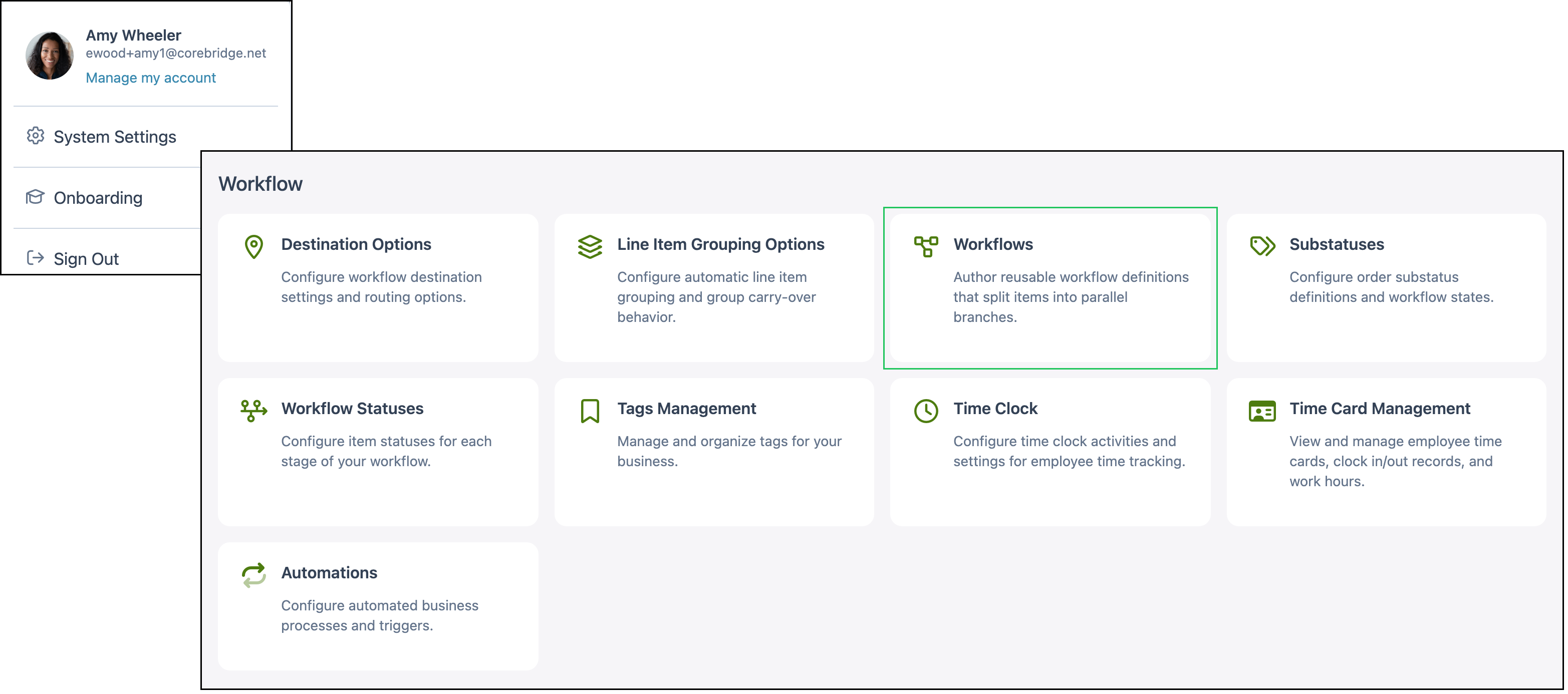
1. Click Workflow.

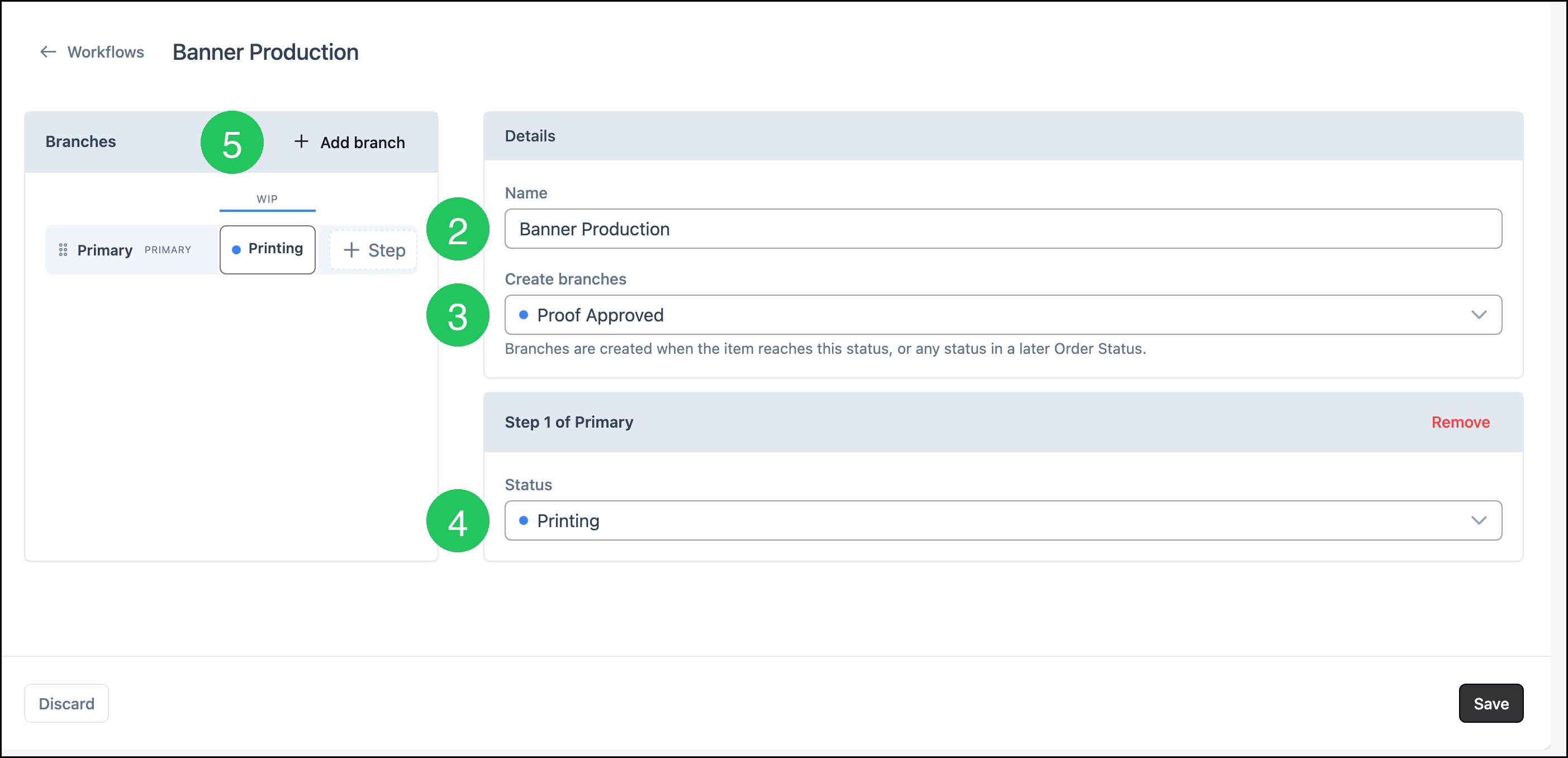
2. Enter a name in Name. This example uses Banner Production.
3. Select when branches are created in Create branches. This example uses Proof Approved.
Note: Branches are created when the item reaches this status, or any status in a later Order Status.
4. Select a Status for the step on the primary branch. This example uses Printing.
5. Click Add branch.
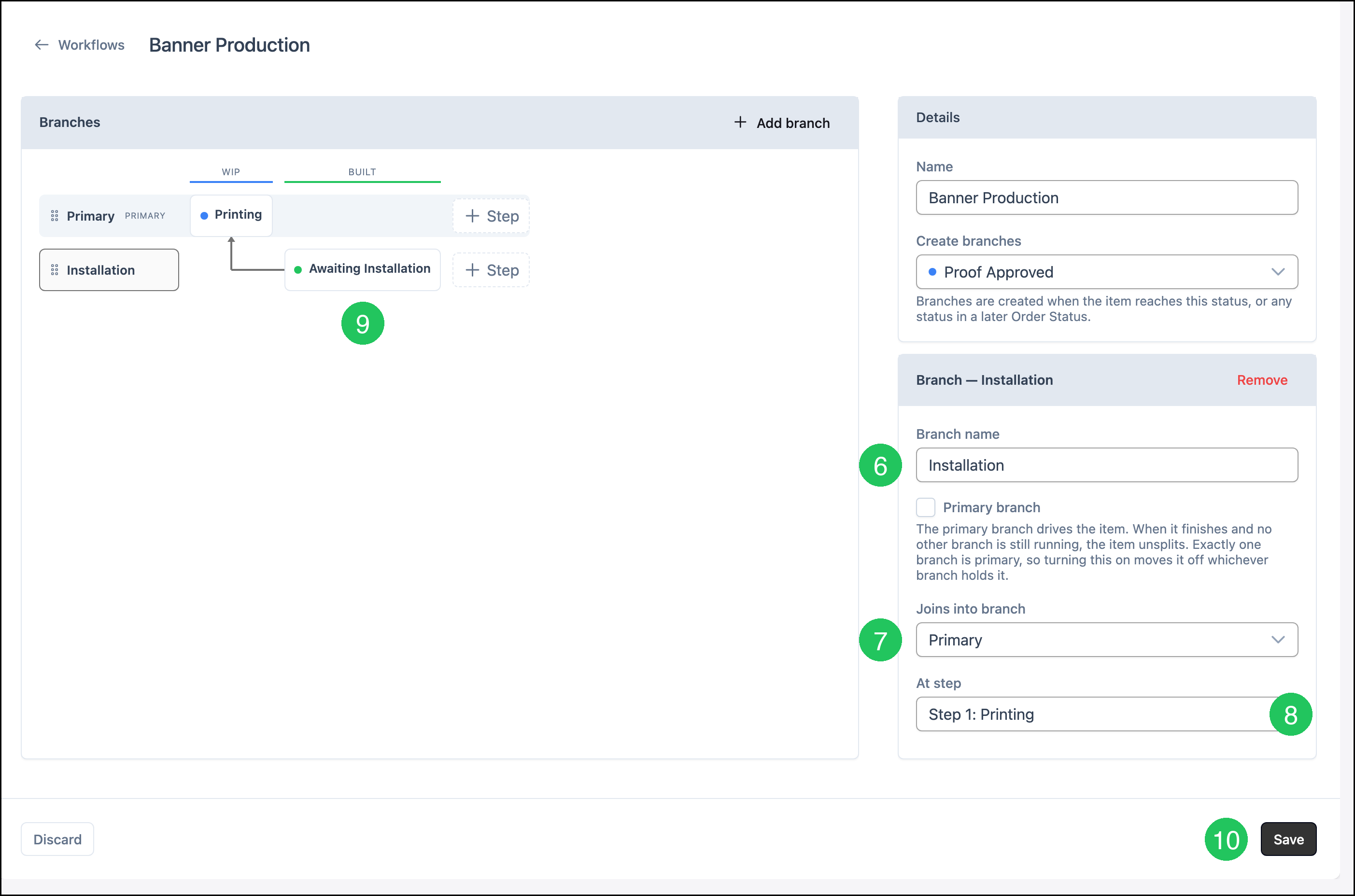
6. Enter a Branch name. This example uses Installation.
7. Select the branch it joins in Joins into branch. This example joins Primary.
8. Select the step it joins at in At step. This example uses Step 1: Printing.
9. Select a Status for the step on the new branch. This example uses Awaiting Installation.
10. Click Save.
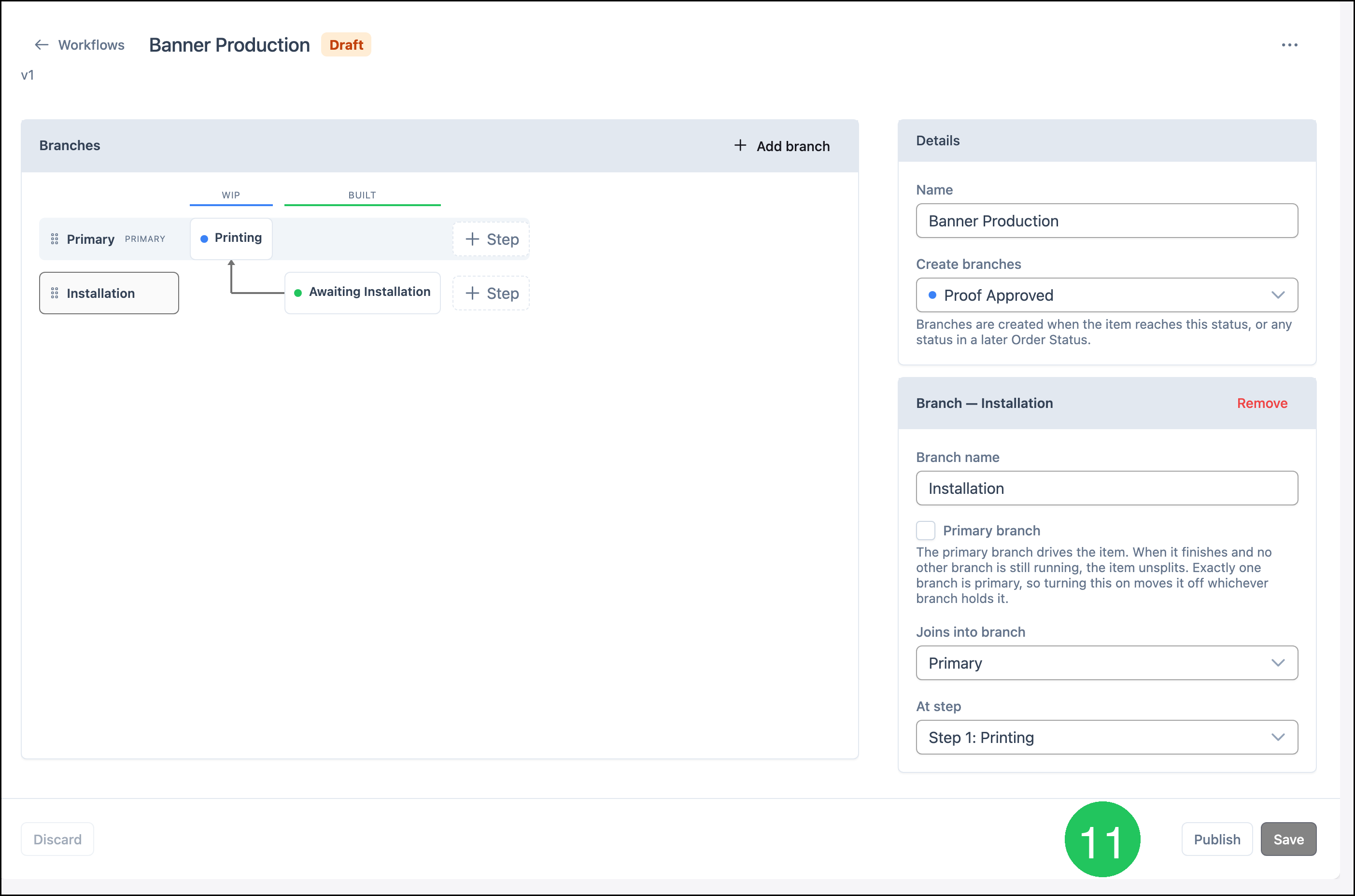
11. Click Publish.
Note: Save stores the workflow as a draft. Publish makes that version available to assign.
Set a Default Workflow
Navigate to System Settings / Components / Products & Modifiers.
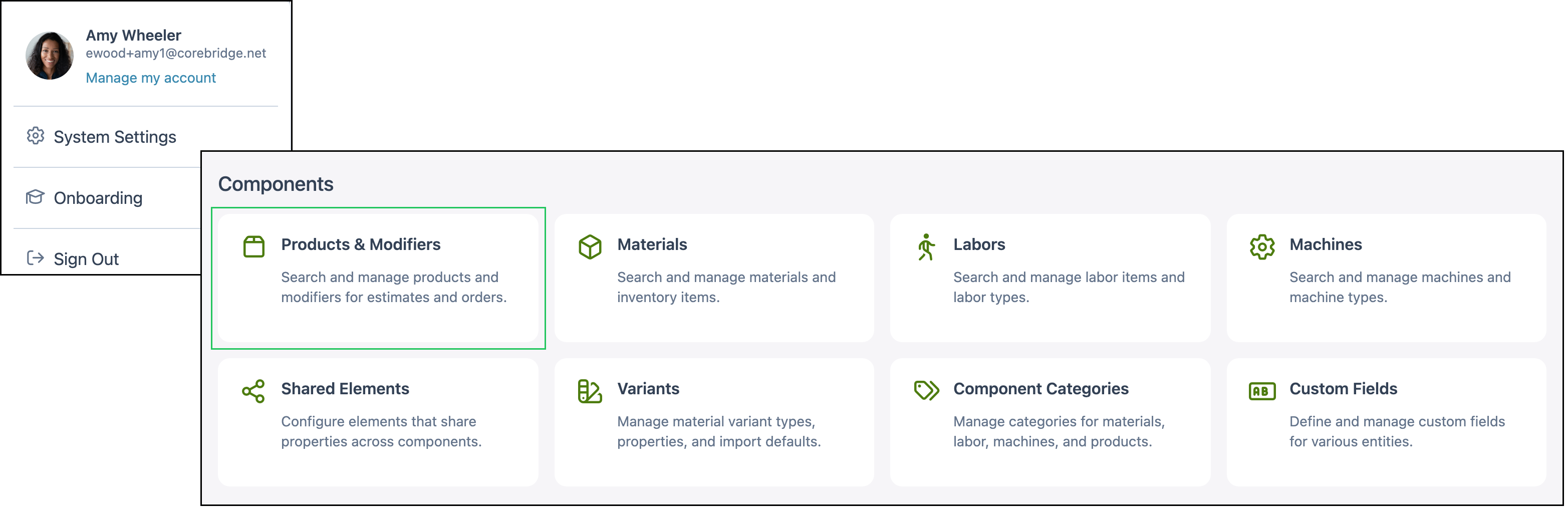
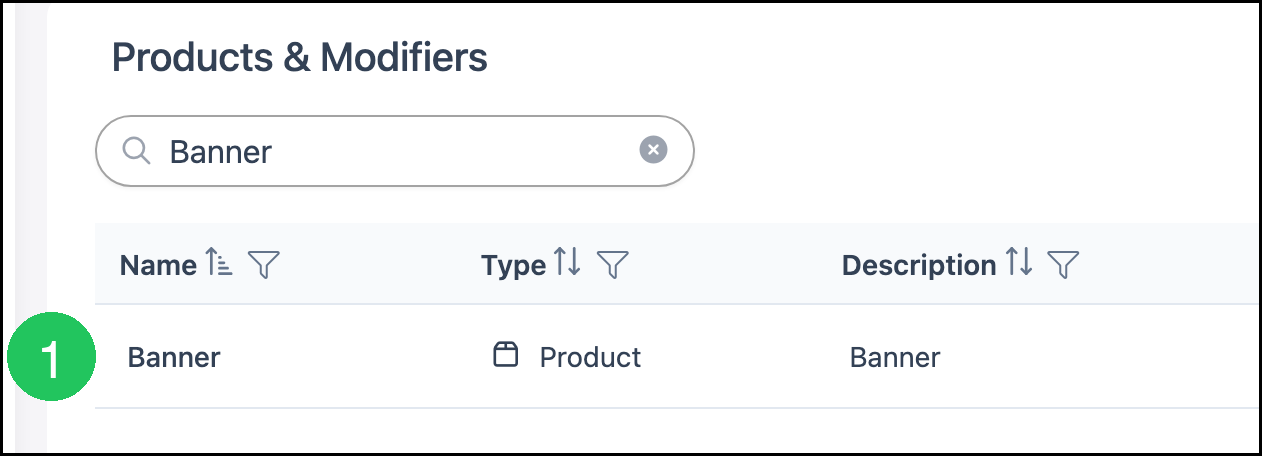
1. Open the product. This example uses Banner.
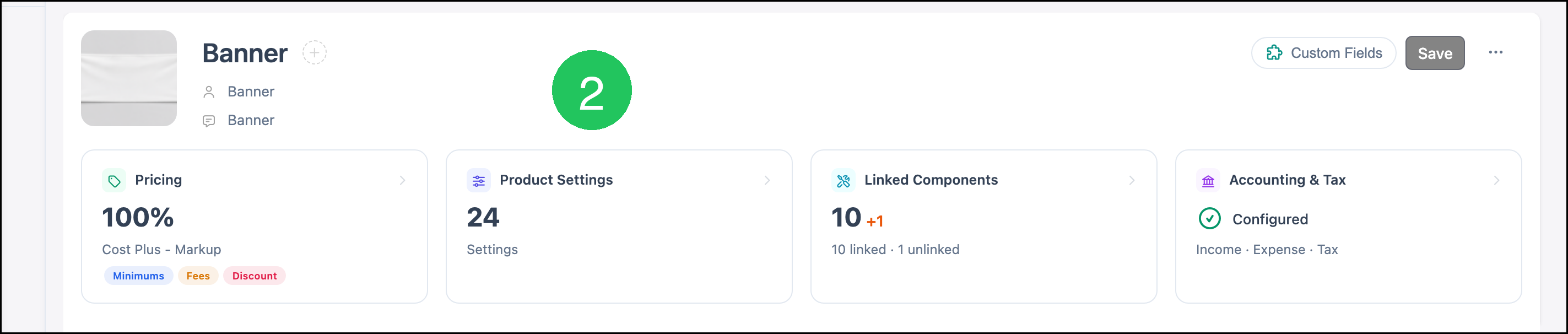
2. Click Product Settings.
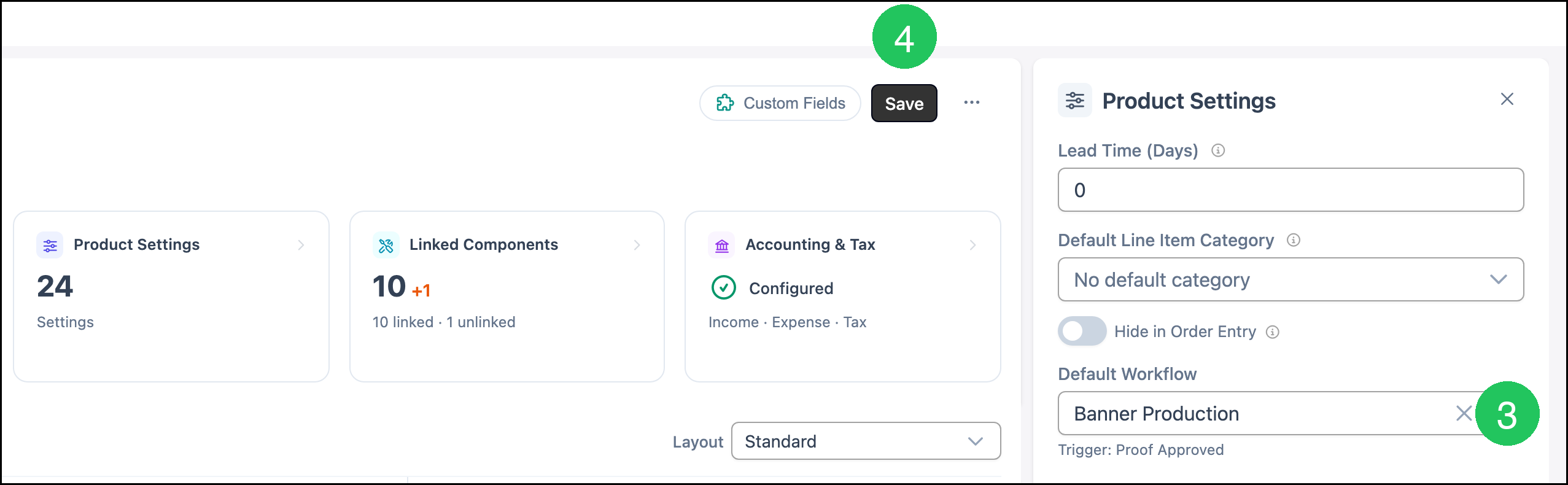
3. Select the workflow in Default Workflow. This example uses Banner Production.
4. Click Save.
Note: The trigger status appears under Default Workflow. This example shows Trigger: Proof Approved.
Important Information
The primary branch drives the Line Item. When the primary branch finishes and no other branch is still running, the item unsplits. Exactly one branch is primary. Turning Primary branch on moves it off the branch that currently holds it.
A Line Item uses the version that was published when the workflow was assigned. It keeps that version after the workflow changes.
After a workflow is published, the Line Item details panel includes a Workflow field.
Frequently Asked Questions
1. When are branches created?
Answer: Branches are created when the Line Item reaches the status selected in Create branches, or any status in a later Order Status.
2. What does the primary branch do?
Answer: The primary branch drives the Line Item. When it finishes and no other branch is still running, the item unsplits. Exactly one branch is primary.
3. Does changing a workflow update Line Items that already use it?
Answer: No. A Line Item keeps the version that was published when the workflow was assigned.