Statuses help you track progress and communicate the current stage of work across the system. Once your Statuses and Substatuses are configured, they can be applied throughout daily operations to keep teams aligned and workflows consistent.
This article explains how to use Statuses within Estimates, Orders, Purchase Orders, and Calendar Events. You will learn where Statuses appear, how to update them, and how they support visibility and coordination across your process.
Table of Contents
Estimates, Orders, and Purchase Orders
Using Item Statuses and Item Substatuses follows the same basic procedure within Estimates, Orders, and Purchase Orders. This example will use an Estimate.
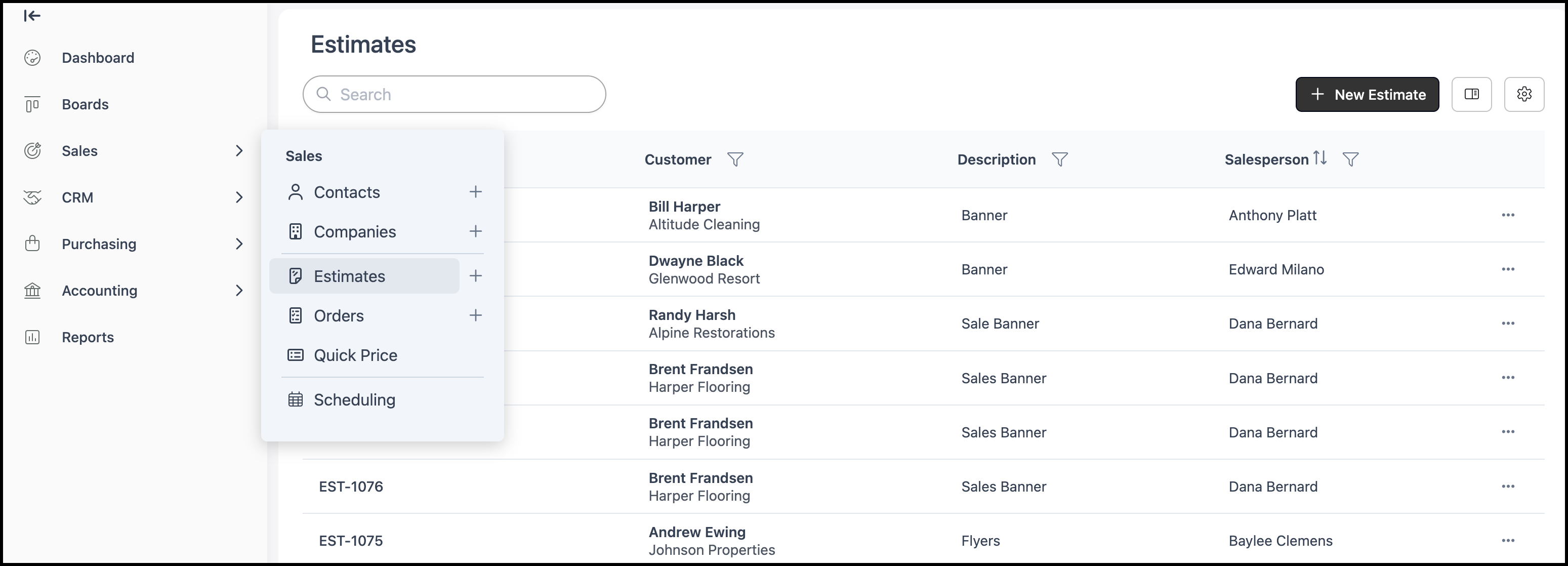
Navigate to Sales / Estimates and select an Estimate.
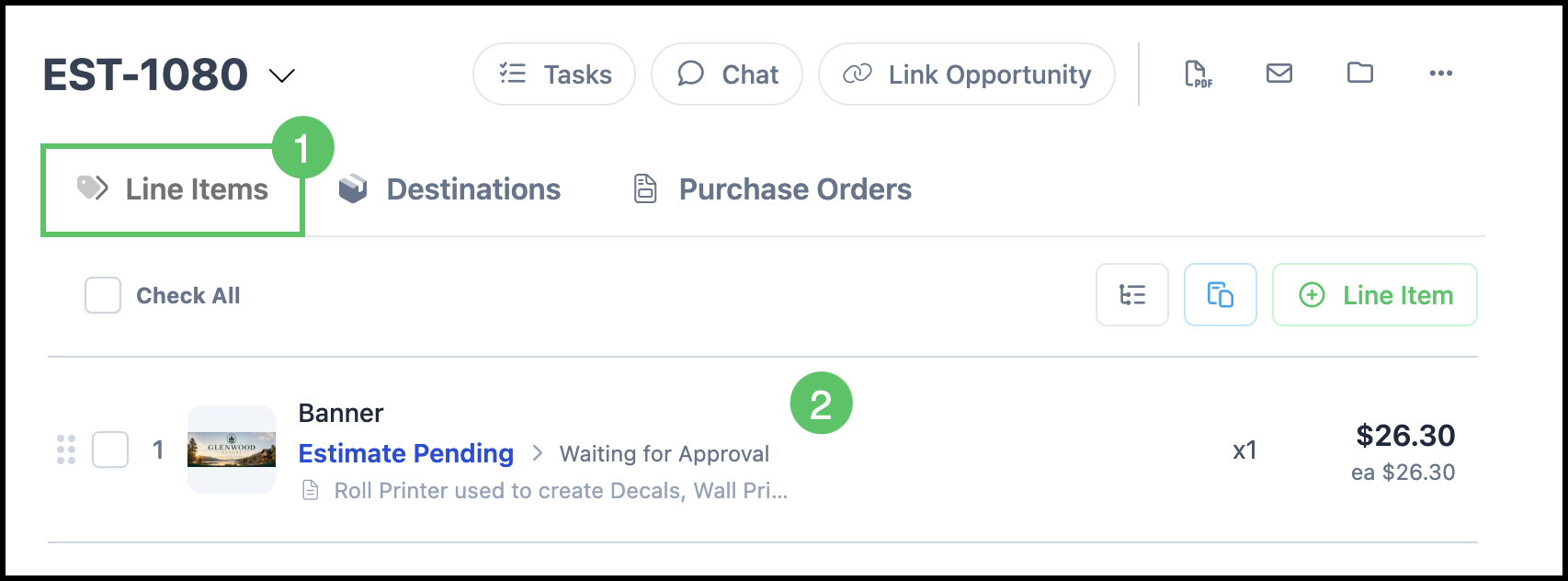
1. Select the Line Items tab.
2. Click the Line Item you want to update.
Note: Each Line Item within an Order or Estimate can be labeled with an Item Status an Item Substatus.
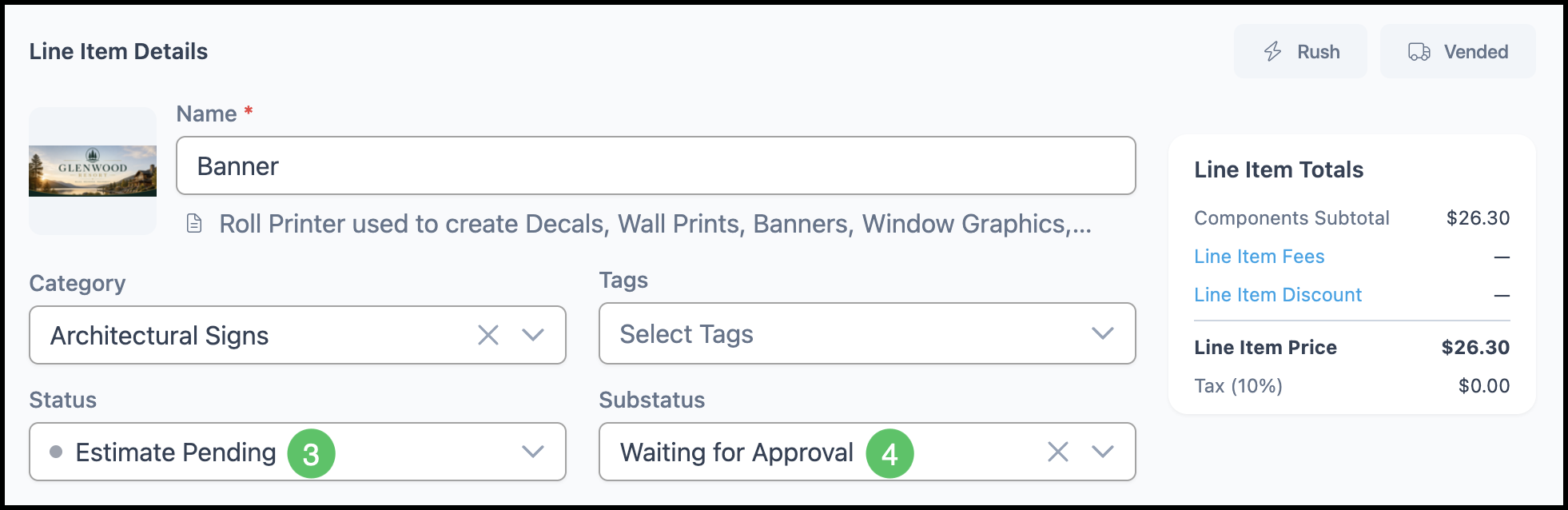
3. Using the drop down menu chose the desired Item Status.
4. Using the drop down menu chose the desired Item Substatus.
Note: Changes made will be saved and applied automatically.