
An Estimate shows a Follow-up date. An Order shows an Order Due date. Each line item has a Design Due date and a Production Due date. Each destination has its own due date. Open these dates from the date card on the Estimate or Order.
Table of Contents
- Due Dates on an Order
- Change Line Item Due Dates
- Update Several Line Items
- Destination Due Dates
- Due Dates on an Estimate
- Firm Due Date
- Frequently Asked Questions
- Related Articles
Due Dates on an Order
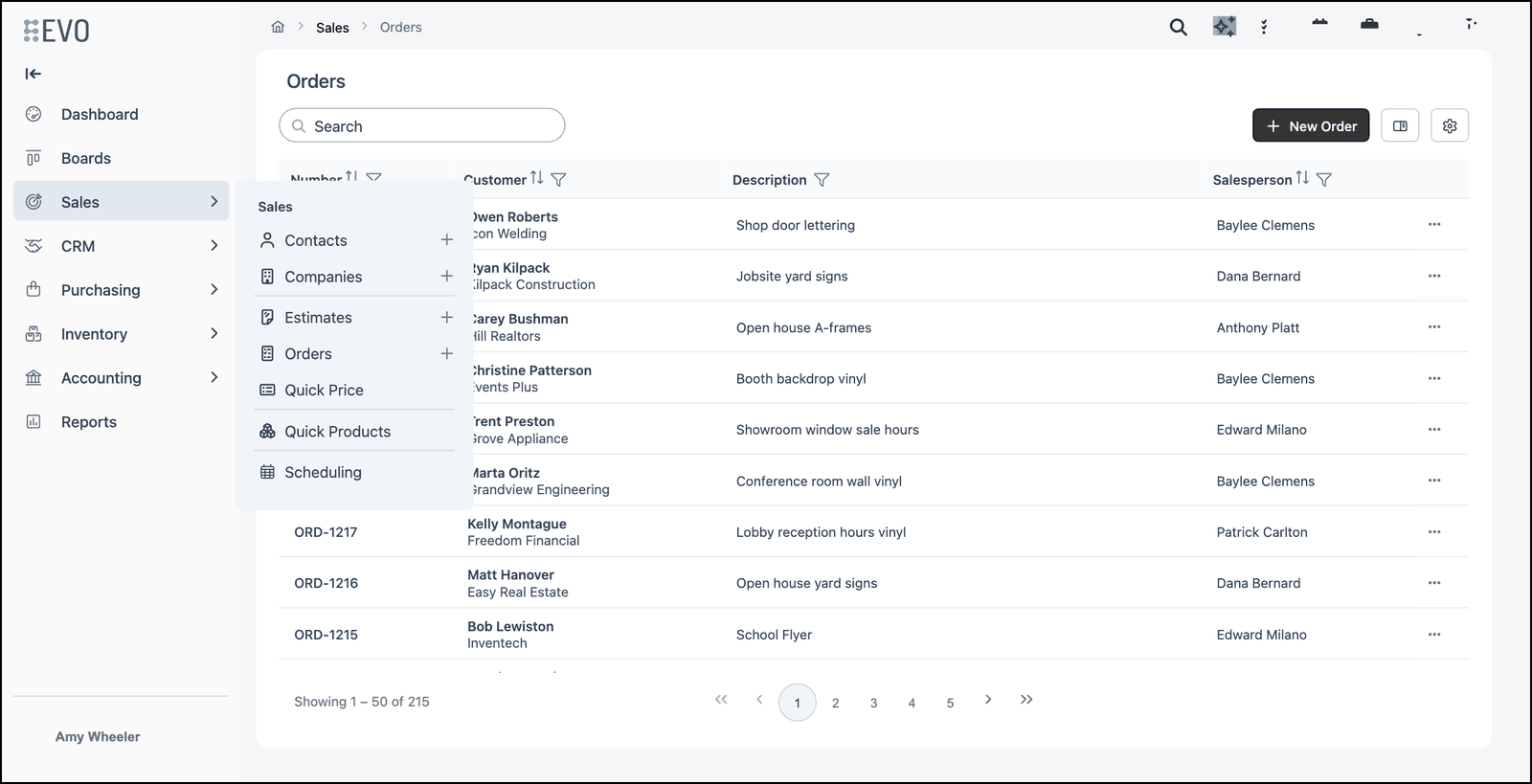
Navigate to Sales / Orders and open the Order.
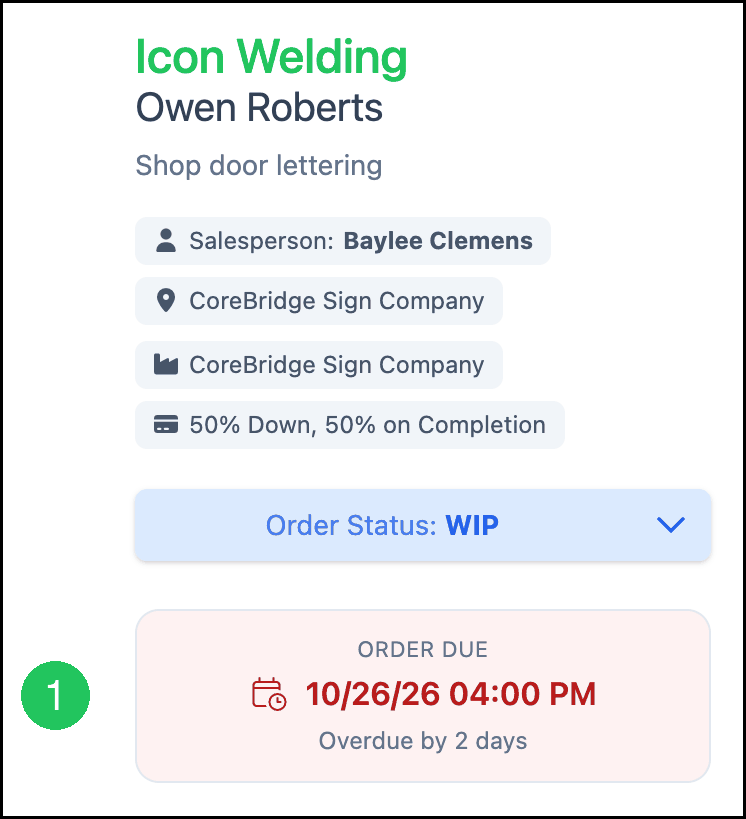
1. Click the Order Due card.
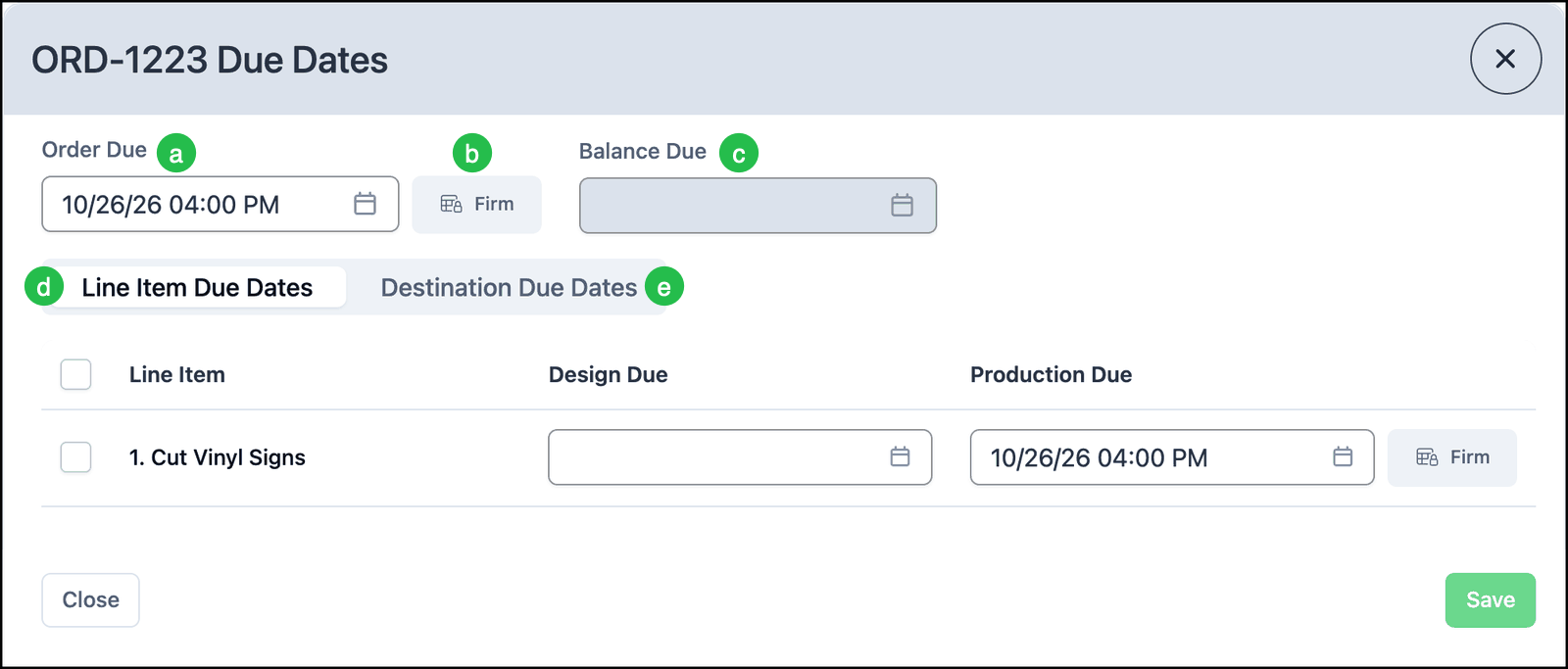
a. Order Due is the date the Order is due. The card shows the days remaining, or that the date is overdue.
b. Firm keeps the Order Due date from changing until Firm is turned off.
c. Balance Due stays blank until the Order is invoiced. See Balance Due Date on Orders.
d. Line Item Due Dates lists Design Due and Production Due for each line item.
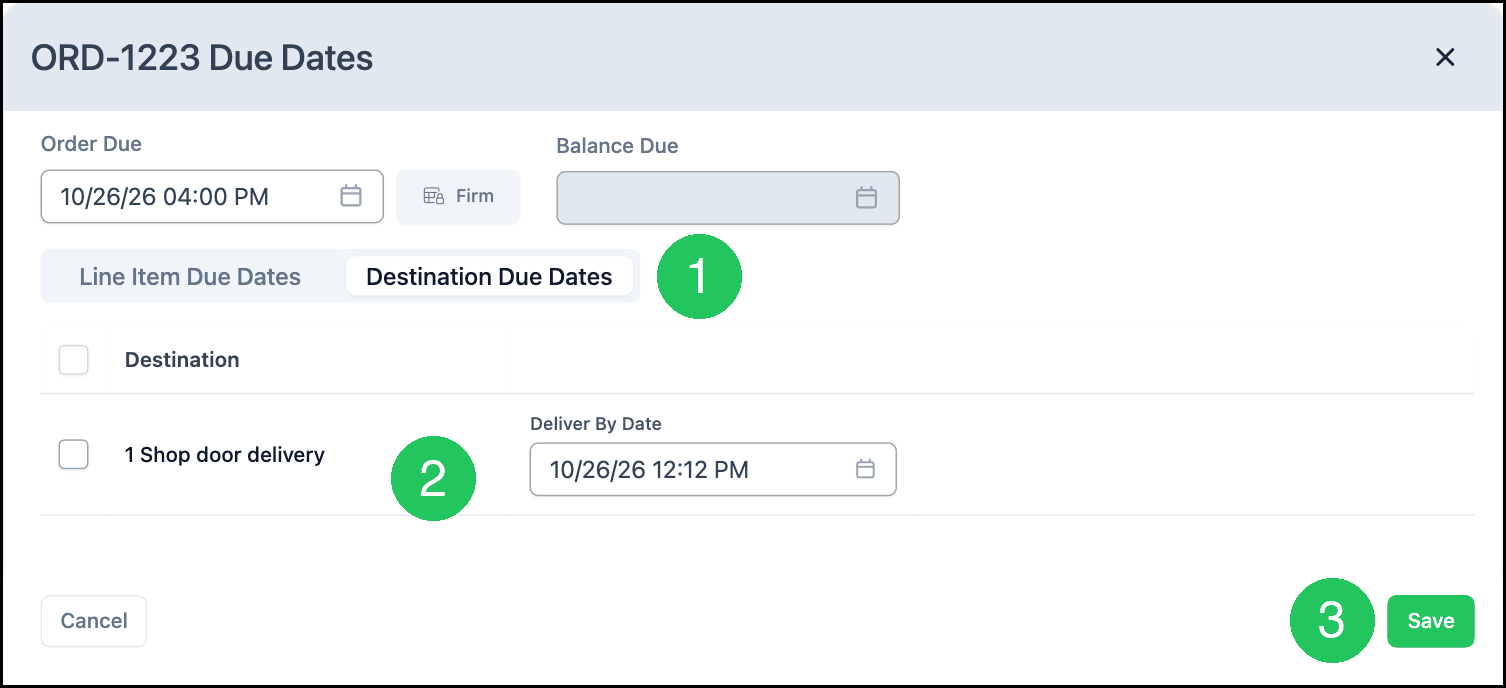
e. Destination Due Dates lists a date for each destination. The date name matches the destination type.
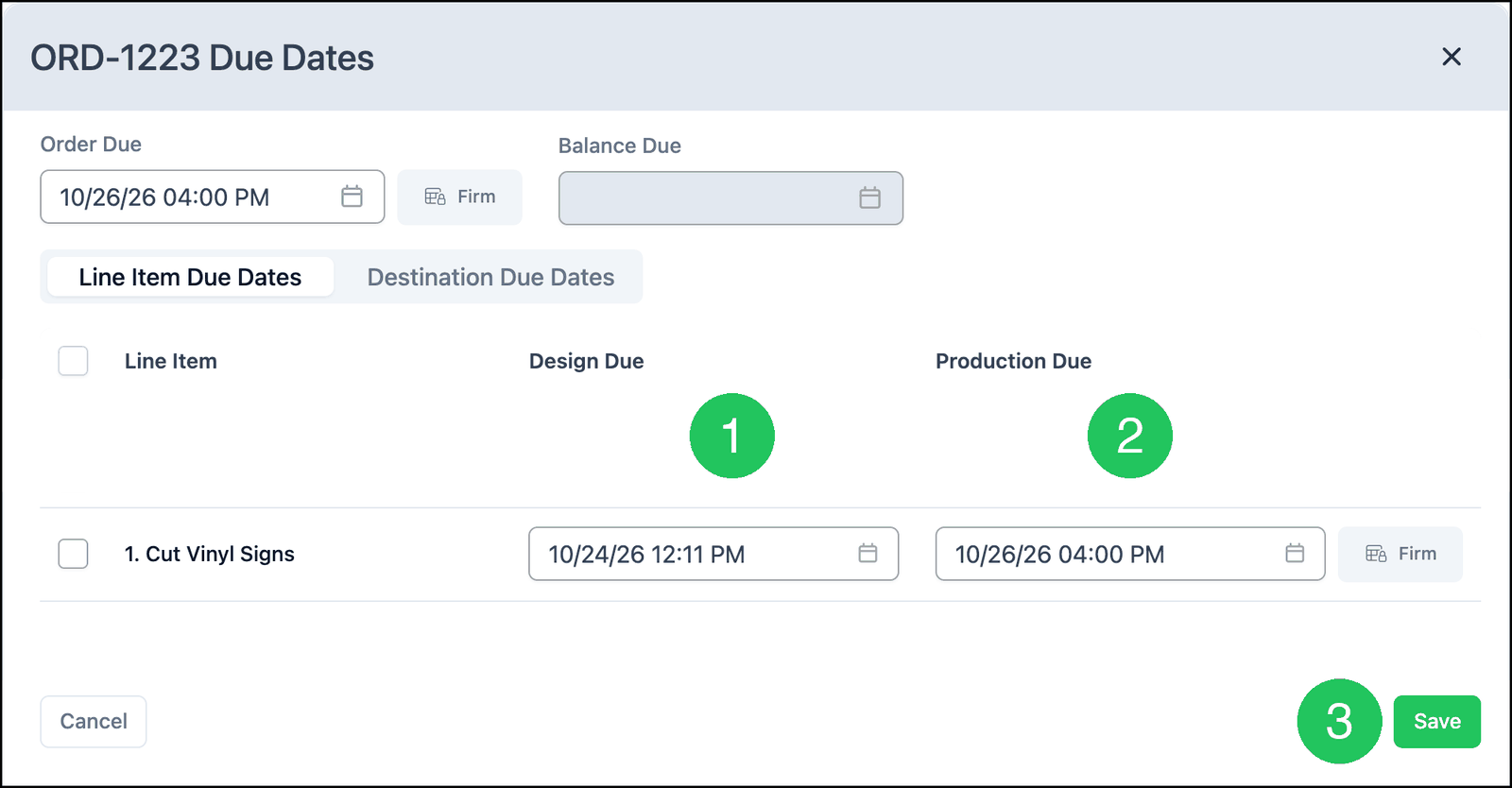
Change Line Item Due Dates
1. Set Design Due.
2. Set Production Due. Keep Design Due on or before Production Due.
3. Click Save.
Note: Click Cancel to leave the dates unchanged.
Update Several Line Items
Select the line items, then click Bulk Update.
1. Set Design Due.
2. Set Production Due.
3. Click Update.
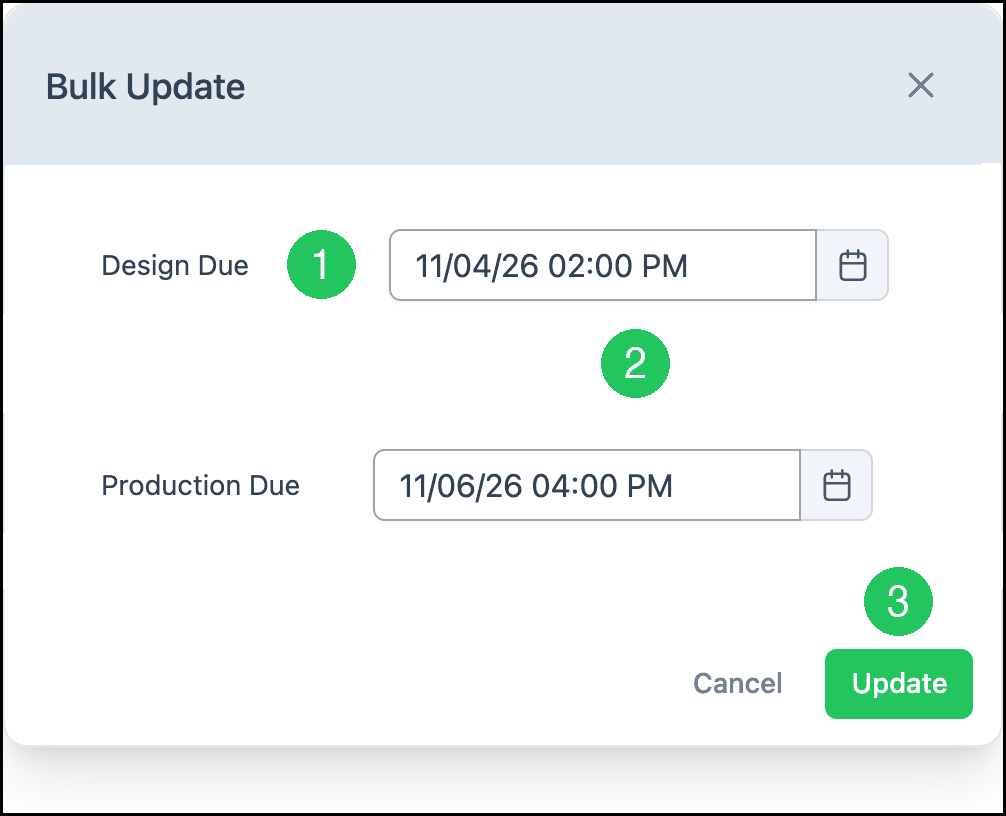
Click Save on the Due Dates dialog to keep the dates.
If Production Due is before today, the dialog shows a warning. Choose a later date, then click Update.
Destination Due Dates
1. Click Destination Due Dates.
2. Set the date. The label matches the destination type, such as Deliver By Date.
3. Click Save.
Due Dates on an Estimate
Navigate to Sales / Estimates and open the Estimate.
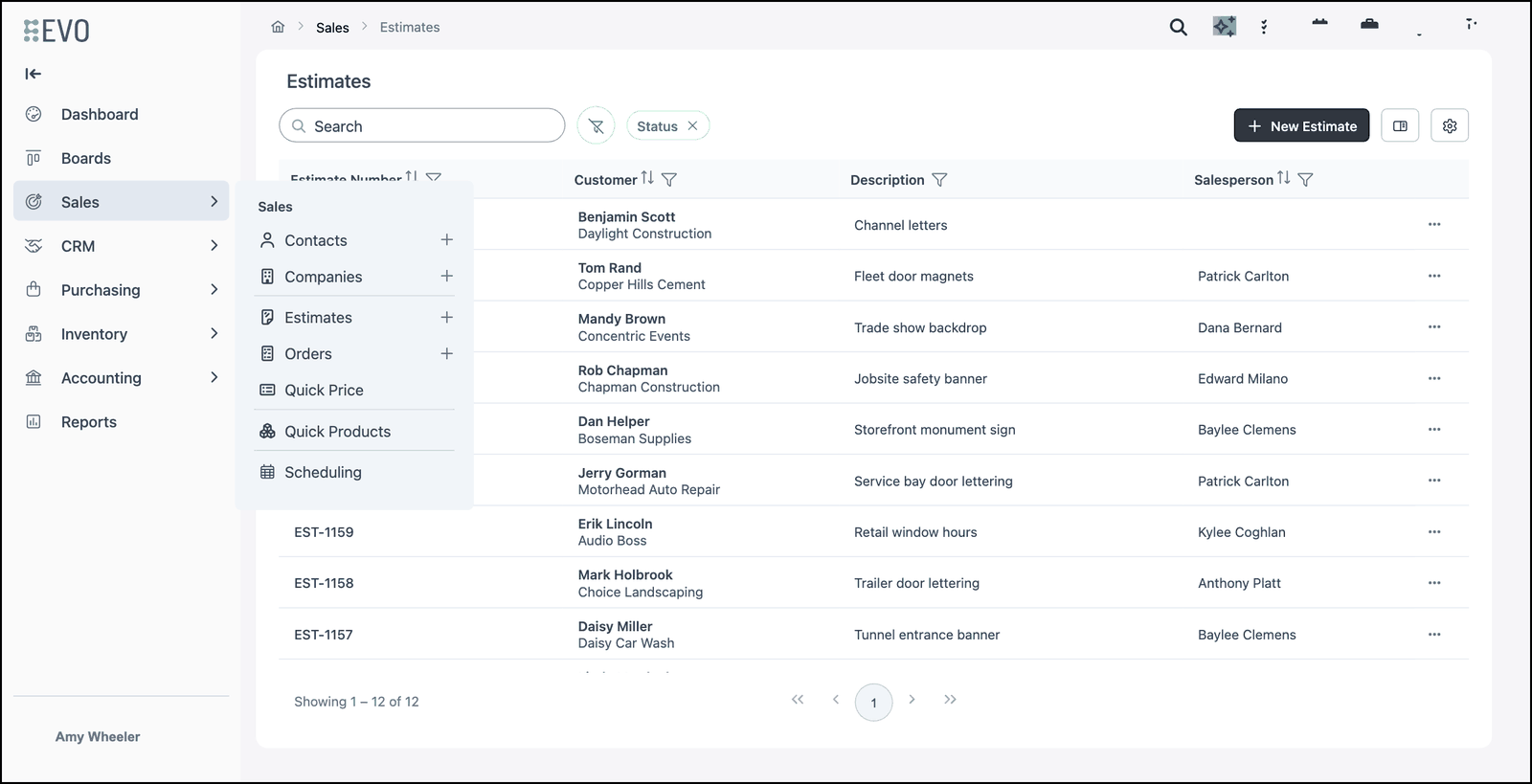
1. Click the Follow-up card.
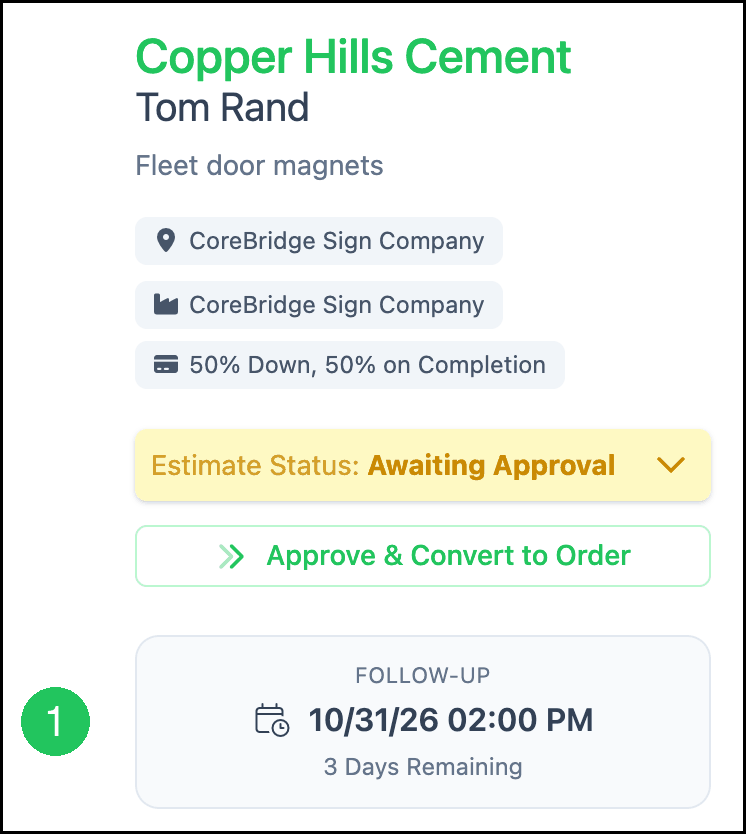
The dialog shows Estimate Follow-up, plus Design Due and Production Due for each line item. Estimates do not include Firm or Balance Due.
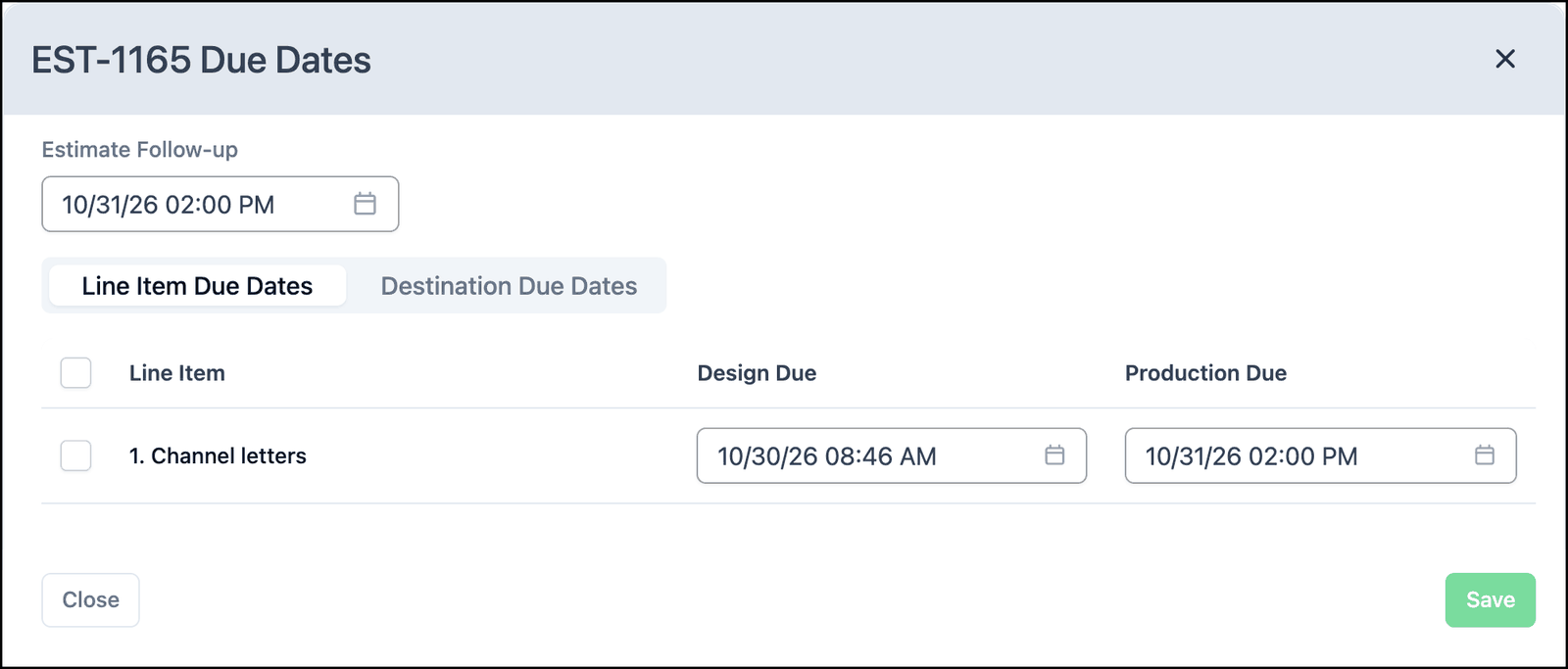
Click Save to keep a date change. Click Close when nothing was changed.
Firm Due Date
On an Order, Firm keeps that due date from changing.
1. Click Firm next to Order Due. The date locks. Click Firm again to edit the date.
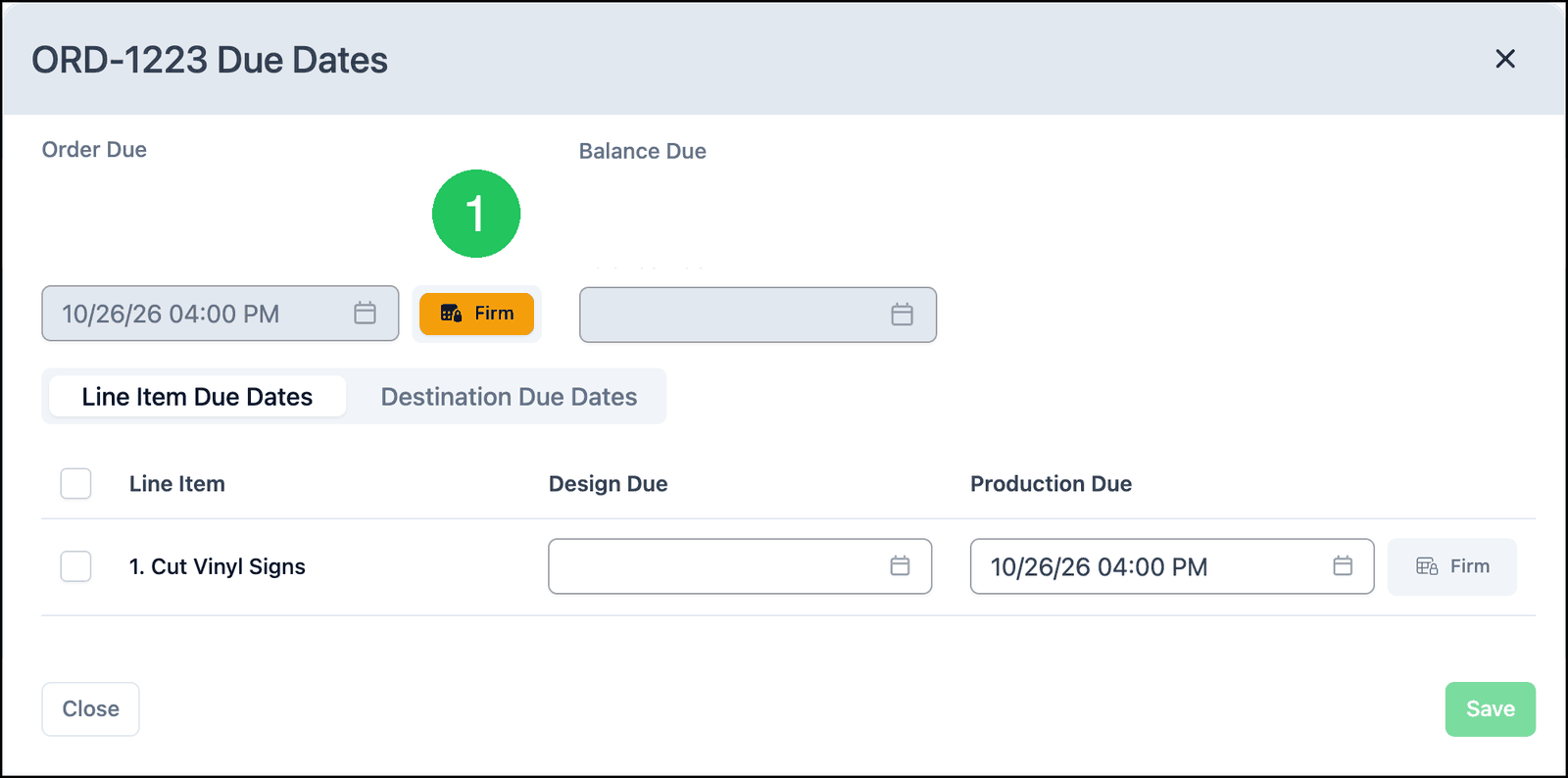
A line item has its own Firm control. Firm is kept when you click it.
Frequently Asked Questions
1. Question: Why is Balance Due blank?
Answer: Balance Due is filled in when the Order is invoiced. Until then the field stays blank. See Balance Due Date on Orders.
2. Question: Why does the card say Overdue?
Answer: The due date is before today.
3. Question: What does Firm do?
Answer: Firm locks that due date. The date stays locked until you click Firm again.
4. Question:Do I need to click Save?
Answer: Date changes are kept when you click Save. Firm is kept when you click it.