
In CoreBridge, Products can be added to Estimates and Orders as Line Items. After adding a Line Item, select a Product and complete the Product form with the applicable details. The process is the same for Estimates and Orders; this article uses an Estimate as the example.
Note: For an overview of Line Items, see Line Items Overview. For how Products and Modifiers differ, see Products vs. Modifiers.
Table of Contents
Important Information
- The Product form fields vary by Product. This article uses Banner as an example.
- Products is selected by default in the Add Line Item dialog.
- If an Order is Invoiced or Closed, it can be locked. Use Full Unlock when you need to add a Product. For more information, see Full Unlock Feature.
Adding a Product
Navigate to Sales / Estimates and open the Estimate. The Line Items tab is selected by default.
Note: You can also add a Product from Sales / Orders.
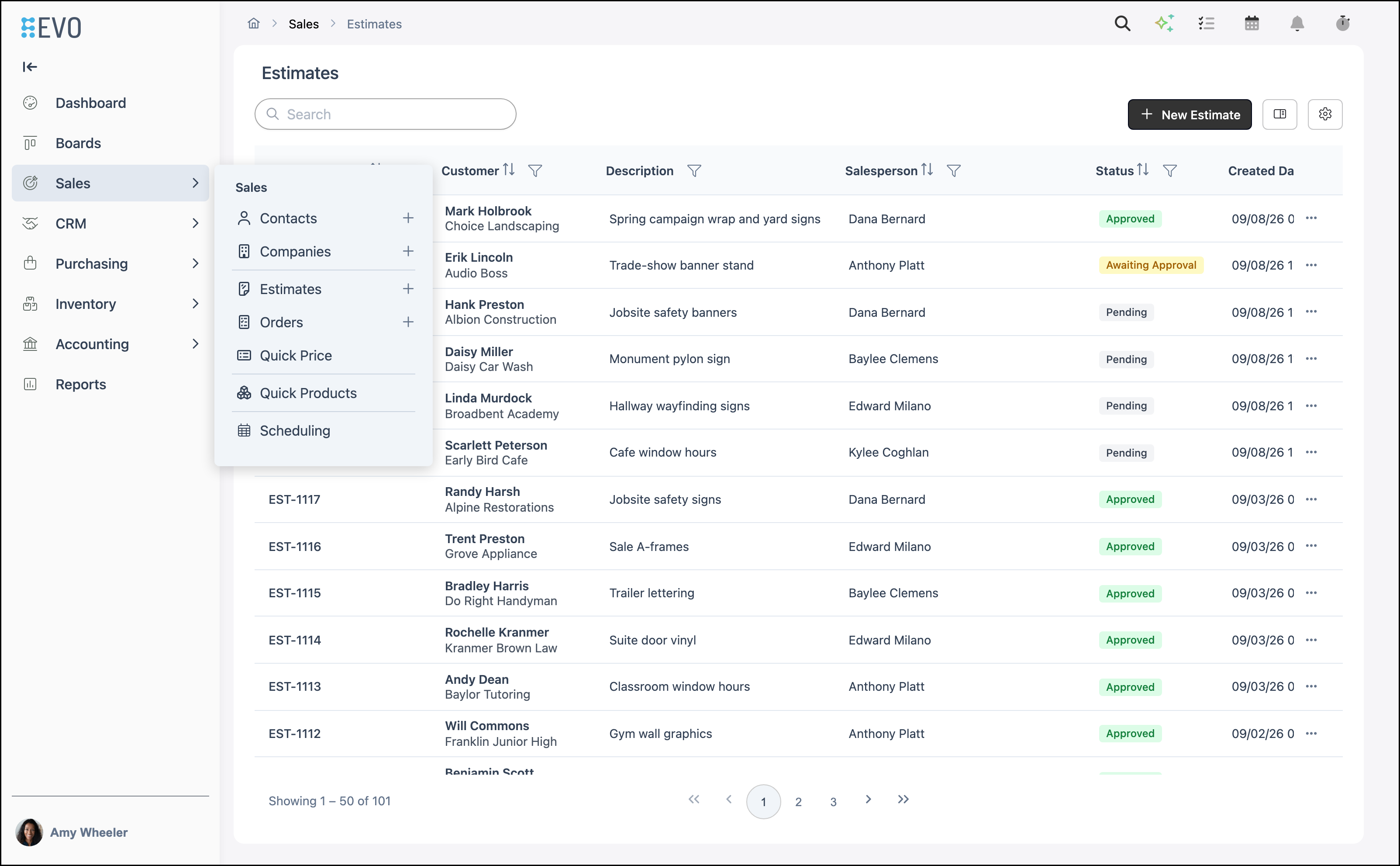
1. Click Line Item.
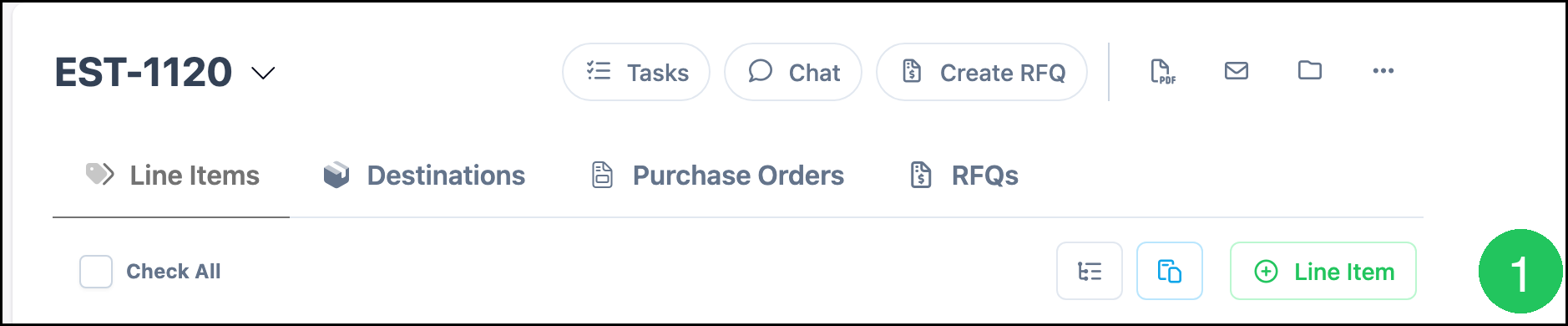
The Add Line Item dialog opens.
Note: If another source is selected, click Products. Favorites, Labor, Materials, and Quick Products are also available. For more information, see Line Items Overview and Quick Products Overview.
a. Line Item Name - The name of the Line Item. Selecting a Product fills this field.
b. Line Item Category - The category assigned to the Line Item. Selecting a Product can fill this field.
c. Products - The Product list used to add an assembly as a Line Item.
d. The selected Product in the list.
2. Click Next.
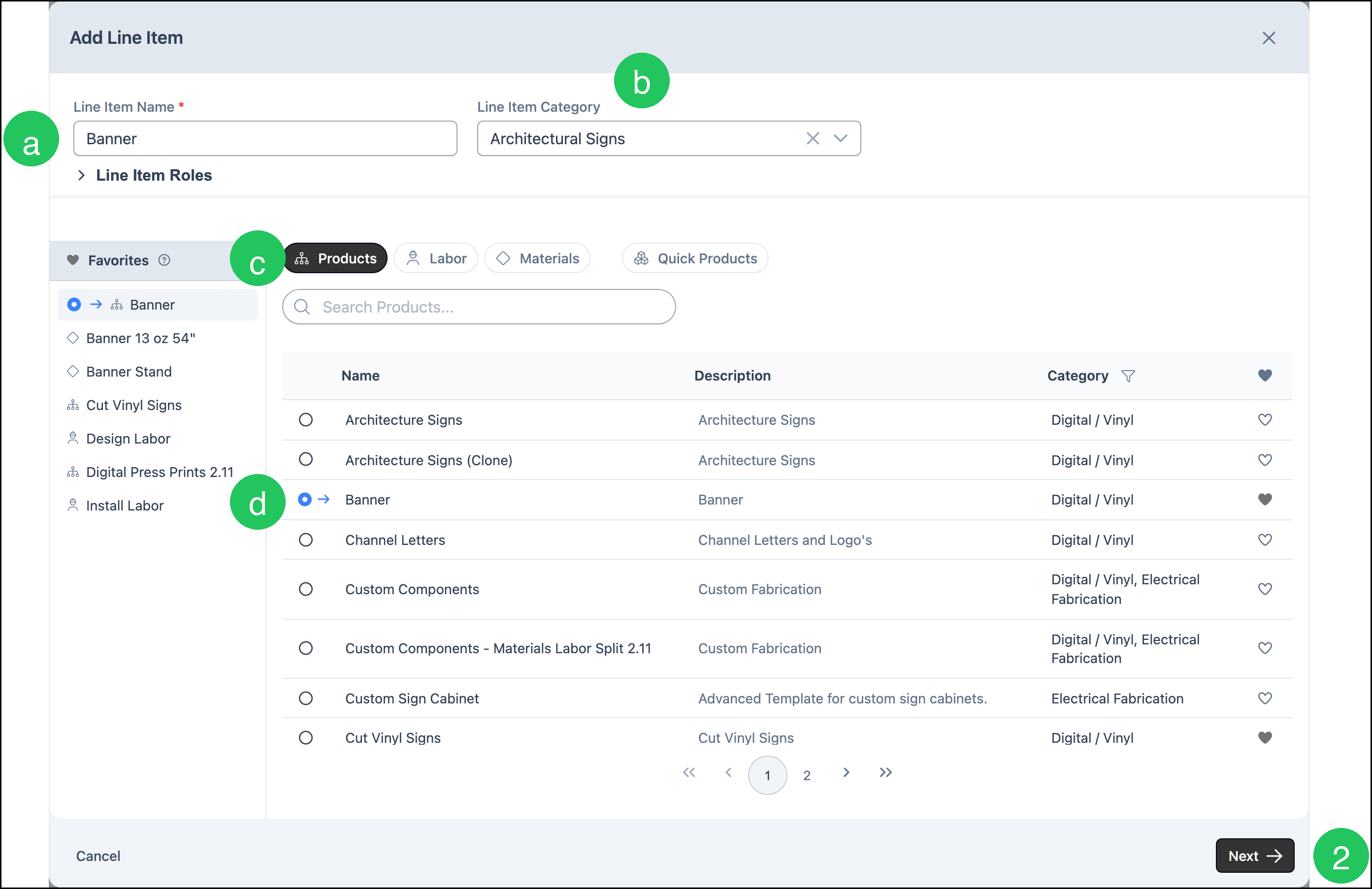
The Product form opens. Fields vary by Product. This example uses Banner.
a. Material - The material used for this Product.
b. Width (in) and Height (in) - The finished size of the Product.
Note: Other fields can include Qty Each, Sides, Machine, Profile, and Resolution. Optional add-ons can include Add Mounting, Add Lamination, and Add Roll Cutting.
Note: LINE ITEM QTY and LINE ITEM PRICE show the quantity and calculated price in the dialog header.
Note: Printing Options such as Hemming, Install, and Grommets can appear on the form.
Note: Some Products include Linked Modifiers. Scroll in the dialog to add a Modifier when that section is available. For more information, see Products vs. Modifiers and Linked Components.
2. Click Save Changes to add the Product to the Estimate or Order.
Note: Click Cancel to close without adding the Line Item. Reset restores the form to the Product defaults.
Frequently Asked Questions
1. Is adding a Product the same on an Order?
Answer: Yes. Open the Order from Sales / Orders and follow the same steps.
2. Why does the Product form look different for another Product?
Answer: The form is based on how the Product is set up. Fields, add-ons, and options vary by Product.
3. What if Products is not selected in Add Line Item?
Answer: Click Products, select the Product, then click Next.
4. Can I add a Product on an Invoiced or Closed Order?
Answer: Invoiced and Closed Orders can be locked. Use Full Unlock when you need to add Line Items. For more information, see Full Unlock Feature.
Related Articles
Creating an Estimate
Creating an Order
Estimates Overview
Full Unlock Feature
Introduction to Products
Line Items Overview
Linked Components
Orders Overview
Products vs. Modifiers
Quick Products Overview