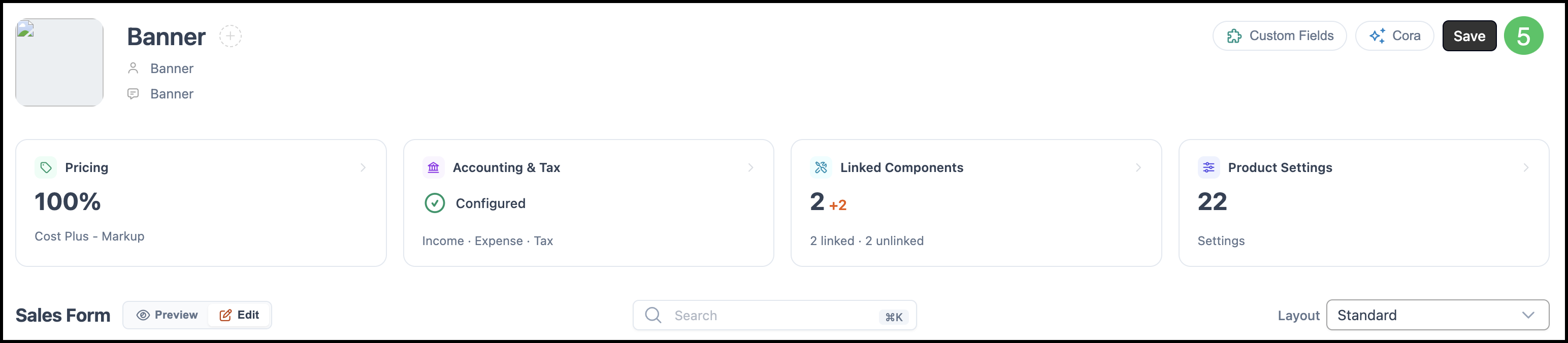
Linked Components connect resources - such as Materials, Machines, Labors, and Modifiers - to a Product or Modifier. By linking these Components, you can define everything included in a Product or Modifier and control how each Component appears and behaves in the Sales Form.
Table of Contents
Understanding Linked Components
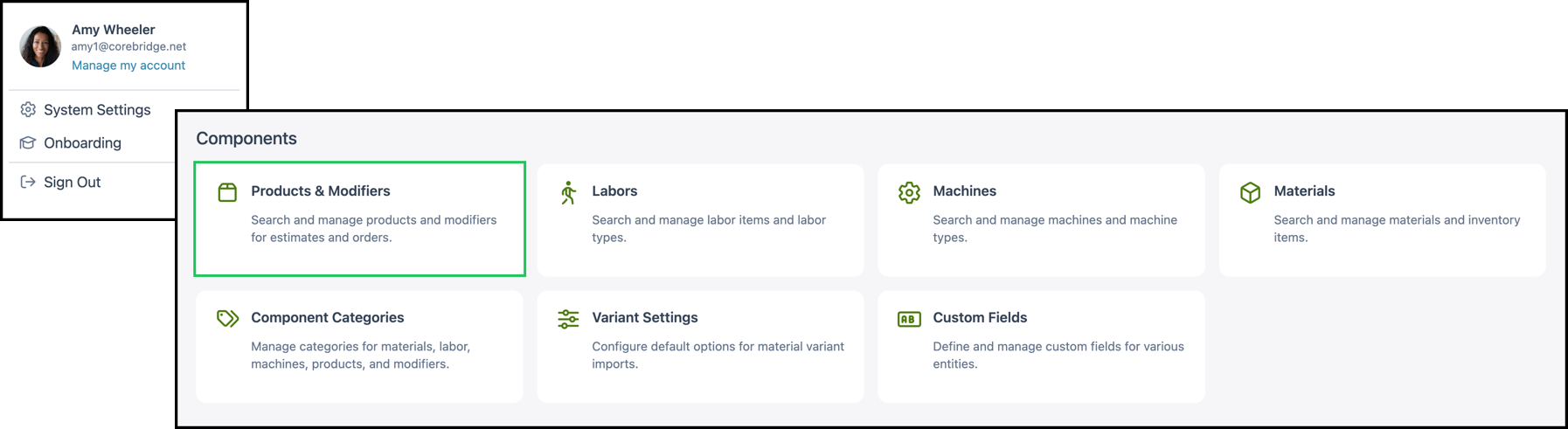
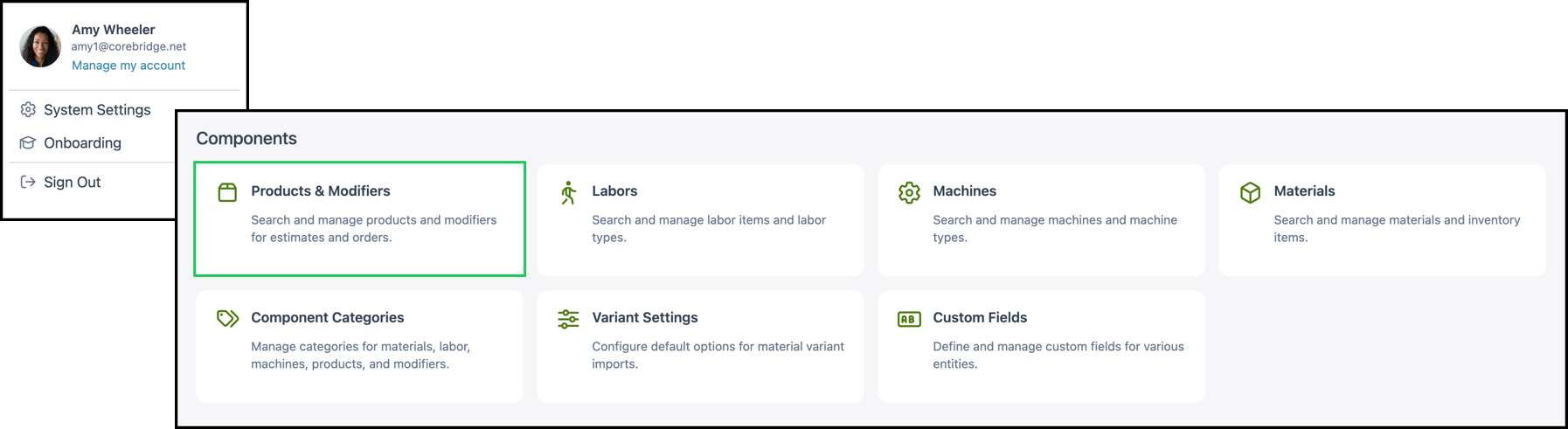
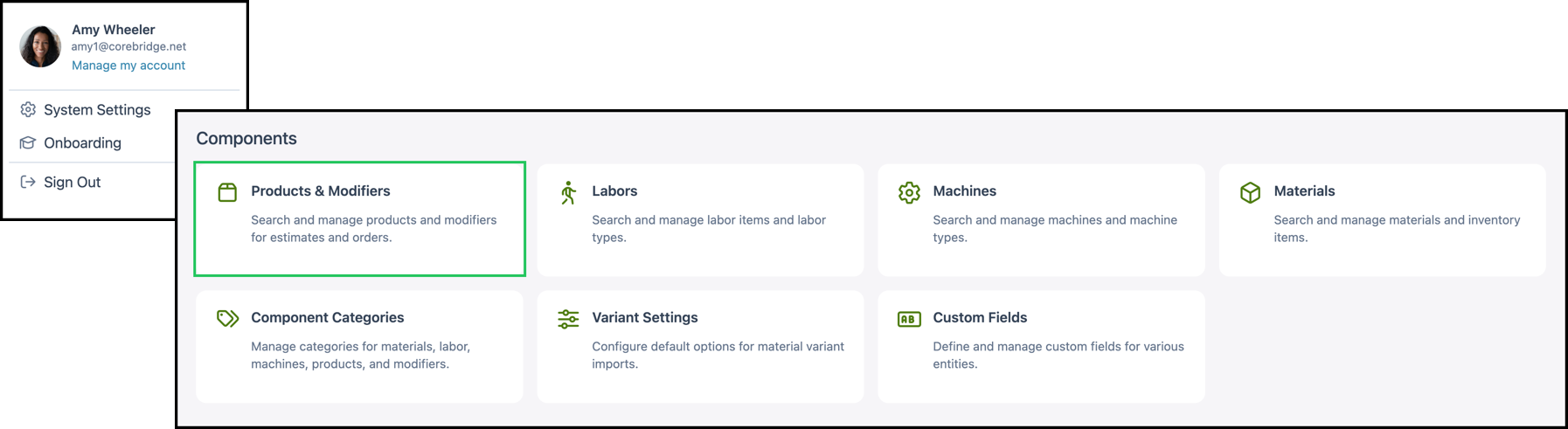
To access Linked Components for a Product, navigate to System Settings / Components / Products & Modifiers.
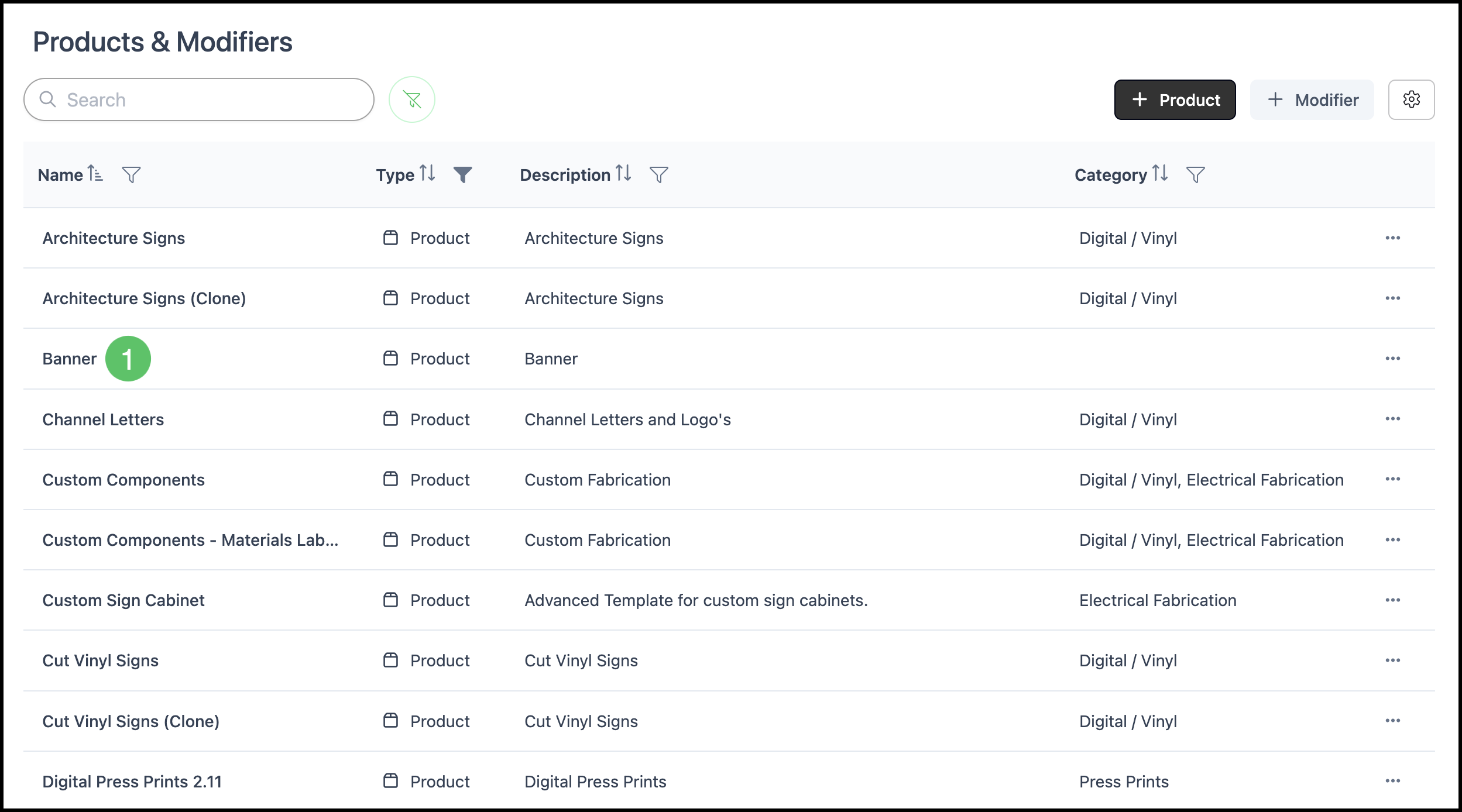
1. Select the Product or Modifier you want to review.
Note: Products are used as examples throughout this article. The same functionality applies to Modifiers.
2. Click the Linked Components card.
Note: The card displays the total number of linked and unlinked Components for that Product.

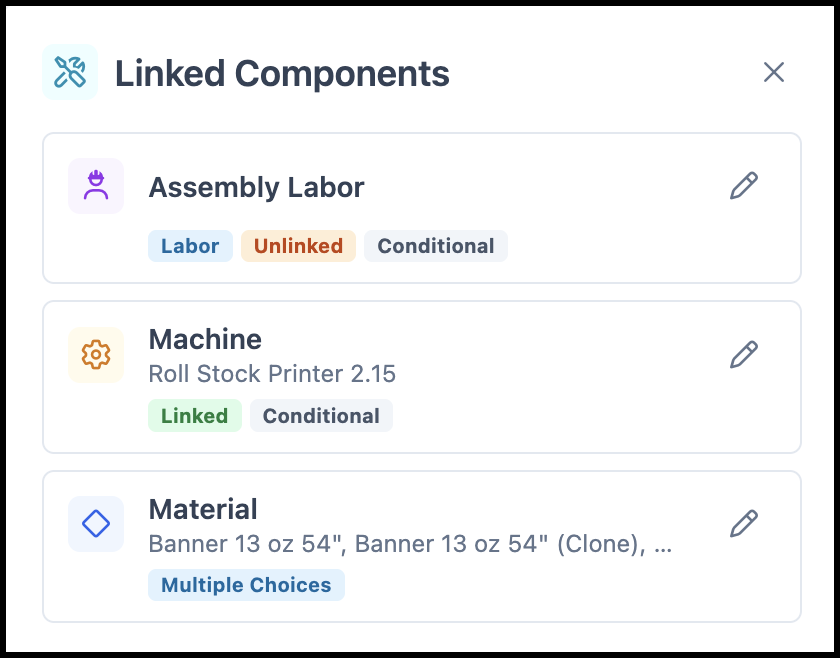
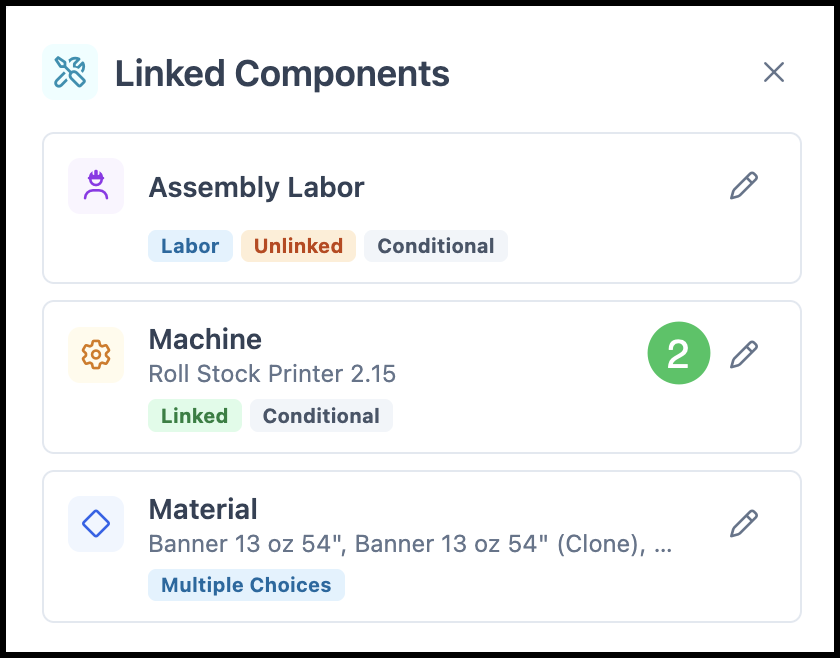
The panel lists all Components associated with the Product, along with status tags that describe how each is configured.
- Linked - the Component is actively connected to a field in the Sales Form.
- Unlinked - the Component exists in the panel but is not yet connected to a field in the Sales Form.
- Conditional - the Component is only created and used when a specific inclusion condition is met.
- Multiple Choices - the Component is configured to offer more than one selectable option.
Adding Linked Components
Navigate to Settings / Components / Products & Modifiers and open the Product you want to update.
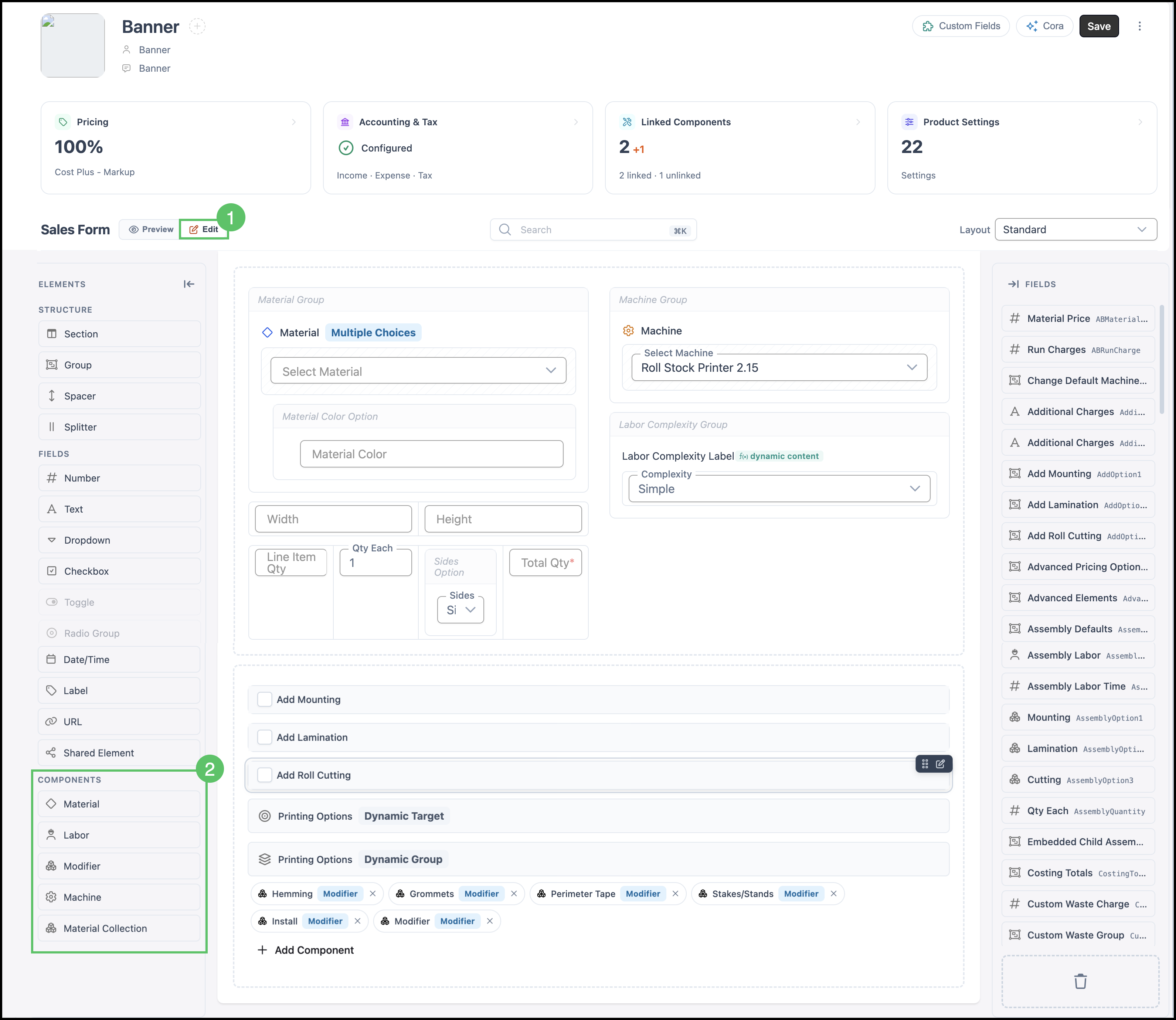
1. Click Edit to open the form editor.
2. Drag the Component type you want to add into the Sales Form.
Note: Available Component types include Material, Labor, Machine, Modifier, and Material Collection.
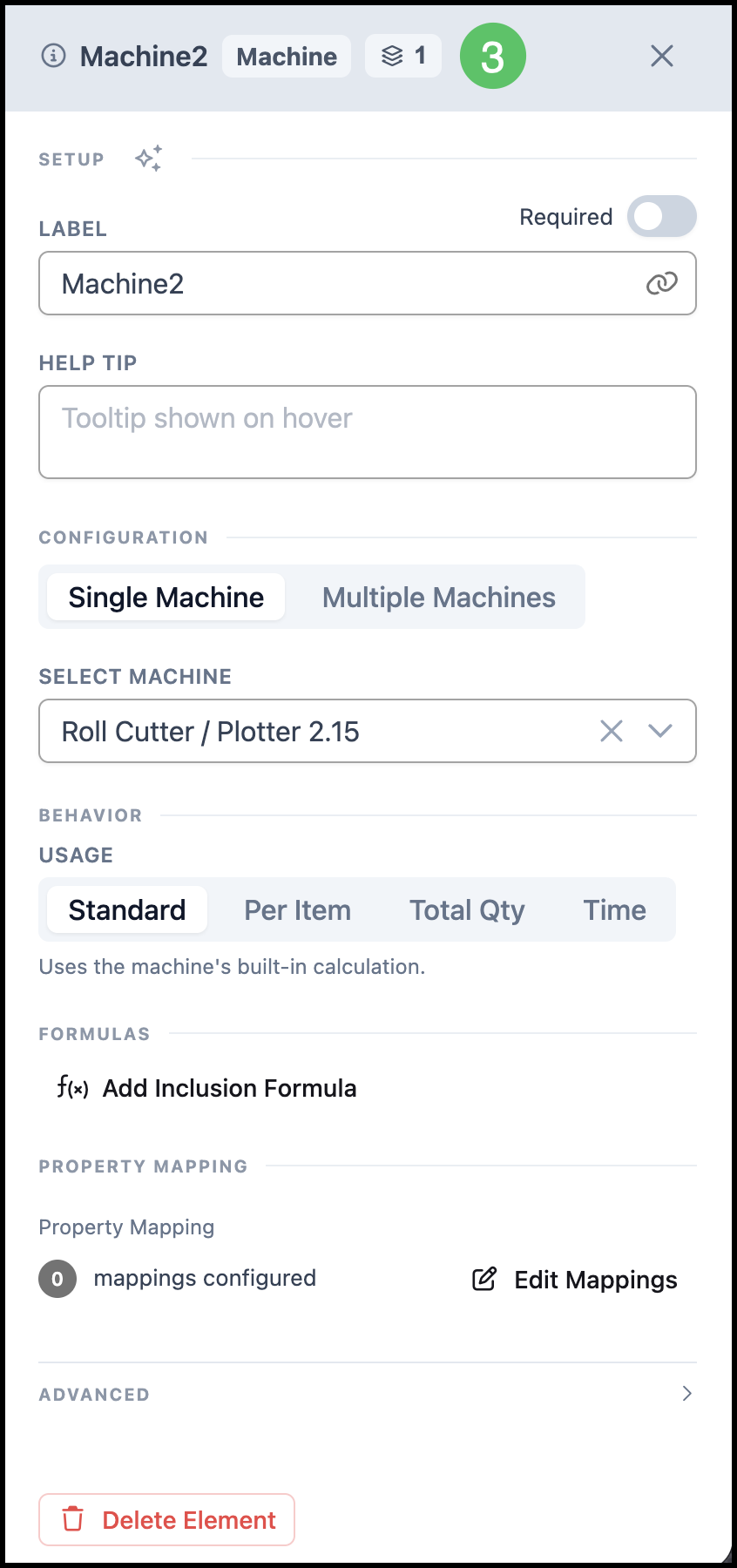
Note: A configuration window will appear.
3. Complete fields as needed.
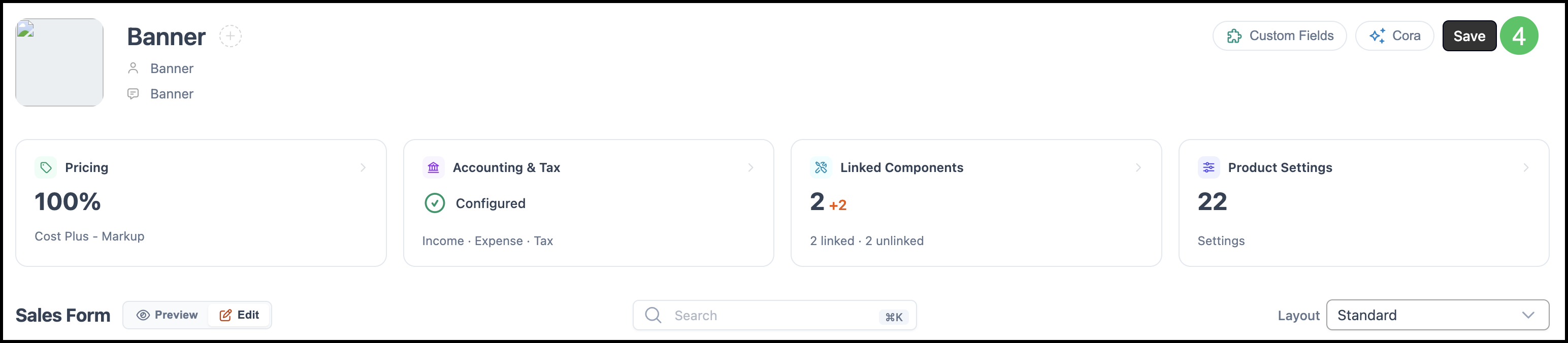
4. Click Save.
Note: Best practice is to assign a Default Machine and Default Labor. Production is commonly used as the default Labor. A Default Material is optional.
Editing a Linked Component
Navigate to Settings / Components / Products & Modifiers and select the correct Product.
1. Click the Linked Components card to open the panel.

2. Click the Edit icon next to the Component you want to edit.
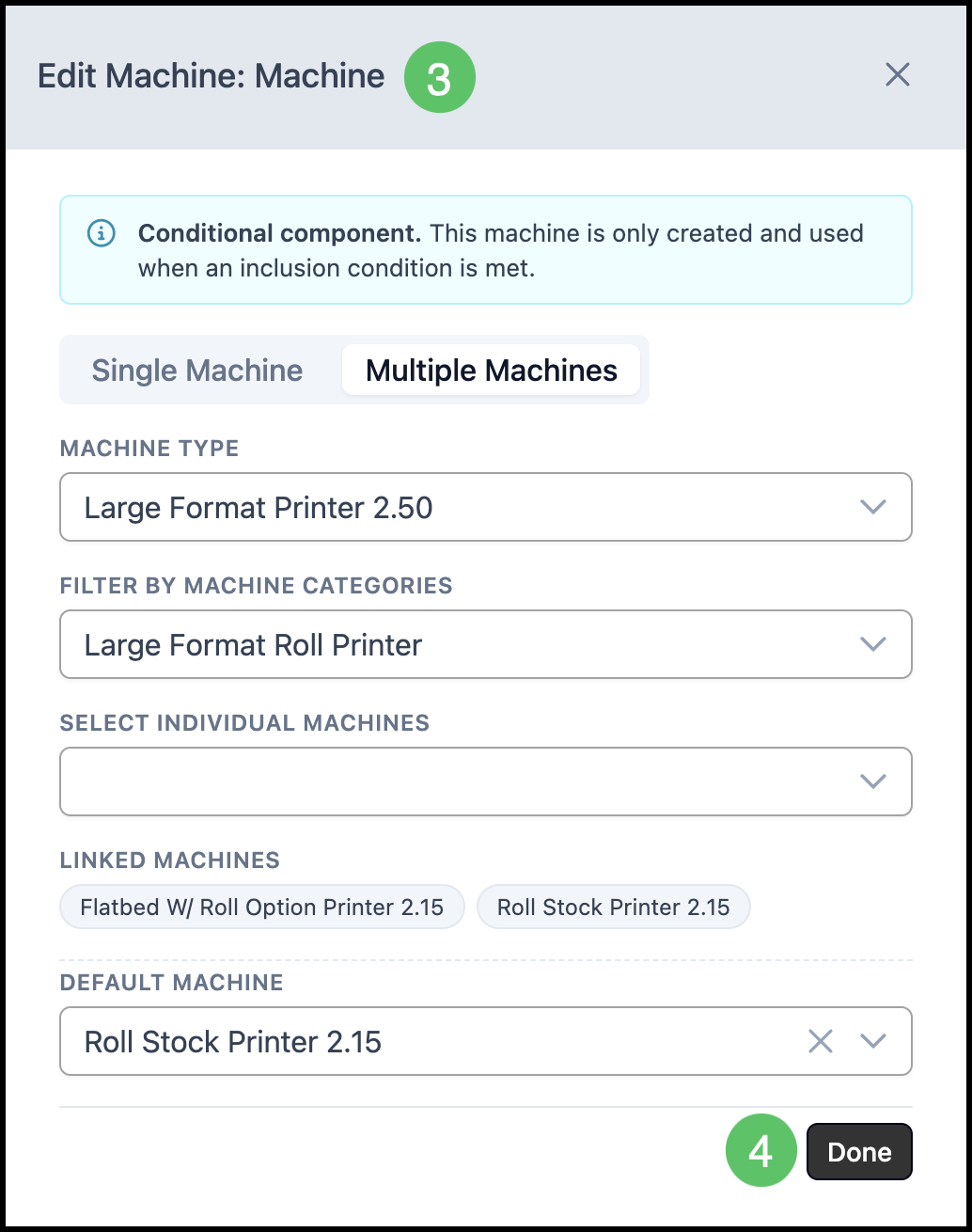
3. Make your changes.
Note: The fields available in the configuration window will vary depending on the selected Component type.
Note: Best practice is to assign a Default Machine and Default Labor. Production is commonly used as the default Labor. A Default Material is optional.
4. Click Done.
5. Click Save.