
Pipeline management keeps a Pipeline name, its Stages, and the board up to date. Stages set the path an Opportunity follows and the confidence used for the weighted amount. The board tools choose which Opportunities and card details you see.
Table of Contents
- Important Information
- Accessing a Pipeline
- Pipeline More Actions
- Set a Pipeline Inactive
- Add a Stage
- Board Tools
- Frequently Asked Questions
- Related Articles
Important Information
- More Actions on the board includes Edit Pipeline, Manage Access, Favorite, and Clone.
- On the Pipelines list, More Actions on a row includes Set Inactive. Search Settings includes Show inactive pipelines.
- Drag a card from one Stage to another to move an Opportunity.
- The weighted amount uses the StageConfidence %. Won fixes Confidence % at 100%. Lost fixes Confidence % at 0%.
- Board settings includes Show archived records.
- Who can open a Pipeline is covered in CRM Pipeline Access and Opportunity Visibility.
Accessing a Pipeline
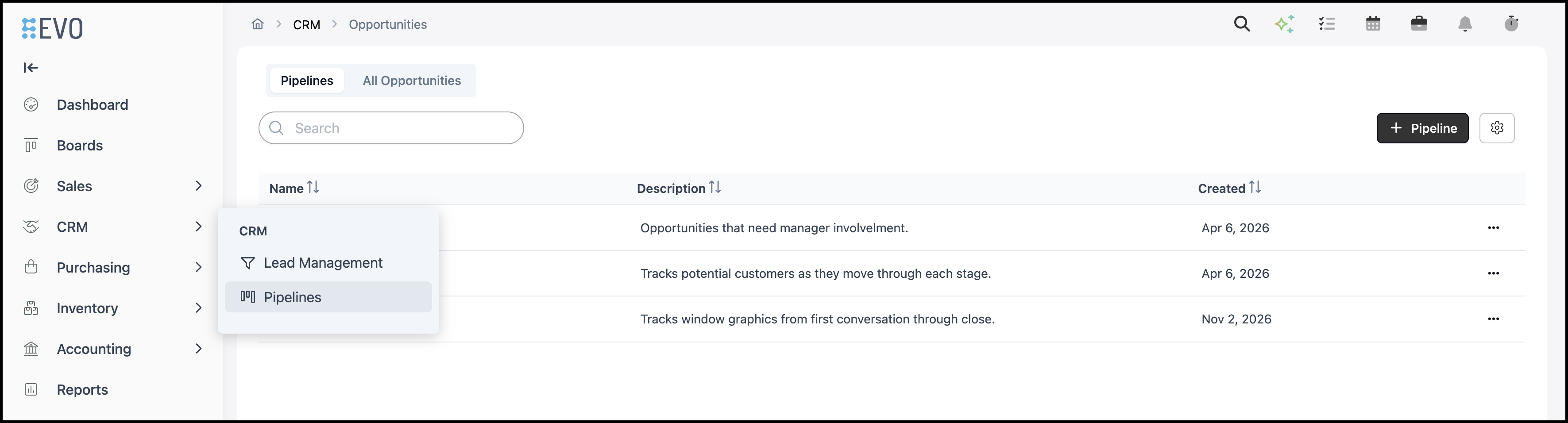
Navigate to CRM / Pipelines
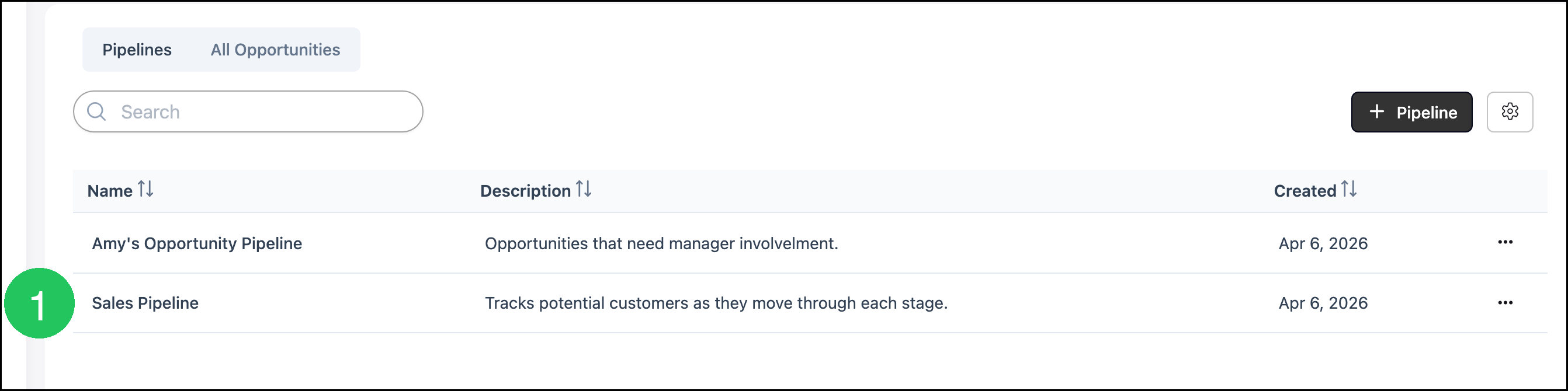
1. Select a Pipeline.
Pipeline More Actions
Open the Pipeline board.
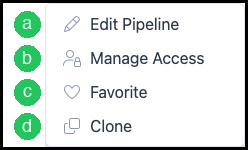
1. Click More Actions.

a. Edit Pipeline turns the name into a field so you can rename the Pipeline.
b. Manage Access chooses who can see this Pipeline. For more information, please see CRM Pipeline Access and Opportunity Visibility.
c. Favorite marks the Pipeline.
d. Clone copies the Pipeline.
2. Click Edit Pipeline. The name becomes a field.
3. Change the name, then click Save Pipeline.

Set a Pipeline Inactive
1. On the Pipelines list, click More Actions on the Pipeline row.
a. Set Inactive removes the Pipeline from the active list. Turn on Show inactive pipelines in Search Settings when you need to see it again.

Add a Stage
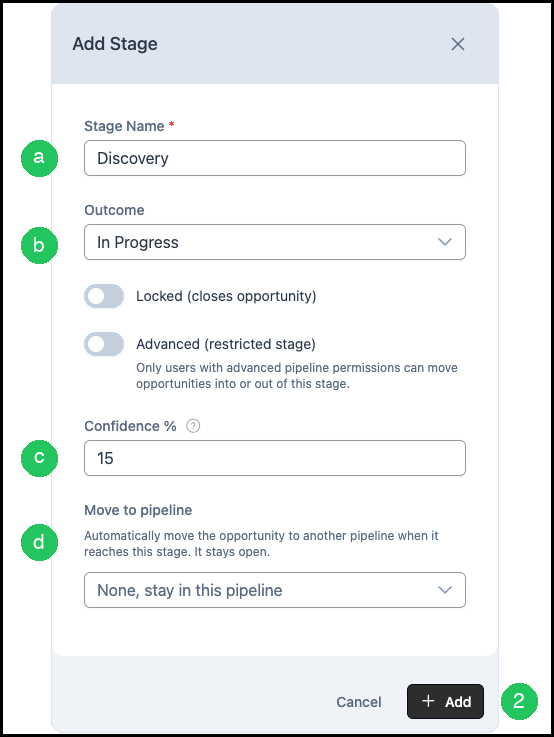
1. Click Add Stage. Add Stage opens.
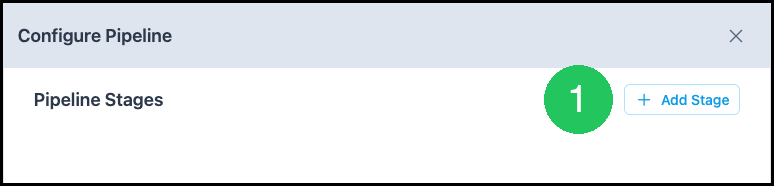
a. Stage Name is required.
b. Outcome sets what the Stage does. In Progress keeps the Opportunity open. Won closes it as won and fixes Confidence % at 100%. Lost closes it as lost and fixes Confidence % at 0%.
c. Confidence % is the percent used for the weighted amount while the Stage is In Progress.
d. Move to pipeline sends the Opportunity to another Pipeline when it reaches this Stage. For In Progress, the Opportunity stays open. For Won or Lost, the Opportunity closes first, then moves.
2. Click Add.
Note: Archive Settings appears when Outcome is Won or Lost. It sets how long the closed Opportunity stays on the board before it archives. End of the month is the default. Archived Opportunities stay searchable.
Board Tools
These controls are on the Pipeline board.
a. Filter limits which Opportunities appear.
b. Sort chooses the field used to order Opportunities.
c. Fields chooses which details appear on the cards.
d. Stages opens Configure Pipeline.

Note: Board settings includes Show archived records. Search finds Opportunities on this board.
Frequently Asked Questions
1. Why is Save Pipeline unavailable?
Answer: Save Pipeline becomes available after the name changes.
2. Where is a Pipeline after Set Inactive?
Answer: Turn on Show inactive pipelines in Search Settings on the Pipelines list.
Related Articles
CRM Pipeline Access and Opportunity Visibility