
The Customer Portal in CoreBridge EVO has options you can tailor for your business so you can provide consistent customer service. By adjusting Customer Portal Options, you control what Customers see in the portal and whether they can pay online.
Table of Contents
- Customer Portal Options
- Setting up Online Payments Through the Customer Portal
- Enabling Online Payments in Payment Methods
- Frequently Asked Questions
- Related Articles
Customer Portal Options
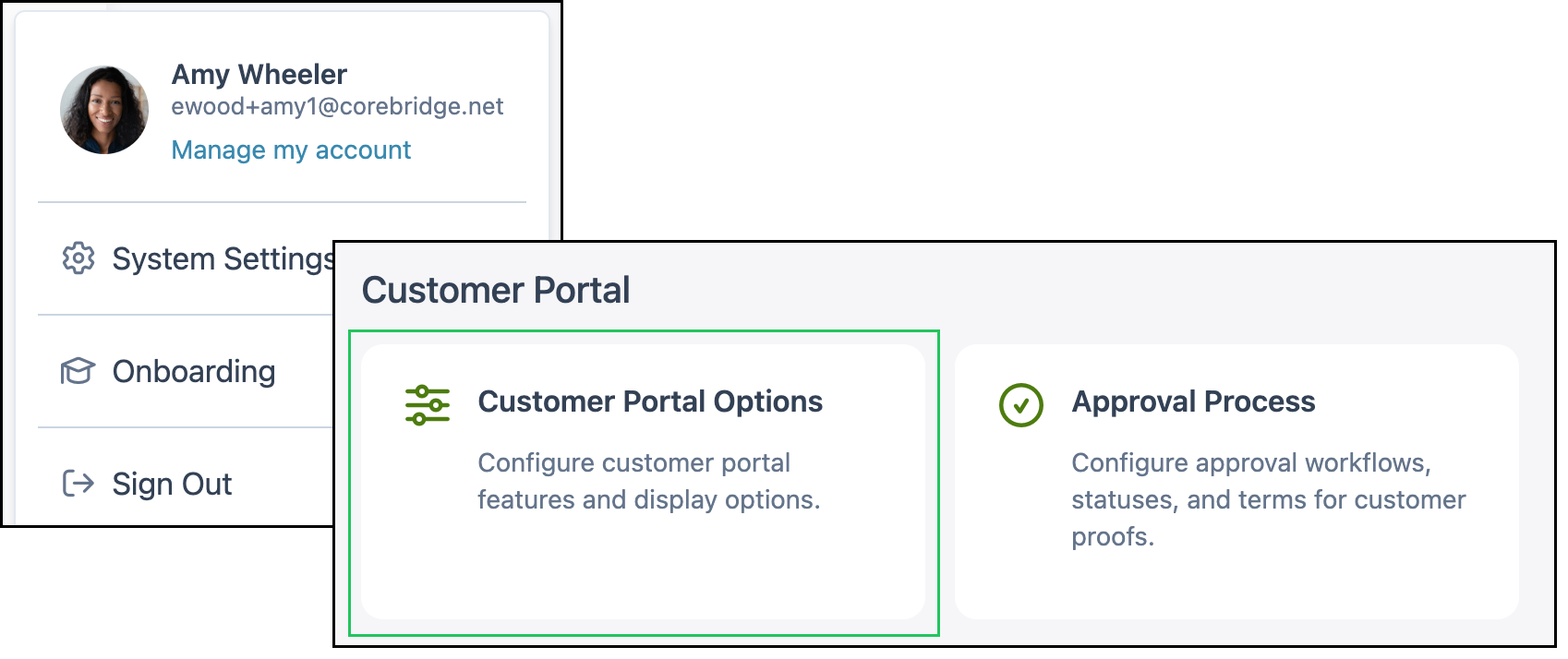
Navigate to System Settings / Customer Portal / Customer Portal Options.
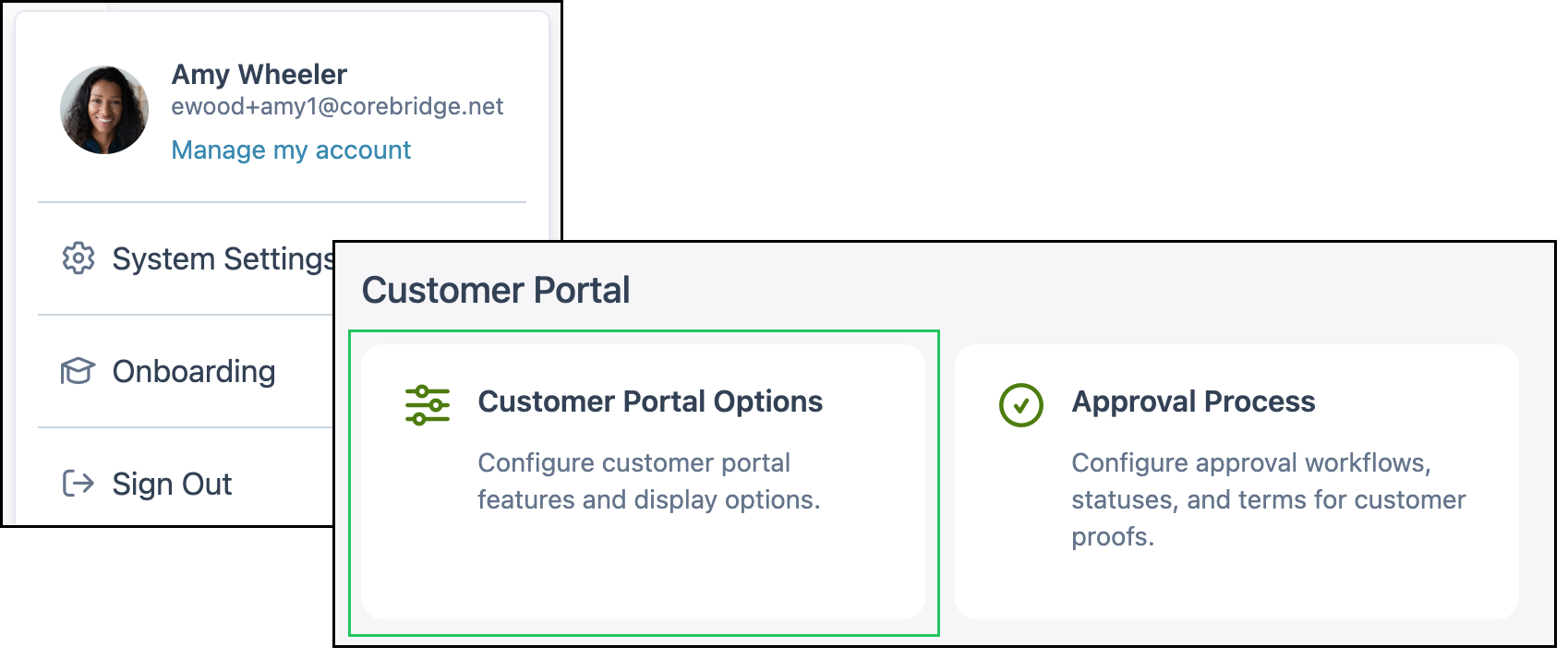
These options control broad Customer Portal behavior and what Customers see. Use the toggles and checkboxes on this page, then click Save. Changes are not applied until you save.
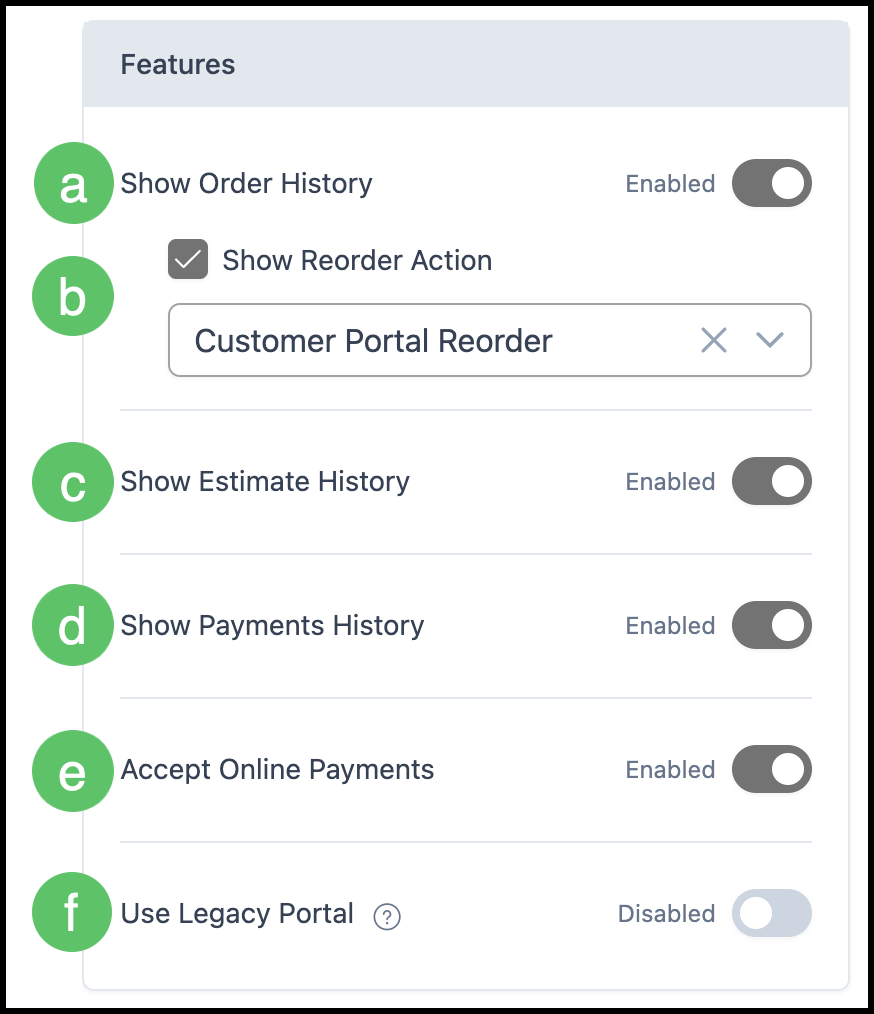
Features
These options line up with sections available to Customers in the Customer Portal.
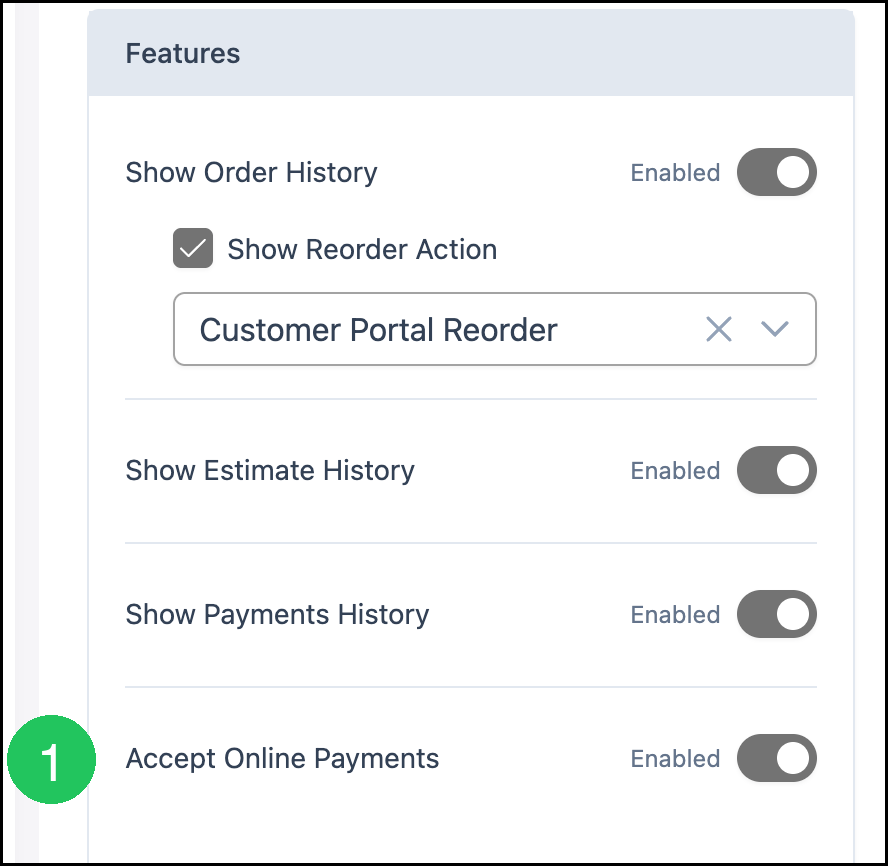
a. Show Order History - Shows closed Orders as a subsection under History.
b. Show Reorder Action - Nested under Show Order History. When enabled, Customers can start a new Order from a closed Order. Use the dropdown to select the Origination for those reorders, such as Customer Portal Reorder.
c. Show Estimate History - Shows closed Estimates as a subsection under History.
d. Show Payments History - Shows payments the Customer has made as a subsection under History.
e. Accept Online Payments - Must be enabled here before Customers can pay online through the portal.
f. Use Legacy Portal - Allows you to choose which portal your Customers see. When enabled, Customers will see the Legacy version of the Customer Portal.
Note: Links previously sent will continue to function.
Order Header Options
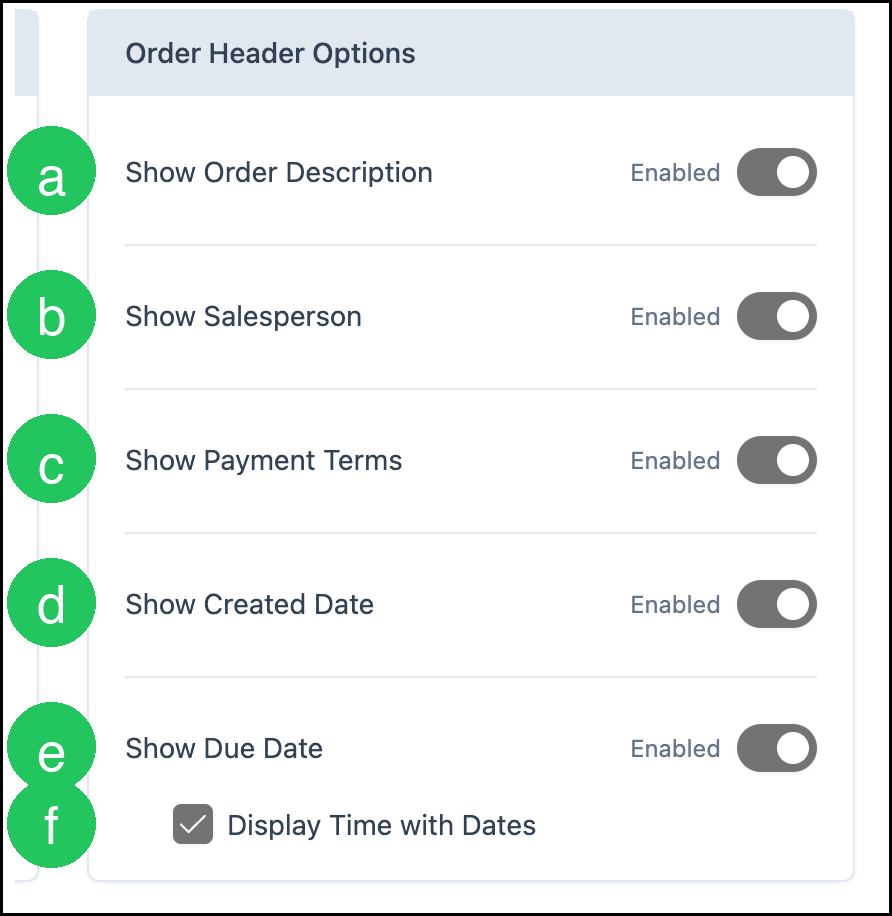
These options add information to the Order and Estimate header in the Customer Portal so Customers have key details available without needing to contact you.
Note: The system keeps portal headers in sync with the underlying Order or Estimate data.
a. Show Order Description - Short description of what the Order contains.
b. Show Salesperson - Shows which salesperson owns the Order so the Customer knows whom to contact.
c. Show Payment Terms - Shows agreed payment terms so expectations are clear.
d. Show Created Date - The date the Order was placed.
e. Show Due Date - The due date from the Order. Configure new Order due date defaults at System Settings / Sales Settings / Estimate & Order Options. For more information, please see Estimate and Order Options.
f. Display Time with Dates - Nested under Show Due Date. When enabled, Customers see the time along with the date.
Line Item Options
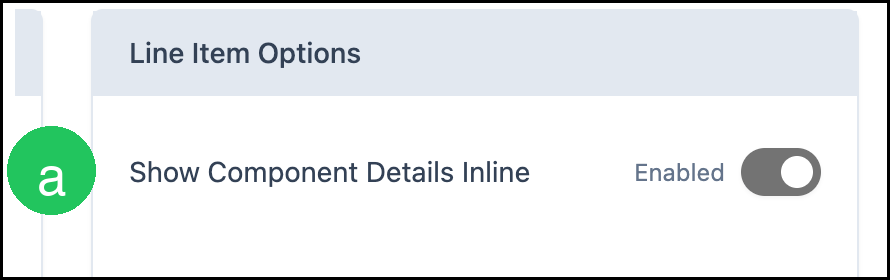
These options affect the Line Items in Orders and Estimates.
a. Show Component Details Inline - Displays the Component Details of each Line Item directly on the corresponding Line Item when enabled.
Setting up Online Payments Through the Customer Portal
Enabling payments online through the Customer Portal is a two-part process. First, enable Accept Online Payments in Customer Portal Options. Then, enable your processor under Payment Integrations in Payment Methods.
Navigate to System Settings / Customer Portal / Customer Portal Options.
1. Enable Accept Online Payments.
2. Click Save.
Enabling Online Payments in Payment Methods
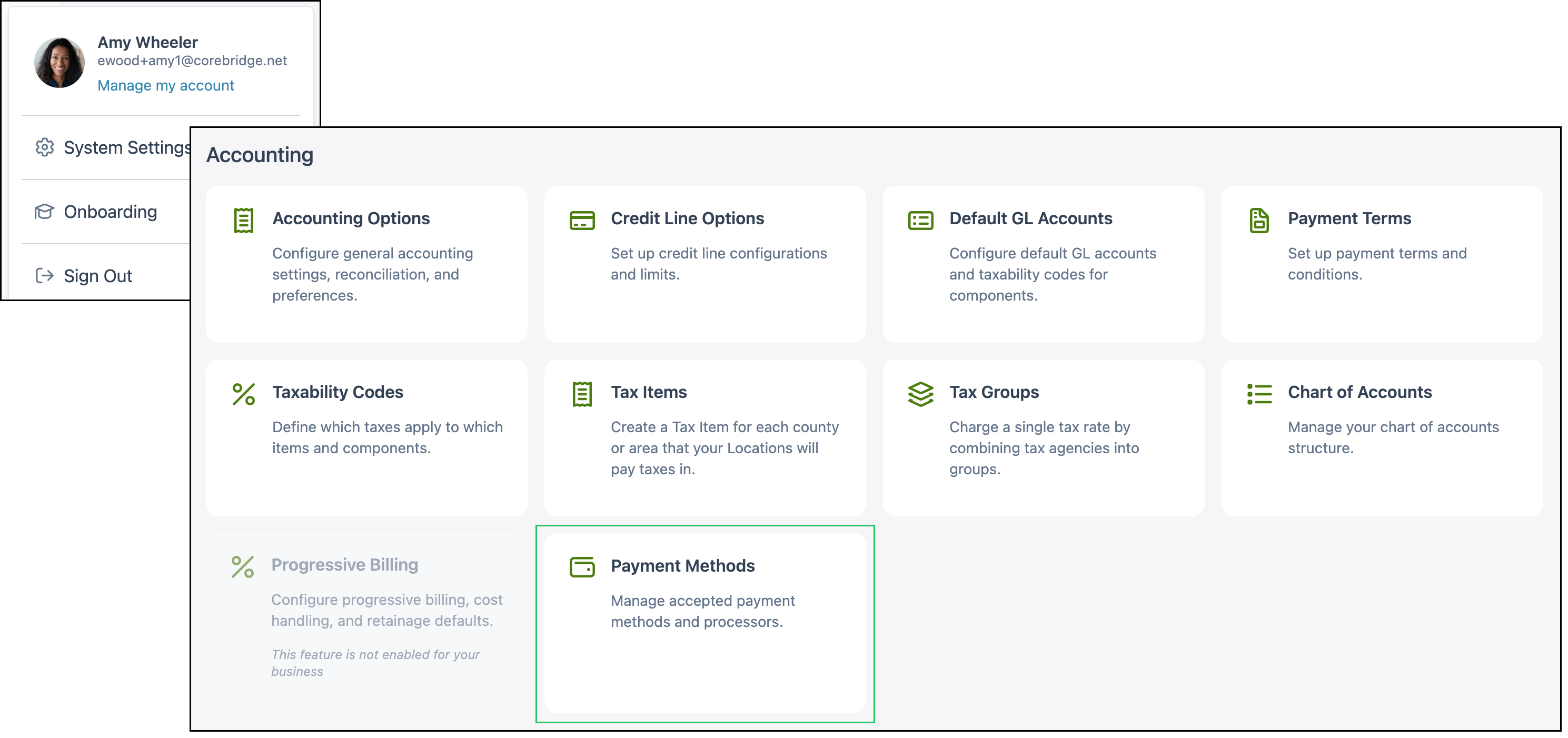
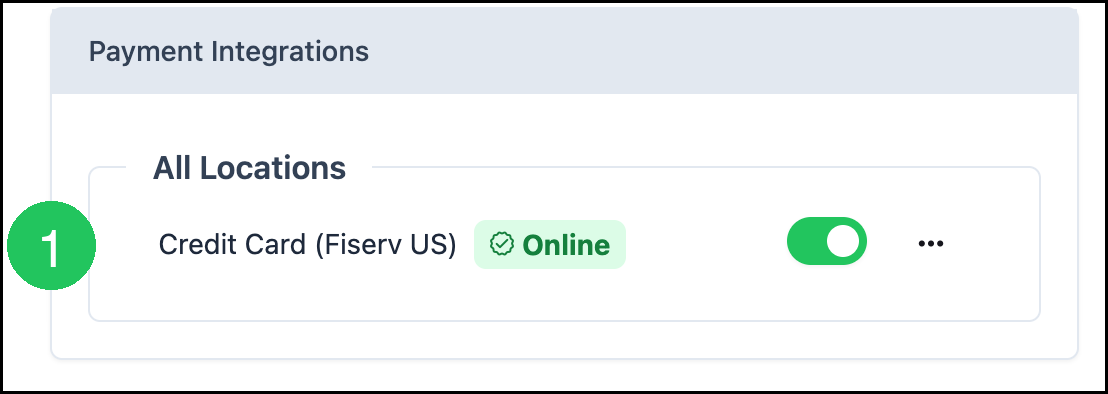
Navigate to System Settings / Accounting / Payment Methods. For more information, please see Payment Settings.
1. Under Payment Integrations, enable the processor for the Location, such as Credit Card (Fiserv US) with Online.
Note: Complete any required fields for your provider. Your processor name may differ.
Frequently Asked Questions
1. Why don't Customers see a way to pay in the Customer Portal?
Answer: Accept Online Payments must be enabled on this page, and a processor under Payment Integrations in Payment Methods must be enabled for the Location on the Order.
2. When do Customers see Show Reorder Action?
Answer: Show Order History must be enabled. Show Reorder Action then appears as a nested checkbox so Customers can reorder from closed Orders.
Related Articles
Customer Portal Approval Process