
You can send a customer a Customer Portal Link for one Estimate or Order, or grant portal access so they can sign in. Portal access is granted on the Contact, not on the Company.
Table of Contents
- Before You Begin
- Important Information
- Sending a Customer Portal Link
- Accessing a Contact
- Customer Portal Access
- Granting Customer Portal Access
- Managing Portal Access
- Frequently Asked Questions
- Related Articles
Before You Begin
The Contact needs an email address in Connect before you can grant Customer Portal access. For more information, see Creating Contacts.
For what customers see after they open a link or sign in, see Customer Portal Overview.
Important Information
There are two ways to get a customer into the Customer Portal:
Customer Portal Link - A shareable link for one Estimate or Order. The customer can open that document without an account.
Grant Access Sign-in - Invites the Contact to sign in. Access is granted per Contact, not for an entire Company. Invite each Contact separately.
What customers can see and do in the portal is controlled in Customer Portal Options. For more information, see Customer Portal Options.
Sending a Customer Portal Link
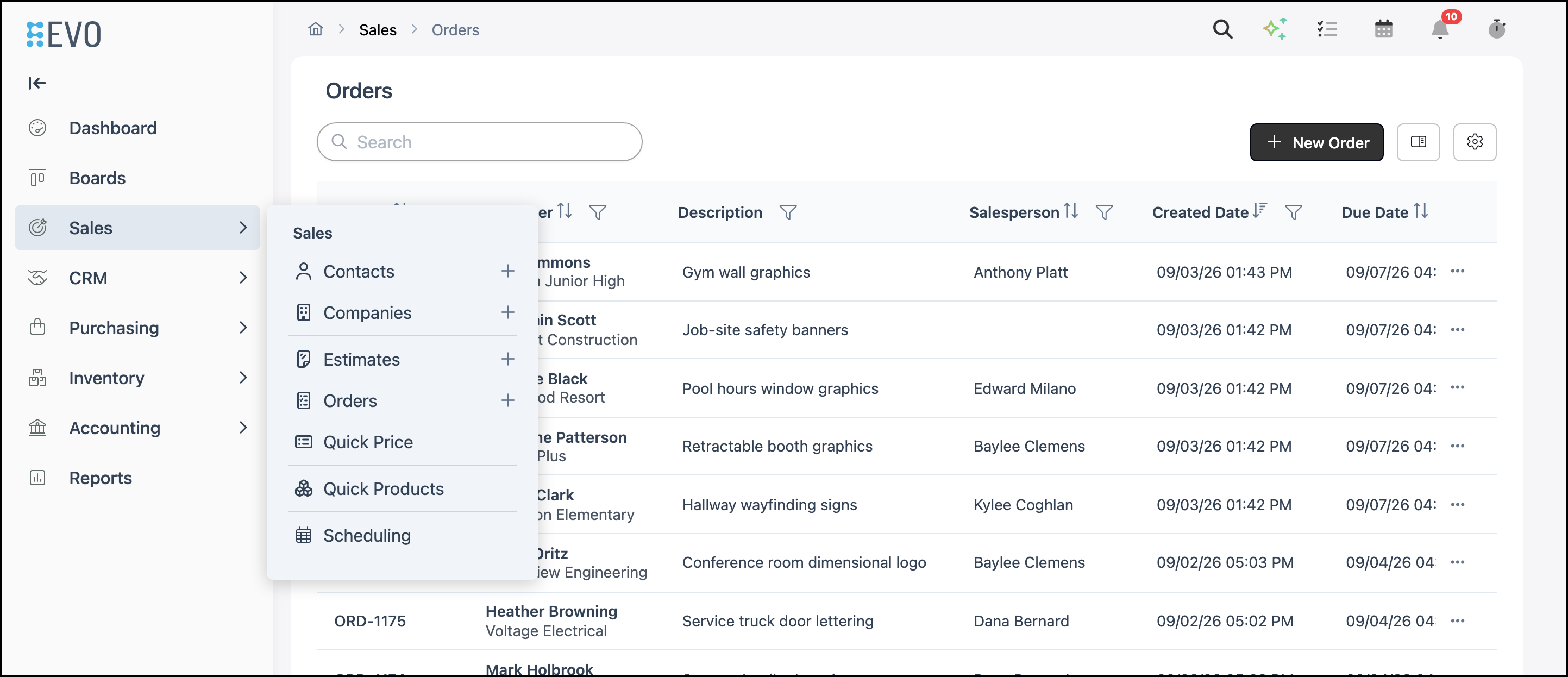
Navigate to Sales / Orders or Sales / Estimates, then open the Estimate or Order.
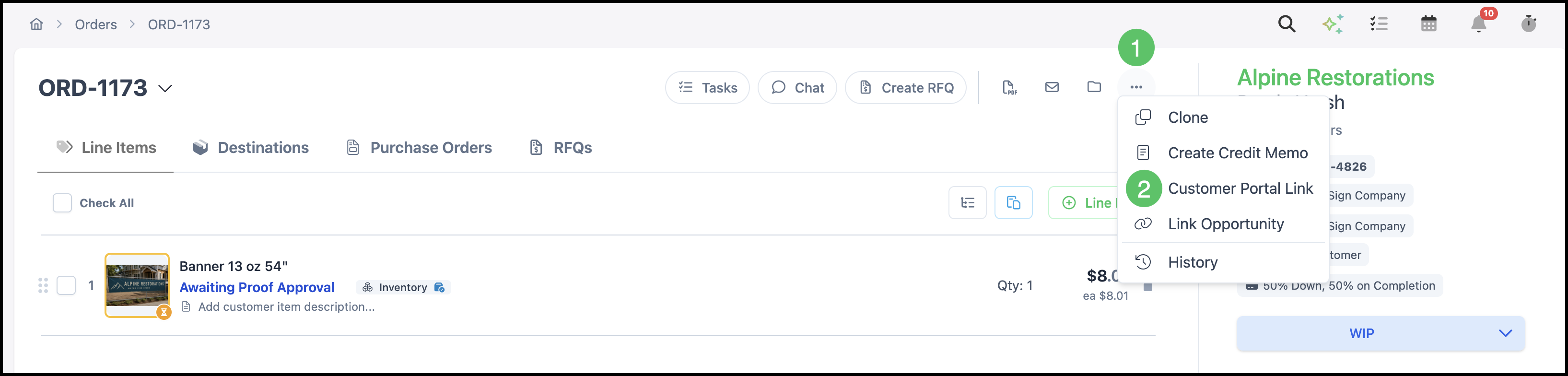
1. Click More Actions.
2. Select Customer Portal Link.
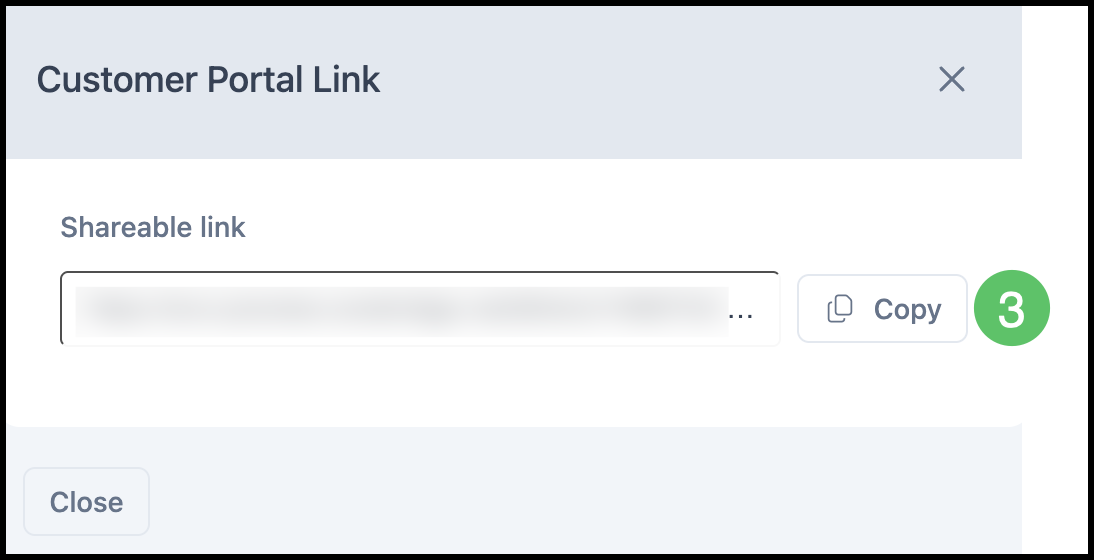
The Customer Portal Link dialog provides the shareable link for that document.
3. Click Copy to copy the link, then send it to the customer.
Granting Customer Portal Access
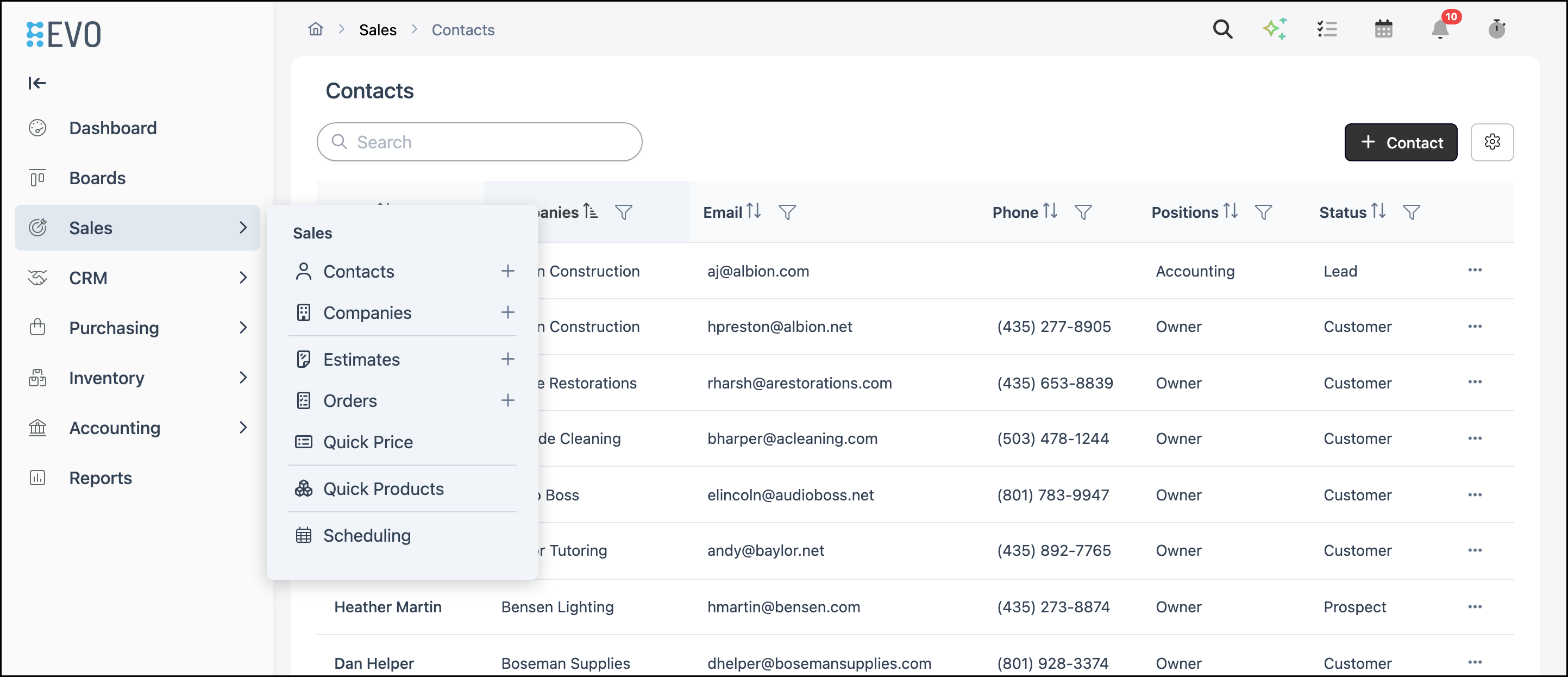
Navigate to Sales / Contacts and select the appropriate Contact.
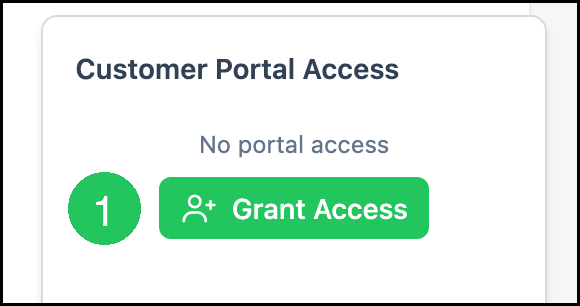
1. Click Grant Access.
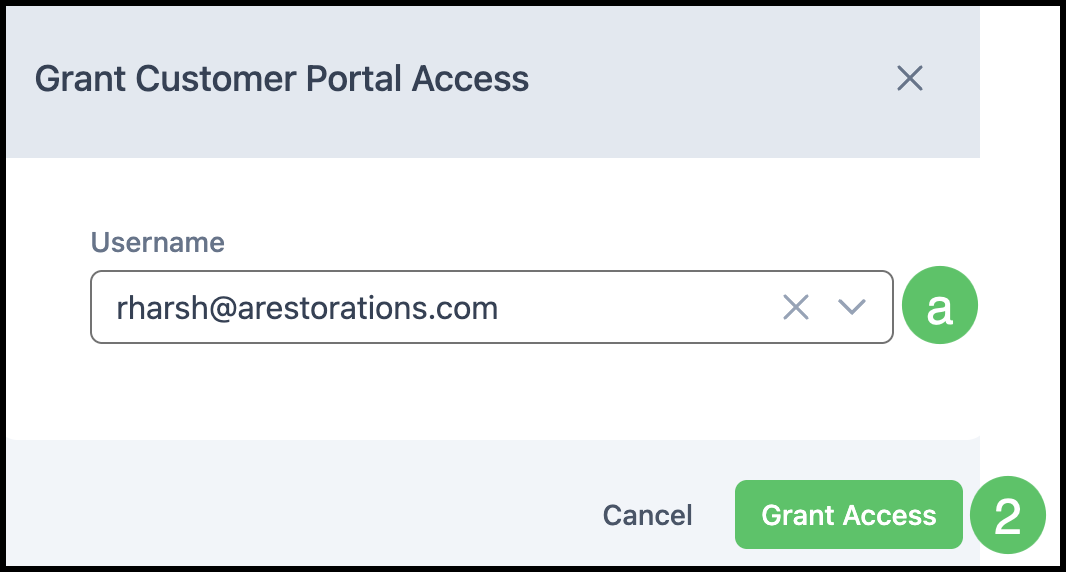
The Grant Customer Portal Access dialog opens.
a. Username - The email address the Contact uses to sign in. The field is prefilled with an email from Connect. If the Contact has more than one email, select the address that should receive the invitation.
2. Click Grant Access.
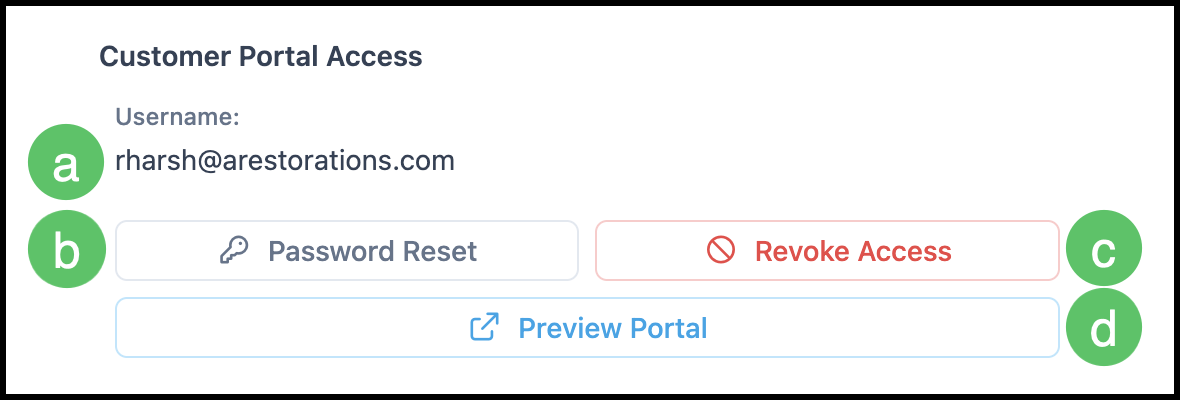
Note: CoreBridge sends an invitation email to the selected Username. After you grant access, Customer Portal Access shows the Username, Password Reset, Revoke Access, and Preview Portal.
Managing Portal Access
After the Contact has access, Customer Portal Access shows the Username and actions for managing that access.
a. Username - The email address the Contact uses to sign in to the Customer Portal.
b. Password Reset - Sends a password reset email to the Contact.
c. Revoke Access - Removes the Contact's Customer Portal access. You are asked to confirm. This action cannot be undone.
d. Preview Portal - Opens the Customer Portal as that Contact so you can see what they see.
Note: Click Revoke Access only when you intend to remove portal access for this Contact.
Frequently Asked Questions
1. Is Customer Portal access granted on the Company or the Contact?
Answer: Access is granted on the Contact, not the Company. Grant access on each Contact you want to invite.
2. Can more than one Contact at a Company use the Customer Portal?
Answer: Yes. Grant access on each Contact. Each Contact signs in with their own Username.
3. Which email is used for Username?
Answer: Username is one of the email addresses in the Contact's Connect section. The Grant Customer Portal Access dialog prefills an email. If more than one email exists, select the address that should receive the invitation.
4. What does Password Reset do?
Answer: Password Reset sends a password reset email to the Contact's Username.
5. What happens if I revoke access?
Answer: Revoke Access removes the Contact's Customer Portal access after you confirm. This action cannot be undone. To invite the Contact again, grant access from Customer Portal Access.
6. Do I need to grant access to send a Customer Portal Link?
Answer: No. A Customer Portal Link opens that Estimate or Order without an account. Grant access when you want the Contact to sign in and see Home, Orders, Estimates, and Payments.