The TaxJar Online Tax Lookup integration simplifies sales tax compliance by automating tax calculations directly within the CoreBridge platform. With TaxJar, you can instantly apply accurate tax rates to orders based on customer locations and product types. This integration helps ensure compliance with changing tax laws, reduces manual errors, and saves time, allowing you to focus on business growth.
Note: CoreBridge can help with integration setup and how the integration works within the system. Questions related to the third-party service itself should be directed to that provider.
Table of Contents
- Benefits of Integrating with TaxJar
- How to Integrate CoreBridge with TaxJar
- Setting TaxJar as the Default Tax Option
- Applying TaxJar to an Individual Order
- Related Articles
Benefits of Integrating with TaxJar
- Automated Tax Calculations: Instantly applies accurate tax rates based on location and product type, reducing manual errors.
- Efficient Compliance: Keeps up with changing tax laws and ensures accurate tax application.
- Time-Saving: Streamlines tax management and reduces the time spent on manual tax calculations.
How to Integrate CoreBridge with TaxJar
To integrate TaxJar with your CoreBridge system, navigate to System Settings / Integrations Marketplace.
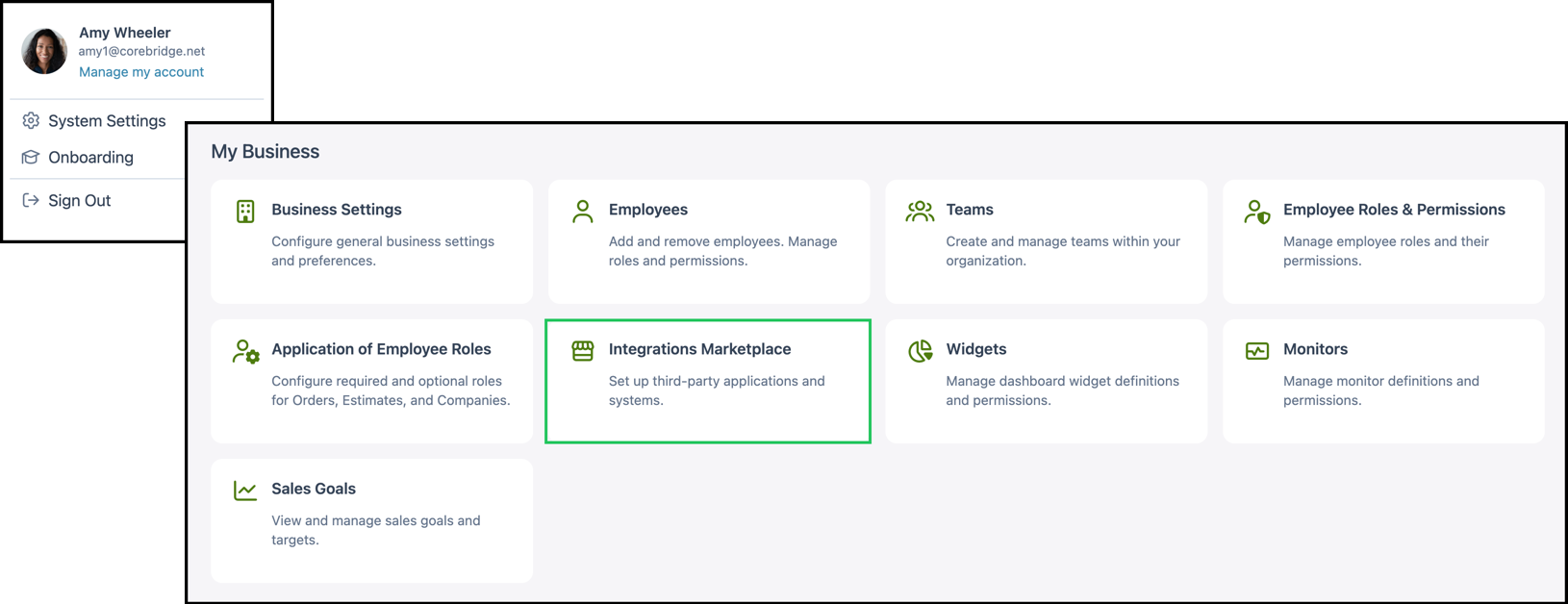
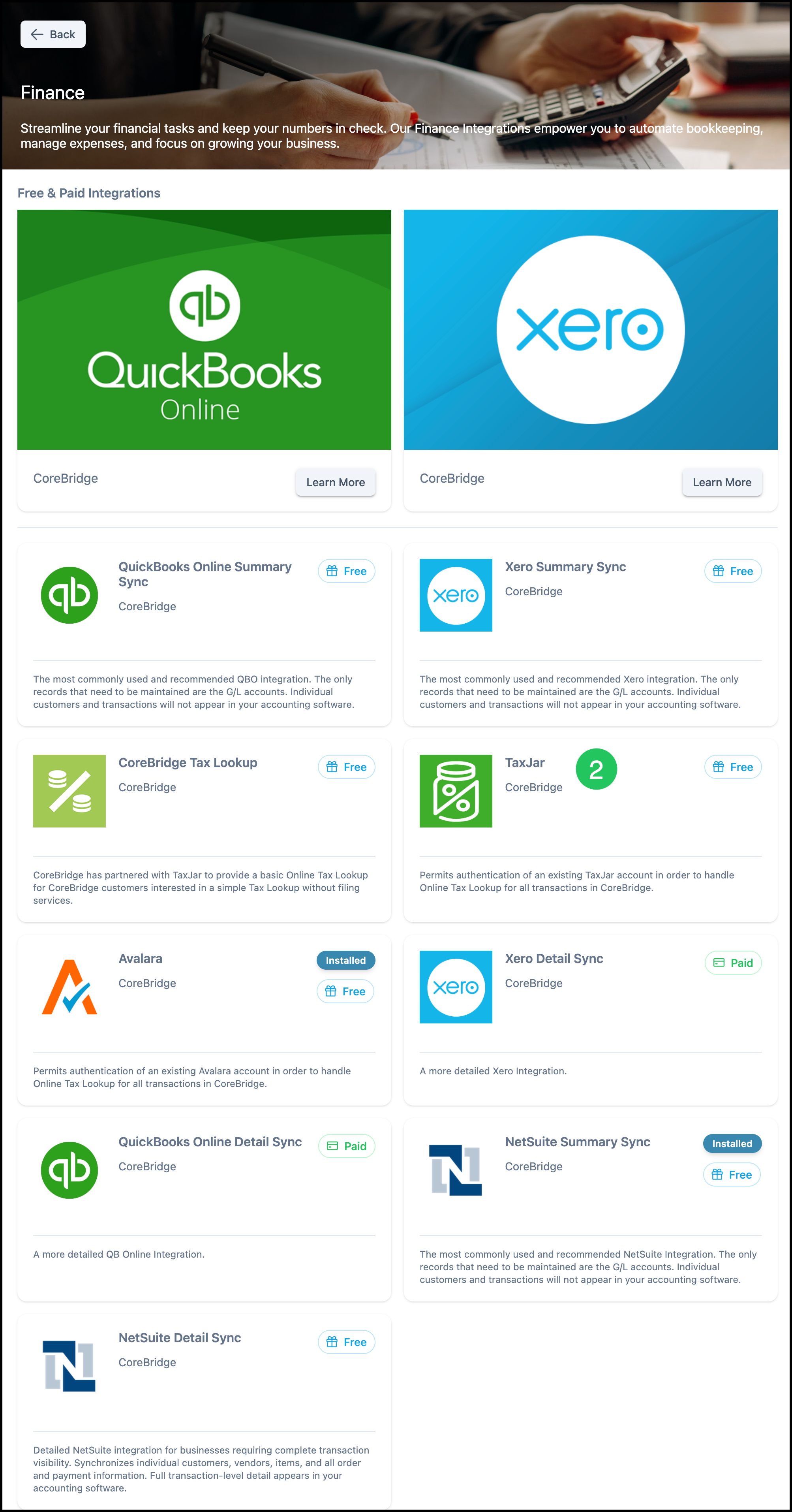
1. Click the Finance Category.
Note: You can also find TaxJar using the Search bar or looking in All Categories.

2. Click on the TaxJar card.
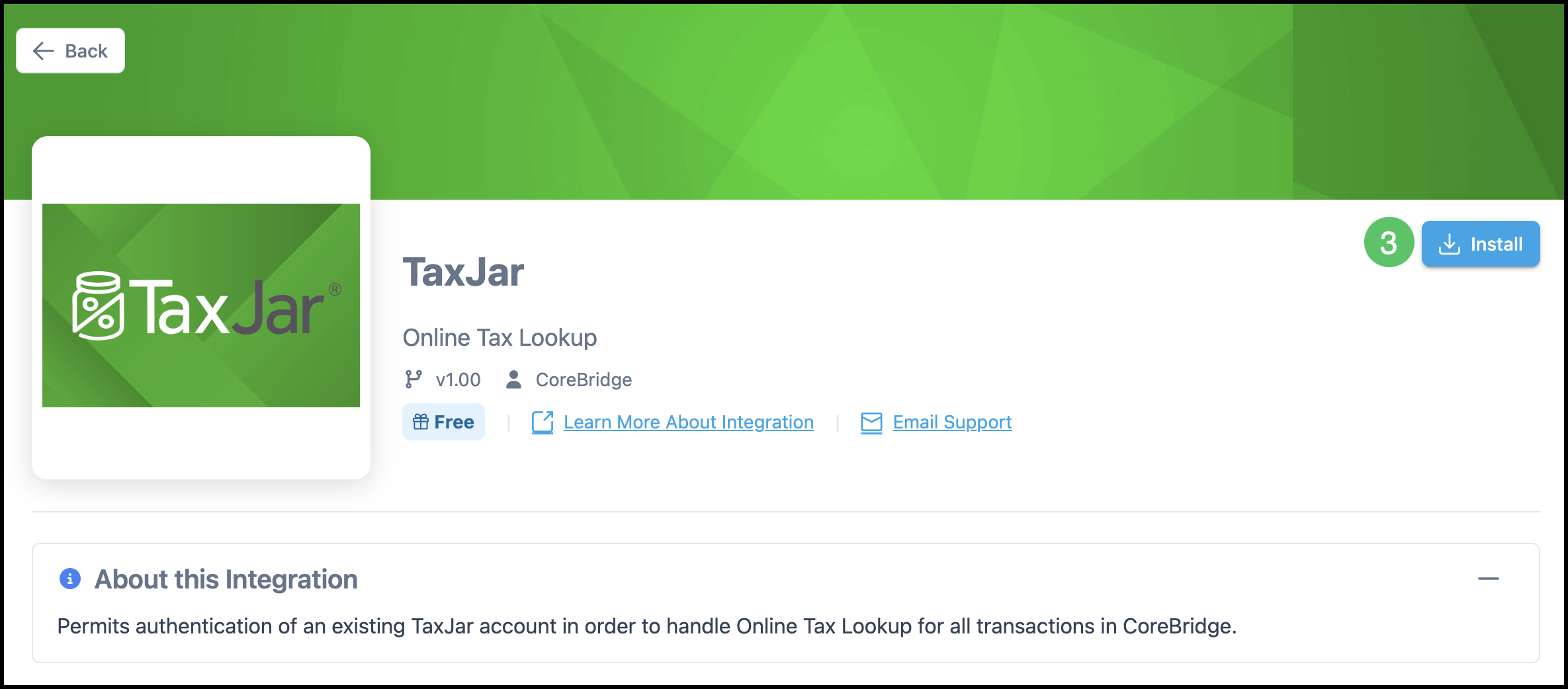
3. Click Install.
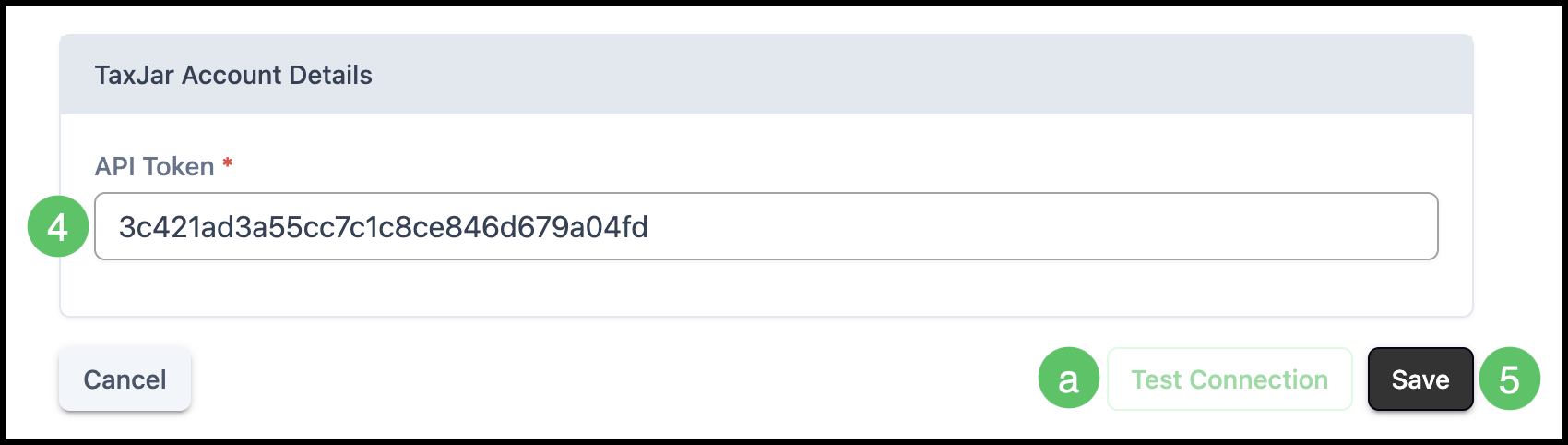
4. To configure your TaxJar account you will need to fill in your API Token. This is found by navigating to the TaxJar website. After creating your account and logging in, navigate to the dropdown in the top right corner of the screen labeled Account. Select TaxJar API. You will be redirected to a screen with a Live Token. This is the number that should be entered in this field.
5. Click Save.
a. The Test Connection button will become available for you to verify that your account has been configured and is connected appropriately.
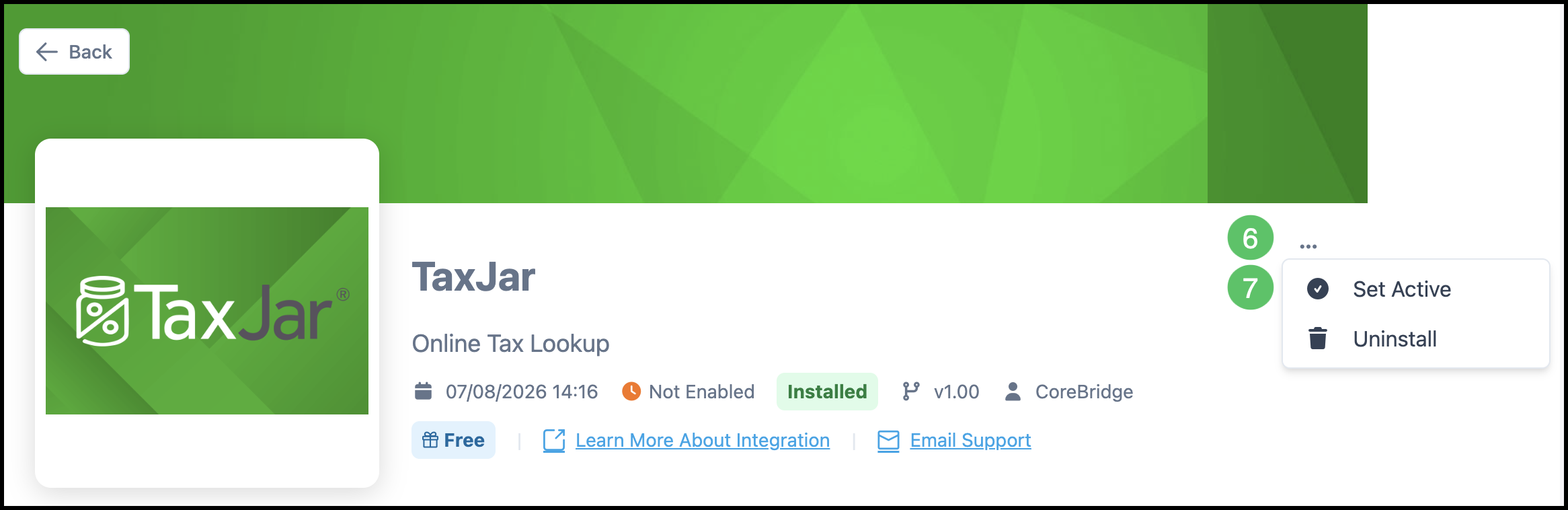
6. Click the More Actions menu.
7. Select Set Active.
Note: Once activated, CoreBridge Tax Lookup shows as Online.
Setting TaxJar as the Default Tax Option
Once TaxJar is configured as the active online tax provider, any Company assigned to the Online Tax Group automatically uses it without requiring additional updates.
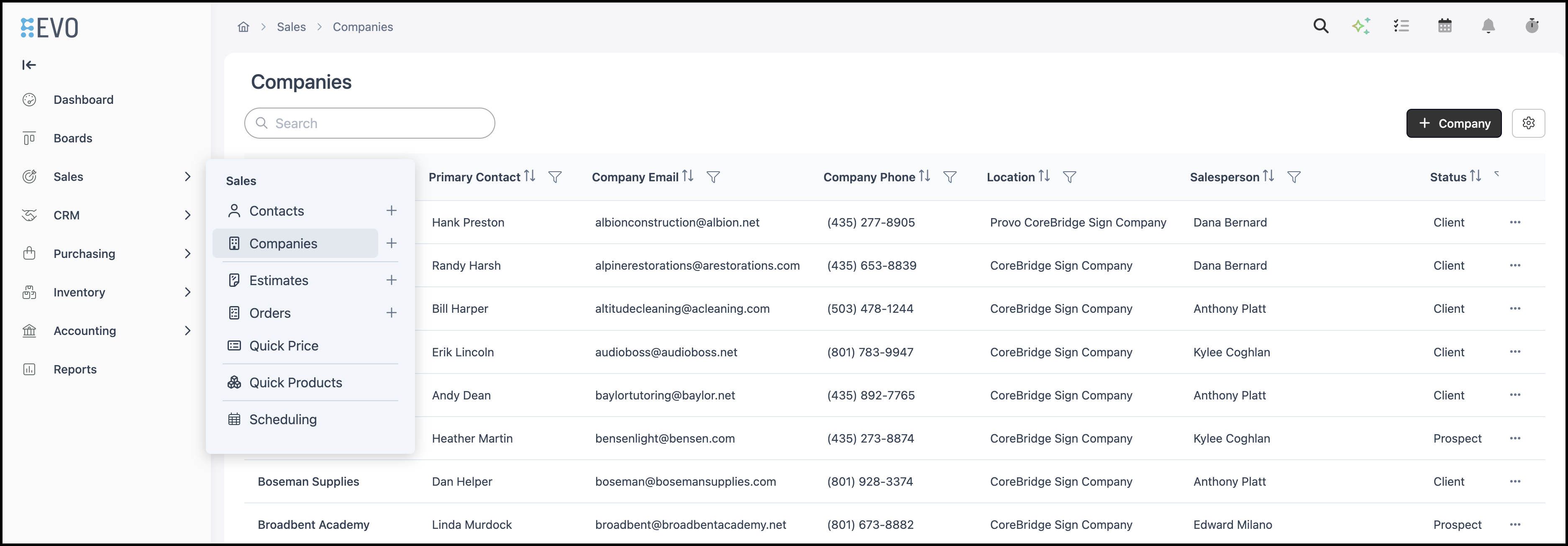
Navigate to Sales / Companies and select the appropriate Company.
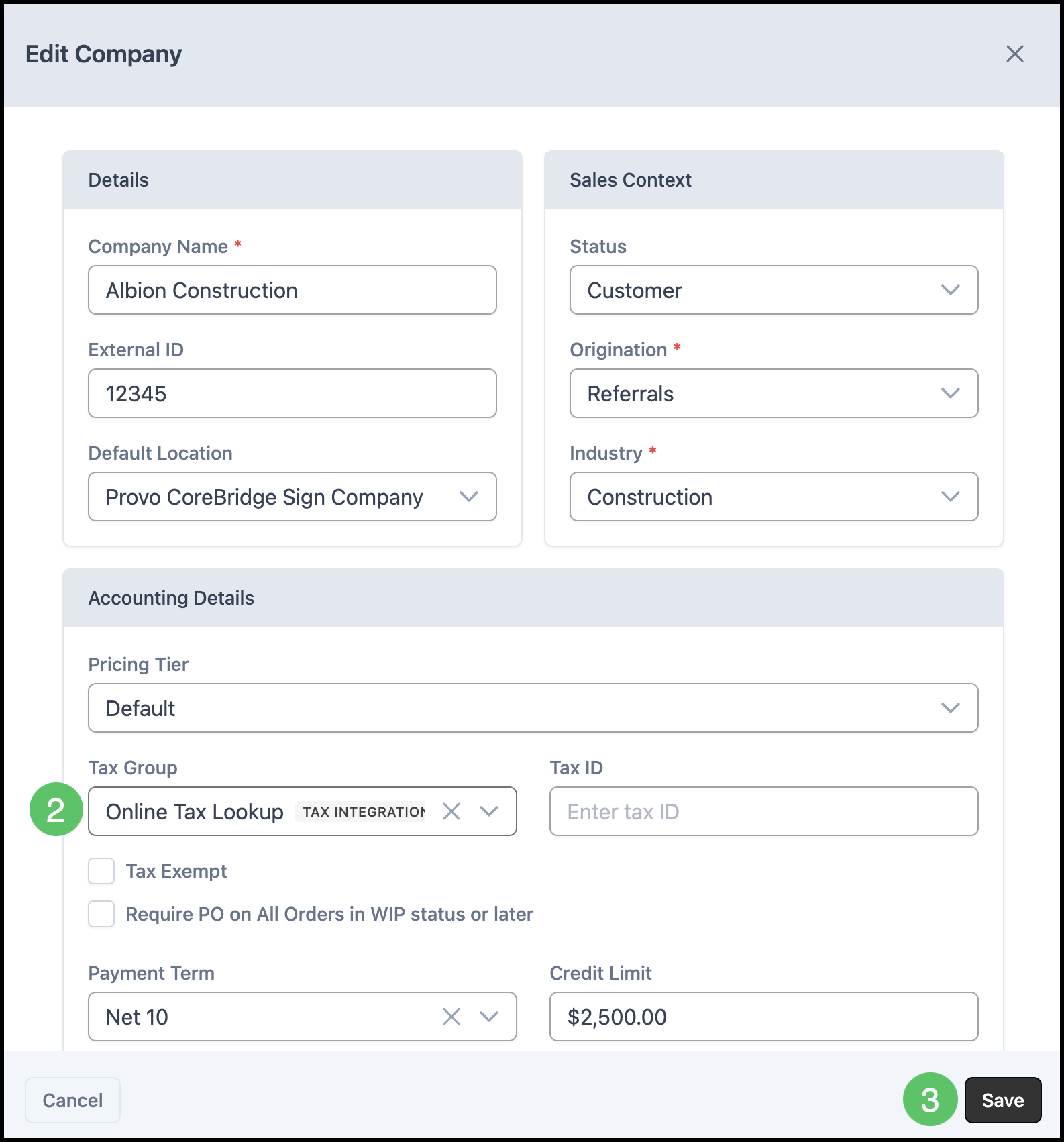
1. Select Edit.

2. Under the Accounting Details section, use the Tax Group dropdown to select Online Tax Lookup.
3. Click Save.
Applying TaxJar to an Individual Order
If TaxJar is not set as the default, you can apply it directly to a specific Order, Estimate, Credit Memo, or Purchase Order.
Note: This article uses Order as the example, but the functionality is the same regardless of the record type.
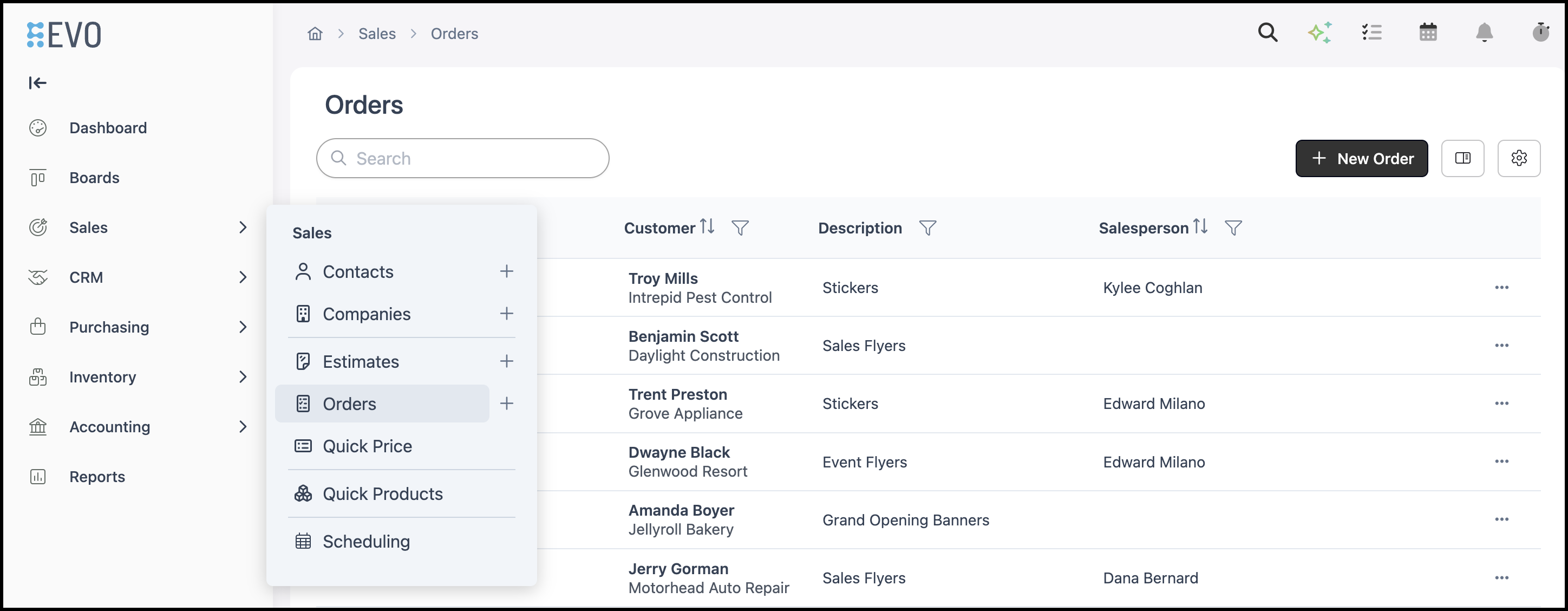
Navigate to Sales / Orders and select the appropriate Order.
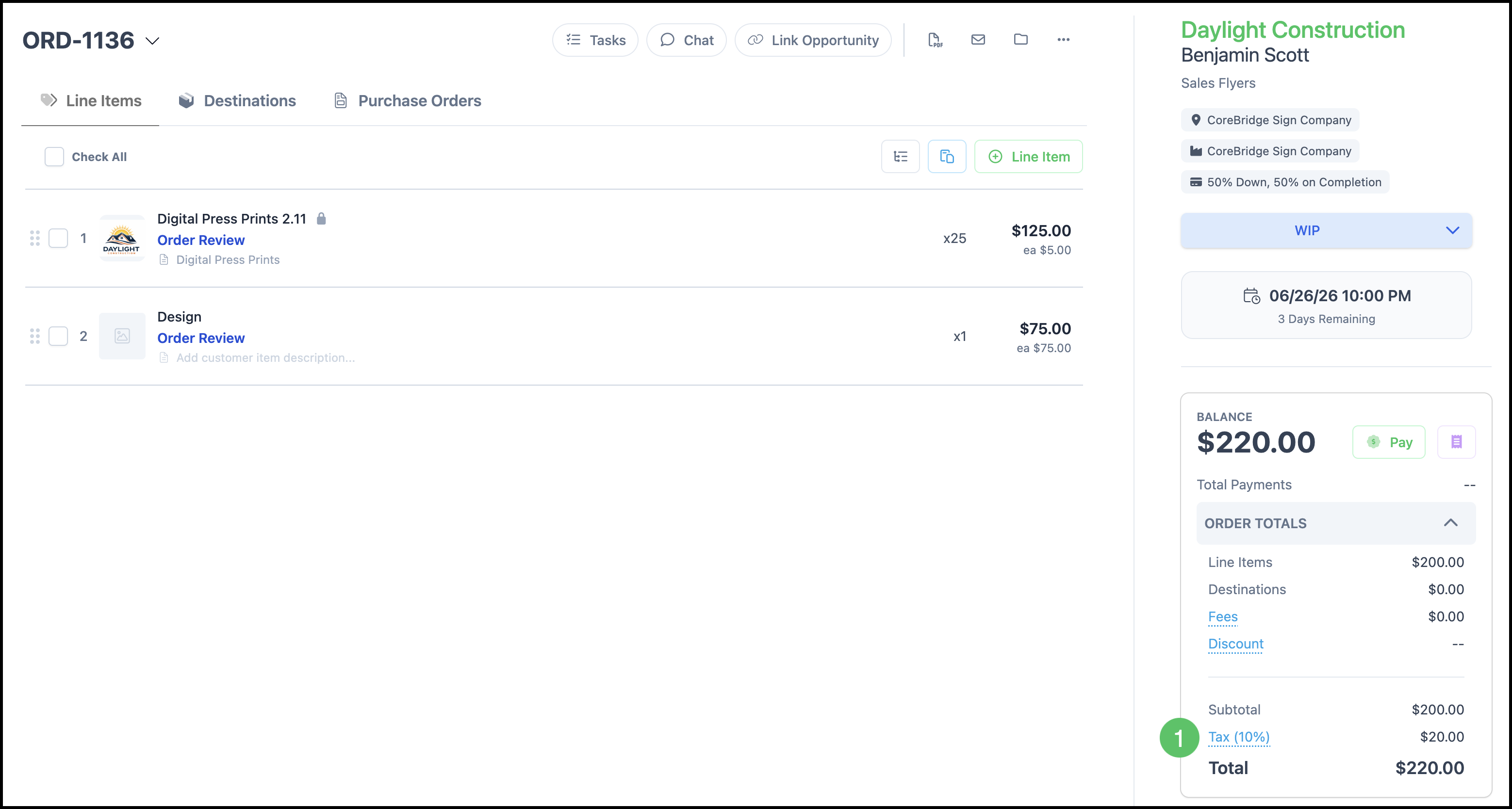
1. In the Order Totals panel, select the Tax amount link.
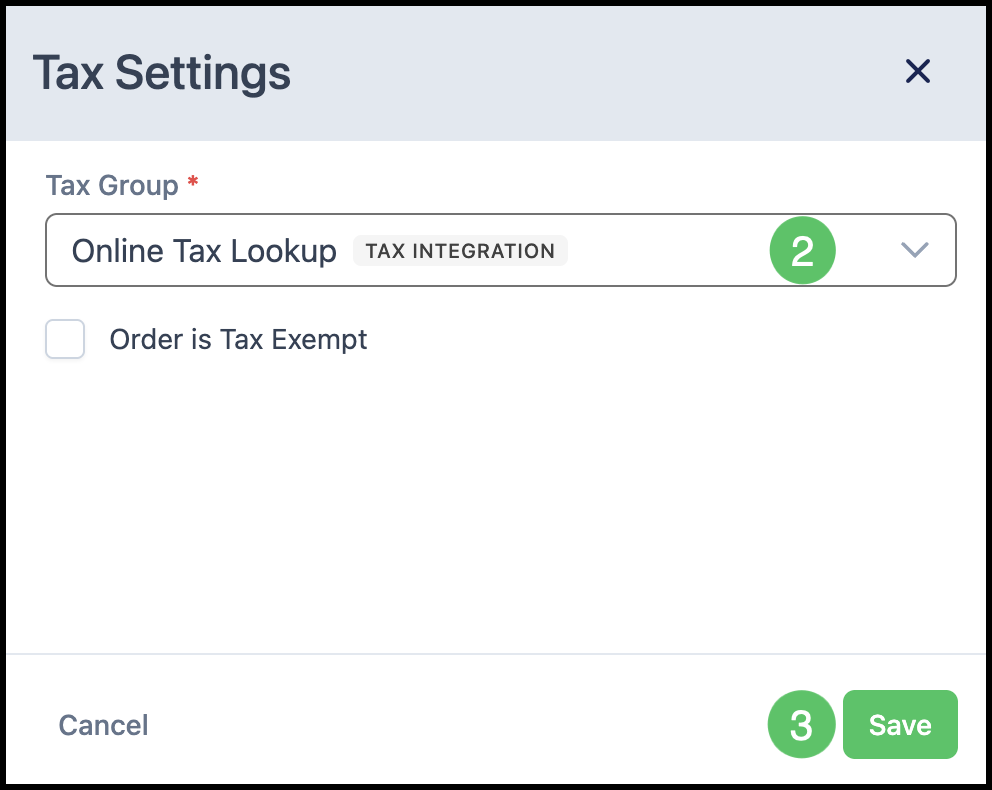
2. In the Tax Settings window, use the Tax Group dropdown to select Online Tax Lookup.
3. Click Save.
Note: With Online Tax Lookup selected, the tax displays as To Be Determined while you're editing the Order. Once you finish making changes, the system saves automatically and triggers the Online Tax Lookup. The Order then displays the correct tax for the customer's location and product type.