
Search Settings allows you to customize which columns appear in a list and saves your preferences for that list. Quick Search provides access to Recent Searches and Recently Viewed records, making it easy to repeat searches or return to previously opened records.
Table of Contents
Important Information
- Search Settings shows or hides columns. The list updates as soon as you select or clear a column.
- A hidden column is not included when you use Search on that list.
- Column choices are saved for you. Other employees keep their own columns.
- Quick Search in the header is separate from Search on a list. When the Quick Search field is empty, Recent Searches and Recently Viewed appear after you have used Quick Search.
- A Recent Search runs that search again. A Recently Viewed record opens that record.
- Showing or hiding a column does not change the Order, Estimate, or Customer record.
Editing Columns
Search Settings allows you to customize which columns appear in lists throughout CoreBridge. The process is the same across supported screens. This article uses Orders as an example.
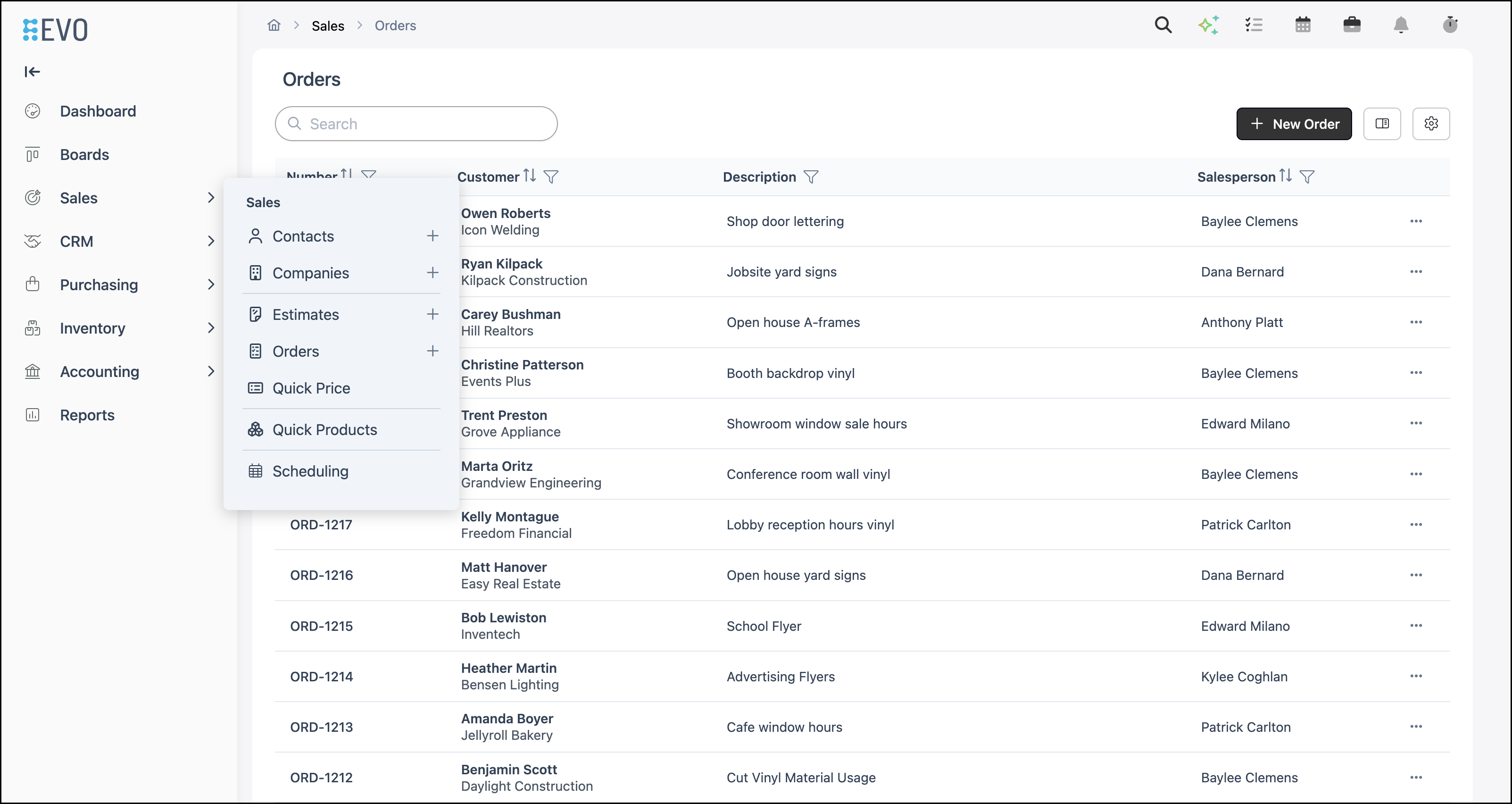
Navigate to Sales / Orders.
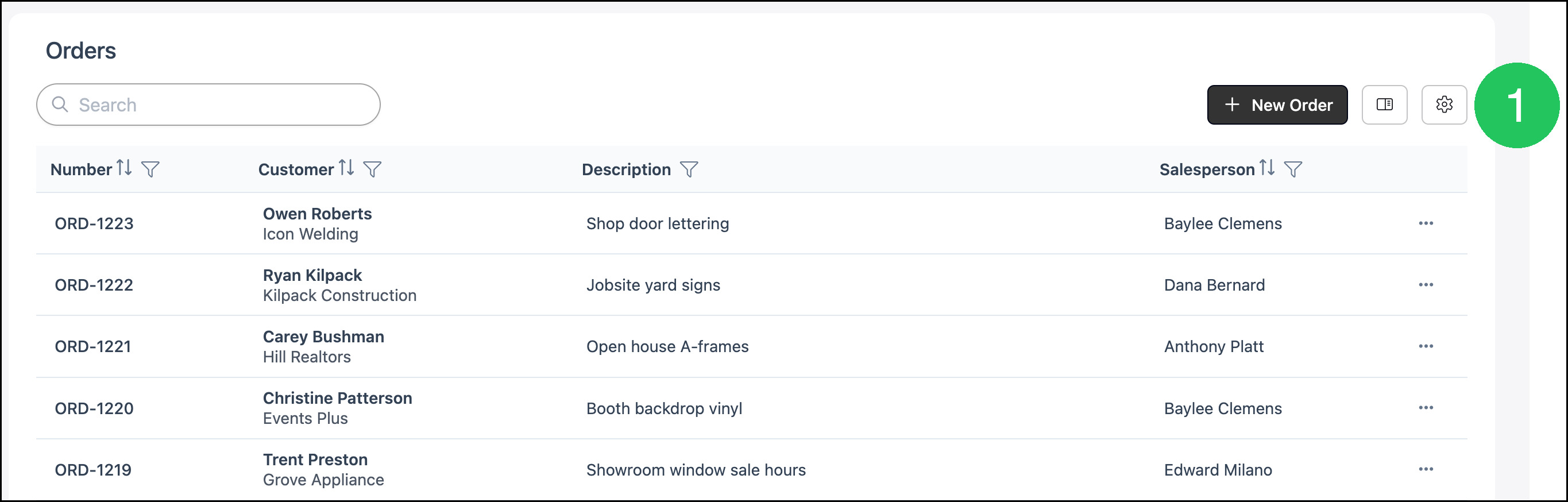
1. Click the Search Settings (gear) icon.
The Search Settings panel opens. The panel shows how many columns are selected.
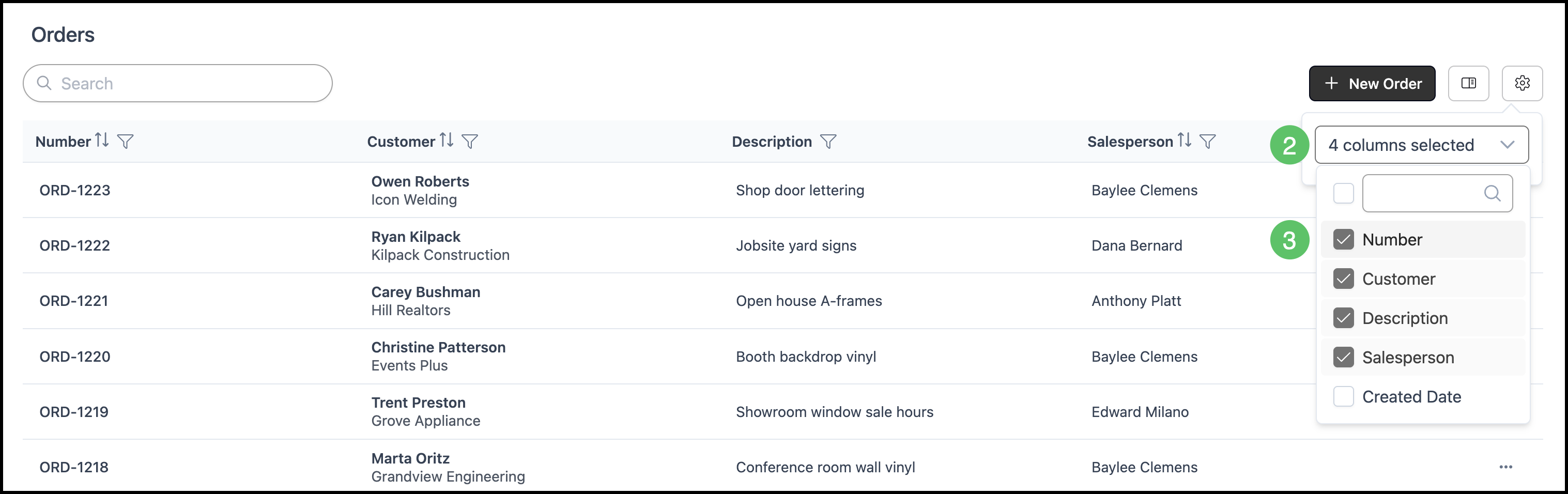
2. Click the dropdown to view the available columns.
3. Use the checkboxes to select which columns will be displayed.
Notes:
- Some lists also include Show Inactive Records in Search Settings.
- For filters on a list, see Using Search and Filters.
Using Recently Viewed
1. Click Quick Search.

The Quick Search window opens. When the search field is empty, your recent activity is listed.
a. Recent Searches - Searches you already ran in Quick Search.
b. Recently Viewed - Records you opened from a Quick Search result.
2. Click a record under Recently Viewed.
The record opens.
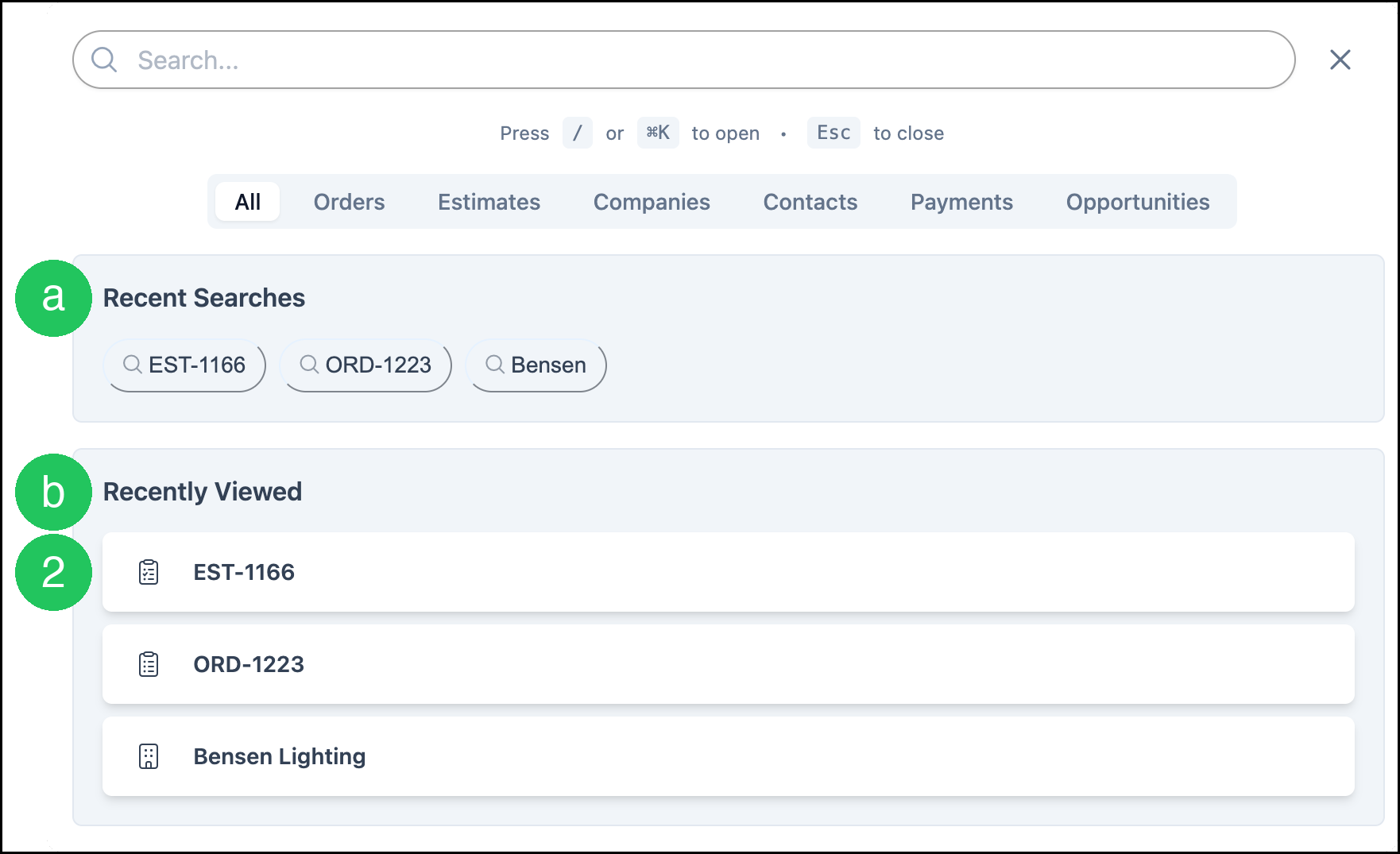
Note: You can also press / or ⌘K to open Quick Search. Press Esc to close it.
Frequently Asked Questions
1. What is the difference between Search Settings and Quick Search?
Answer: Search Settings changes the columns on the list you are viewing. Quick Search finds Orders, Estimates, Companies, Contacts, Payments, and Opportunities from the header.
2. Why is a column missing from a list?
Answer: The column may be hidden in Search Settings. Open Search Settings and select the column to show it.
3. Do column choices change the list for everyone?
Answer: Column choices are saved for you. Other employees keep their own columns.
4. What is the difference between Recent Searches and Recently Viewed?
Answer: A Recent Search runs a previous Quick Search again. A Recently Viewed record is a record you opened from a Quick Search result. Click it to open that record.
5. Can I change the order of the columns?
Answer: Search Settings shows or hides columns. It does not change the order of the columns.