Once an Estimate is approved, it becomes an Order. Orders are purchases from Customers that are in the creation process. Payment can be taken at this stage depending on the payment terms for the individual Company or Contact.
Table of Contents
Orders
To find all Orders, navigate to Sales / Orders.
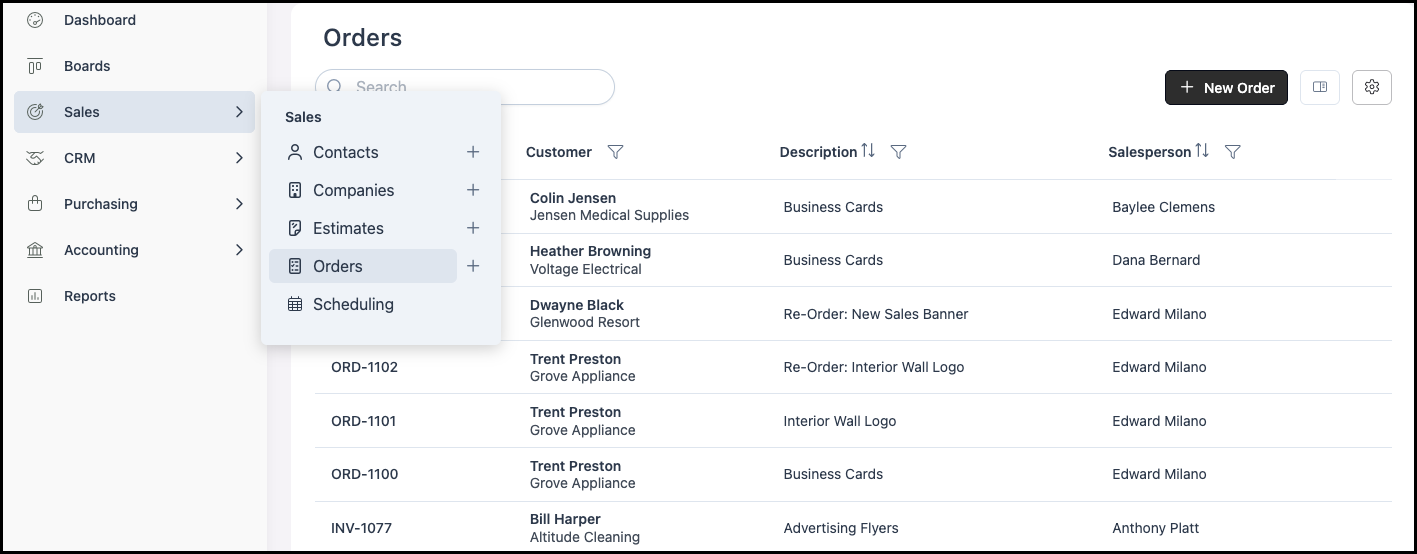
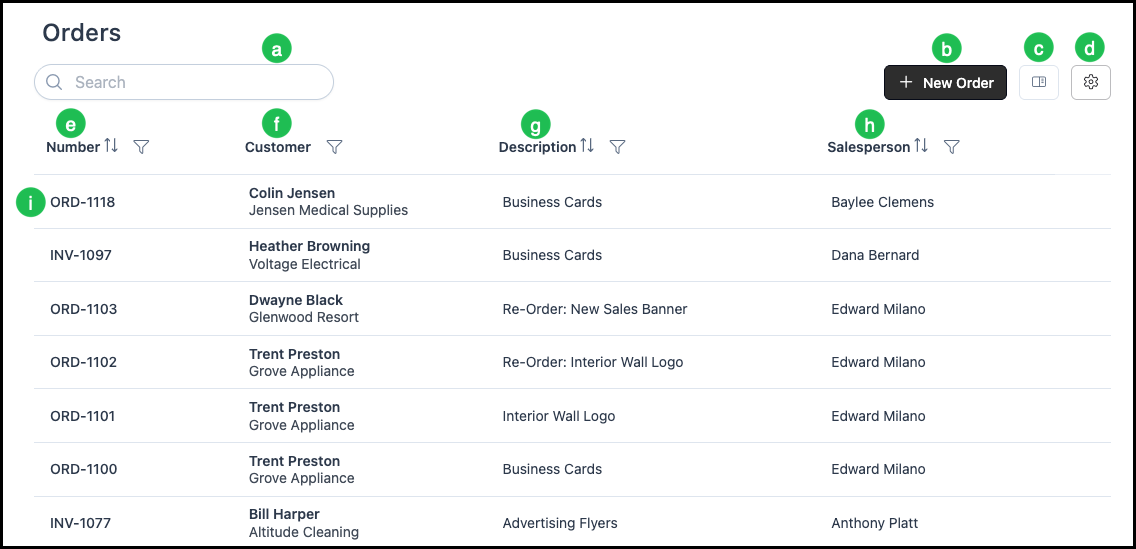
The Orders list shows saved Orders in a table with columns such as Number, Customer, Description, and Salesperson.
a. The Search box allows you to find Orders by number, Customer, or other criteria.
b. The New Order button will begin the process of creating a new Order.
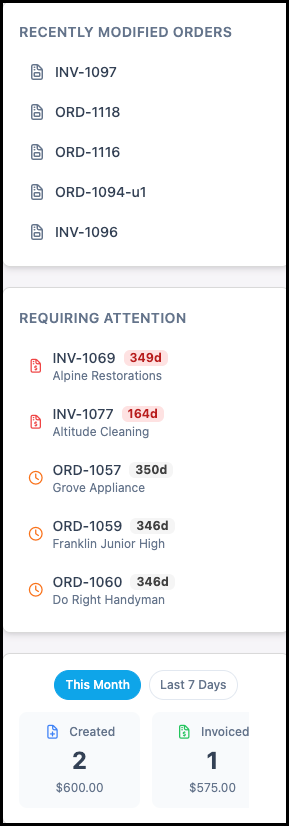
c. The Insights Panel button will open a side panel listing recently modified Orders, those requiring attention, and an activity overview.
Note: See Insights Panel Example below.
d. The Search Settings icon allows you to choose which columns are displayed.
e. Number - Unique ID for the Order (e.g., ORD-1422). The prefix may differ for Orders that have been Invoiced, depending on Settings / Sales / Numbering Options.
f. Customer - The Contact and Company (or personal account) the Order is for.
g. Description - A short summary of what the Order contains.
h. Salesperson - The Employee assigned to the Order.
i. Clicking a row or the Order number will open an existing Order.
Insights Panel Example:
Order Information
The Order screen shows key information.
a. Order number - Clicking the arrow to expands Order Milestones.
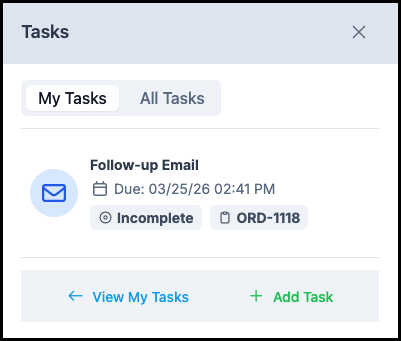
b. Tasks - Opens the Tasks panel for this Order. Create and manage Tasks that need to be completed in conjunction with the Order (e.g., follow-ups, production steps).
Note: See Tasks Example below.
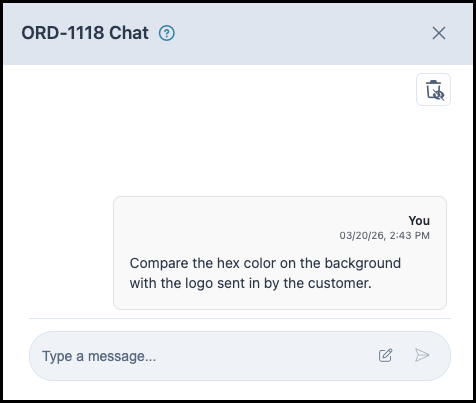
c. Chat - Opens the Order Chat so you can add internal comments and conversation about the Order. Comments are saved manually and can be marked important or hidden.
Note: See Chat Example Below.
d. Export - Exports or downloads the Order (e.g., to PDF or another format) for sharing or records.
e. Email - Opens the email composer to send an email about the Order, often using Order email templates.
f. Files - Opens the files area for this order. View, upload, or manage documents associated with the Order.
g. More actions (ellipsis or more icon) – Opens a menu with options such as Create Credit Memo, Clone, and Void. Use Create Credit Memo to create a Credit Memo for refunds or adjustments. Use Clone to duplicate the Order. Use Void to void the Order when appropriate.

Tasks Example:
Chat Example:
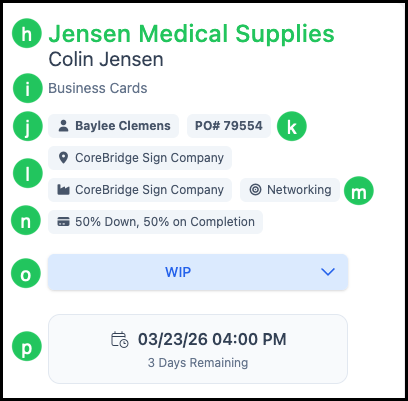
h. Customer - Company and Contact; each is a link that opens the Company or Contact page.
i. Description - What the Order contains.
Note: This is Customer facing information.
j. Salesperson - The Employee assigned to the Order.
k. Purchase Order number provided by the Customer.
l. Location(s) - Sales and Production Location when applicable.
m. Order Origination - How the Customer found you.
Note: Origination options can be managed in Settings / Sales / CRM Lists.
n. Payment Terms - Payment Terms outline the timing and conditions of payment, such as due dates, deposits, or installment schedules.
o. Status - Workflow status (e.g., WIP, Invoiced). Use the status dropdown to change it when allowed.
p. Order Due Date - Displays the number of days left until the Order Due Date.
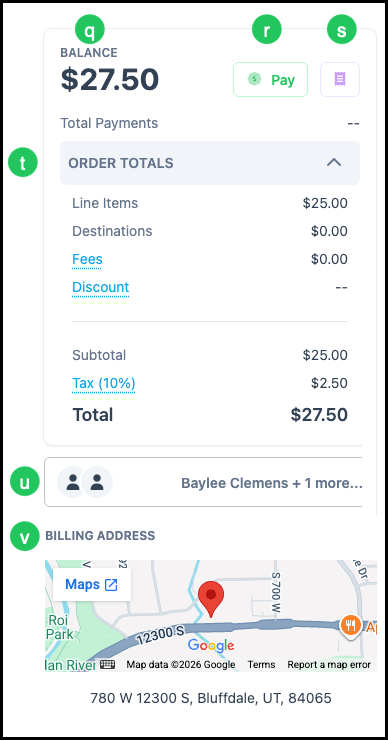
q. Balance shows the amount due.
r. Pay - Clicking here begins the payment process.
s. History - This shows the payments that have been made on this Order.
t. Order totals - Line Items, Destinations, Fees, Discount, Subtotal, Tax, and Total. Click Fees, Discount, or Tax to edit when the Order is editable.
u. Roles - Employees assigned to Roles for this Order (e.g., Salesperson).
v. Billing address - The billing address for the Order.
Note: Use Edit icon at the top to change Customer, description, or other Order-level details when the Order is not locked (e.g., before it is invoiced or closed).
Line Items
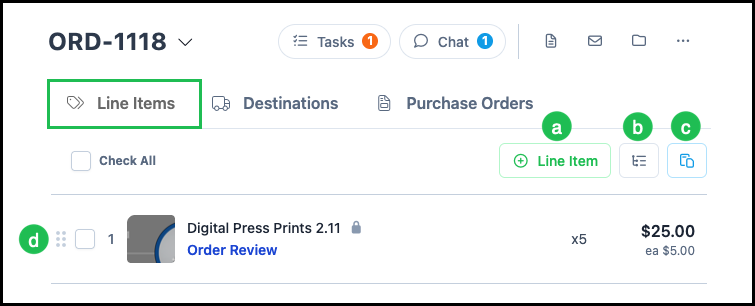
The Line Items tab lists the products and services on the Order. Each Line Item can be an Assembly, Labor, Material, Quick Product, or other Component configured in your system.
a. Add Line Item adds a product or service. Choose the type of item (e.g., Assembly, Labor, Material, Quick Product), select the specific item, and add it to the Order.
b. The Bill of Materials icon allows you to view or export the Bill of Materials.
c. The Clipboard icon allows you to paste line items from the Clipboard if you have copied items from another Order.
d. The Line Items list shows each item on the Order. You can edit, reorder, or remove line items when the Order is editable.
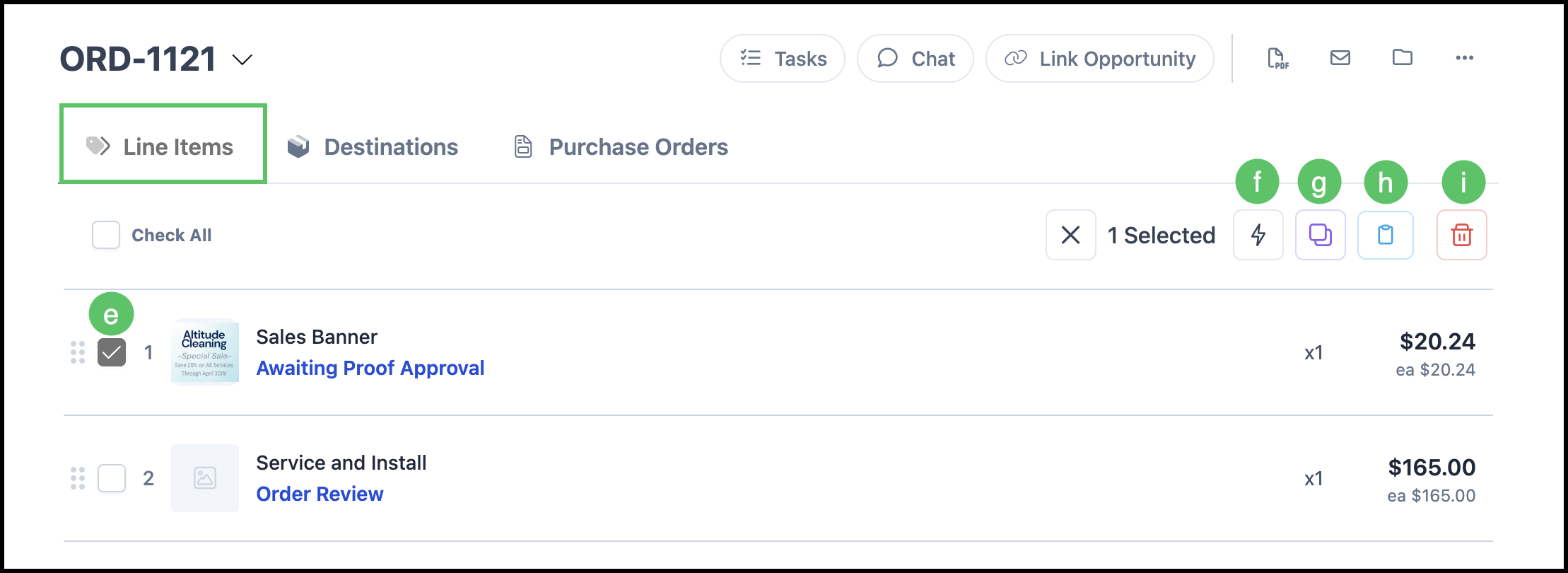
e. Checking one or more Line Items brings up further options.
f. Create Group Quick Product - Add this Line Item to Quick Products for future use.
g. Clone - Duplicate the Line Item on this Estimate.
h. Clipboard - Copy this Line Item to the Clipboard to use on other Orders or Estimates.
i. Delete Line Item.
Destinations
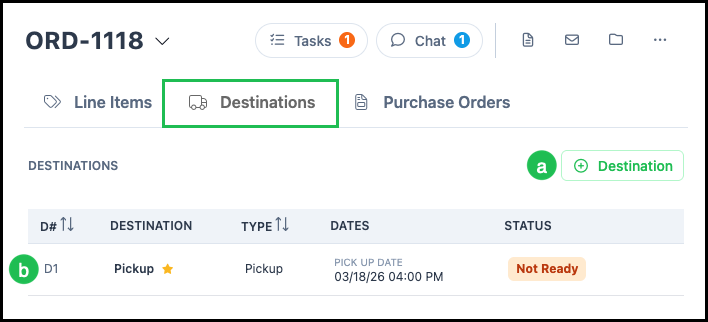
Destinations define the final step in the Order process - how the completed product reaches the Customer, whether through pickup, delivery, or another fulfillment method.
a. Add Destination begins the process of adding a Destination to this Order.
b. The Destination list shows information such as the Destination, Type, Dates, and Status on each Destination.
Note: Clicking on the Destination allows you to edit information or update the Destination Status.
Purchase Orders
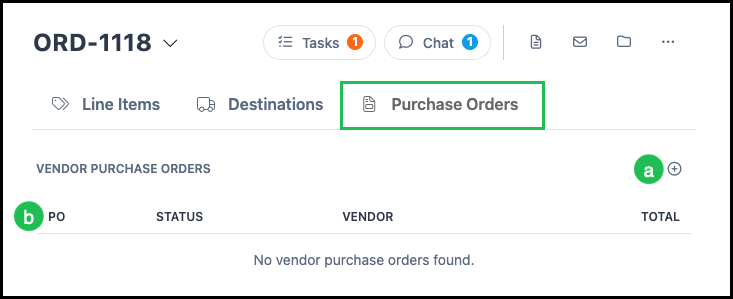
The Purchase Orders tab shows vendor purchase orders linked to this Order. These are orders for goods or services that need to be purchased from a vendor before the Customer Order can be completed.
a. Use the add button (e.g., plus icon) in this tab to create a new vendor purchase order for this Order when the option is available.
b. The list displays columns such as PO (purchase order number), Status, Vendor, and Total. If there are no vendor purchase orders yet, the list will indicate that.