
When proofs are posted on an estimate and the customer approves, the estimate can convert to an order. If proofs do not appear on that order, check the Copy Approvals setting under Estimate and Order Options. When this option is off, proofs and approvals may not carry over - this is expected Legacy behavior.
Table of Contents
How to Enable Copy Approvals
- Go to Settings / Sales / Estimate and Order Options.
- Open the Orders tab.
- Scroll to the Cloning Defaults section.
- Check Copy Approvals.
- Confirm the page shows Saved (changes save automatically).
See marked screenshot in attached visual below (Orders tab in green; Copy Approvals in red).
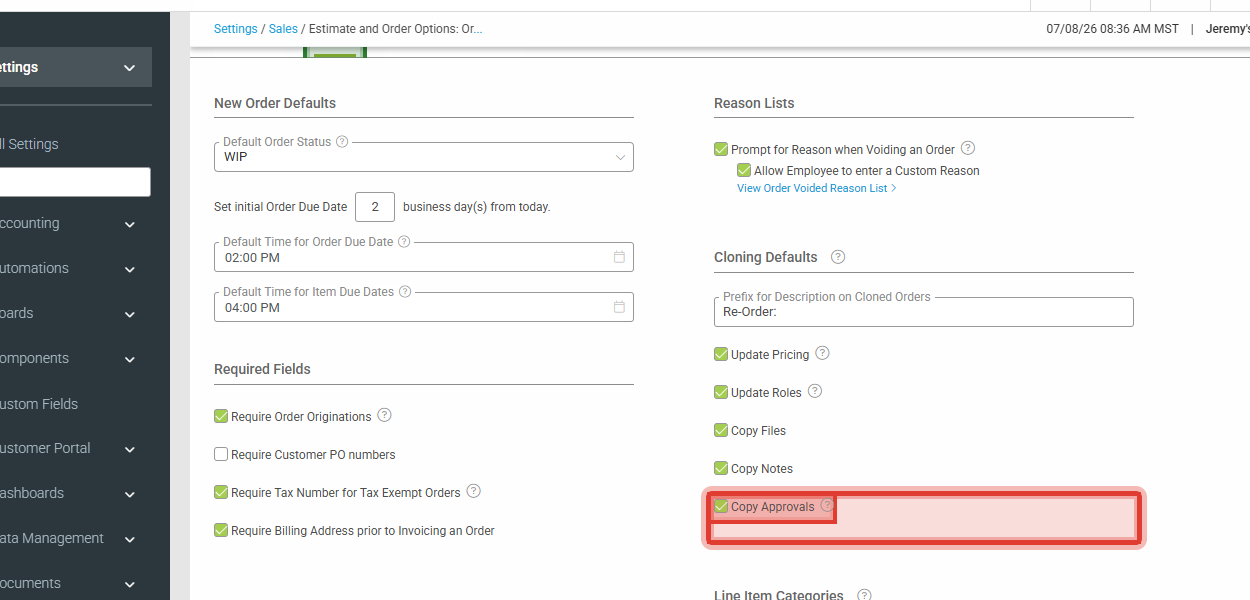
Location: Settings > Sales > Estimate and Order Options > Orders > Cloning Defaults > Copy Approvals
What Copy Approvals Does
When Copy Approvals is checked, approvals (and the related proofs) from the estimate carry over to the newly created order after the estimate is approved and converts.
Other Cloning Defaults options on the same screen - such as Copy Files, Copy Notes, Update Pricing, and Update Roles - control related carry-over behavior. They are separate from Copy Approvals.
Important Notes
- This applies to Legacy (V3). Enabling the setting affects new conversions going forward.
- Orders that already converted while Copy Approvals was unchecked will not automatically receive missing proofs from this setting alone.
- If proofs still do not appear after the option is enabled, gather an example estimate or order number for further review.