
The Avalara integration connects your CoreBridge system to Avalara's tax engine, automatically calculating tax rates based on customer location and product type. Use this article to set up the integration, configure company defaults, and apply Avalara to individual Orders.
Note: CoreBridge can assist with integration setup and how the integration works within the system. Questions related to Avalara's platform should be directed to Avalara.
Table of Contents
Benefits of Integrating with Avalara
Connecting Avalara to CoreBridge streamlines tax compliance and reduces manual effort across your transactions.
- Accurate tax calculation. Automatically applies the correct tax rate based on customer location and product type, reducing manual errors.
- Streamlined compliance. Leverages Avalara's tax engine to handle complex tax rules across different regions.
- Flexible application. Avalara can be set as the default for a Company or applied to individual Orders, Estimates, and other transactions as needed.
How to Connect Avalara
This article explains how to connect your Avalara account to CoreBridge. Before you begin, make sure you have an active Avalara account and your Account Number, License Key, and Company Code available. If you're unsure where to find these values, this article also shows where they are located in the Avalara portal.
Navigate to Settings / My Business / Integrations Marketplace.
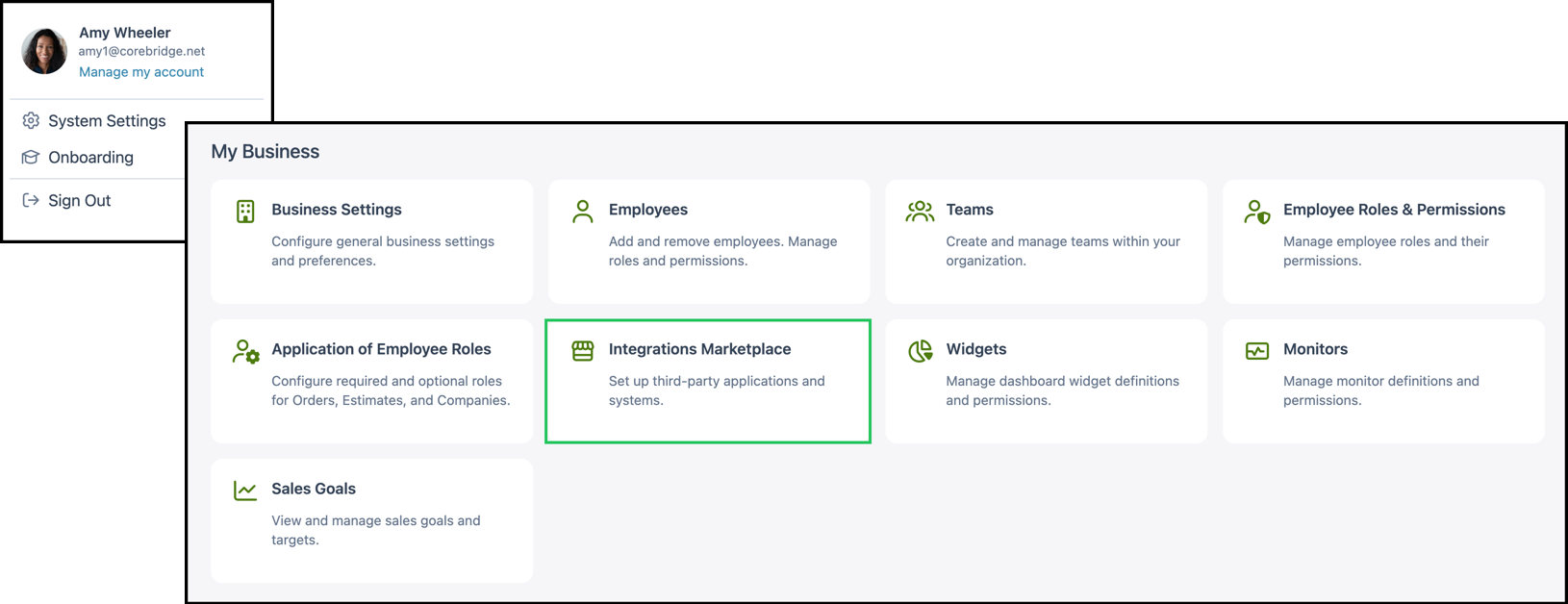
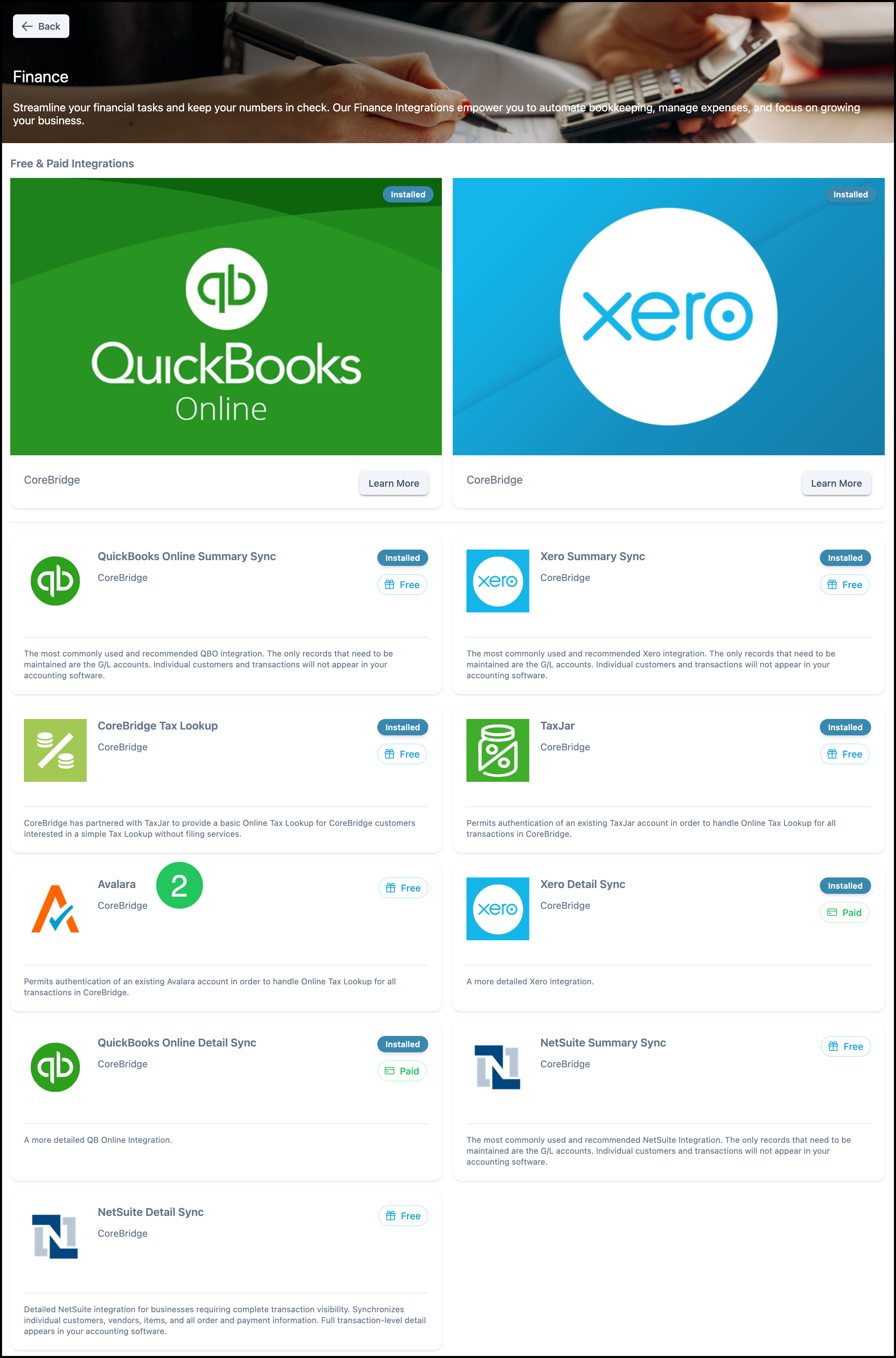
1. Click the Finance Category.
Note: You can also find Avalara using the Search bar or looking in All Categories.

2. Click on the Avalara card.
3. Click Install.
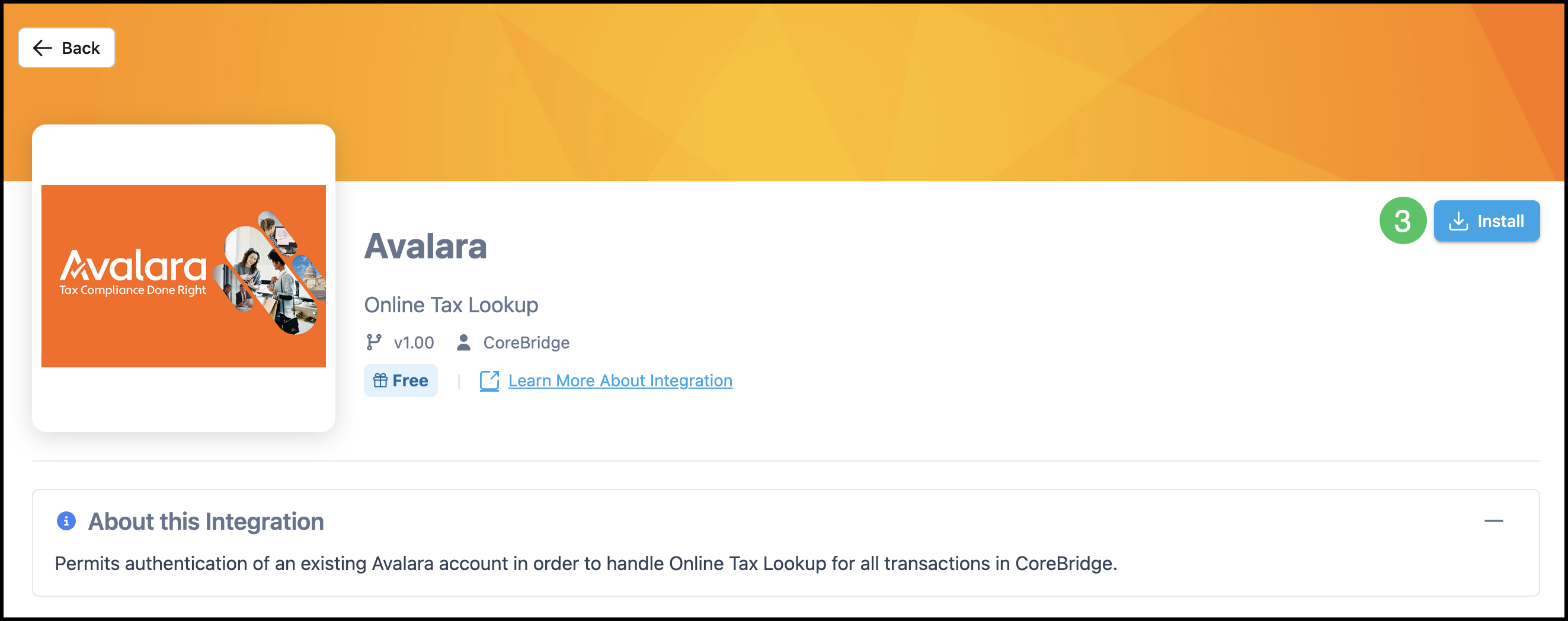
Note: This will automatically take you to the Avalara setup page. You can finished connecting now, or return here at anytime by navigating to System Settings / Integrations Marketplace / Finance / Avalara.
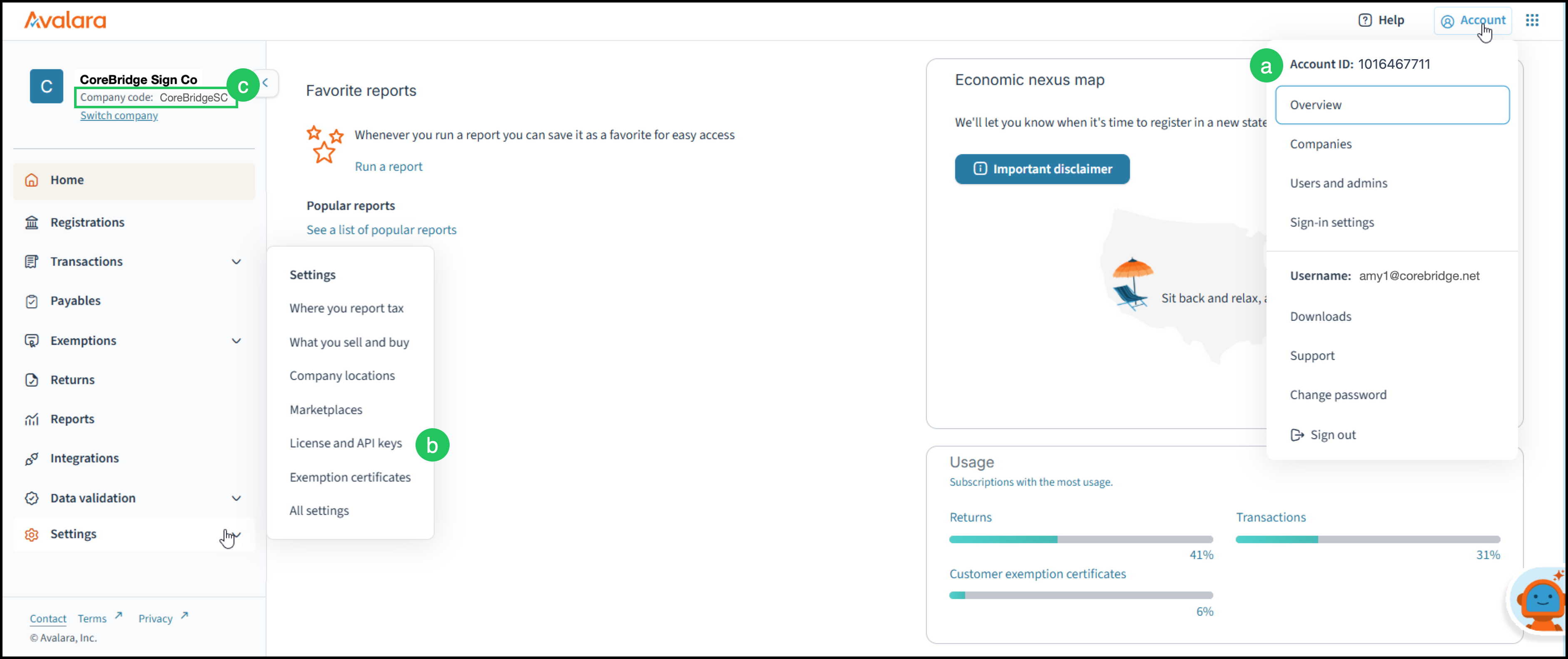
4. Enter your Account Details. The example below shows where these items are located on your Avalara screen.
Note: These should have been provided to you when setting up your Avalara account.
a. The Account Number can be found beneath the Account dropdown in the top right corner of your Avalara screen after you sign in.
b. The License Key can be found by navigating to Settings / License and API Keys.
c. The Company Code can be found on the top left of your screen or by navigating to Account / Companies. The code will be listed on the left there.
Note: The Company Code must match the Company Code configured for your company in the Avalara portal. If your Avalara account contains multiple companies, be sure to use the Company Code for the correct company. This is not the name of an API token, license key, or other credential.
Note: Updates to your Company Code may take up to 24 hours to be reflected in CoreBridge.
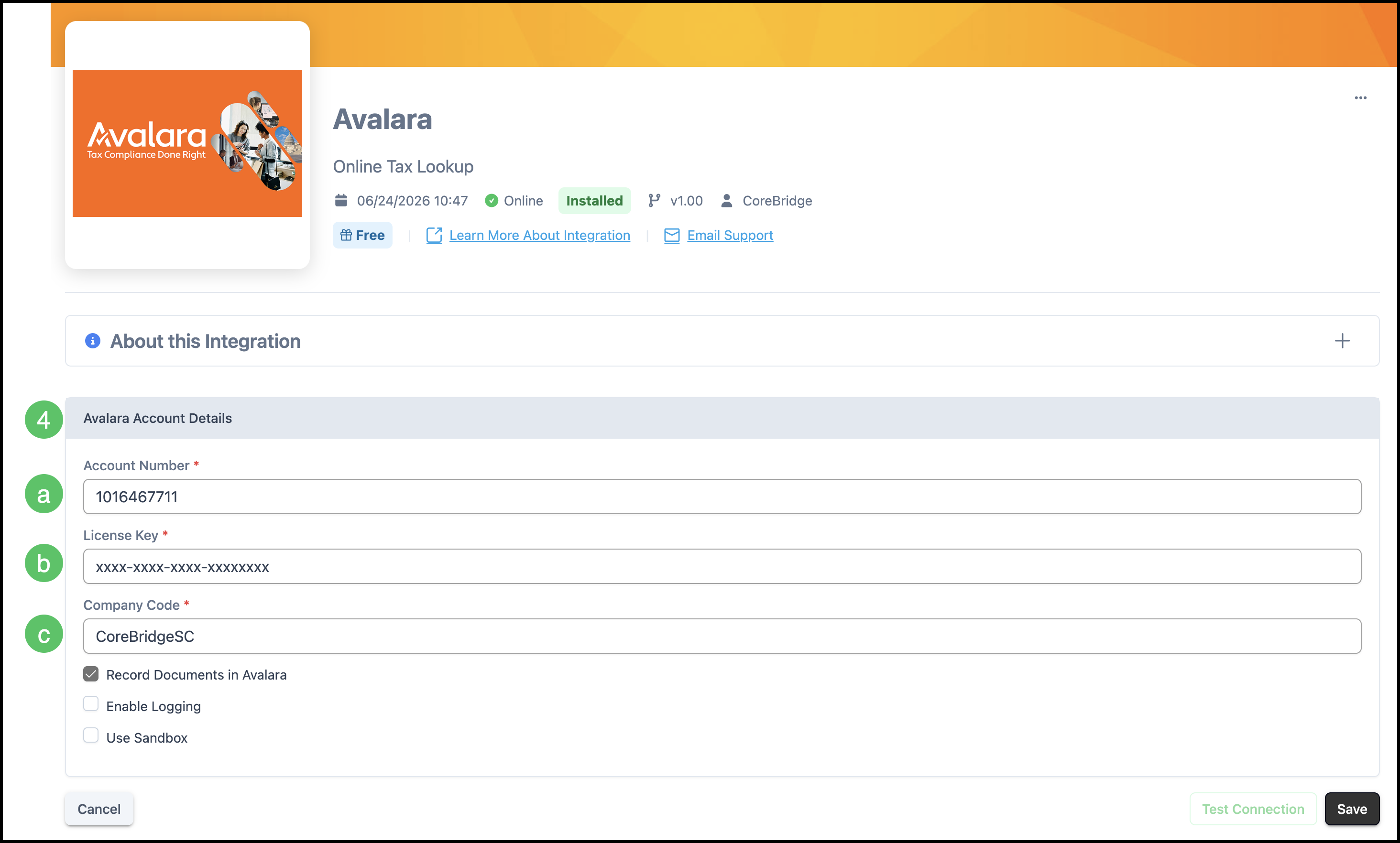
Example:
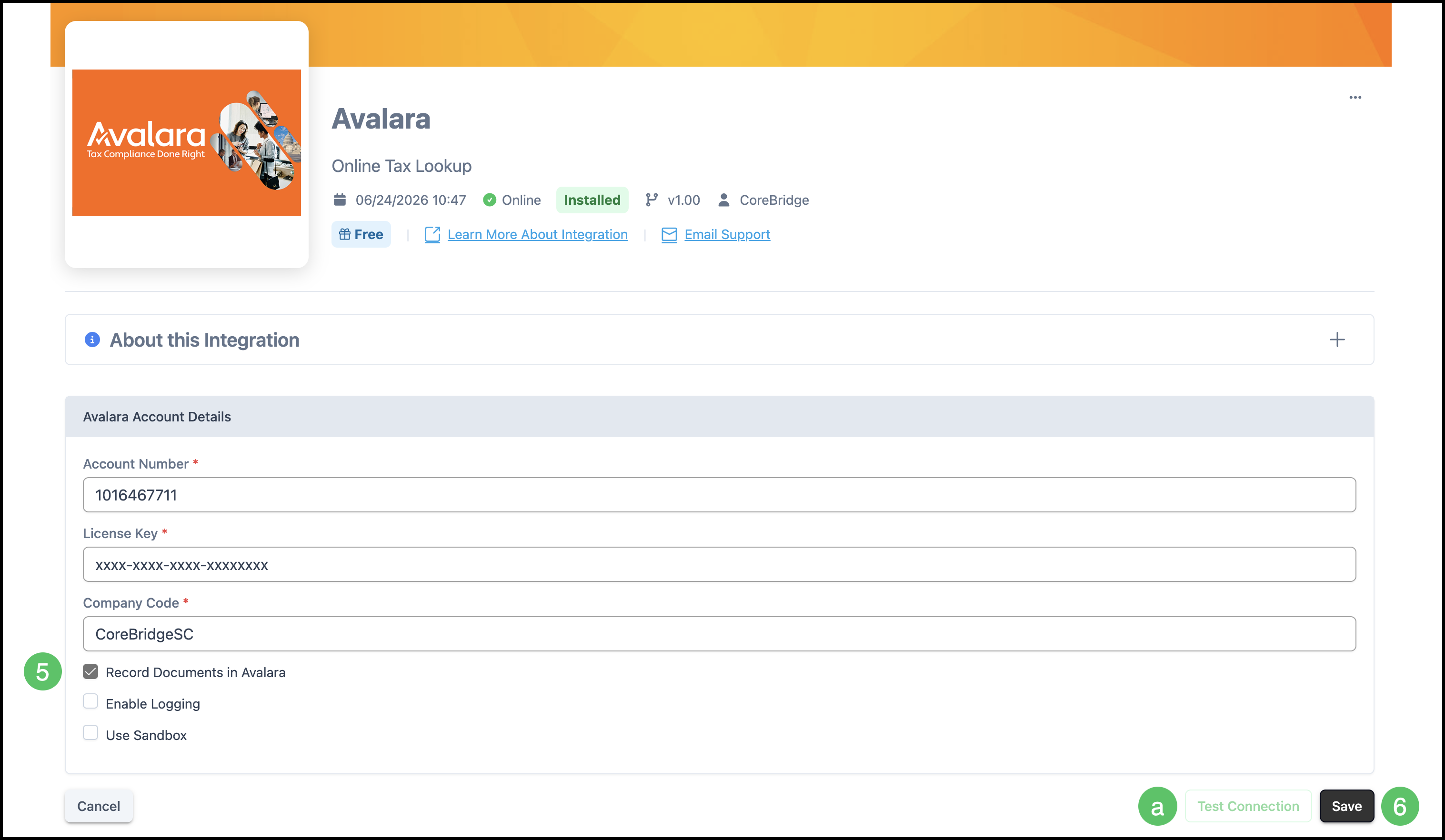
5. Select your configuration options:
- Record Documents in Avalara - Automatically commits tax documents after calculation.
- Enable Logging - Logs the details of the tax calculation process to support troubleshooting.
- Use Sandbox - Tests the integration in a sandbox environment before going live.
6. Click Save.
a. Test Connection is available to confirm the integration is set up correctly.
Note: For reporting, Avalara's own reporting tools are recommended over CoreBridge reports.
Note: Before Avalara is available for use, it must be set to Active.
7. Click More Actions menu.
8. Select Set Active.
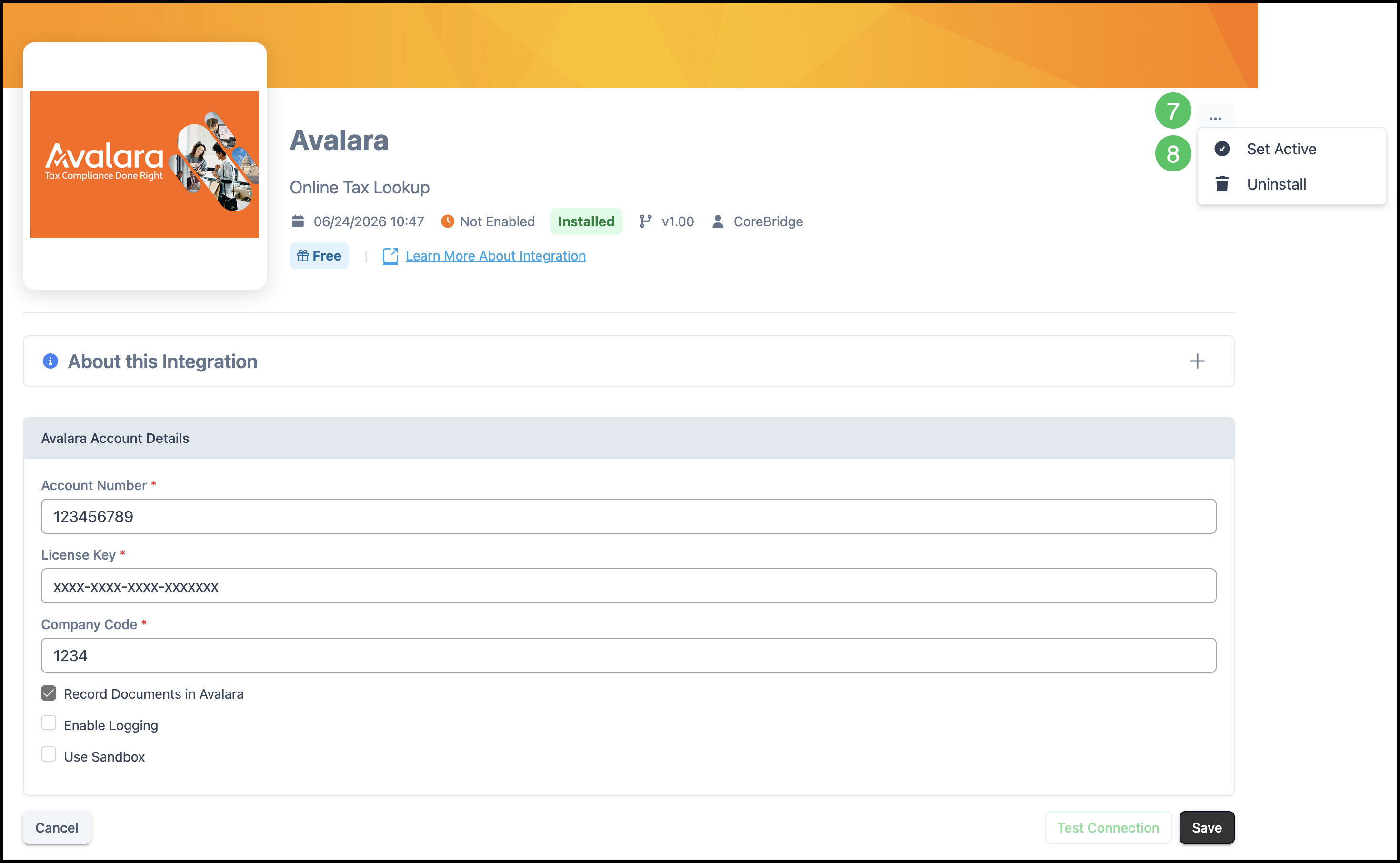
Once activated, you will see that Avalara is Online.

Setting Avalara as the Default Tax Option
The Online Tax Group determines which online tax provider is used for new Estimates and Orders. Once Avalara is configured as the active online tax provider, any Company assigned to the Online Tax Group automatically uses Avalara without requiring additional updates.
Navigate to Sales / Companies and select the appropriate Company.
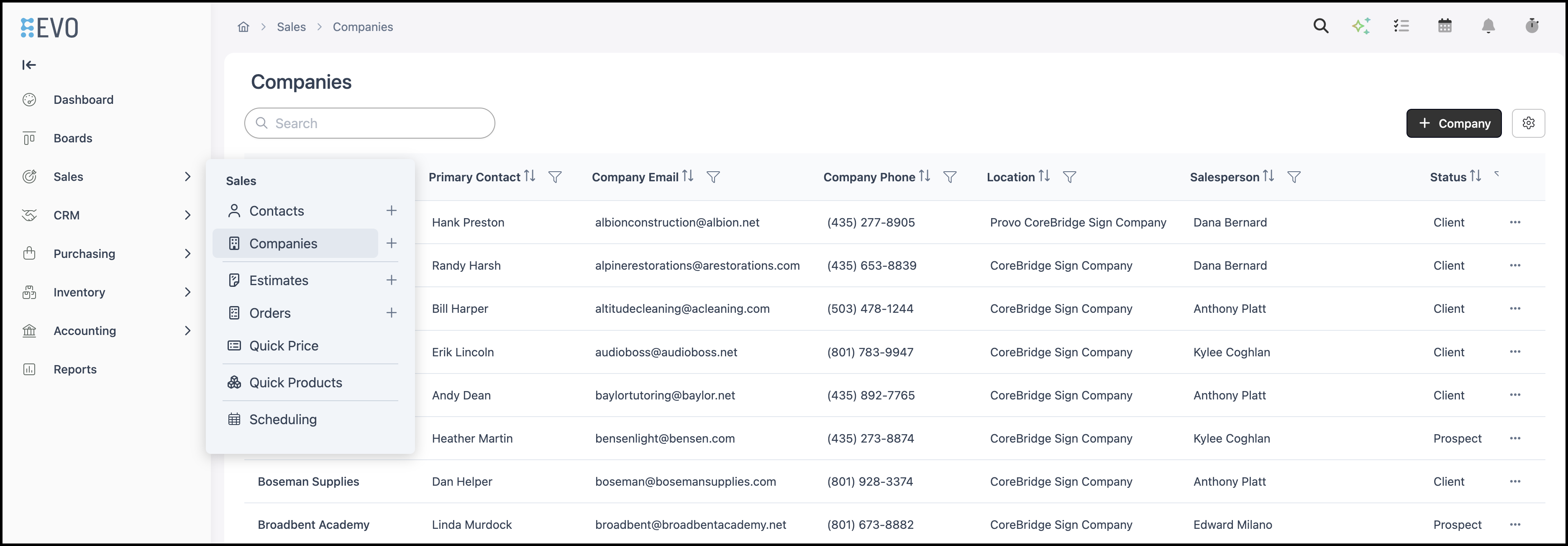
1. Select Edit.

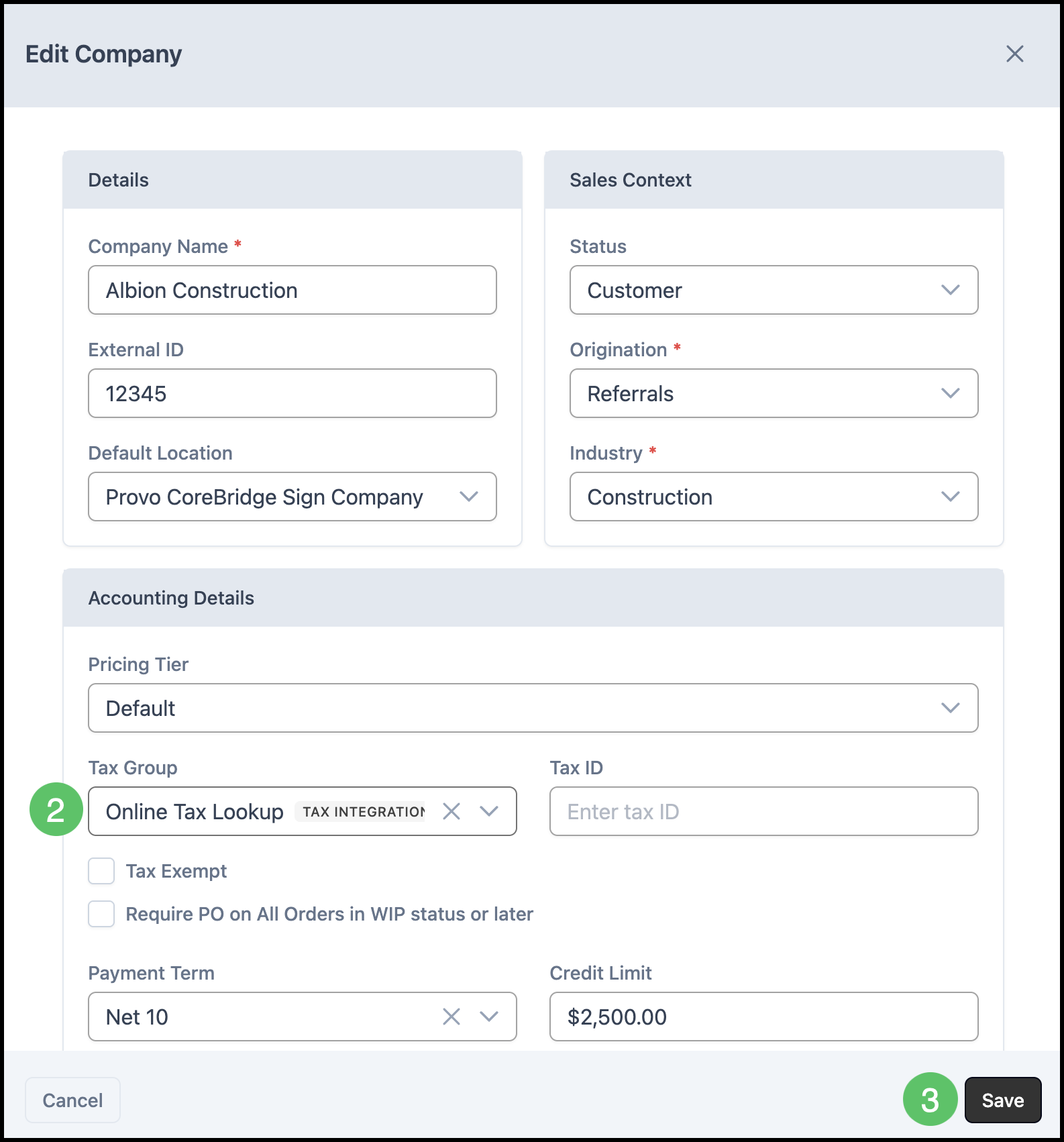
2. Under the Accounting Details section, use the Tax Group dropdown to select Online Tax Lookup.
3. Select Save.
Applying Avalara to an Individual Order
If Avalara is not set as the default, it can be applied directly to a specific Order, Estimate, Credit Memo, or Purchase Order. Note: This article will use Order as the example, but the functionality is the same regardless of the record type.
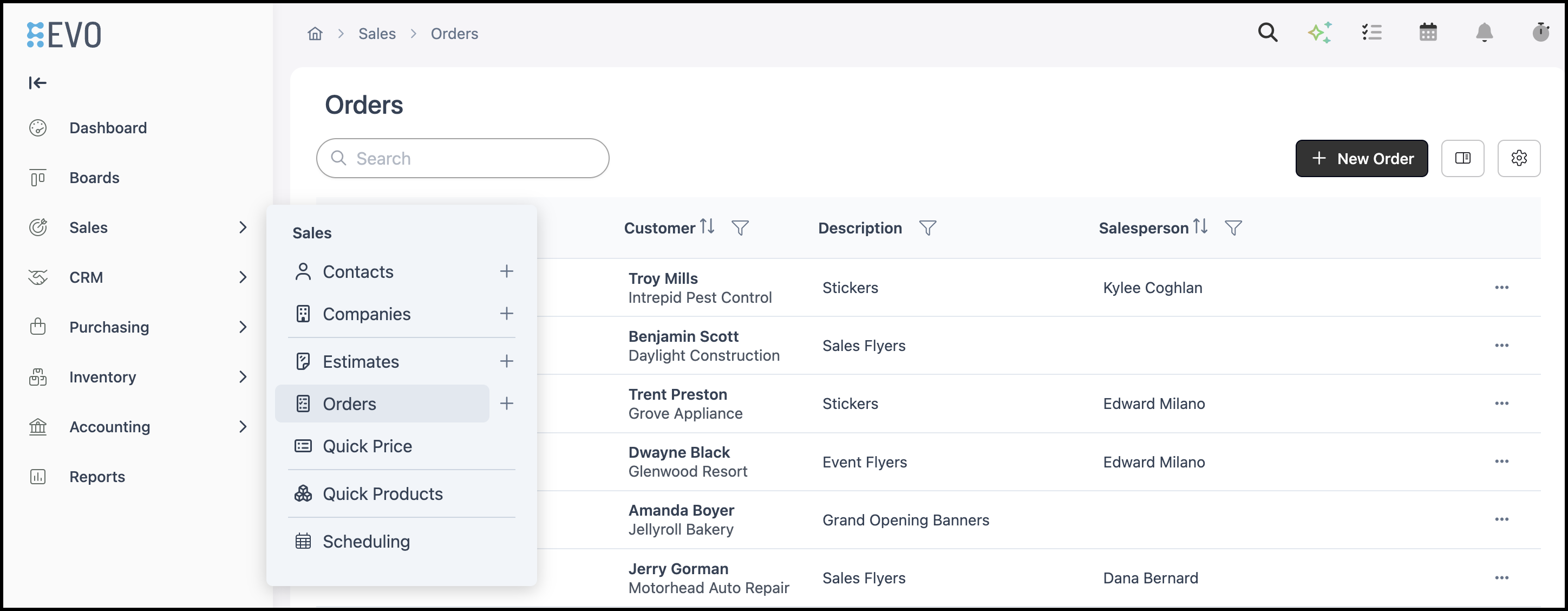
Navigate to Sales / Orders and select the appropriate Order.
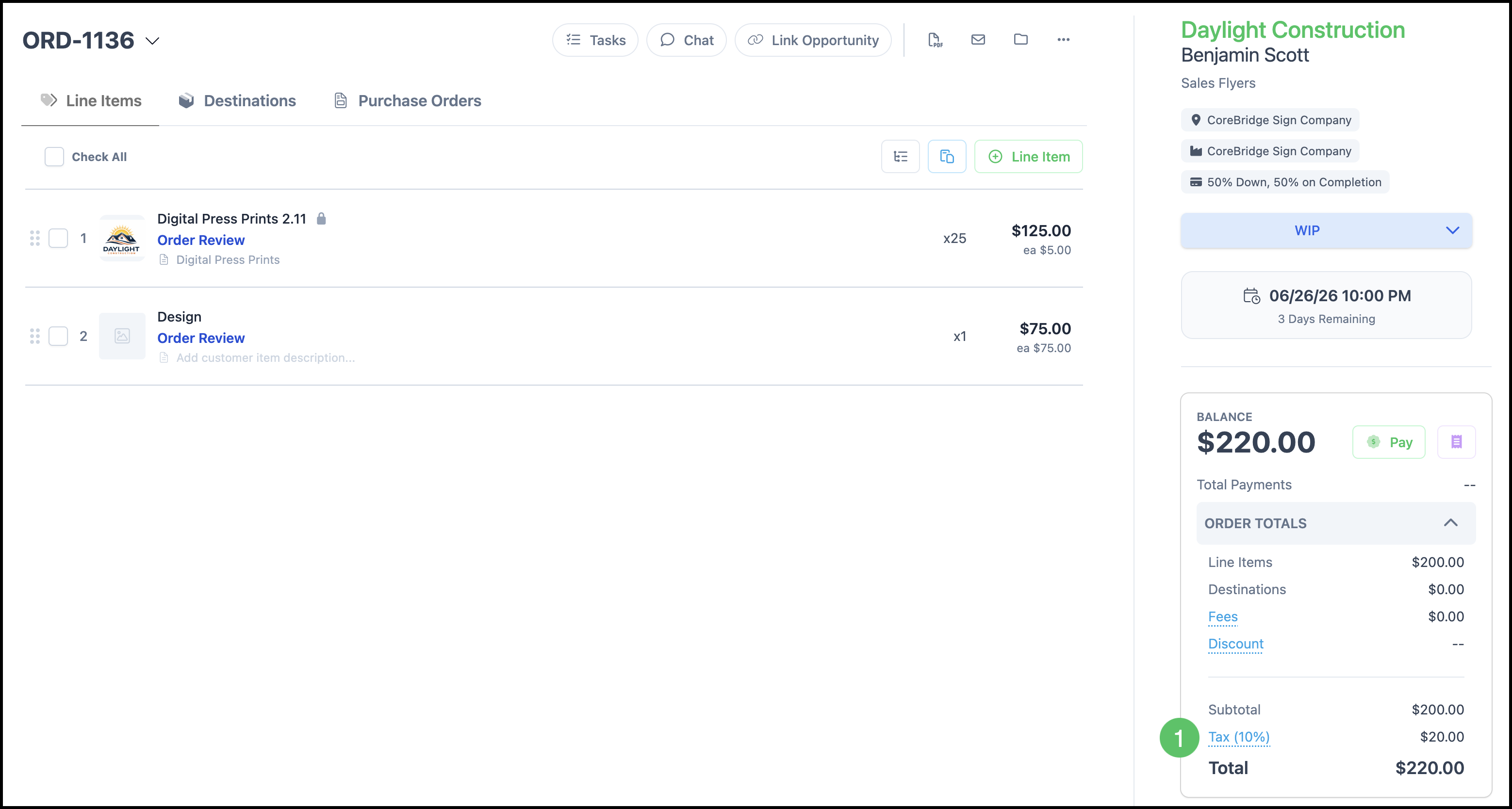
1. In the Order Totals panel, select the Tax amount link.
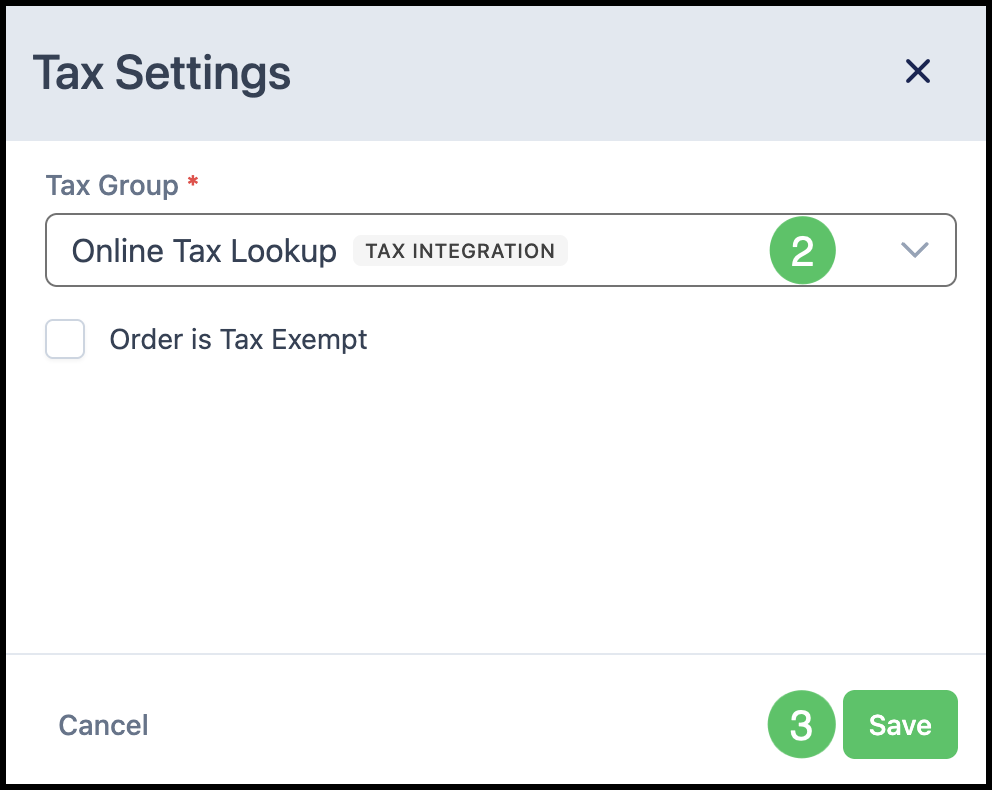
2. In the Tax Settings window, use the Tax Group dropdown to select Online Tax Lookup.
3. Select Save.
Note: With Online Tax Lookup selected, the tax will display as To Be Determined while you are editing the Order. Once you finish making changes, the system saves automatically and triggers the Online Tax Lookup. The Order will then display the correct tax for the customer's location and product type.
Frequently Asked Questions
1. Can an Order have more than one tax amount when it ships to multiple Destinations?
Answer: Yes. If an Order includes multiple Destinations, or "Ships To" addresses, Avalara can calculate separate tax amounts based on each Destination. These tax calculations are applied behind the scenes and are not currently displayed individually on the Order. Tax details may be available through tax reporting.
2. What address does Avalara use if an Order does not have a Destination?
Answer: If no Destination is associated with the Order, Avalara uses the Production Location address. If there is no Production Location address, the Sales Location address determines tax calculations.
3. Is there a hierarchy that determines which address Avalara uses for tax calculations?
Answer: Avalara evaluates the address information available on the Order to determine the correct tax calculation. If no applicable Destination or Billing Address is available, the sales location address is used. Refer to Avalara-specific documentation for complete details on address precedence and tax calculation rules.
4. What actions commit an Avalara transaction?
Answer: Creating an Avalara transaction and committing it are separate actions. An Avalara transaction is committed when:
- An Invoice is created for the Order.
- A Credit Memo is posted.
Until one of these actions occurs, the Avalara transaction remains uncommitted.
5. Where can I view the individual tax calculations for multiple Destinations?
Answer: Individual tax calculations for multiple Destinations are not currently displayed directly on the Order. Tax reporting may provide additional visibility into how taxes were calculated.
6. Where do I find my Company Code in Avalara?
Answer: Your Company Code is found in your Avalara account under Companies. It is a short code assigned to your company and is different from the name of any API token or credential. When setting up the Avalara integration in CoreBridge, enter the Company Code exactly as it appears in your Avalara Companies list. Entering the wrong value will prevent tax calculations from completing.
Note: If you update your Company Code, it may take up to 24 hours for the change to take effect in CoreBridge.
7. Can I set an Order to tax exempt when Avalara is enabled?
Answer: Yes. When Avalara is enabled, you can still set an individual Order to tax exempt using the Tax Settings on the Order. Once saved, the Order will reflect a $0 tax amount. If the previous tax percentage appears briefly before updating, this is expected — the display will refresh once the change is saved.