Inventory integrates directly with Orders, making it easy to view Material availability and manage stock throughout the production process. This article explains how inventory information appears on Orders and how to reserve Materials when needed. Before using these features, configure the Reserve-When and Reduce-When settings in Inventory Settings. Materials are automatically reserved or reduced when a new Order reaches the corresponding Workflow Status.
Table of Contents
Inventory in Orders
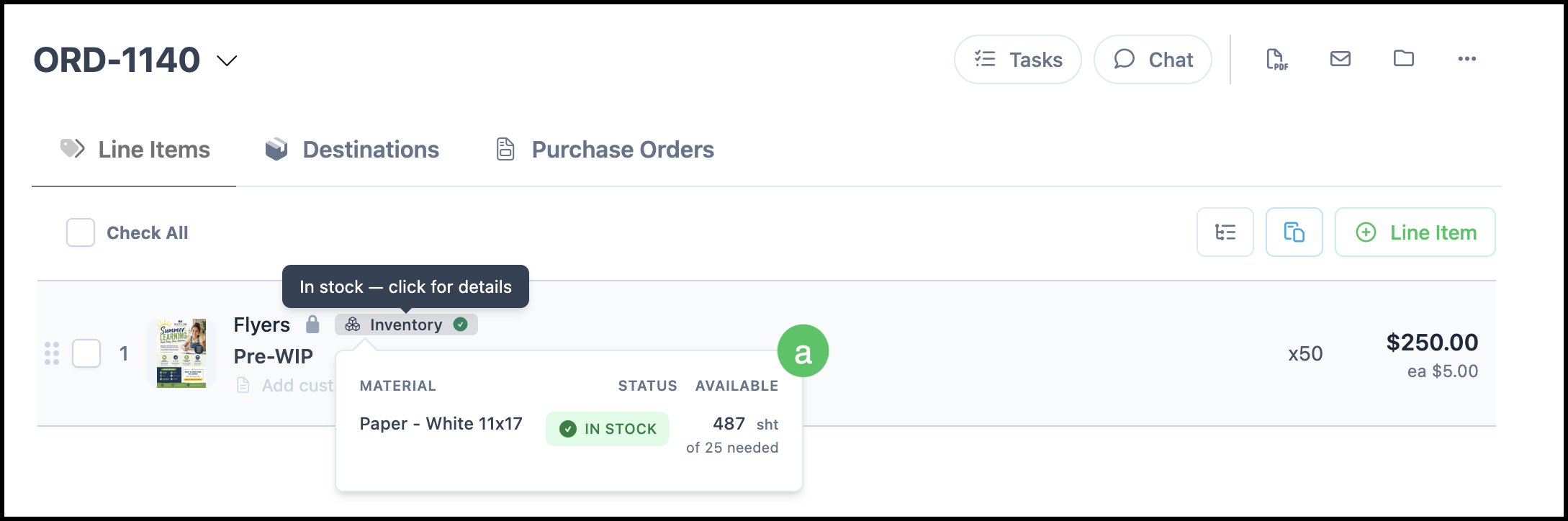
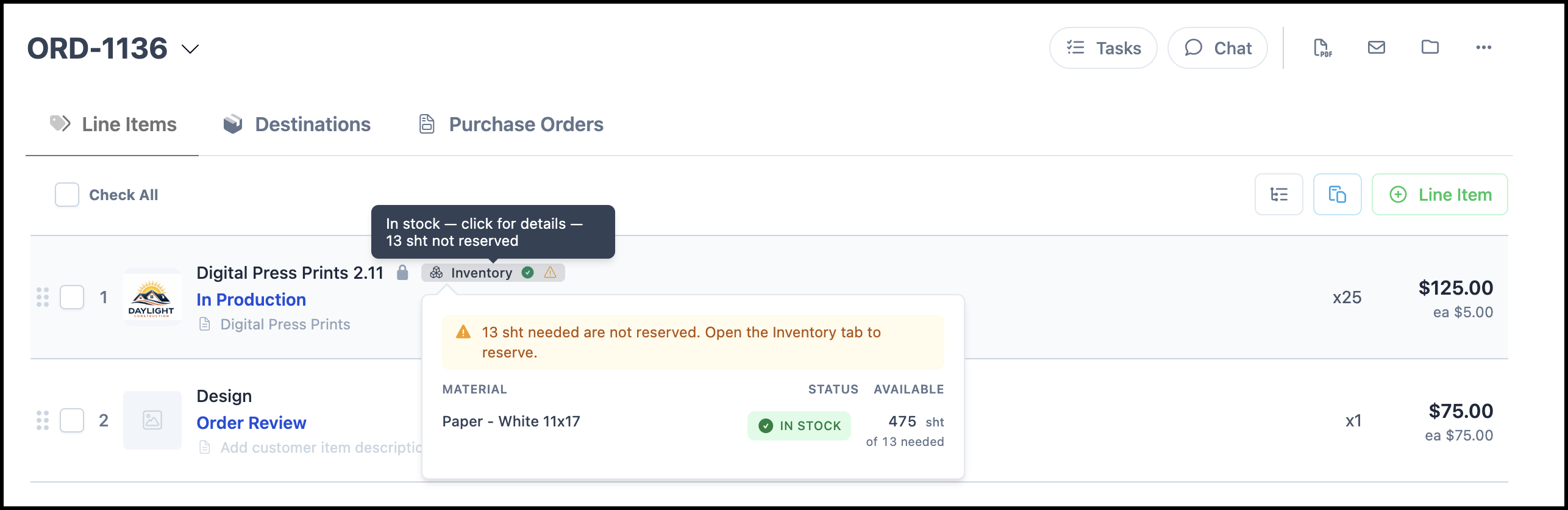
When a tracked Material is added to an Order or Product, CoreBridge displays an inventory badge on the Line Item showing the current stock status and available quantity. An Inventory tab also becomes available in the Line Item side panel, providing additional inventory details and options for managing stock
a. Tracked Material Inventory Badge - Appears on Line Items containing tracked Materials. Hover over the badge to view the Material's current inventory status, including available quantity and other inventory details.
Note: Selecting the badge opens the Line Item side panel with the Inventory tab selected.
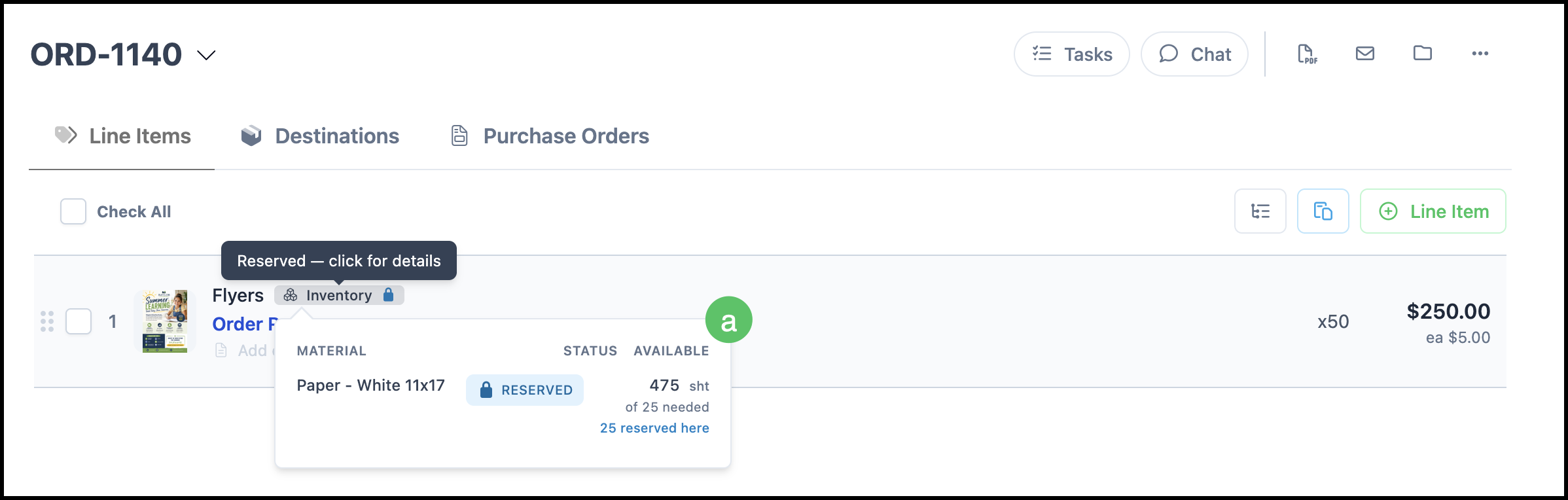
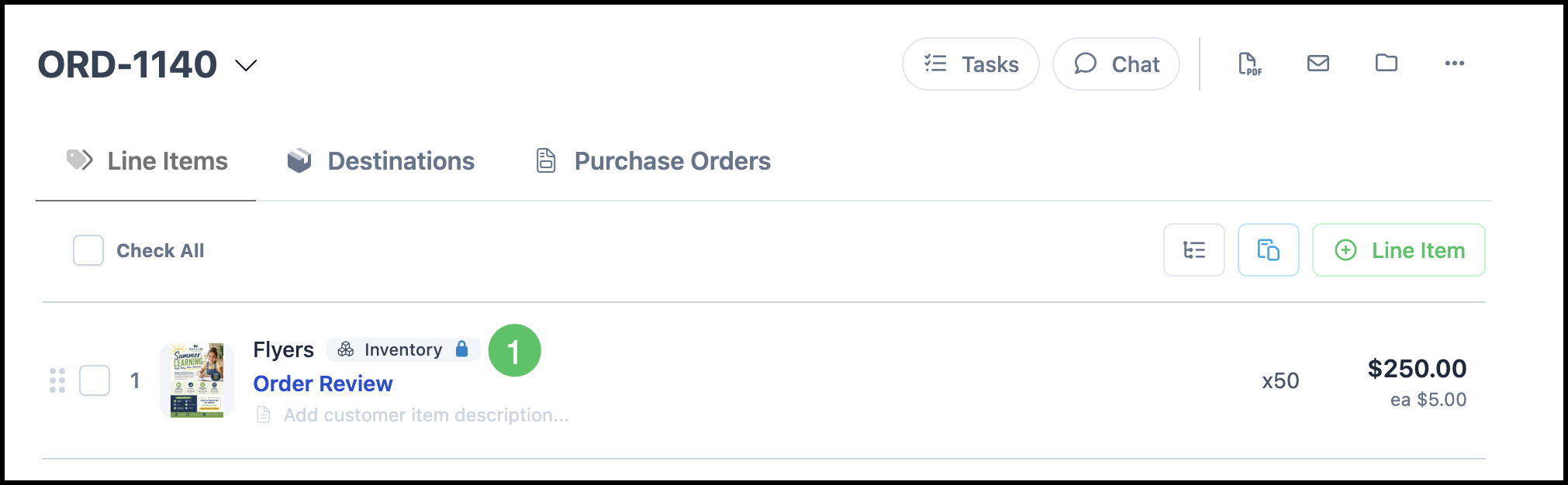
b. Reserve-When Inventory Badge - Appears on Line Items containing tracked Materials. When the Order moves into the configured Reserve-When Workflow Status, the badge indicates that the Material has been reserved. Hover over the badge to view the reservation status and inventory details.
Note: Selecting the badge opens the Line Item side panel with the Inventory tab selected.
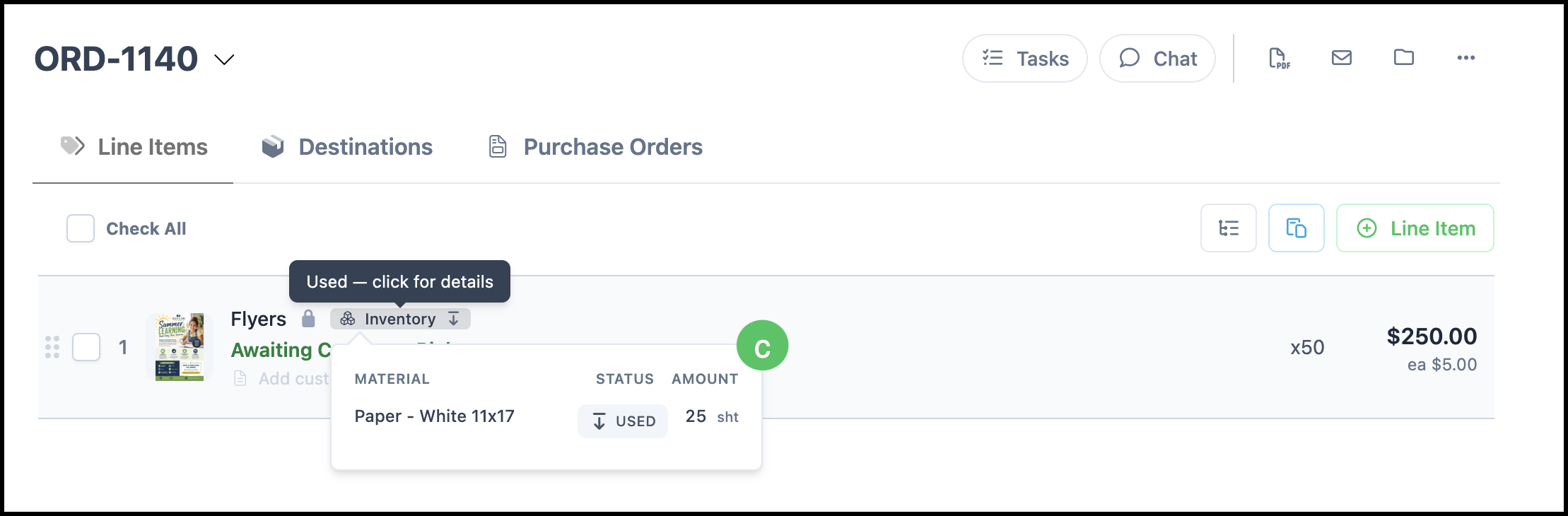
c. Reduce-When Inventory Badge - Appears on Line Items containing tracked Materials. When the Order moves into the configured Reduce-When Workflow Status, the badge indicates that the Material has been deducted from the On-hand inventory quantity. Hover over the badge to view the inventory details.
Note: Hover over the badge to view the Material's inventory details. Selecting the badge opens the Line Item side panel with the Inventory tab selected.
Note: Automatic inventory reservations and reductions occur only when an Order moves into the configured Reserve-When or Reduce-When Workflow Status. If a tracked Material is added to an Order that is already in one of those statuses, the inventory action does not occur automatically. Instead, the Inventory Badge displays a reminder that the inventory must be reserved or reduced manually.
This badge indicates that the Order is already in the configured Workflow Status and the inventory action must be completed manually.
Inventory in Line Item Side Panel
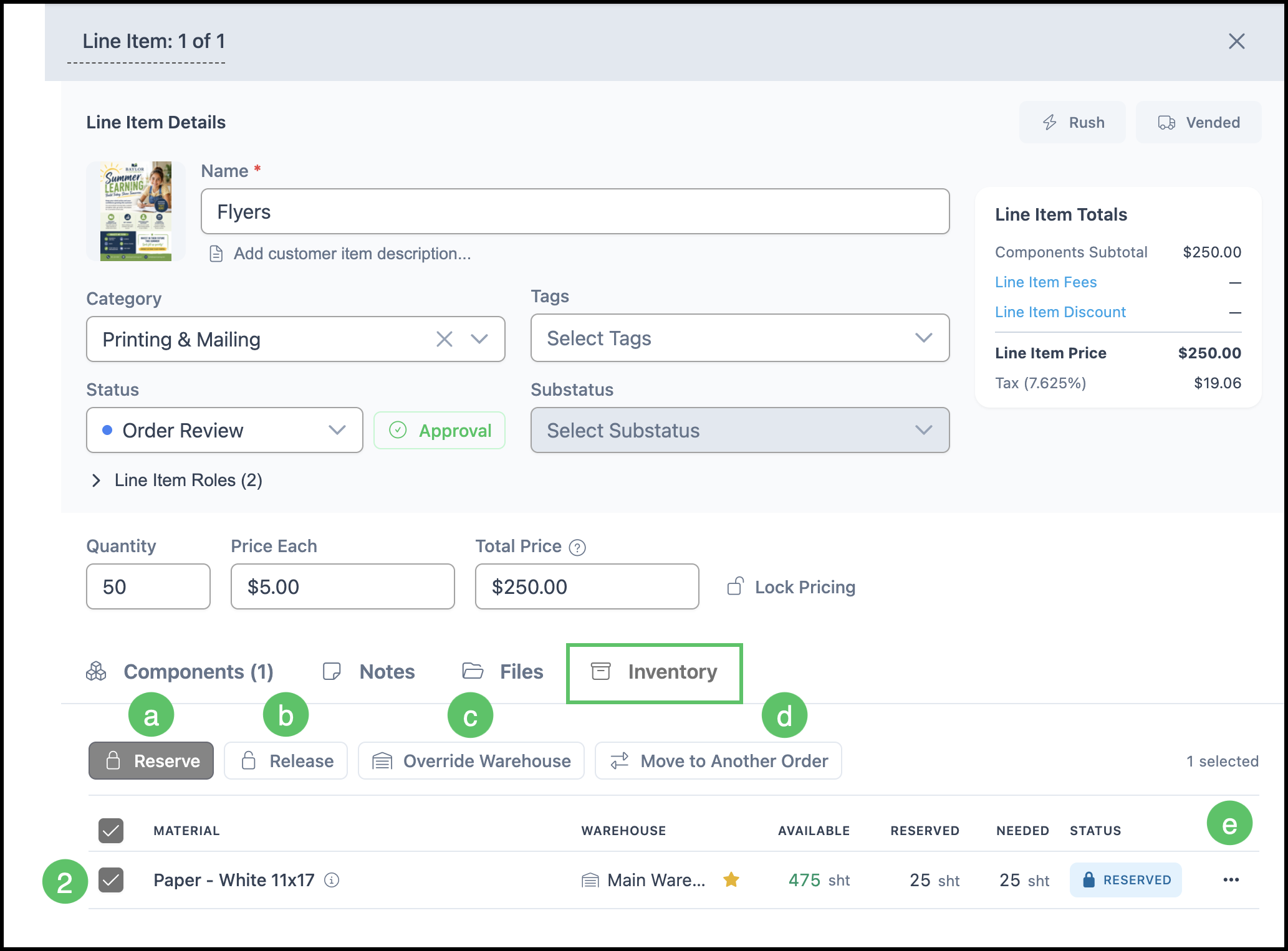
Opening the Line Item Side Panel allows you to view the quantity needed, the reserved amount, and the assigned warehouse as well as make manual adjustments to the stock.
Stock is managed at the Line Item level, so individual Line Items on the same Order can be at different stages of reservation and reduction.
Note: For Materials with Variants, Reserve and Reduce actions apply only to the specific Variant on that Line Item, not to the Material's other Variants.
1. Click the Inventory Badge.
Note: This will open the Line Item side panel with the Inventory tab already selected. You can open the Line Item side panel by clicking anywhere on the Line Item and manually selecting the Inventory tab.
2. Select the reserved row to make adjustments.
a. Reserved - The amount needed will automatically be reserved on new Orders.
b. Release - Release a reservation to free up that quantity for other Orders.
c. Override Warehouse - Manually select where this stock is located.
d. Move to Another Order - Move a reservation to a different Order.
e. More Actions - Options here include Go to material, Go to warehouse, and See reserved amount.
Note: Options under the More Actions menu are available whether the row is selected or not.
Inventory in Materials
Once Inventory tracking has been enabled on a Material and a first quantity entered, an Inventory tab appears in the Material screen.
Viewing Reserved Units
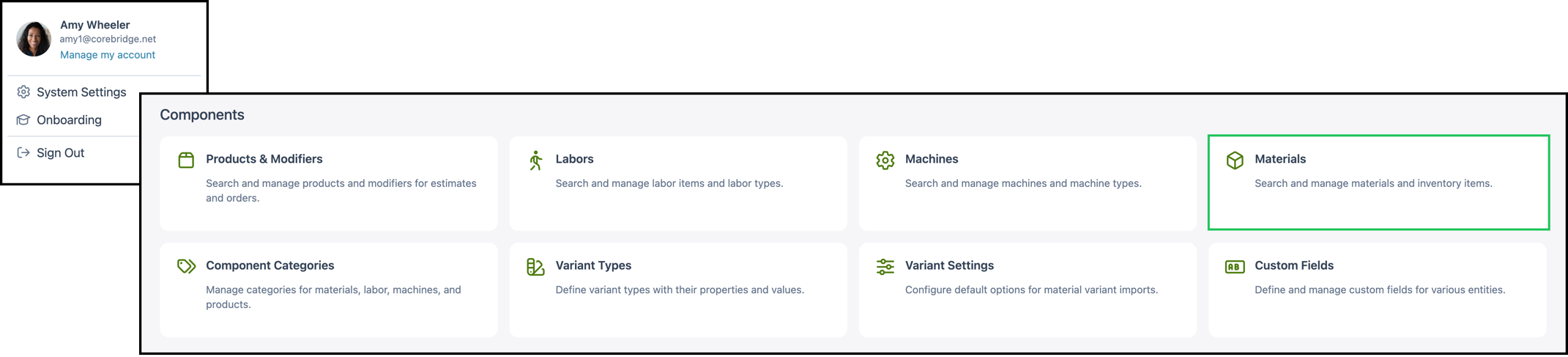
Navigate to System Settings / Components / Materials and select the appropriate Material.
1. Select the Inventory tab.
2. Click the More Actions icon.
3. Select See reserved amount.
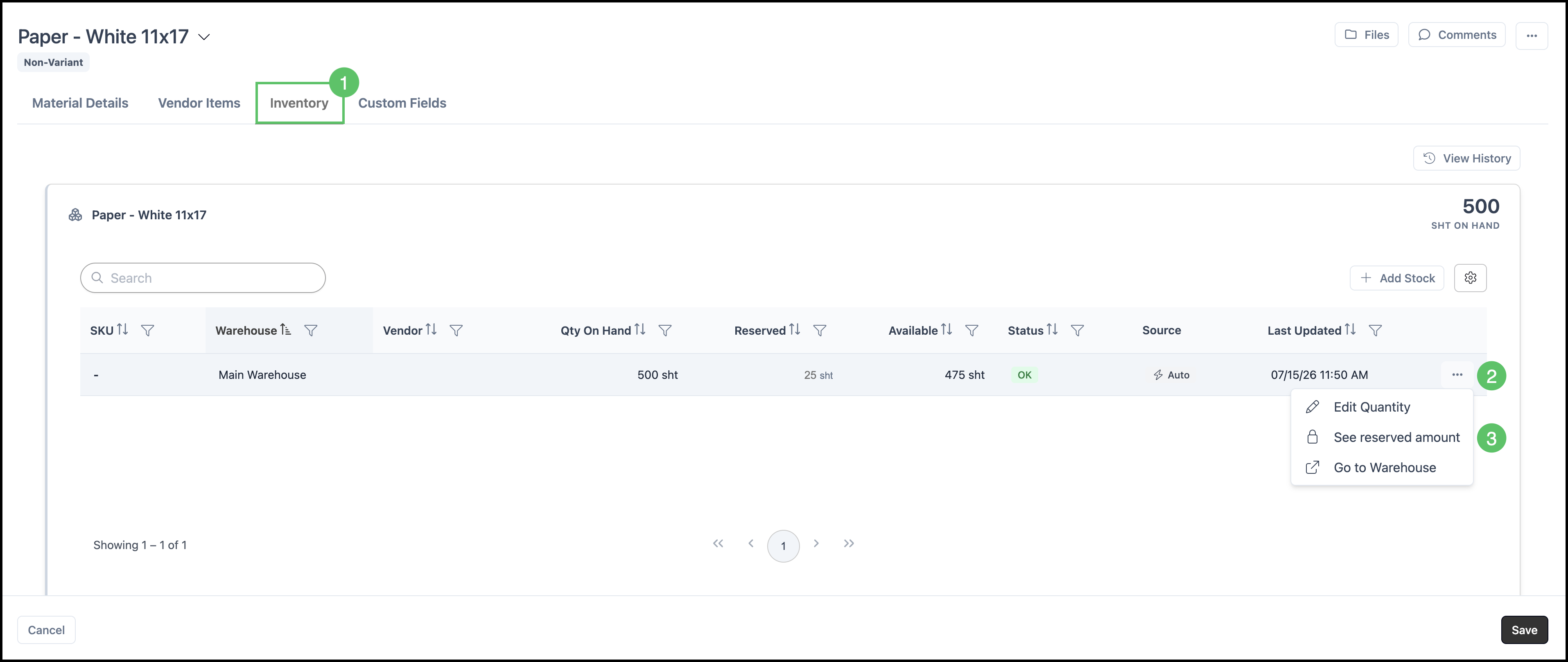
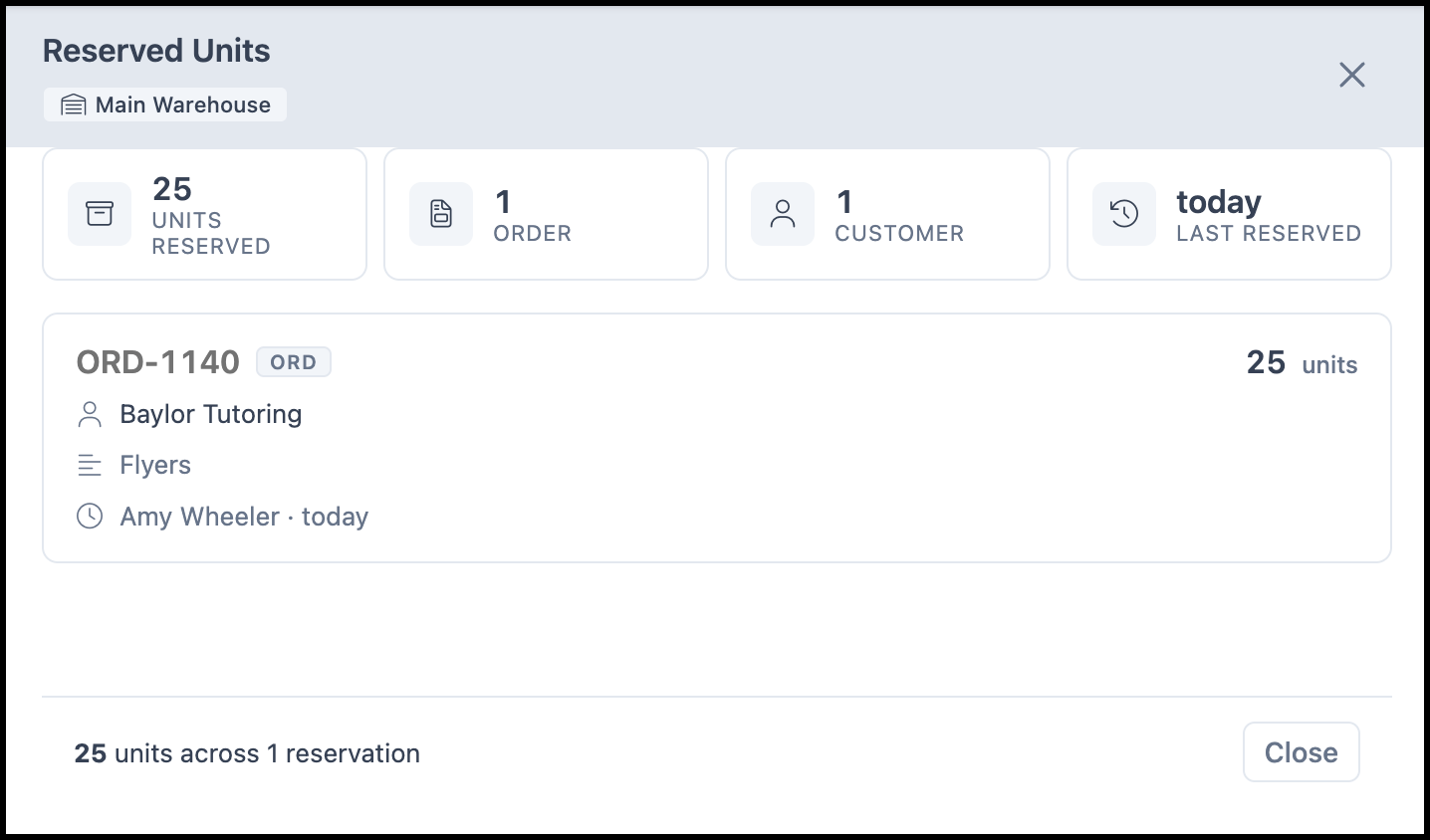
A Reserved Units side panel opens up with information regarding which Orders have this Material reserved.
Note: Clicking on the Order number will open that Order.