
The Inventory module in CoreBridge EVO™ lets you track stock levels for your Materials, monitor usage across Orders and Estimates, and manage warehouses from one central location. Inventory is an optional feature that must be enabled for your account. Until it is enabled, the Inventory module does not appear in CoreBridge.
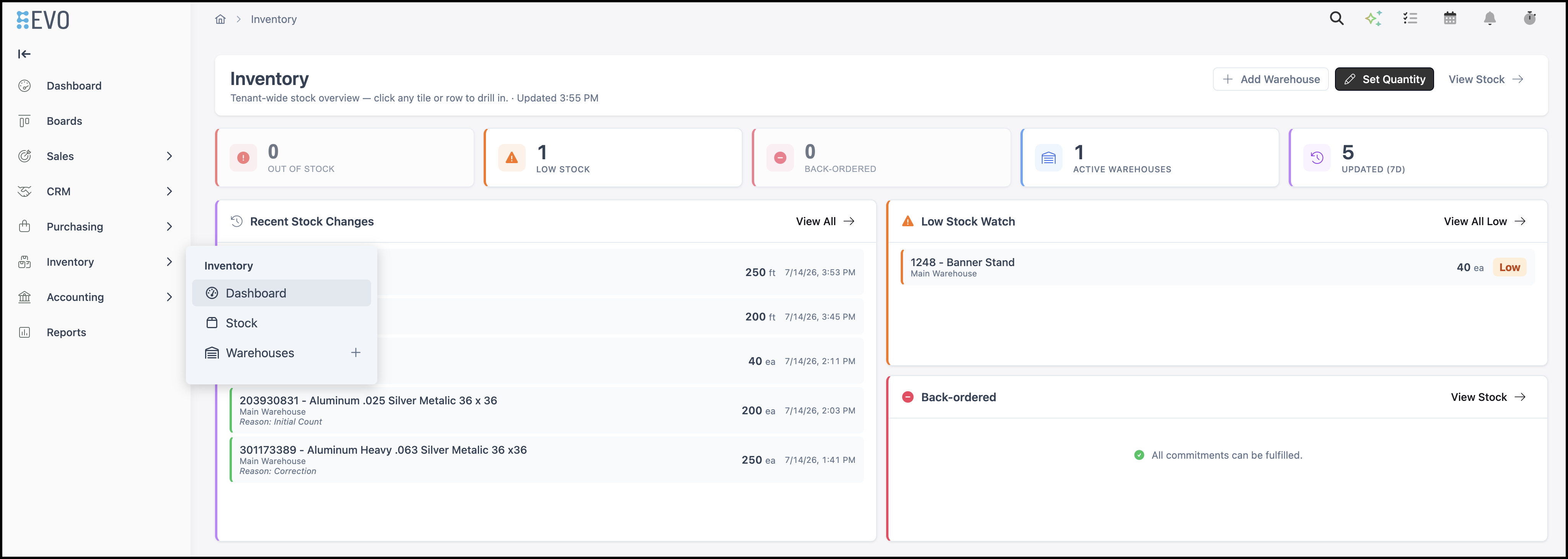
Once Inventory is enabled, the Inventory module appears in the left navigation panel. The module includes three sections: Dashboard, Stock, and Warehouses.
Table of Contents
- Inventory Dashboard
- Stock
- Warehouses
- Navigate to Inventory / Warehouses.
- Warehouse Screen
- Example:
- Stock Tab
- Frequently Asked Questions
- Related Articles
Inventory Dashboard
Displays key stock metrics with links to filtered views of your warehouses and stock.
Navigate to Inventory / Dashboard.
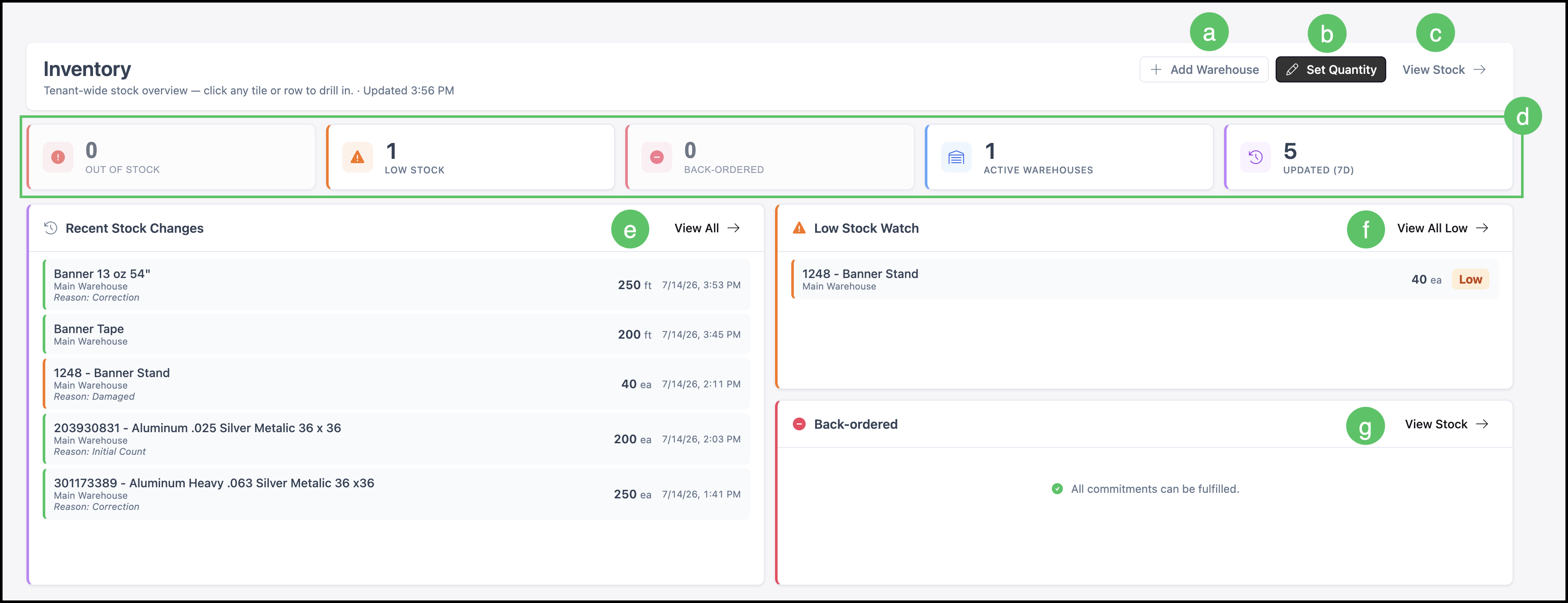
a. Add Warehouse - Opens the New Warehouse screen, where you can create a new warehouse.
b. Set Quantity - Opens the Set Quantity dialog, where you can enter the initial stock quantity for a Material.
c. View Stock - Opens the Stock screen.
d. Summary Tiles - Display a high-level overview of inventory activity and Material counts. Selecting a tile opens the corresponding screen with additional details.
e. Recent Stock Changes - Displays recently added or updated stock transactions. View All opens the Stock screen with the Updated tab selected. Selecting a Material opens its stock details.
f. Low Stock Watch - Displays Materials that are at or below their Reorder Threshold. View All Low opens the Stock screen with the Low Stock tab selected. Selecting a Material opens its stock details.
g. Back-Ordered - Displays Materials that are currently on back order. View Stock opens the Stock screen, and selecting a Material opens its stock details.
Stock
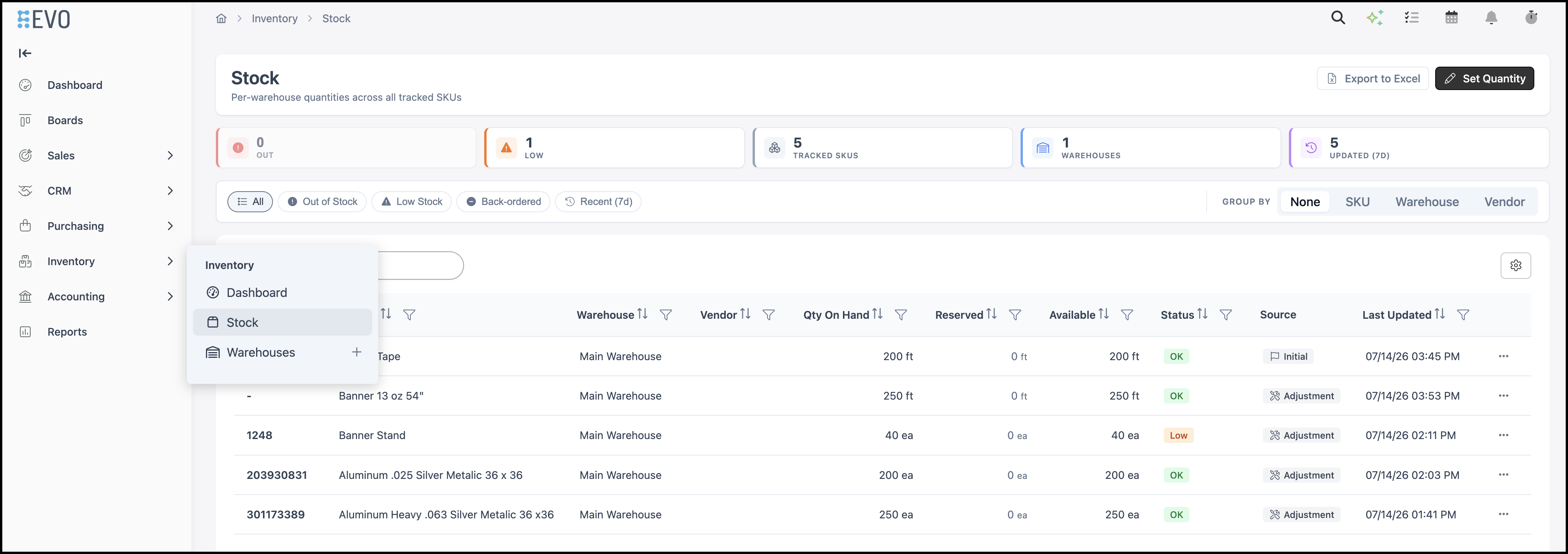
Shows all tracked Materials and their current quantities. Use this view to make manual adjustments and review stock history.
For more information on Stock, please see Understanding and Managing Stock.
Navigate to Inventory / Stock.
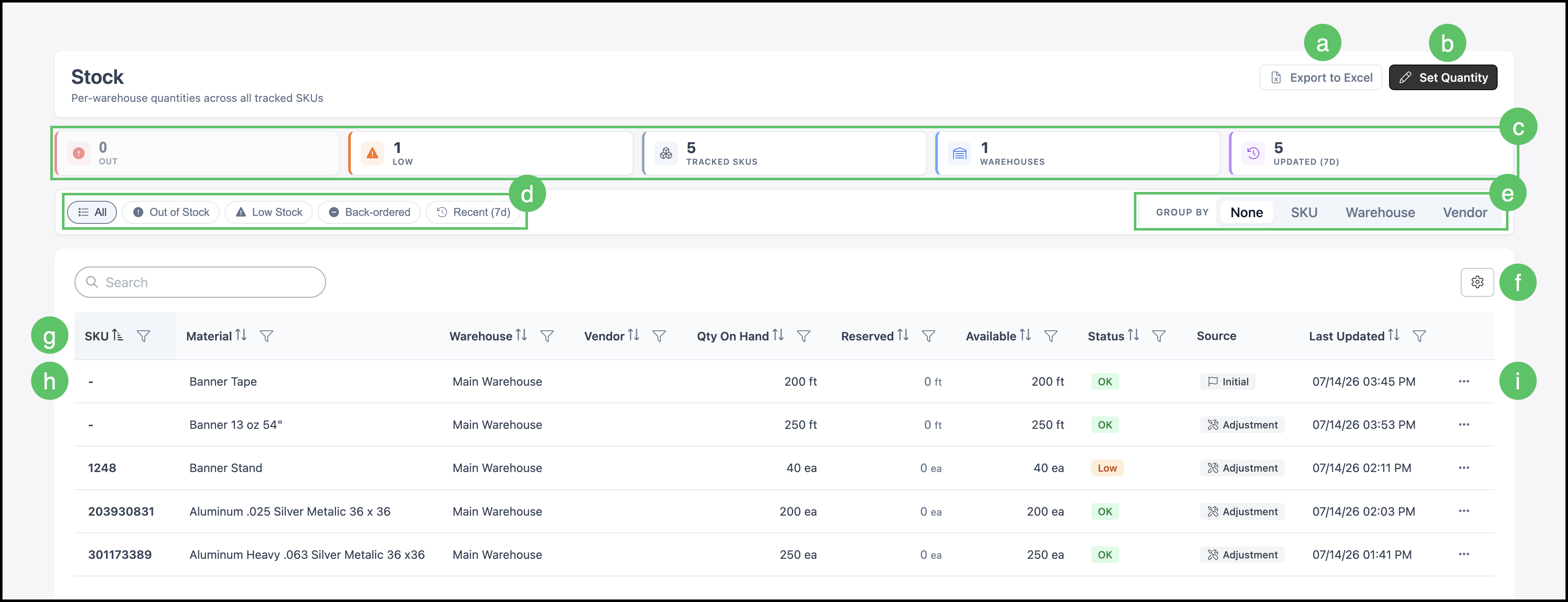
a. Export to Excel - Downloads the current stock list as an Excel file.
Note: Apple users will see the file open in the Numbers application.
b. Set Quantity - Opens the Set Quantity dialog, where you can enter the initial stock quantity for a Material.
c. Summary Tiles - Display a high-level overview of inventory activity and Material counts. Selecting a tile opens the corresponding screen with additional details.
d. Filter Buttons - Filter the stock list to display All, Out of Stock, Low Stock, Back-ordered, or Recent Materials.
e. Group By - Groups the stock list by SKU, Warehouse, or Vendor.
f. Search Settings - Controls which columns are displayed in the stock list and whether inactive records are shown.
g. Columns - Can be reordered and resized as needed.
h. Material List - Selecting a Material opens the Adjust Stock dialog.
i. More Actions - Provides additional options, including Edit Quantity, See Reserved Amount, and View Material.
Warehouses
Lists all warehouses and their details. This is where you add and configure warehouses before adding stock. For more information on adding warehouses, please see Setting up Inventory.
Navigate to Inventory / Warehouses.
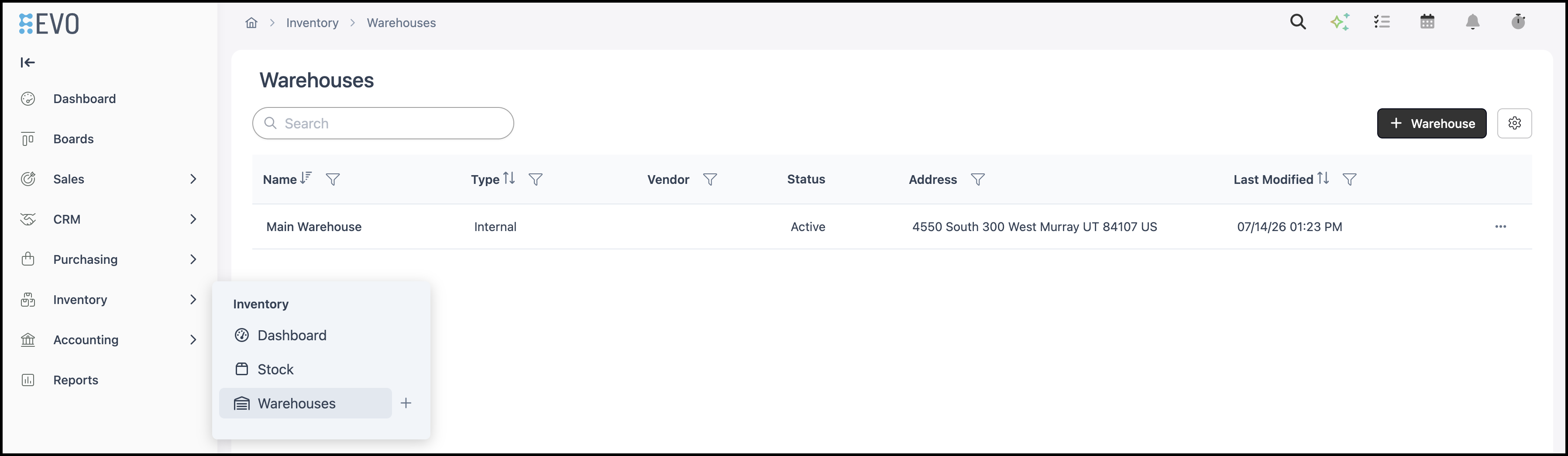
a. Add Warehouse - Opens the New Warehouse screen, where you can create a new warehouse.
b. Search Settings - Controls which columns are displayed in the warehouse list and whether inactive records are shown.
c. Columns - Display warehouse information and can be resized or reordered to suit your preferences.
d. Warehouse List - Displays all configured warehouses. Selecting a warehouse opens its details.
e. More Actions - Provides additional options, including Edit and Set Inactive.

Warehouse Screen
Use the General tab to view and update warehouse details while monitoring recent stock activity. The Stock tab displays the inventory assigned to the warehouse and provides options for adjusting stock quantities.
General Tab
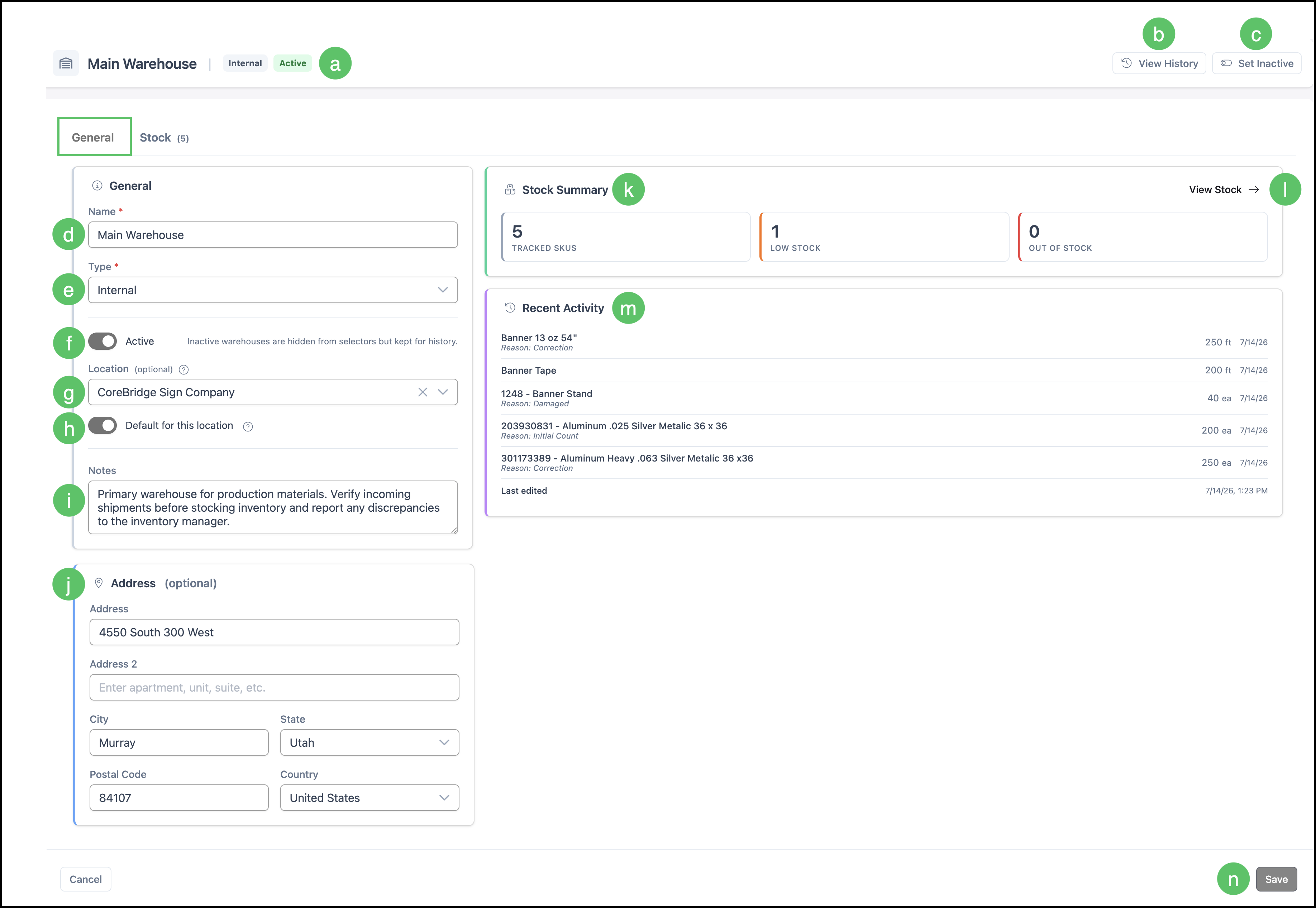
a. Warehouse Information - Displays the warehouse name, type, and activity status.
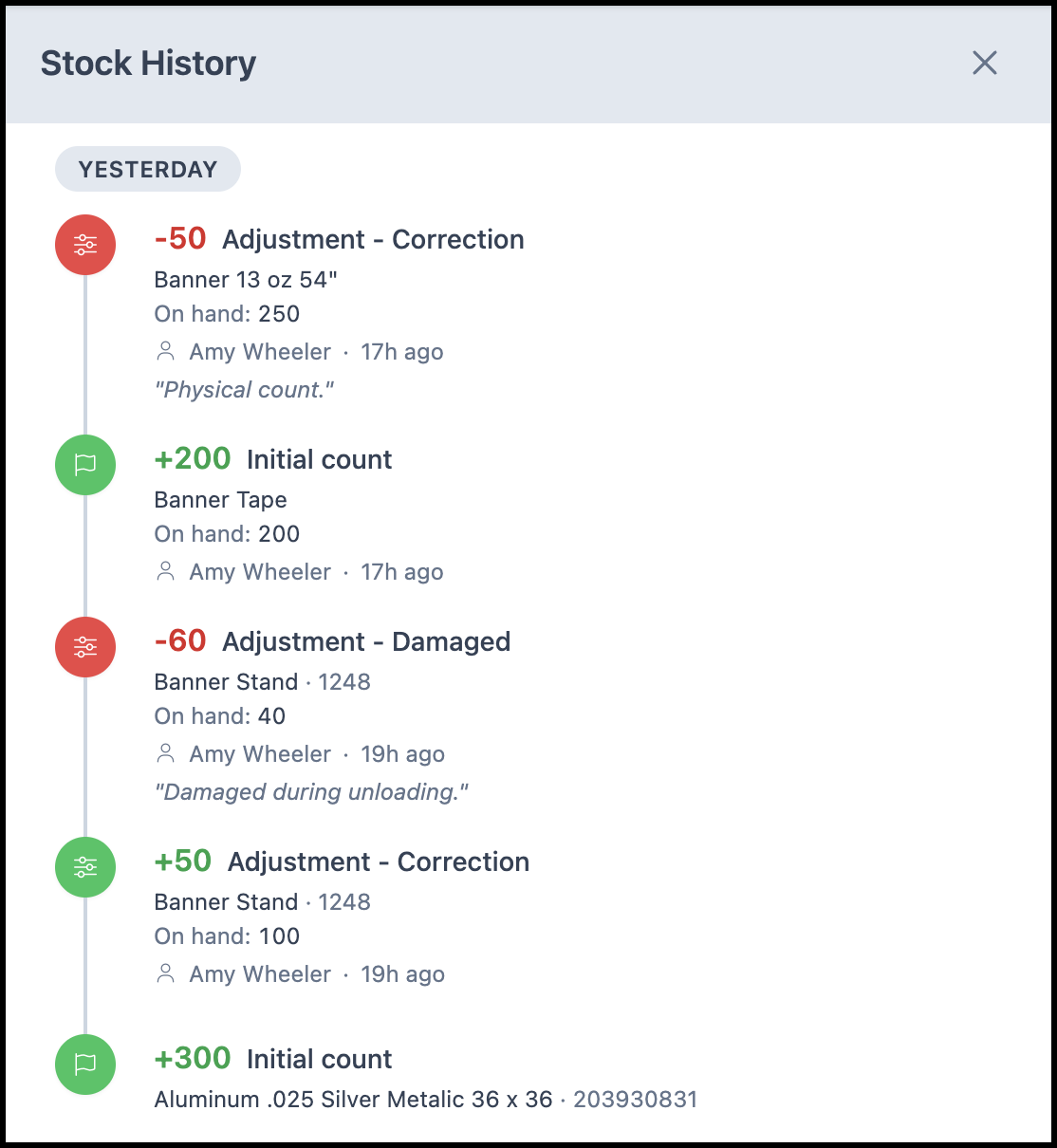
b. View History - Opens a side panel showing the warehouse's inventory transaction history. See the example below.
c. Set Inactive - Marks the warehouse as inactive, preventing it from being used for new stock transactions while retaining its historical records.
d. Name - A unique name used to identify the warehouse.
e. Type - Determines whether the warehouse represents an Internal warehouse or a Vendor warehouse. Vendor warehouses can be linked to a Vendor record for organizational purposes, while Internal warehouses represent inventory stored by your business.
Note: Vendor stock levels are managed independently and are not automatically synchronized with CoreBridge.
f. Active - Controls whether the warehouse is available for use. Inactive warehouses are hidden from day-to-day use while remaining available for historical records and reporting.
g. Location - Associates the warehouse with a specific Company Location. Once a Location is selected, the warehouse can be designated as the default for that Location.
h. Default for This Location - Designates the warehouse as the default inventory source for the selected Location. Orders created for that Location reserve stock from this warehouse first.
Note: Only one warehouse can be designated as the default for each Location.
i. Notes - Stores internal information about the warehouse. Notes are visible only to Employees with Inventory permissions.
j. Address - Stores the warehouse address for reference.
k. Stock Summary - Displays a high-level overview of the inventory currently stored in the warehouse.
l. View Stock - Opens the Stock tab, where you can view and manage the inventory assigned to this warehouse.
m. Recent Activity - Displays recent inventory transactions for the warehouse.
n. Save - Saves any changes made to the warehouse details.
Example:
Stock Tab
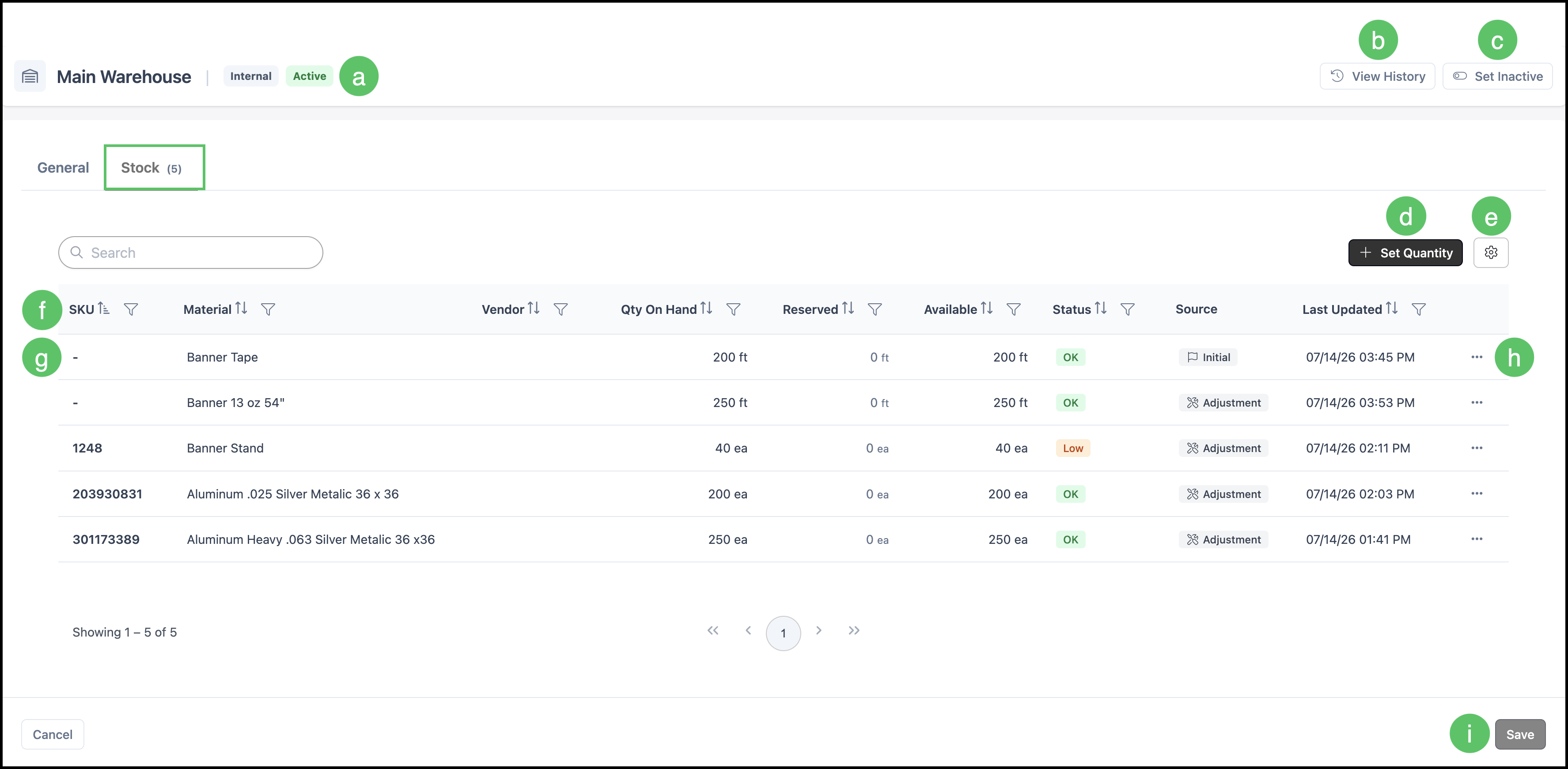
a. Warehouse Information - Displays the warehouse name, type, and activity status.
b. View History - Opens a side panel showing the warehouse's inventory transaction history. See the example below.
c. Set Inactive - Marks the warehouse as inactive, preventing it from being used for new stock transactions while retaining its historical records.
d. Set Quantity - Opens the Set Quantity dialog, where you can enter the initial stock quantity for a Material.
e. Search Settings - Controls which columns are displayed in the stock list and whether inactive records are shown.
f. Columns - Can be reordered and resized as needed.
g. Material List - Selecting a Material opens the Adjust Stock dialog.
h. More Actions - Provides additional options, including Edit Quantity, See Reserved Amount, and View Material.
i. Save - Saves any changes made to the Stock tab.
Frequently Asked Questions
1. Question: Does Inventory track quantities at the Material level or the Variant level?
Answer: It depends on the Material. A Material without Variants is tracked as a single item. A Material with Variants is tracked separately by each Variant, and the quantity shown at the Material level is the combined total across all Variants.
2. Question: Can stock be updated for all Variants of a Material at once?
Answer: No. Stock must be added or adjusted one Variant at a time. There is currently no option to update every Variant on a Material at once.
3. Question: Does the Reorder Threshold apply to each Variant separately?
Answer: No. The Reorder Threshold is set once at the Material level and applies to the combined stock of all Variants together.
4. Question: If a Material has Variants, which Variant gets reserved or reduced when it's added to an Order?
Answer: Only the specific Variant added to the Line Item. Reserve and Reduce actions never apply to the Material's other Variants.
5. Question: Does Inventory integrate with vendor systems like S&S or SanMar to pull in real-time stock levels?
Answer: No. Inventory does not currently sync automatically with outside vendors.
6. Question: Can Inventory automatically create a purchase order when stock reaches the Reorder Threshold?
Answer: No. Purchase orders must be created manually; Inventory does not generate them automatically based on stock levels.
7. Question: Is barcode or QR code scanning supported for adjusting stock?
Answer: No. All stock adjustments are entered manually.
8. Question: Can a Vendor warehouse show a vendor's live available stock?
Answer: Not currently. A Vendor warehouse can be linked to a Vendor record for organizational purposes, but it does not display live vendor stock levels at this time.
Related Articles
Understanding and Managing Stock