
Application of Employee Roles controls which employee roles appear on Orders, Estimates, and Companies. You choose whether the Salesperson role is required, optional, or not used, and which other roles are required or optional. You also control how many of each role can be assigned and how many empty role fields appear by default on new records.
Table of Contents
- Important Information
- Locating Application of Employee Roles
- Application of Employee Roles Screen
- Adding a Required or Optional Role
- Viewing Role Preview
- Line Items
- Destinations
- Estimates
- Companies
- Frequently Asked Questions
- Related Articles
Important Information
Application of Employee Roles is separate from Employee Roles & Permissions:
- Employee Roles & Permissions defines each role and what employees in that role can do. For more information, see Employee Roles and Permissions in Settings.
- Application of Employee Roles controls where those roles appear on Orders, Estimates, and Companies, and whether each role is required, optional, or not used.
If a Company is assigned to a Team, employees on that Team can be selected for matching roles on the Company's records. For more information, see Teams Overview.
There is no Save button on this screen. Changes apply as you configure them.
How Many and # Displayed control the role fields that appear by default on new Orders, Estimates, and Companies.
Note: The overflow control on the heading includes History.
Locating Application of Employee Roles
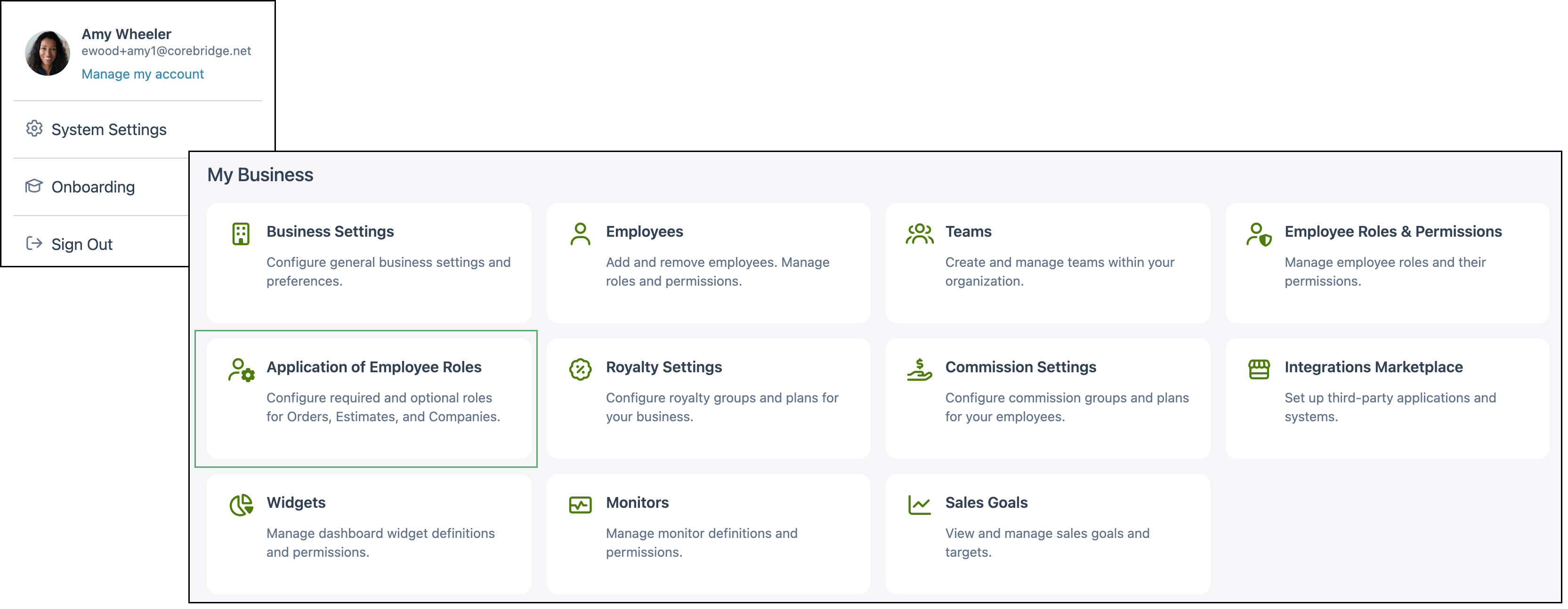
Navigate to System Settings / My Business / Application of Employee Roles.
Application of Employee Roles Screen
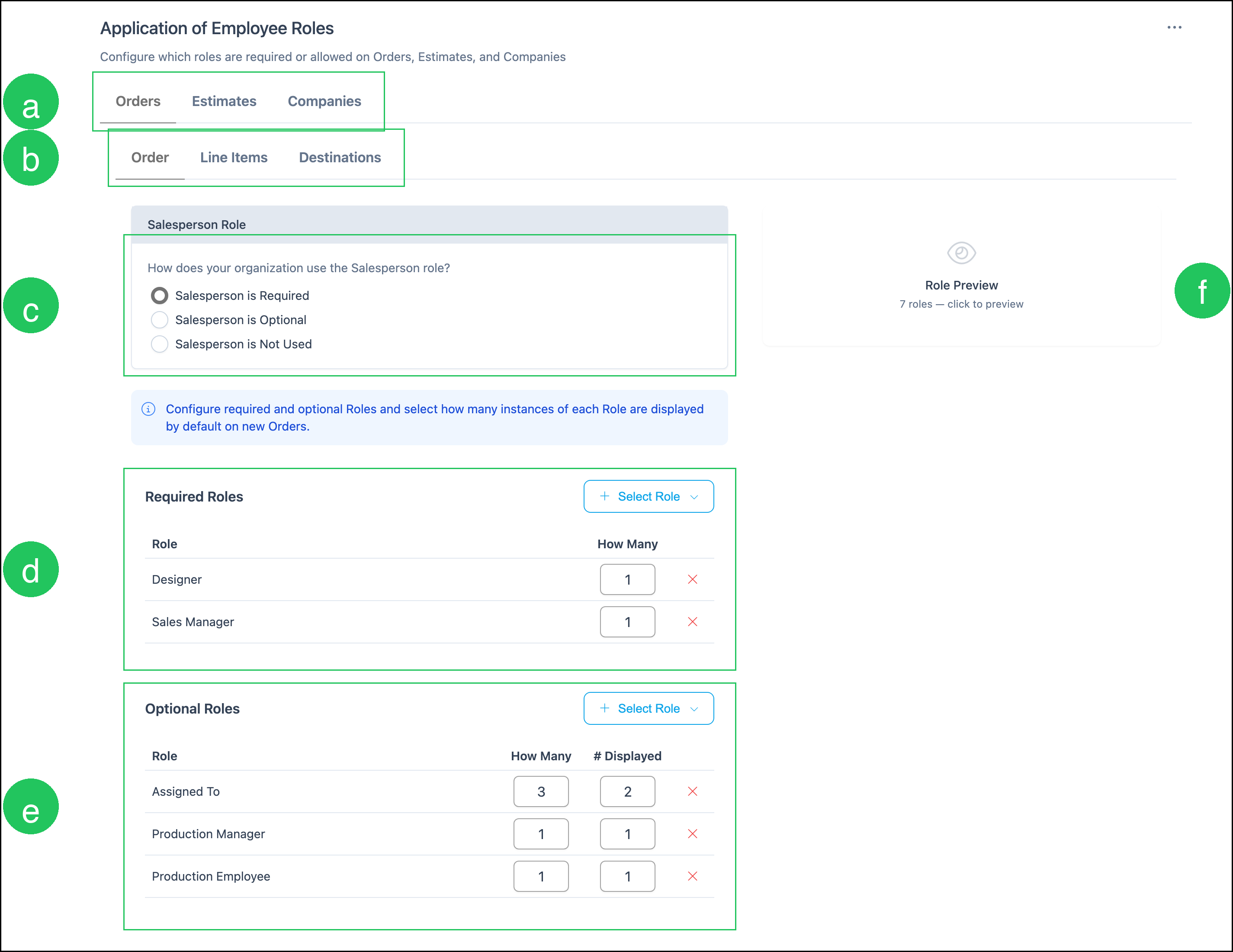
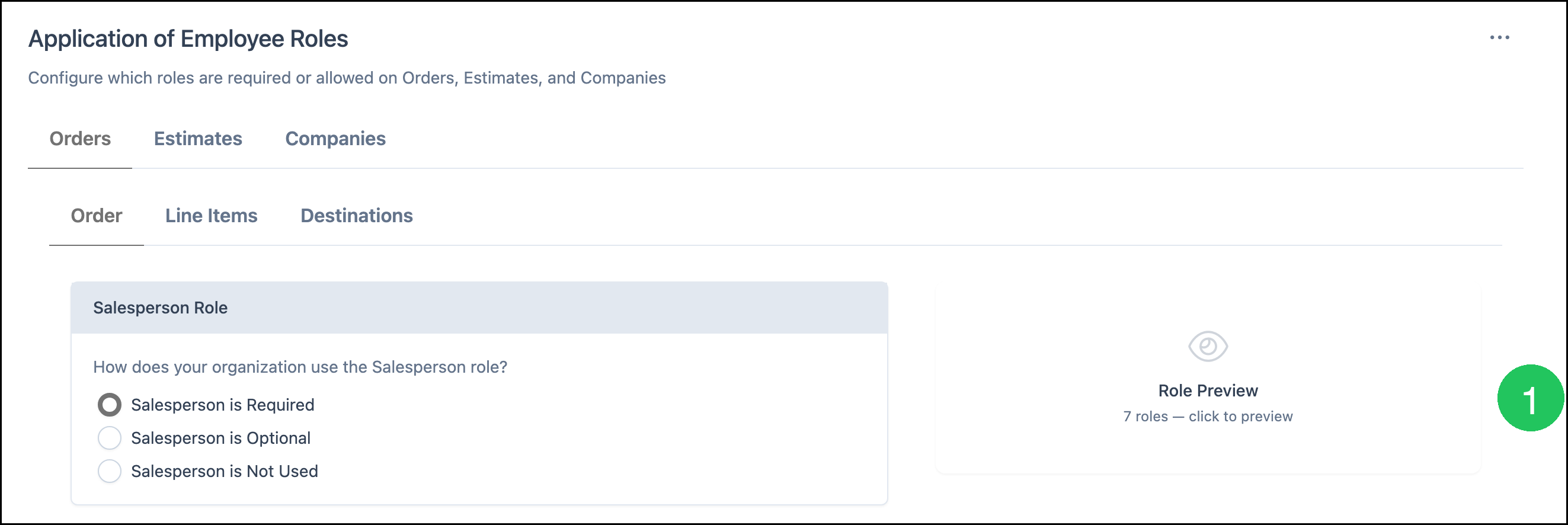
The screen opens on Orders with the Order tab selected. The example below shows a typical configuration. Your required and optional roles may differ.
a. Orders, Estimates, and Companies switch which record type you are configuring.
b. Order, Line Items, and Destinations switch which part of the Order the roles apply to.
c. Salesperson Role sets how your organization uses the Salesperson role: Salesperson is Required, Salesperson is Optional, or Salesperson is Not Used.
d. Required Roles lists roles that must be assigned. How Many sets how many employees can be assigned to that role. Select Role adds a required role. The red X removes a role from the list.
e. Optional Roles lists roles that can be assigned. How Many sets how many employees can be assigned to that role. # Displayed sets how many empty fields for that role appear by default on a new record. Select Role adds an optional role. The red X removes a role from the list.
f. Role Preview shows how the configured roles appear on a new record. Click the card to expand the preview.
Adding a Required or Optional Role
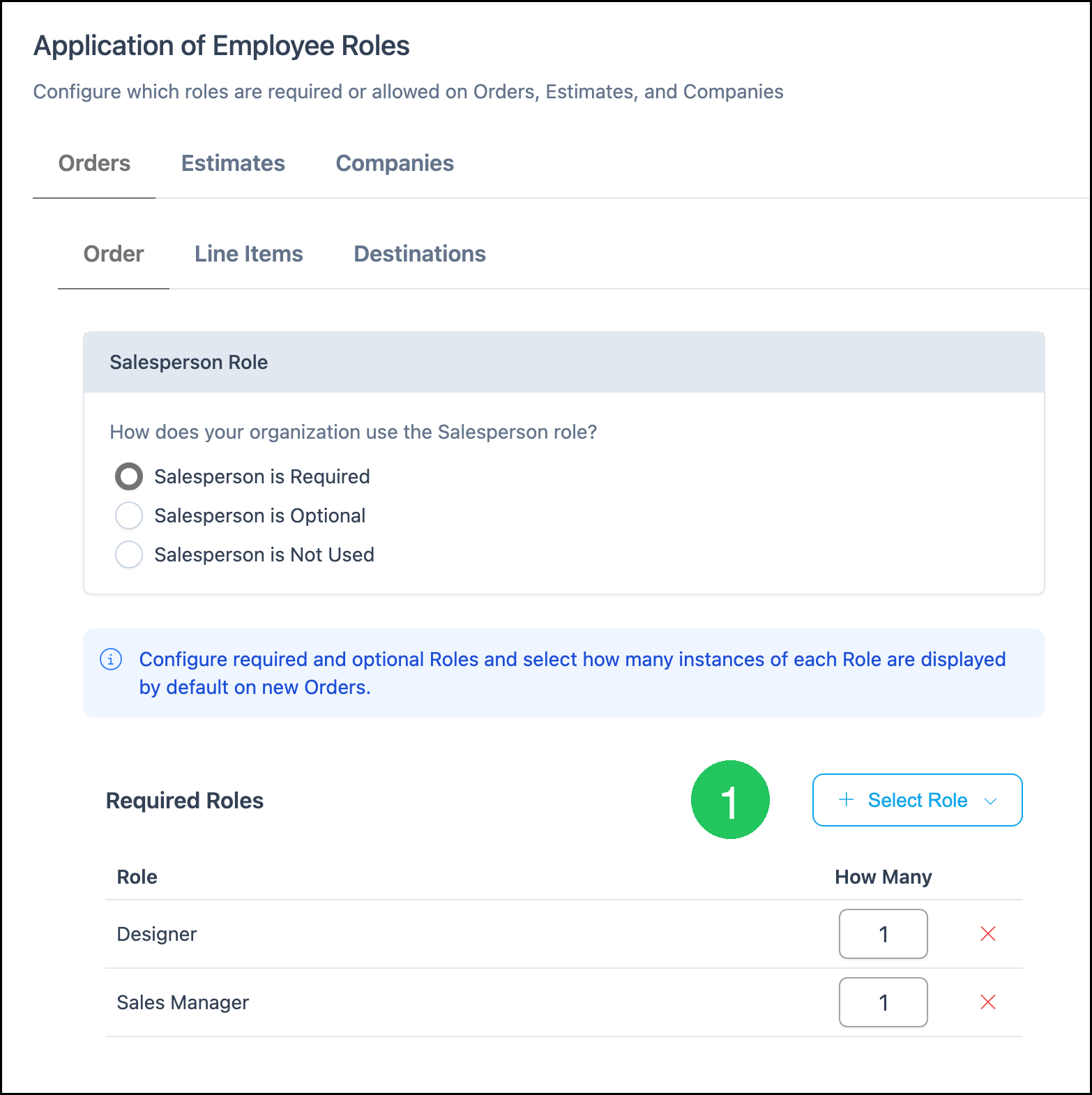
Use Select Role in Required Roles or Optional Roles to add a role. The steps below add a required role. Adding an optional role uses the same Select Role control in the Optional Roles section.
1. Click Select Role in Required Roles.
The Select Role dialog lists roles that are not already on that list.
a. Search roles filters the list by role name.
b. The role list shows available roles. Select a role to add it.
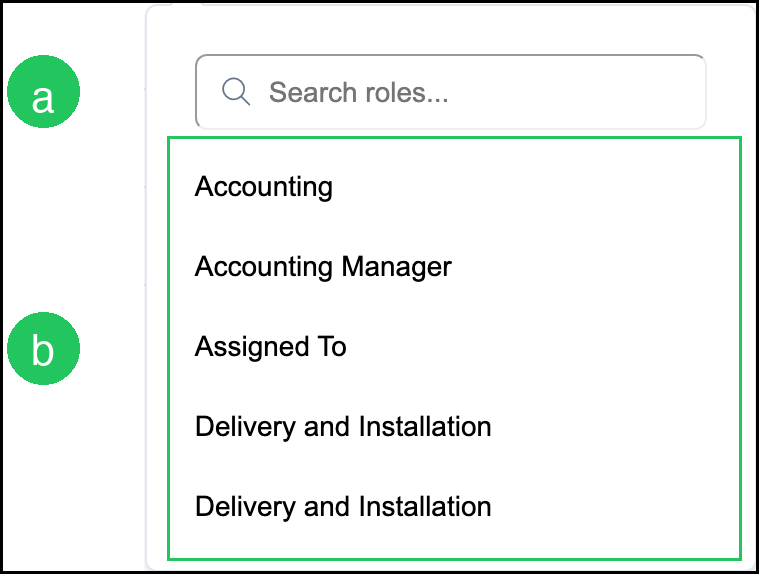
Note: A role that is already required or optional on the current tab does not appear in the list again. After you add a role, set How Many and, for optional roles, # Displayed.
Viewing Role Preview
Role Preview shows how role fields appear on a new record for the tab you are viewing.
1. Click the Role Preview card.
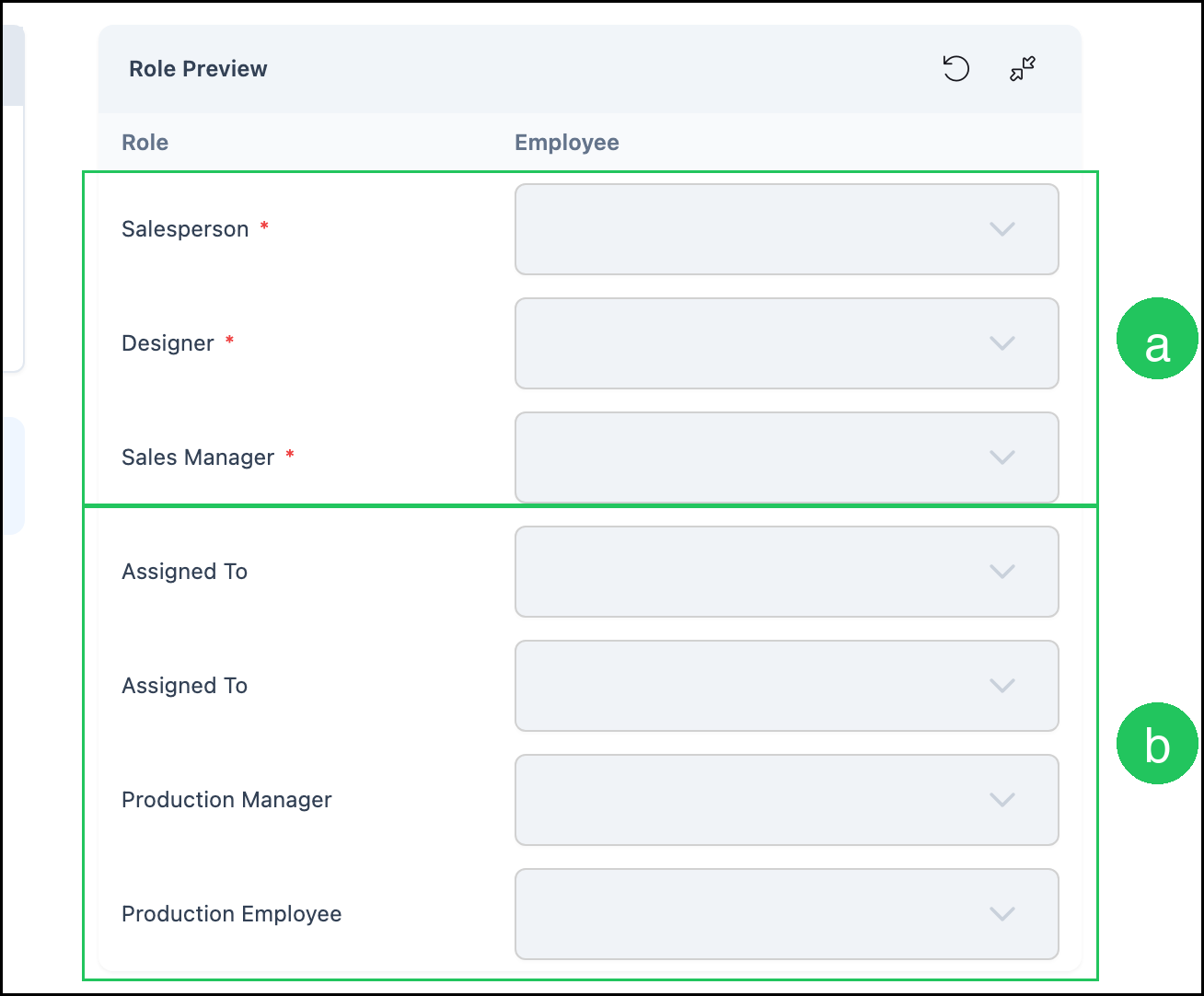
The expanded preview lists each role next to an Employee field.
a. Required roles display a red asterisk next to the role name. In this example, Salesperson, Designer, and Sales Manager are required.
b. Optional roles that are displayed by default appear without an asterisk. If # Displayed is greater than 1, that role appears more than once. In this example, Assigned To appears twice because # Displayed is 2.
Line Items
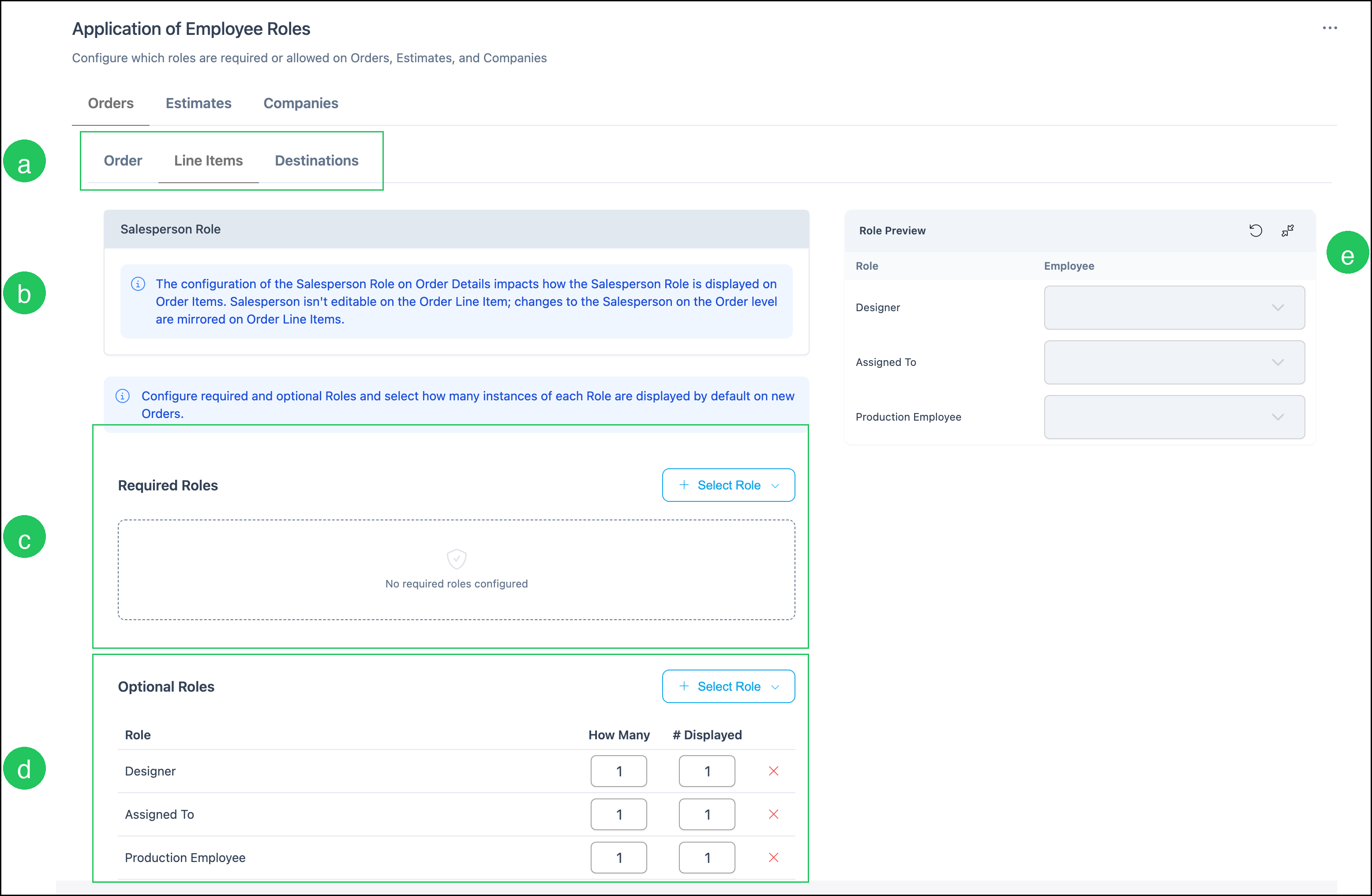
The Line Items tab configures roles on order line items. Required and optional roles on this tab are separate from the roles on the Order tab.
a. Order, Line Items, and Destinations switch which part of the Order the roles apply to. Line Items is selected.
b. The Salesperson Role note explains that the Salesperson setting on Order Details controls how Salesperson appears on order line items. Salesperson is not editable on the line item. Changes to Salesperson on the Order are mirrored on the line items.
c. Required Roles for line items. This example has no required roles configured.
d. Optional Roles for line items. This example includes Designer, Assigned To, and Production Employee.
e. Role Preview shows the line item role fields.
Destinations
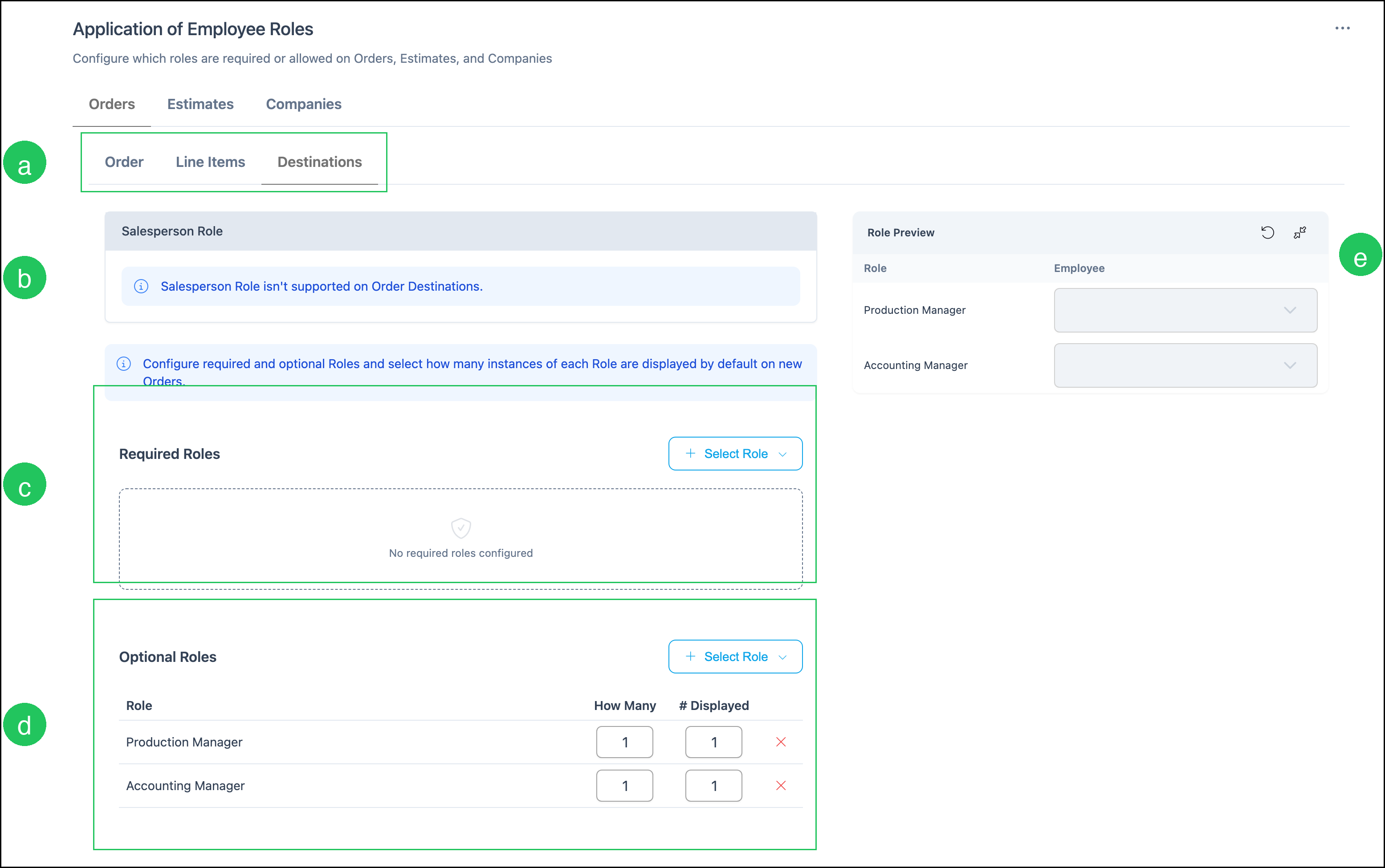
The Destinations tab configures roles on order destinations.
a. Order, Line Items, and Destinations switch which part of the Order the roles apply to. Destinations is selected.
b. The Salesperson Role note states that the Salesperson role is not supported on Order Destinations.
c. Required Roles for destinations. This example has no required roles configured.
d. Optional Roles for destinations. This example includes Production Manager and Accounting Manager.
e. Role Preview shows the destination role fields.
Estimates
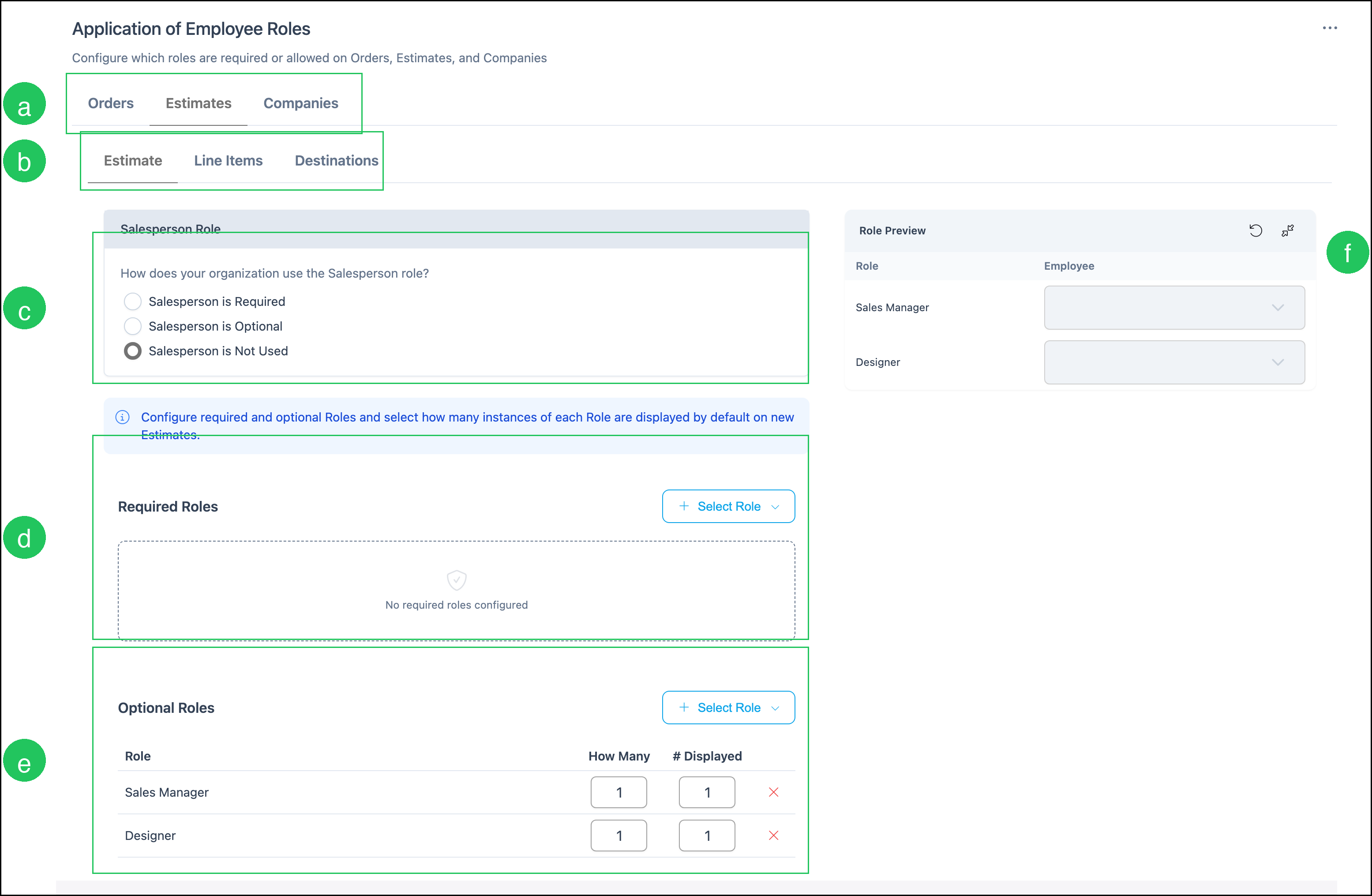
The Estimates tab uses the same layout as Orders. Configure the Salesperson role, then add required and optional roles for new Estimates. Estimates also include Estimate, Line Items, and Destinations tabs.
a. Orders, Estimates, and Companies switch which record type you are configuring. Estimates is selected.
b. Estimate, Line Items, and Destinations switch which part of the Estimate the roles apply to.
c. Salesperson Role for Estimates. This example uses Salesperson is Not Used.
d. Required Roles for Estimates. This example has no required roles configured.
e. Optional Roles for Estimates. This example includes Sales Manager and Designer.
f. Role Preview shows the estimate role fields. Salesperson does not appear when Salesperson is not used.
Companies
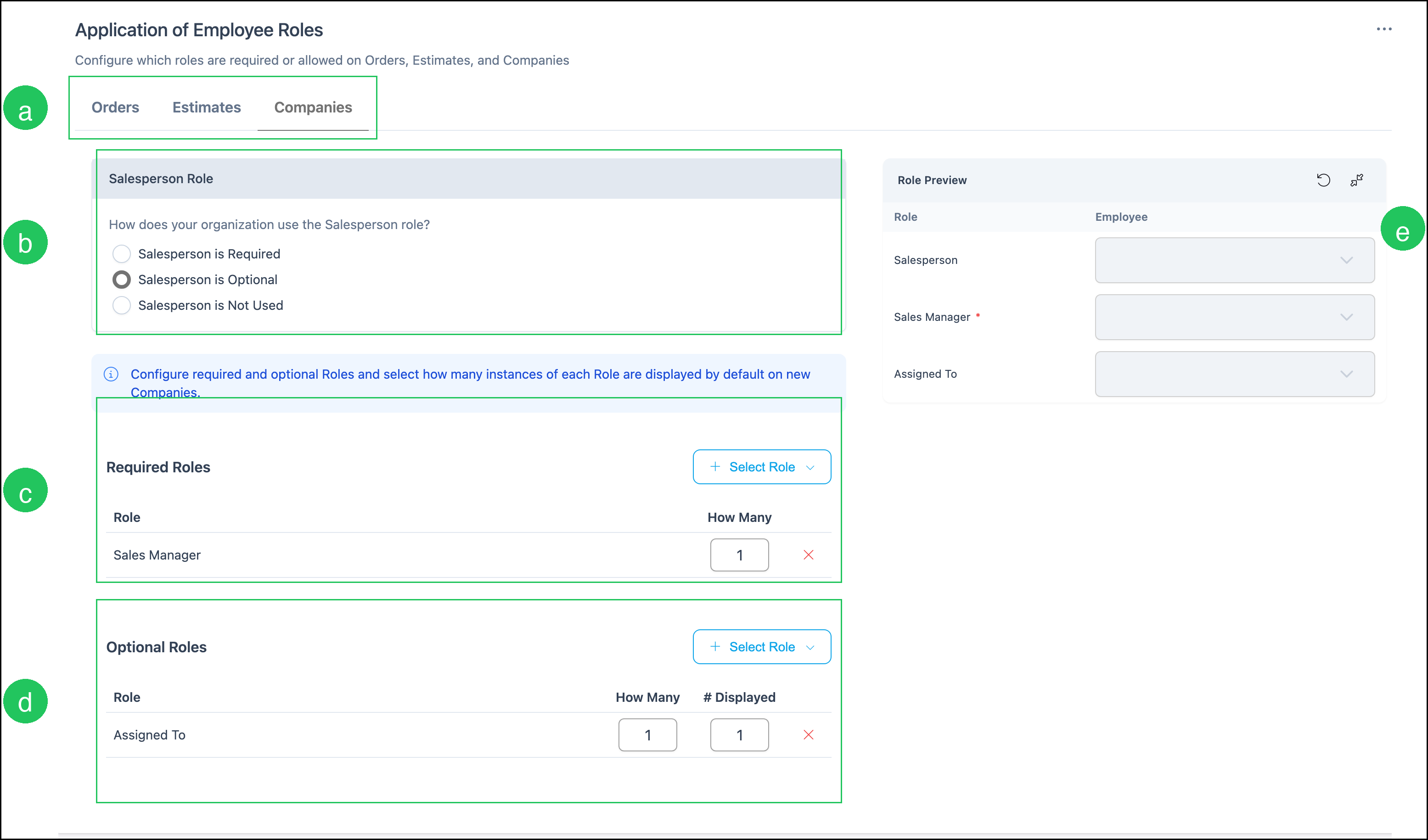
The Companies tab configures roles on Company records. Companies do not have Line Items or Destinations tabs.
a. Orders, Estimates, and Companies switch which record type you are configuring. Companies is selected.
b. Salesperson Role for Companies. This example uses Salesperson is Optional.
c. Required Roles for Companies. This example requires Sales Manager.
d. Optional Roles for Companies. This example includes Assigned To.
e. Role Preview shows Salesperson, required Sales Manager, and optional Assigned To.
Frequently Asked Questions
1. What is the difference between Application of Employee Roles and Employee Roles & Permissions?
Answer: Employee Roles & Permissions defines each role and what employees in that role can do. Application of Employee Roles controls which of those roles appear on Orders, Estimates, and Companies, and whether each role is required, optional, or not used.
2. What do How Many and # Displayed mean?
Answer: How Many is the number of employees that can be assigned to that role. # Displayed (optional roles) is how many empty fields for that role appear by default on a new record. For example, if Assigned To has How Many 3 and # Displayed 2, a new record shows two Assigned To fields, and a third can be added up to the How Many limit.
3. Why does a role appear more than once in Role Preview?
Answer: Optional roles use # Displayed to show more than one empty field by default. If # Displayed is 2, Role Preview shows that role twice.
4. Do these settings change existing Orders, Estimates, or Companies?
Answer: These settings control the role fields that appear by default on new records. Existing records keep the roles already assigned to them.
5. Can I edit Salesperson on an order line item?
Answer: Salesperson is not editable on the order line item. The Salesperson setting on Order Details controls how Salesperson appears on line items, and changes on the Order are mirrored on the line items.
6. Can I use the Salesperson role on Destinations?
Answer: The Salesperson role is not supported on Order Destinations. Use Required Roles and Optional Roles on the Destinations tab for other roles that apply to destinations.
7. How do Teams work with Application of Employee Roles?
Answer: If a Company is assigned to a Team, employees on that Team can be selected for matching roles on the Company's records. For more information, see Teams Overview.
Related Articles
Creating Employees
Employee Roles and Permissions in Settings
Managing Employees
Teams Overview