
The SanMar integration connects CoreBridge to your SanMar account so you can import products as Vendor Catalog Items, update those items, and check inventory. SanMar is a wholesale apparel supplier. After you Connect, catalog and inventory data stay available for Estimates, Orders, and purchasing.
Note: CoreBridge can help with integration setup and how the integration works within the system. Questions related to the third-party service itself should be directed to that provider.
Table of Contents
- Benefits of Integrating With SanMar
- How to Integrate With SanMar
- Functionality
- SanMar Details
- History
- Frequently Asked Questions
- Related Articles
Benefits of Integrating With SanMar
- Sync Vendor Catalog Items from SanMar so product data stays current.
- Access wholesale apparel products from SanMar for Estimates, Orders, and purchasing.
- Check inventory so Estimates and Orders use up-to-date availability.
How to Integrate With SanMar
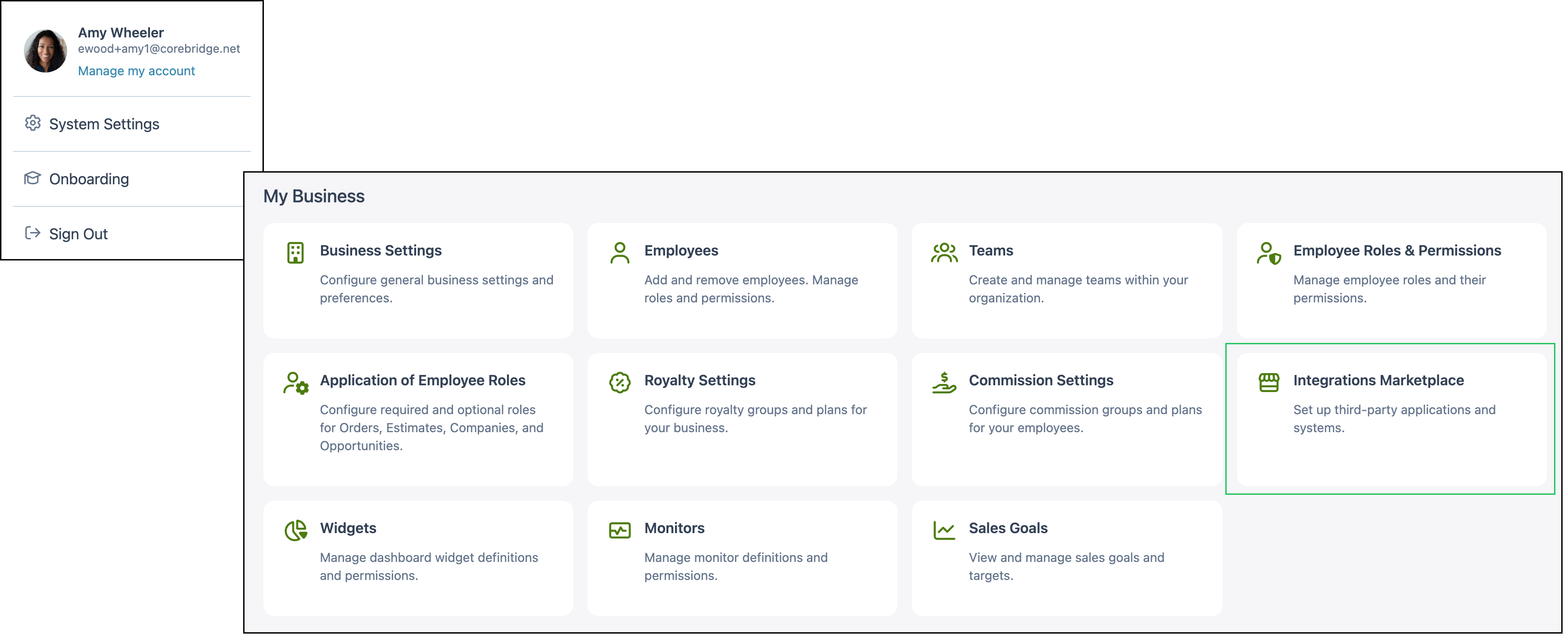
To integrate SanMar with CoreBridge, navigate to System Settings / My Business / Integrations Marketplace.
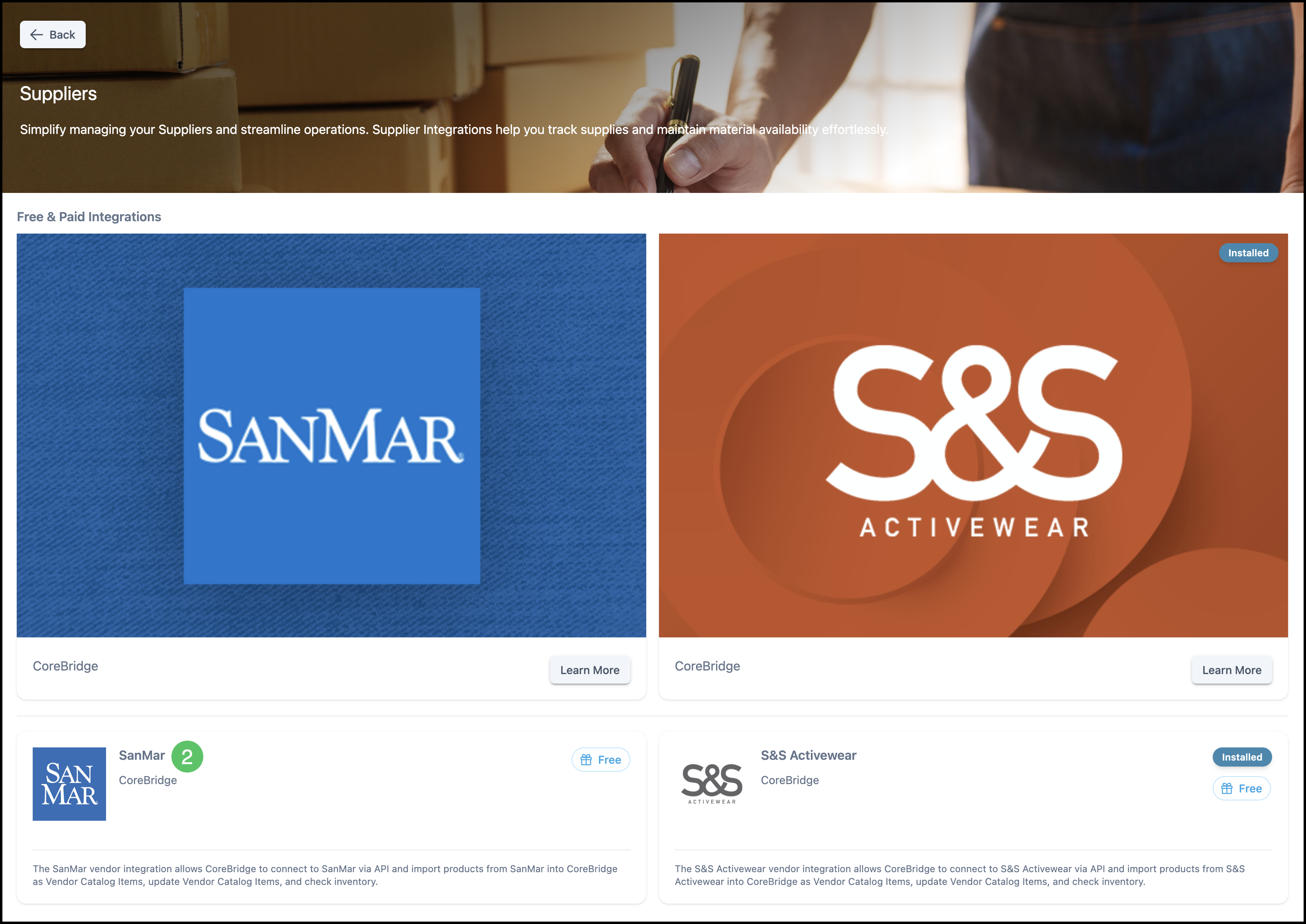
1. Select the Suppliers category.
Note: You can also find SanMar using All Categories or the search bar.

2. Select the SanMar integration.
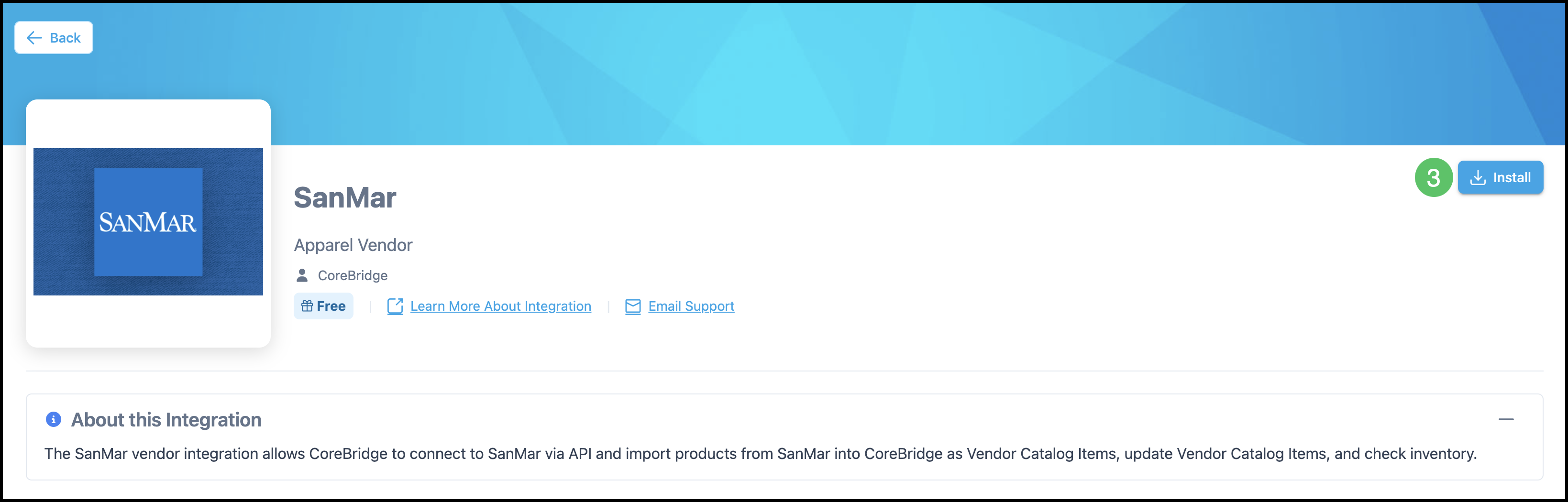
3. Click Install.
Note: After Install, choose USA or Canada, enter your SanMar credentials, and click Connect. For USA, fill in Customer Number, Username, and Password. For Canada, fill in Customer Number and Email Address.
Functionality
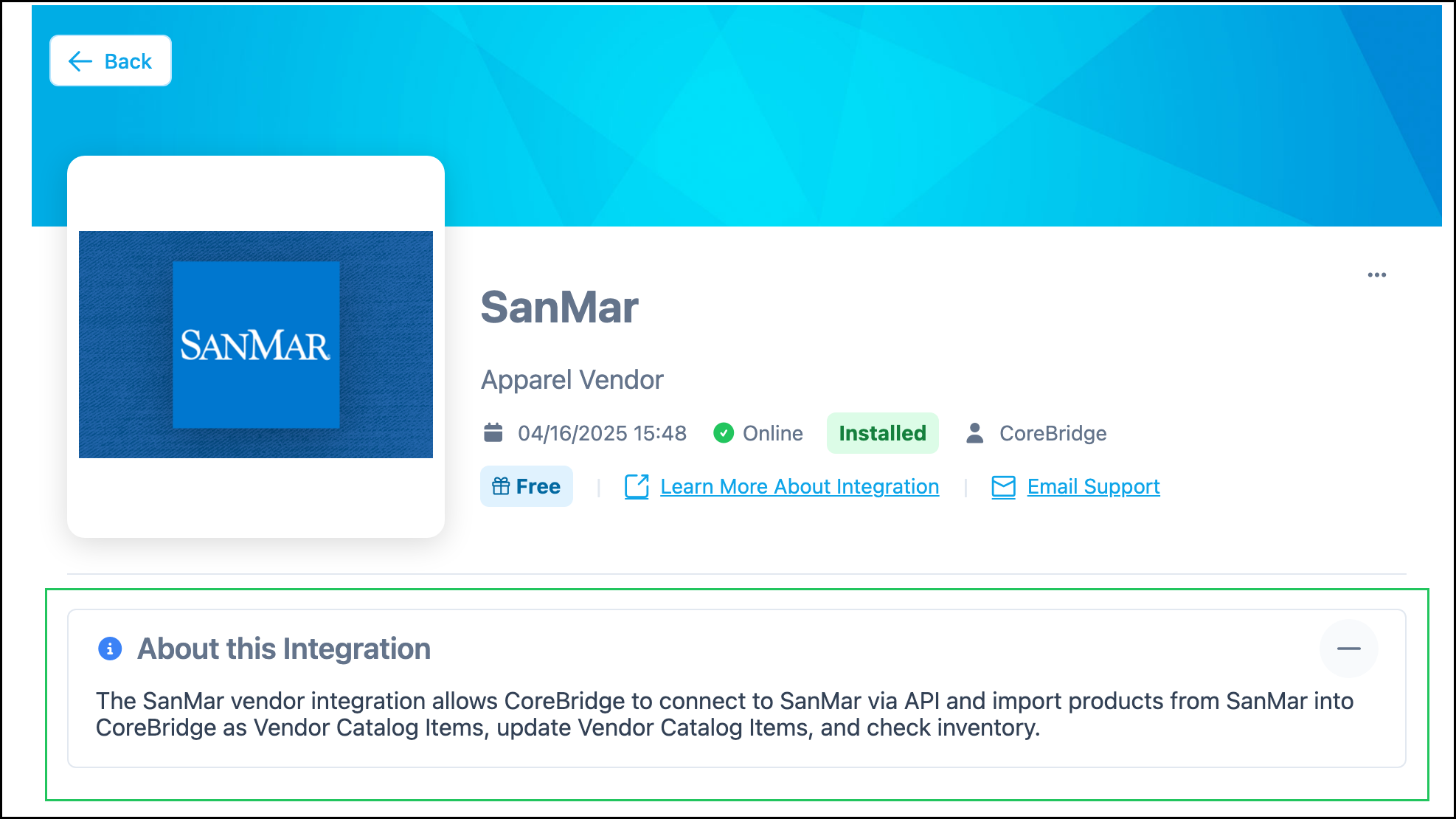
After you click Connect, the SanMar integration can import products from SanMar as Vendor Catalog Items, update those items, and check inventory. You do not add SanMar as a Vendor to turn the integration on.
The About this Integration section on the SanMar screen describes what the integration can do:
- Import products from SanMar into CoreBridge as Vendor Catalog Items.
- Update Vendor Catalog Items from SanMar.
- Check inventory.
Note: If you need a vendor record for purchase orders, see Creating Vendors.
Imported SanMar products are used as Vendor Items on Materials. For Materials with Variants, including garments, link Vendor Items at the variant level. See Vendor Items and Materials with Variants Overview.
SanMar Details
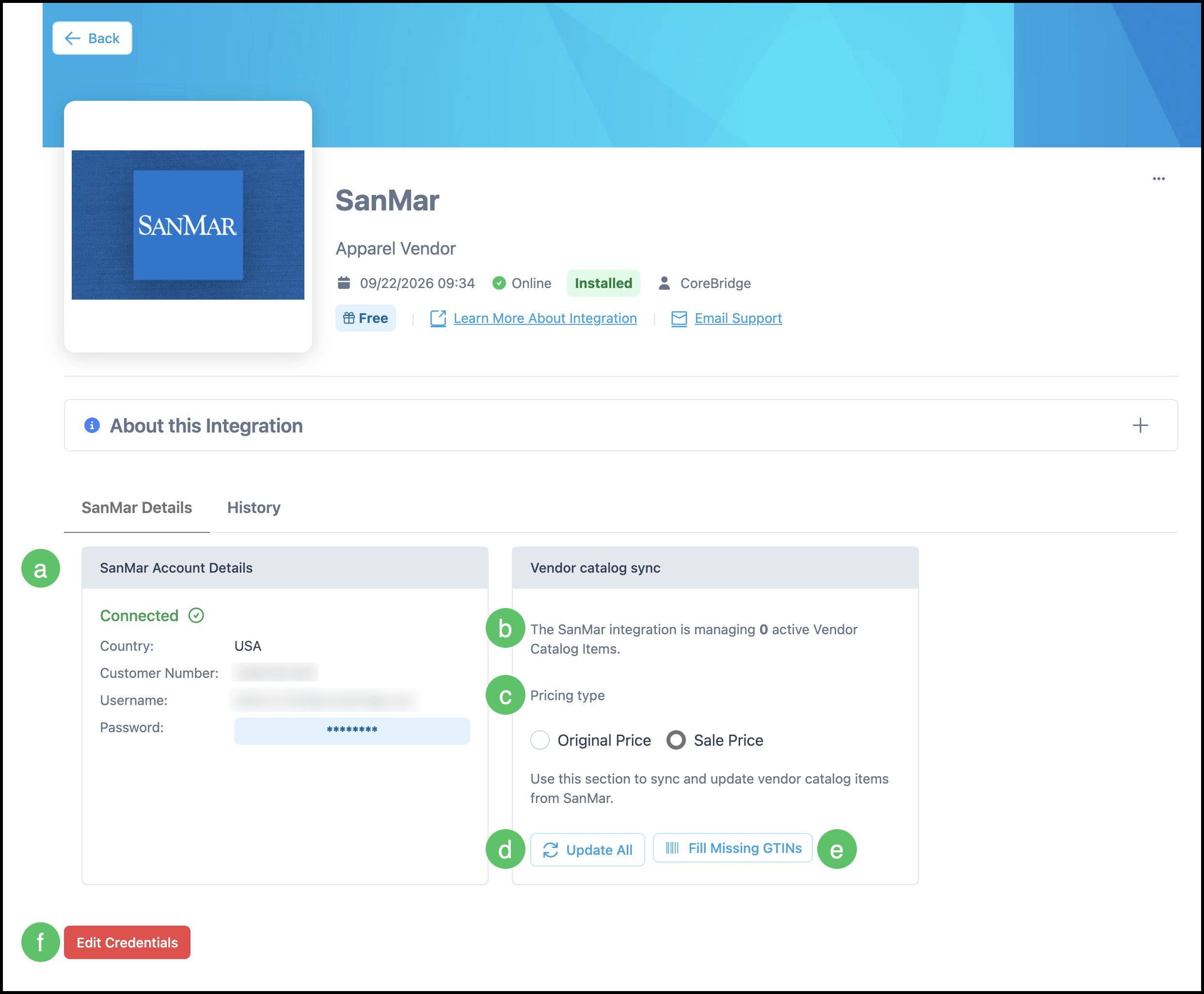
After you Connect, the SanMar Details tab includes Vendor catalog sync.
a. SanMar Account Details shows you if you are connected and contains your sign in information.
b. The integration shows how many active Vendor Catalog Items it is managing.
c. Pricing type is Original Price or Sale Price. This is the pricing used when Vendor Catalog Items sync.
d. Update All updates Vendor Catalog Items from SanMar.
e. Fill Missing GTINs fills missing GTIN values on Vendor Catalog Items.
f. Edit Credentials lets you update the Country, Customer Number, and the USA Username and Password or Canada Email Address used to connect.
Note: More Actions includes Set Inactive and Uninstall. Set Active is available when the integration is inactive.
History
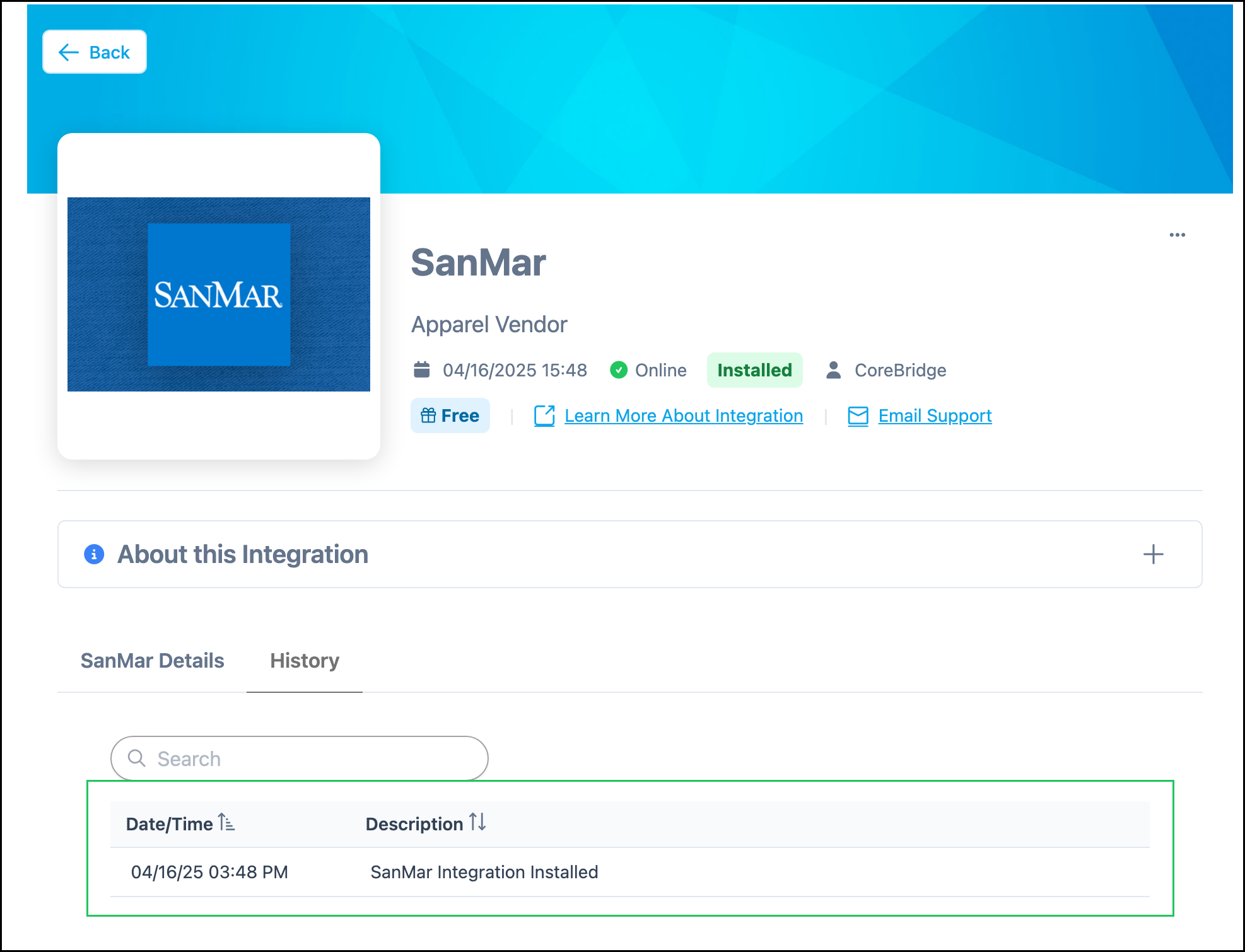
The History tab lists integration events. Each row shows Date/Time and Description. Use Search to find a specific event.
Frequently Asked Questions
1. Do I need to add SanMar as a Vendor after I connect?
Answer: No. Connecting the integration is done from Integrations Marketplace. Add a vendor only if you need a vendor record for purchasing. See Creating Vendors.
2. Where do imported SanMar products appear?
Answer: Imported products are Vendor Catalog Items. Link them as Vendor Items on Materials, including at the variant level for garments. See Vendor Items.
3. What credentials do I enter for USA vs Canada?
Answer: Choose USA or Canada to match your SanMar account. USA uses Customer Number, Username, and Password. Canada uses Customer Number and Email Address.
4. What is the difference between Original Price and Sale Price?
Answer: Pricing type controls which SanMar price is used when Vendor Catalog Items sync. Select Original Price or Sale Price to match how you buy from SanMar.
Related Articles
Integrations Marketplace Overview