
Materials are the physical items used in creating a Product or delivering a service. These tangible resources can be tracked for cost and inventory purposes and may include items such as vinyl, acrylic, aluminum sheets, banner material, ink, or paper stock. By defining Materials in your system, including those that use the Material with Variants option, you can support accurate job costing, inventory management, and pricing.
For a full overview of standalone Materials and shared Material fields, see Materials Overview. For creating a Material from scratch, see Adding Materials.
Table of Contents
- Material Options in the System
- When to Use Material with Variants
- Materials Menu
- Materials with Variants Screen
- Material Details Tab
- Variants Tab
- Other Tabs and Header Actions
- Frequently Asked Questions
- Related Articles
Material Options in the System
CoreBridge EVO supports two Material formats:
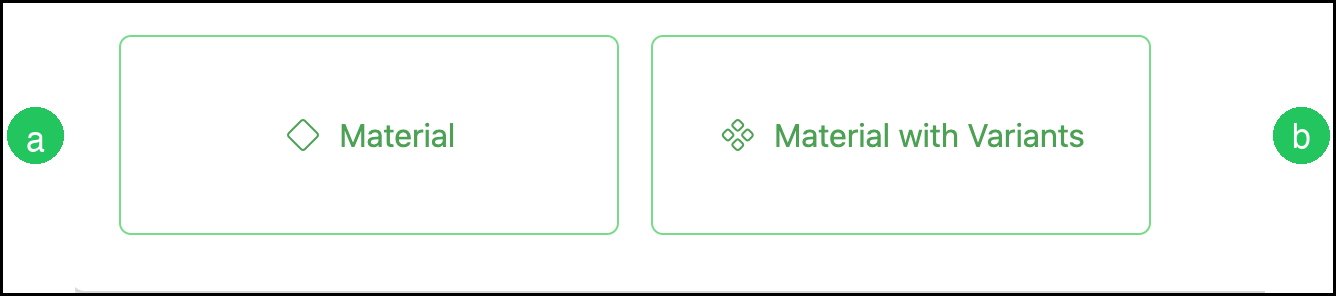
a. Material: a single Material with one set of values for retail price, lead time, and cost.
b. Material with Variants: a parent Material that supports multiple variations, each with its own retail price, lead time, cost, and custom properties. This format is ideal for Materials offered in a wide range of styles.
When you click Material on the Materials list, you choose the format before entering Material details.
When to Use Material with Variants
Use Material with Variants when you have a group of similar items that should be treated as one logical Material with multiple selectable variations. Common cases include:
- Apparel or other goods that share the same overall setup but differ by options such as color and size.
- A substrate or media family that comes in multiple thicknesses, finishes, or widths but otherwise uses the same rules.
- Frequently used Material families where you want consistent parent setup and flexibility at order entry.
Create separate standalone Materials when items differ in meaningful ways, such as costing method, measurement type, or how they are used in Assemblies.
Note: Variant Types (including Properties and Values) are managed under System Settings / Components / Variants. Apparel is currently available as a Variant Type.
Materials Menu
Navigate to System Settings / Components / Materials.
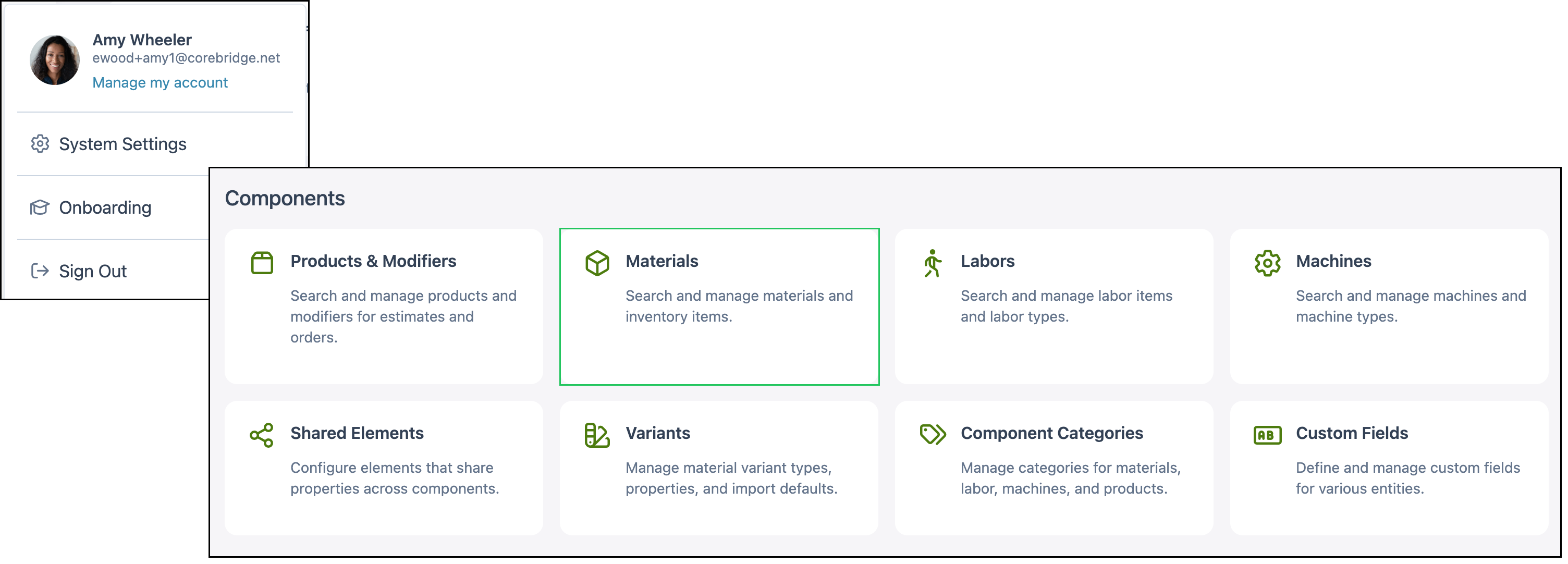
On the Materials list:
a. Use Search (and column filters) to locate a Material.
b. Click Material to create a new Material and choose the format.
c. Use Export All and the overflow menu for Import Materials.
d. Click Search Settings to show or hide list columns.
e. Use More Actions on a row for actions such as Clone, Export, Set Inactive, or Delete.
Click a Material name to open it. Materials with Variants show blank or dash values for parent Cost and Retail when those values are controlled by the variant.

Note: Materials that are used on Estimates or Orders can be set to Inactive, not Deleted.
Materials with Variants Screen
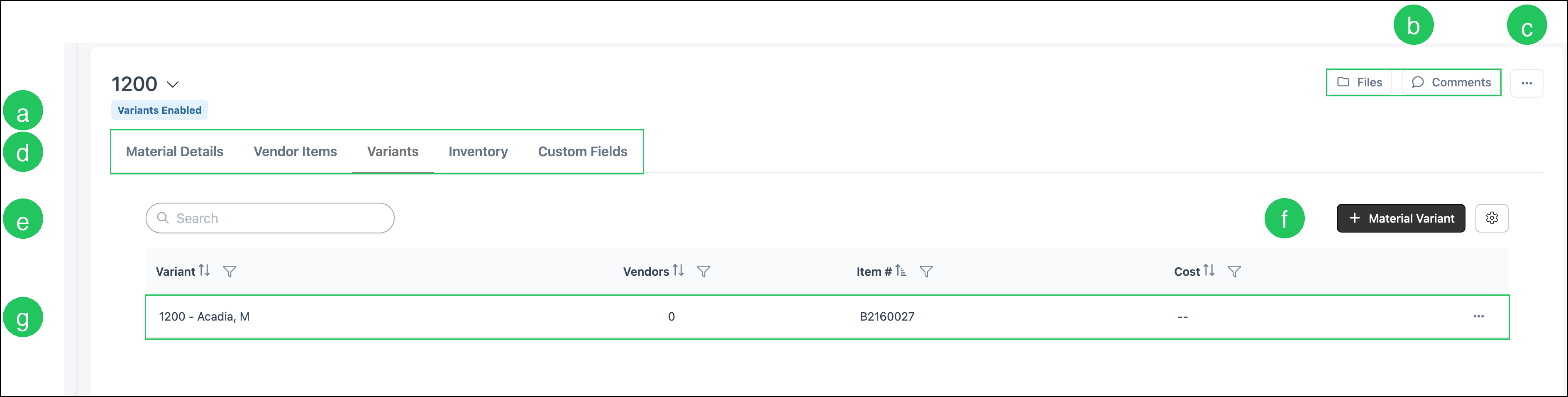
Open a Material with Variants to review parent settings and manage individual variants.
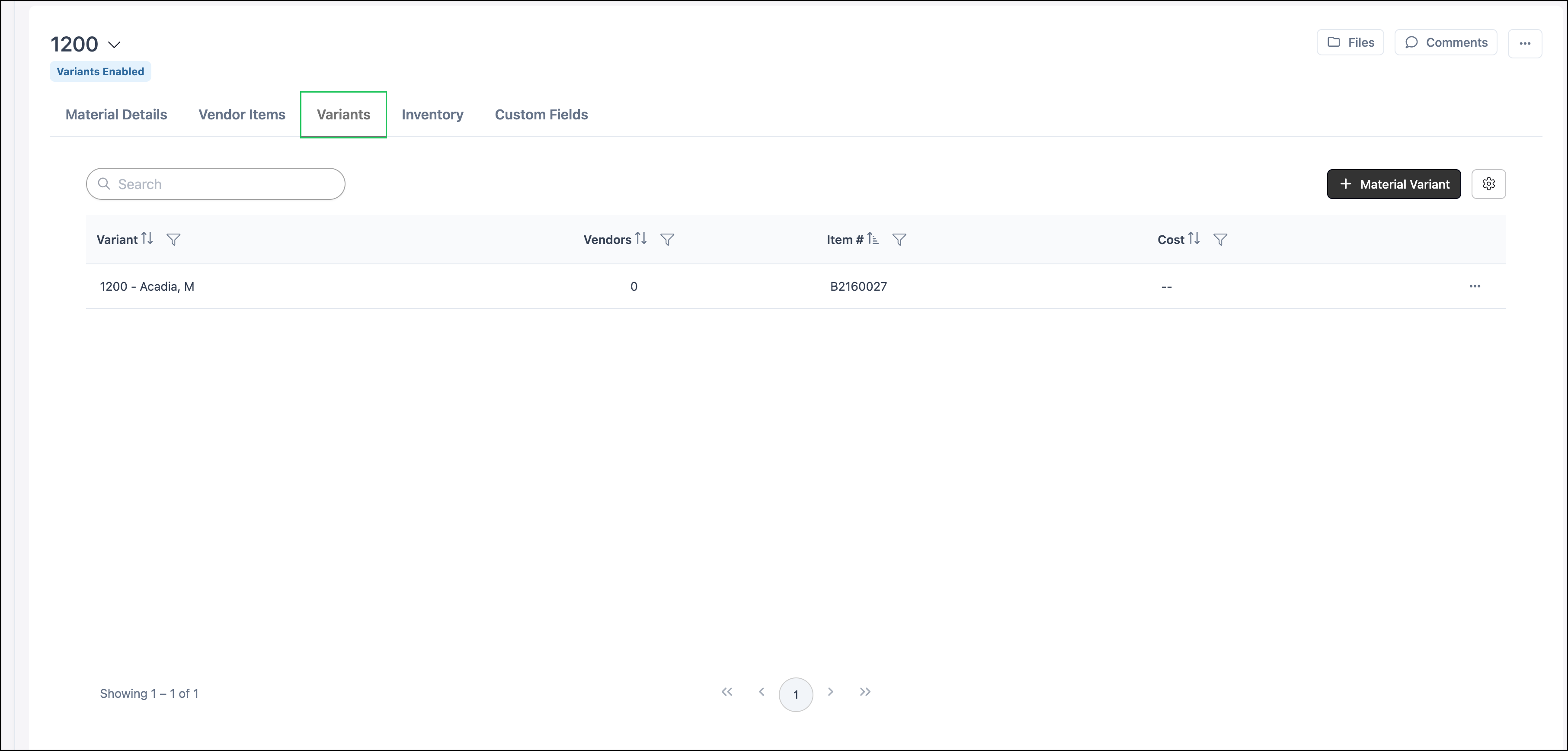
a. The Variants Enabled badge confirms this Material uses variants.
b. Files and Comments store documents and internal discussion for the Material.
c. More Actions provides Material-level actions such as Clone, Export, Set Inactive, or Delete.
d. Use the tabs to move between Material Details, Vendor Items, Variants, Inventory, and Custom Fields.
e. On the Variants tab, use Search to filter variants.
f. Click Material Variant to add a variant.
g. Click a variant row to open its details, or use the row More Actions menu.
Material Details Tab
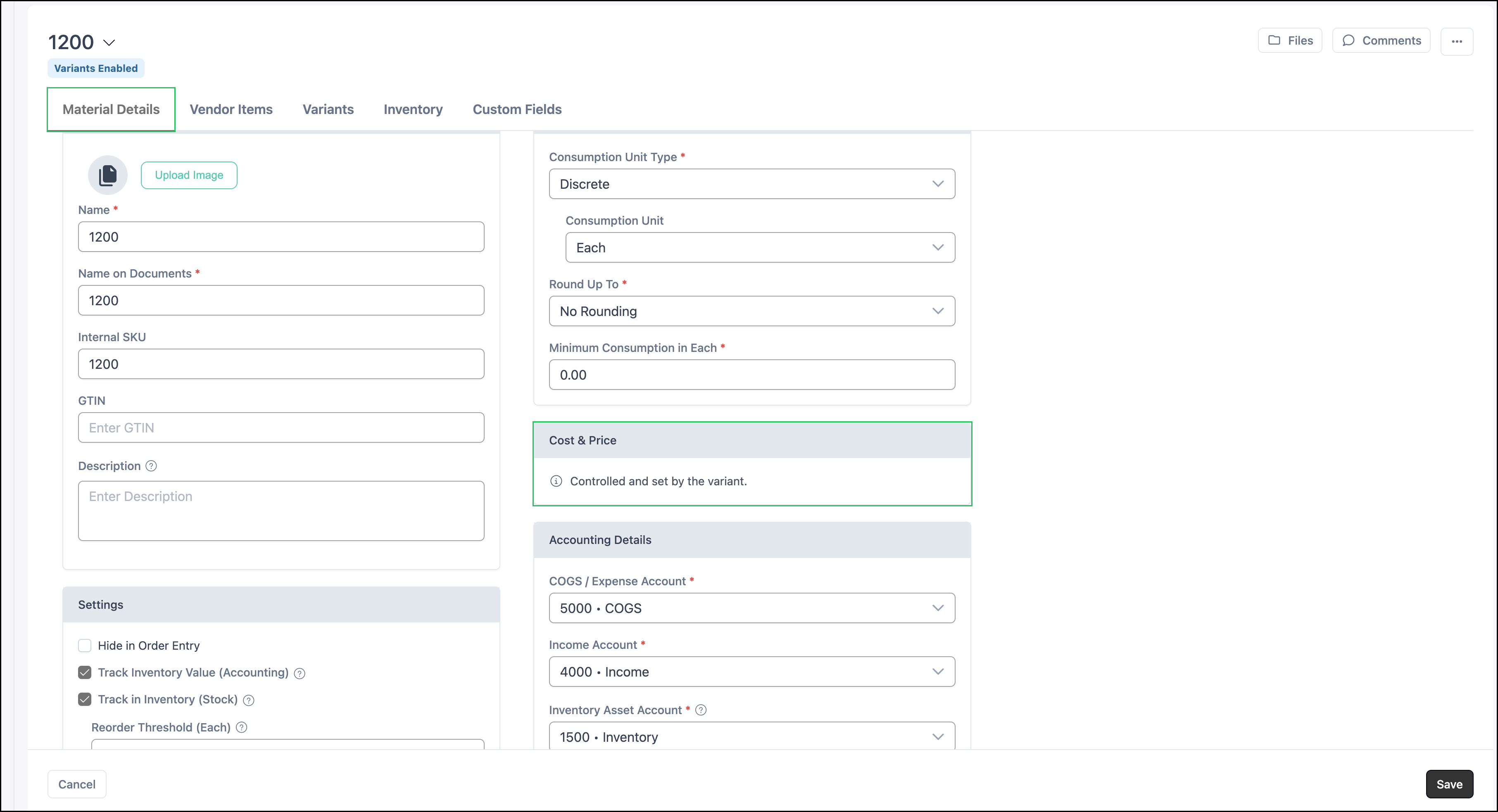
The Material Details tab holds the parent Material definition: name and document naming, settings, attributes, consumption, accounting, and related fields. Most of these fields work the same way as on a standalone Material. See Materials Overview for field-by-field guidance.
Differences that matter for Materials with Variants:
- Variant Type organizes the Properties and Values available for this Material (for example color and size). Apparel is currently available.
- Cost & Price on the parent shows that values are controlled and set by the variant. Enter cost and retail on each variant, not on the parent Material.
Note: Click Save after you edit Material Details.
Variants Tab
The Variants tab is where you define and manage the selectable options for the Material. Each variant can have its own item number, cost, vendors, and related details used during Estimates and Orders.
From this tab you can search the variant list, add a Material Variant, open a variant for editing, and use row actions as needed.
Other Tabs and Header Actions
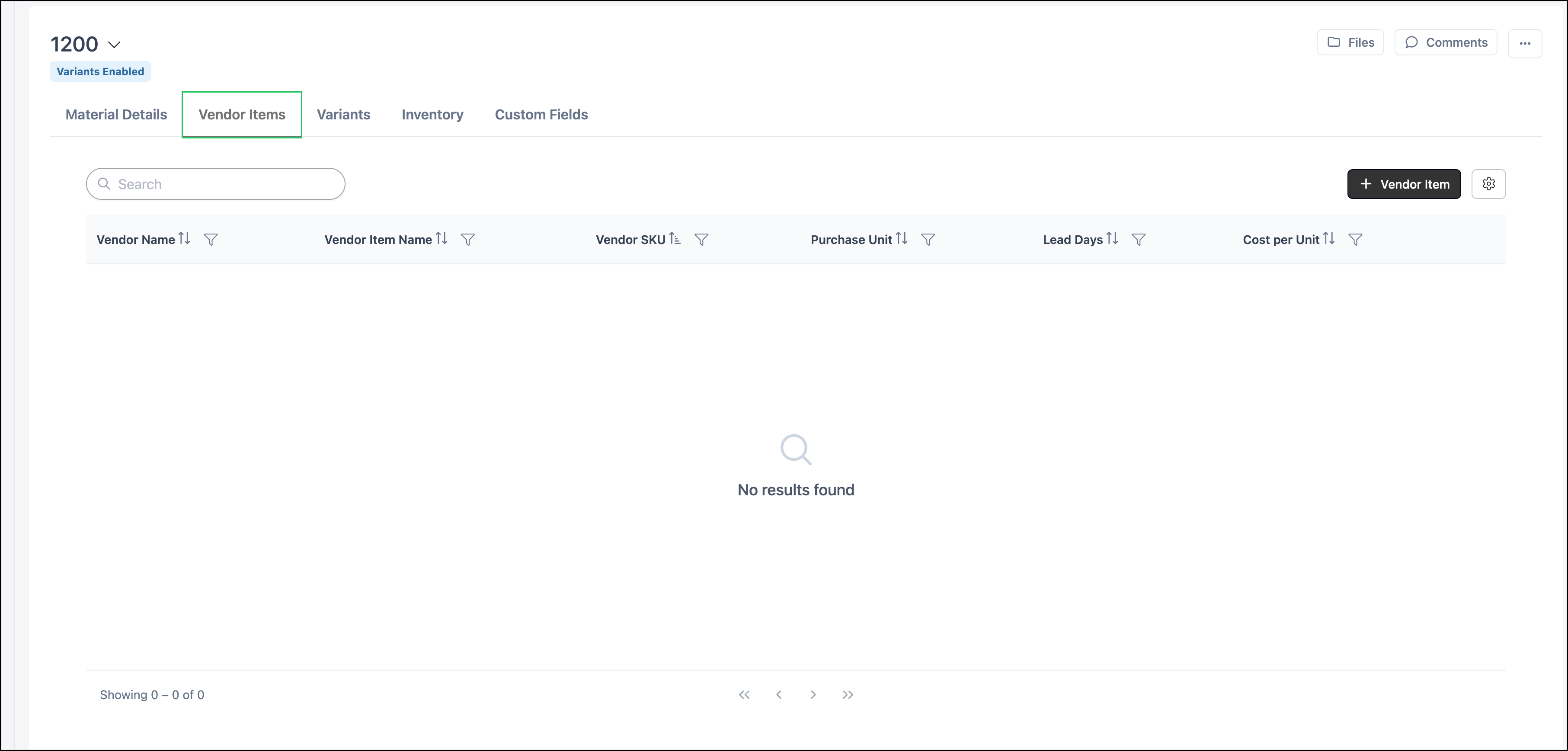
Vendor Items links vendor catalog items to the Material or its variants for purchasing and costing workflows.
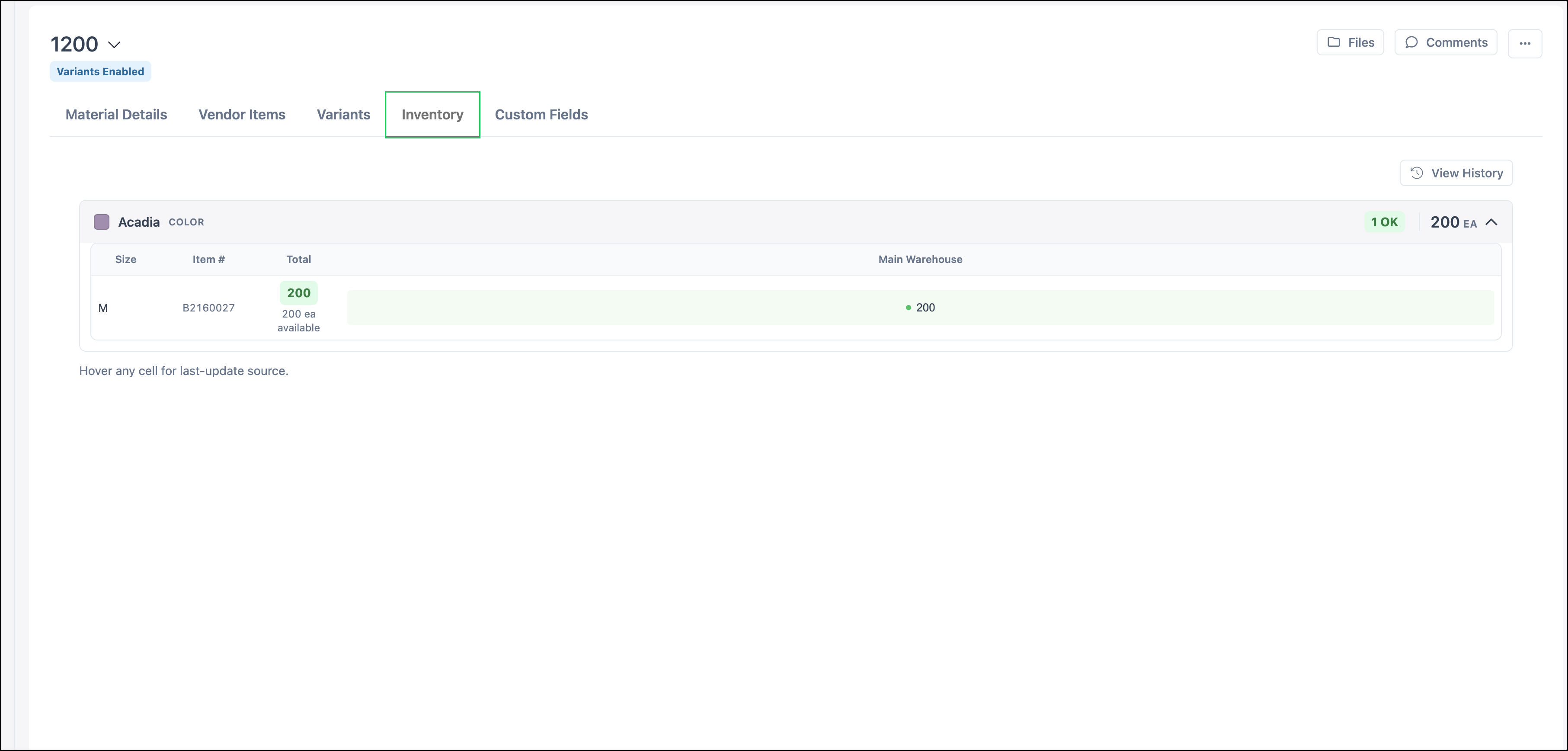
Inventory supports inventory-related settings and tracking for the Material.
Custom Fields stores additional business-specific information for the Material. Custom Fields are managed under System Settings for Materials.

Files and Comments in the header replace separate Notes and Files tabs from older interfaces. Use them for supporting documents and internal notes about the Material.
Frequently Asked Questions
1. How do I know a Material uses variants?
Answer: Open the Material. Materials with Variants show a Variants Enabled badge and include a Variants tab. On the Materials list, parent Cost and Retail often appear blank or as dashes when those values are set on the variant.
2. Where do I set cost and retail for a Material with Variants?
Answer: On the parent Material Details tab, Cost & Price is controlled by the variant. Open the Variants tab, select a variant, and set cost and retail there.
3. What is a Variant Type?
Answer: A Variant Type is a predefined group of Properties and Values a Material with Variants can use, such as color or size. Manage Variant Types under System Settings / Components / Variants. Apparel is currently available.
4. Should I create many similar Materials or use Materials with Variants?
Answer: If items share one overall definition and differ by selectable options, Materials with Variants usually fit better than many near-duplicate Materials. If costing, measurement, or Assembly use differs meaningfully, create separate Materials. See Materials Overview.
5. Can I clone a Material with Variants?
Answer: Yes. Use More Actions on the Materials list or on the Material screen, then select Clone. See Cloning a Material.
Related Articles
Adding Materials
Cloning a Material
Components Overview
Creating Materials with Variants
Materials Overview
Materials Import Template