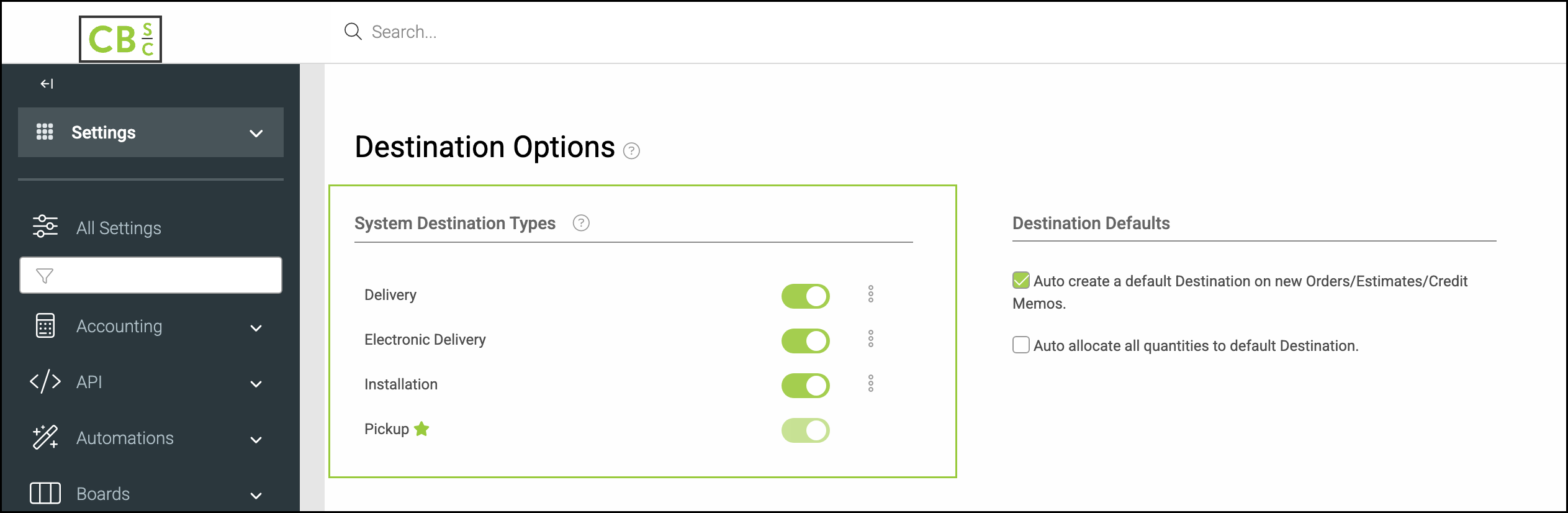
Offline shipping carriers, including FedEx, UPS, USPS, and DHL, are managed through a single Shipping (Offline) Destination Type. This provides one place to manage offline shipping while allowing the specific carrier and service to be identified in the Service field.
Table of Contents
- What changed
- How to select Shipping (Offline) on an Estimate or Order
- Existing destinations
- Notes
- Related Articles
What changed
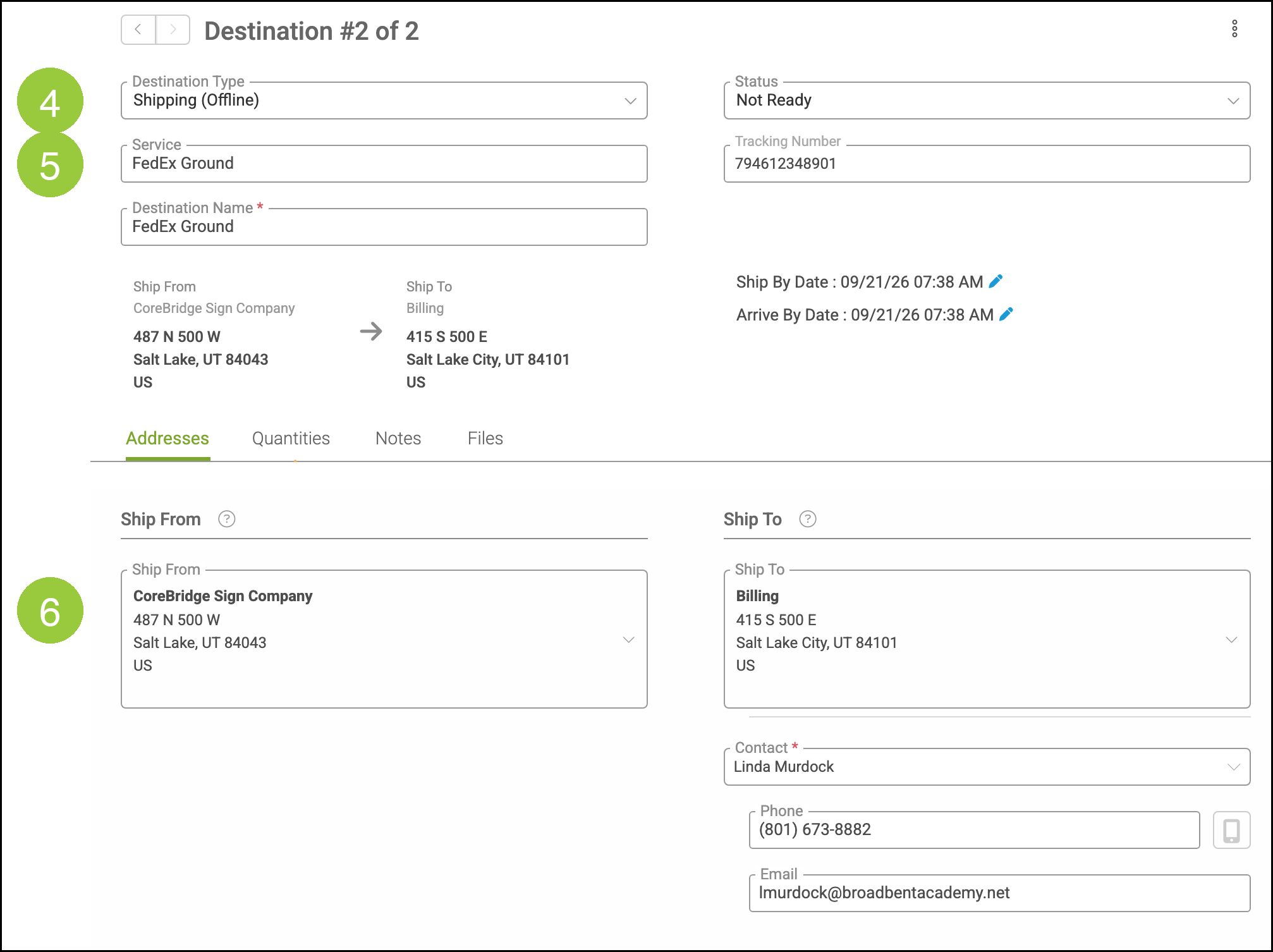
FedEx, UPS, USPS, and DHL no longer appear as separate Destination Types when they are not tied to an online shipping integration. Those offline carrier methods are replaced by Shipping (Offline). When Shipping (Offline) is selected, a free-text Service field is available for the carrier and service (for example, FedEx Ground).
How to select Shipping (Offline) on an Estimate or Order
This example uses an Order. On an Estimate, navigate to Sales / Estimates, then use the same Destinations steps.
Navigate to Sales / Orders.
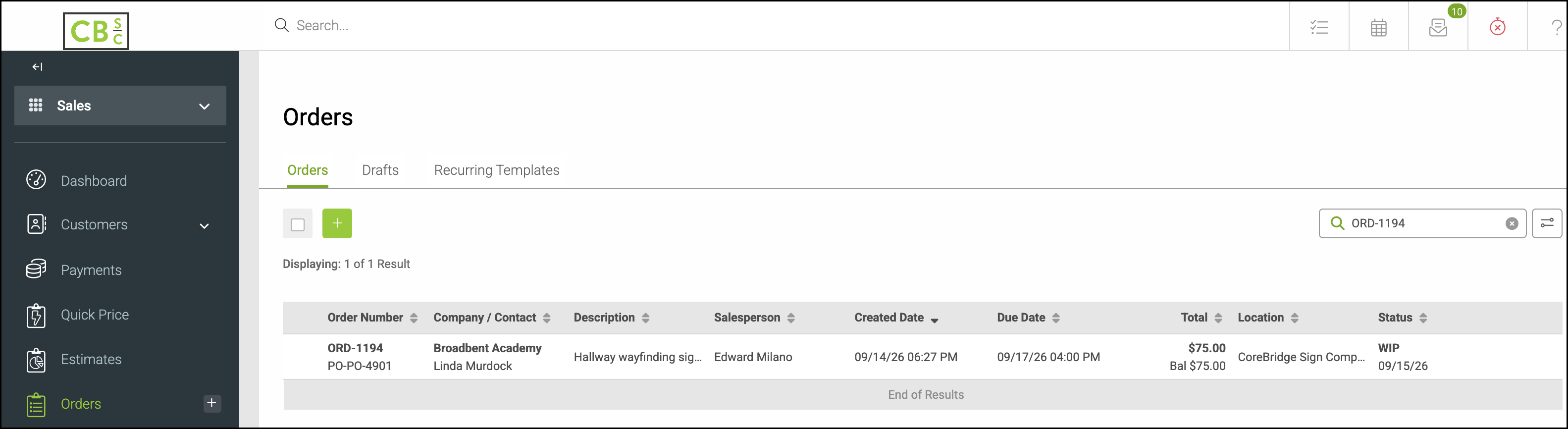
1. Open the Estimate or Order.
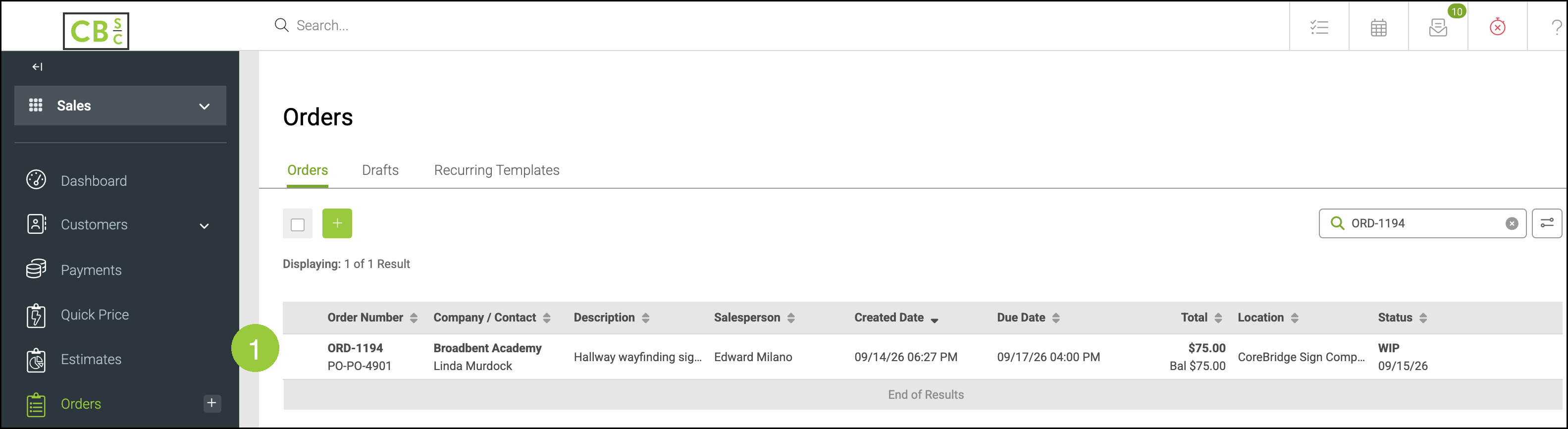
2. Click the Destinations tab.
3. Click the destination. To add a destination, click +.
4. On the Addresses tab, select Shipping (Offline) from Destination Type.
5. In Service, enter the carrier and service (for example, FedEx Ground or FedEx - Standard Overnight).
6. Complete the Ship From and Ship To details. Changes save automatically.
Existing destinations
Destinations that previously used a legacy offline carrier type were migrated to Shipping (Offline). The Service value was updated to preserve the prior type and service, for example: FedEx - Standard Overnight.
Notes
There is no Settings toggle that restores FedEx, UPS, USPS, or DHL as separate Destination Types. Navigate to Settings / Workflow / Destination Options to manage types such as Delivery, Pickup, Installation, and Electronic Delivery. The retired offline carrier types do not appear there.