
Market Based Pricing is a pricing method where the costs of Components - including Material cost, Labor cost, and Machine cost - are stored for reporting purposes but are not used to calculate price. It is also referred to as square footage pricing, area-based pricing, or square meter pricing. CoreBridge supports both Market - Product/Modifier and Market - Component pricing, which are configured in Products.
Note: CoreBridge also supports Cost Based pricing and Custom Formula pricing. For more information on Cost Based pricing, see Cost Based Pricing. For help with custom formulas, tables, or pricing, contact your Customer Success Manager at supportdesk@corebridge.net.
Table of Contents
- Setting up Market - Product/Modifier Pricing
- Setting up Market - Component Pricing
- Use Table Option
- Related Articles
Setting up Market - Product
In Market - Assembly Pricing, the system tracks Material, Labor, and Machine costs for reporting only - cost is not used to calculate price. Instead, the system multiplies total quantity by a unit price. The unit price can be set directly or configured using pricing tier tables. Optional custom fees, minimums, and discounts can also be applied.
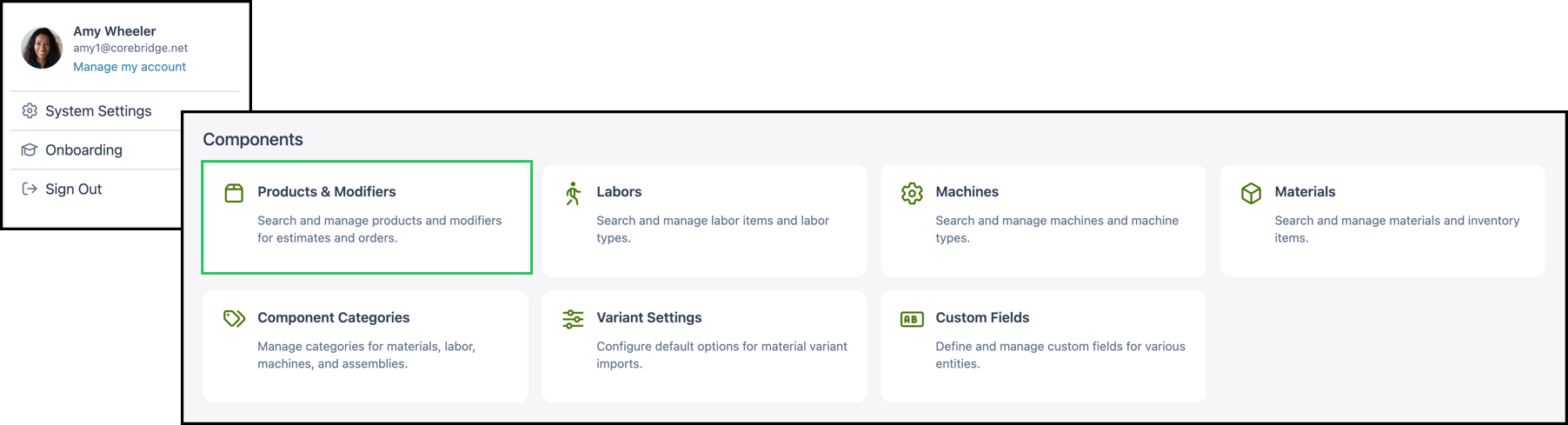
Navigate to System Settings / Components / Products & Modifiers.
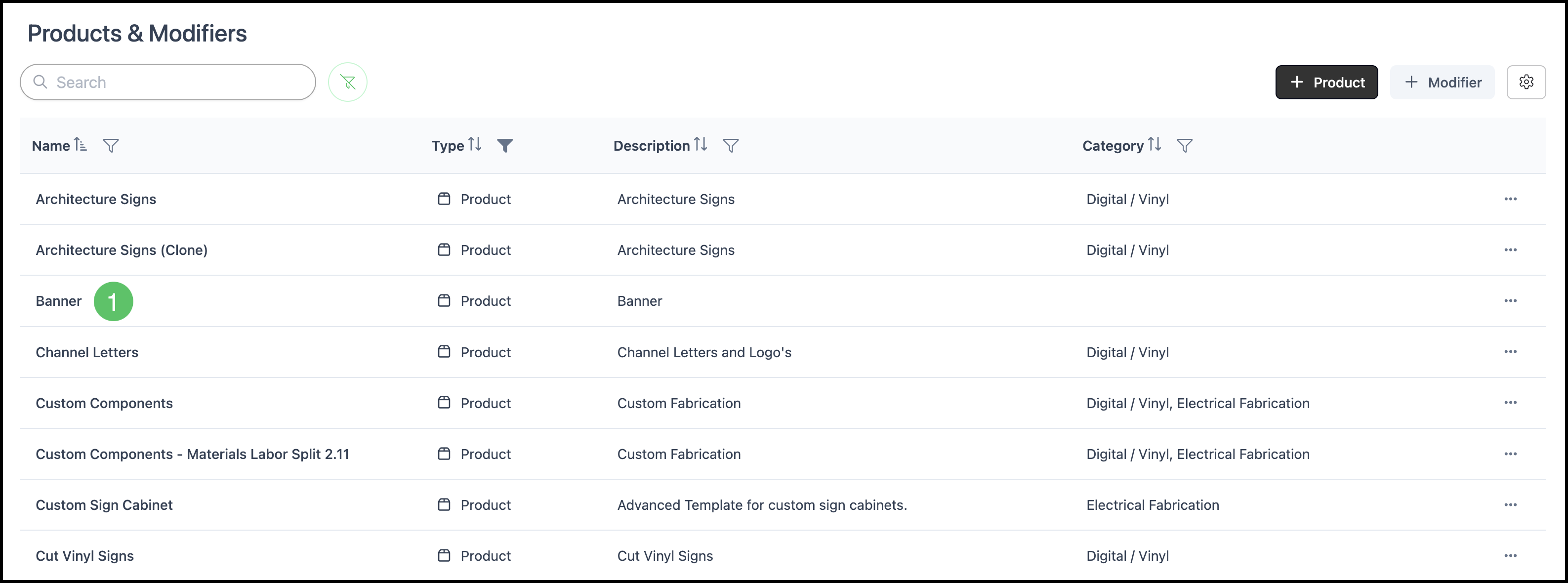
1. Select a Product.
2. Click Pricing.

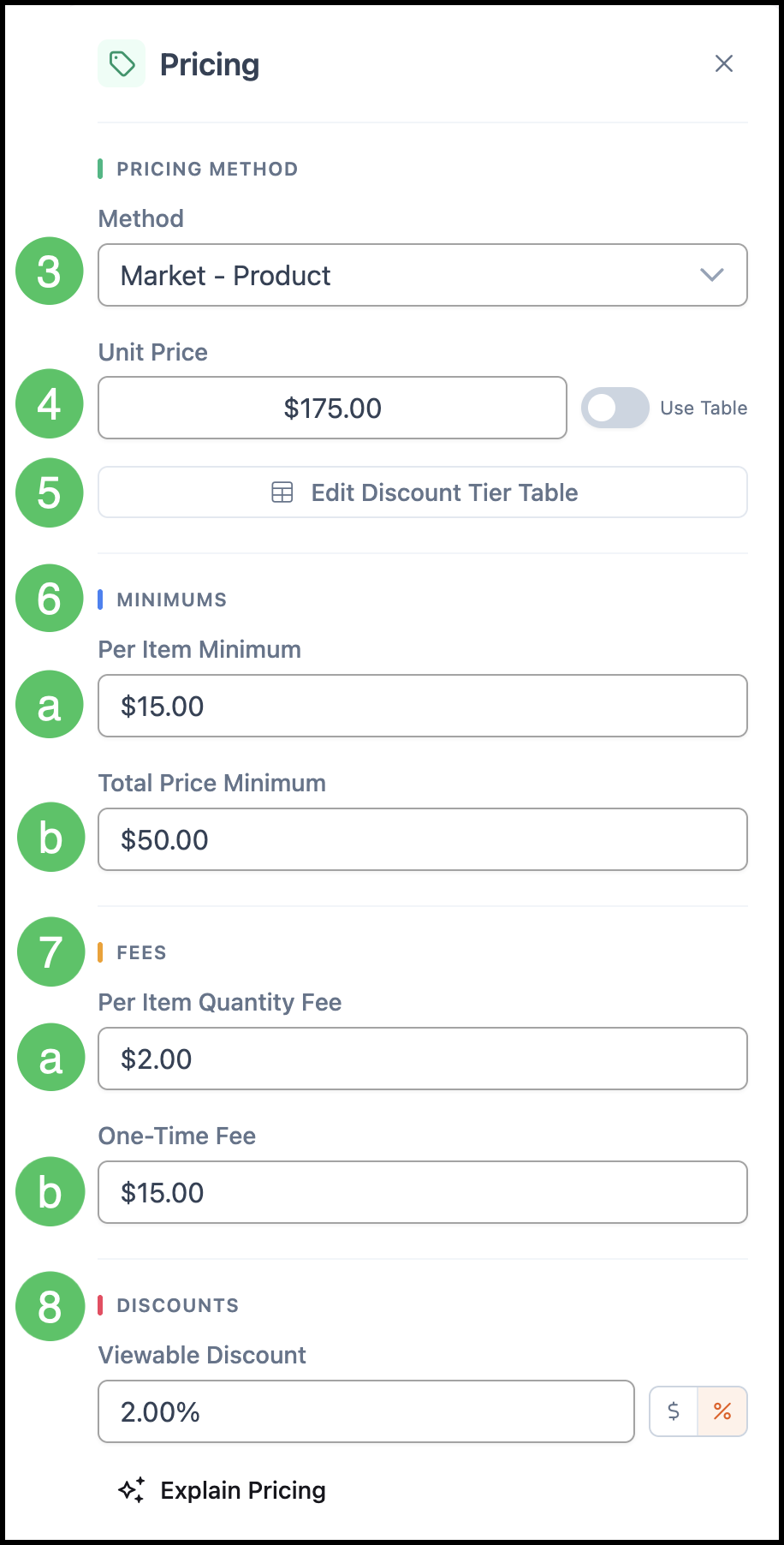
3. In the Method field, select Market - Product.
4. Enter a Unit Price, or enable Use Table to set up a Unit Price Table. For more information on Pricing Tables, please see Pricing Tables.
5. Click Edit Discount Tier Table to set up a discount table, if desired. For more information on Discount Tables, please see Pricing Tables. For help with custom tables, contact your Customer Support Manager at supportdesk@corebridge.net.
6. Under Minimums, enter values as needed. For more information, please see Product Minimums and Fees.
a. Per Item Minimum - Sets a minimum price per item. This charges a minimum regardless of quantity and/or total calculated price.
b. Total Price Minimum - Sets a minimum total price for the Order.
7. Under Fees, enter values as needed. For more information, please see Product Minimums and Fees.
a. Per Item Quantity Fee - Adds a fee per item quantity to the calculated price.
b. One-Time Fee - Adds a flat one-time fee to the calculated price.
8. Under Discounts, enter a Viewable Discount to apply a percentage or dollar amount discount visible to the Customer.
Setting up Market - Component Pricing
In Market - Component Pricing, the system sums the retail price set on each component - material, labor, and machine - to calculate a total price. Component costs are tracked for reporting only and are not used to calculate price. Optional fees, minimums, and discounts can also be applied.
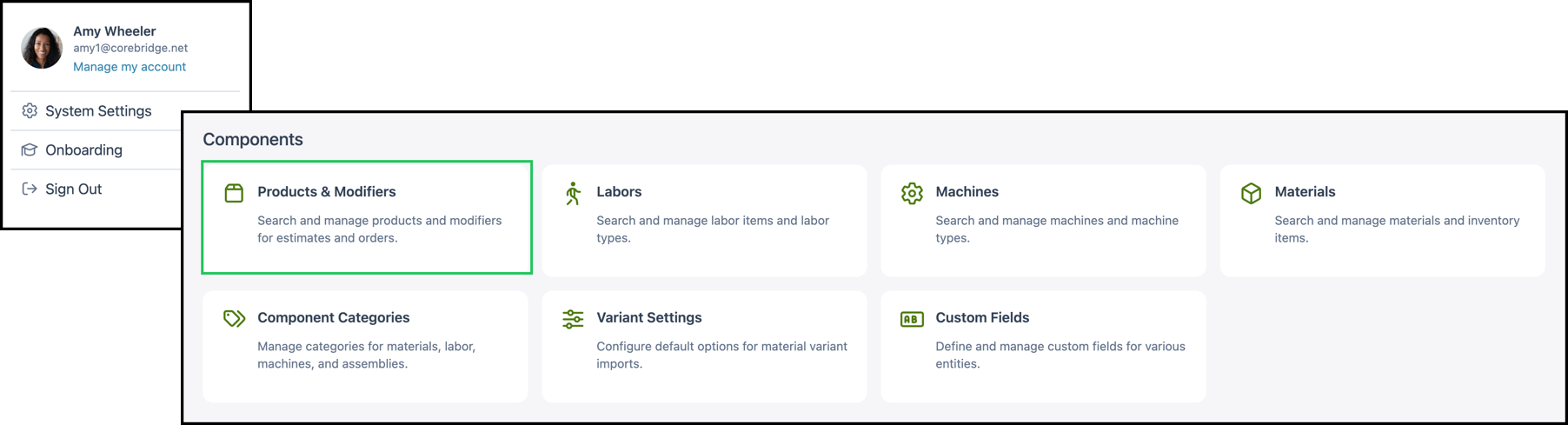
Navigate to System Settings / Components / Products & Modifiers.
1. Select a Product.
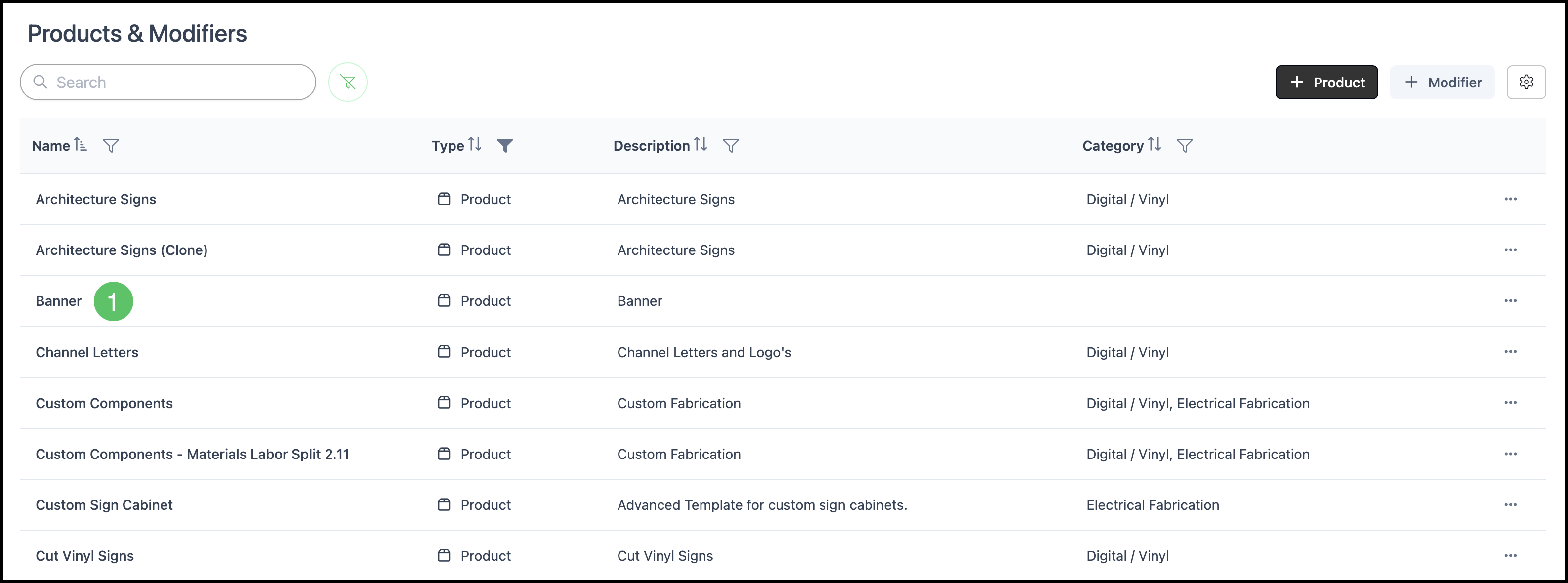
2. Click Pricing.

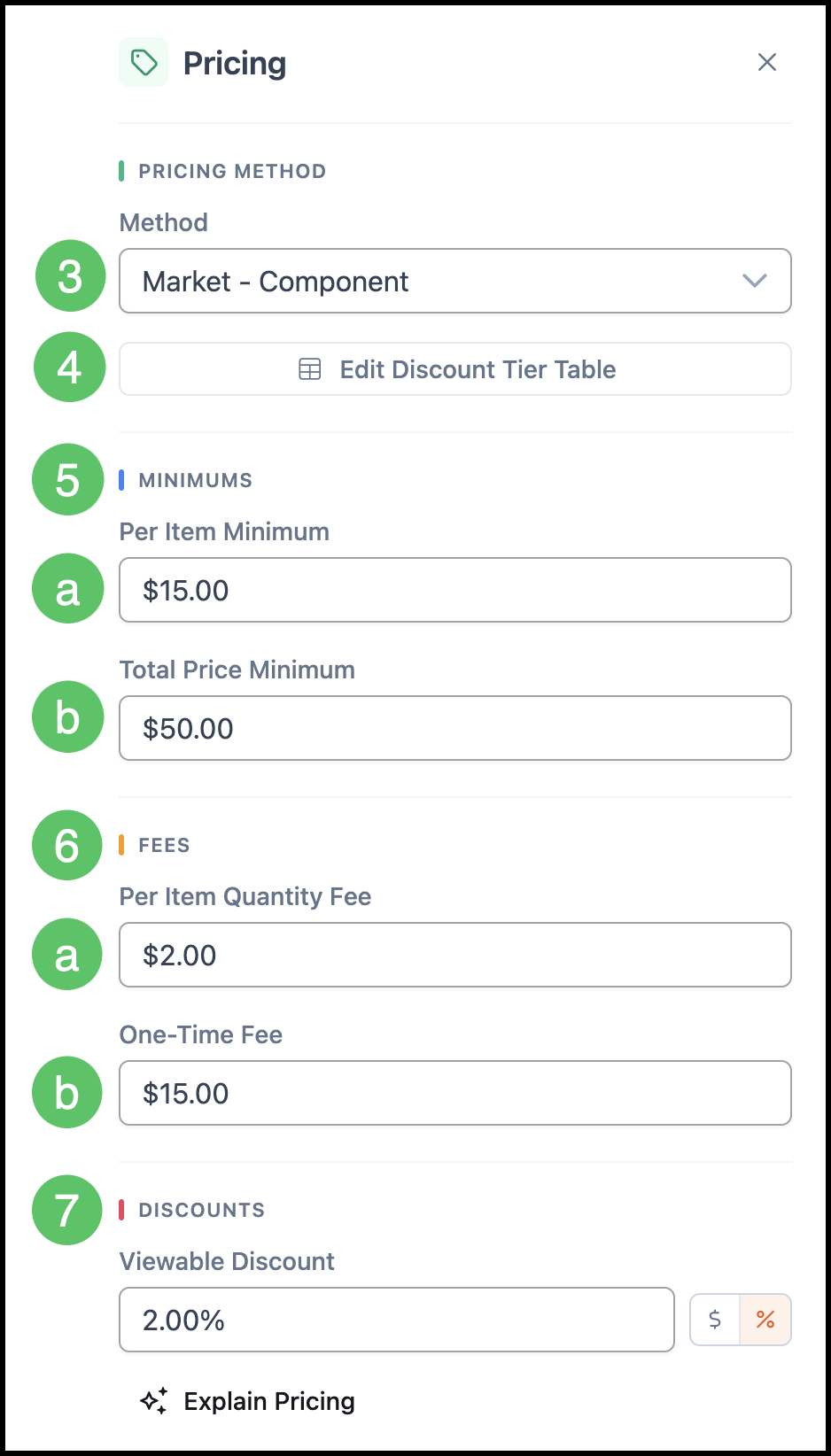
3. In the Method field, select Market - Component.
4. Click Edit Discount Tier Table to set up pricing tier tables, if desired. For more information on Discount Tables, please see Pricing Tables. For help with custom tables, contact your Customer Support Manager at supportdesk@corebridge.net.
5. Under Minimums, enter values as needed. For more information, please see
a. Per Item Minimum - Sets a minimum price per item. This charges a minimum regardless of quantity and/or total calculated price.
b. Total Price Minimum - Sets a minimum total price for the Order.
6. Under Fees, enter values as needed. For more information, please see Product Minimums and Fees.
a. Per Item Quantity Fee - Adds a fee per item quantity to the calculated price.
b. One-Time Fee - Adds a flat one-time fee to the calculated price.
7. Under Discounts, enter a Viewable Discount to apply a percentage or dollar amount discount visible to the customer.
Related Articles
Understanding Cost-Plus vs. Market Based Pricing