Calendars in CoreBridge EVO give the team one place to see installs, production blocks, and meetings. Administrators define each calendar once; everyone with access can then use Calendars or Sales / Scheduling to view and add events against those definitions.
Important Details
- Integrated calendars become available only after the matching provider is installed, licensed, and signed in according to your company’s integration plan.
- Multiple calendars can be viewed together from Sales / Scheduling.
Table of Contents
Adding Calendars
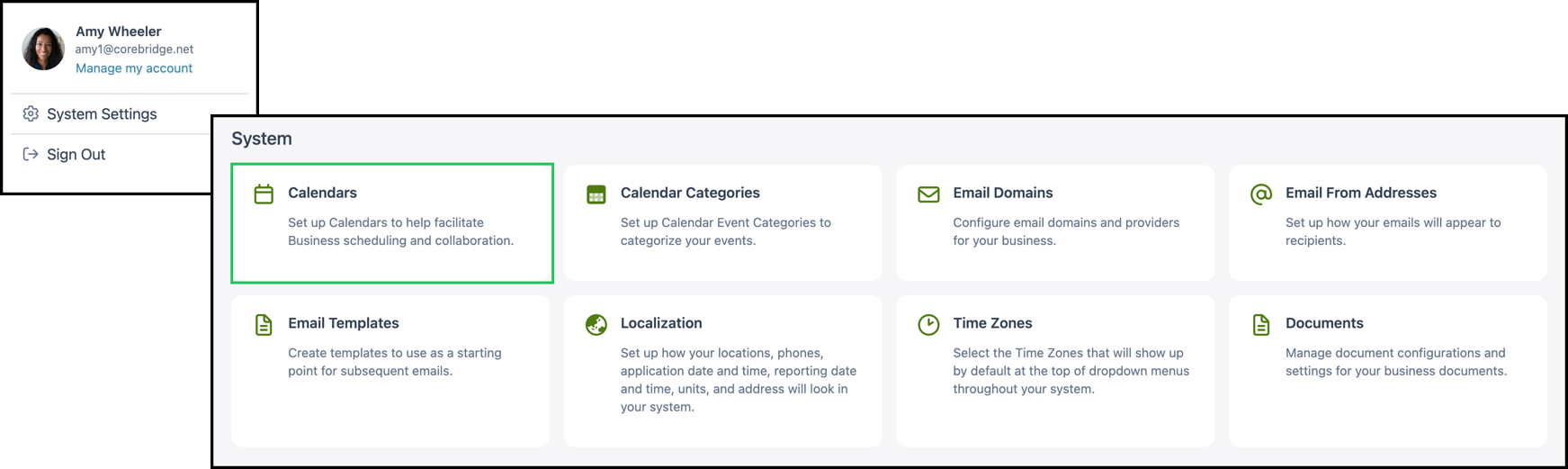
Navigate to System Settings / System / Calendars.
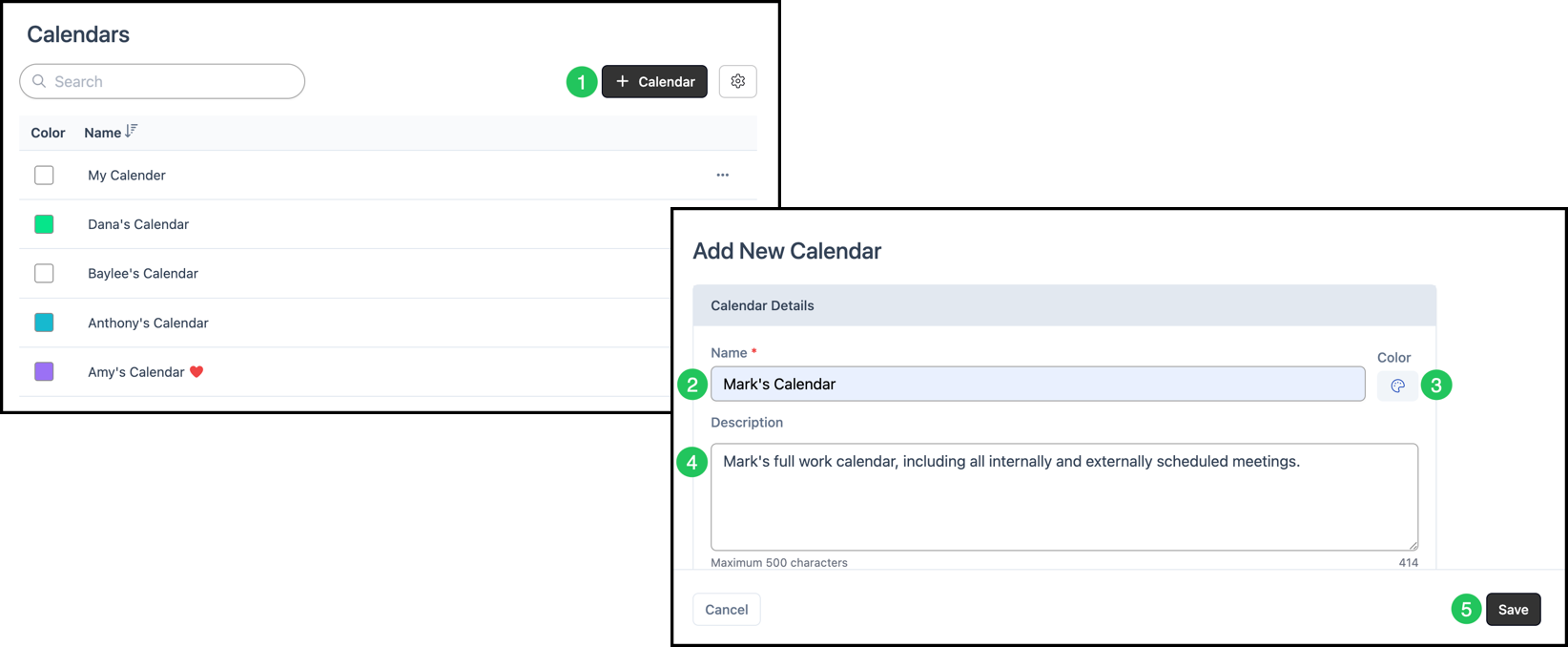
1. Click the Add Calendar button.
2. Enter Name (required). This label is visible to every user and should make the purpose obvious next to other calendars.
3. Click the Color control and pick a color.
4. Enter a Description about how the calendar should be used.
5. Click Save to create the calendar.
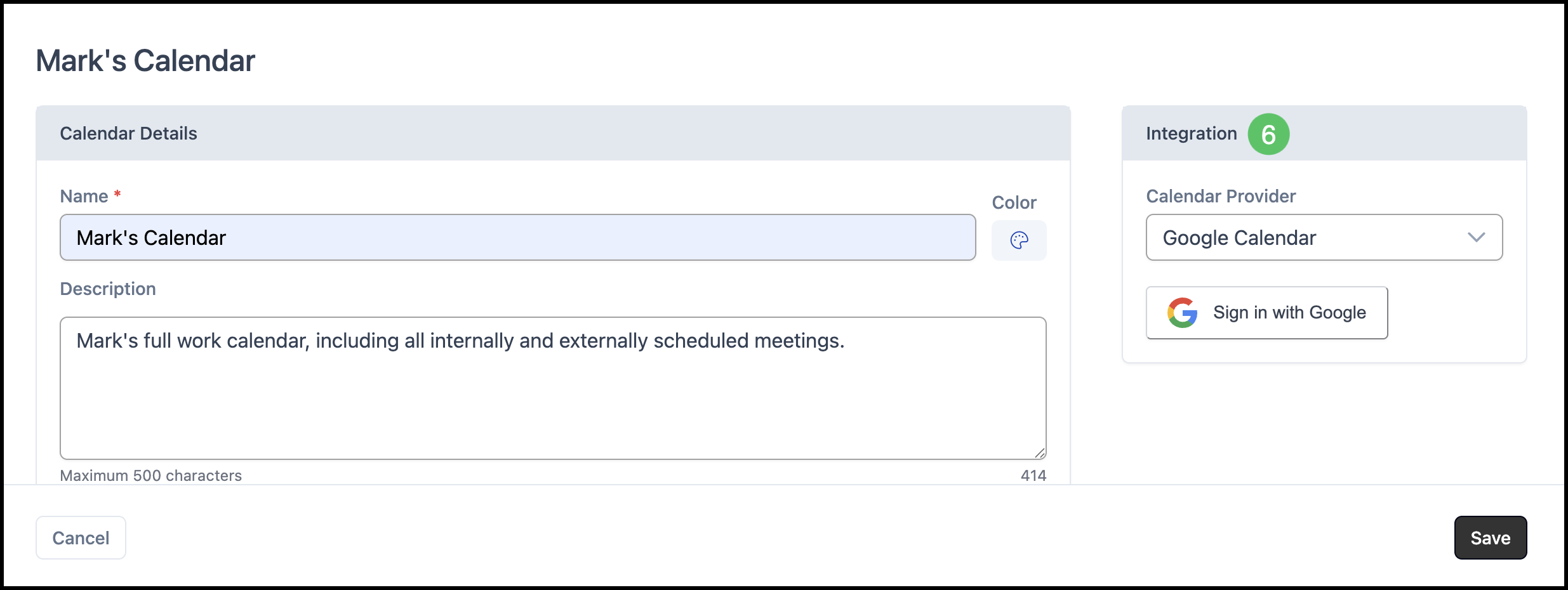
After clicking Save, the page will refresh with the option to use an integrated calendar if you have one installed in your system.
6. Select the integration, if desired, and complete sign-in prompts.
Note: Integrated calendars can be selected at any time by clicking into the appropriate calendar from the Calendar screen.