
When local sales tax rates change, update the existing tax item so new Estimates and Orders calculate with the new rate. Open Estimates and Orders keep the tax that was in effect when they were last calculated until you refresh the Tax Group on each record.
Note: For initial tax setup, see Tax Items and Tax Groups.
Table of Contents
- Why Edit Existing Tax Items
- Update a Tax Item Rate
- Why Open Estimates Do Not Auto-Update
- Refresh Tax on an Existing Estimate
- Refresh Tax on an Existing Order
- Best Practices
- Frequently Asked Questions
- Related Articles
Why Edit Existing Tax Items
When a tax agency rate changes, edit the existing tax item rather than creating a duplicate. Editing the existing item keeps your tax groups, customer assignments, and reporting consistent. Creating a new tax item for the same agency can leave old rates on existing records and make tax reporting harder to reconcile.
Update a Tax Item Rate
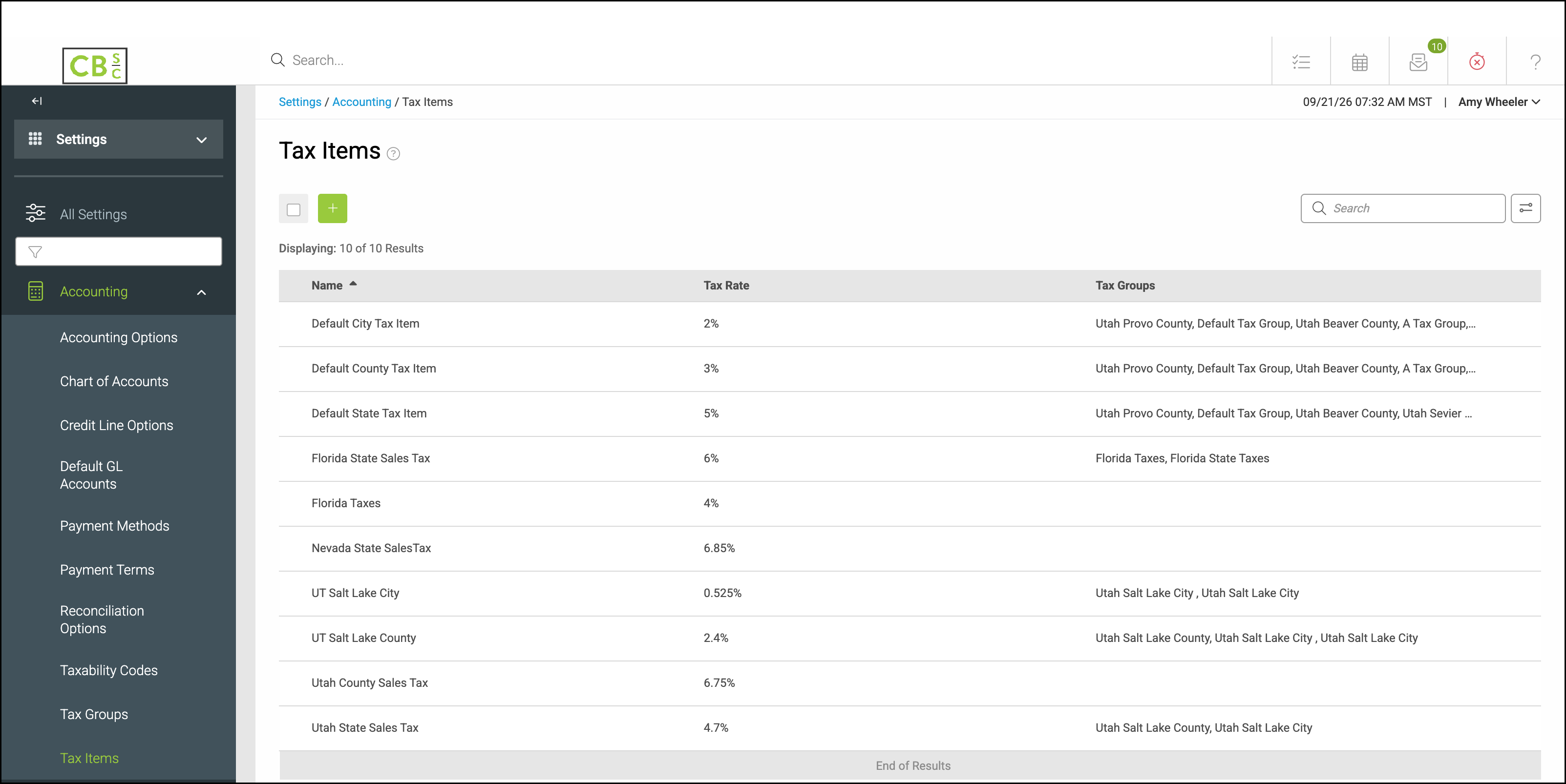
Navigate to Settings / Accounting / Tax Items and open the tax item that needs the new rate.
1. Enter the new percentage in Tax Rate.
2. Confirm the tax item is still linked to the correct Associated Tax Groups.
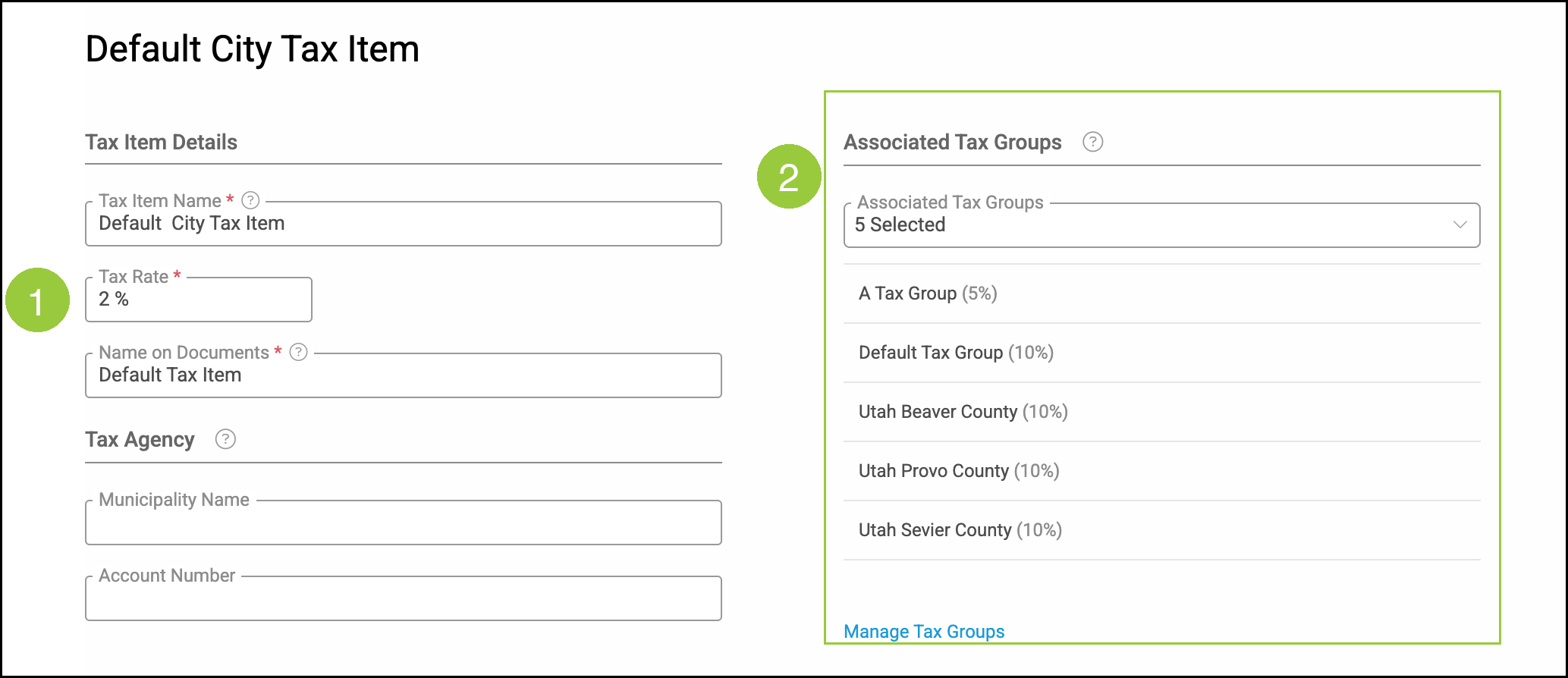
Note: Changes save automatically. The screen shows a message that changes will be saved automatically. Click Close when you are done. New estimates and orders that use those tax groups calculate with the updated rate.
Why Open Estimates Do Not Auto-Update
Estimates store the tax calculation that was in effect when the Estimate was last calculated. Updating a tax item or tax group does not automatically recalculate tax on Estimates that are already open. Each open Estimate must be refreshed individually.
Note: There is no bulk tool to refresh tax on all open Estimates at once.
Refresh Tax on an Existing Estimate
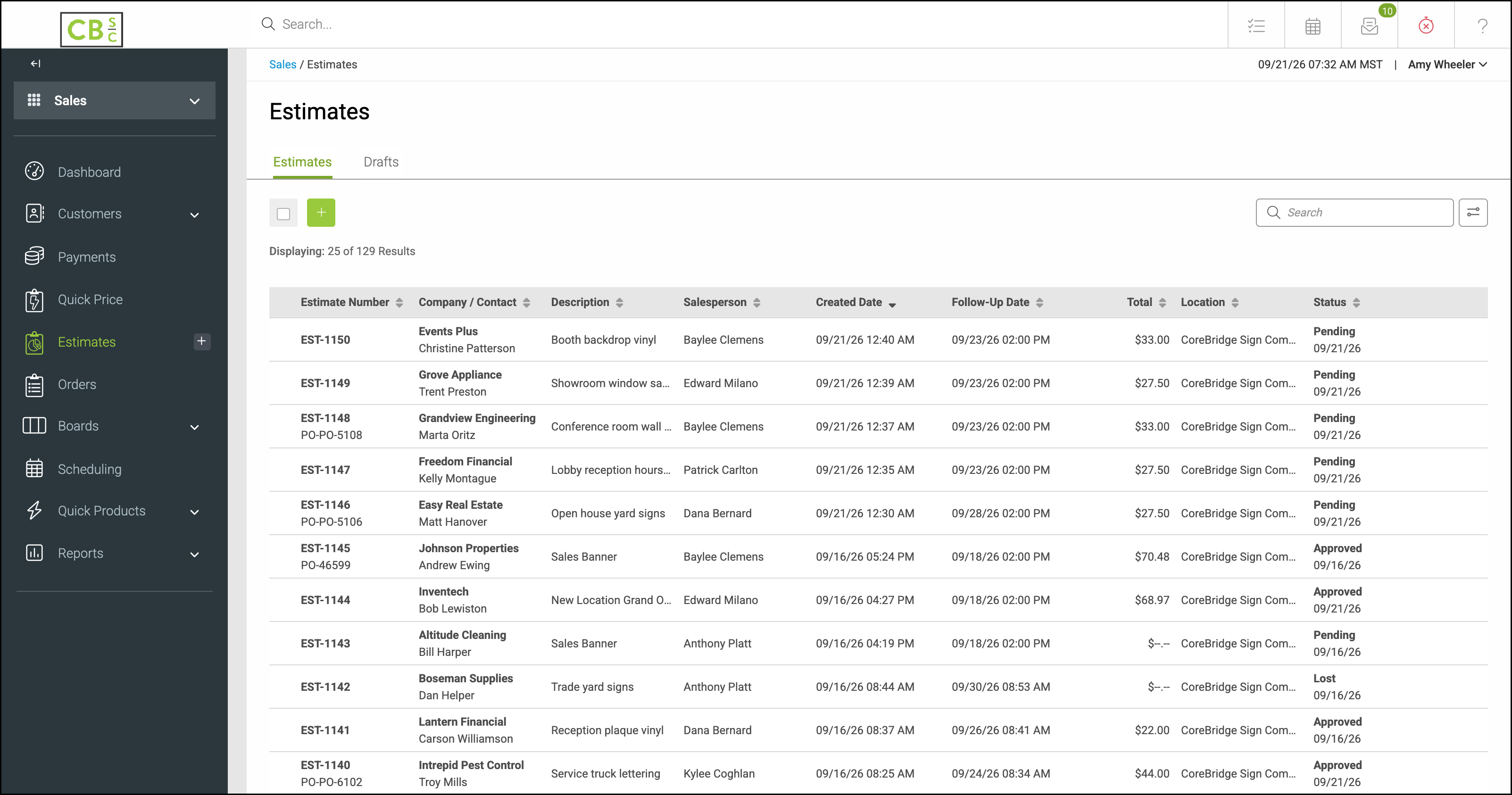
Navigate to Sales / Estimates, open the Estimate, and click the Estimate Details tab.
1. Under Accounting Details, click Tax Group and re-select the same tax group.
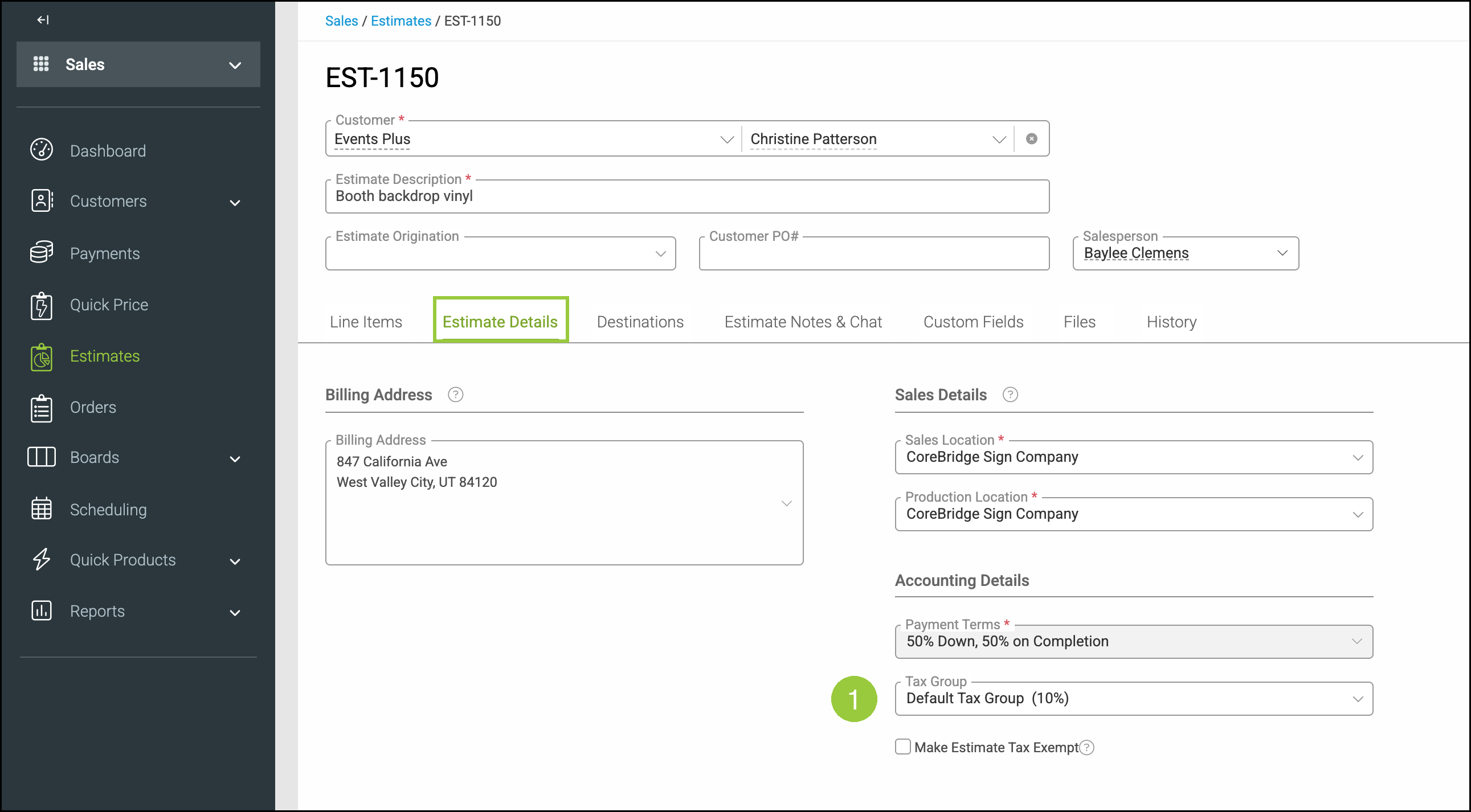
Note: Re-selecting the tax group recalculates tax using the updated rate. Changes save automatically. Repeat these steps for each open estimate that needs the new rate.
Refresh Tax on an Existing Order
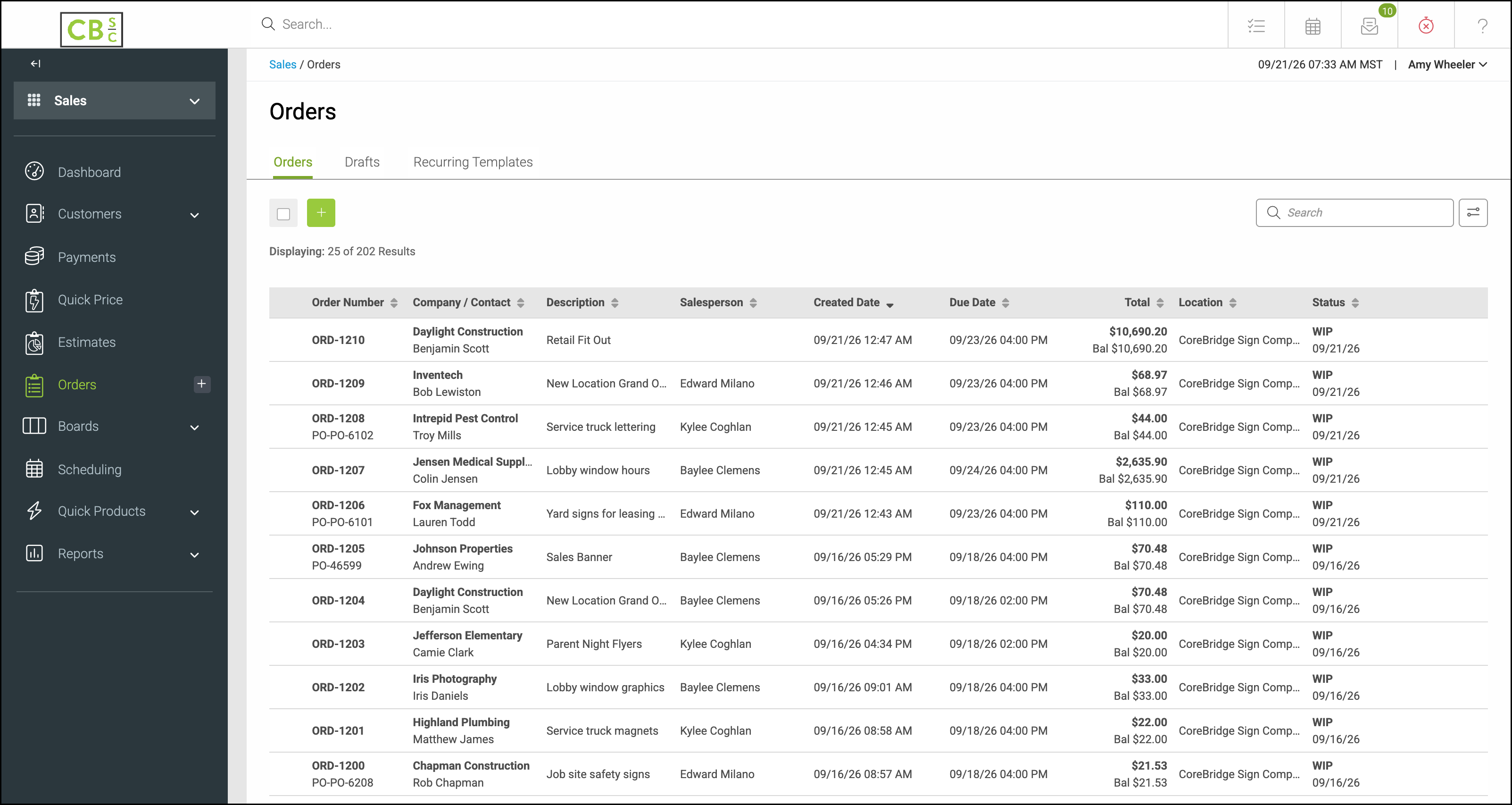
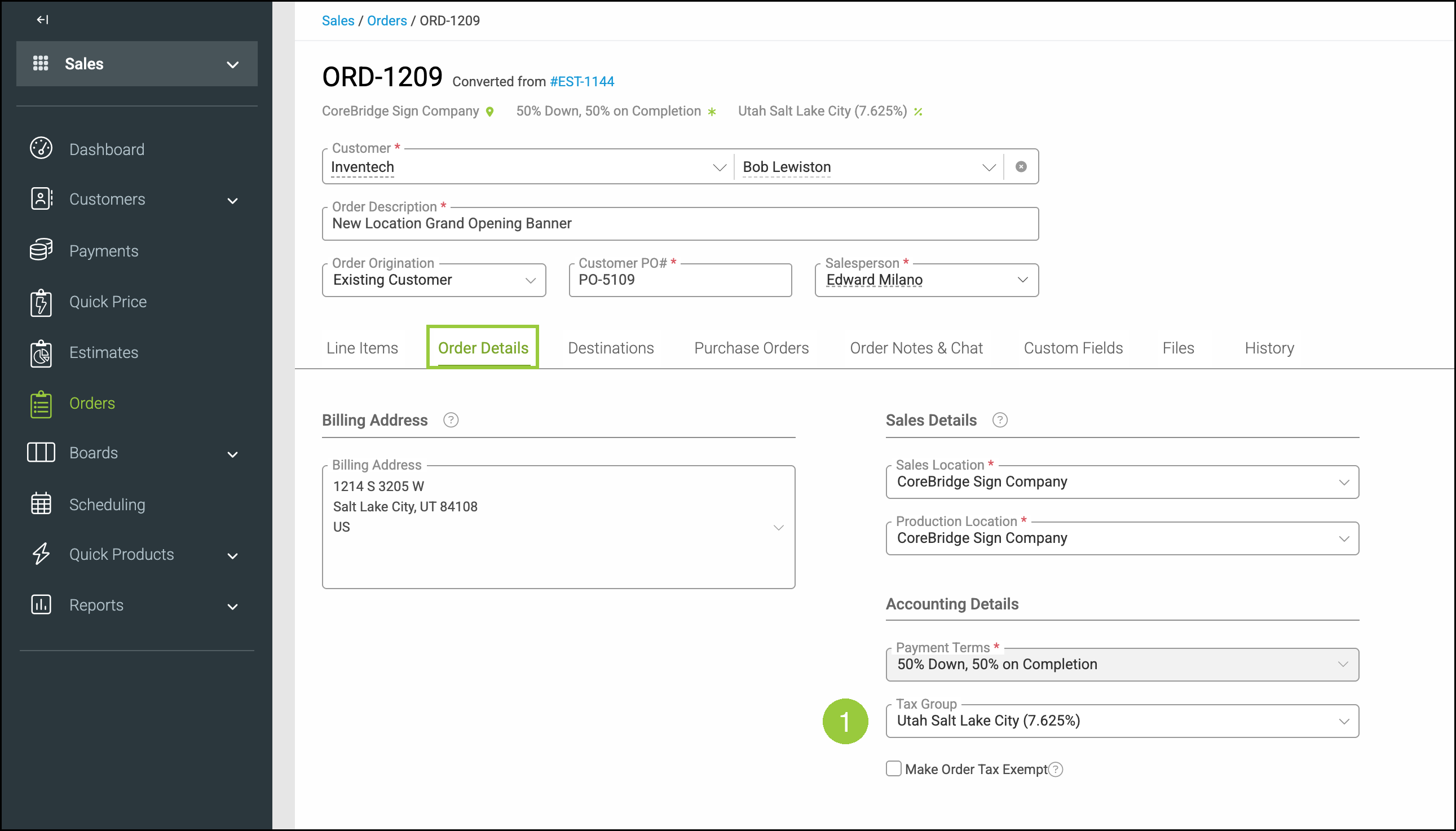
Orders follow the same principle as Estimates. Navigate to Sales / Orders, open the Order, and click the Order Details tab.
1. Under Accounting Details, click Tax Group.
2. Select the same tax group from the list.
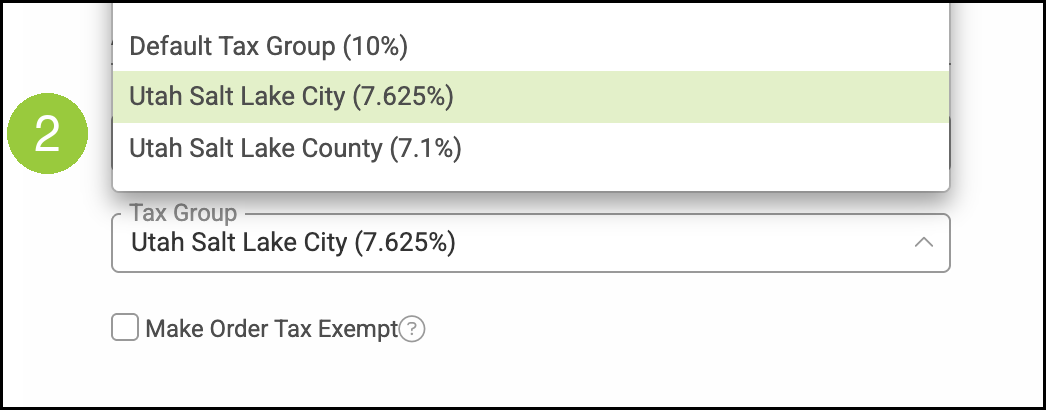
Note: Re-selecting the tax group recalculates tax using the updated rate. Changes save automatically. Repeat these steps for each open order that needs the new rate.
Best Practices
Update tax items as soon as you receive official notice of a rate change.
After updating rates, spot-check one Estimate and one Order to confirm the new total before refreshing a larger set of records.
If you have many open Estimates, work through them in batches, or contact CoreBridge Support to discuss options for your volume.
Frequently Asked Questions
1. Do open Estimates update automatically when I change a tax rate?
Answer: No. Open Estimates keep the tax that was in effect when they were last calculated. Re-select the Tax Group on each Estimate that should use the new rate. New Estimates use the current tax group rate.
2. Can I refresh tax on all open estimates at once?
Answer: No. Each open Estimate and Erder must be refreshed individually. There is no bulk refresh.
3. Should I create a new tax item when a rate changes?
Answer: No. Edit the existing tax item so tax groups, customer assignments, and reporting stay consistent.