A Company record holds the accounting details, contacts, and activity that stay with the Customer after the Company is created. These details are available on the Company screen in Sales, where the heading, financial summary, and Estimates & Orders show the current relationship. Notes, files, and statements for the Customer are kept with the same Company.
Table of Contents
- Accessing a Company
- Company Heading
- Company Details
- Company Overview and Activity
- Estimates & Orders
- Related Articles
Accessing a Company
Navigate to Sales / Companies.
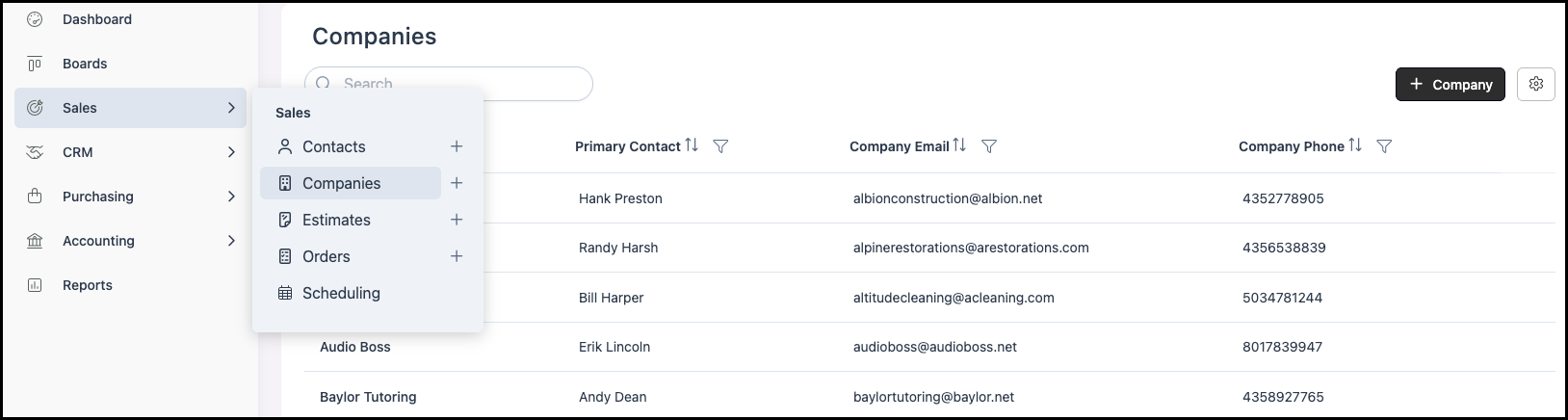
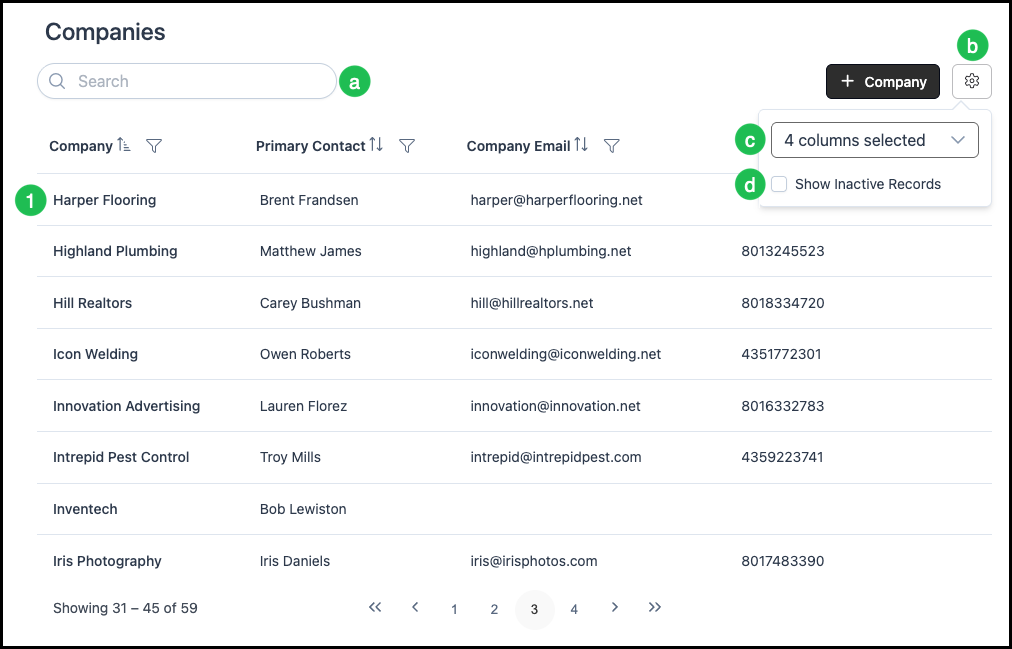
1. Select the Company you want to view from the list. Clicking the Company name opens the Company screen.
a. The Search box finds a Company by name or other criteria.
b. The Search Settings icon opens more options.
c. This dropdown selects which columns are displayed.
d. Show Inactive Records includes inactive Companies in the list.
Company Heading
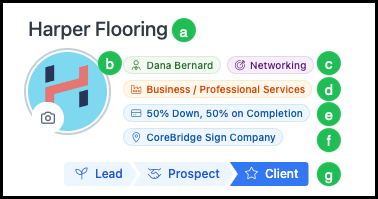
At the top of the Company screen is a heading area with quick information about the Company. What appears depends on the information entered for that Company.
a. Company name - The name of the Company.
b. Preferred Salesperson - The employee assigned as the Primary Salesperson for this Company.
c. Company Origination - How the Company heard about you.
d. Industry - The industry the Company is affiliated with.
e. Payment Terms - The payment terms selected for this Company.
f. Default Location - Primary Location assigned to this Company.
g. Status - The lifecycle of the Customer.
Company Details
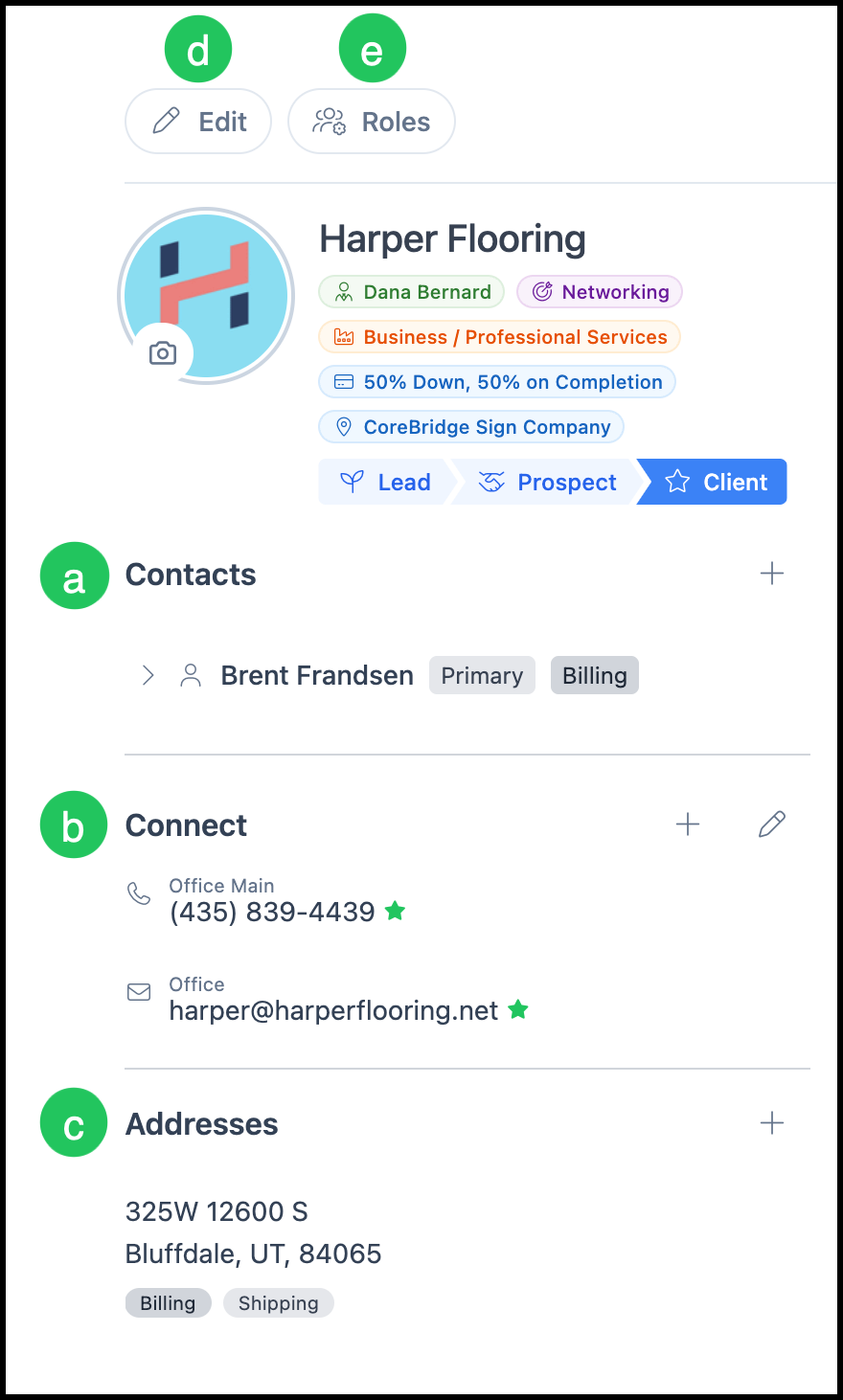
The Company screen includes sections where you can view and edit Company information. This includes the information entered when the Company was created, plus contact methods and addresses.
a. Contacts - The Contacts section lists all Contacts associated with this Company. Each Contact name is a link that opens that Contact's profile. The Primary and Billing Contact roles are indicated. These can be the same person or different people. Clicking the arrow expands the Contact to show their connectors.
b. Connect - Phone numbers and email addresses for the Company (for example, Office Main, Office).
Note: Enter only numbers for phone fields. The system formats them based on Settings / System / Localization.
c. Addresses - Billing and shipping addresses, plus any additional addresses.
d. Edit - This opens a dialog where you can edit Details, Sales Context, and Accounting Details.
e. Roles - This opens a dialog where you can manage the team members assigned to each Role for this Company. For more information on Roles, see Employee Roles and Permissions in Settings.
Company Overview and Activity
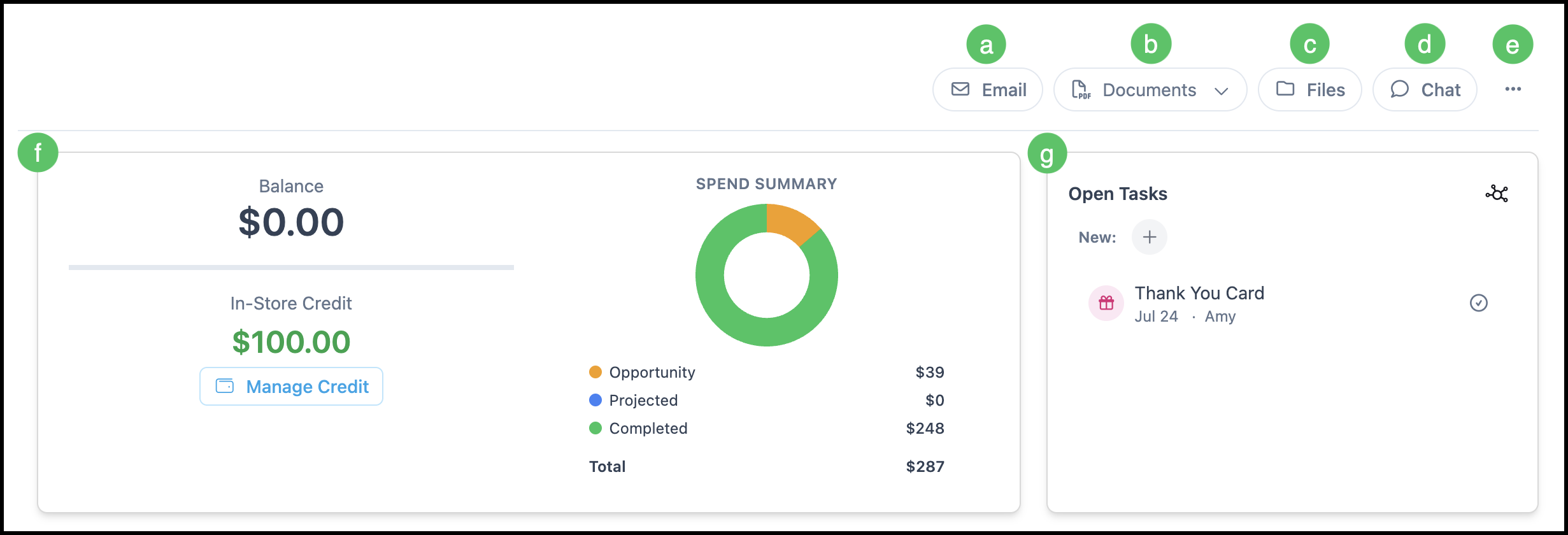
a. Email - The Email button sends an email to the Company by opening an in-system email composer. For more information, see Using Email Templates.
b. Documents - The Documents menu includes Statement, where you can view or generate a statement for this Company. The statement shows the balance and transaction history for the Company so you can send or use it for billing and reconciliation. Documents Settings opens the settings for those documents.
c. Files - The Files button views and manages files associated with this Company. You can upload, download, and organize documents (for example, contracts and artwork) in one place for this Customer.
d. Chat - An internal, timestamped conversation where Employees ask questions, share updates, and collaborate about a specific Company in one location.
e. More Actions - The More Actions menu includes Company Flags, Link Opportunity, Royalties, Schedule Event, Log Activity, History, Merge Customer, and Set Inactive.
Note: Royalties are available in systems where they have been enabled as part of the Company's setup. For more information on Royalties, see Royalties Overview.
Note: Set Inactive is available when the Company has no open Orders or Estimates.
Note: For more information on merging, see Merging Customers.
f. Financial Summary -
- Balance owed is the total amount due on active Orders. When applicable, a breakdown such as WIP (Work in Progress) shows the number of Orders and the amount.
- In-Store Credit shows the amount of store credit available to this Company.
- Manage Credit adds or reduces In-Store Credit, and it processes refundable credit.
- A Spend Summary (Opportunity, Projected, Completed, Total) summarizes activity with this Company.
g. Open Tasks - The Open Tasks section lists tasks associated with this Company that are not yet complete. When there are no open tasks, the section shows No open tasks. The Activity control on this section opens the Activity panel, where recent Orders, Estimates, and tasks for the Company can be reviewed and filtered by assignee and source.
The Company screen also includes Custom Fields, Upcoming Events, and Opportunities. Custom Fields shows the fields configured for the Company. Upcoming Events lists scheduled events linked to the Company. Opportunities lists opportunities linked to the Company.
Estimates & Orders
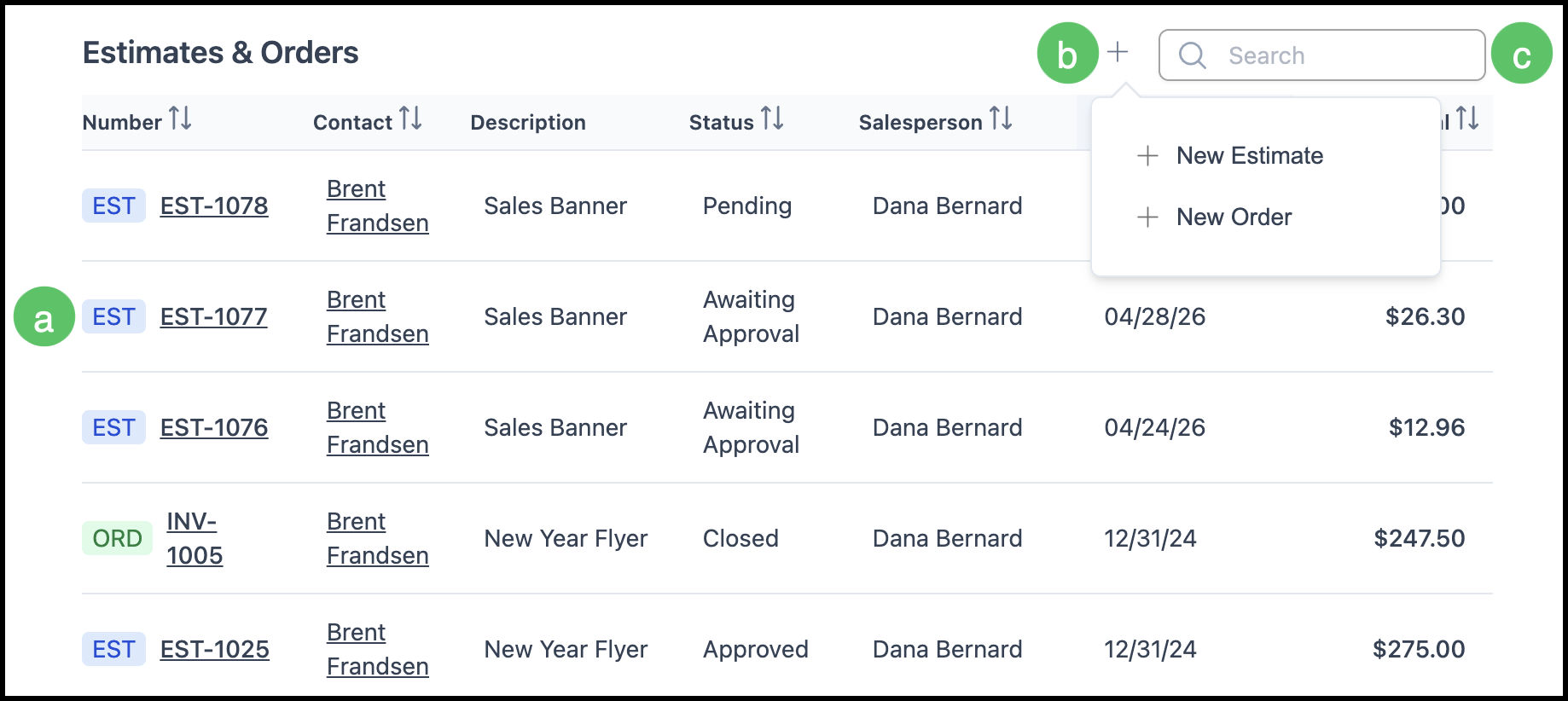
The Estimates & Orders section shows a list of Estimates and Orders for this Company, with columns that show quick information about each record. For more information, see Estimates Overview and Orders Overview.
a. Each row is labeled as EST (Estimate) or ORD (Order). Clicking a row or the Estimate or Order number opens that Estimate or Order.
b. The Plus icon creates a new Estimate or Order from the Company screen. When a record is created from this location, the associated Company information is filled in.
c. Search for an Estimate or Order here using numbers or key phrases.