
Map Fields is an action on the Opportunity Custom Fields layout. It opens the Opportunity record layout next to your custom canvas so you can see built-in Opportunity areas while you place custom fields.
Table of Contents
- What Map Fields Does
- Opening Map Fields
- How Opportunity Layouts Work
- Why Some Fields Look Grayed Out
- Best Uses
- Frequently Asked Questions
- Related Articles
What Map Fields Does
Opportunity custom fields are stored in a shared field bank for your business. Layouts decide which of those fields appear on Opportunities, how they are grouped, and in what order.
When you open the Opportunity layout, the designer is already available. You can add structure (sections, groups, spacers, and splitters) and field types (text, dropdown, checkbox, toggle, date/time, formula, label, and URL) from the left palette.
Map Fields then opens the Opportunity record layout for the current tab so you can:
- See built-in Opportunity areas such as name, value, company, origin, and metadata
- Place custom fields relative to that Opportunity layout
- Use Preview Mode to review the layout before you save
Note: Creating a field definition adds it to the bank. Mapping places that field on a specific layout or subtab.
Opening Map Fields
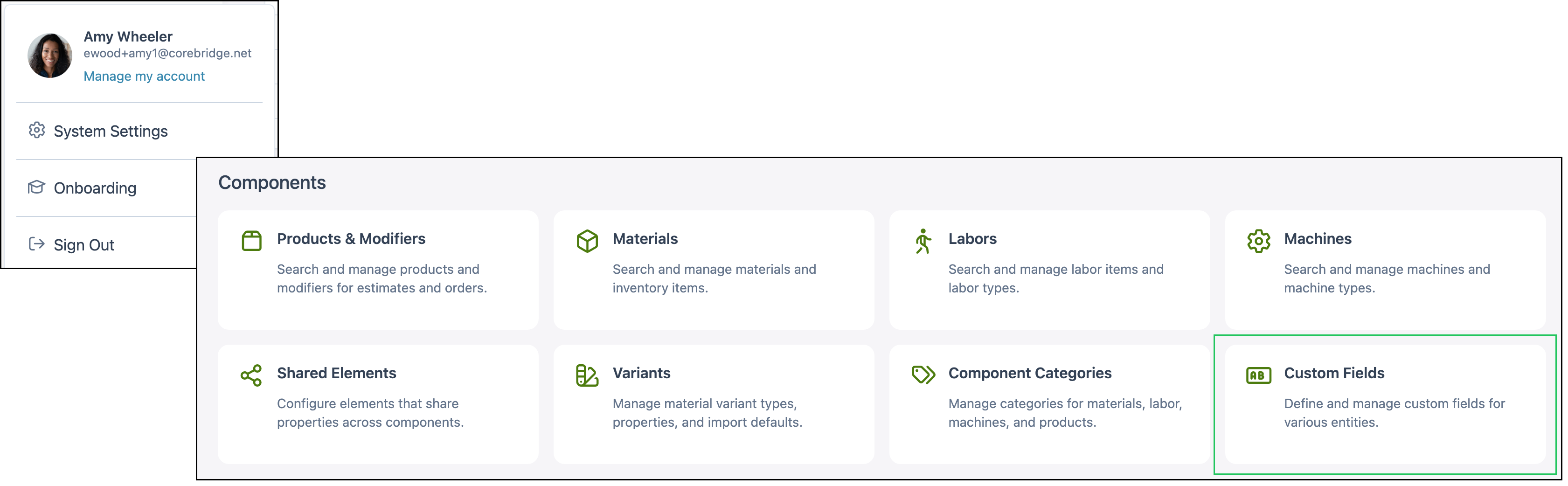
Navigate to System Settings / Components / Custom Fields.
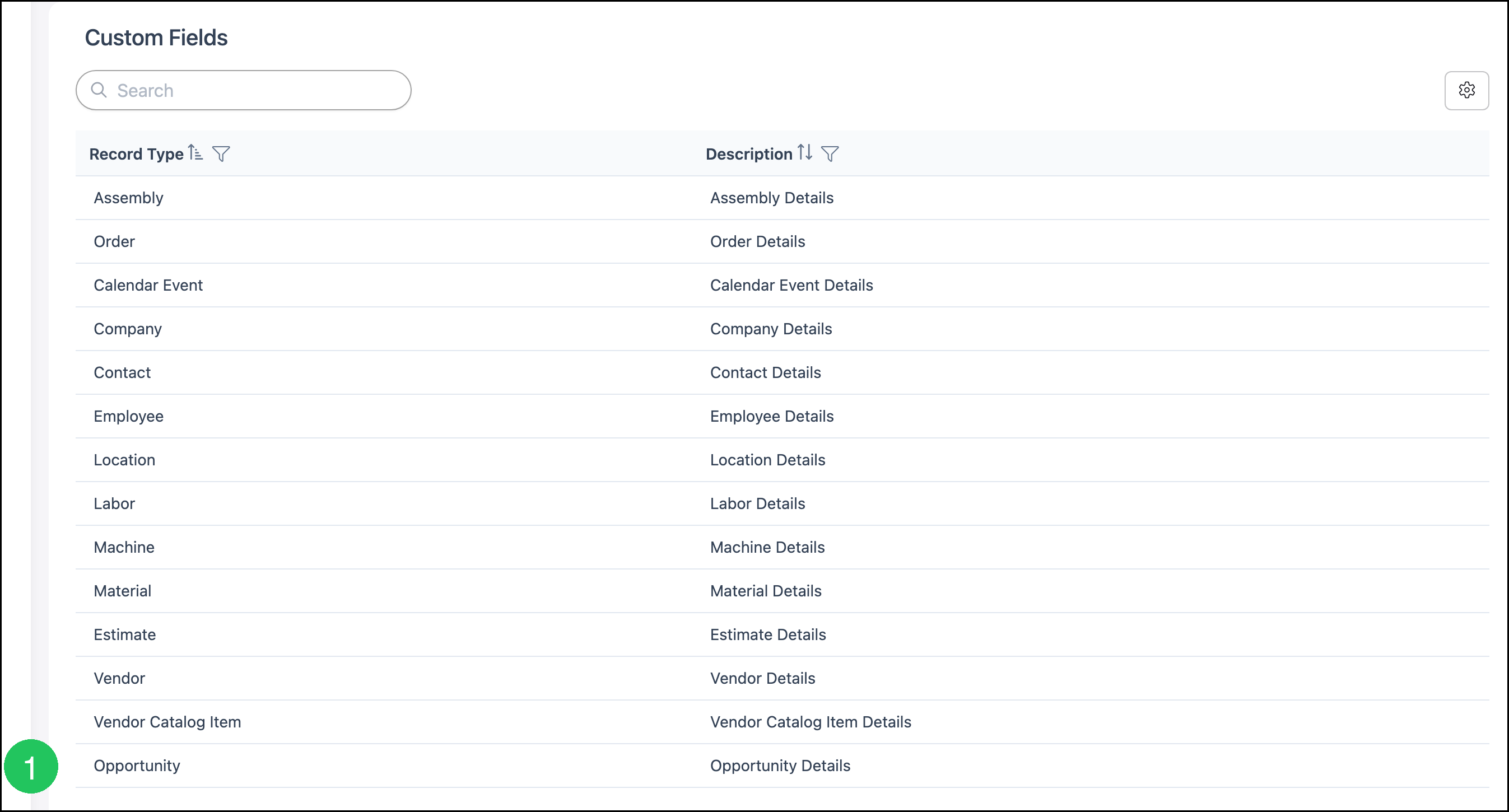
1. Click Opportunity.
2. Select the Layout scope you want to edit: Global default (used by pipelines that do not have their own layout) or a specific pipeline.
3. Click More Actions next to Opportunity.
4. Click Map Fields.
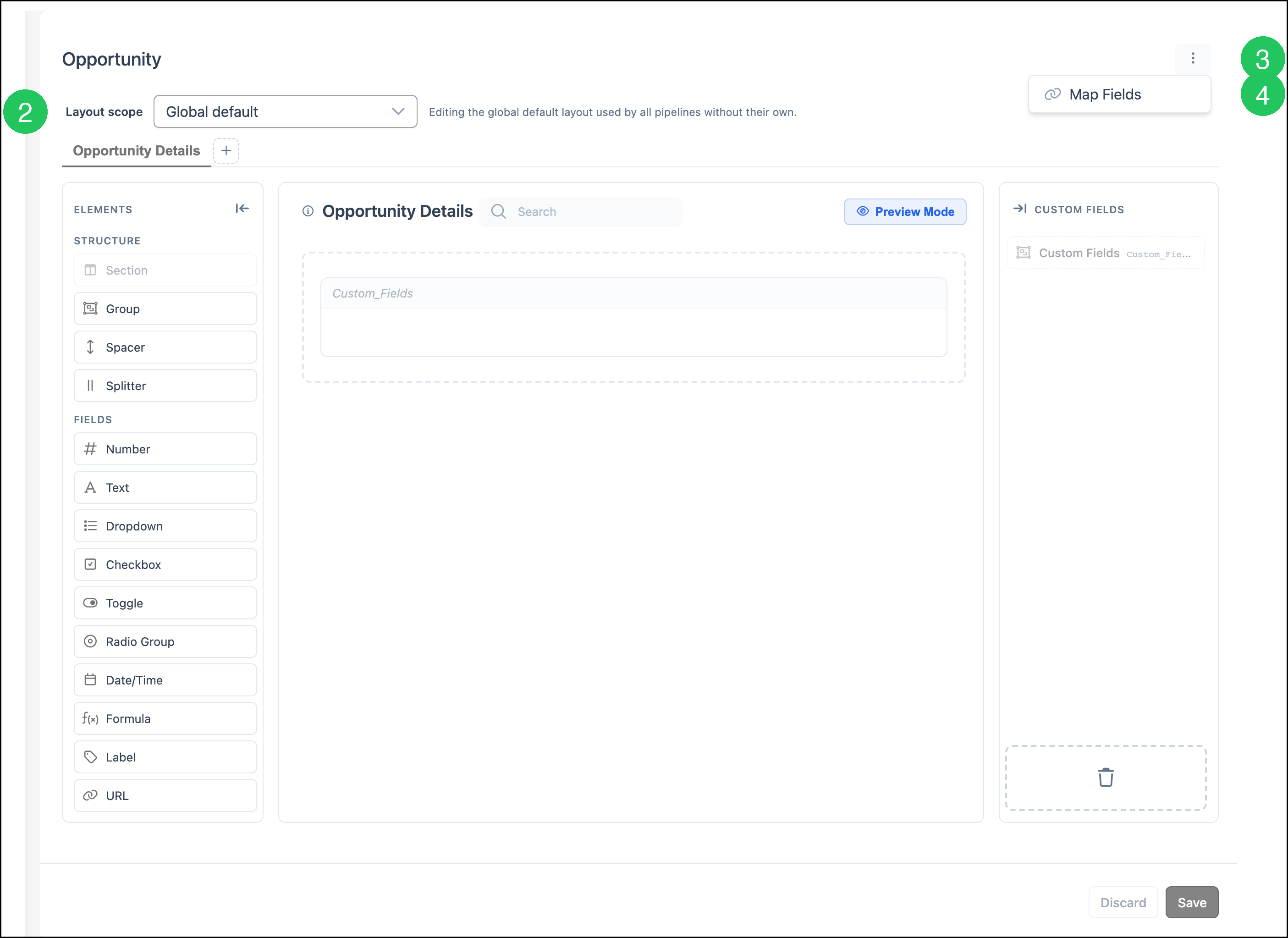
Note: Click Save when you are finished editing the layout. Click Discard to cancel unsaved layout changes.
How Opportunity Layouts Work
Opportunity layouts support:
- Layout scope - global default or pipeline-specific
- Tabs and subtabs - for example Opportunity Details plus additional tabs you add with +
- Field reuse - the same field definition can appear on more than one pipeline layout
On a live Opportunity, custom fields configured for the layout appear in the Opportunity side panel and on the Custom Fields tab of the Opportunity details page.
Note: If a pipeline has no custom layout, Opportunities on that pipeline use the global default layout.
Why Some Fields Look Grayed Out
When you open Map Fields, the canvas shows built-in Opportunity areas in addition to custom fields you added from the left palette. Those areas can appear grayed out or labeled static because they are system Opportunity fields. They ship with EVO and are part of the Opportunity record. You do not recreate them with the left-menu field types for them to exist on Opportunities.
a. Opportunity Name
b. Estimated Value
c. Company and Contact summary (sample values appear here while you map)
d. Owners & Origin, including Origin and Stage
e. Metadata, including Tags, Expected Date, and Team
f. Custom Fields Container (static), where mapped custom fields belong
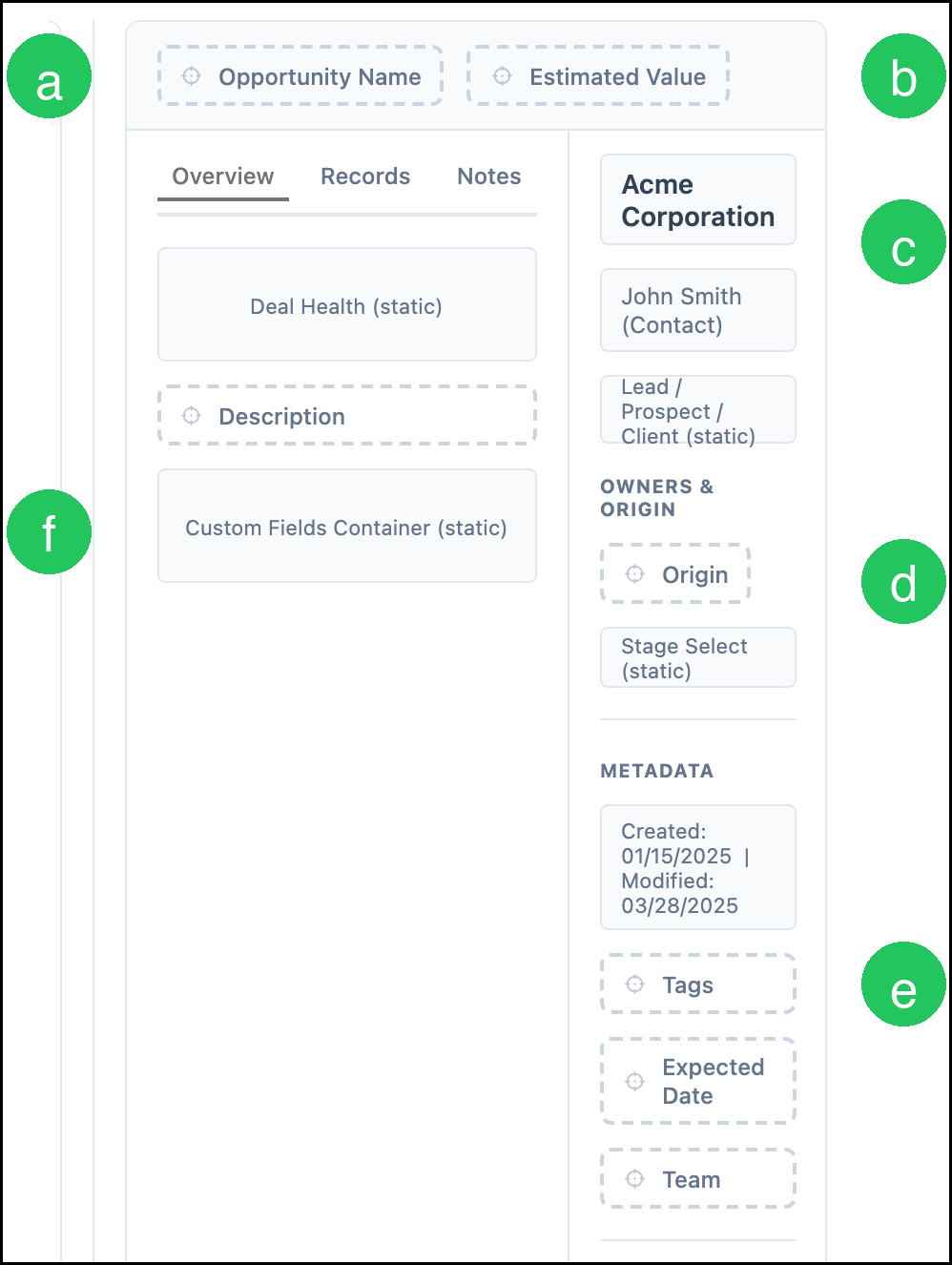
Your pipeline setup is complete when the tabs you use contain the custom sections and fields you designed. Map Fields is for placing or rearranging custom fields relative to that Opportunity canvas, not for remapping every grayed system field by hand.
Best Uses
Use Map Fields when you want to:
- Build stage-style intake forms, such as consultation questions on a dedicated tab
- Keep a pipeline-specific set of fields without creating duplicate field definitions
- Group related questions together with sections and two-column layouts
- Put required discovery fields first and optional notes later
- Make data entry clearer for sales staff working Opportunities
Example: On a Projects pipeline, create subtabs that match your sales stages, then map only the fields needed at each stage onto that subtab.
Frequently Asked Questions
1. What is the difference between creating a custom field and mapping it?
Answer: Creating a field adds it to the Opportunity field bank. Mapping places that field on a layout or subtab so it appears on Opportunities that use that layout.
2. Why do some fields look grayed out after I click Map Fields?
Answer: Those are system Opportunity fields, such as Opportunity Name, Estimated Value, Tags, and Origin. They are part of the Opportunity record. You do not need to add matching field types from the left palette for them to exist.
3. When should I use a pipeline-specific layout?
Answer: Use a pipeline-specific layout when that pipeline needs a different set of questions than the global default. Pipelines without their own layout continue to use Global default.