
Merge Fields insert information from the current record into emails and notifications. They appear as green placeholders until the message is sent. This article explains how to insert Merge Fields in an Email Template.
Table of Contents
- Important Information
- Using Merge Fields
- Inserting a Merge Field
- Frequently Asked Questions
- Related Articles
Important Information
Merge Fields populate from the current record when the message is sent. An Order email uses Order information. An Estimate email uses Estimate information.
- Merge Fields appear as green placeholders in Email Templates and in the email composer until the message is sent.
- The available Merge Fields match the record type. An Order template lists Order fields in the tree.
- You can insert Merge Fields in Email Templates, when you compose an email from a matching record, in Automation emails, and in Notification title and message fields.
- Some Customer Portal invite and direct links stay as the Merge Field token in Preview and populate when the email is sent.
Using Merge Fields
Navigate to System Settings / System / Email Templates.
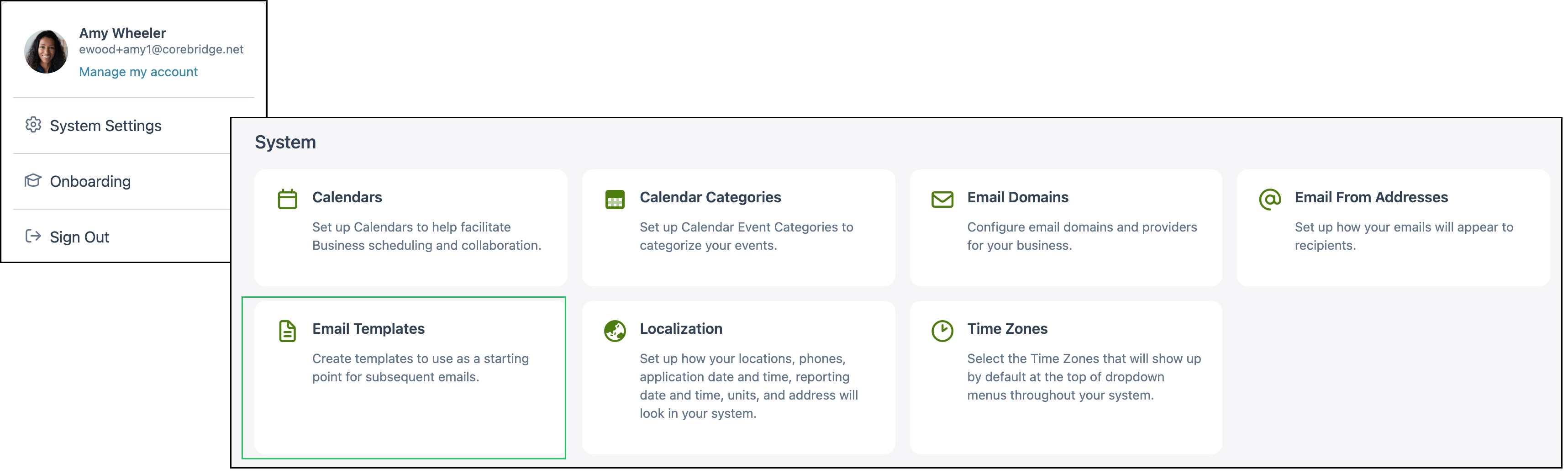
This article uses an Order Email Template as the example. The same Insert merge field control is available when you compose an email from a record, and in Automations and Notifications.
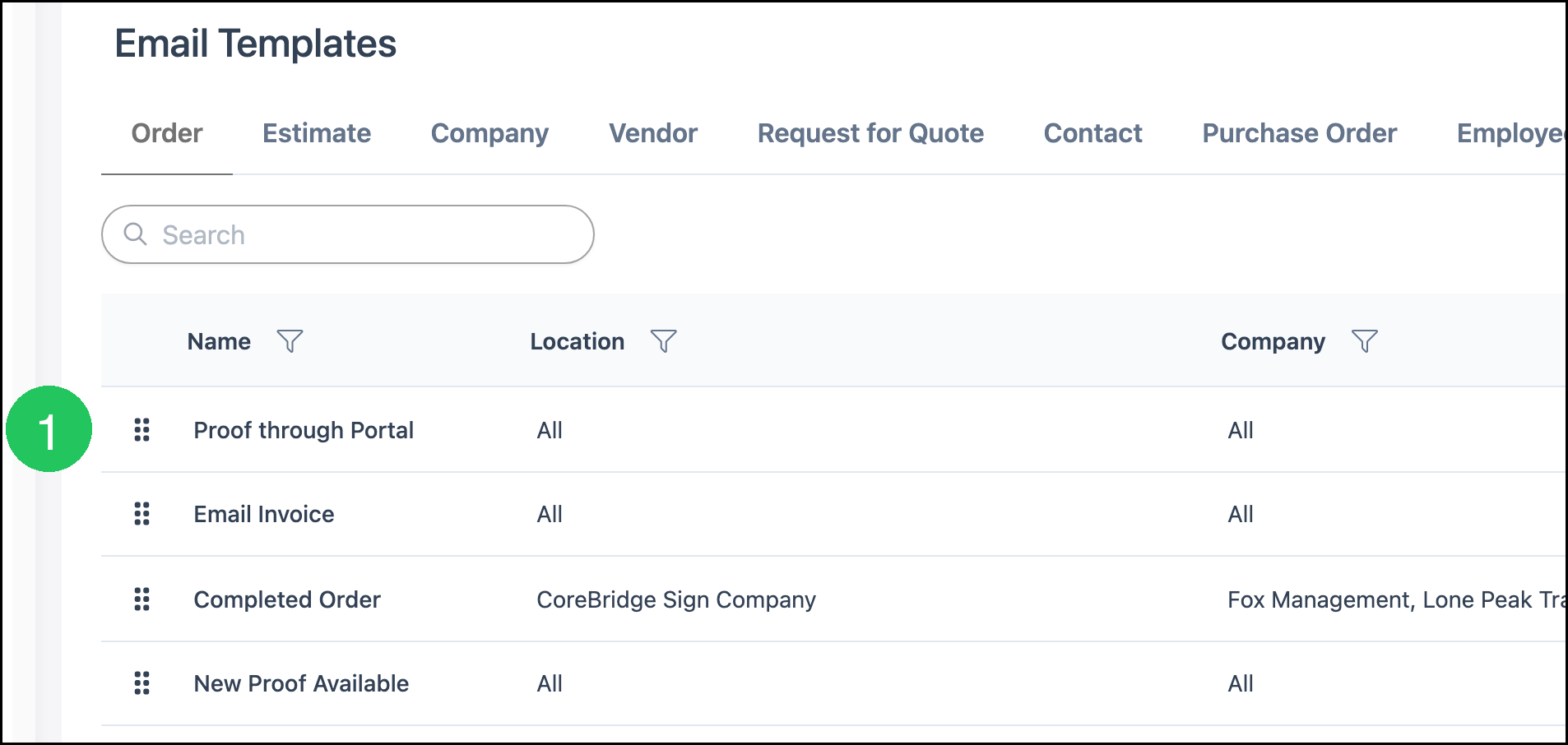
Note: Open the tab that matches the record type, then open a template.
1. Click the Email Template you want to edit.
Inserting a Merge Field
1. Click the Template tab.
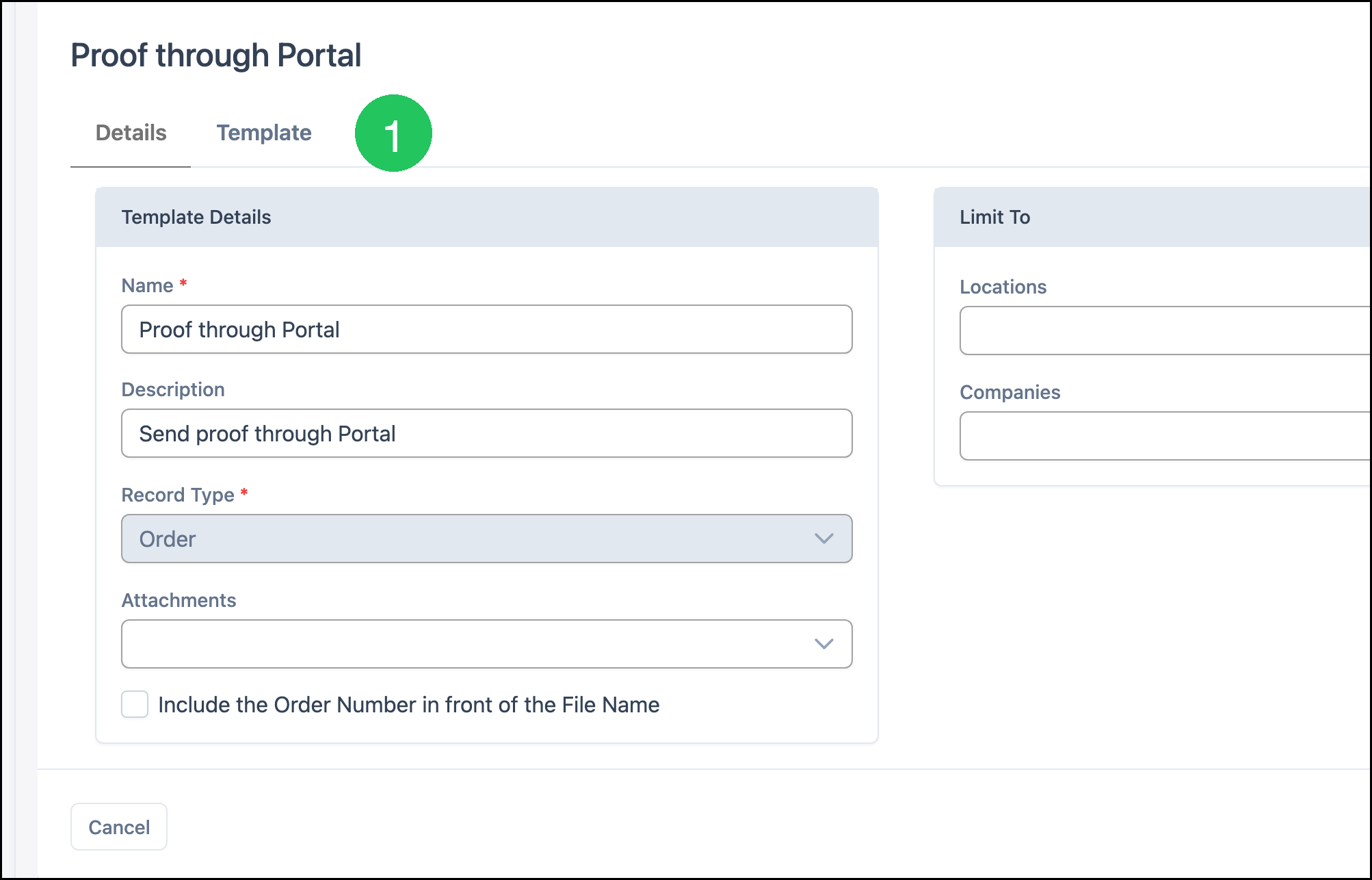
2. Click Insert merge field in the field where you want the Merge Field.
Note: Insert merge field appears on Default To, Default Subject, and Default Body. You can also type {{ in a text field such as Default To.
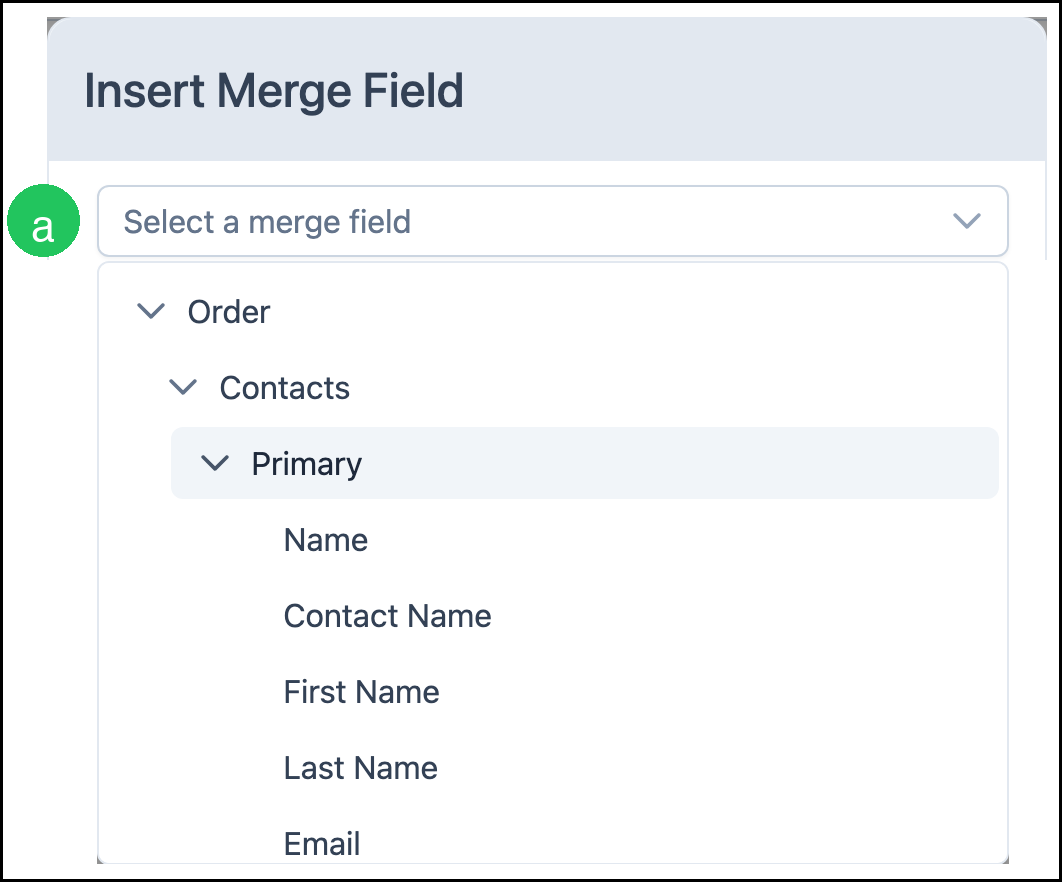
The Insert Merge Field dialog opens.
a. Select a merge field - Choose the information from the tree. Click a chevron to expand a group. Keep selecting until you reach the field you want.
3. Click Done.
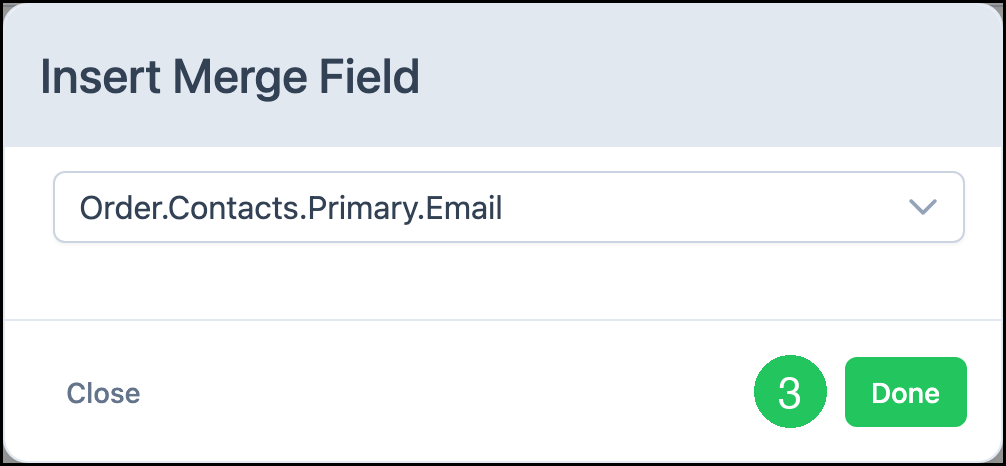
Merge Fields appear as green placeholders in the template until the email is sent. When the email is sent, each Merge Field populates with information from the current record.
Frequently Asked Questions
1. Where can I use Merge Fields?
Answer: You can insert Merge Fields in Email Templates, when you compose an email from a matching record, in Automation emails, and in Notification title and message fields. For more information, see Creating and Editing Email Templates, Automations Overview, and Creating and Managing Notifications.
2. Why does Preview still show the Merge Field token?
Answer: Some Merge Fields, such as Customer Portal invite and direct links, populate when the email is sent. Preview keeps the Merge Field token.
3. Can I use a Merge Field in Default To?
Answer: Yes. Click Insert merge field next to Default To, or type {{. Many templates send to the primary contact email this way.
Related Articles
Automations Overview
Creating and Editing Email Templates
Creating and Managing Notifications
Using Email Templates