
Variants are the selectable options under a Material with Variants, such as different colors or sizes. Each Variant can have its own item number, cost, retail price, lead time, and related details used on Estimates and Orders, while still sharing the parent Material setup.
For the parent Material screen and tabs, see Materials with Variants Overview. For standalone Materials, see Materials Overview.
Table of Contents
- Locating Variants
- Variant Screen
- Variant Details
- Vendor Items
- Frequently Asked Questions
- Related Articles
Locating Variants
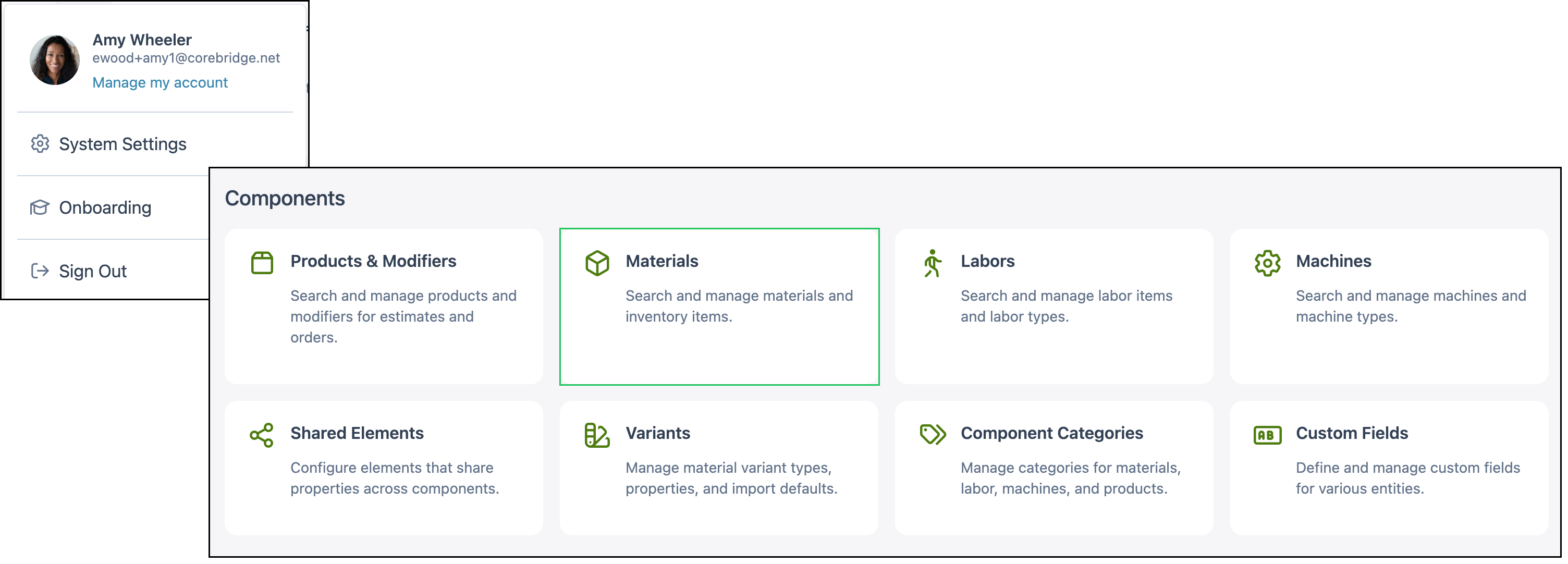
Navigate to System Settings / Components / Materials and open a Material with Variants enabled.
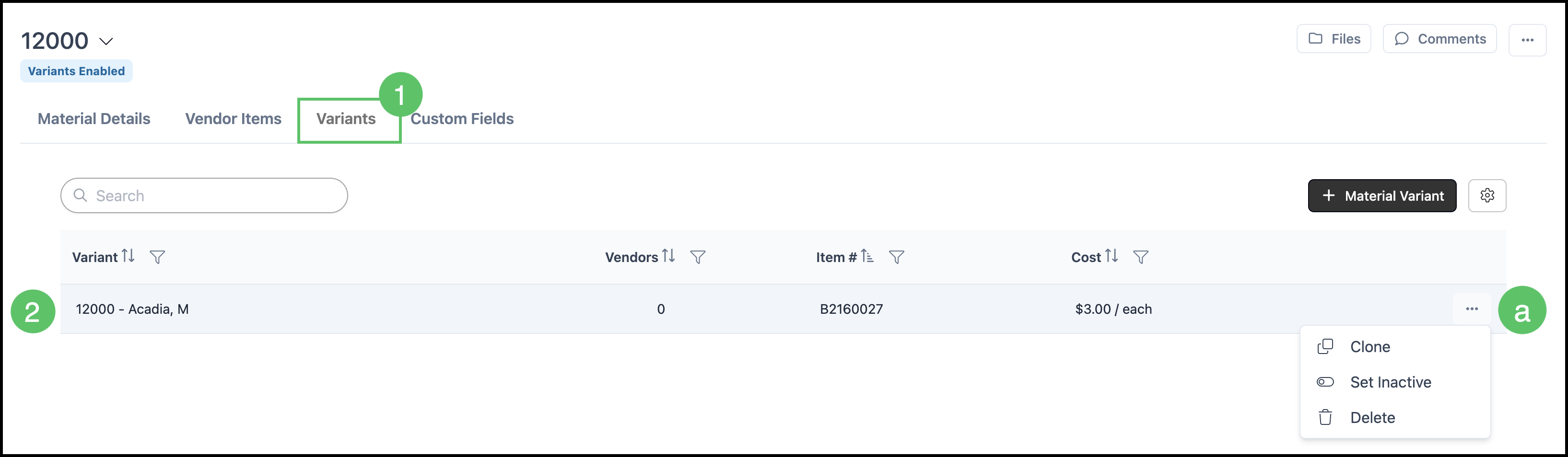
1. Select the Variants tab.
2. Click a Variant row to open it.
a. More Actions Menu - This allows you to Clone, Set Inactive, or Delete.
Note: Variants that are used on an Estimate or Order can be set to Inactive, not Deleted.
Note: For more information on Materials with Variants, see Materials with Variants Overview.
Variant Details
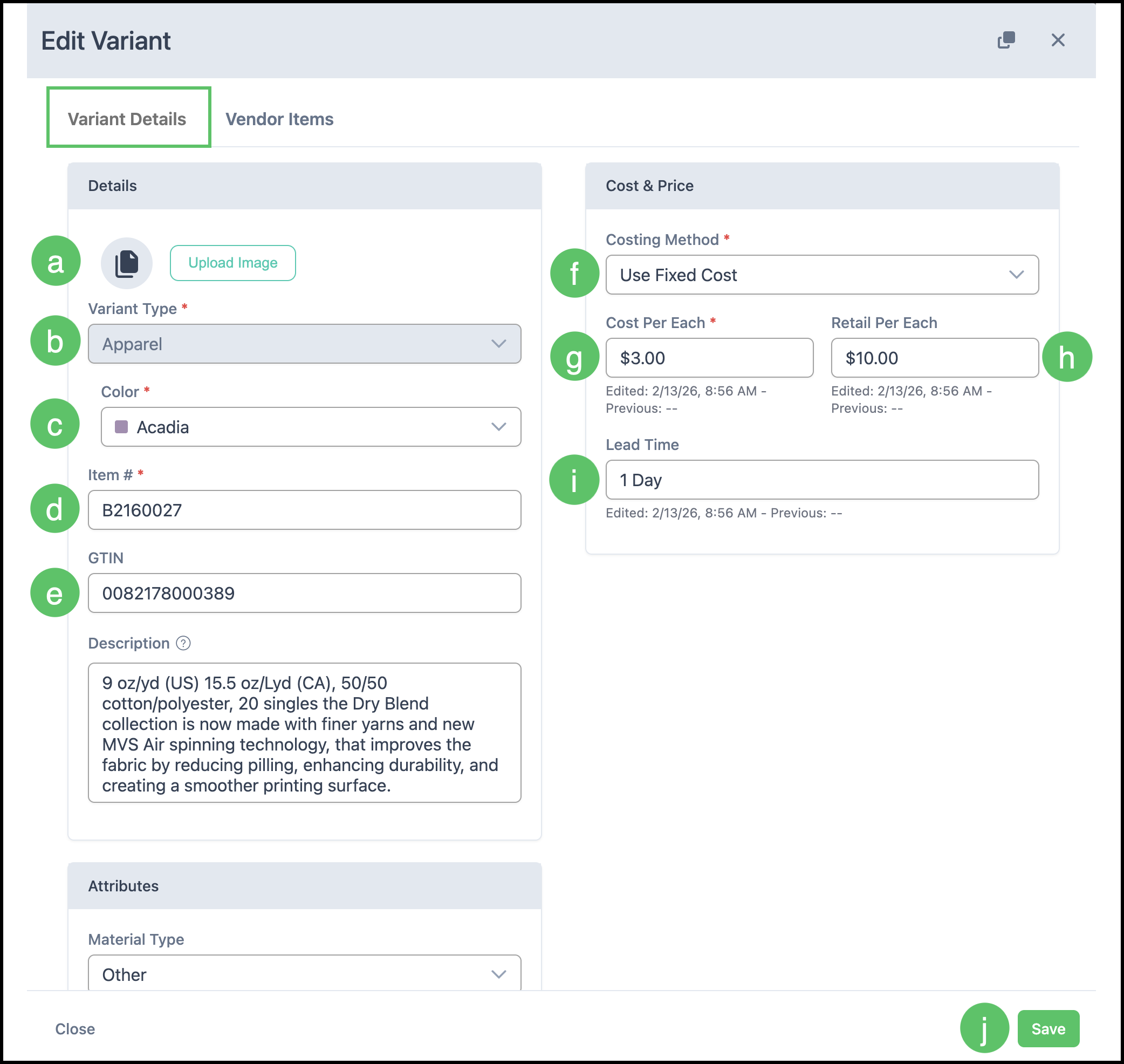
The Variant Details tab stores information that is unique to the Variant.
a. Upload an image for the Variant, if desired.
b. Variant Type organizes the Properties and Values available for this Material (for example color and size). Apparel is currently available.
Note: Variant Types (including Properties and Values) are managed under System Settings / Components / Variants.
c. Property fields from the Variant Type, such as Color (and Size when configured), identify this specific Variant.
d. Item # is the Variant item number used for tracking and ordering.
e. GTIN is an optional Global Trade Item Number used across brands and suppliers.
f. Description stores additional internal notes for the Variant.
Attributes
Attributes define physical characteristics used in quoting, production, and inventory. Complete the fields that apply to the Variant, including Material Type and Quantity in Set when required.
Cost & Price
g. Costing Method determines how the system calculates cost for the Variant.
h. Cost Per Each is the unit cost used in job costing and pricing.
i. Retail Per Each is the customer price for the Variant when sold outside an Assembly.
j. Lead Time indicates fulfillment timing for the Variant.
i. Changes made on this screen need to be saved manually.
Note: On the parent Material Details tab, Cost & Price is controlled by the Variant. Enter cost and retail on each Variant.
Vendor Items
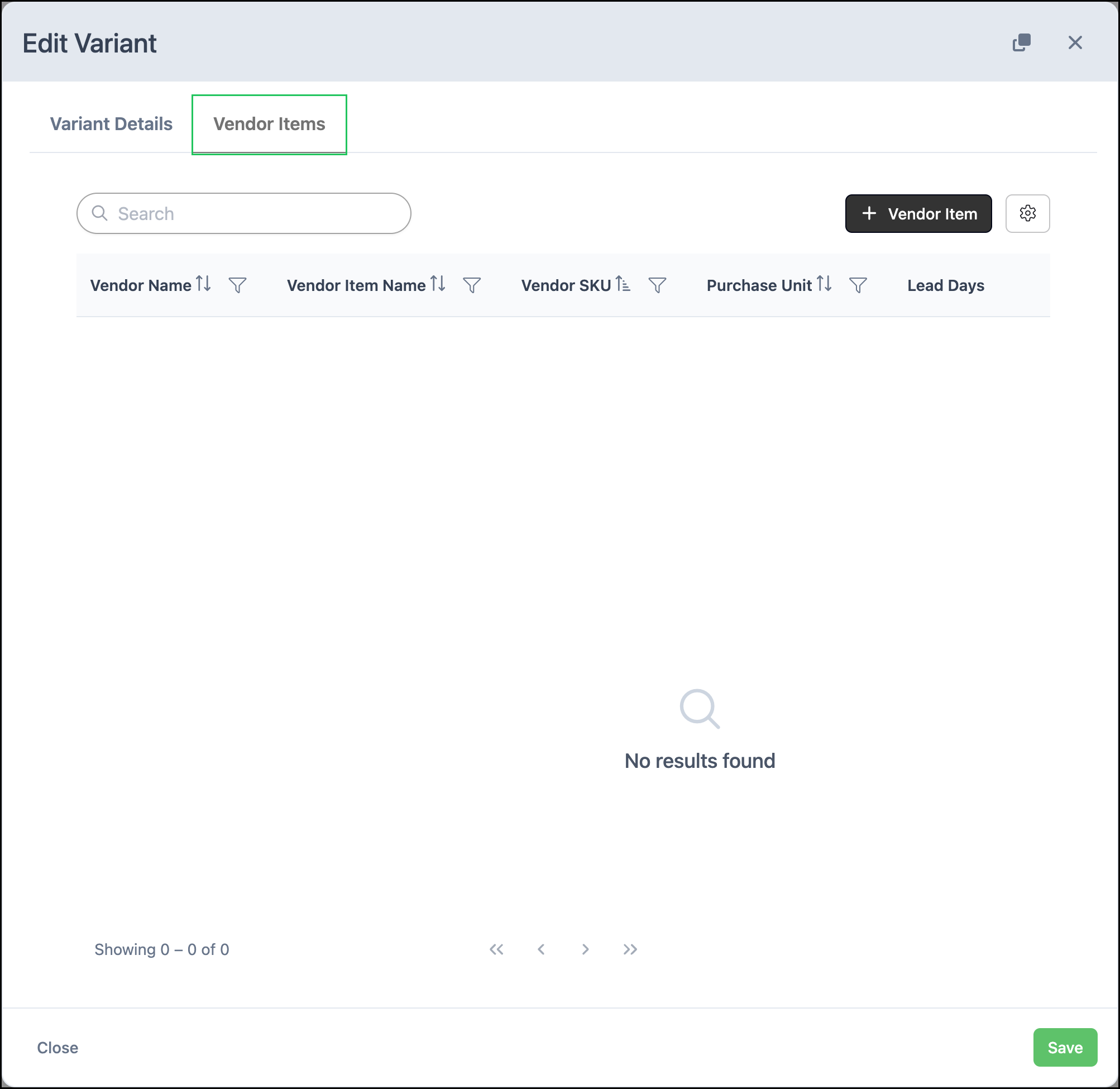
The Vendor Items tab links vendor catalog items to the Variant for purchasing and costing workflows. Add or open Vendor Items as needed, then click Save on the Variant dialog when you finish your edits.
Note: Supporting documents and internal notes for the parent Material are available from Files and Comments in the Material header.
Frequently Asked Questions
1. How do I open a Variant?
Answer: Open a Material with Variants, select the Variants tab, then click the Variant row.
2. Where do I set cost and retail for a Variant?
Answer: Open the Variant and use Cost & Price on the Variant Details tab. Parent Material Cost & Price is controlled by the Variant.
3. What is a Variant Type?
Answer: A Variant Type is a predefined group of Properties and Values a Material with Variants can use, such as color or size. Manage Variant Types under System Settings / Components / Variants. Apparel is currently available.
4. Can I delete a Variant that is used on an Estimate or Order?
Answer: No. Set the Variant to Inactive instead of deleting it.
Related Articles
Adding Materials
Cloning a Material
Components Overview
Creating Materials with Variants
Materials with Variants Overview
Materials Overview