Lead Actions on Lead Management assign a selected lead, add a follow-up task, create an opportunity, snooze the lead, or suppress it. The actions appear after a lead is selected and apply to every lead in the selection. Each action opens a dialog, and the leads stay unchanged until the dialog is confirmed.
Table of Contents
- Important Information
- Opening Lead Actions
- Assign a Lead
- Add a Follow-up Task
- Create an Opportunity from a Lead
- Snooze a Lead
- Suppress a Lead
- Related Articles
Important Information
- Lead Actions appear after the checkbox on a lead card is selected. The selection shows how many leads are selected. Clear selection closes Lead Actions and leaves the leads unchanged.
- Assign to... assigns the selected leads to a salesperson or a team.
- Add Task schedules a follow-up task for the selected leads. Create Tasks becomes available after a Due Date is set.
- Create Opportunity creates an opportunity from the selected leads. Create becomes available after Name and Pipeline are filled.
- Snooze hides the selected leads until a chosen date. They leave the board until that date, then return as New Leads.
- Suppress sets the selected leads inactive and removes them from the Lead Board. The Company and Contact records remain and can be included with inactive records.
Opening Lead Actions
Navigate to CRM / Lead Management.
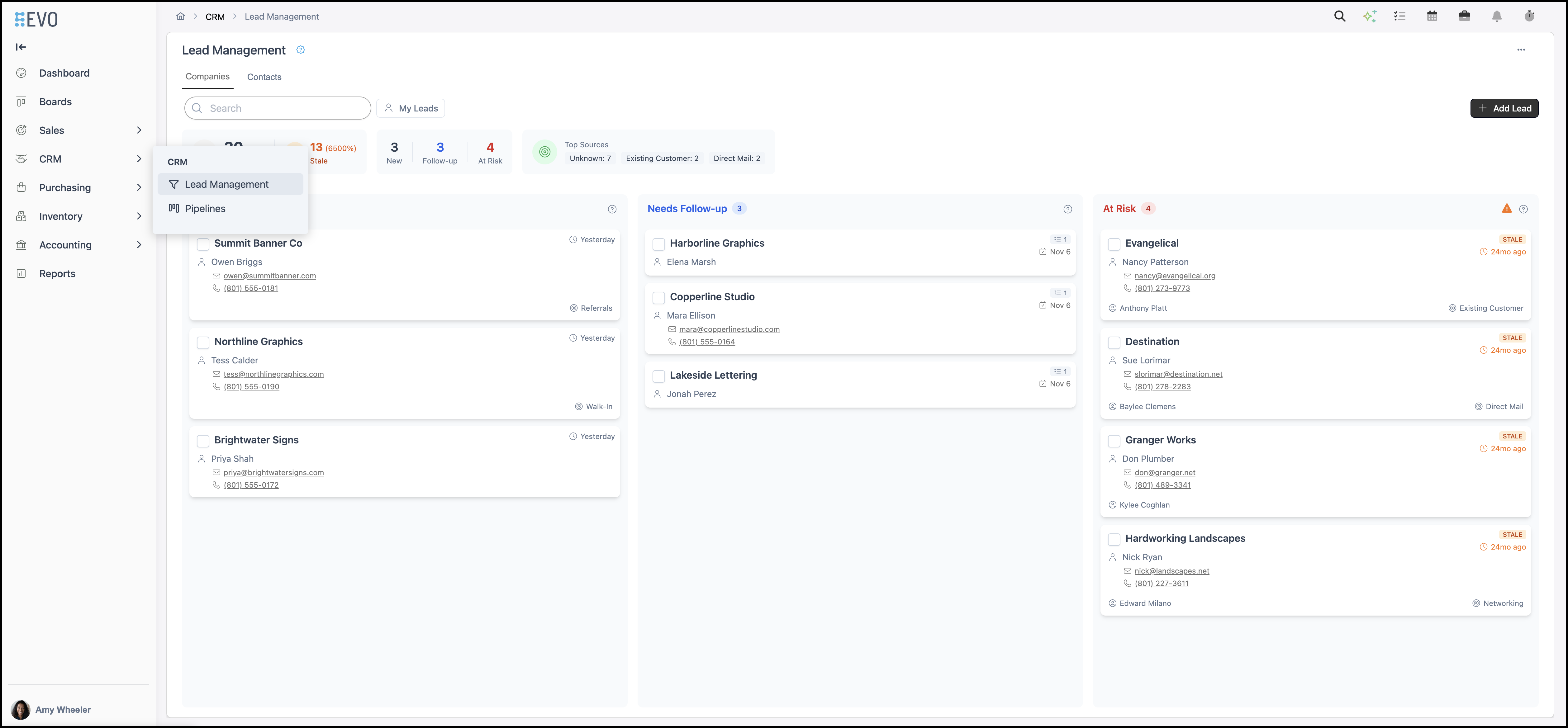
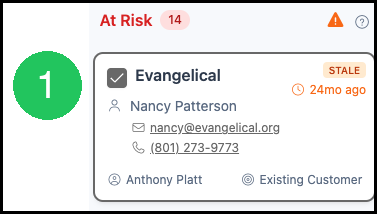
1. Select the checkbox on the lead card. Lead Actions open and show how many leads are selected.
Note: Clicking the company name opens the Company screen.
a. Assign to... assigns the selected leads to a salesperson or a team.
b. Add Task schedules a follow-up task for the selected leads.
c. Create Opportunity creates an opportunity from the selected leads.
d. Snooze hides the selected leads until a chosen date.
e. Suppress sets the selected leads inactive and removes them from the Lead Board.

Note: Clear selection closes Lead Actions and leaves the selected leads unchanged.
Note: Show hidden columns and Upload list are on the Lead Management actions menu. Those options are separate from the actions on a selected lead.
Assign a Lead
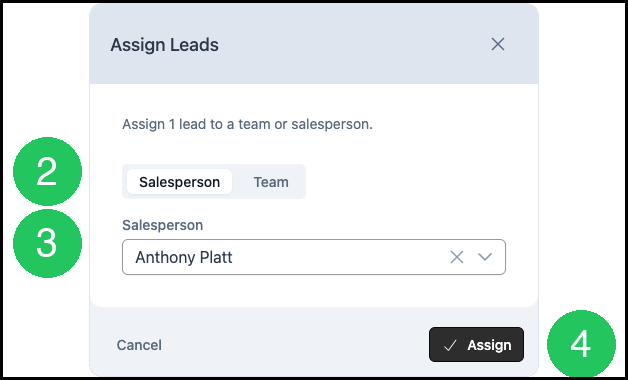
1. Click Assign to.... The Assign Leads dialog opens.

2. Select Salesperson or Team.
3. Select the salesperson or team.
Note: Assign becomes available after a choice is made.
4. Click Assign. The selected leads are assigned to that salesperson or team.
Add a Follow-up Task
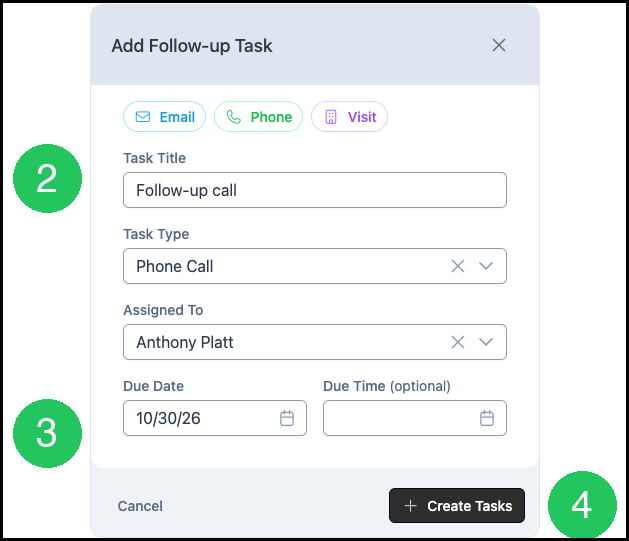
1. Click Add Task. The Add Follow-up Task dialog opens.

2. Enter a Task Title. Email, Phone, and Visit fill a title and a Task Type for a common follow-up. Assigned To is the employee who receives the task.
3. Set the Due Date. Due Time is optional.
Note: Create Tasks becomes available after a due date is set.
4. Click Create Tasks.
Create an Opportunity from a Lead
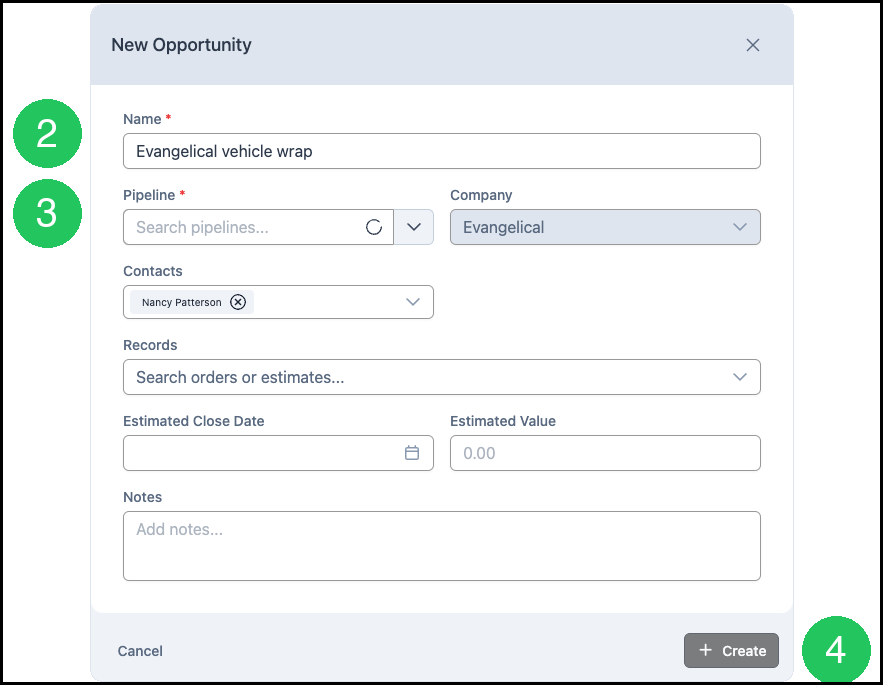
1. Click Create Opportunity. The New Opportunity dialog opens. Company and Contacts are filled from the lead.

2. Enter a Name.
3. Select a Pipeline.
Note: Create becomes available after Name and Pipeline are filled. Estimated Close Date, Estimated Value, and Notes are optional.
4. Click Create.
Snooze a Lead
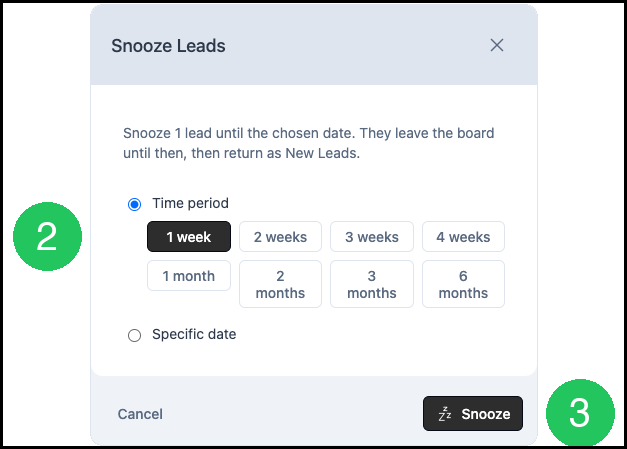
1. Click Snooze. The Snooze Leads dialog opens.

2. Select a time period, or choose Specific date and pick the date.
Note: The periods are 1 week, 2 weeks, 3 weeks, 4 weeks, 1 month, 2 months, 3 months, and 6 months. The lead leaves the board until that date, then returns as a New Lead.
3. Click Snooze.
Suppress a Lead
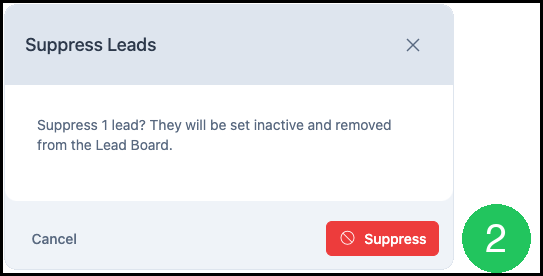
1. Click Suppress. The Suppress Leads dialog opens.

2. Click Suppress. The lead is set inactive and removed from the Lead Board.
Note: The Company and Contact records remain and can be included with inactive records.