
Lead Management shows Companies that are still Leads so you can see who needs a first contact, a follow-up, or attention because the Lead has gone quiet. The board updates from activity. You add a Lead and work it from the card.
Table of Contents
- Important Information
- The Lead Management Board
- Adding a Lead
- Working with a Lead
- Frequently Asked Questions
- Related Articles
Important Information
- A Lead is a Company that does not have an Estimate or an Order yet. When you create an Estimate for that Company, the status becomes Prospect. When you create an Order, the status becomes Customer.
- Lead Management lists Companies whose status is Lead. Prospect and Customer Companies stay in your Customer records and are not listed on this board.
- The columns are New Leads, Needs Follow-up, and At Risk. CoreBridge places each card from activity on the Lead. You do not drag a card from one column to another.
- Two more columns, In Opportunity and Snoozed, stay hidden until you show them. Open Lead Management actions (the ⋯ menu) and click Show hidden columns. Click Hide hidden columns to put those columns away again.
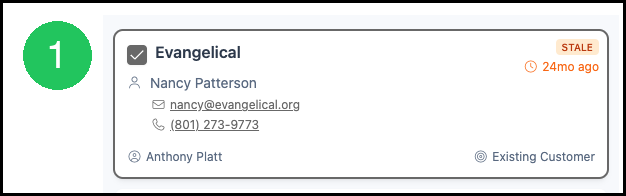
- STALE means the Lead has had no recent activity. Your administrator sets how many days count as stale in CRM Options.
- Pipelines is a separate board for Opportunities. A Lead can move into an Opportunity from the card. That work continues on Pipelines.
- Click My Leads to limit the board to Leads assigned to you.
- The Contacts tab uses the same columns for Contact Leads.
The Lead Management Board
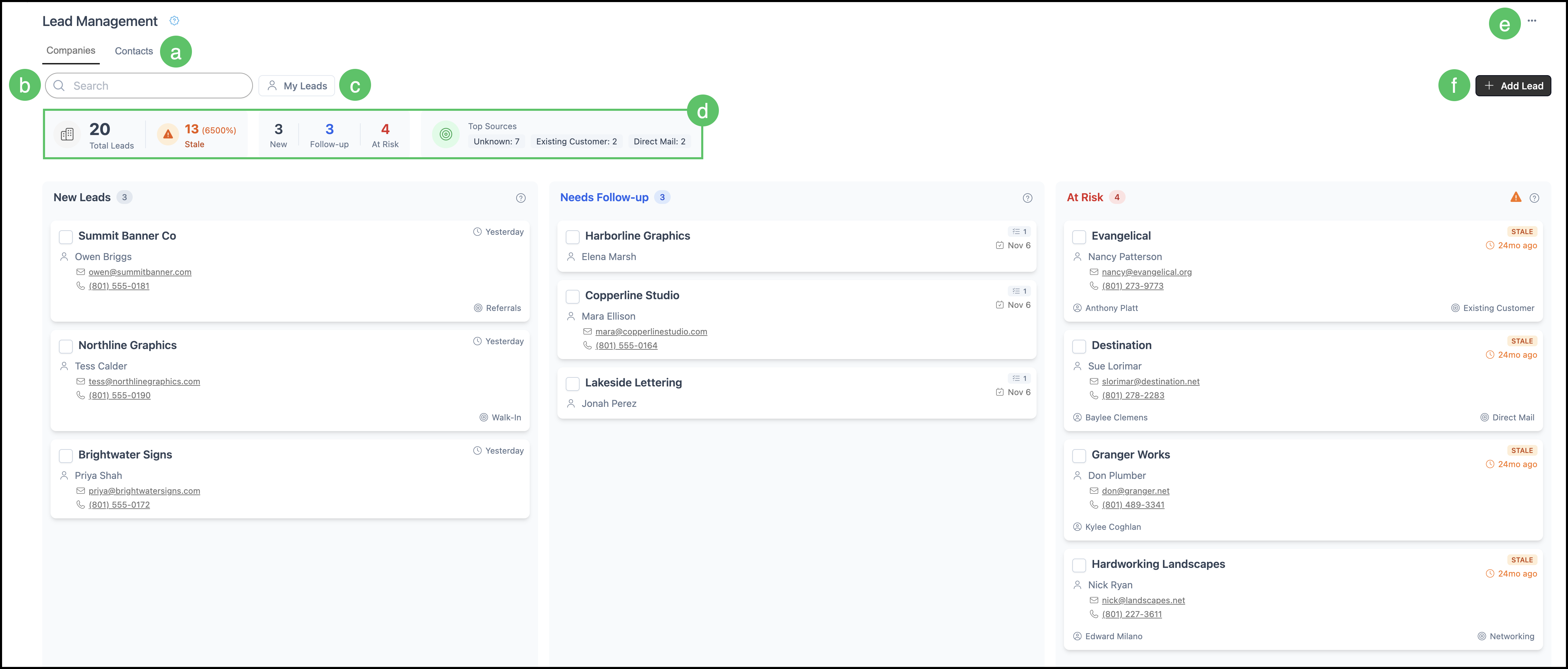
Each card is one Lead. The card shows the Company name, the primary Contact, email, phone, the assigned salesperson, where the Lead came from, how long it has been on the board, and STALE when the Lead has gone quiet.
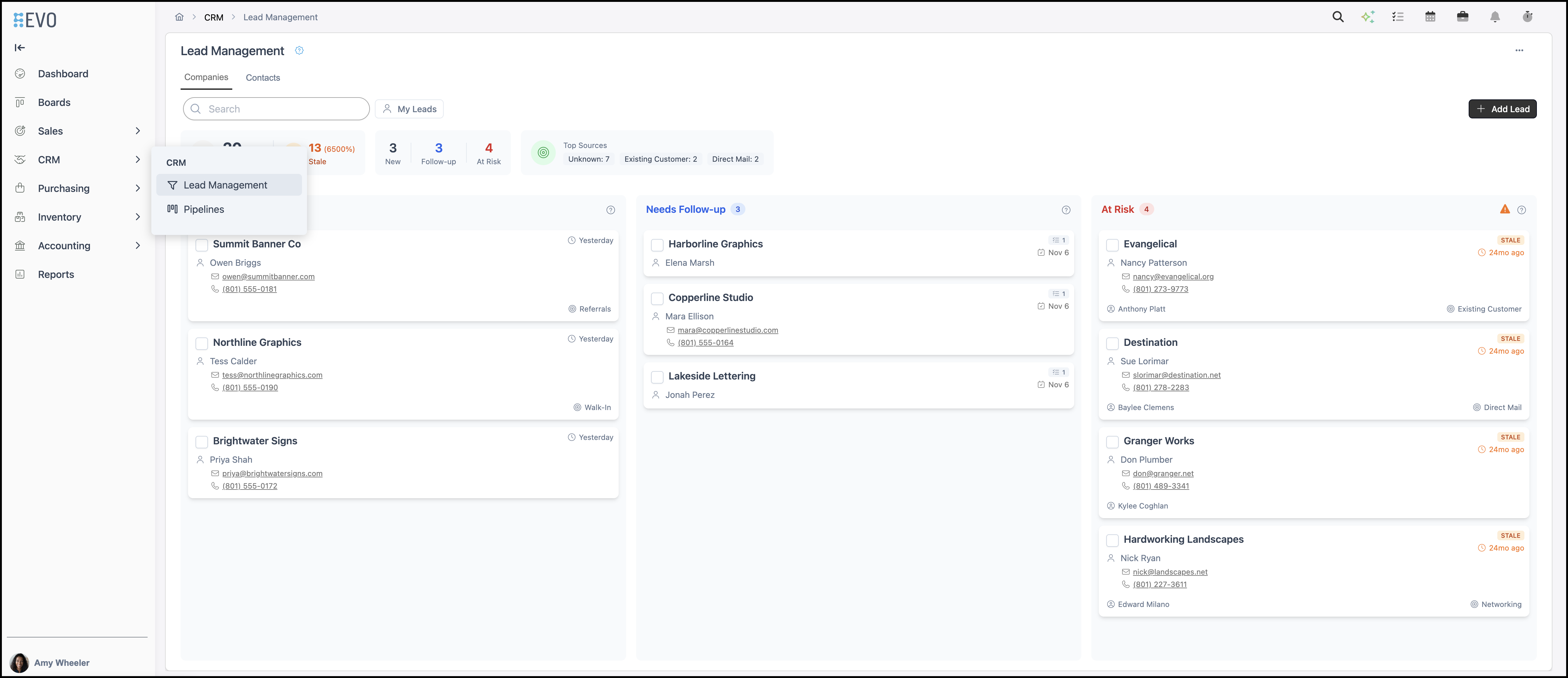
Navigate to CRM / Lead Management.
a. Companies and Contacts – Switch between Leads grouped by Company or Contact.
b. Search – Search for Leads by name or topic.
c. My Leads – Display only Leads assigned to the signed-in employee.
d. Lead Stats – View Lead statistics.
e. More Options – Access Show Hidden Columns and Upload List.
f. Add Lead – Create a new Lead.
Adding a Lead
Navigate to CRM / Lead Management.
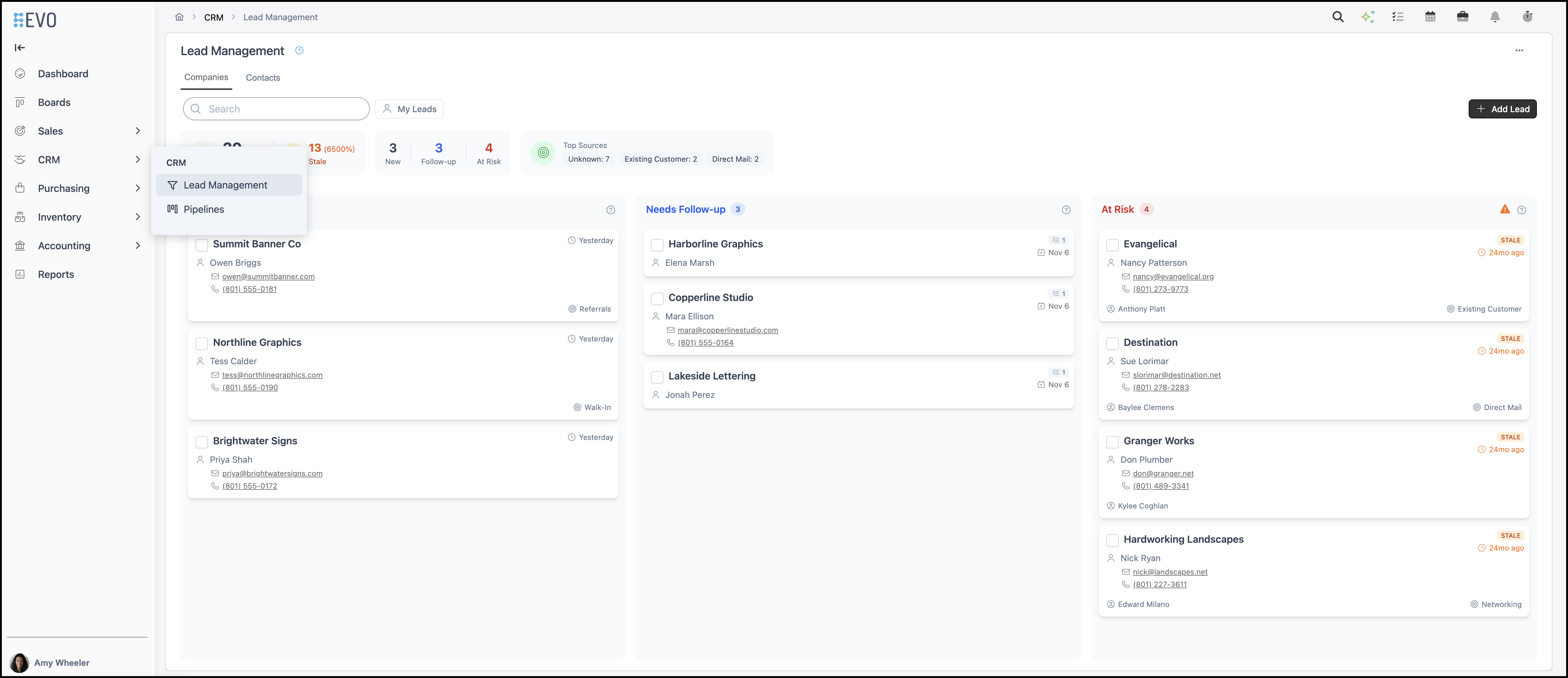
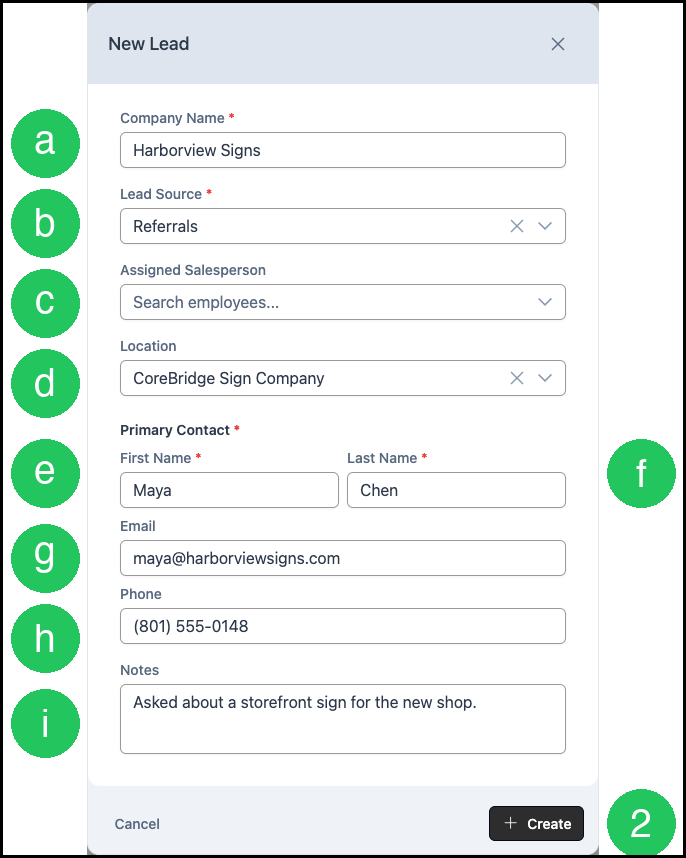
1. Click Add Lead. The New Lead dialog opens.

a. Enter the Company Name.
b. Select a Lead Source.
c. Select an Assigned Salesperson, or leave this blank.
d. Confirm the Location. On a multi-location account, the Location defaults to your current Location.
e. Enter the primary Contact First Name.
f. Enter the primary Contact Last Name.
g. Enter an Email, or leave this blank.
h. Enter a Phone number, or leave this blank.
i. Enter Notes, or leave this blank.
2. Click Create. Create stays unavailable until Company Name, Lead Source, First Name, and Last Name are filled in. The new Lead appears on the board.
Working with a Lead
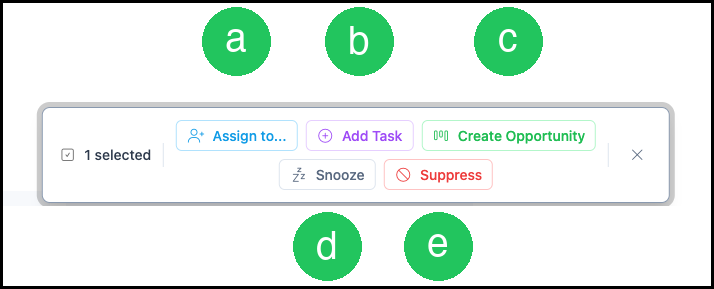
1. Select the checkbox on the Lead card. A bar opens above the board with actions for the selected Lead. Click the X on that bar to clear the selection.
Note: Multiple Leads may be selected.
a. Click Assign to... to choose who owns the Lead.
b. Click Add Task to add a follow-up task for the Lead.
c. Click Create Opportunity to start an Opportunity from the Lead. You continue that Opportunity on Pipelines.
d. Click Snooze to set the Lead aside until you are ready to work it. Snoozed Leads appear in the Snoozed column when that column is shown.
e. Click Suppress to suppress the selected Lead.
Frequently Asked Questions
1. What is the difference between Lead Management and Pipelines?
Answer: Lead Management is the board of Companies that are still Leads. Pipelines is the board of Opportunities. You start an Opportunity from a Lead with Create Opportunity, then you work that Opportunity on Pipelines.
2. Why is a Company missing from Lead Management?
Answer: The board lists Companies whose status is Lead. A Company that is a Prospect or a Customer is not listed here. Open the Company from your Customer records to confirm the status. My Leads also hides Leads that are not assigned to you.
3. What does STALE mean?
Answer: STALE means the Lead has had no recent activity. The number of days is set in CRM Options.